Bắt đầu với Spacemail
Hướng dẫn này dành cho người dùng thiết lập hộp thư Spacemail lần đầu tiên. Hướng dẫn bao gồm các bước thiết yếu để bắt đầu và chỉ cho bạn cách cấu hình các tính năng. Sau khi hoàn tất, hộp thư Spacemail của bạn sẽ sẵn sàng để gửi và nhận email một cách an toàn.
Thiết lập bản ghi DNS
Trước khi bắt đầu sử dụng Spacemail, hãy đảm bảo cài đặt DNS của bạn được cấu hình đúng cách, vì chúng ảnh hưởng trực tiếp đến việc email của bạn có thể được gửi và phân phối thành công hay không.
Nếu miền của bạn đang trỏ đến nameserver của Spaceship, tất cả các bản ghi DNS cần thiết cho Spacemail sẽ được thêm tự động và không cần thực hiện thêm thao tác nào. Nếu gần đây bạn đã chuyển đổi nameserver, vui lòng chờ 48–72 giờ để quá trình truyền bá hoàn tất.
Nếu bạn đang sử dụng miền của bên thứ ba hoặc nameserver tùy chỉnh, bạn sẽ cần thêm thủ công các bản ghi DNS bắt buộc ở phía nhà cung cấp của mình. Hãy tham khảo hướng dẫn của chúng tôi để xem danh sách đầy đủ các bản ghi DNS:Cần những bản ghi DNS nào cho miền của bên thứ ba
Sau khi các bản ghi được thêm, vui lòng chờ 48–72 giờ để quá trình truyền bá hoàn tất trước khi tài khoản Spacemail của bạn hoàn toàn sẵn sàng để gửi và nhận email.
Bạn cũng có thể xem hướng dẫn của chúng tôi cho các nhà cung cấp cụ thể để việc thiết lập dễ dàng hơn:
Khi cấu hình và truyền bá DNS hoàn tất, bạn có thể đăng nhập vào webmail Spacemail và bắt đầu gửi cũng như nhận email.
Khám phá giao diện Webmail Spacemail
.01k9ewqkszm5q3wdprdkgnsfya.png)
Soạn thư – tạo email mới.
Tùy chọn Hộp thư đến – nhấp chuột phải vào Hộp thư đến (hoặc các thư mục khác) để tạo thư mục con, đánh dấu tất cả là đã đọc/chưa đọc hoặc xóa tất cả thư.
Cập nhật Spacemail – xem các bản phát hành tính năng mới nhất và thông báo.
Chỉ báo dung lượng – hiển thị dung lượng hộp thư bạn đã sử dụng.
Làm mới – kiểm tra thủ công email mới đến (hộp thư cũng tự động làm mới khi có email/sự kiện đến hoặc sau mỗi 5 phút không hoạt động).
Chuyển đổi giao diện – chuyển giữa chế độ sáng và tối.
Chuyển đổi chế độ xem – chuyển giữa Webmail và Lịch.
Trung tâm trợ giúp – nếu cần trợ giúp, bạn có thể liên hệ bộ phận hỗ trợ và xem Câu hỏi thường gặp.
Cài đặt – quản lý tùy chọn webmail, tùy chọn bảo mật, bộ lọc, chuyển tiếp, chữ ký, quản lý spam và nhiều hơn nữa.
Menu hồ sơ – xem tên hiển thị và địa chỉ email của bạn, sao chép tên hộp thư, đặt ảnh đại diện và đăng xuất.
Dưới đây là tổng quan về các cài đặt chính có sẵn trong Spacemail, được nhóm theo các danh mục chức năng.
Cá nhân hóa hộp thư của bạn
Hồ sơ
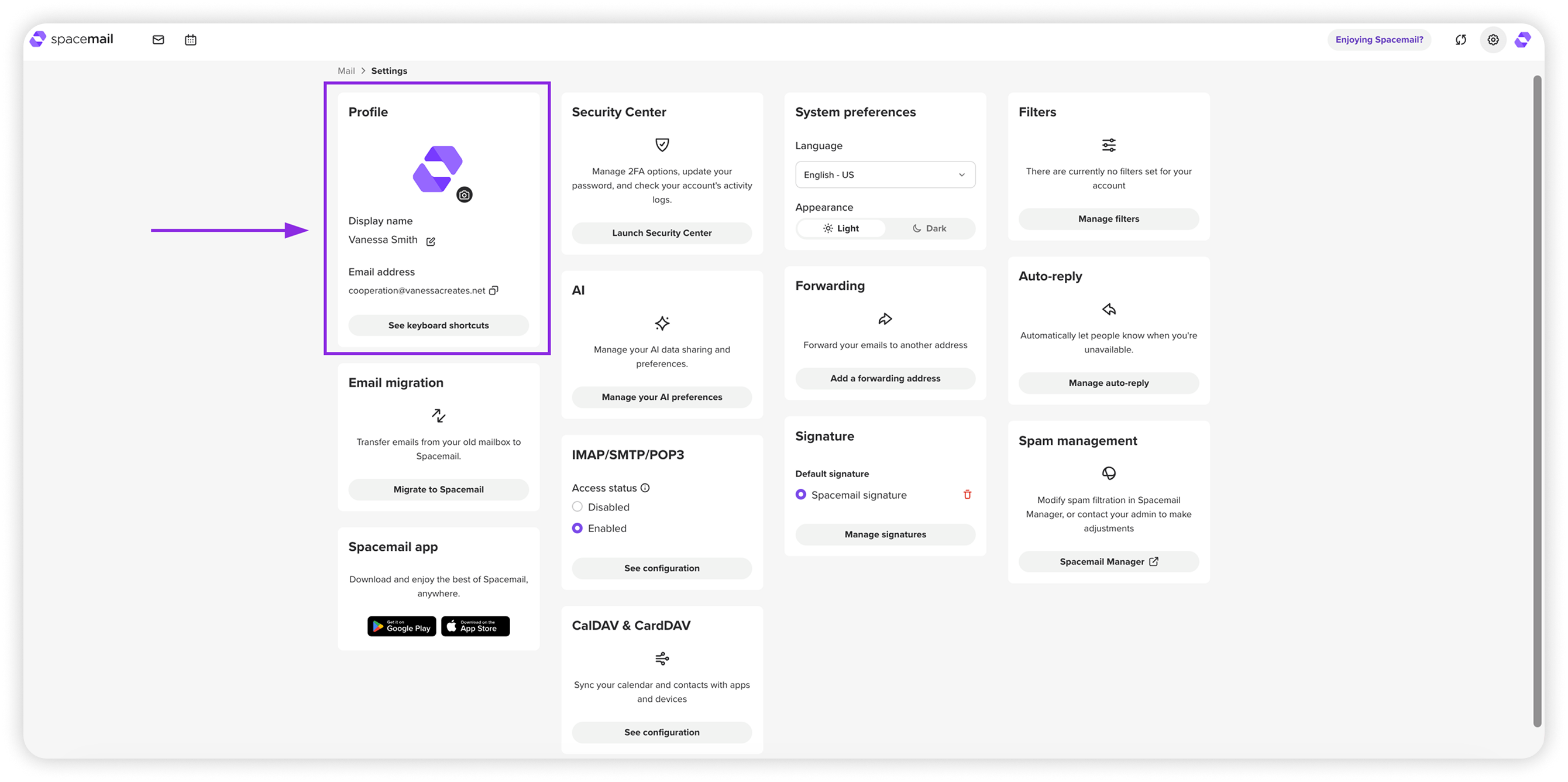
Trong phần Hồ sơ, bạn có thể cá nhân hóa cách hộp thư của mình hiển thị và cách người nhận nhìn thấy bạn:
Tên hiển thị – chỉnh sửa tên xuất hiện khi bạn gửi email.
Ảnh hồ sơ – tải lên hoặc thay đổi ảnh đại diện của bạn.
LƯU Ý: Nội dung này sẽ chỉ hiển thị với những người dùng Spacemail khác.
Địa chỉ email – xem và sao chép địa chỉ hộp thư của bạn.
Phím tắt – nhấp để xem tất cả phím tắt có sẵn nhằm điều hướng và thao tác nhanh hơn trong webmail (ví dụ: Ctrl + Enter để gửi, Ctrl + S để lưu bản nháp).
Tùy chọn hệ thống
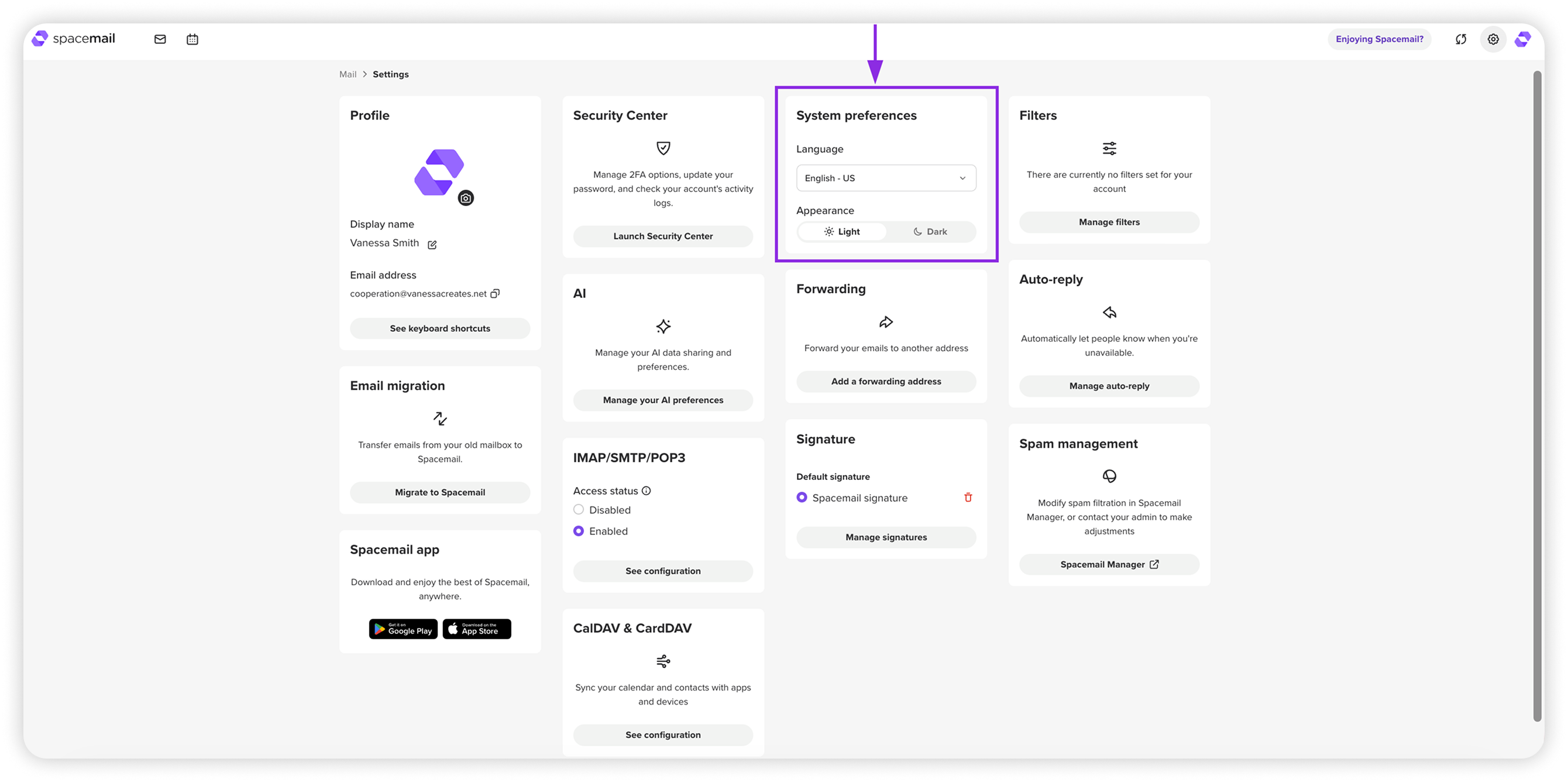
Trong Tùy chọn hệ thống, bạn có thể điều chỉnh giao diện chung và ngôn ngữ của webmail:
Ngôn ngữ – chọn ngôn ngữ giao diện cho Spacemail.
Giao diện – chuyển giữa chế độ sáng và tối.
LƯU Ý: Các cài đặt này chỉ ảnh hưởng đến chế độ xem cá nhân của bạn và không thay đổi cách email hiển thị với người nhận.
Chữ ký
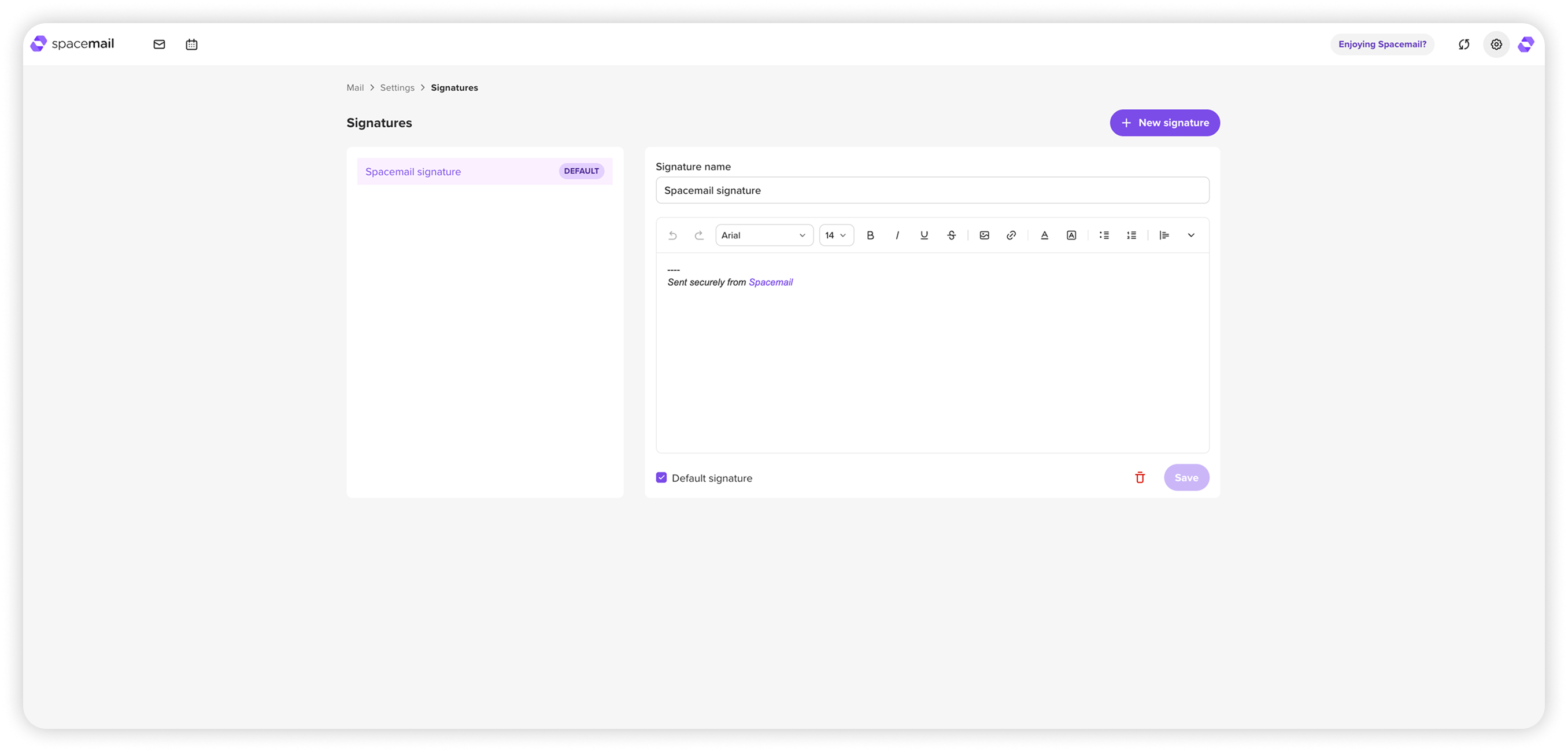
Phần Chữ ký cho phép bạn tạo và quản lý chữ ký email.
Bạn có thể:
Thêm một hoặc nhiều chữ ký
Đặt chữ ký mặc định cho tất cả email gửi đi
Chỉnh sửa hoặc xóa chữ ký hiện có
Bạn có thể tham khảo hướng dẫn này để xem chỉ dẫn chi tiết về cách đặt chữ ký cho hộp thư của mình: Cách tạo chữ ký email trong Spacemail
Bộ lọc
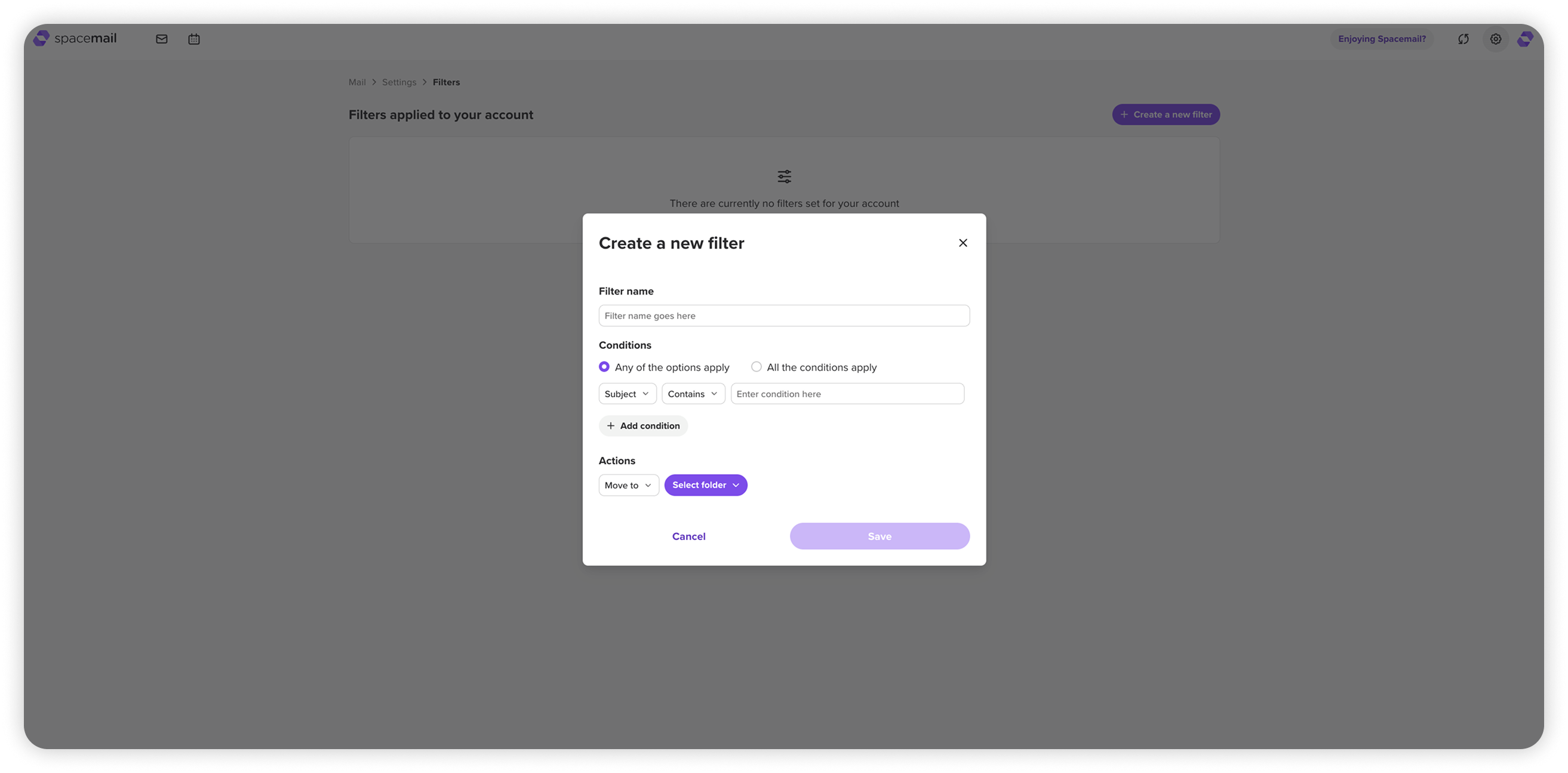
Phần Bộ lọc cho phép bạn tự động sắp xếp email đến dựa trên các quy tắc của riêng mình.
Bạn có thể:
Lọc email theo chủ đề, người gửi, người nhận hoặc nội dung thư.
Đặt các điều kiện như Chứa, Không chứa, Chính xác là, Không chính xác là, Bắt đầu bằng, Không bắt đầu bằng, Kết thúc bằng, Không kết thúc bằng.
Chọn xem tất cả các điều kiện phải khớp hay chỉ một điều kiện.
Di chuyển các email khớp vào một thư mục cụ thể — Hộp thư đến, Spam, Thùng rác, Đã gửi hoặc Bản nháp.
Để xem hướng dẫn từng bước về cách tạo bộ lọc, hãy xem bài viết này: Cách tạo quy tắc bộ lọc
Bảo mật & Truy cập
Trung tâm bảo mật
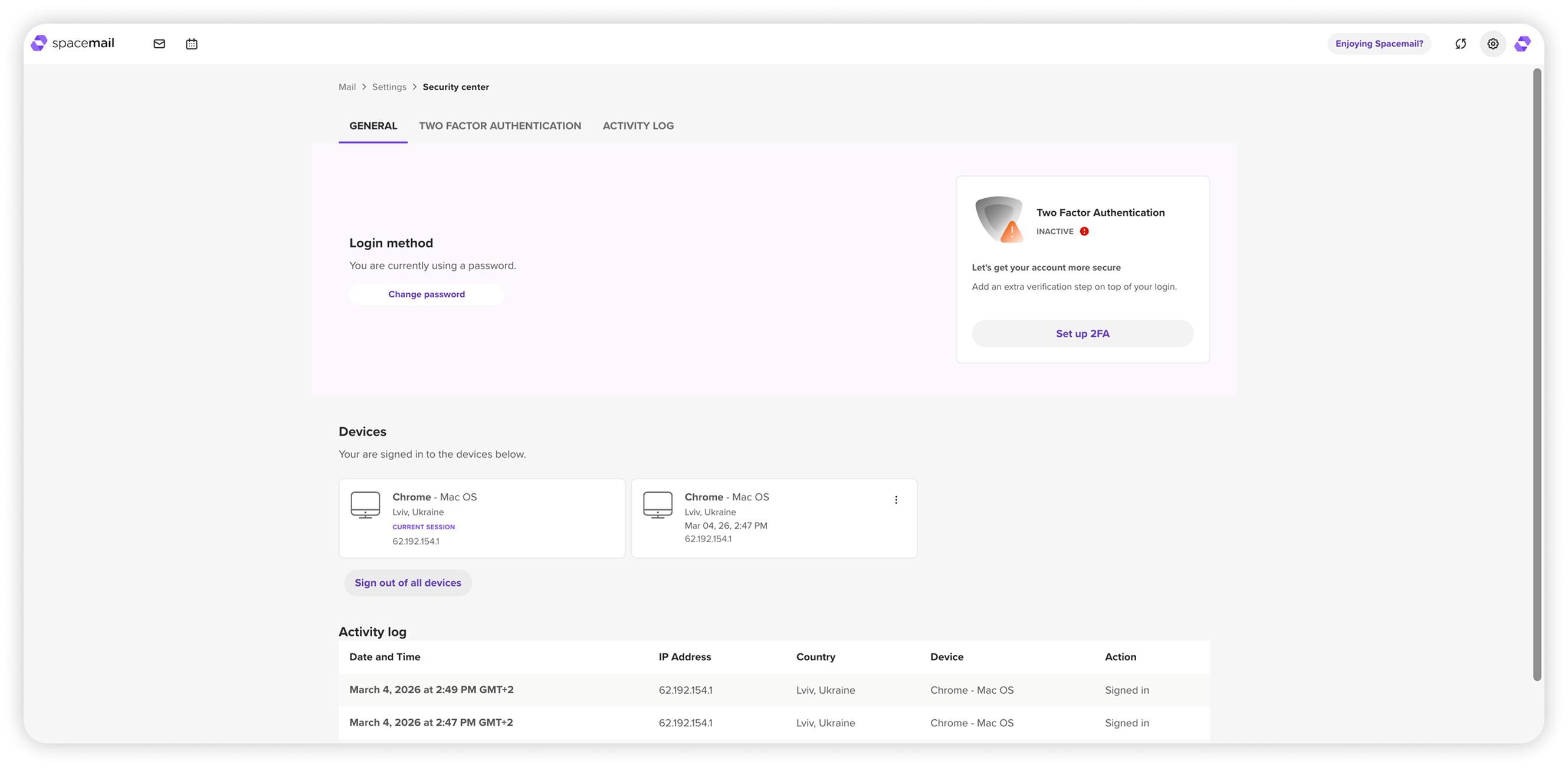
Trung tâm bảo mật cho phép bạn quản lý các phương thức đăng nhập, thêm lớp bảo vệ bổ sung và theo dõi hoạt động tài khoản để giúp giữ an toàn cho hộp thư của bạn. Các tùy chọn chính bao gồm:
Phương thức đăng nhập – thay đổi mật khẩu của bạn bất cứ lúc nào để giữ an toàn cho tài khoản.
Xác thực hai yếu tố (2FA) – thêm một lớp bảo vệ bổ sung bằng mã từ thiết bị di động của bạn. Sau khi được bật, bạn sẽ được yêu cầu nhập cả mật khẩu và mã khi đăng nhập. Bạn cũng có thể xóa 2FA, quản lý mã dự phòng và thiết bị trong Trung tâm bảo mật. Hướng dẫn từng bước để bật 2FA có tại đây: Cách thiết lập Xác thực hai yếu tố (2FA) trong Spacemail
Thiết bị – xem tất cả thiết bị hiện đang đăng nhập vào tài khoản của bạn. Nếu cần, bạn có thể đăng xuất từ xa khỏi tất cả phiên.
Nhật ký hoạt động – xem lại các lần đăng nhập gần đây và hoạt động tài khoản để phát hiện bất kỳ điều gì bất thường.
Di chuyển email
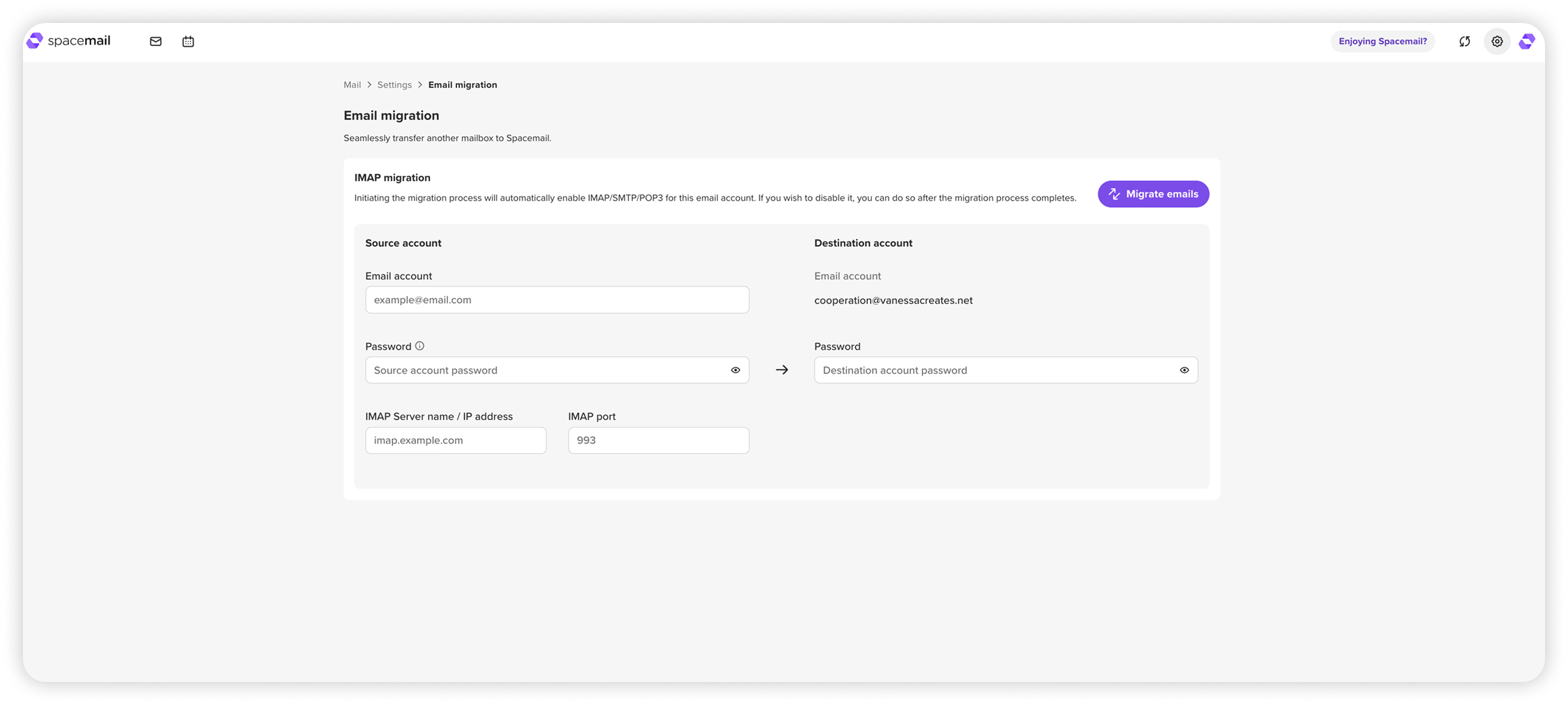
Công cụ Di chuyển emailgiúp bạn chuyển email từ một nhà cung cấp email khác (chẳng hạn như Gmail, Outlook, v.v.) trực tiếp vào tài khoản Spacemail của mình. Bạn chỉ cần cung cấp thông tin chi tiết của tài khoản nguồn (email, mật khẩu, máy chủ IMAP, cổng) và mật khẩu Spacemail của bạn — sau đó nhấp vào “Di chuyển email” để bắt đầu chuyển.
Bạn có thể tìm thấy hướng dẫn chi tiết tại đây: Cách di chuyển email của bạn sang Spacemail
AI
Trợ lý AI của Spacemail, có sẵn trong cửa sổ Soạn thư, cung cấp tùy chọn tạo bản nháp email chuyên nghiệp chỉ từ vài từ ngắn gọn.
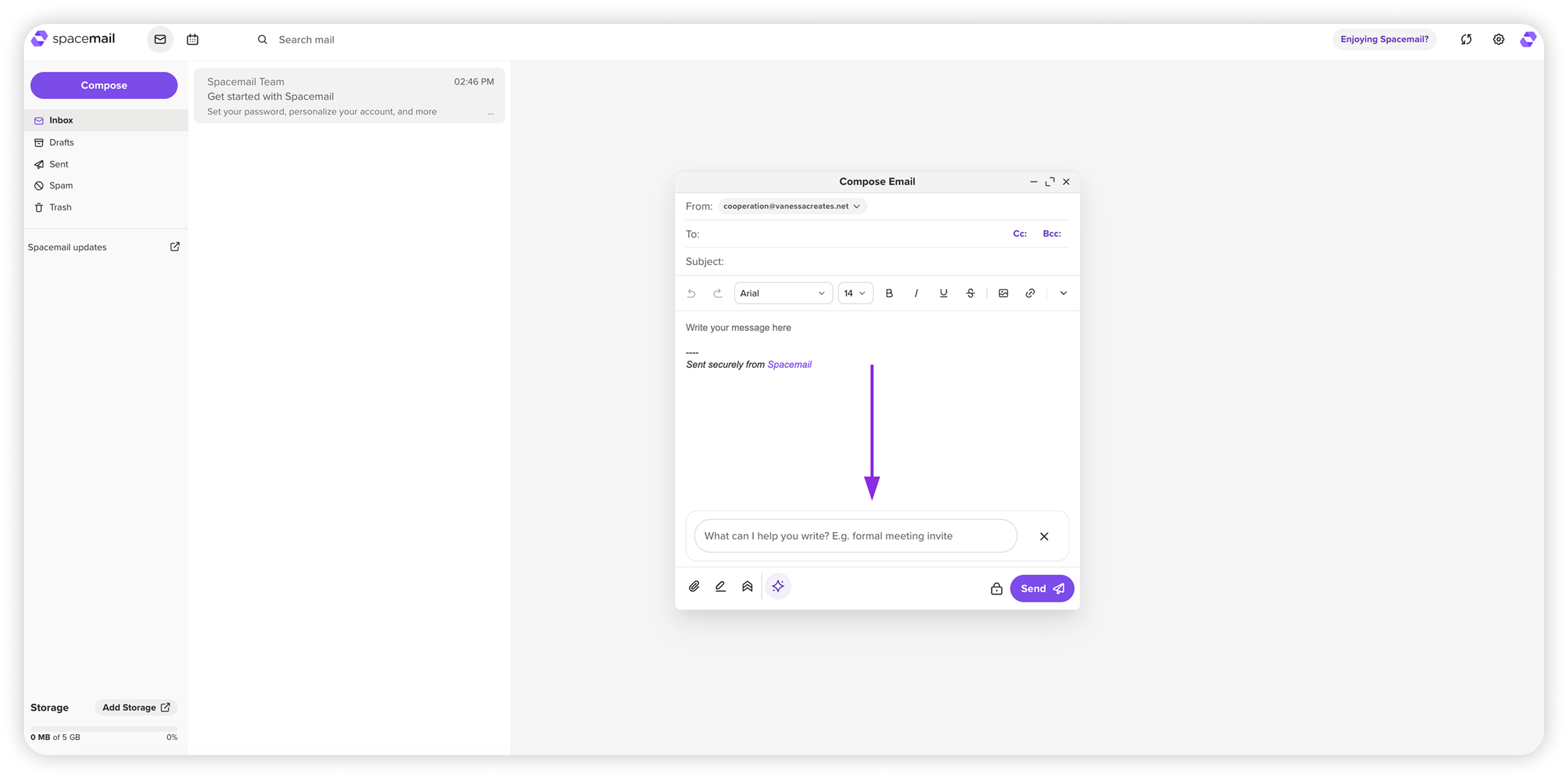
Trong phần Cài đặt > AI, bạn có thể:
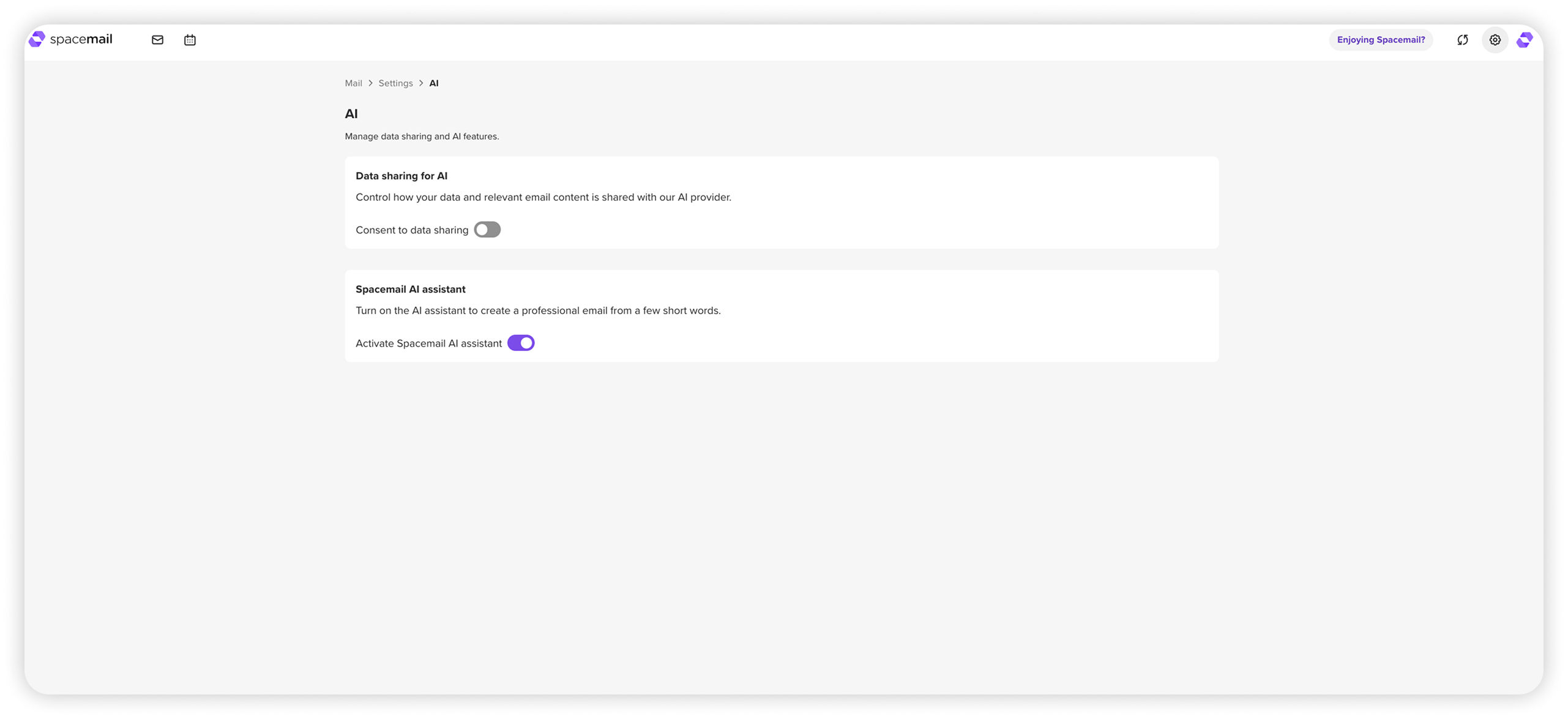
• Bật hoặc tắt chia sẻ dữ liệu với nhà cung cấp AI
LƯU Ý: Khi chia sẻ dữ liệu được bật lần đầu hoặc được bật lại sau khi đã tắt, một lời nhắc đồng ý sẽ xuất hiện để hỏi liệu dữ liệu có thể được chia sẻ với nhà cung cấp AI hay không.Tùy chọn này có thể được cập nhật bất kỳ lúc nào trong Cài đặt > AI.
• Luôn ẩn hoặc hiển thị lời nhắc trợ lý AI trong cửa sổ Soạn thư hoặc Trả lời bằng cách sử dụng nút chuyển Activate Spacemail AI Assistant
IMAP/SMTP/POP3
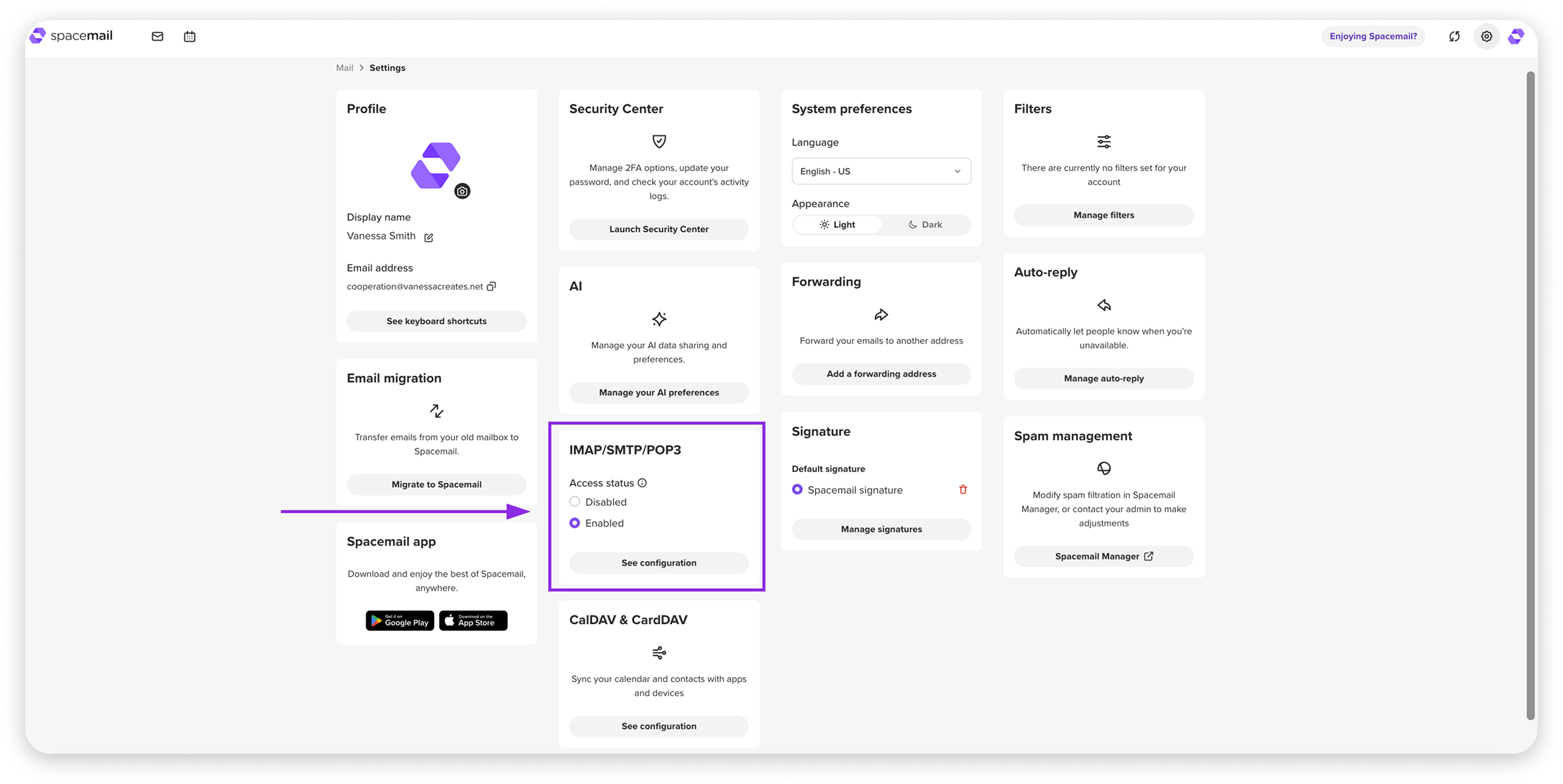
Trong phần này, bạn có thể bật hoặc tắt quyền truy cập IMAP/SMTP/POP3 cho tài khoản Spacemail của mình. Cài đặt này được bật mặc định cho tất cả hộp thư. Bạn cũng có thể xem chi tiết kết nối bằng cách nhấp vào "Xem cấu hình".
Những thông tin này là bắt buộc để thêm địa chỉ Spacemail của bạn vào một thiết bị hoặc bất kỳ ứng dụng email bên thứ ba nào.
Các hướng dẫn bạn có thể thấy hữu ích:
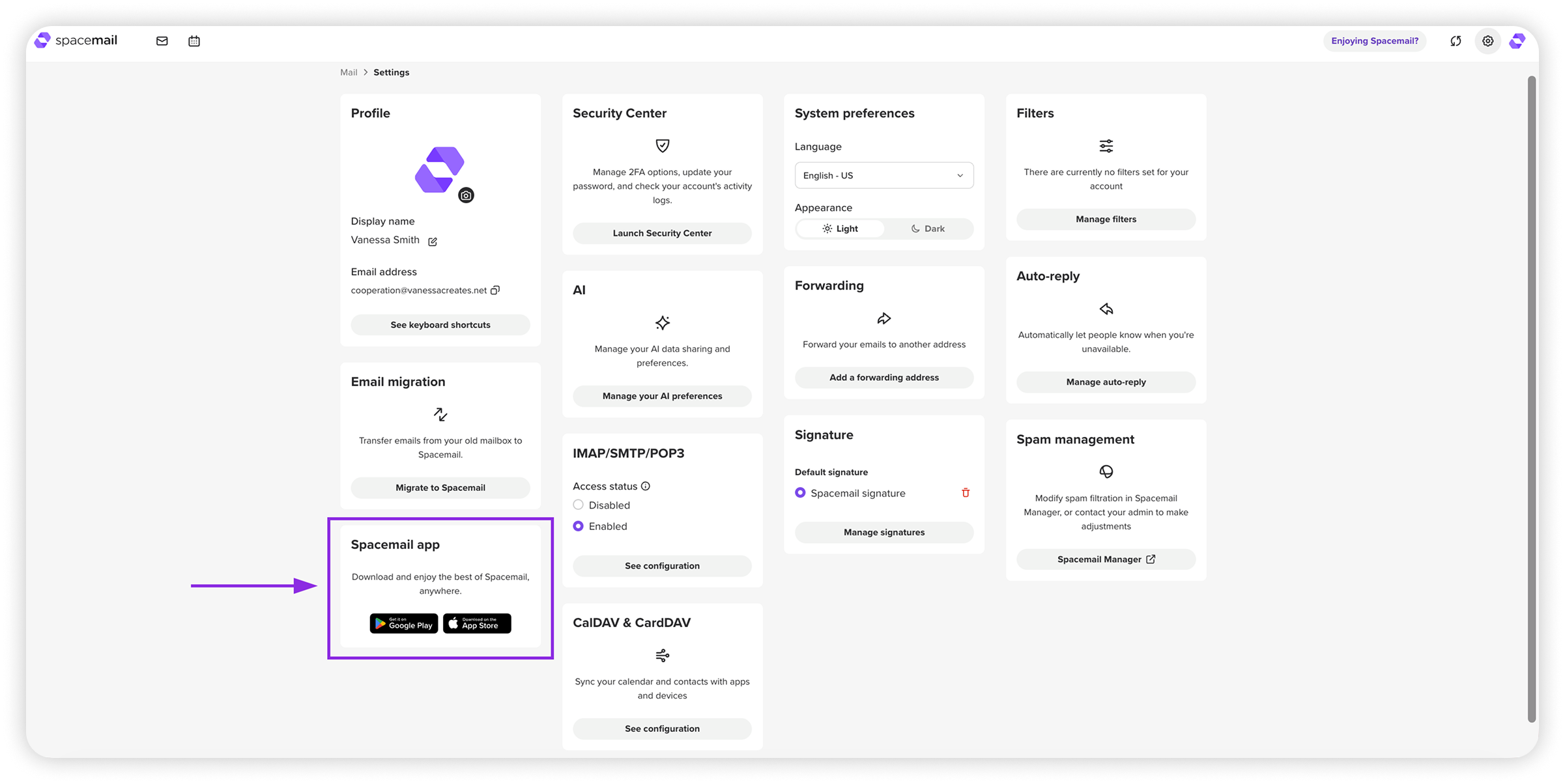
Ngoài ra, bạn có thể sử dụng ứng dụng di động Spacemail, có sẵn cho Android và iOS.
Chuyển tiếp
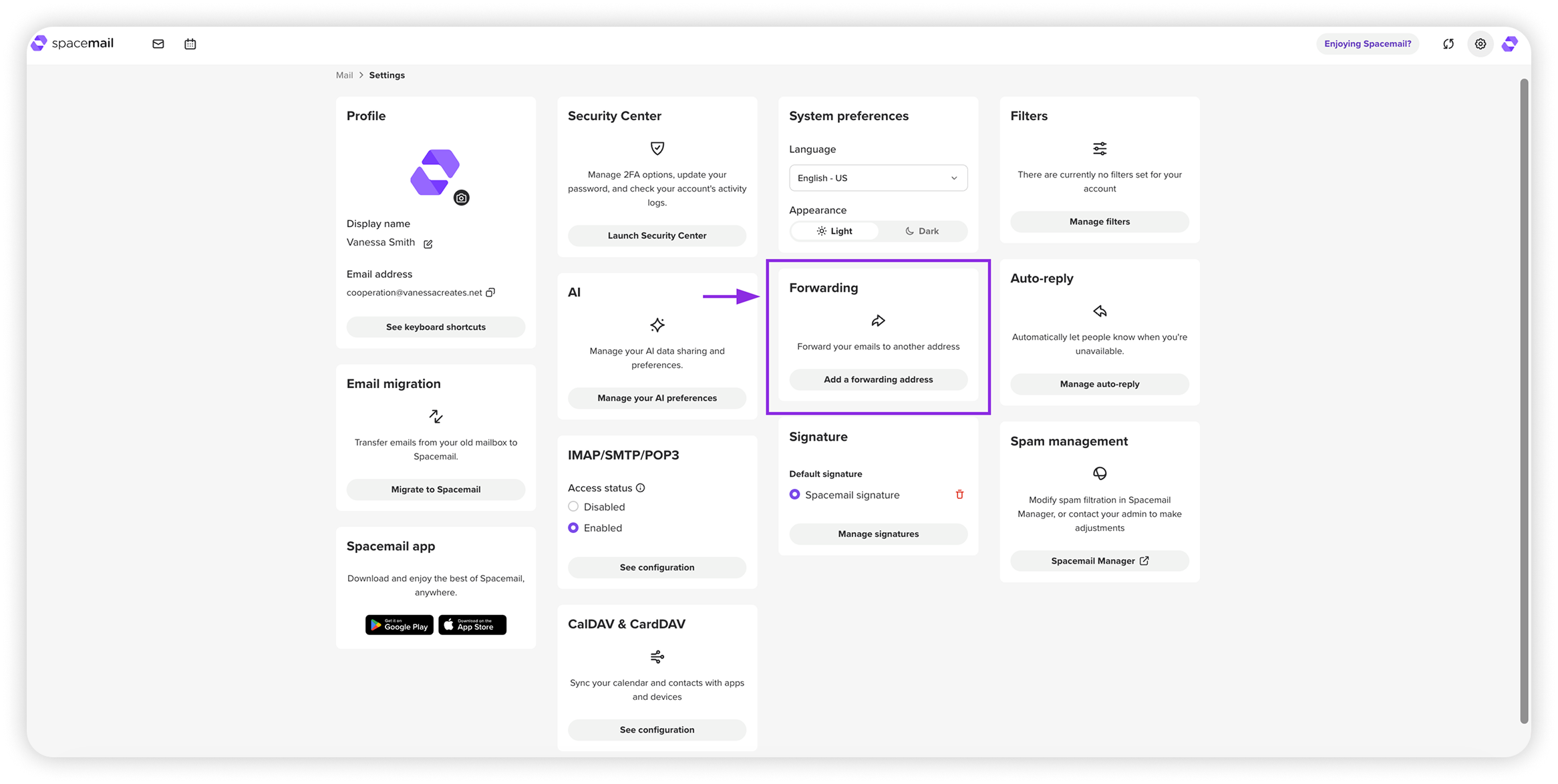
Trong phần Chuyển tiếp, bạn có thể thiết lập một địa chỉ email bổ sung để tất cả thư đến sẽ tự động được chuyển hướng đến đó. Bạn cũng có thể chọn giữ lại một bản sao của các email được chuyển tiếp trong hộp thư đến Spacemail của mình.
Bạn có thể tham khảo hướng dẫn này nếu muốn thiết lập chuyển tiếp trong tài khoản Spacemail của mình: Cách thiết lập chuyển tiếp email trong Spacemail
Trả lời tự động
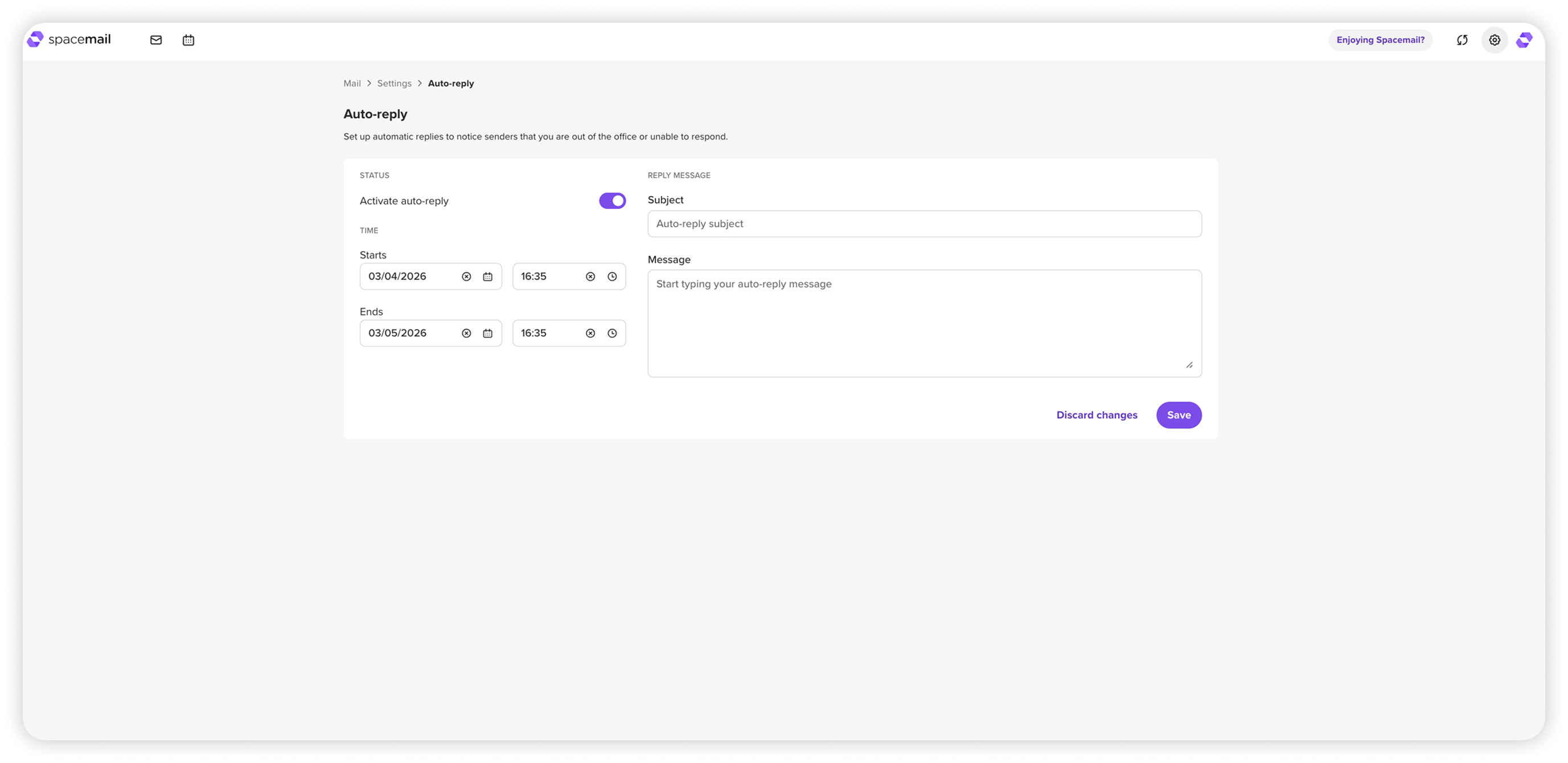
Tính năng trả lời tự động cho phép bạn tự động phản hồi email đến khi bạn không có mặt. Tính năng này hữu ích để cho người gửi biết rằng bạn đang vắng mặt ở văn phòng, đang đi nghỉ hoặc không thể trả lời ngay.
Bạn có thể thiết lập:chủ đề trả lời tự động, nội dung thư sẽ được gửi tự động, cùng thời gian bắt đầu và kết thúc cho trả lời tự động.
Bạn có thể bật hoặc tắt tính năng này bằng nút chuyển Activate auto-reply. Khi được bật, hệ thống sẽ tự động gửi phản hồi của bạn đến các thư đến trong khoảng thời gian đã chỉ định.
Quản lý spam (Jellyfish)
Spacemail bao gồm Jellyfish, một công cụ lọc và quản lý spam tích hợp sử dụng máy học. Jellyfish bảo vệ hộp thư của bạn khỏi spam, lừa đảo, giả mạo, virus và phần mềm độc hại, đảm bảo rằng các email không mong muốn hoặc nguy hiểm không đến được hộp thư đến của bạn. Ngoài tính năng lọc spam tích hợp, Jellyfish còn cung cấp bảng quản trị để quản lý luồng email của bạn.
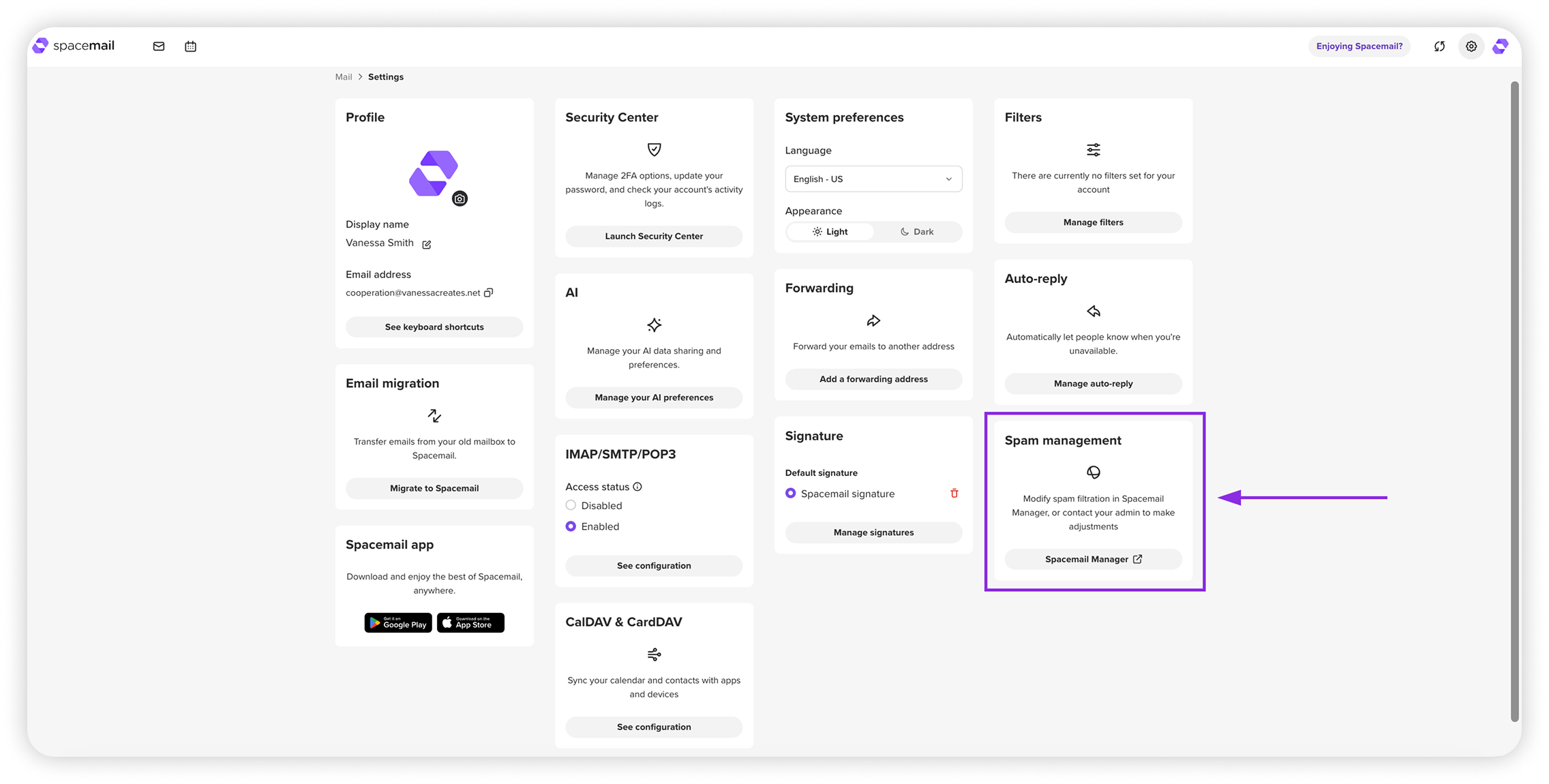
Trong Cài đặt Spacemail, tùy chọn Quản lý spam hoạt động như một lối tắt.
Nhấp vào đó sẽ chuyển hướng bạn đến Spacemail Manager, nơi bạn có thể mở bảng điều khiển Jellyfish.
Điều này có nghĩa là bạn có thể truy cập Jellyfish từ Cài đặt (thông qua lối tắt này) hoặc trực tiếp trong Spacemail Manager — tùy cách nào thuận tiện hơn.
.01kjypd6c7znbjjraw88qqh0s0.png)
Bên trong bảng điều khiển, bạn có thể cấu hình cách thư đến được lọc và kiểm soát. Các tùy chọn chính bao gồm:
Danh sách chặn và danh sách cho phép – chặn người gửi/miền không mong muốn hoặc đánh dấu những người gửi/miền đáng tin cậy là luôn được cho phép.
Quy tắc nâng cao – tạo các quy tắc lọc tùy chỉnh để điều chỉnh cách email của bạn được xử lý.
Nhật ký – xem nhật ký chi tiết về cách Jellyfish đã xử lý các email đến của bạn.
Các bài viết liên quan đến Jellyfish:
Spacemail Manager
Catch-all
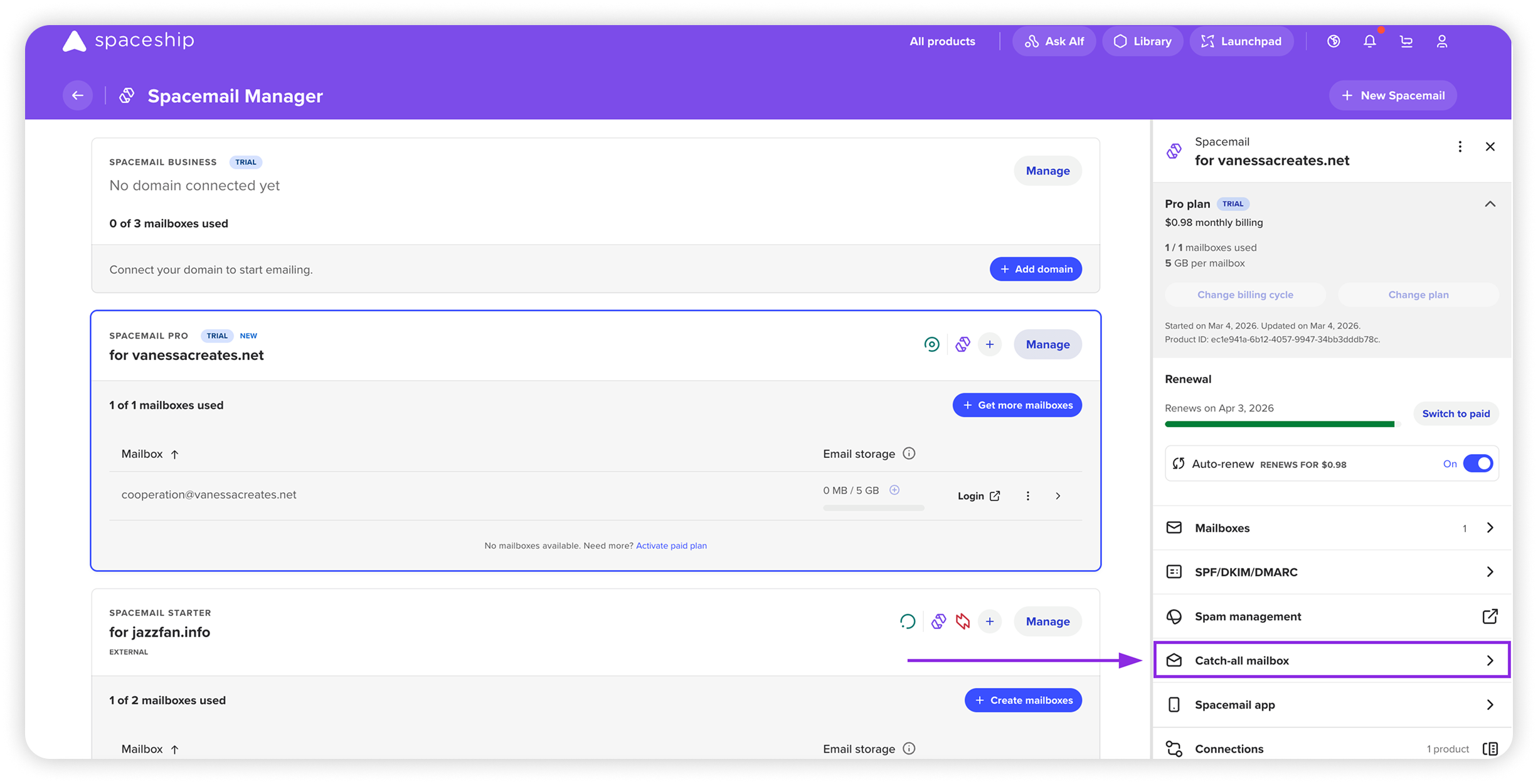
Catch-all cho phép bạn chọn một trong các hộp thư hiện có để nhận tất cả thư được gửi đến các địa chỉ không tồn tại trong miền của bạn.
Bạn có thể xem cách thiết lập trong hướng dẫn này: Cách thiết lập catch-all?
Alias
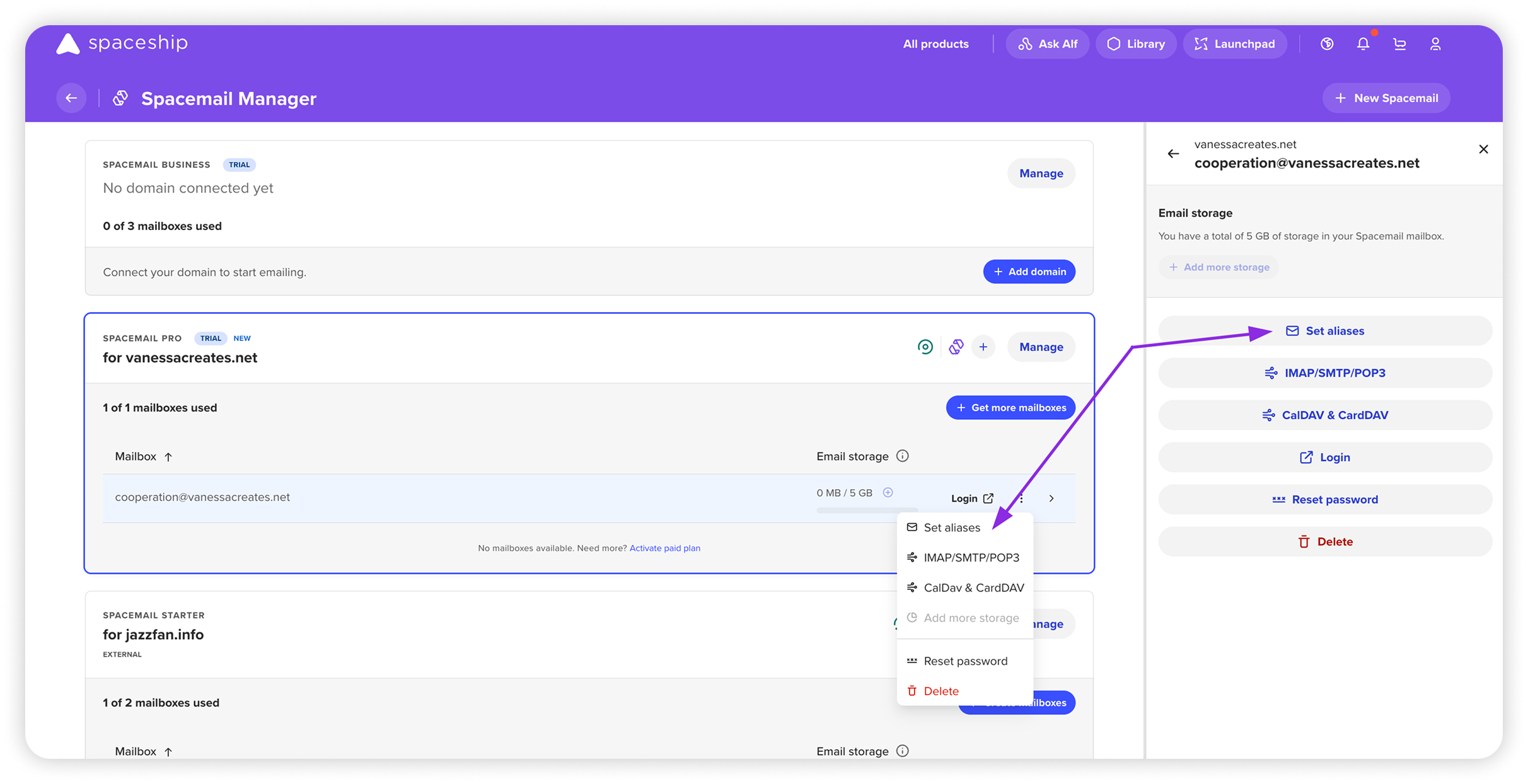
Một alias là một địa chỉ email bổ sung giúp bảo vệ hộp thư chính của bạn và giữ cho việc liên lạc được ngăn nắp. Bạn có thể gửi và nhận email bằng alias của mình trong Spacemail, nhưng bạn không thể dùng nó để đăng nhập vào tài khoản của mình.
Bạn có thể tìm thấy hướng dẫn chi tiết về cách thiết lập tại đây: Cách thiết lập alias Spacemail?
Và vậy là xong!