How to set up Spacemail DNS records on GoDaddy nameservers
If your domain is pointed to GoDaddy nameservers (e.g., nsXX.domaincontrol.com/nsYY.domaincontrol.com), follow these steps to configure Spacemail DNS records:
Step 1. Log in to your GoDaddy account.
Step 2. Click DNS next to the domain name in question:

Step 3. Look for the existing MX records in the Records table. If you find any, click the Trash icon next to the record, then click Delete Record to confirm.
Step 4. Click Add New Record at the top of the Records section to add the DNS records.
The following DNS records should be added for your domain name (note: "@" represents yourdomain.com):
Type: MX | Name: @ | Value: mx1.spacemail.com | Priority: 0 | TTL: 1/2 Hour
Type: MX | Name: @ | Value: mx2.spacemail.com | Priority: 0 | TTL: 1/2 Hour
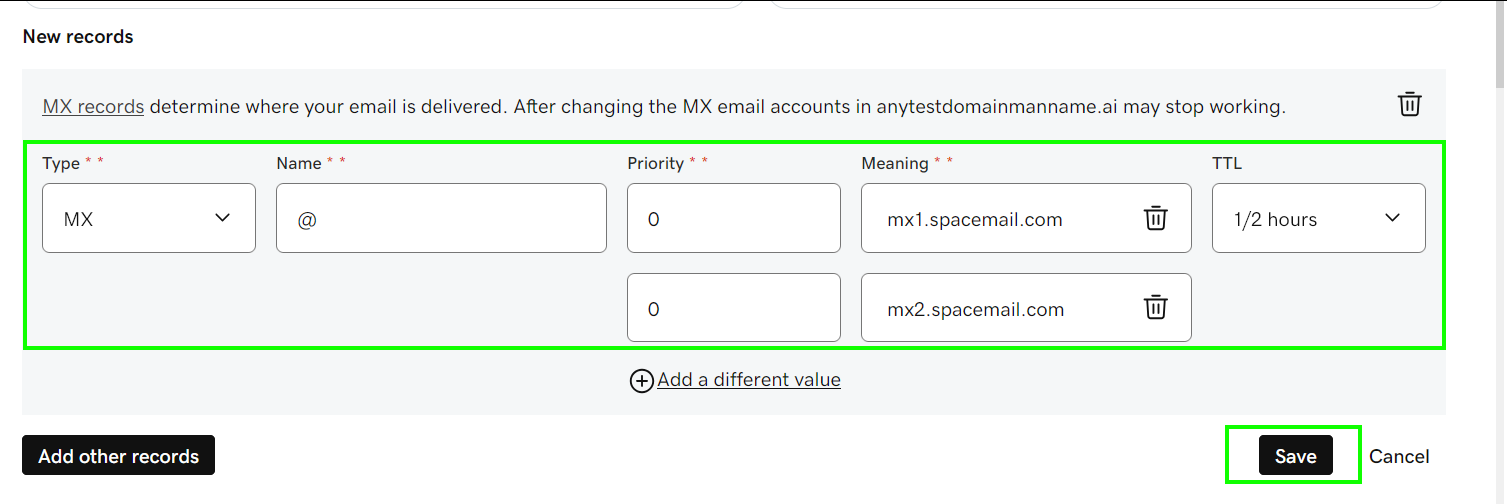
Step 5. Next, we'll need to add SPF, DKIM and DMARC records. The SPF (Sender Policy Framework) DNS record helps protect your domain from email forgery and impersonation by preventing spammers from sending emails on your behalf.
Type: TXT | Name: @ | Value: v=spf1 include:spf.spacemail.com ~all | TTL: 1/2 Hour
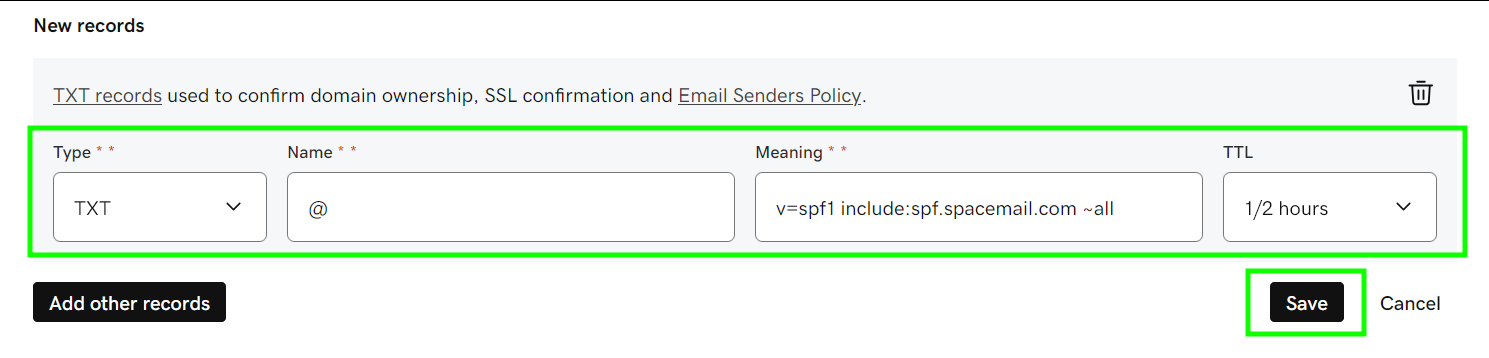
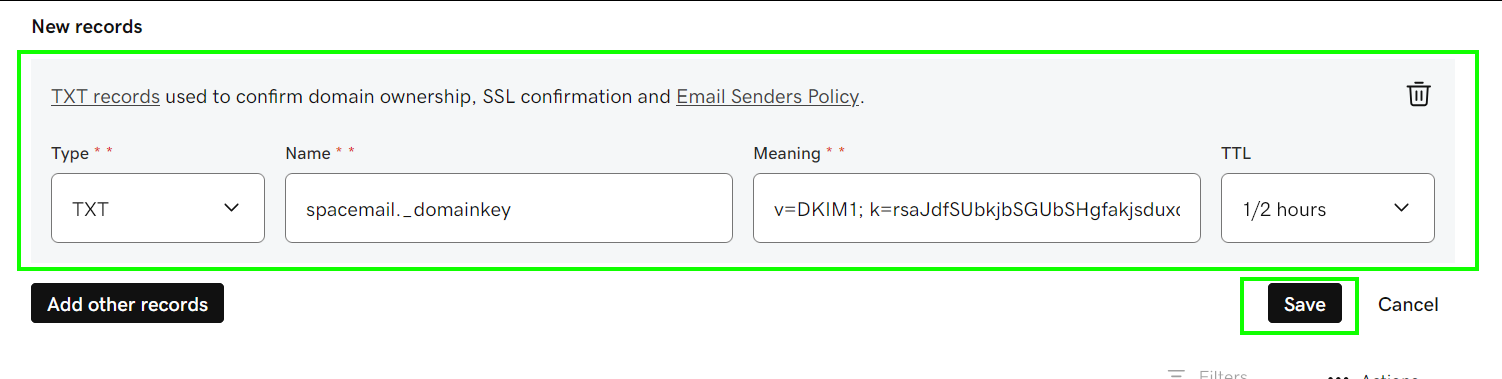
The DKIM record is a mandatory entry to ensure outgoing mail functions correctly. A DKIM record contains information about the domain, which is published by the domain owner. Emails signed with DKIM appear more legitimate to recipients and are less likely to end up in junk or spam folders.
Type: TXT | Name: spacemail._domainkey | Value: the unique value should be copied from your Spaceship account | TTL: 1/2 Hour
To locate it in your Spaceship account and set it up, please follow these steps:
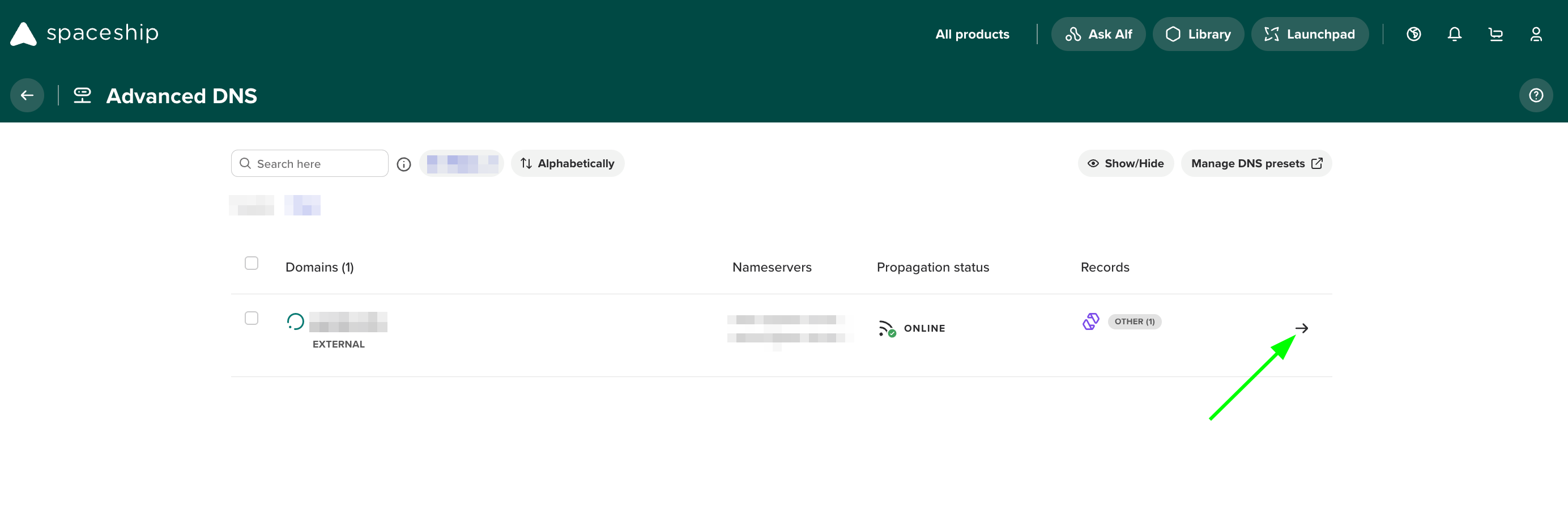
Go to the Advanced DNS application.
Find your domain name associated with Spacemail and click on the arrow next to it:
Scroll down to the Inactive records section, click on the arrow to expand, and find Spacemail DNS records:
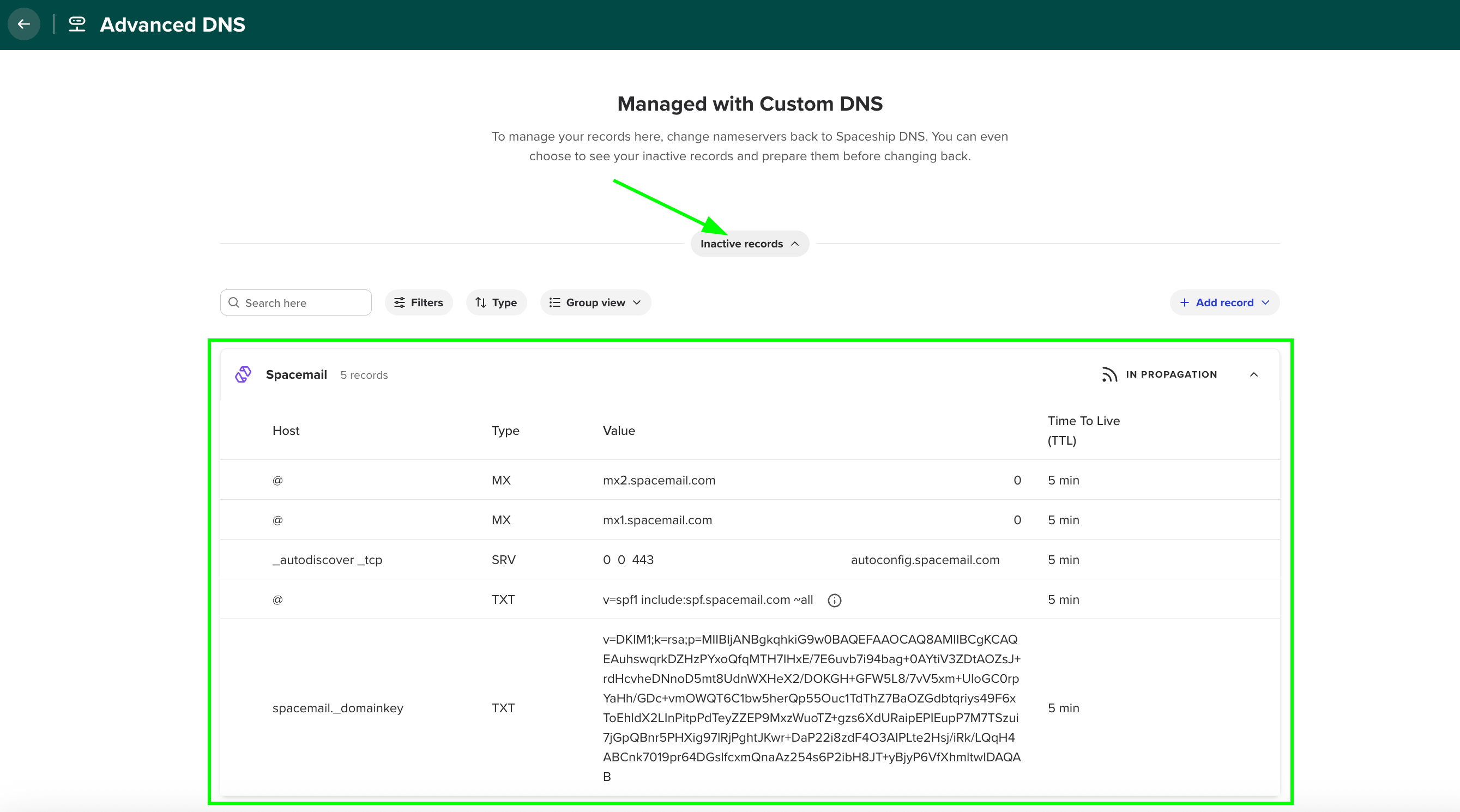
Locate a TXT record that starts with "v=DKIM1; k=rsa; …" and add this record to the DNS zone of your domain with the hostname "spacemail._domainkey":
We strongly recommend configuring a DMARC record as well. Modern email providers (including Microsoft Outlook, Hotmail, Gmail, and Yahoo) increasingly rely on DMARC as part of their sender reputation and anti-spam validation systems. Domains without a properly configured DMARC record are more likely to experience deliverability issues, spam folder placement, or reputation-based restrictions.
To configure DMARC, you will first need to generate a DMARC record using an online DMARC generator tool (for example, MXToolbox DMARC Record Generator) and then add it as a TXT record to your domain’s DNS zone.
Type: TXT Record | Host: _dmarc | Value: v=DMARC1; p=none; rua=mailto@yourdomain.com (or the one generated using an online DMARC generator tool) | TTL: Automatic
NOTE: The DMARC policy can later be adjusted to quarantine or reject depending on your email setup and monitoring preferences.
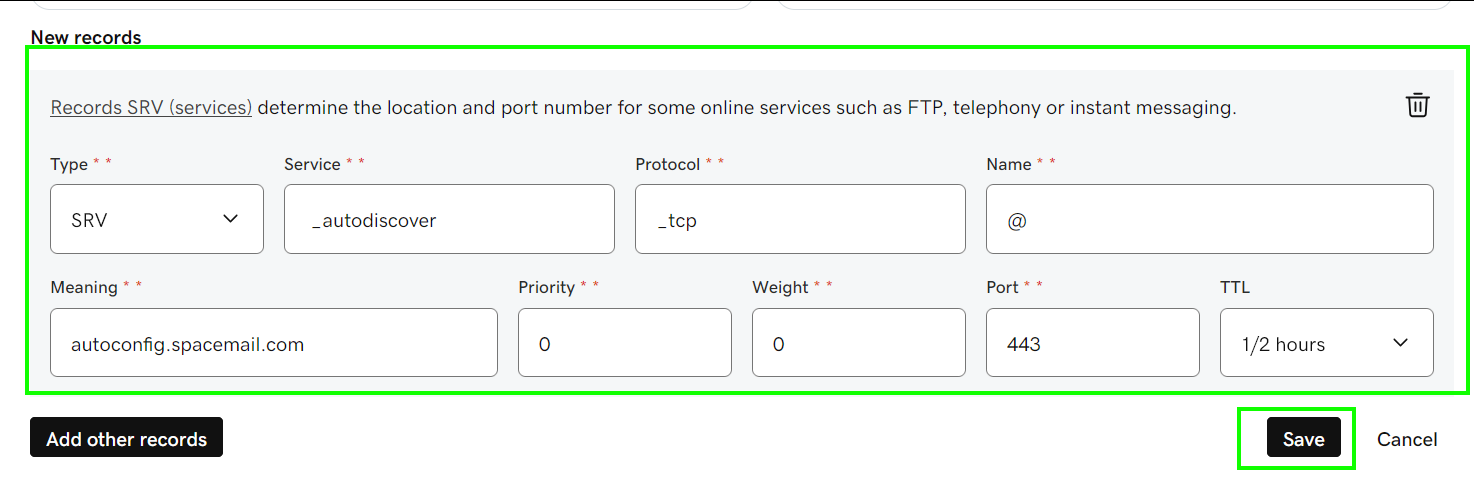
Step 6. The SRV record is used for publishing services and service discovery. Its primary purpose is to allow services to run on non-standard ports and reduce the configuration burden when setting up email clients.
Type: SRV | Service: _autodiscover | Protocol: _tcp | Name: @ | Value: autoconfig.spacemail.com | Priority: 0 Weight: 0 | Port: 443 | TTL: 1/2 Hour
Please keep in mind: If your domain is registered with a third-party registrar, you'll also need to add the verification TXT record.
The verification TXT record can be found in the Advanced DNS application. Once there, click the Manage button, locate the Configure your DNS settings for products to work correctly section, and click View guides. Then, scroll down and select Verifying domain ownership.
Allow up to 60 minutes for the new records to fully propagate. You can use any online checker to see if the propagation is complete. Feel free to check it here.
That's it! If you have any questions or need some help, please contact us. Our customers are currently assisted 24/7/365 in Live Chat and via email.