
If you're juggling Slack replies while waiting for a DoorDash delivery, your VPN connection may falter. Pages load slowly and video calls buffer. Important data needs protection, but speed matters too. That's where split tunnelling comes in.
Instead of forcing your internet traffic through a secure, encrypted tunnel, this VPN feature puts you in control, letting you choose which apps need protection and which can run at full speed.
It's like having two internet motorways — one ultra-secure for work and a fast lane for streaming and browsing.
Why your VPN might be slowing you down
Every time you connect to a VPN, it creates a secure tunnel for your internet traffic. Think of it like a TSA security checkpoint — great for protecting valuable cargo, but you wouldn't send a pizza delivery driver through the same intensive screening. Yet that's exactly what happens with a traditional setup.
Every piece of data, from confidential documents to your weather app, goes through the same thorough encryption process. While this level of security is essential for remote working, it can create unnecessary bottlenecks.
For professionals, a one-size-fits-all approach creates problems. Your smart devices lag, your Teams calls freeze, and even browsing is slow. Meanwhile, you're paying for high-speed internet that you can't fully utilise.
Understanding split tunnelling security
Some people think split tunnelling means compromising web safety. But it's actually like modern home security — you need top-level protection for your bank safe, but not for your letterbox.
This feature applies to your internet traffic, providing maximum support to sensitive data while letting everything else flow freely.
For businesses, this means higher productivity and lower costs. Teams collaborate faster, cloud services respond better, and your network performs at its peak — all while maintaining enterprise-grade security.
With this approach, you can fine-tune exactly what gets full protection and what doesn’t — let’s explore how.
Taking control of your VPN connection
Smart VPN management starts with understanding when and where you need protection.
Has your laptop ever frozen during a Teams meeting? It might be competing for bandwidth with your smart doorbell's update — both forcing their way through your VPN tunnel when only one needs encryption. That's why VPN management is crucial.
It's recommended to exclude common apps (Netflix, Steam, smart devices) from your VPN for better speed, protecting only these important services:
Here's how split tunnelling works:
Work from anywhere: Access company resources securely while your smart printer connects locally.
Financial transactions: Maintain encrypted protection for your crypto wallets and banking apps while browsing freely.
Smart home integration: Allow your IoT (Internet of Things) devices to communicate efficiently on your local network without connection delays.
Developers: Gain control over your traffic, customising routes for specific apps or entire IP ranges.
Gaming and streaming: Route Twitch streams and Steam downloads directly through your Internet Service Provider (ISP) for minimal latency and maximum speed.
Social connectivity: Experience lag-free Discord calls while keeping your WhatsApp messages encrypted.
Every new app or service you add creates another stream of data that needs strategic handling. The key is knowing which apps need protection and which don't.
Here's how to organise them:
Security
Work apps: Teams, Slack, email clients
Financial: Banking apps, trading platforms, crypto wallets
Personal: Password managers, private messages
Direct connection
Streaming: Netflix, Spotify, YouTube
Gaming: Steam, Discord, game launchers
Smart home: Security cameras, doorbell, thermostats
Optimisation tips
Always launch VPN before opening protected apps
Create separate profiles for work and personal time
Check connection speeds if apps feel sluggish
Keep your VPN updated for best performance
Now that you've sorted your apps into categories, let's launch split tunnelling:
Optimising your split tunnelling strategy
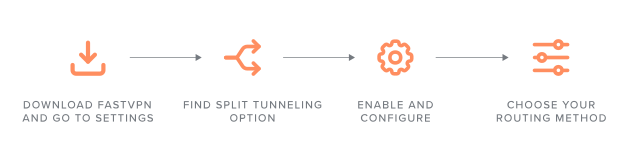
Here's how to set it up:
1. Download FastVPN and go to settings
Launch the FastVPN app on your device
Look for the settings or preferences menu (usually a gear icon)
2. Find the split tunnelling option
Look for the "Advanced" section
You should find an option for "split tunnelling"
3. Enable and configure
Turn on the feature
FastVPN will likely give you a choice to exclude apps or websites (hostnames/IPs)
4. Choose your routing method
Select your excluded apps. This means they will use your regular internet connection
Choose hostnames if you want to exclude specific websites
Final steps
Return to the main screen
Connect to FastVPN
Test your selected apps to ensure they're working correctly
Monitor their performance and adjust if needed
Pro tips
The exact steps and menu names might vary slightly depending on your device (Windows, Android, or iOS).
For optimal performance, learn about different VPN protocols and which best suit your needs.
With your split tunnelling configured, you've taken control of your online ecosystem. Your internet traffic should now flow where it needs to go — securing your sensitive apps while maintaining peak performance for everything else.
Making the most of split tunnelling
When you supercharge your VPN connection with split tunnelling, you're not just improving performance — you're transforming your internet experience. Now you can juggle Slack messages, stream content, and protect sensitive work data without compromise. Your apps, your rules, your perfect balance of security and speed.

Suggested articles




Share your thoughts