
Personalizing your email account to help with branding may not be something you’ve thought of, but it’s something you should probably take advantage of, especially if you’re growing a business.
But what do we mean when we talk about personalization? The extent to which you can personalize your email account varies a lot depending on your provider. Of course, you can change settings to make yourself feel more at home (wallpapers, backgrounds, layouts), but what we’re concerned with here is the element that others may actually see when you send your email: The profile picture.
Here, we’ll take you through the most common ways to maximize the benefit of an email profile picture.
Email profile pictures
I set the photo on my personal Hotmail account circa 2007, and it’s still going strong. It’s a cat with mice clinging to its face. These days, we’d probably call it a meme, but back then, this word was but a twinkle in a precocious millennial’s eye.
But what I didn’t realize is that all this time, my email profile picture has only been displayed to other Hotmail/Outlook users. This is the case with most email providers — your photo will show up to others using the same service (Hotmail, Gmail, Zoho, etc), but nobody else will see it. Maybe you didn’t realise anyone could see your email picture at all — in which case, I may have saved you some future embarrassment (or perhaps spotlighted a past faux pas).
Why can’t users on other email providers see my email photo?
This is simply because the photos are stored in the “internal” ecosystems of your provider. The photo is retrieved directly from their system, so those without access to the system (everybody else) is unable to fetch it.
Sending an email relies on protocols (like SMTP), which are standardised ways of transferring data between mail servers. Because every email provider must use these protocols correctly, our messages, attachments, and other features display correctly in a universal way. But so far, no standardized way has been developed to send/receive email profile pictures.
Is there a workaround so anyone can see my email profile pictures?
If you’re hoping for an app that integrates with all email providers and allows you to create a profile for email branding, you might be disappointed. There’s a more technical way, which we’ll come on to later, but for the average person, there isn’t really a universally recognised way to make profile pictures display across different mail platforms.
However, there’s a middle ground approach that’s useful to know about if you like leaving comments on websites using your email address as your login.
Gravatar (which stands for Globally Recognised Avatar) allows you to build an email profile and links that to your email address. Any website that integrates Gravatar (for example, most WordPress sites have it enabled by default), then your “avatar” (which literally means mail profile picture in this context) will display wherever you post.
Email profile picture ideas
Maybe you’ve gotten ahead of me, but let’s take a quick look at ways to utilize your mail profile picture. Mail pictures are pretty intuitive, but it’s worth bearing a few things in mind… Try to aim for one of the following:
Professional and recognizable — if you are your brand, a clear, professional headshot (actor-style) could work wonders for your business. Aim to encapsulate your business tone of voice in this shot (whether it’s professional, fun, or abstract).
Illustrated and creative — Perhaps you don’t want to be the face of your business — at least, not directly. You could use an AI-generated cartoon avatar, or even just a non-specific pattern. Alternatively, something that represents your business. A dog grooming business might choose a particularly adorable four-legged client. Being slightly indirect with your choice could create intrigue and allow for individualism among employees without having their own photo up.
Company logo or something symbolic —Perhaps the most natural choice for a business, particularly one with a number of employees, is to use the company logo. You could shake it up, giving everyone their own colour to help with easy identification.
Do bear in mind that everyone’s choice will be visible to everyone else using the same provider, and this could be outside clients. Particularly when choosing something fun or quirky for your email picture, consider how it might look when you’re sending bad news or trying to negotiate a tough deal.
You want something that’s still able to conjure respect in those instances.
Email picture dos and don’ts
Do
Put some time and thought into it— considering how it will come across in different scenarios.
Commit to updating, and change semi-regularly - if it’s something quirky, it’s likely to generate more fatigue than a plain old logo
Get tips from professionals — check out tips that could help you take a professional-looking shot, or even hire a professional photographer to send the right message. A dark, pixelated, or selfie-style image probably looks worse than no image at all.
Dont
Put something that looks unprofessional — as mentioned above, this could very easily be worse than using no image at all.
Use anything controversial— or even something that seems fine, but might be considered controversial by someone else. There’s just no need, and it’s not worth the risk.
Use anything x-rated— this one needs no explanation. It will almost certainly lead to email sanctions, and you might get complaints.
What is BIMI email, and how can I use it?
BIMI works alongside authentication protocols (like DMARC, SPF, and DKIM) to allow businesses to display a logo next to their emails in most mainstream inboxes. It’s the closest thing to a universal way of displaying a profile picture, but strictly limited to official logos.
As an email branding framework, it helps to validate the authenticity of a business. It also adds another layer of protection against spoofing and phishing attacks, where someone impersonates your company email.
This added security is a bonus, but depending on the provider, there can be a not-insignificant catch. Typically, BIMI can only be used by businesses whose logos are officially verified. Usually, this involves registering it as a trademark with an authority, like a recognized trademark office (e.g., USPTO in the U.S., UKIPO in the UK).
This office will confirm the logo’s ownership, and the resulting certificate will be needed in order to set up the BIMI protocol. For example, with Gmail and Apple email, businesses must obtain a Verified Mark Certificate (VMC), which ensures the logo is officially trademarked.
Easier BIMI setups
Other providers, like Yahoo and Fastmail, don’t require this official step. Instead, you can set them up more directly:
Configure DMARC Correctly — your domain must have a DMARC policy set to "quarantine" or "reject".
Prepare Your Logo — Convert your brand logo into SVG Tiny PS format. This is the format that is used, so make sure the logo looks good, and upload it to your server.
Publish a BIMI Record – A BIMI record is a particular kind of TXT record that you’ll need to place in your domain’s DNS (Domain Name System), pointing specifically to the location of the uploaded SVG Tiny PS format.
There may also be some further stipulations. For example, Yahoo only shows BIMI images on mass emails. They also only consider well-rated sending domains to display BIMI images. It’s something worth looking into in more detail if displaying a company logo is very important to you, but many will see it as more trouble than it’s worth, especially once all the restrictions are considered.
How to change email profile pictures (by provider)
Back to the humble display picture. You’ve come this far, you’ve realised you just want to set a display picture for your email so that others using your provider can see it. How do you do it?
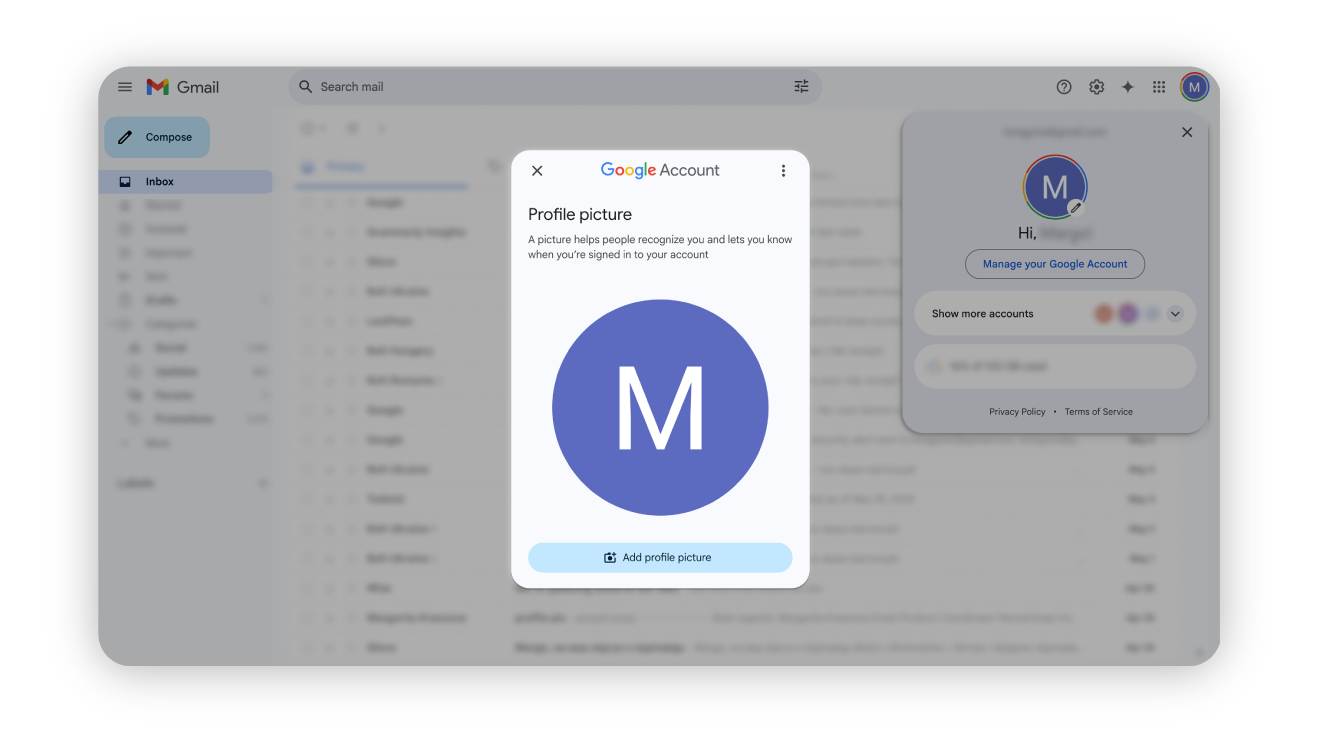
Gmail (Google Mail)
Change your mail profile picture on Gmail by following these simple steps:
Sign in to Gmail — log in to your Gmail account, as usual.
Click on your profile picture — in the top-right corner and select "Manage your Google Account."
Click the pen icon — for quick access to the profile picture editor window.
Upload a New Image — choose "Change", then select:
Adjust & Save — crop or adjust the image as needed, then click "Save as Profile Picture."
Hotmail (Outlook.com)
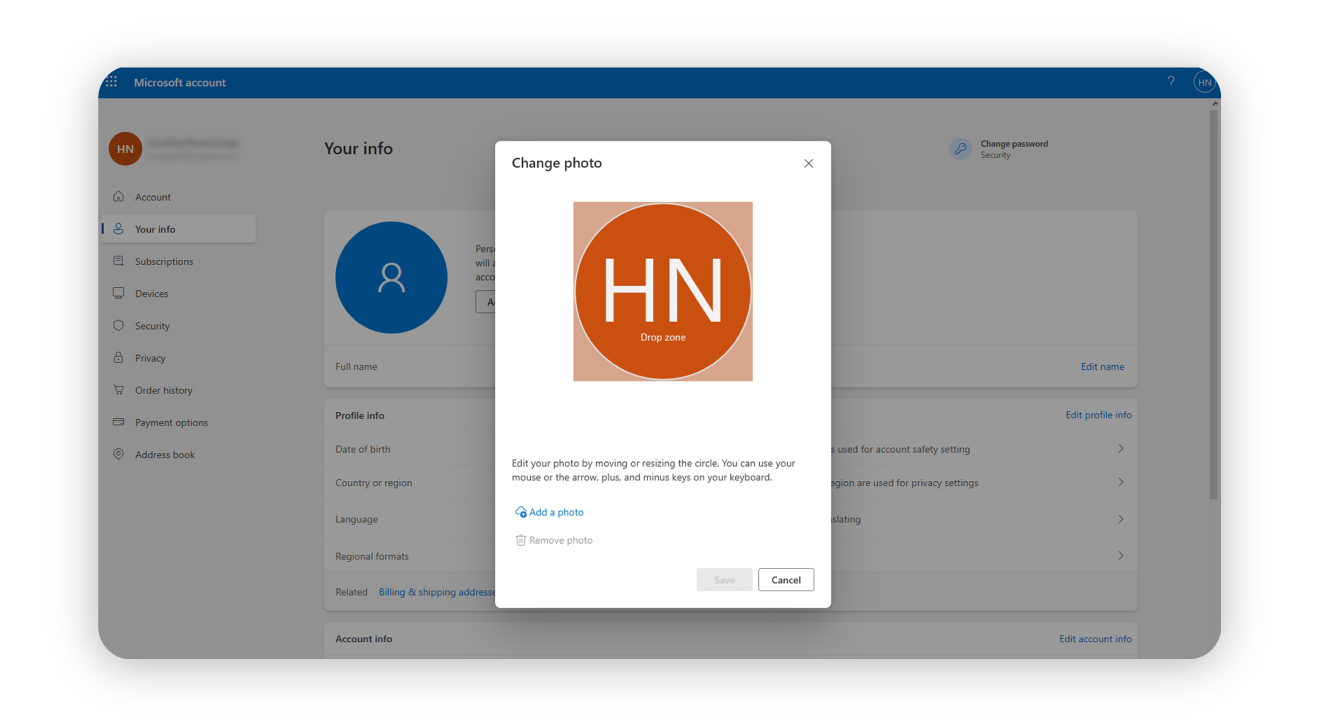
Follow these instructions to update your profile picture on Outlook/Hotmail and make it visible to all other members of the network.
Sign in to Outlook — go to Outlook.com and log in.
Open Profile Settings — click on your profile picture (or initials) in the top-right corner and select "My Profile".
Change Profile Picture — click "Change Picture".
Upload a New Image — click "Choose File", select an image from your computer, and upload it.
Adjust & Save — crop or resize the image if needed, then click "Save".
Sync Across Microsoft Services — your new profile picture will appear in Outlook, Skype, and other Microsoft apps.
Zoho Mail
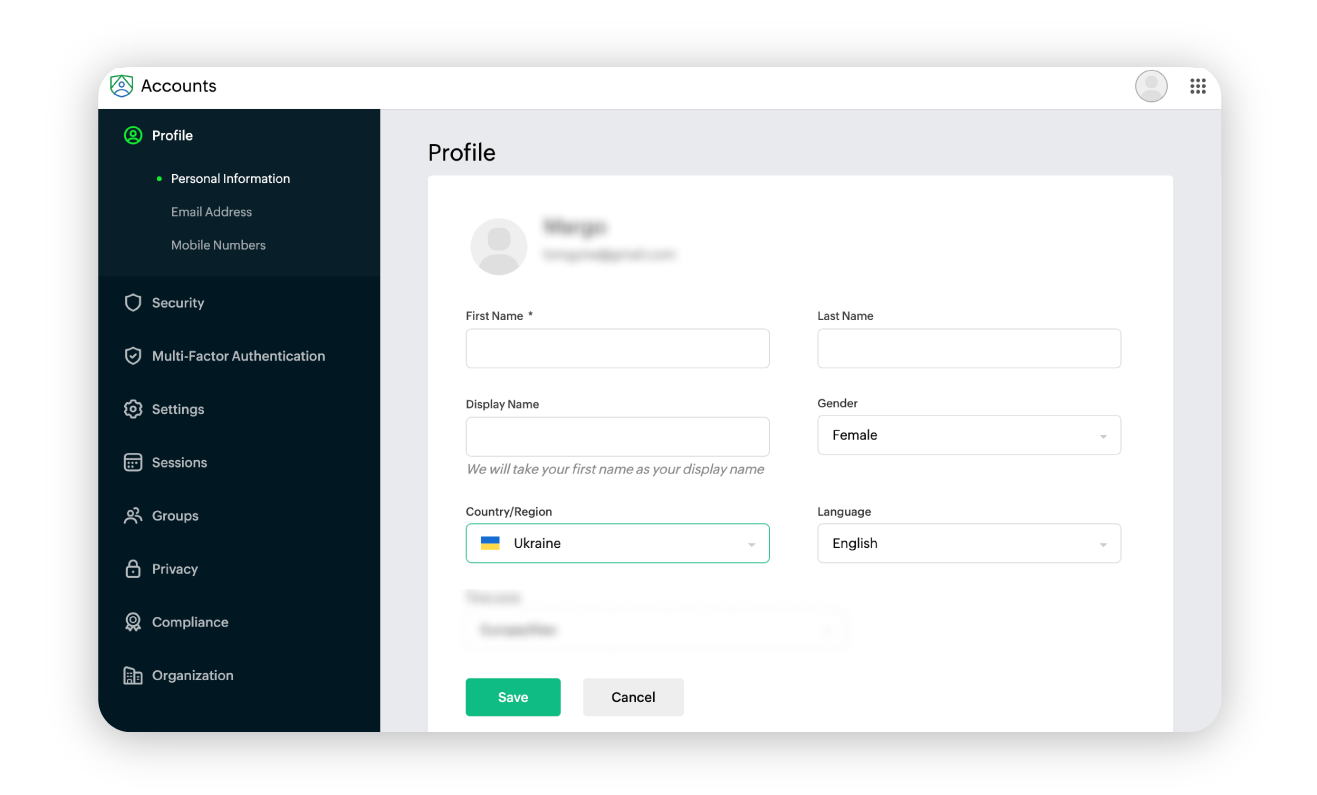
Change your picture on the popular mail app Zoho Mail by following these steps.
Log in to Zoho Mail — go to Zoho Mail and sign in.
Access Profile Settings — click on your avatar in the top-right corner and select "My Account".
Click “Edit” — and select your profile picture.
Upload a New Profile Picture — click on the profile picture area and select "Upload New".
Choose an Image — select a photo from your computer and upload it.
Set Visibility — choose who can see your profile picture (public, private, or restricted).
Save Changes — click "Done" to finalize the update.
As with the other email providers, Zoho Mail will display your picture to any recipients of emails that use their network.
Spacemail
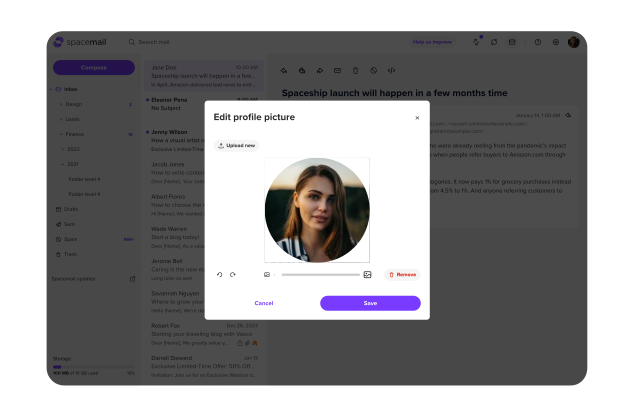
Now for Spacemail. You can easily set the picture with our personalization settings and make it visible to everyone else on our network.
Log in to Spacemail — access your email account either through the app or at spacemail.com
Click on the round profile icon — which displays your initial in the top right corner of the screen
Upload an Image — choose a file from your computer and upload it.
Adjust & Save — crop or resize the image if needed, then save the changes.
And that’s how easy it is!
Setting and resetting email profile photos
Hopefully, you’ve learned something about what to use for an email profile photo. Whether you’re looking for what to do professionally (with something like BIMI or simply using a company logo) or choosing something more personal, don’t forget to keep any logos or pictures up-to-date to present a current version of your business to anyone who can see your email photo (or avatar).
Frequently asked questions
An email avatar is essentially another way of saying a profile picture, but one that is visible to other users on the same network that you send an email to — for example, if you set an email “avatar” for Gmail, anyone you email who also uses Gmail will see it.
With very few exceptions, your profile pictures only show up for people using the same provider as you, like other users of Outlook or Gmail. This is because there’s no universal way of encoding a profile picture/avatar, so the display relies on a provider’s internal network.
BIMI is a system that allows you to set a company logo in place of an avatar. To be able to do this, you need to confirm ownership of your logo by registering it as a trademark with an authority. Once active, it will work for any providers that support BIMI.
Yes — above, we have included detailed instructions on how to set the profile picture you want other people to see for several of the main platforms.
Profile pictures work the same way for business accounts as private ones for most providers. If you don’t choose the BIMI route (see above) to set your logo officially, you can simply set your avatar to be your business logo. This comes with the caveat that it will only be seen by people using the same email system.

Suggested articles




Comments (4)
Guest User
Dec 8, 2025
Olga Nesen. Product and Marketing Coordinator
Dec 8, 2025
Rachel
May 29, 2025
Olha Nesen. Product and Marketing Coordinator
May 30, 2025