How to share access to your hosting account
This article explains how to share access to your hosting account without sharing access to your entire Spaceship account. Depending on what the other person or tool needs to access, you can use access tokens, FTP, or separate database access.
Access tokens
Access tokens can be used to:
Grant other people full access to your cPanel account;
Connect compatible AI tools through the Model Context Protocol (MCP).
The same token can be used for both cPanel and MCP access. You choose when it expires and can revoke it earlier if needed.
To manage access tokens, open Hosting Manager, select Manage next to your hosting package, and navigate to Access.
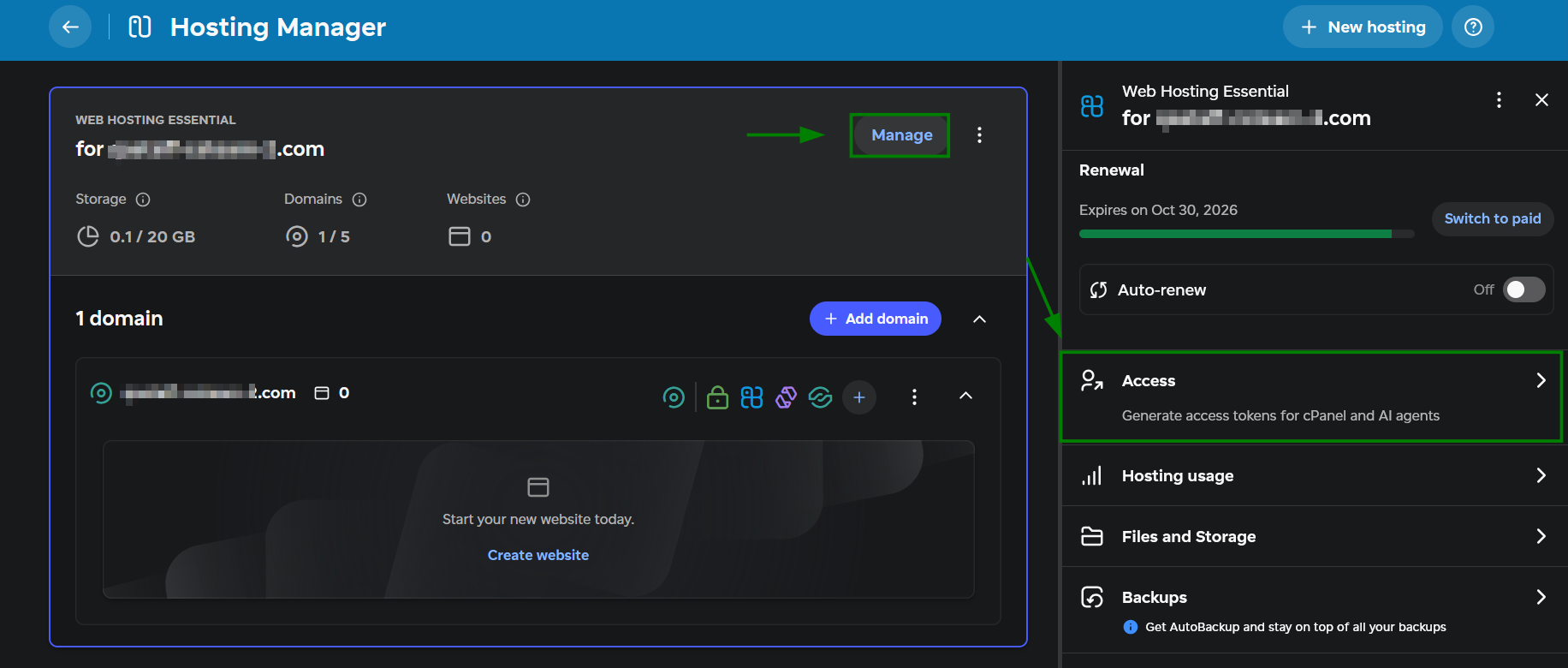
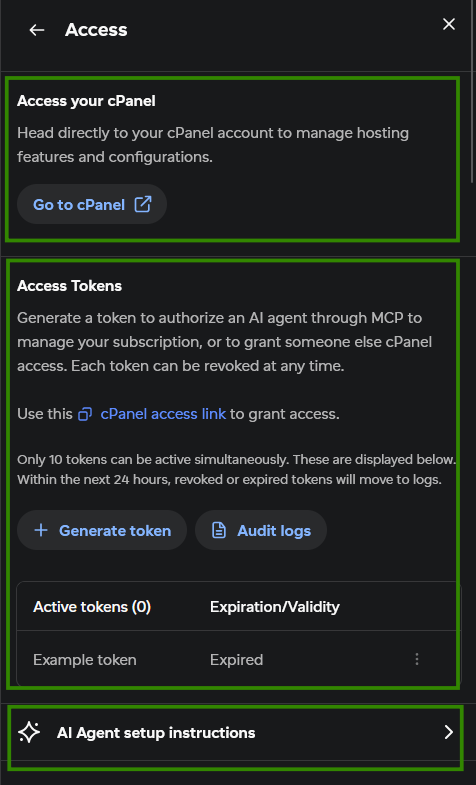
Here, you’ll find the following tools:
Access your cPanel — log in to your cPanel account.
Access token — create and revoke access tokens for cPanel and MCP.
AI agent setup instructions — find MCP setup instructions for different AI agents.
Create an access token
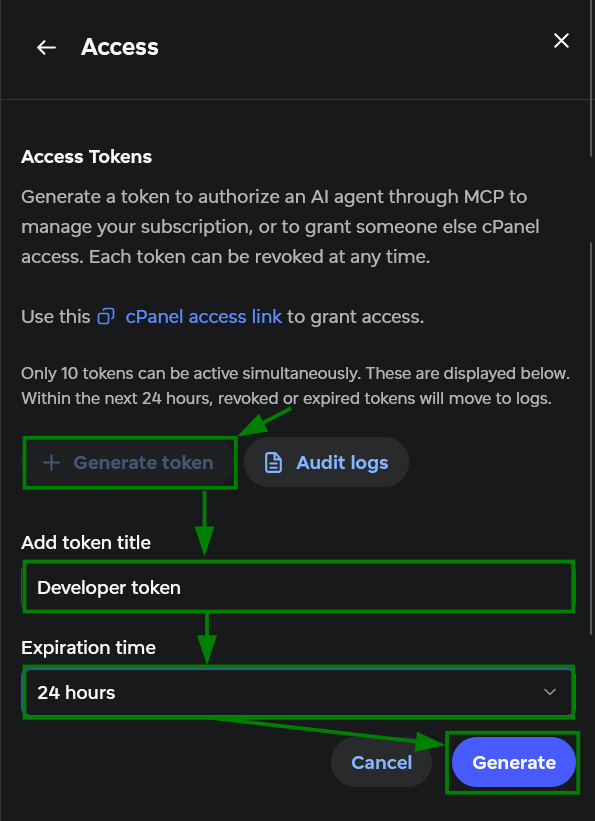
To create a new token:
Select + Generate token under Access Tokens.
Name the token and specify its expiry.
Click Generate.
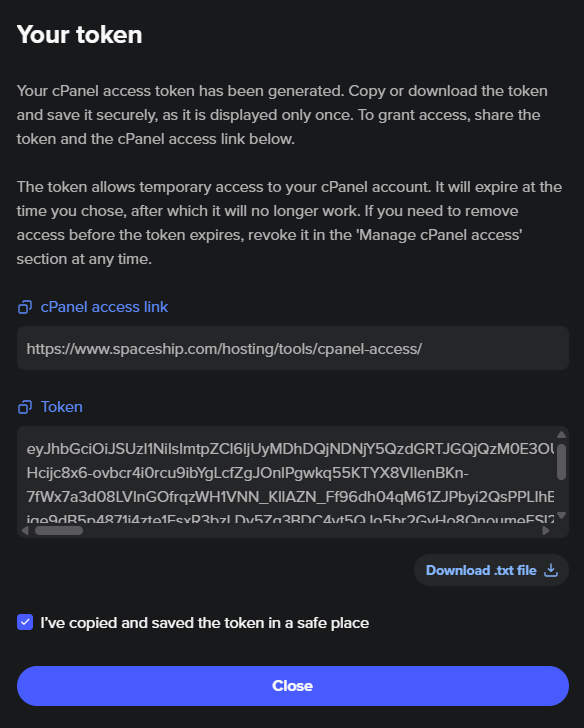
Once your access token is generated, copy it to your clipboard or download it as a .txt file. Make sure it’s successfully stored before you select Close, because you can’t access it again.
Important: Treat the token like a password. Don’t paste it into shared chats or code repositories, and revoke and regenerate it if it leaks.
You can create up to 10 tokens simultaneously.
Share cPanel access with another person
Share the token and the cPanel access link with the person who needs access. This link is the same for every token: https://www.spaceship.com/hosting/tools/cpanel-access/
To log in, they need to open the cPanel access link, paste the token, and select Log in with token:
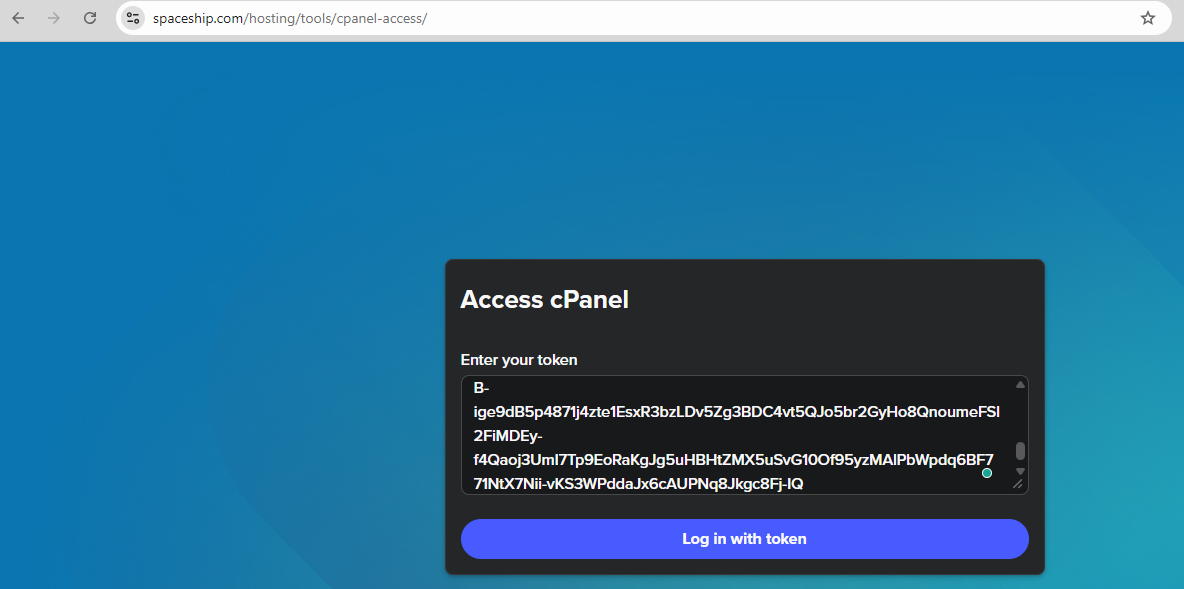
This will redirect them to your cPanel account.
Connect an AI tool through MCP
Once you have the token, follow the appropriate MCP setup instructions in Hosting Manager → Manage → Access → AI Agent setup instructions:
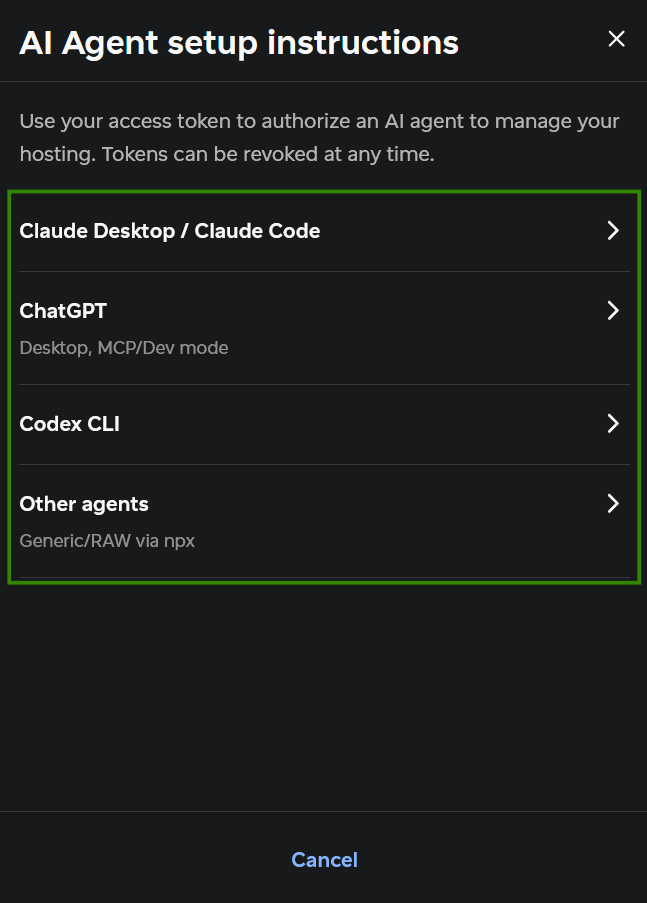
Once connected, the agent can use the available MCP tools to interact with and manage your hosting. For more details, check the MCP for Shared Hosting: what it is and how to use it article.
Token management
All generated tokens are listed under Access Tokens:
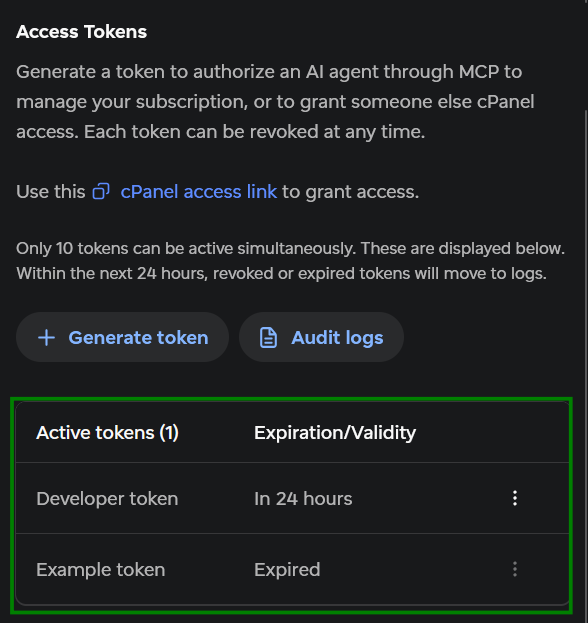
If you need to remove access before the token expires, press the three dots, and Revoke token:
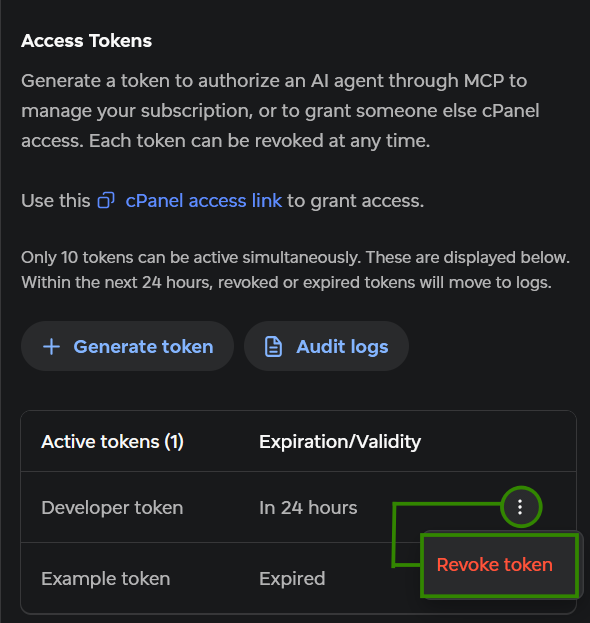
Once you revoke a token:
For cPanel access, it can no longer be used for a new login. Any cPanel session that is already active will not be interrupted.
For MCP access, the connected AI agent will no longer be able to authenticate when it makes another MCP request.
Within the next 24 hours, all revoked and expired tokens will be moved to Audit logs.
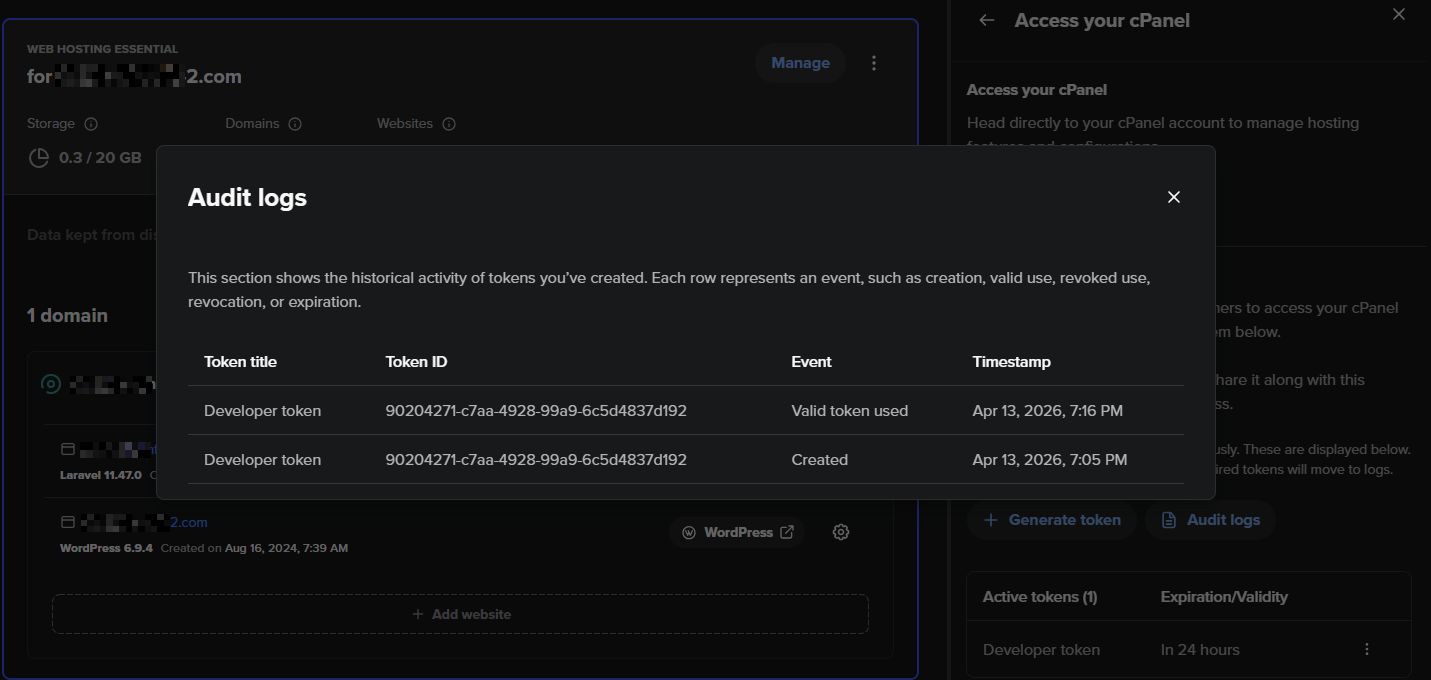
If you prefer not to grant full cPanel access with all available options, you can share access to files and databases separately using FTP and MySQL. Keep reading for instructions on these methods.
FTP account
Another way to access your hosting account is via FTP. FTP provides partial access to cPanel functionality, as each FTP account is limited to the specific directory assigned to it.
View our guide on how to set up an FTP account to access files and databases. in cPanel.
Remote access to a single MySQL database
Remote database access allows external connections to your MySQL databases without exposing your entire hosting account. This approach provides a more secure and controlled way to collaborate on database-related tasks.
You can configure remote access to a single database without granting full account permissions.
Follow these steps to configure access:
Log in to your cPanel account.
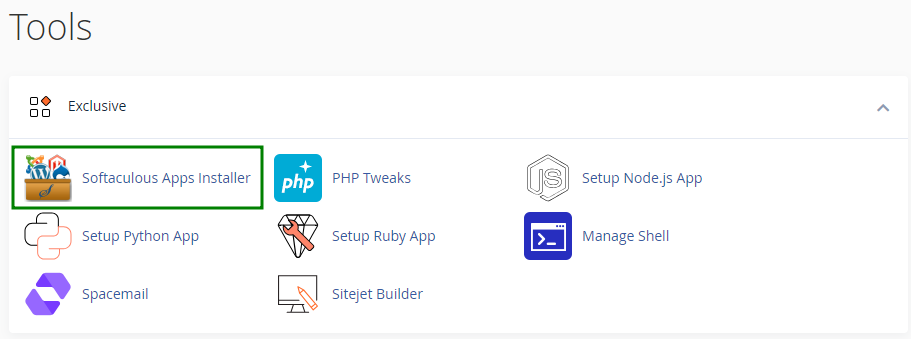
Open Softaculous Apps Installer:
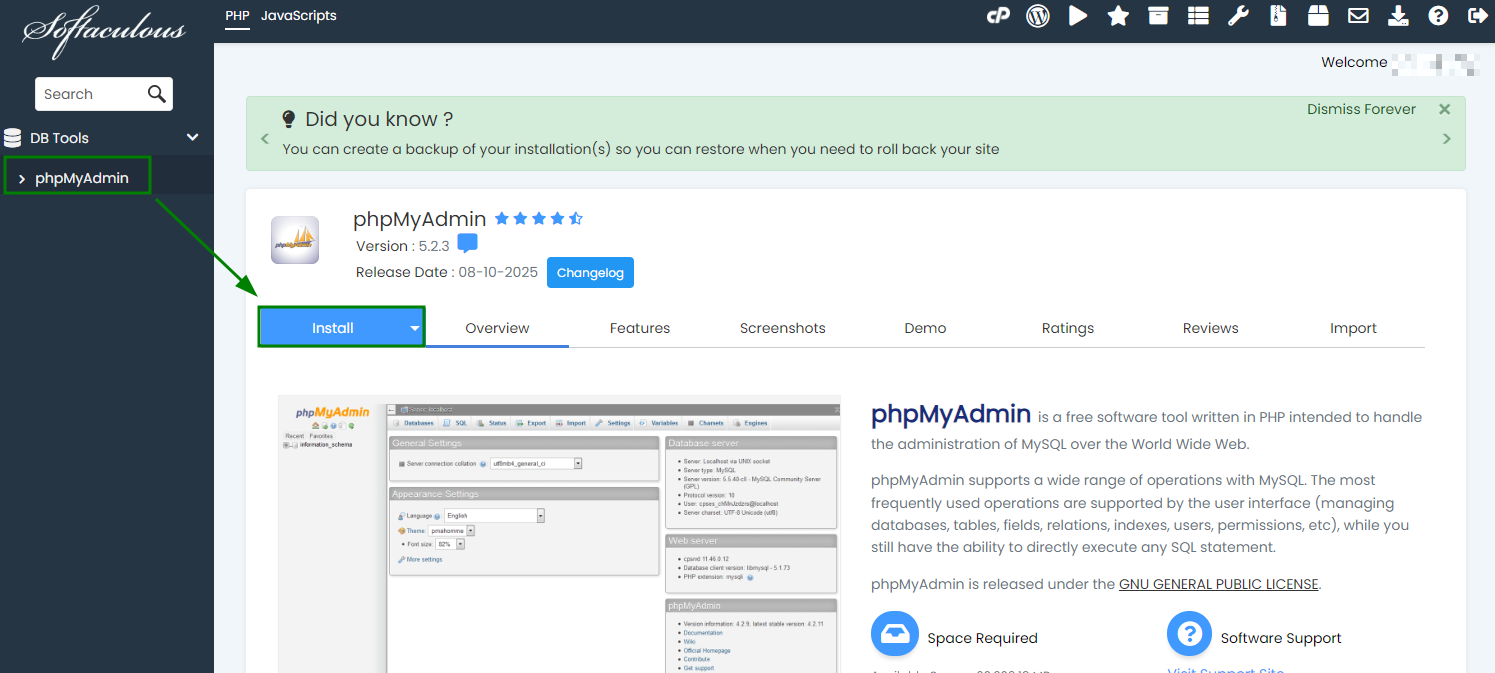
Use the search bar on the left to locate phpMyAdmin. Select it, then hit the Install tab to continue:
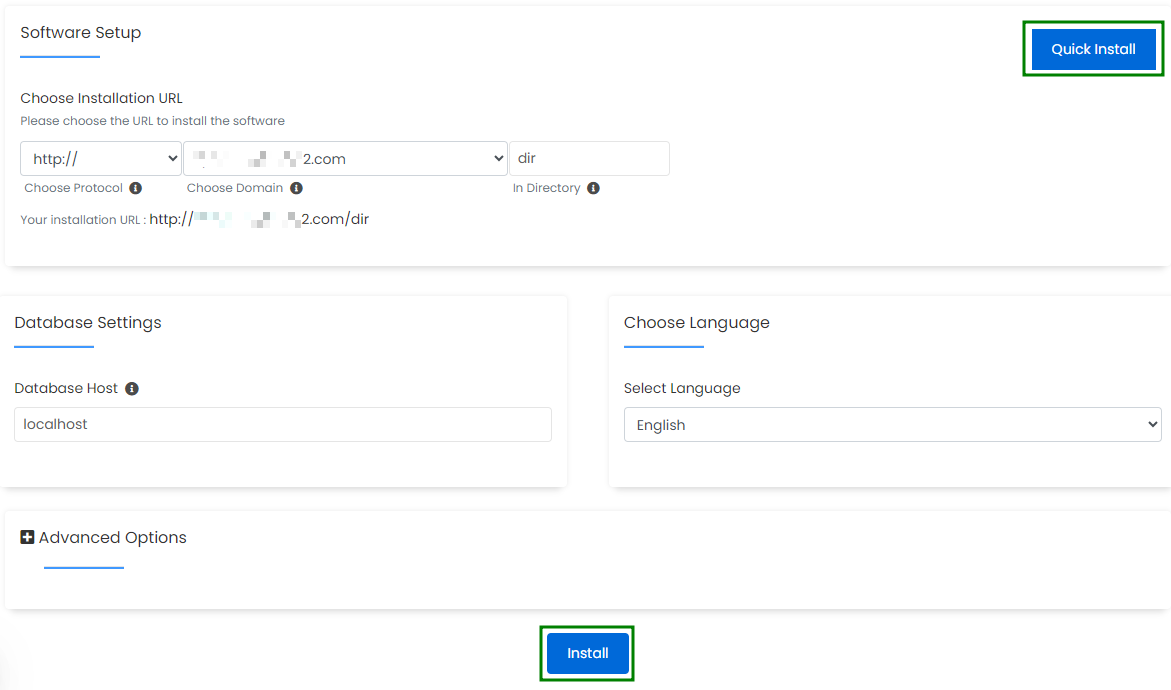
Configure the installation settings:
Choose Protocol — select the protocol you want to use. If your domain does not have an SSL certificate, choose http:// or http://www.. If SSL is enabled, you should select https:// or https://www. for a secure connection.
Choose Domain — select the domain you’d like to install phpMyAdmin to. This can be any domain within your cPanel account. Note that phpMyAdmin will allow you to manage all databases in the cPanel account, not only the one associated with the domain name in question.
In Directory – specify the folder where phpMyAdmin will be installed. If left blank, the installation will be placed in the domain’s root directory.
Database Host – defines the database server location. In most cases, this value should remain localhost.
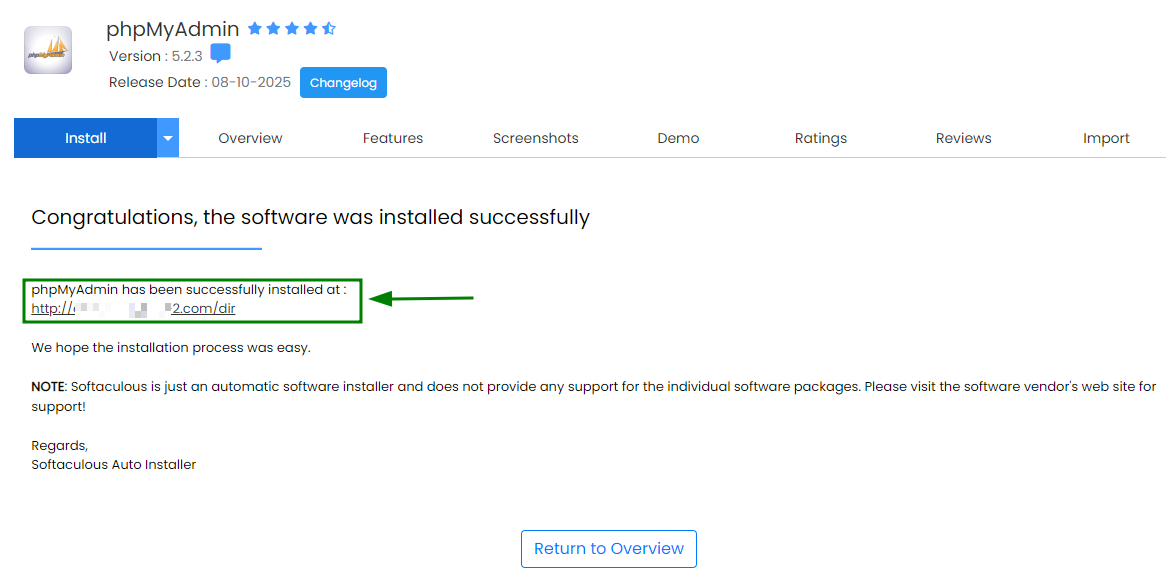
Once all settings are configured, click “Quick Install” or “Install” to proceed:
After the installation is complete, open the phpMyAdmin URL in your web browser:
On the login page, enter your database username and password to access phpMyAdmin:
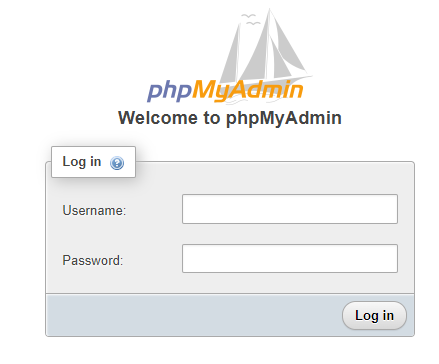
Make sure the database has a corresponding database user assigned via the Databases section in your cPanel account.
That’s it!
If you run into any issues, contact us via HelpDesk.