MCP for Shared Hosting: what it is and how to use it
This guide explains how to connect an AI assistant to your Shared Hosting account through MCP, what it can help you manage, and how to use it safely.
What is MCP
MCP (Model Context Protocol) lets AI applications connect to external systems and perform tasks. With Shared Hosting, you can connect an AI assistant to your account using an access token and manage it through a chat interface or code editor. The examples in this guide use a chat interface.
You can connect the following applications through MCP:
Claude Desktop / Claude Code
ChatGPT Desktop
Codex CLI
Other MCP-compatible tools (setup via npx)
How to connect your AI assistant
To set up the connection, you need two details from your hosting subscription:
Server address
Access token
You can find both in Hosting Manager → Manage → Access:
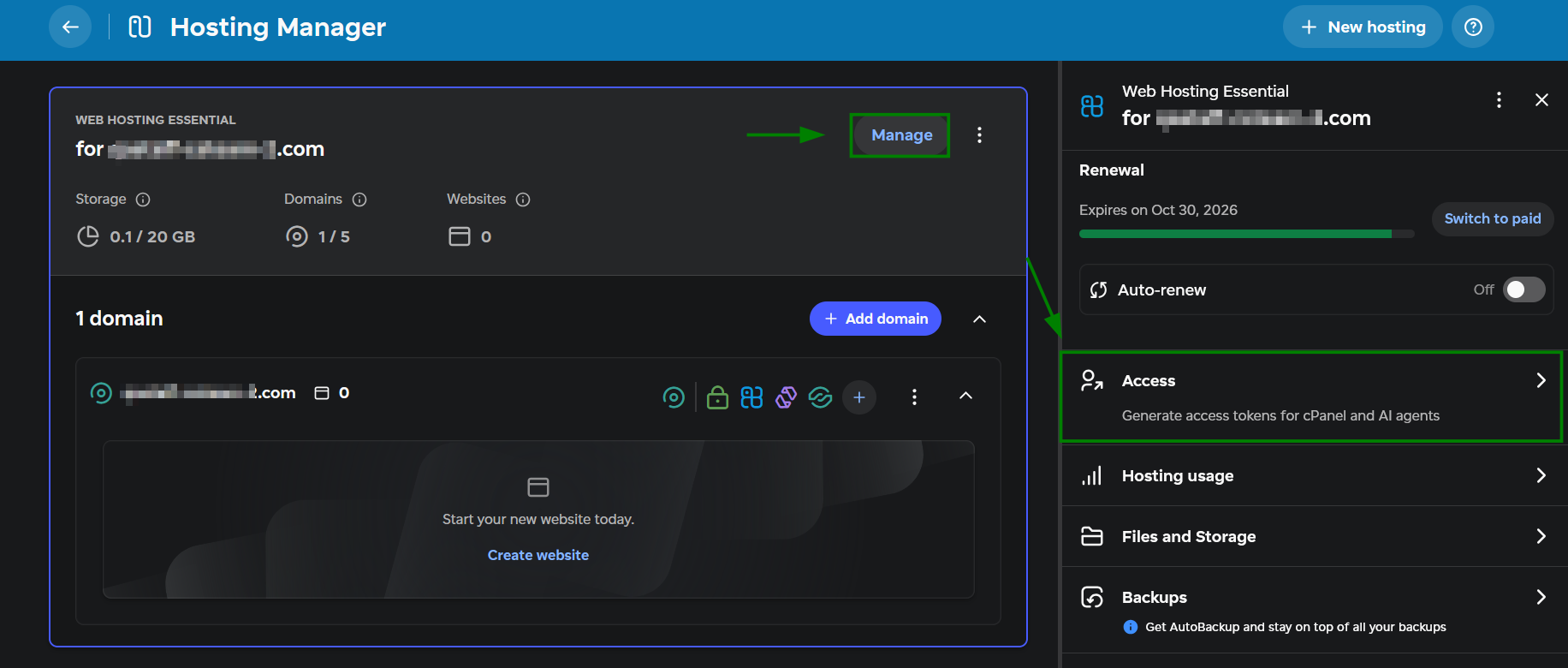
For detailed instructions on obtaining them, see the How to share access to your hosting account guide.
The next steps depend on the AI application you’re using. You can find the instructions in the same Access menu under AI Agent setup instructions.
Important: treat the token like a password, don't paste it into shared chats or code repositories, and revoke and regenerate it if it leaks.
What can it do
Once connected, your AI assistant can help you manage your hosting account, but what does that mean in practice?
The token gives the assistant access to the whole account, with the same permissions as you. You can ask it to set up websites, run maintenance checks, and investigate issues:
Set up and manage websites: Deploy website code, run WordPress commands, create databases, configure cron jobs, and more.
Run maintenance checks: Check site availability, response times, SSL expiration dates, error logs, disk usage, and outdated plugins.
Investigate issues: Look into a slow or unresponsive website, identify possible causes, and help apply a fix.
Write prompts that describe what you want in clear and detailed terms. The more precise your instructions, the better the assistant can follow them.
What are the limitations
Your assistant can only access the hosting accounts you’ve connected. It cannot inspect other accounts or settings managed outside them. Examples of these limitations include:
DNS records: These are managed outside the hosting account, so you cannot edit them through Shared Hosting MCP.
Email issues: Your assistant can investigate website-related email issues, such as a contact form error recorded in your website’s logs. Other email issues are outside the connection’s scope.
Your AI assistant can help with security checks, but it does not replace a dedicated malware scanner and your existing security practices. We use Imunify360 on our servers for malware scanning and protection.
Before making changes
Follow these rules to help protect your data when using an AI assistant:
Use a code snapshot for file edits, such as changing a theme’s CSS, editing PHP code, or updating a configuration file. Ask the assistant to create a snapshot with
git_snapshotbefore editing. If needed,git_restorecan restore the files included in that snapshot.Create a website backup before broader changes, such as updating WordPress or plugins, importing content, or changing database records.
For regular backups, you may use the AutoBackup service in Hosting Manager → Manage → Backups.
Specify the website and task. Include the domain name or file path, especially if your account contains several websites.
Start with an investigation. When troubleshooting, ask the assistant to review the issue and explain its findings without making changes.
Review changes before approving them. Ask the assistant to explain what it plans to change and wait for your approval.
Check the results. After each change, ask the assistant to report what it changed, then check that the affected website or feature works as expected.
Example prompts
Use these prompts as a starting point. Replace [ yourdomain.tld ] and [ cPuser ] with your domain name and cPanel username.
Backups
Save a full copy of your website files and database before making changes. With the prompt below, these are saved in your hosting account, where you can access and download them through File Manager.
“Create a backup of the website files and database for [yourdomain.tld]. Save it in /home/cpuser/backups/[yourdomain.tld]/ inside a new folder named with the current date and time. Within that folder, save the website archive in a files subfolder and the database export in a database subfolder. Create any missing folders and do not overwrite existing backups. Confirm that both backups completed successfully and provide the full path to each backup file.”
Routine checks
Review disk usage and check for outdated plugins without changing anything.
“Check the WordPress sites on my account for outdated plugins. Group the results by domain name. Do not update anything.”
PHP management
Change a website’s PHP version, review or enable available extensions, and create a temporary phpinfo page to verify the settings.
“Check the PHP version and enabled extensions for [yourdomain.tld]. Change this domain to PHP [version] and enable [extension], checking that it is available and does not conflict with enabled modules. Apply changes only to this domain. Create a temporary phpinfo page and share its URL so I can verify the settings after they take effect. Remove the file once I confirm.”
Troubleshooting
Review recorded errors or enable logging to help investigate a problem.
“Analyze the /home/cpuser/public_html/error_log file and summarize the recent errors. Do not make any changes.”
“Enable WordPress debug mode for [yourdomain.tld]. Back up wp-config.php, then set WP_DEBUG and WP_DEBUG_LOG to true and WP_DEBUG_DISPLAY to false so errors are logged without being shown to visitors. Update existing settings rather than adding duplicates. Do not make any other changes.”
Tip: If your AI assistant supports skills or saved instructions, you can save procedures you use regularly. A skill stores instructions for a recurring task, so you don’t have to repeat every step.
Investigate a 500 error
If your website is showing a 500 error and you don’t have time to investigate it yourself, ask your assistant to review it:
“[yourdomain.tld] is showing a 500 error. Check the cPanel resource usage statistics (including file usage, disk usage, CPU, and RAM). Then review the recent entries in the website’s error log. Explain the likely cause and suggest the next steps. Do not make any changes.”
Let’s say the findings point to a specific plugin. In this case, you can follow up with:
“Create a code snapshot with git_snapshot for [yourdomain.tld] before making any changes. Confirm that the snapshot was created successfully. Then disable [plugin name] by renaming its folder. Check whether the website responds and report the results.”
That’s it!
If you run into any issues, contact us via HelpDesk.