Starlight Load Balancer Overview
Starlight Load Balancer is a virtual network device that distributes incoming network or application traffic across multiple servers or resources.
Its primary goal is to ensure high availability, reliability, and optimal resource utilization by balancing the load evenly, preventing any single server from becoming overwhelmed.
Load balancers can operate at various layers of the OSI model, such as the transport layer (Layer 4), and are commonly used in web hosting, cloud infrastructure, and data centers to improve performance and fault tolerance.
General information about Load Balancers
Operates on Layer 4 (Transport Layer)
Routes traffic based on TCP connections
Does not inspect or modify HTTP data
Supports any TCP-based service (HTTPS, SMTP, FTP, custom apps)
Ideal when customers need transparent passthrough
Core components
Load Balancer
It's the primary endpoint that receives traffic from the internet. It contains public IP and forwarding rules.Forwarding rule
Defines how the Load Balancer handles traffic. It consists of the following components:Load Balancer Port (e.g., 80, 443)
Protocol (TCP)
Backend Port (port on VM)
Backend Member Pool
Members (backend VMs)
Those are the servers that receive traffic after the Load Balancer has processed it. Each member has a listening port and a health status.
How the TCP Load Balancer works

A TCP request to the specified domain or IP address is initiated.
The domain is resolved through DNS to the public IP address of the Load Balancer, directing the incoming traffic toward the load-balancing layer.The Load Balancer evaluates and applies the configured forwarding rule.
This rule determines how the incoming request should be handled based on port mappings, protocol settings, and any additional configuration parameters.The Load Balancer selects a healthy Virtual Machine from the backend pool.
Using health probes and its internal algorithm (e.g., round-robin), the Load Balancer routes the request only to VMs that are confirmed to be functioning correctly.The selected Virtual Machine processes the traffic as usual.
The VM accepts the connection and handles the request according to the service or application running on it, responding normally to you.
Backend VM health status check
The Load Balancer continuously monitors the health status of each backend VM to ensure traffic is routed only to machines that are operating correctly.
A VM is marked as unhealthy and temporarily removed from the rotation if it:
Fails one or more health checks
Does not respond to probes
Times out during inspection
Rejects incoming connections
When the VM recovers and successfully passes health checks again, it is automatically reinstated into the backend pool and resumes receiving traffic.
Initial configuration of a Load Balancer
You can get a Starlight Load Balancer service from:
Spaceship Library > the “Starlight Cloud” section > Starlight Load Balancers;
From the Starlight Manager menu.
NOTE: The product can be attached to both PAYG and prepaid Starlight VMs. However, you can use it with the Virtual Machine only if it is located in the same datacenter.
After a desired Load Balancer plan and billing cycle are chosen, and the order is confirmed, you can proceed with the service unboxing. At this stage, you will need to pre-set up your Load Balancer and configure the following:
Pick up a datacenter for the service
Name the service
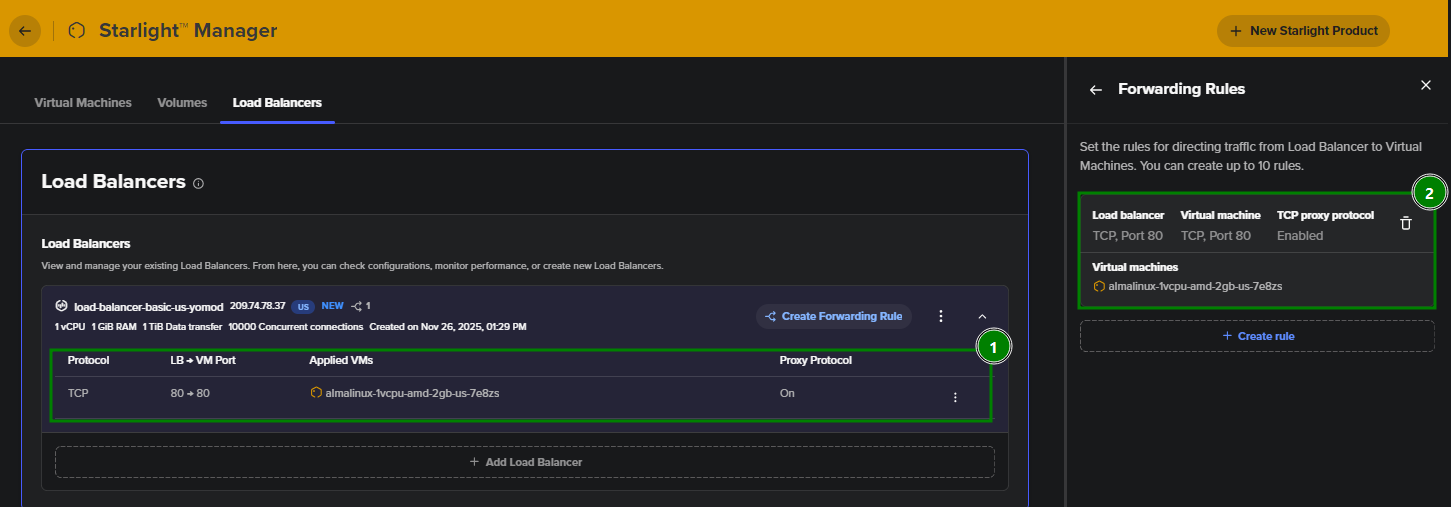
After saving these configurations, the unboxing stage is complete, and now you can see the Load Balancer inside the Starlight Manager menu > under the corresponding Load Balancers sections:
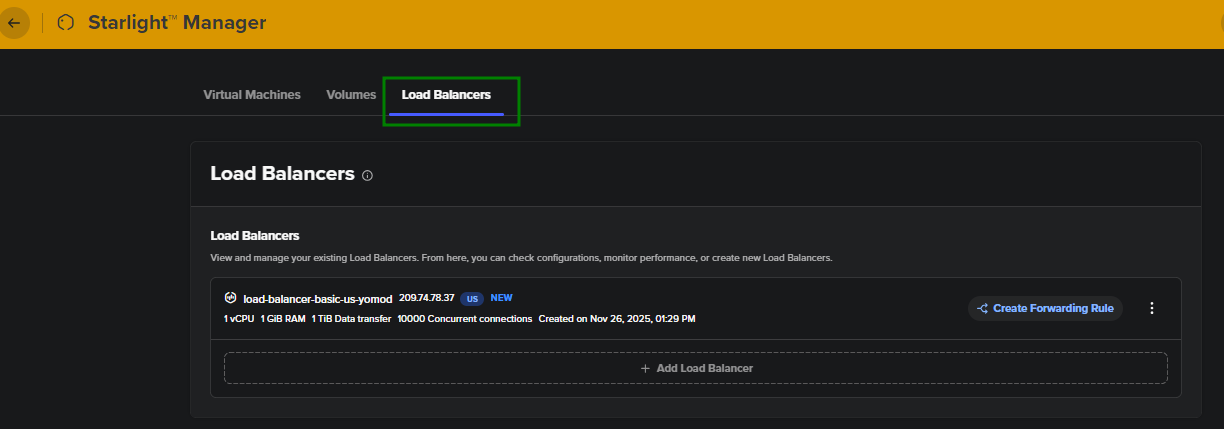
NOTE: The service can also be found in the Virtual Machines section of Starlight Manager, under the associated VM.
Setting forwarding rules
You can create forwarding rules for a Load Balancer either during the unboxing stage or after it, inside Starlight Manager:
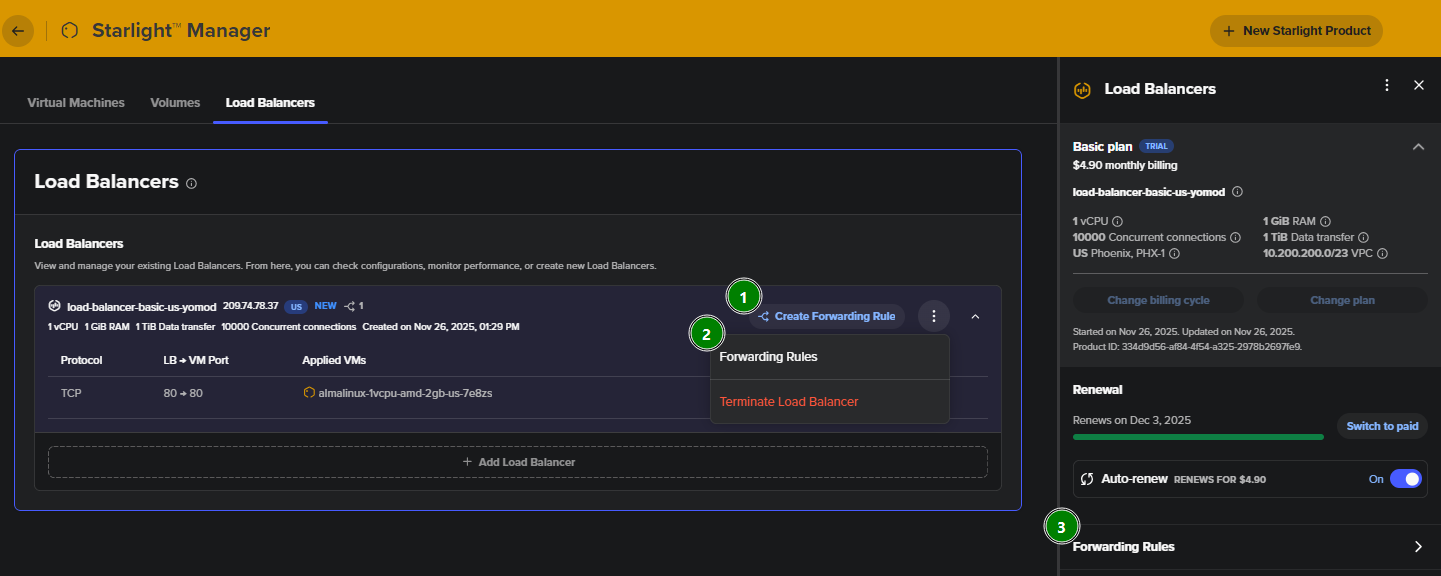
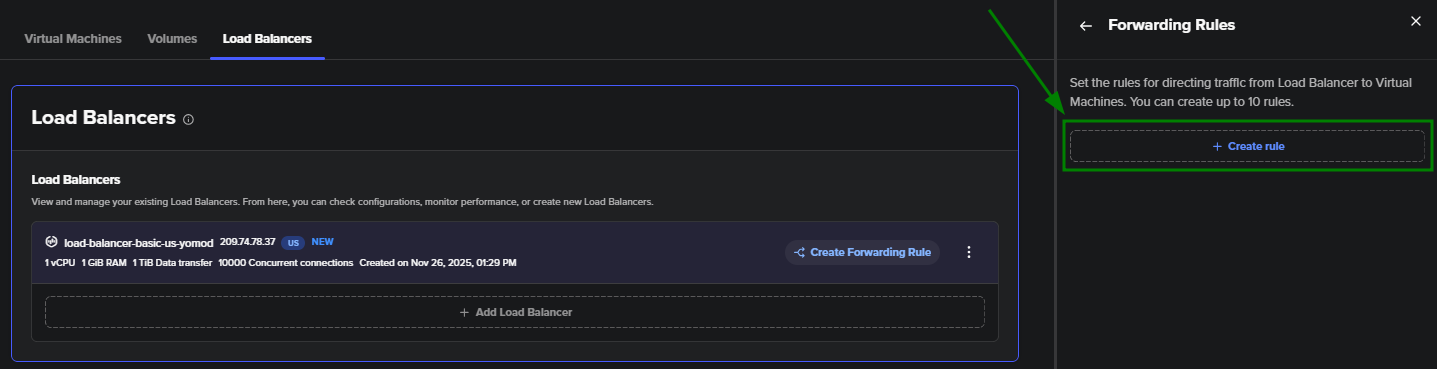
The following window will appear:
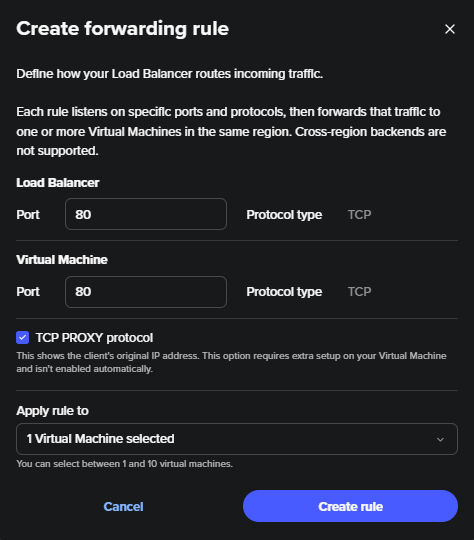
Here are the general rules for creating forwarding rules for a Load Balancer:
A maximum of 10 rules per Load Balancer can be created.
A rule can be applied to a maximum of 10 VMs.
A port number should be in the range 1-65535.
The same rule cannot be added more than 1 time for a VM.
Besides creating forwarding rules, it is also possible to:
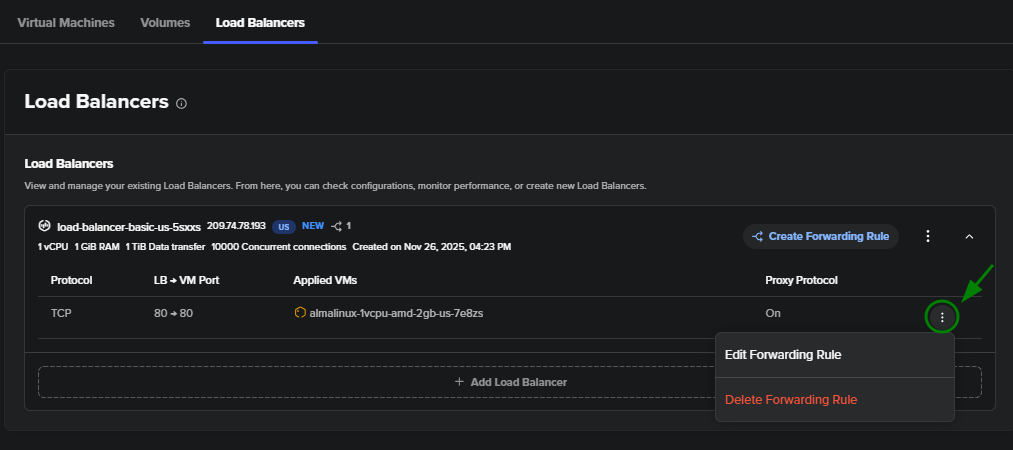
Edit Forwarding Rule
Delete Forwarding Rule
PROXY protocol
When creating a forwarding rule, you can enable the PROXY protocol. This option is useful to preserve the real visitor IP address for:
Application and server logs
Security configurations, such as IP-based rate limiting
Web analytics and traffic insights
When the protocol is enabled, the Load Balancer adds a small header before the actual TCP payload. This header includes:
Your original IP address
Your original source port
The destination IP address
The destination port
Without the PROXY protocol, backend VM instances can only see the Load Balancer’s IP address as the source, which obscures the true origin of the request.
NOTE: Because the PROXY protocol adds headers, the backend VM must be configured to expect and parse these headers. If not configured, the service will break because the VM receives data it cannot understand.