How to change CyberPanel password
If you have forgotten or lost your CyberPanel password, or want to change it for security reasons, you can reset it in several ways, depending on the access you have to your server.
Option 1: Reset password via command line
Access your VM and go to the Virtual Machine access menu.
Click Launch command line:
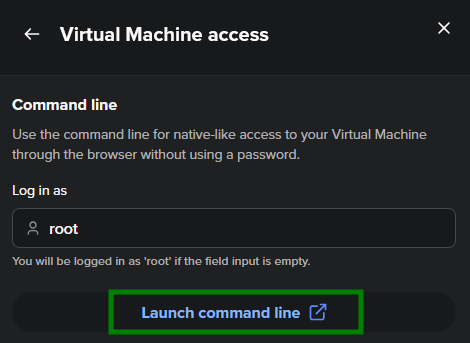
A new window opens, and you will be automatically logged in. Run the following command:
adminPass NEW_PASSWORD
ReplaceNEW_PASSWORDwith your desired password. Once the command is executed successfully, the admin password will be updated: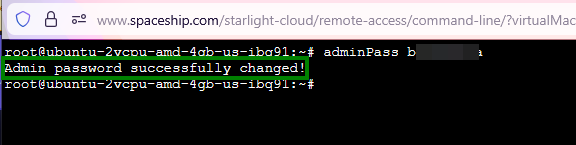
Option 2: Reset password via server console
In the same Virtual Machine access menu, open the console for your VM:
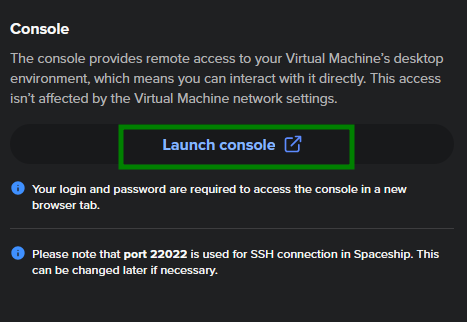
In the new window for the console, enter your login details.
Run the same command:
adminPass NEW_PASSWORD: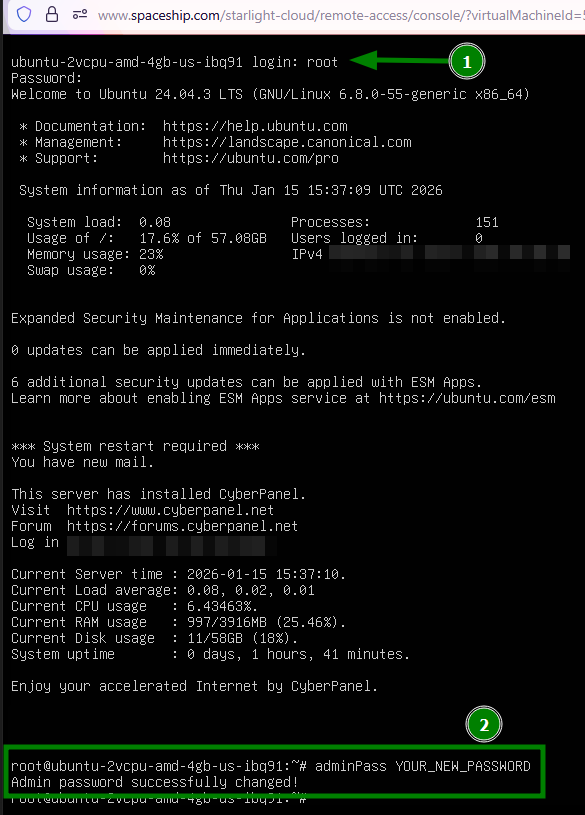
Option 3: Change password from CyberPanel
If you have access to your CyberPanel, do the following:
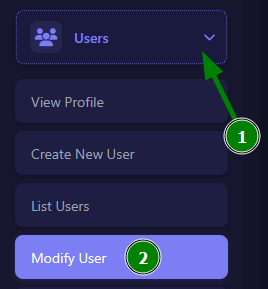
Being logged in as admin, go to Users >> Modify User:
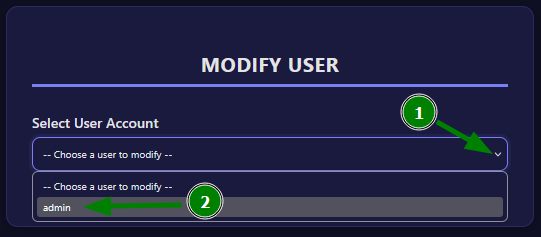
Select the admin user (or another user you want to update):
Enter (or generate) a new password and save the changes:
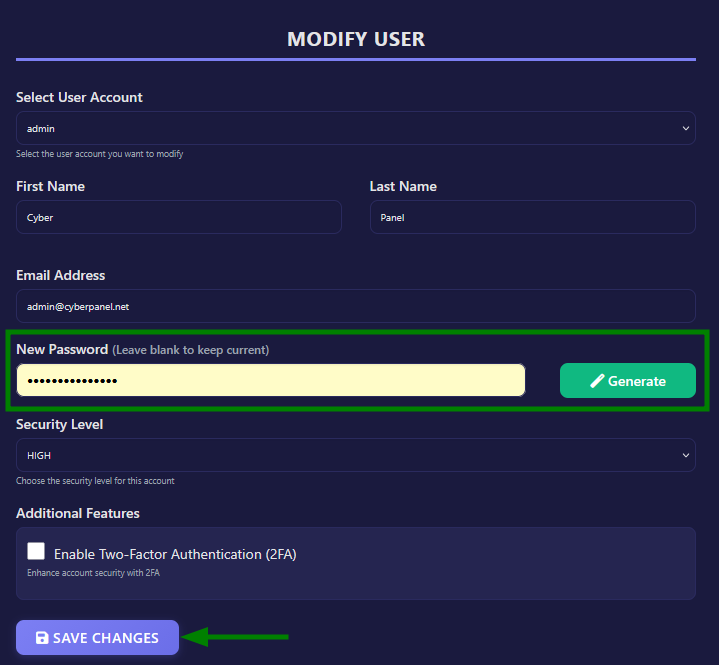
Here, you can also change the user’s name, email address, and enable Two-Factor Authentication.
That’s it! Now you can log in to CyberPanel with a new password.
Notes:
CyberPanel does not offer a “Forgot password” reset via email or VPS Manager.
After resetting your password, we strongly recommend enabling Two-Factor Authentication (2FA) in CyberPanel for improved security.
If you don’t have access to SSH, console, or the CyberPanel interface, please contact our support team for assistance.