What is an FTP Access Control plugin
FTP Access Control is a cPanel plugin that enhances security by restricting FTP connections to specific IP addresses or CIDR ranges. Once configured, only approved IPs can connect to your account via FTP.
Note: This allowlist applies globally to your entire hosting account, not to individual FTP users created in the "FTP Accounts" or "User Manager" cPanel menus.
For step-by-step instructions on setting up FTP accounts and connecting to the server, feel free to check this guide.
How to use the FTP Access Control plugin?
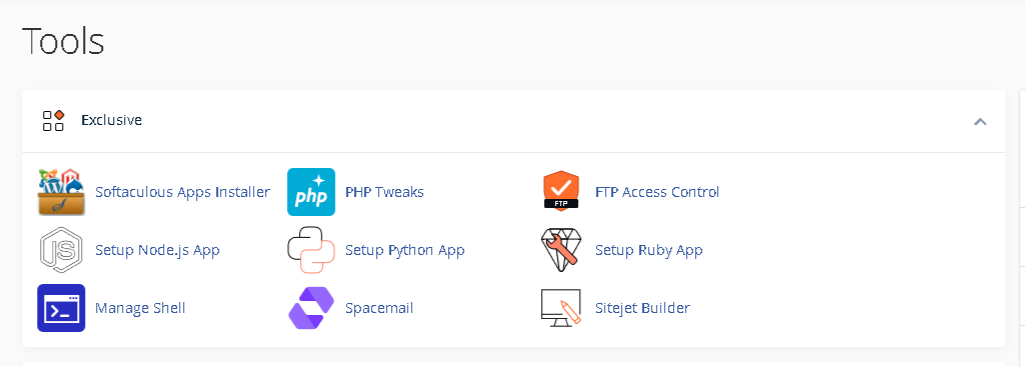
You can find the FTP Access Control plugin in the Exclusive section:
Once accessed, you will see the following message:
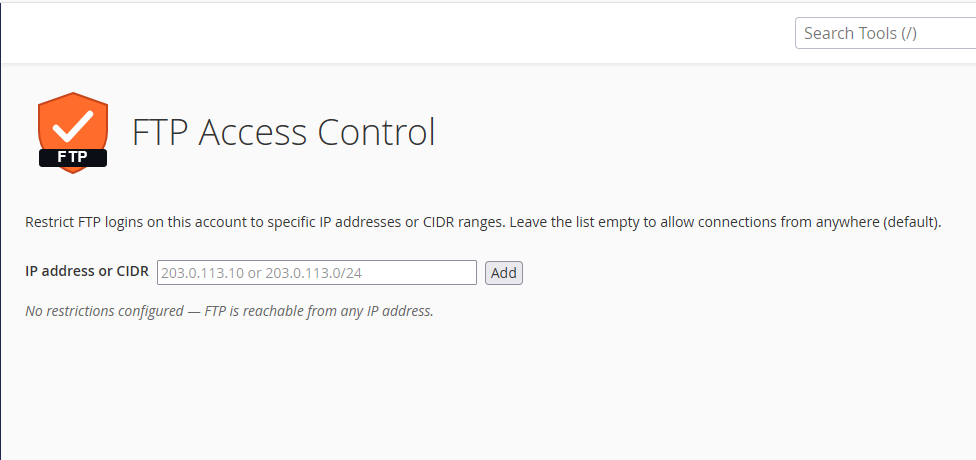
By default, FTP access is open for all IP addresses. To restrict access, simply add your trusted IP addresses or CIDR ranges to the allowlist.
Using a CIDR range lets you authorize an entire network block at once instead of entering IPs individually (for example, 192.0.2.0/24 covers every address from 192.0.2.0 to 192.0.2.255).
Note: Always add your current IP address to the allowlist before enabling restrictions to avoid locking yourself out. If your public IP is dynamic, you must update this list whenever your address changes. You can check your current IP here.
To authorize an IP or CIDR range, enter it in the IP address or CIDR field and select Add. Once saved, a Remove button will display next to the added entry:
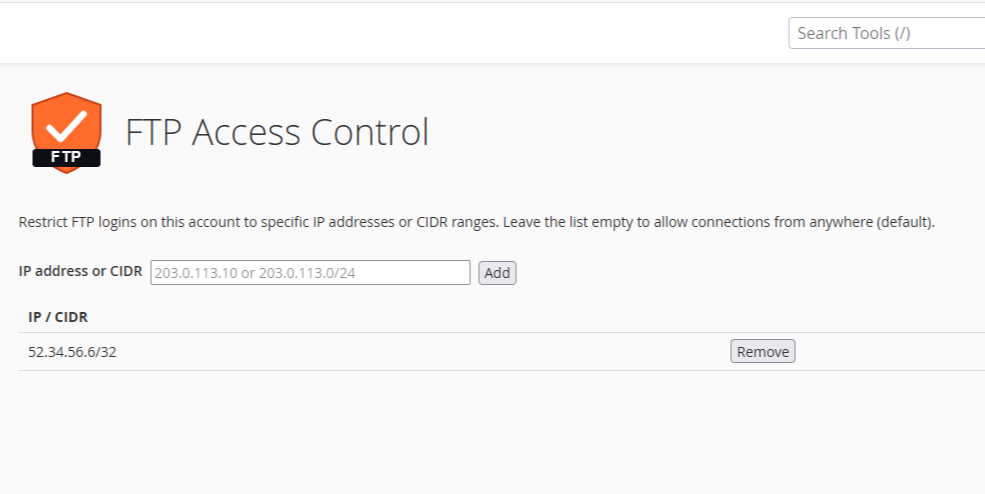
Adding at least one IP address or CIDR range automatically blocks all unlisted connections. FTP access will strictly be limited to your approved entries.
To revoke access for a specific entry, simply click Remove next to it. Clearing all entries disables access restrictions entirely, restoring open FTP connections from any IP.
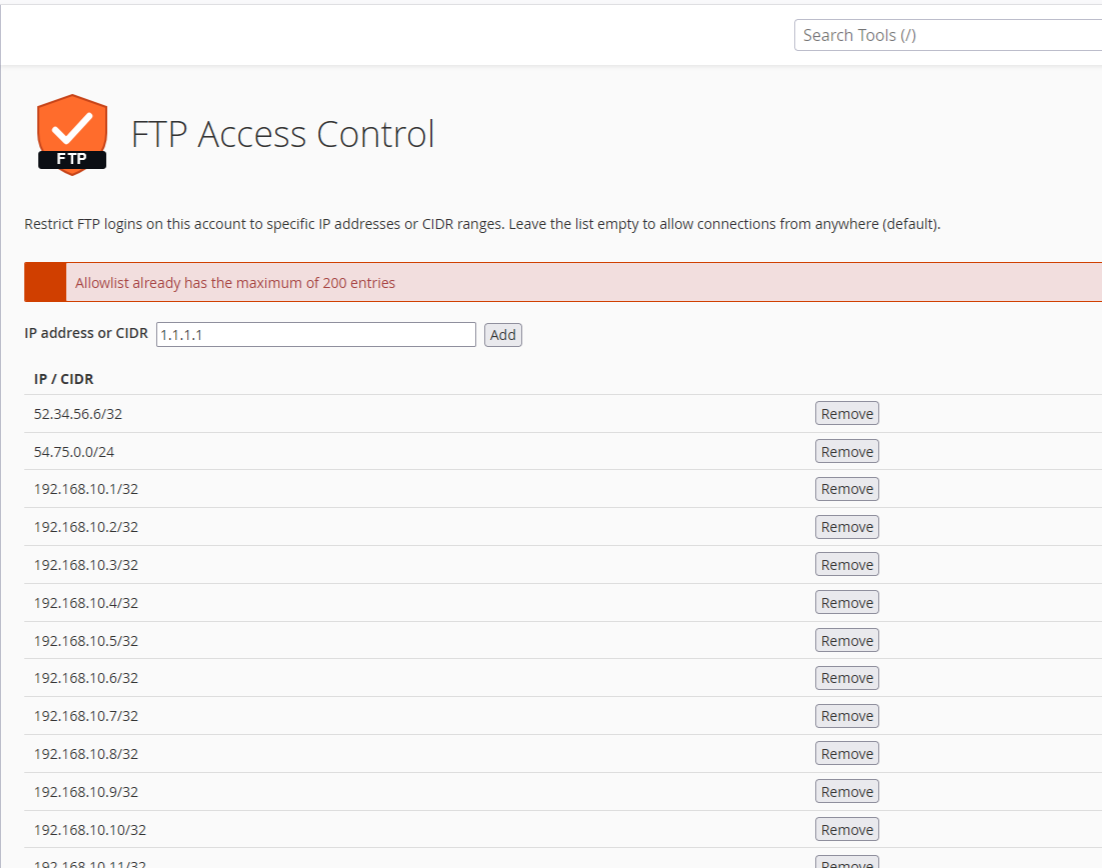
Note: The allowlist supports a maximum of 200 total entries (IPs or CIDR ranges). Attempting to add more than 200 entries will trigger an error message:
If you try to add an IP address that is already covered by an active rule, you will see the following warning:
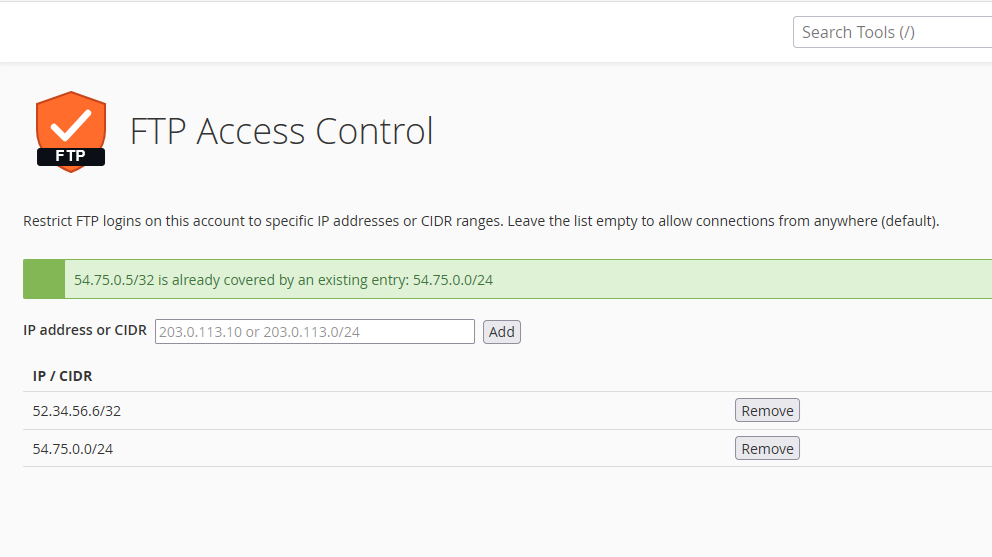
After configuring rules, FTP server access will be granted exclusively from listed IP addresses.