Why is my SSL certificate stuck in “Pending”?
If you have tried to add an SSL certificate for a domain or hosting, but it stays in the “Pending” status, it’s due to one of the following reasons:
Below, you’ll find a detailed explanation of each scenario and how to resolve it.
1. The domain-hosting connection is not active
At Spaceship, SSL installation begins only after the domain-hosting connection becomes active. This is required so the Certificate Authority (CA) can verify domain ownership and issue the certificate.
An active connection means:
The domain is correctly pointed (via nameservers or DNS records)
Any required domain verification (such as TXT records) is complete
The system has fully detected the domain
Even if your website already opens in a browser, SSL issuance will not start until the connection is ‘Active’.
Connection statuses in Hosting Manager
When connecting your domain to hosting, you may see one of these statuses:
Active
The domain is properly connected and SSL installation will begin shortly. It typically takes up to 15 minutes for the SSL to get installed.
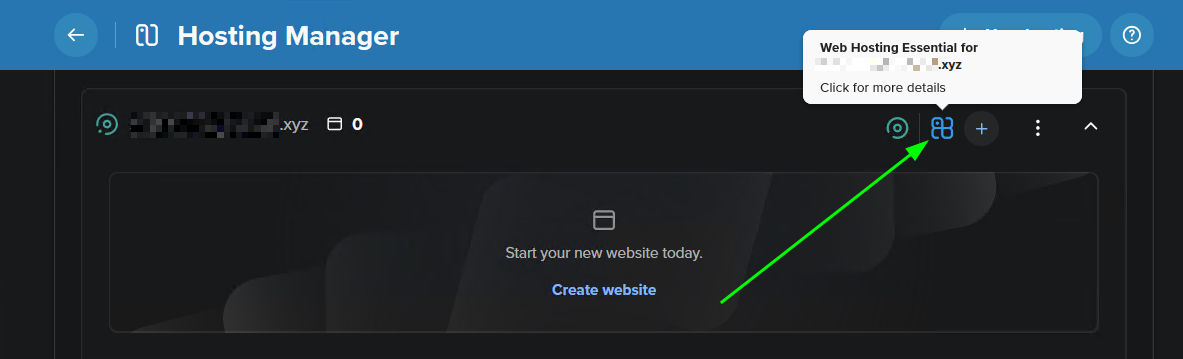
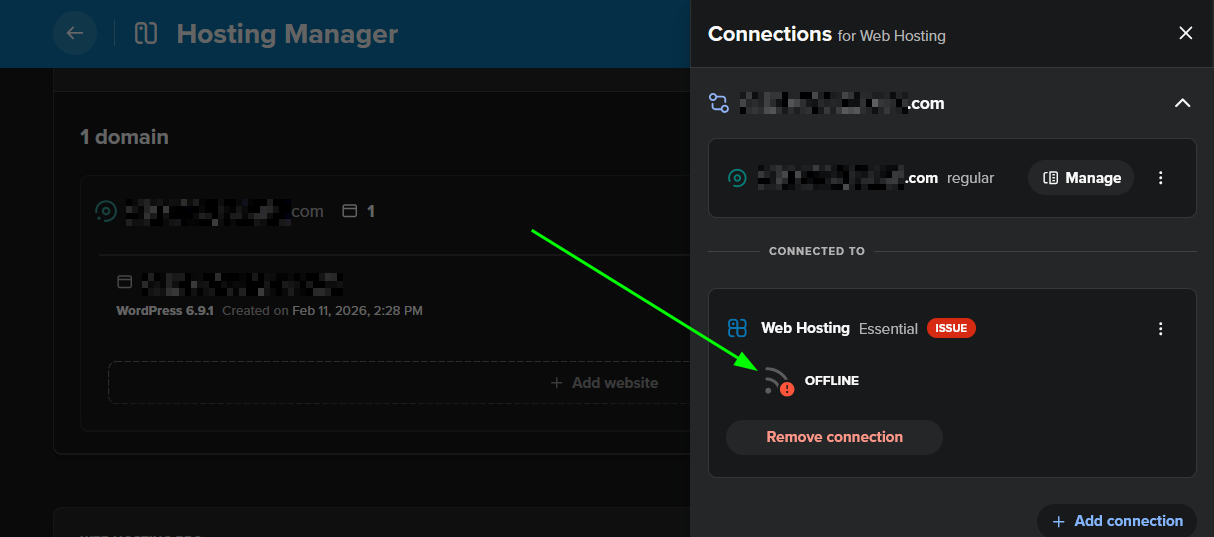
Hit the Hosting icon for more details on the connection status:
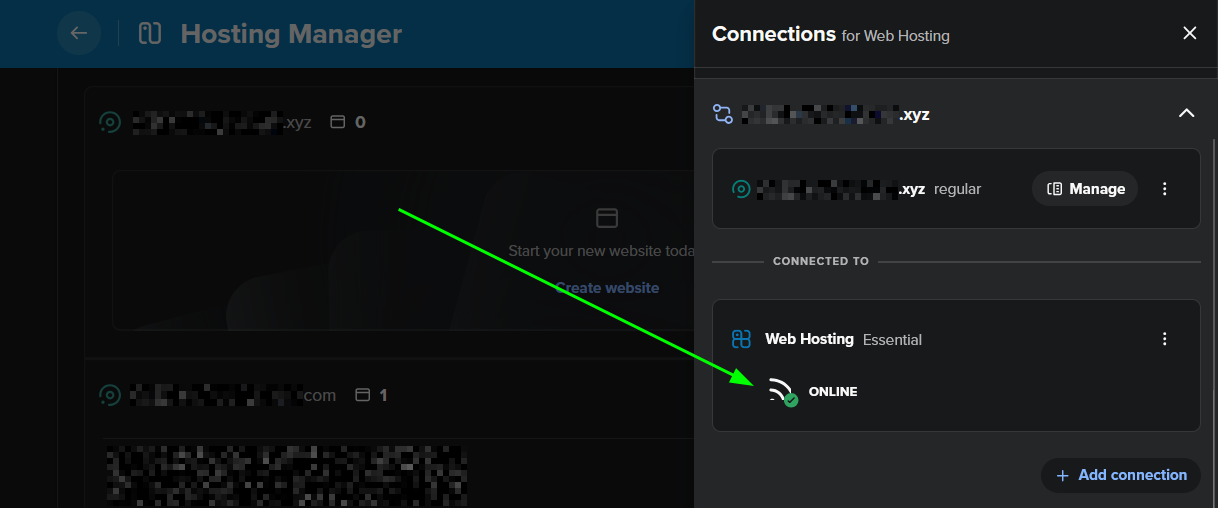
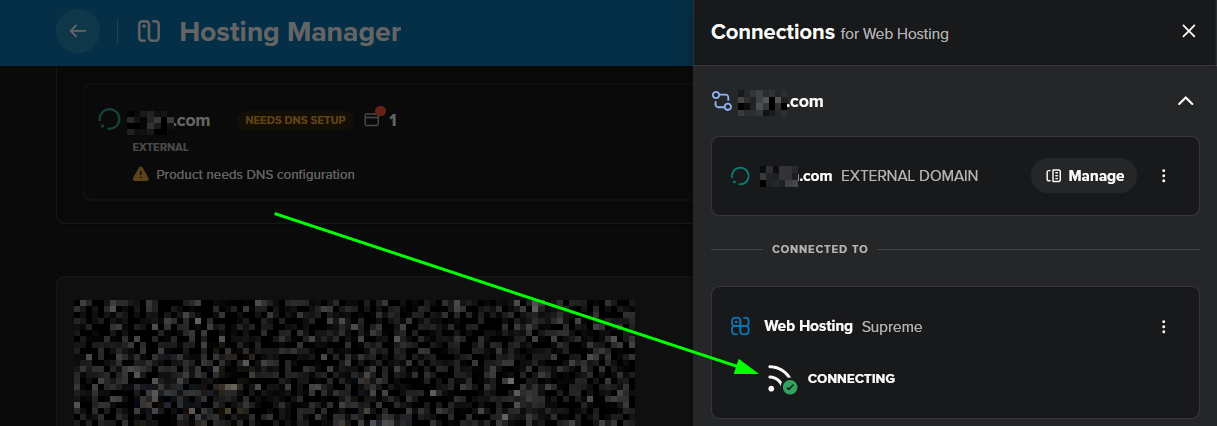
Connecting
The domain is not fully connected yet, and SSL issuance is paused. The system is most likely attempting to verify the domain’s DNS records. Therefore, it is necessary to ensure that all required DNS records have been properly configured and to allow time for the domain- hosting connection to fully propagate and become established.

Click on the Hosting icon for more details on the connection status:
Corrupted / Offline
The domain is not connected correctly, and the SSL will not be installed until it’s fixed. This could be due to the domain missing DNS records, or if the domain name is not correctly pointed to the Spaceship nameserver. It could also be related to an expired or lapsed hosting subscription, or a server-side or platform issue. If your nameservers and DNS are configured correctly and the hosting is active, feel free to contact us for further assistance.
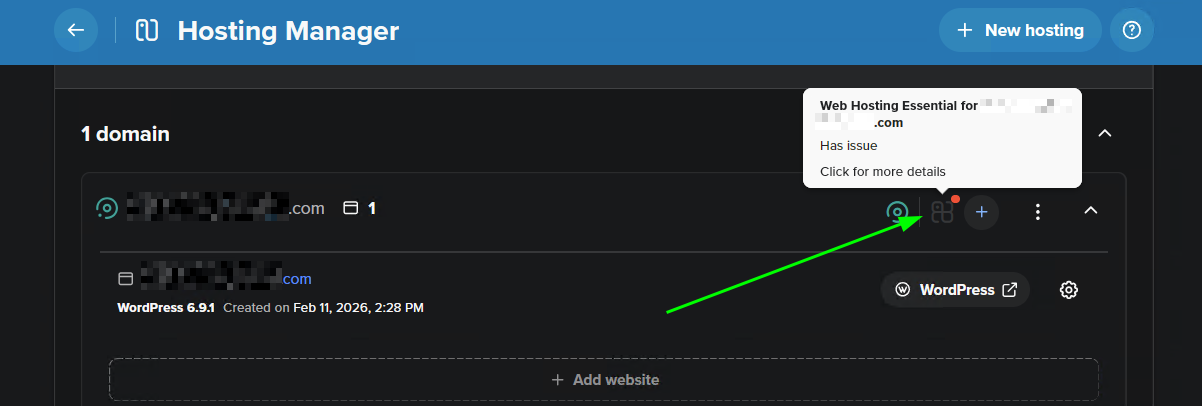
Click on the Hosting icon for more details on the connection status:
Connection activation timeframes
If you have a Spaceship-registered domain, you can typically expect the following time frames:
Usually domain-hosting connections becomes active within 1 hour after pointing the domain to the Spaceship hosting
If the domain is still in the “Connecting” status, the system rechecks every 30 minutes
If you use a third-party domain, you can connect it to our hosting using one of the following options:
Nameservers (launch1.spaceship.net / launch2.spaceship.net)
DNS records
If you use DNS records:
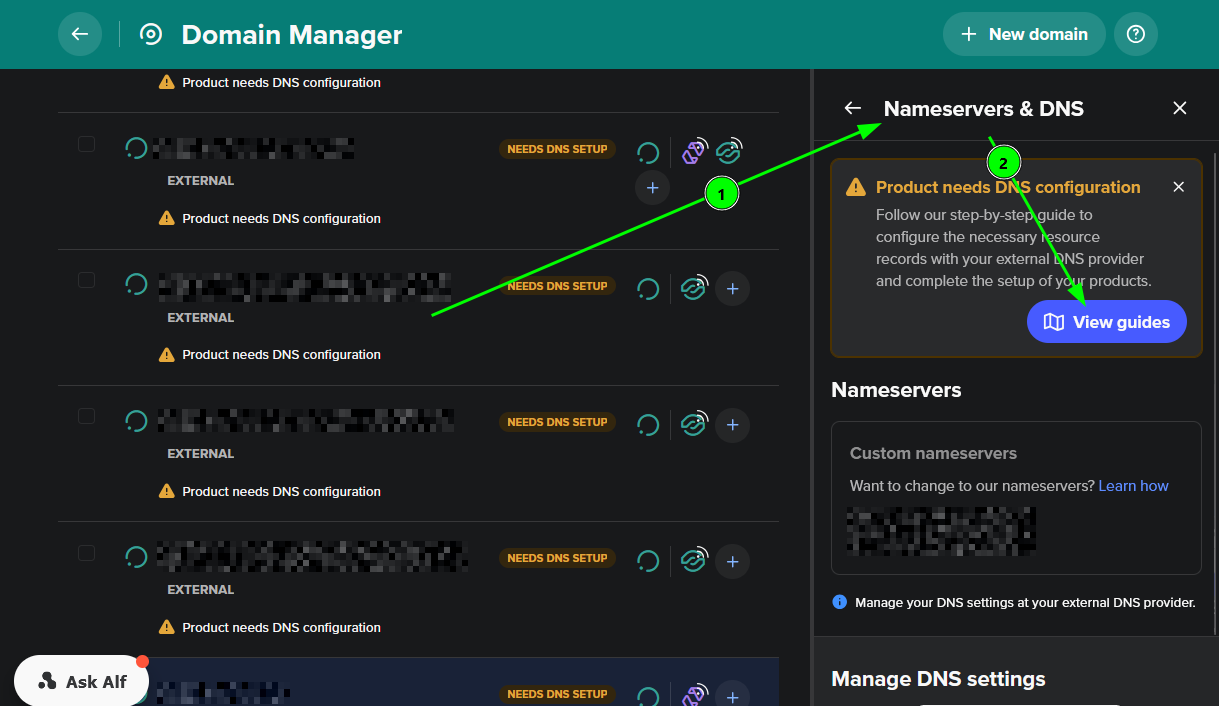
Add the TXT verification record from Domain Management → Nameservers & DNS → View Guides to the domain registrar
Click “Verify DNS changes” once you have created the record to confirm it manually
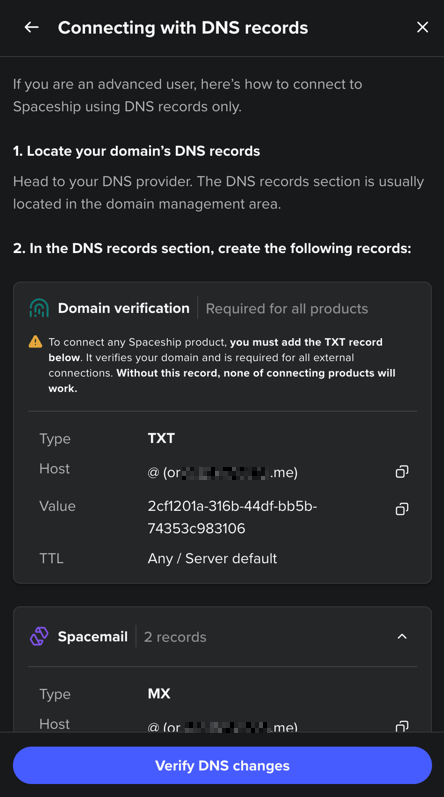
It’s important to note that even if your website already loads, the connection will not become active without TXT verification, and SSL will remain as ‘Pending’.
System check intervals
For Spaceship-registered domains
A connection usually becomes active up to 1 hour after the domain has been pointed to hosting via nameservers or DNS records. If the status remains as ‘Connecting’ after the first hour, the system will continue checking for all essential product records every 30 minutes for 30 days.
For third-party registered domains
The system checks if the domain is pointed to hosting every hour during the first 24 hours, and then once per day for 30 days. If the domain is pointed to hosting within 24 hours of hosting unboxing, the connection should become active within an hour. Otherwise, the connection should become active within 24 hours.
2. Domain connected to Cloudflare
If your domain is connected through Cloudflare, SSL issuance may fail due to proxying.
When proxying for DNS records is enabled:
Visitors connect to Cloudflare first
Cloudflare then connects to your hosting server
Because of this, the hosting system cannot directly verify domain ownership during the domain-hosting connection establishment, and the SSL may remain stuck in “Pending.”
Solution:
Disable proxying (switch DNS records to DNS only on the Cloudflare end)
Wait for the domain-hosting connection to become ‘Active’
The SSL should be issued within ~15 minutes
3. SSL requested during hosting grace period
When a hosting account enters its grace period, connections between your domain and hosting can become corrupted, causing issues with SSL certificate installation. A grace period means your hosting subscription has expired, but hasn't been fully terminated yet.
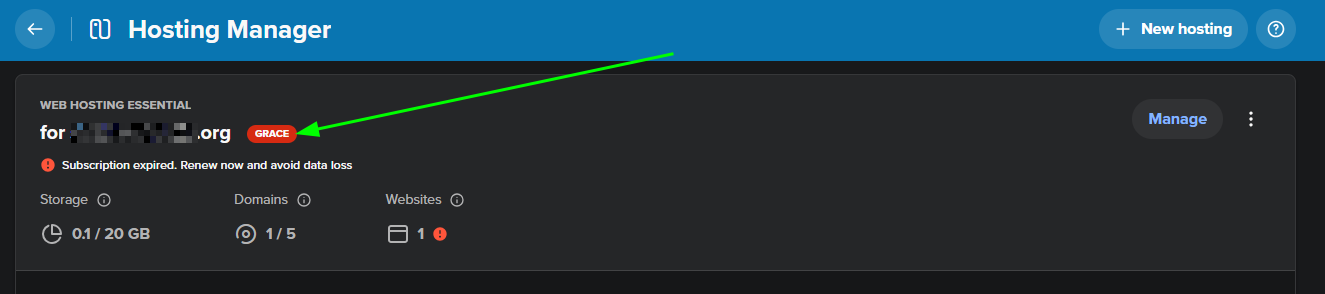
Solution:
Renew your hosting plan
Remove the existing SSL connection
Go to Hosting / EasyWP Manager
Hit the three dots (⋮) next to your domain
Select “Get SSL”
What Happens Next?
Once the domain–hosting connection becomes Active, SSL installation starts automatically. The certificate is typically issued within 15 minutes.
You can verify your SSL status in:
SSL Manager
Hosting apps (Hosting Manager, EasyWP Manager)
Look for the padlock icon next to your domain. Here is what each status means:
Corrupted: This status can appear if the domain and host are not yet connected. It means the SSL exists in the system, but is not functioning properly

Pending: SSL installation is in progress. The SSL will be issued within 15 minutes once the domain-hosting connection is active

Active: The SSL is properly installed and active for the website

If the SSL is still not installed after following these steps, refer to additional troubleshooting resources or verify that all DNS and connection settings are correctly configured.