How to Connect Spacemail MCP to Claude and ChatGPT
Spacemail MCP (Model Context Protocol) connects your Spacemail mailbox to AI assistants like Claude and ChatGPT. Once connected, you can ask your assistant to search and read emails, summarize messages, organize your inbox, and send replies using simple, everyday language.
This guide explains how to connect Spacemail MCP to Claude and ChatGPT.
Before you begin, make sure you have a Spacemail mailbox that’s set up and ready to use and access to Claude or ChatGPT. You’ll need your Spacemail login credentials to authorize the connection.
Set up Spacemail MCP with Claude
1. Sign in to your account at claude.ai.
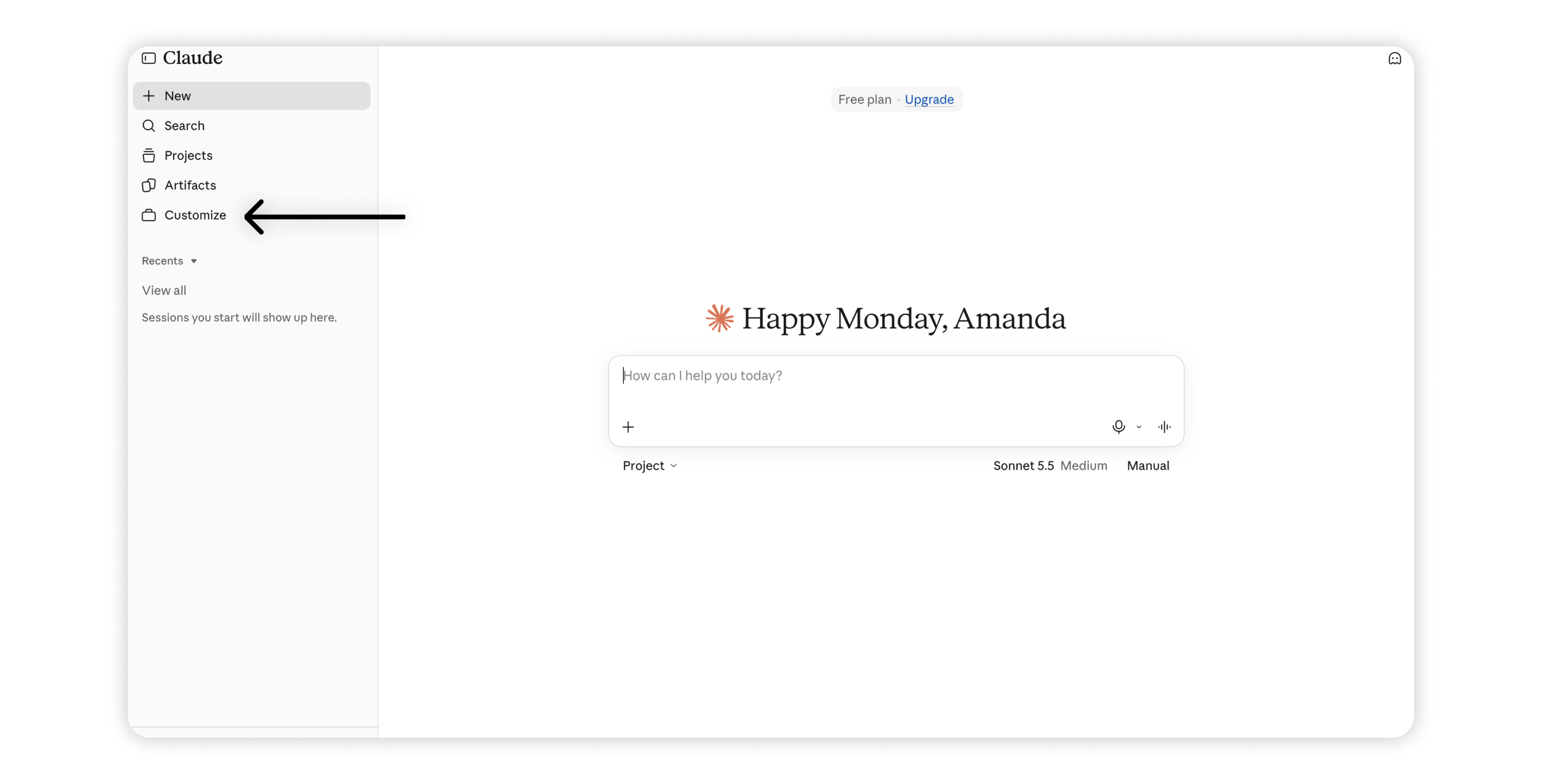
2. In the navigation menu, click Customize.
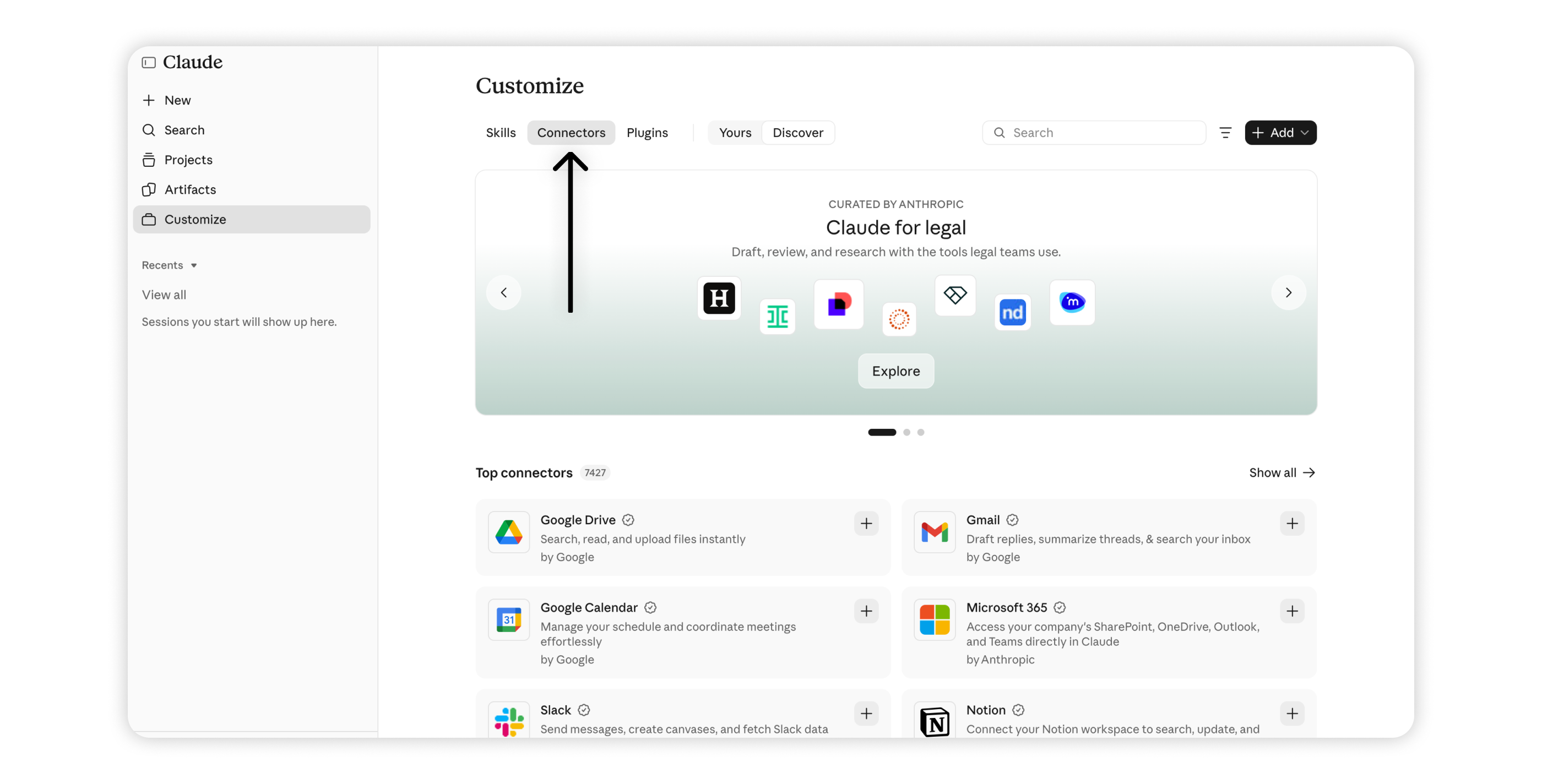
3. Open the Connectors tab.
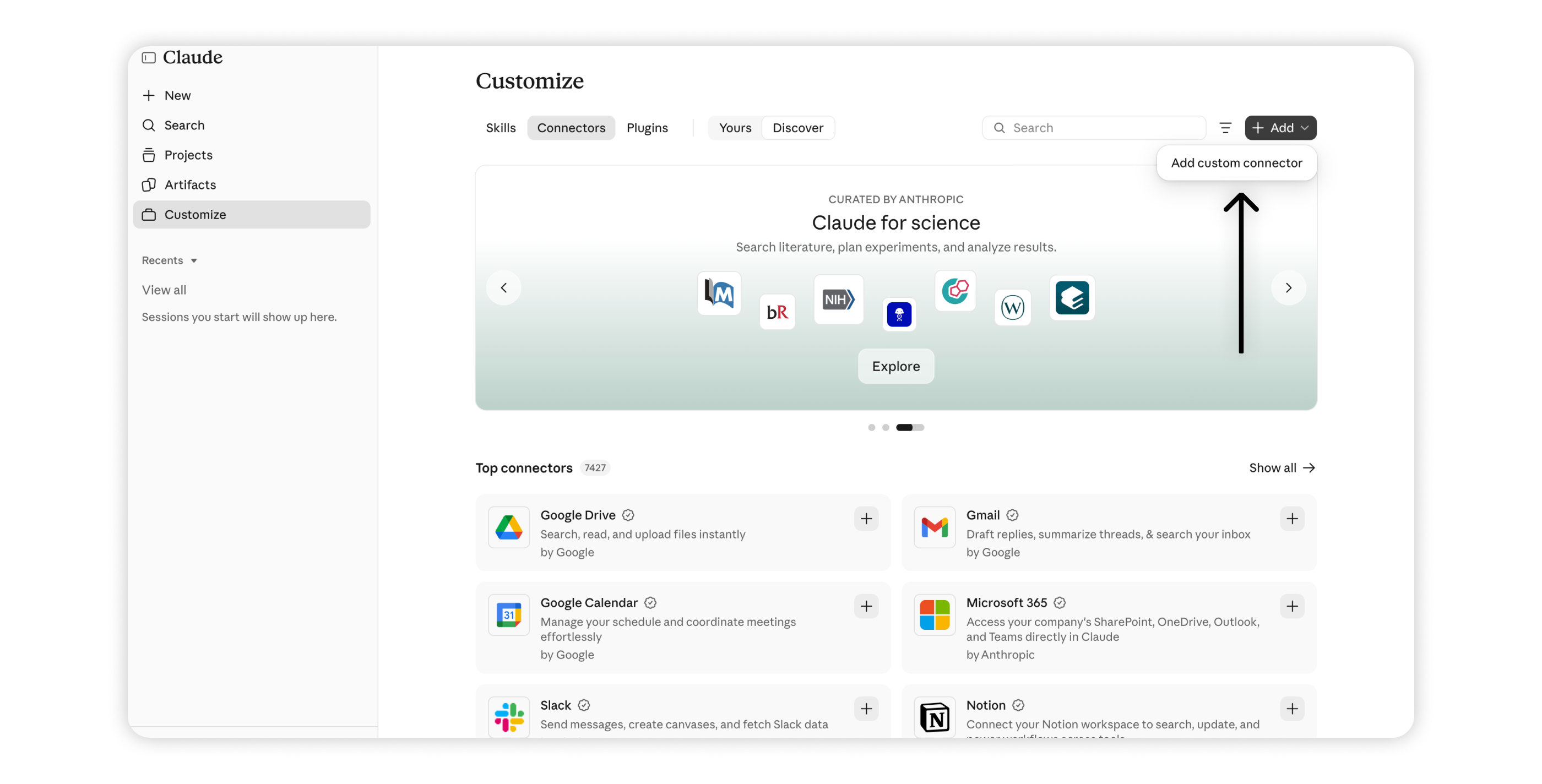
4. Click Add > Add custom connector.
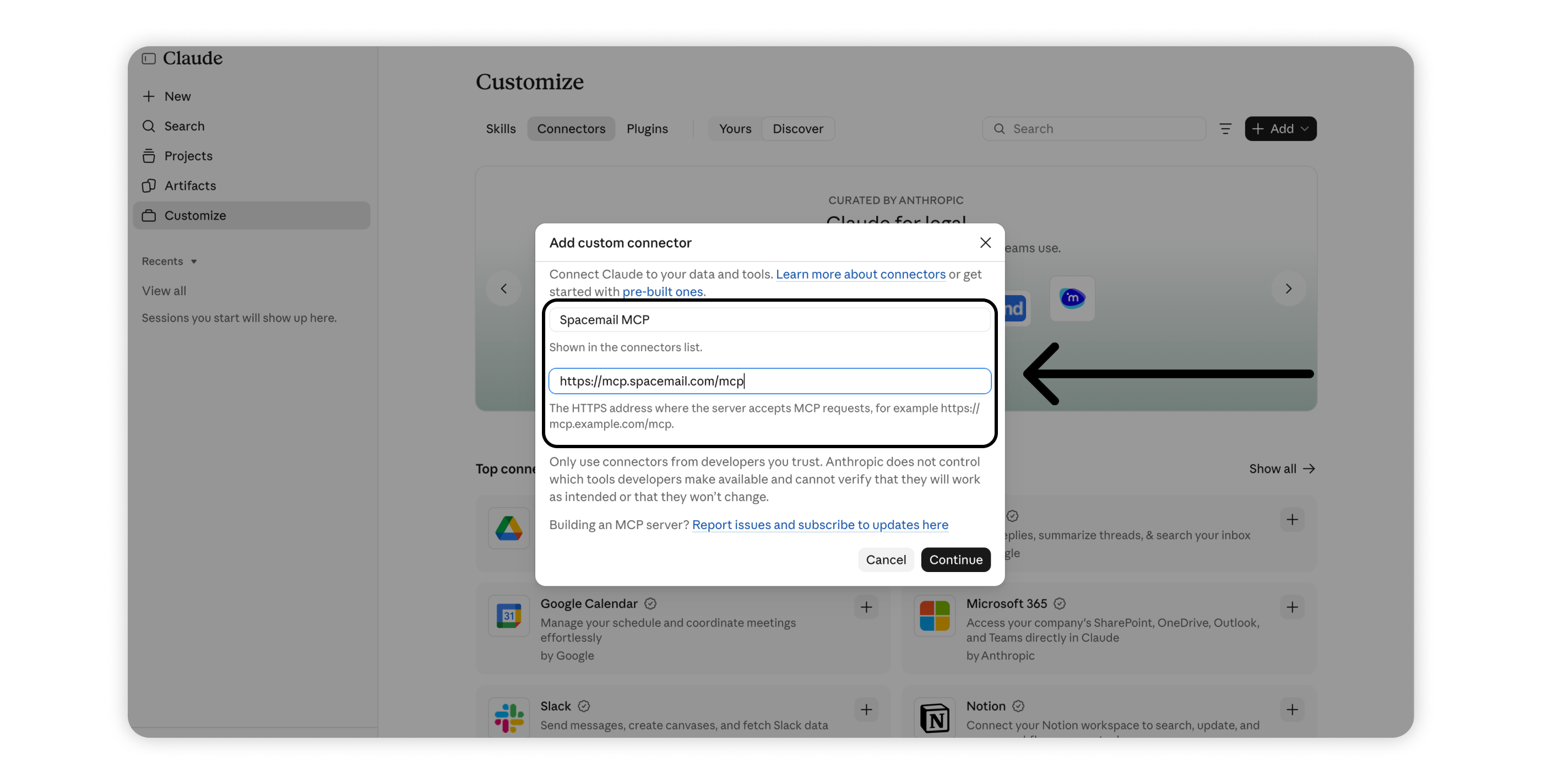
5. Enter the following details and click Continue:
Name: Spacemail MCP
MCP server URL: https://mcp.spacemail.com/mcp
6. Under OAuth client, select Register automatically and click Add.
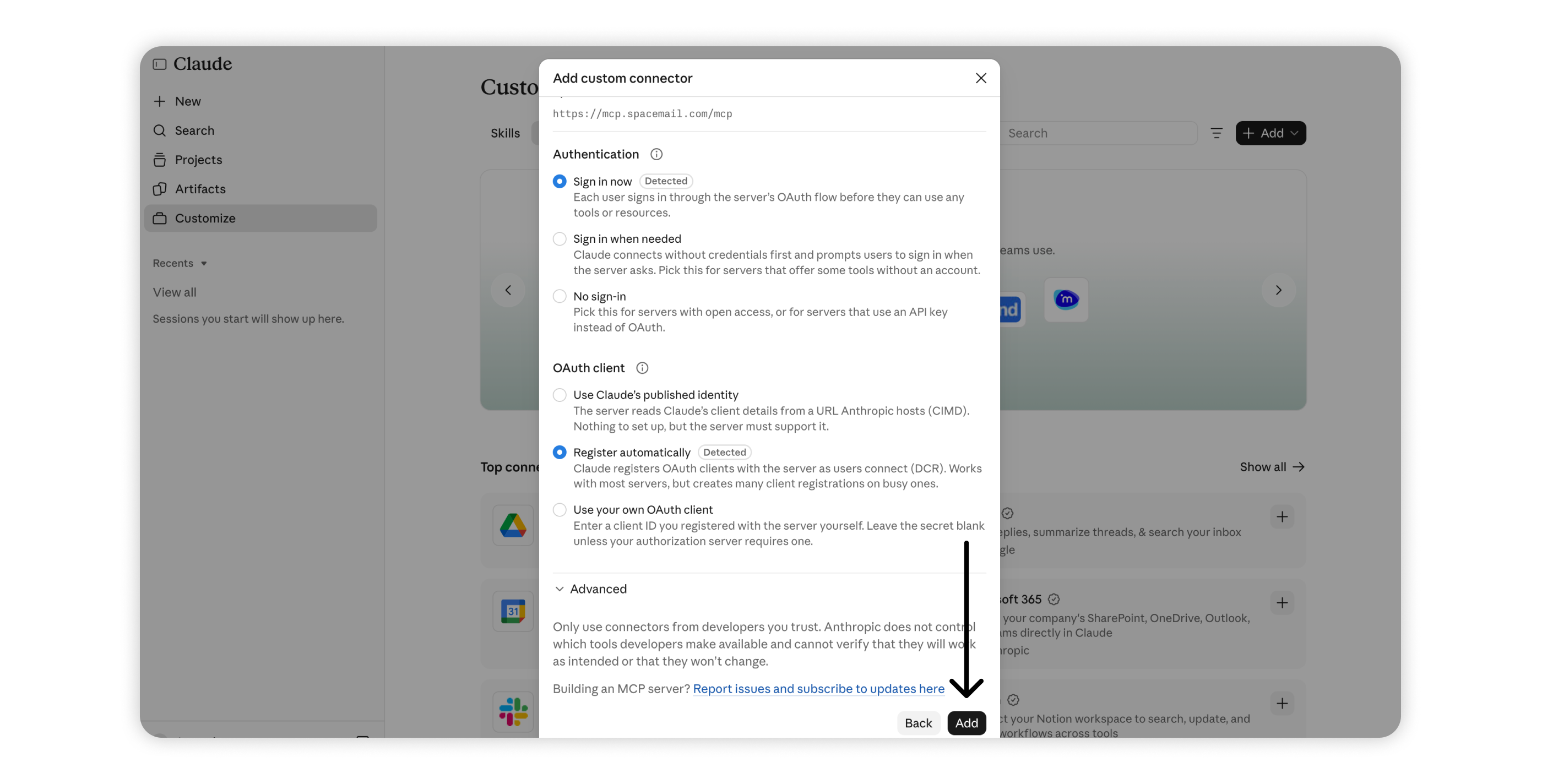
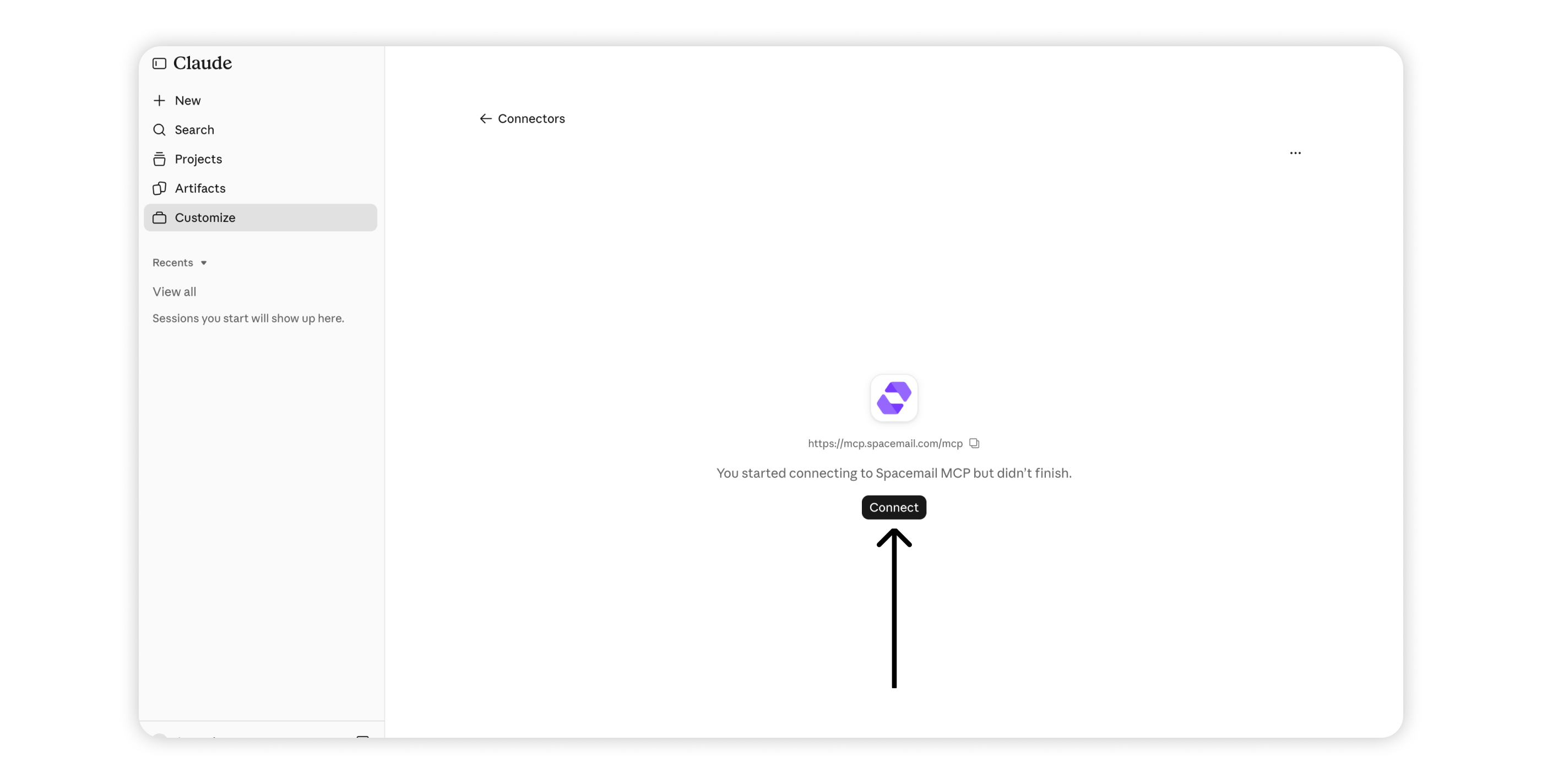
7. On the Spacemail MCP connector page, press Connect. You will be redirected to the Spacemail login page.
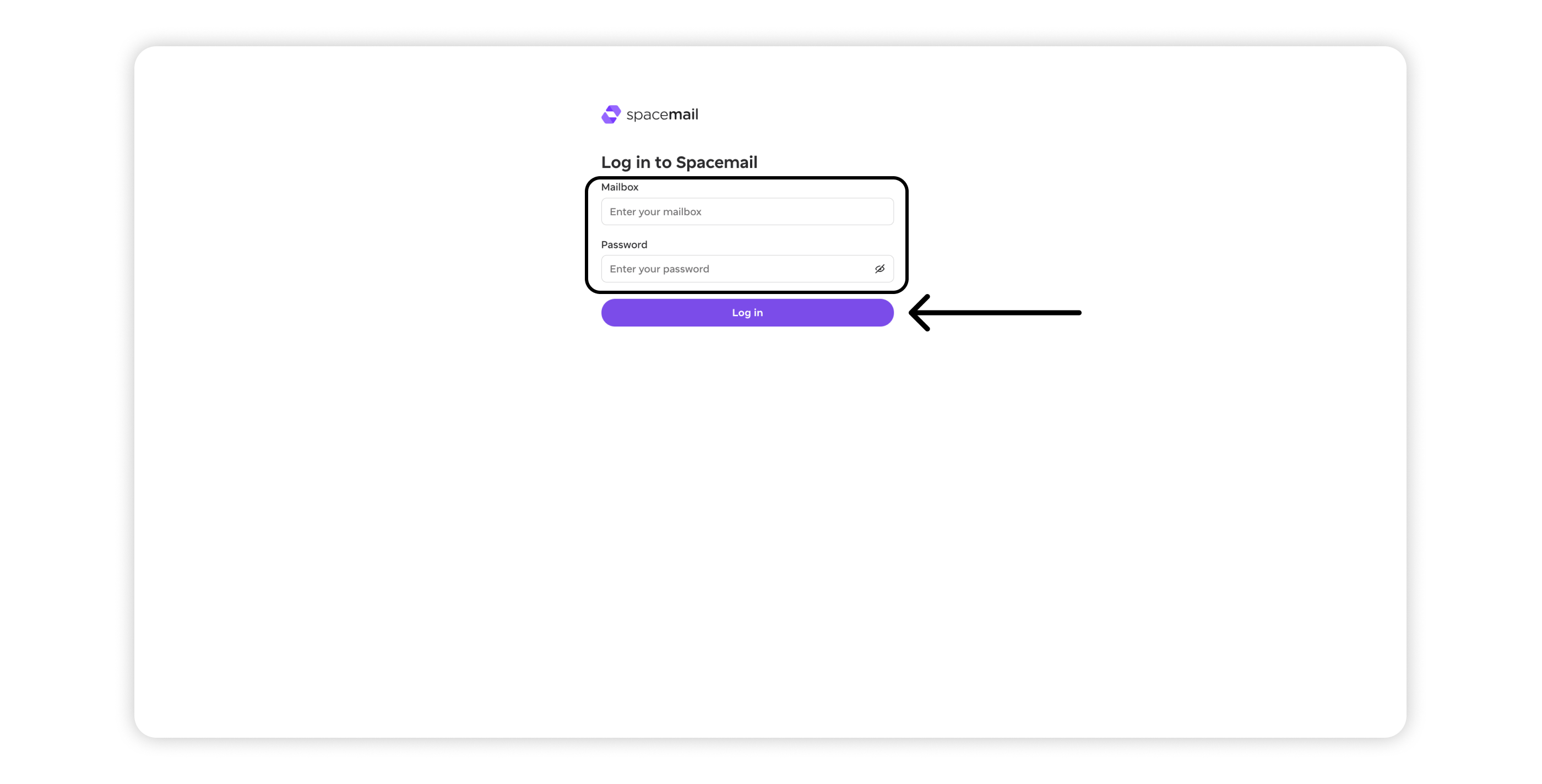
8. Enter your Spacemail email address and password, then click Log in.
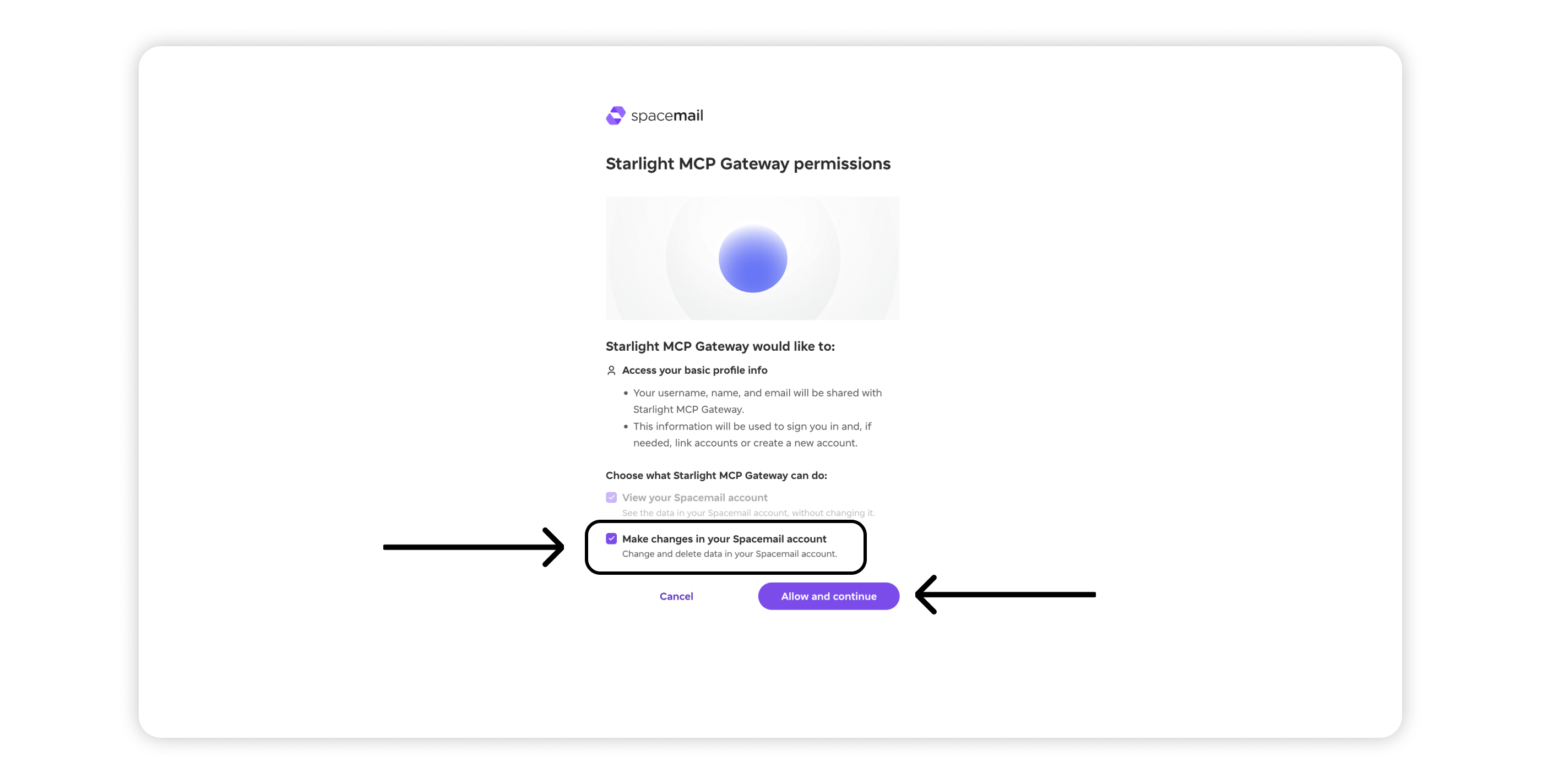
9. Review the permissions requested by Spacemail MCP:
Access your basic profile info – Share your username, name, and email address for authentication.
View your Spacemail account – Allow the assistant to access and read your mailbox. This permission is required.
Make changes in your Spacemail account – Allow the assistant to manage emails, including moving, marking, deleting, and sending messages. Enable this option if you want more than read-only access.
Click Allow and continue to authorize the connection.
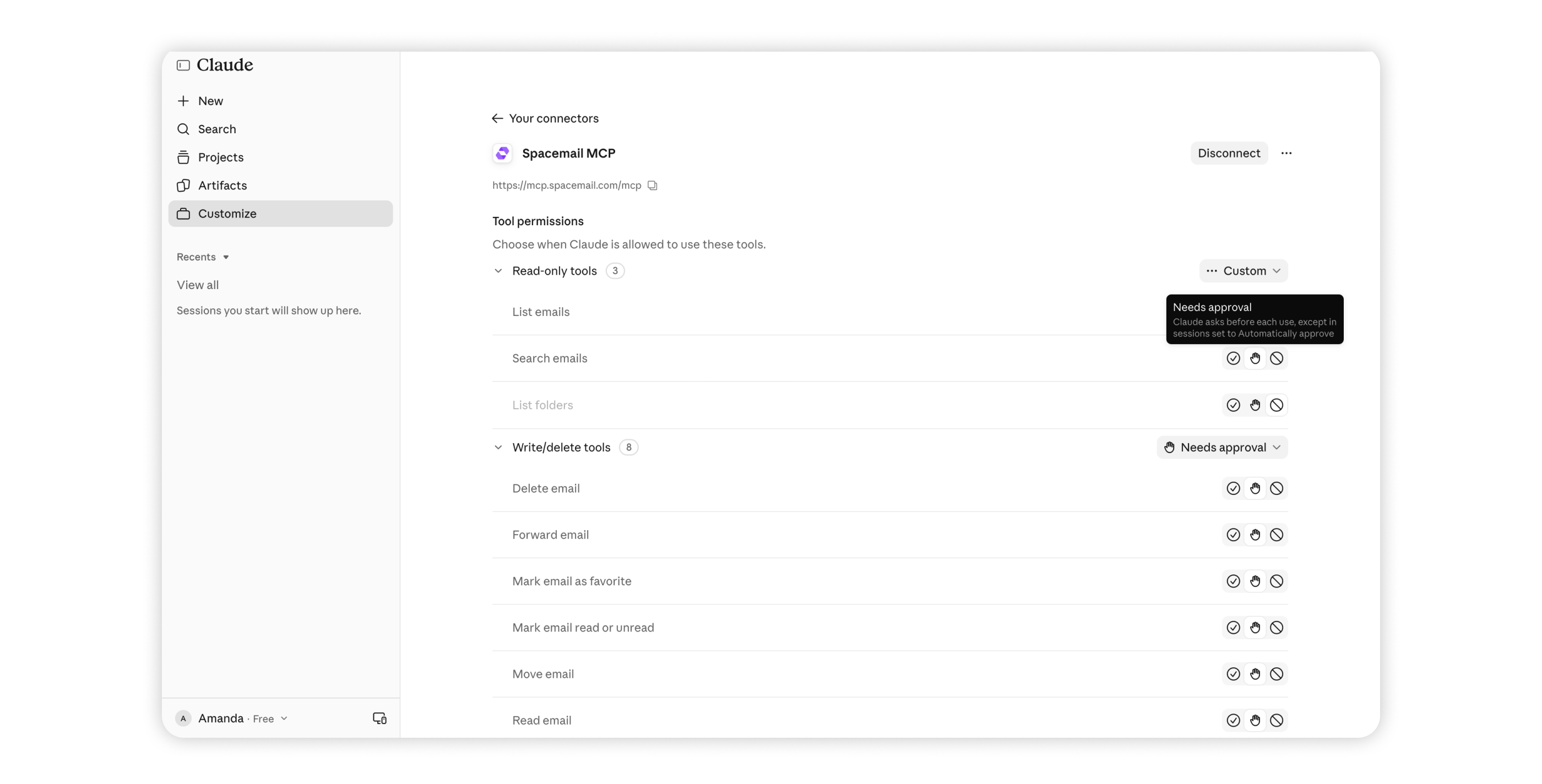
10. Once the connection succeeds, you’ll land on the Tool permissions page for Spacemail MCP, where you can control how each tool is used:
Always allow: Spacemail MCP tools run automatically, without asking for approval.
Needs approval: Claude asks for permission before using a particular tool.
Blocked: the selected tool can’t be used.
Custom: you set the permission for each tool individually.
Tools are grouped into Read-only (searching, listing, and reading emails) and Write/delete (sending, moving, deleting, and marking emails). You can manage permissions for each group or individual tools.
The default Always allow setting lets Claude use tools without additional approval. For more control, select Needs approval to review actions before they’re performed.
11. To start using Spacemail MCP, open a new chat with + New and write your prompt.
Set up Spacemail MCP with ChatGPT
1. Go to chatgpt.com and log in to your account.
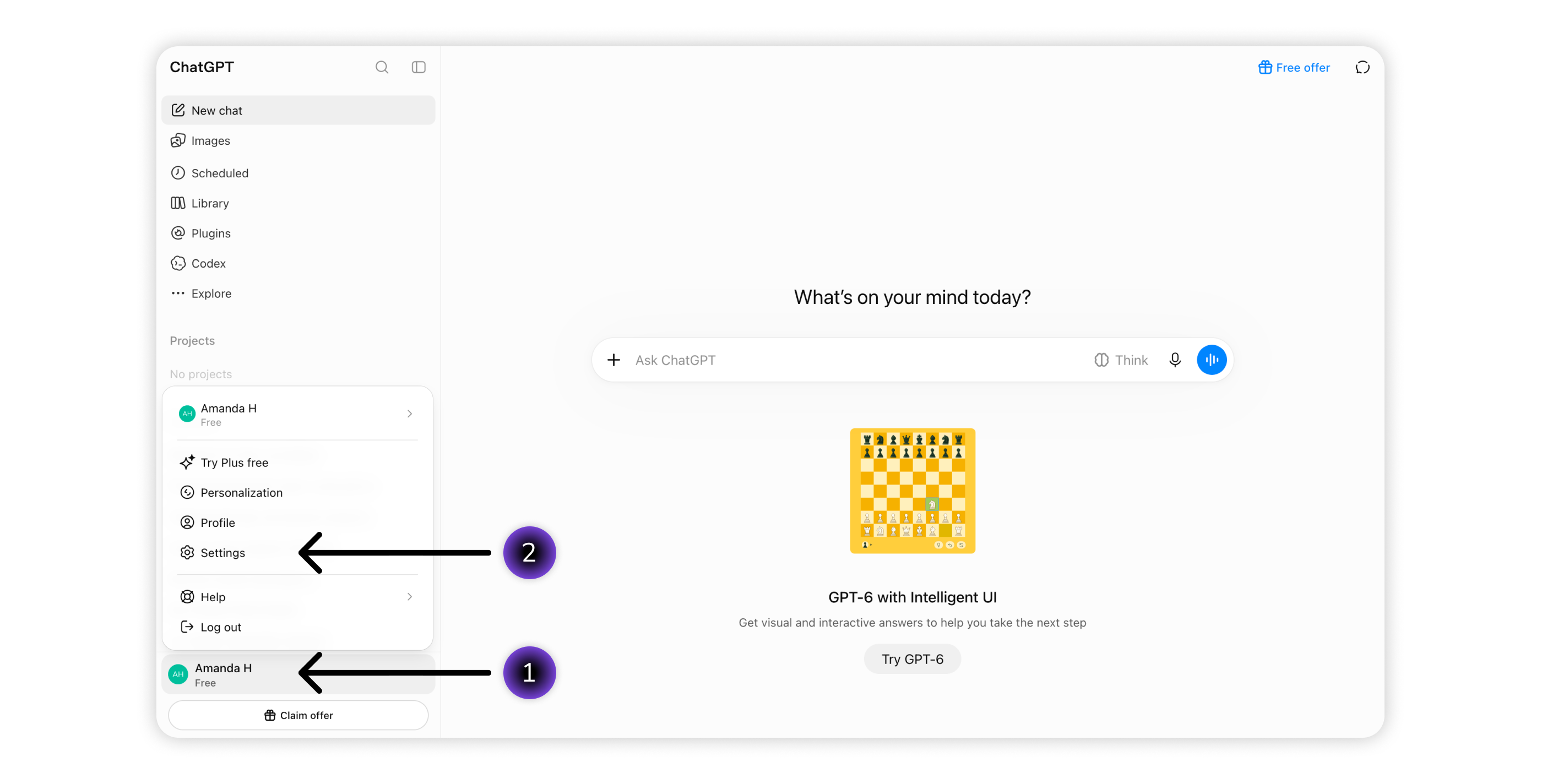
2. Click your profile name in the bottom-left corner, then select Settings.
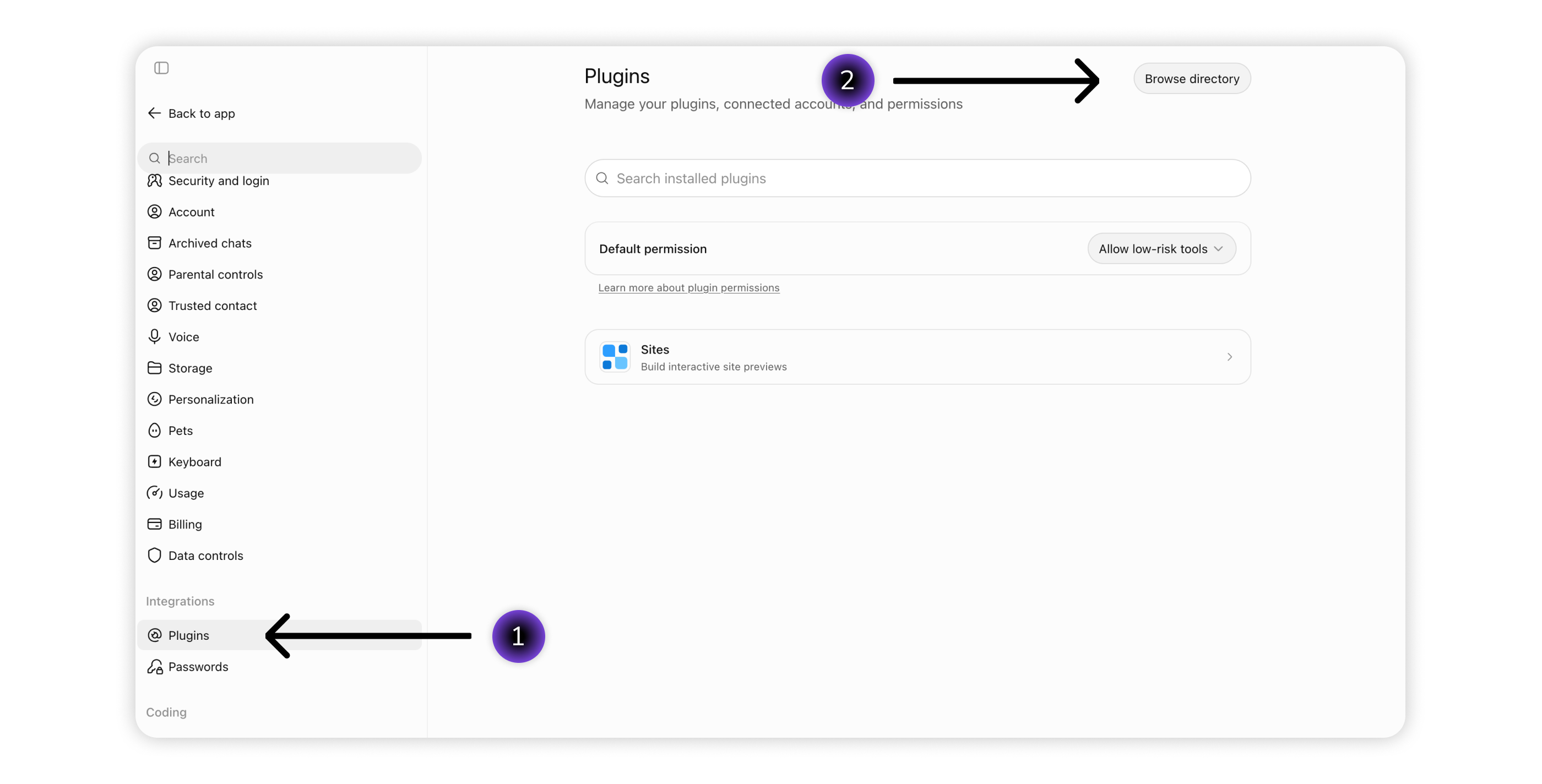
3. Go to Plugins > Browse directory.
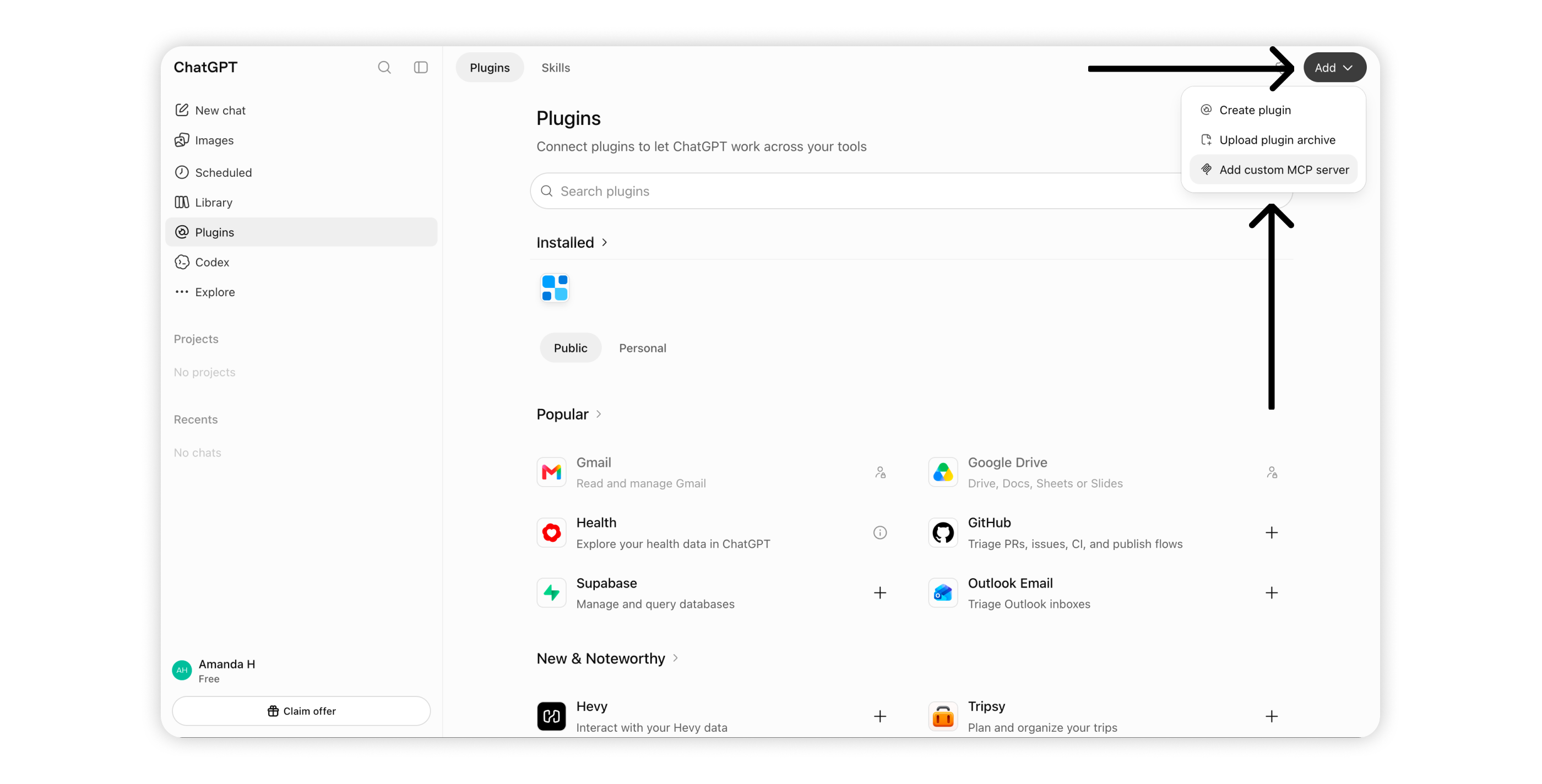
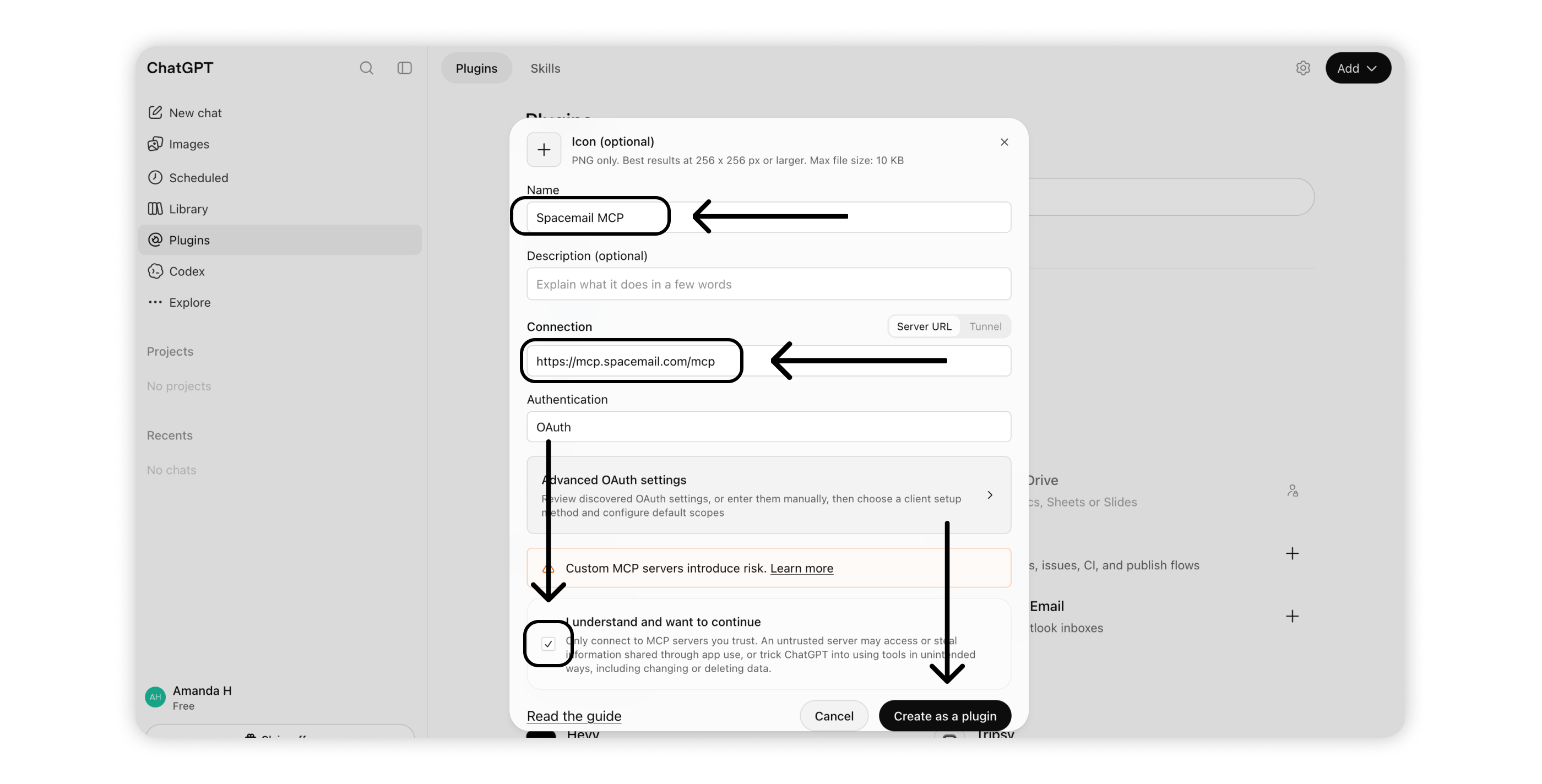
4. Click Add > Add custom MCP server.
5. Fill in the following details:
Name: Spacemail MCP
Connection: https://mcp.spacemail.com/mcp
Authentication: OAuth
Check I understand and want to continue, then click Create as a plugin.
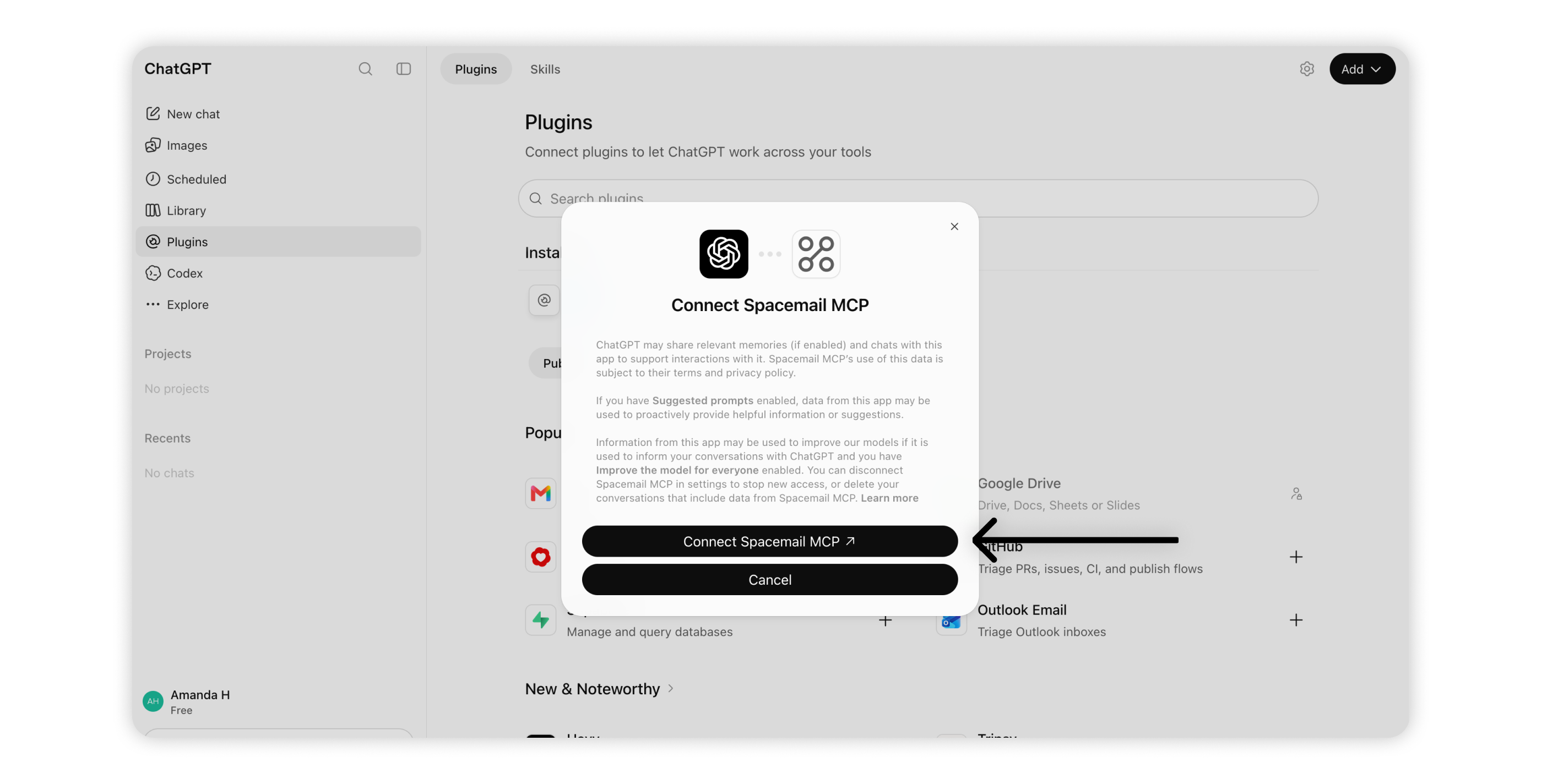
6. Review the data-sharing notice and click Connect Spacemail MCP. You’ll be redirected to the Spacemail login page.
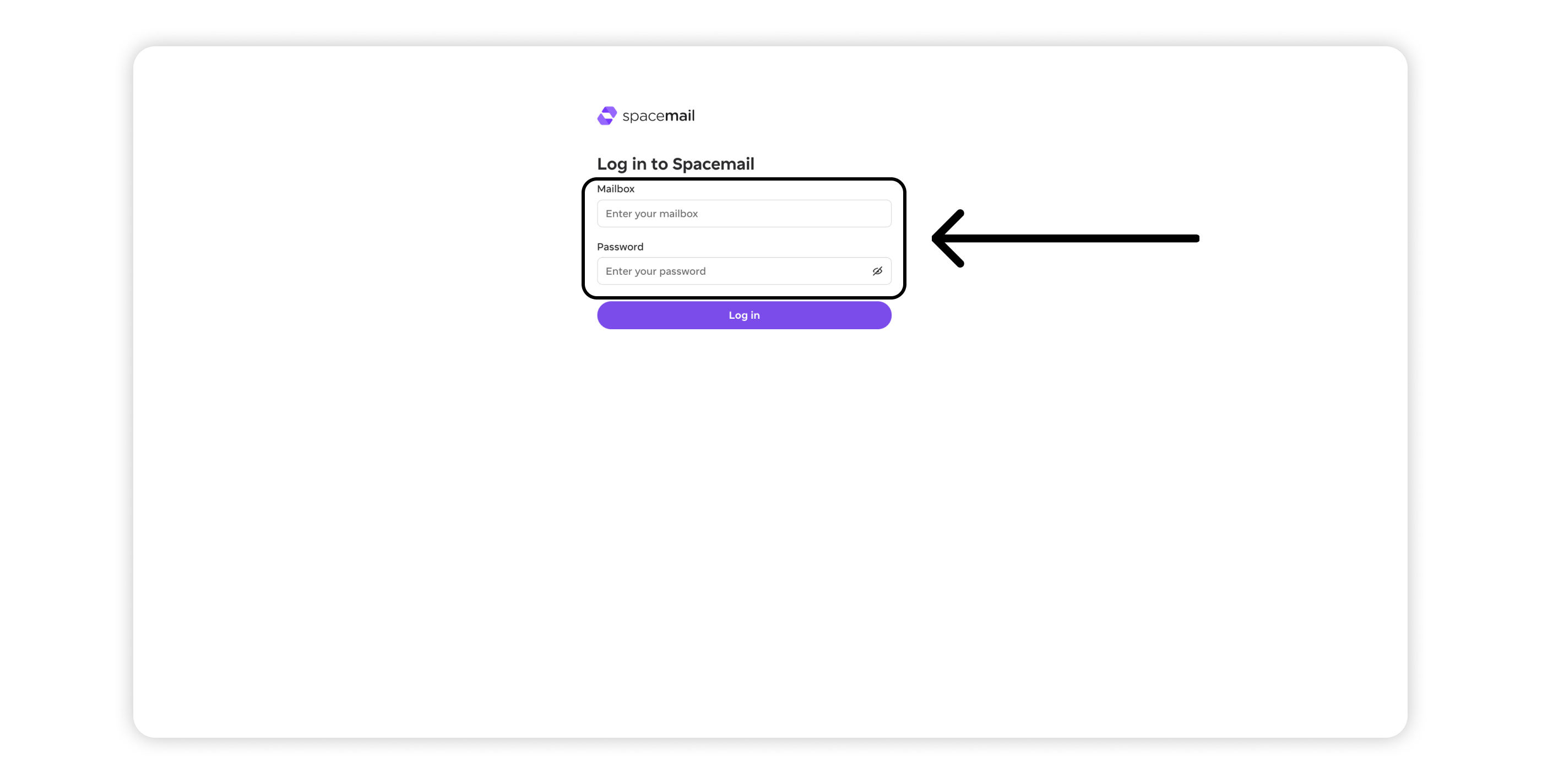
7. Enter your Spacemail mailbox and password, then press Log in.
8. Review the permissions requested by Spacemail MCP:
Access your basic profile info – Share your username, name, and email address for authentication.
View your Spacemail account – Allow the assistant to access and read your mailbox. This permission is required.
Make changes in your Spacemail account – Allow the assistant to manage emails, including moving, marking, deleting, and sending messages. Enable this option if you want more than read-only access.
Click Allow and continue to authorize the connection.
9. After authorization succeeds, you’ll be redirected back to ChatGPT. Spacemail MCP now appears in your Installed plugins list and is ready to use.
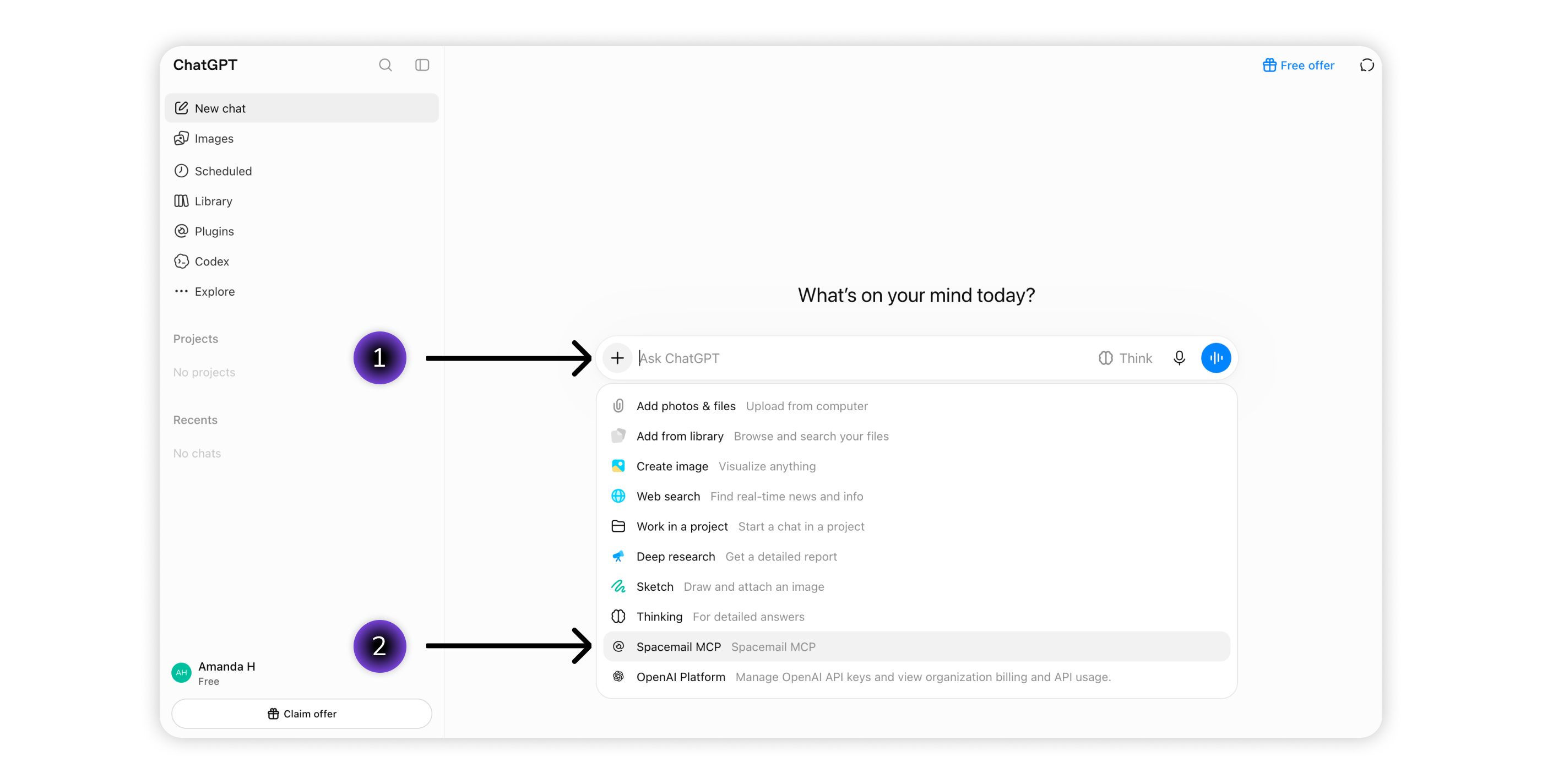
10. To work with your mailbox, open New chat, press + and select Spacemail MCP from the list. Then write your prompt in plain language.
What can you do with Spacemail MCP?
Once connected, you can use simple, everyday language to ask Claude or ChatGPT to manage your Spacemail mailbox.
Here are some examples of what you can do:
Find and read emails: Search for specific messages, check unread emails, or summarize their contents.
Organize your mailbox: Mark emails as read or unread, add or remove favorites, and move messages between folders or to Trash.
Send and reply to emails: Compose new messages, reply to emails, or forward them directly through your AI assistant.
Simply describe what you need, and your AI assistant will handle the task using Spacemail MCP. To learn more about available tools and how to use them, see our Spacemail MCP guide.
You’re all set! You can now manage your Spacemail mailbox through Claude or ChatGPT. If you need help, contact our Support Team.