_1440x360.01kx0jb3httdk58323y32f2esk.png)
A indisponibilidade é uma das maiores preocupações de quem gere um website. Afinal, até pequenas interrupções podem resultar em perda de receitas e utilizadores frustrados. Mas não entres em pânico. Só porque o teu website não está a carregar não significa que esteja realmente em baixo.
Há várias coisas que podem ter corrido mal, e é importante saberes como determinar se ocorreu realmente uma falha. Mesmo no pior cenário, voltar a pôr um website a funcionar normalmente não costuma ser demasiado difícil.
Neste artigo do blogue, mostramos-te como verificar se um website está em baixo e o que fazer se estiver. Eis o que vamos abordar:
O que fazer se o teu website for abaixo
As causas mais comuns de indisponibilidade
As melhores ferramentas de monitorização de uptime
Como evitar futuras falhas
O que fazer se o teu website for abaixo
Quando há uma falha num website, a primeira coisa que precisas de saber é se o problema é local, um problema com o teu router ou browser, ou global, como uma falha do servidor, falha de DNS ou um ataque DDoS. Em suma, o teu website está em baixo ou não?
Primeiro, elimina as hipóteses mais óbvias mudando de Wi-Fi para dados móveis e abrindo o teu website noutro dispositivo. Se o teu website continuar em baixo, sabes que o problema está noutro lado. Eis outras coisas que podes experimentar:
Reinicia o router ou muda de rede
Abre o website em modo anónimo/privado ou usa outro browser
Verifica os códigos de estado de resposta HTTP
Verifica o teu certificado SSL
Usa ferramentas online
Experimenta ping ou traceroute
Verifica se há ataques de força bruta
Verifica o teu painel de alojamento
Testa as definições de DNS e do domínio
Contacta o teu fornecedor de alojamento
Reinicia o router ou muda de rede
Embora isto não resolva um site que esteja realmente offline, ajuda-te a confirmar se o problema está na tua ligação. Tenta mudar de Wi-Fi para dados móveis (ou vice-versa). Se o site carregar numa ligação mas não na outra, o problema é local à tua rede, não ao website.
Abre o browser em modo anónimo/privado ou usa outro browser
Limpa a cache do browser. Por vezes, após uma atualização do site, o browser pode continuar a carregar ficheiros antigos em cache, fazendo com que o site pareça avariado mesmo quando não está.
Se o problema continuar, abre o site em modo anónimo ou muda para outro browser. Se o site carregar aí, é sinal de que o problema está relacionado com o browser.
Verifica os códigos de estado de resposta HTTP
Os códigos de estado de resposta HTTP são números de três dígitos que um servidor web envia ao teu browser para mostrar o resultado de um pedido. Dão-te uma visão rápida do que está a acontecer com o teu site.
Podes ver estes códigos, juntamente com os ficheiros, scripts ou chamadas API a que pertencem, clicando com o botão direito na tua página web, selecionando Inspecionar e abrindo o separador Rede nas DevTools do teu browser. Eis o que significam os diferentes códigos:
200 — O site está online e a funcionar normalmente
301 ou 302 — O servidor está ativo, mas está a redirecionar o tráfego para outro local.
404 Not Found ou 403 Forbidden — Não é possível aceder à página, mas isso não significa necessariamente que esteja em baixo.
Erros de servidor 5xx (500 Internal Server Error, 502 Bad Gateway ou 503 Service Unavailable) — O servidor está em baixo, normalmente devido a sobrecarga ou configuração incorreta.
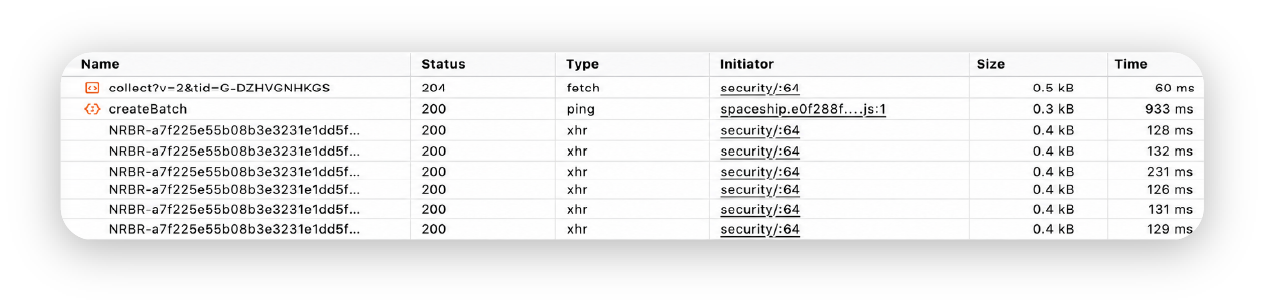
Estes códigos são uma boa forma de avaliar o que está a correr mal na tua página web e quais os próximos passos que podes dar para resolver o problema.
Verifica o teu certificado SSL
Por vezes, o teu website não está realmente em baixo, o teu certificado SSL é que está a causar problemas. Se o teu SSL tiver expirado ou não estiver instalado corretamente, poderás ver avisos a dizer que o teu site não é seguro. Neste caso, o teu servidor pode estar a funcionar bem, mas o browser está a bloquear o acesso.
Inicia sessão no teu painel de alojamento ou usa uma ferramenta de verificação SSL, como Qualys SSL Labs ou WhyNoPadlock, para confirmar o estado do teu certificado. Se tiver expirado, renova-o através do teu fornecedor de alojamento ou da autoridade certificadora. A maioria dos alojamentos modernos oferece certificados SSL gratuitos que se renovam automaticamente.
Usa ferramentas online
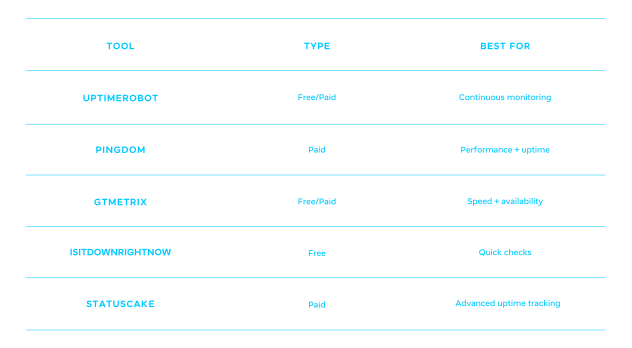
Podes verificar se o teu website está em baixo e até acompanhar o seu desempenho ao longo do tempo com ferramentas online como UptimeRobot, DownDetector, IsItDownRightNow e Pingdom.
Basta introduzires o URL do teu website para obteres métricas instantâneas, como tempos de resposta, percentagens de uptime e até um histórico de falhas anteriores. Normalmente, podes ver estes dados em diferentes períodos, como a última semana, mês ou ano.
A maioria das ferramentas de monitorização também te permite configurar alertas por email ou SMS para saberes imediatamente se o teu site ficar offline. Mantêm registos detalhados dos tempos de resposta e de outras métricas de desempenho, o que facilita a identificação de pontos fracos ou problemas recorrentes.
Experimenta ping ou traceroute
Queres saber como ver se um website está em baixo? Experimenta usar interfaces de linha de comandos (CLI). Podem fornecer informações precisas e claras sobre o estado e o desempenho de um website, o que faz delas uma excelente ferramenta de diagnóstico.
Também são mais acessíveis do que possas pensar: basta abrir a Linha de Comandos no Windows e o Terminal no MacOS e Linux. A partir daí, há dois comandos que podes usar para perceber porque é que o teu website está em baixo.
O primeiro é o Ping, que pode ser usado para verificar se o servidor do teu website está acessível
O comando ping é uma forma rápida de ver se o servidor de um website está a responder. Envias-lhe uma pequena mensagem que basicamente pergunta: “Estás aí?” Se o servidor estiver online, responde com a quantidade de dados devolvida e quanto tempo demorou a resposta.
Para o experimentares, abre o terminal do teu computador e escreve: ping yourwebsite.com
Se o site estiver ativo, verás tempos de resposta do servidor medidos em milissegundos. O comando é executado continuamente até o parares com Ctrl + C. O facto de não receberes resposta nem sempre significa que há uma falha no website; por vezes, firewalls ou ferramentas de segurança bloqueiam pedidos de ping.
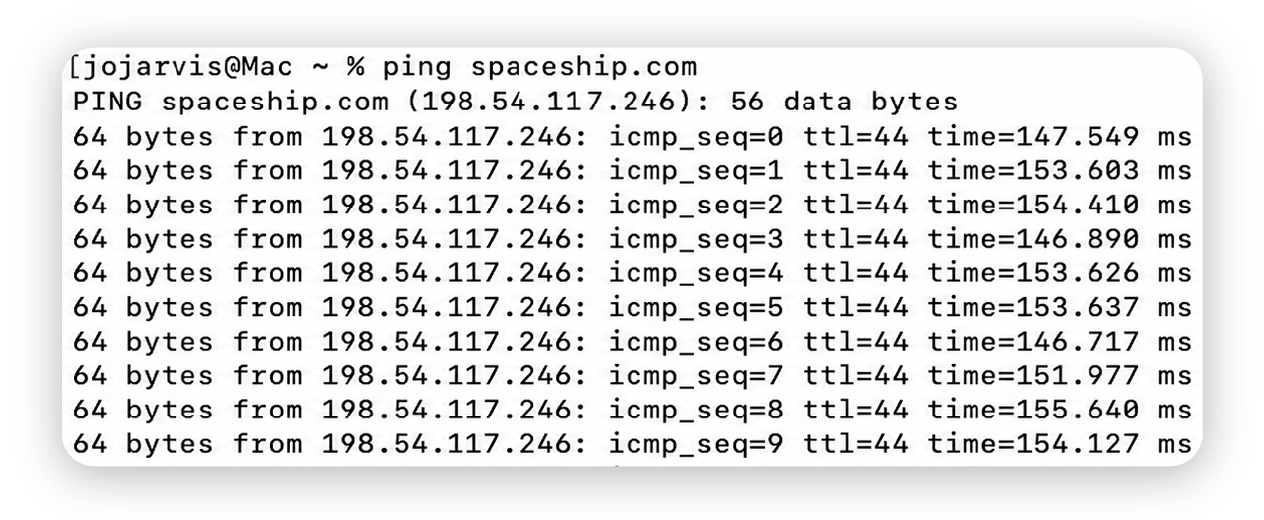
Enquanto o ping te mostra quanto tempo o servidor demora a responder, traceroute ou tracert vai ainda mais longe. Mostra todo o percurso que os teus dados fazem, dividindo esse caminho em “saltos” entre diferentes servidores para medir a latência em cada etapa.
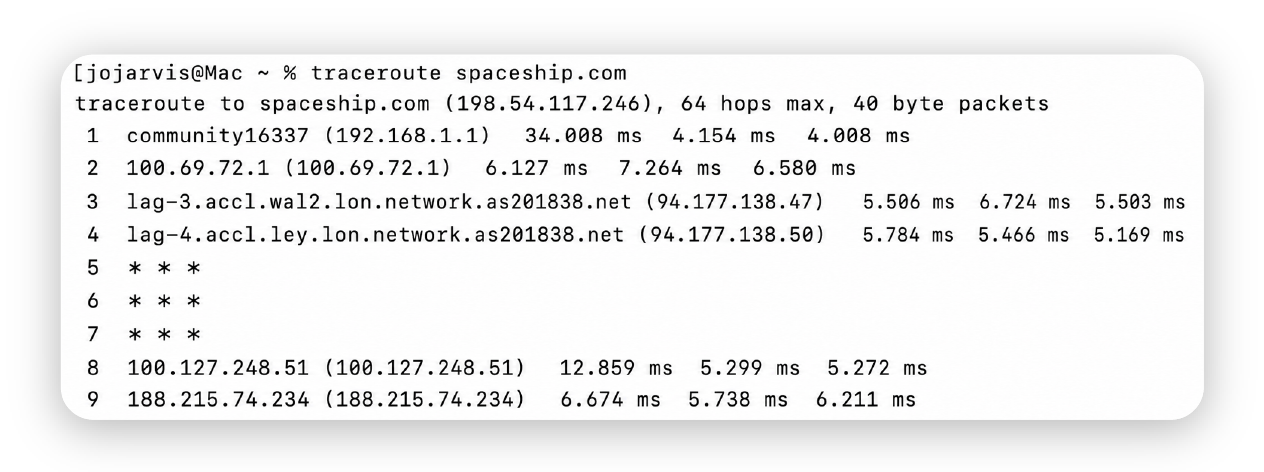
Isto pode ajudar a identificar onde está a acontecer a lentidão ou o bloqueio e se o problema está na tua rede local ou no servidor do website.
Verifica se há ataques de força bruta
É possível que o teu website esteja em baixo devido a um ataque de força bruta, em que um atacante ou bot tenta repetidamente muitas combinações de nome de utilizador/palavra-passe para forçar a entrada numa conta ou serviço. Embora sejam pouco comuns, os ataques de força bruta representam um risco significativo para o teu website e devem ser tratados rapidamente.
Muitas vezes, podes diagnosticar um ataque de força bruta verificando os registos do teu servidor ou alojamento à procura de tentativas de início de sessão falhadas repetidas, normalmente vindas do mesmo endereço IP ou de um intervalo suspeito de endereços.
Outro sinal são picos invulgares na utilização de CPU ou memória sem um aumento correspondente no tráfego. Plugins de segurança como Imunify365, incluído no Spaceship Web Hosting, usam reputação de IP e greylisting para bloquear automaticamente tentativas repetidas de início de sessão.
Verifica o teu painel de alojamento
O teu fornecedor de alojamento executa serviços principais como Apache ou LiteSpeed que tornam o teu website acessível aos visitantes. Se estes serviços pararem, é um problema do lado do servidor e o teu site não carregará até serem reiniciados. Mantê-los em funcionamento é da responsabilidade do fornecedor; abre um pedido de suporte se estiverem em baixo. A maioria dos fornecedores resolve isto rapidamente.
Normalmente, podes verificar o estado destes serviços no teu painel de alojamento. Por exemplo, Spaceship Hosting Manager fornece detalhes do servidor e integra-se com o cPanel, onde podes ver se serviços como Apache ou LiteSpeed estão em execução. Isto ajuda-te a confirmar se um problema no servidor é a razão pela qual o teu website está em baixo.
Testa as definições de DNS e do domínio
Se o teu website estiver em baixo mas o teu servidor de alojamento parecer estar bem, o problema pode estar no teu domínio ou na configuração de DNS. Começa por verificar se o teu domínio expirou; se isso aconteceu, o teu site ficará imediatamente offline até ser renovado.
Depois, consulta o teu fornecedor de domínio para te certificares de que os registos DNS estão configurados corretamente e que já foram totalmente propagados. Registos mal configurados ou desatualizados podem impedir os browsers de encontrar o teu servidor, mesmo que tudo o resto esteja a funcionar.
Contacta o teu fornecedor de alojamento
Se o teu site continuar em baixo depois de seguires os passos de resolução de problemas, está na altura de contactares o teu fornecedor de alojamento. Antes de entrares em contacto, reúne o máximo de informação possível: códigos de erro, mensagens de erro e capturas de ecrã ajudarão a diagnosticar o problema mais rapidamente.
Ao contactares o suporte:
Confirma que já tentaste a resolução básica de problemas (verificações de DNS, limpeza da cache, registos do painel de alojamento).
Partilha quaisquer códigos de erro ou capturas de ecrã para maior clareza.
Pergunta sobre o SLA (Service Level Agreement) do teu fornecedor para perceberes que garantias de uptime se aplicam. Por exemplo, a Spaceship garante 99,99% de uptime em todos os seus planos de alojamento.
Tem atenção à Política de Utilização Aceitável (AUP) do teu fornecedor. Alguma indisponibilidade pode resultar de violações, como abuso de recursos ou problemas de segurança.
Porque é que os websites ficam em baixo? Causas mais comuns
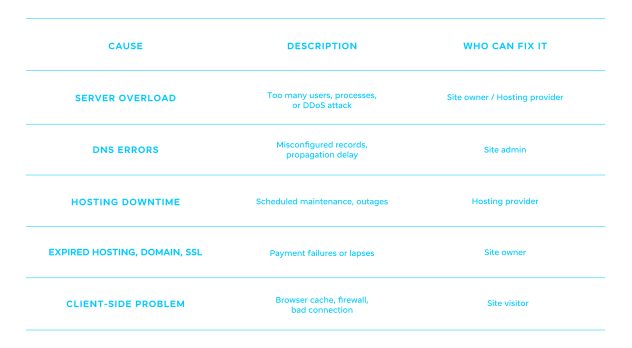
Como evitar a indisponibilidade de websites? (Para proprietários de sites)

Escolhe um alojamento fiável
Evitar a indisponibilidade de websites começa por escolher um fornecedor de alojamento web fiável. Escolhe um plano que possa garantir uptime no alojamento web. Por exemplo, Spaceship Web Hosting garante 99,99% de uptime.
Mantém o DNS/domínio renovado e atualizado
Se o teu domínio expirar, o teu site fica imediatamente inacessível até ser renovado, o que pode causar horas ou até dias de indisponibilidade se não deres por isso a tempo. Da mesma forma, registos DNS desatualizados ou incorretos significam que os browsers não conseguem encontrar o servidor certo para carregar o teu site, mesmo que o teu alojamento esteja a funcionar bem.
Ao renovares o teu domínio atempadamente, monitorizares as datas de expiração e garantires que os registos DNS (como A, CNAME e MX) estão corretos e atualizados, asseguras que o tráfego é sempre encaminhado corretamente para o teu site sem interrupções.
Usa uma CDN para disponibilidade global
Usa uma CDN para melhorar o uptime e a fiabilidade. As CDNs colocam o teu site em cache em servidores globais, reduzem a carga sobre o teu alojamento e podem manter o teu site online mesmo durante picos de tráfego ou falhas parciais.
Implementa failover ou backups
O failover e os backups são ambas formas fiáveis de proteger o teu website. Um failover é um servidor secundário ou ambiente de alojamento que assume automaticamente o controlo se o teu servidor principal falhar. Garantem que o teu site se mantém acessível com pouca ou nenhuma interrupção. Os backups, por outro lado, garantem que, mesmo que aconteça algo catastrófico, possas restaurar rapidamente o teu site para um estado funcional anterior.
Volta a pôr o teu website a funcionar rapidamente
As falhas em websites podem ser stressantes, mas a maioria dos problemas é temporária e pode ser resolvida com a abordagem certa. Ao fazeres algumas verificações rápidas, podes confirmar se o problema é local ou generalizado e, se fores proprietário de um site, tomar medidas claras para voltares a pôr o teu site online.
Perguntas frequentes
Podes usar ferramentas online como DownDetector ou IsItDownRightNow para verificar se um site está em baixo para toda a gente ou só para ti. Outro teste rápido é o comando ping, que pergunta ao servidor se está a responder. Se várias verificações falharem, é provável que o website esteja em baixo.
Um erro de servidor significa que o serviço de alojamento do website (como Apache, LiteSpeed ou PHP-FPM) não está a funcionar corretamente, por isso o site não consegue carregar.
Um erro de DNS significa que o teu browser não consegue encontrar onde o website está alojado porque os seus registos de endereço (DNS) estão em falta, danificados ou mal configurados.
Se um site funciona para outras pessoas mas não para ti, o problema é provavelmente local:
A tua ligação à internet está instável.
A cache do teu browser ou as extensões estão a interferir.
As tuas definições de DNS ou o teu ISP podem estar com problemas temporários.
Podes tentar limpar a cache, reiniciar o router ou testar o site noutro dispositivo/rede.
A maioria das falhas é curta. Muitas vezes, são resolvidas em minutos ou em poucas horas. Os fornecedores de alojamento monitorizam os serviços críticos e restauram-nos rapidamente. No entanto, problemas maiores (como ataques DDoS em grande escala ou problemas graves de DNS) podem demorar mais tempo, por vezes várias horas ou mais.

Partilha a tua opinião