How to set up FastVPN for iOS
This guide walks you through purchasing FastVPN, installing the app on your iPhone or iPad, connecting to a VPN location, and using the app's main features.
Step 1. Purchase FastVPN
From the FastVPN page, select your desired plan:
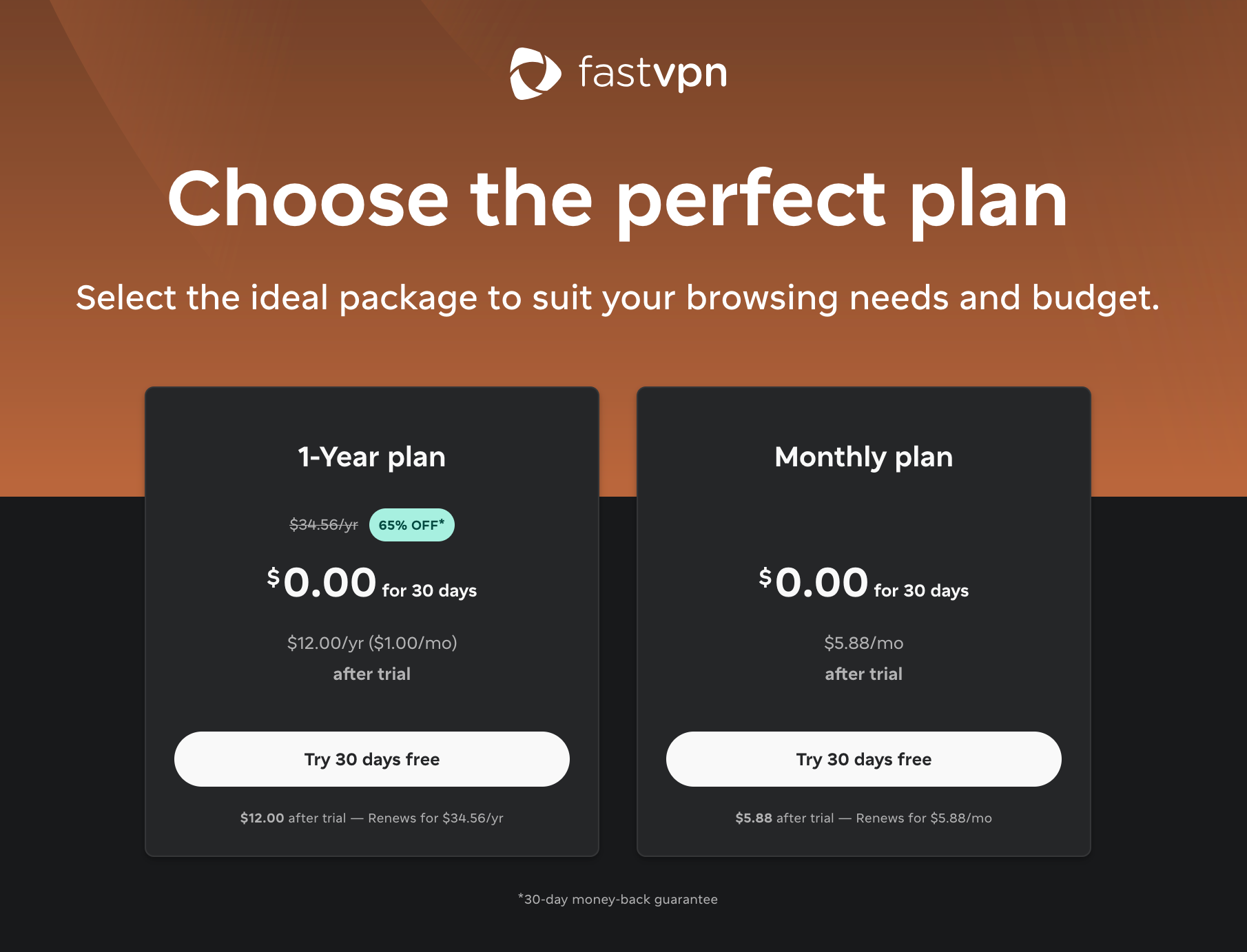
Once you click Get Started, you will be prompted to sign in to your Spaceship account:
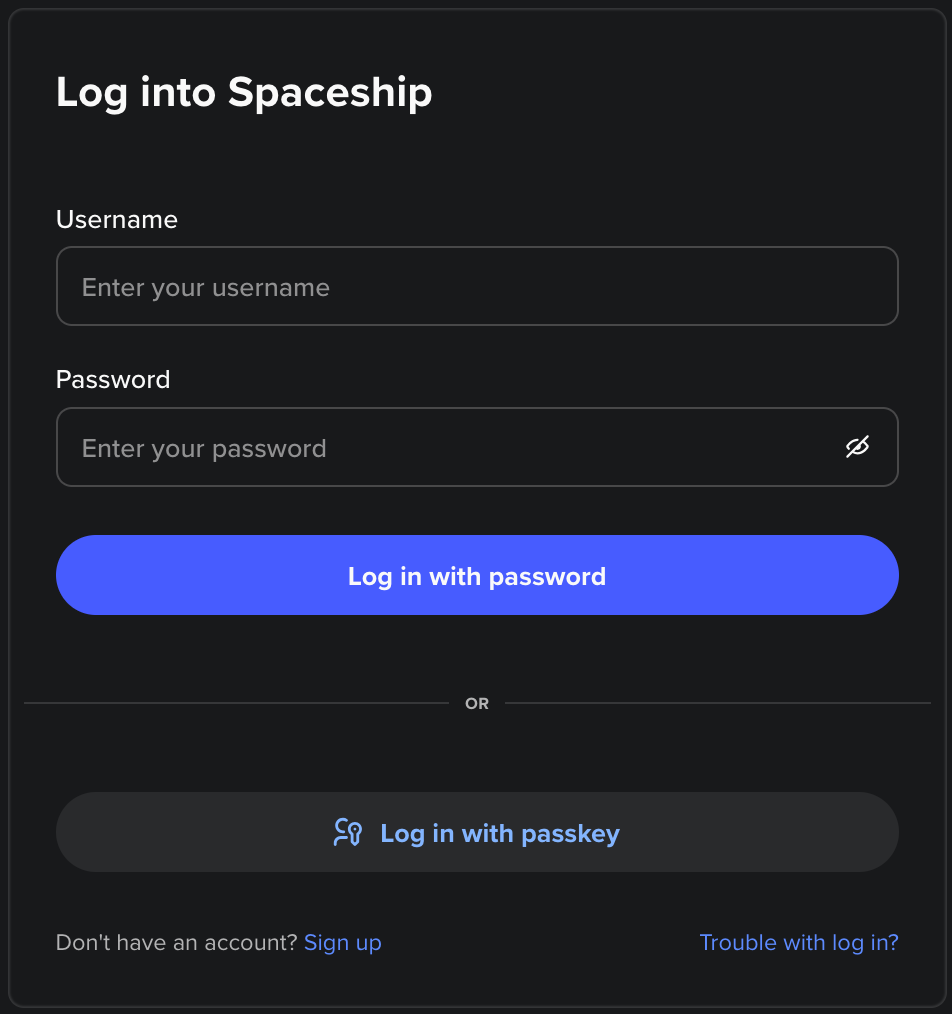
or to create a new account:
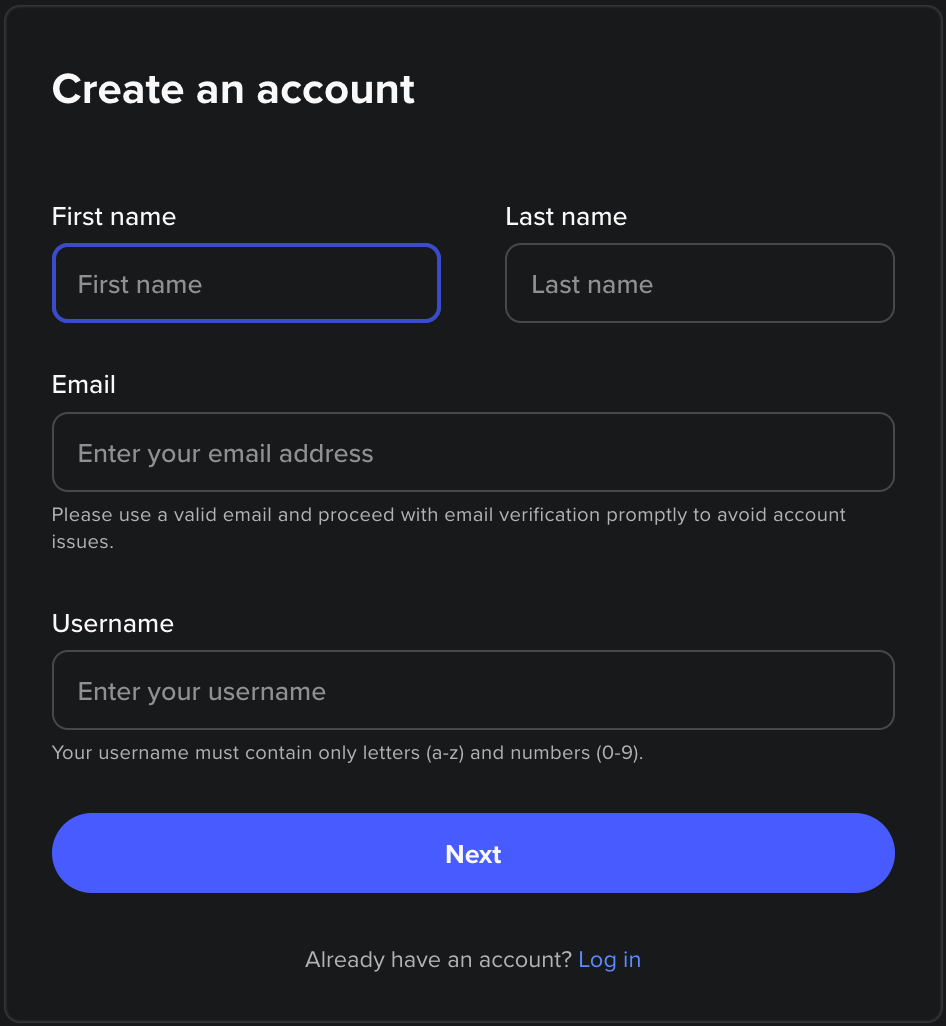
Once you logged in, enter payment details and confirm your purchase:
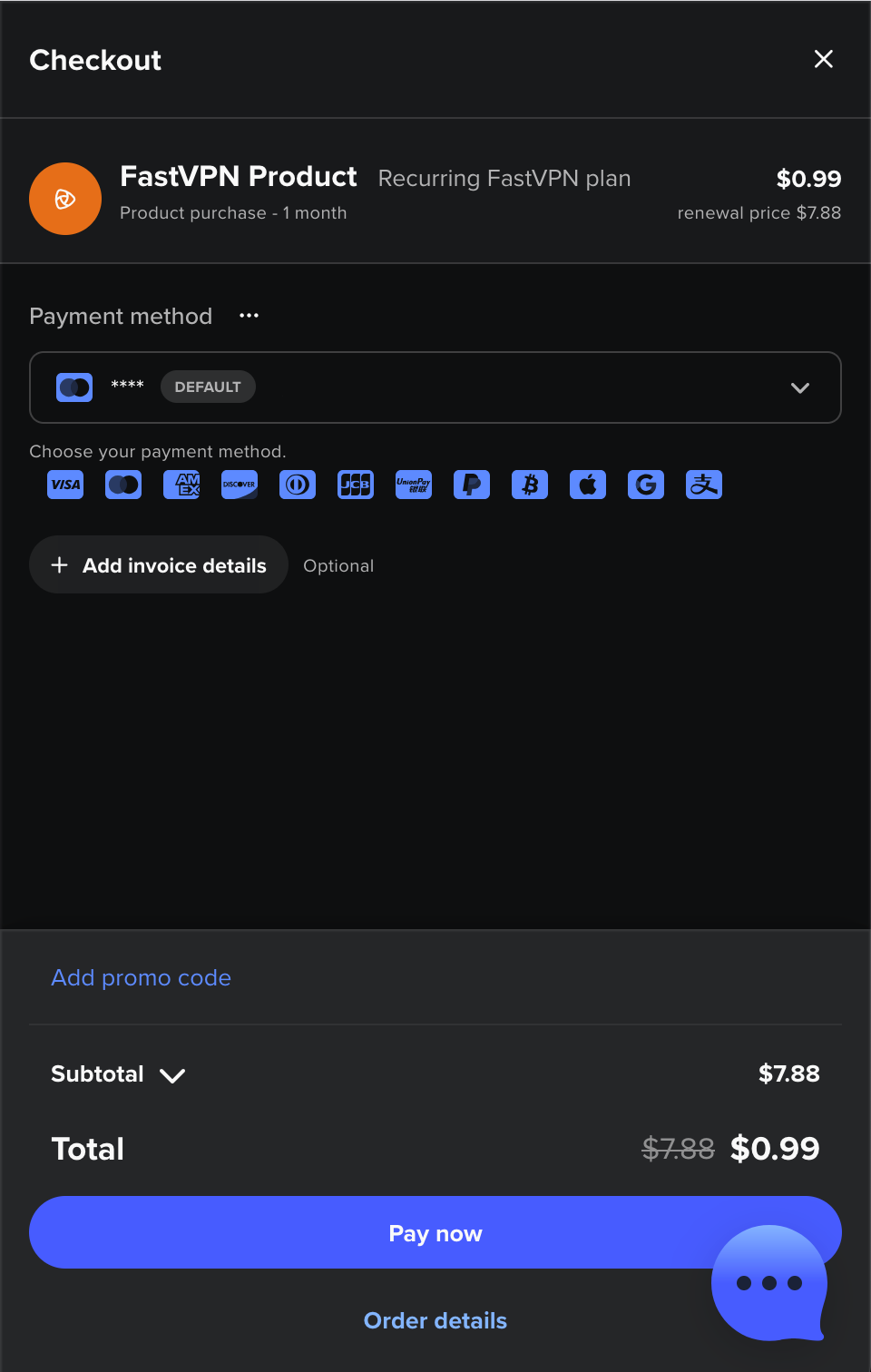
Step 2. Install the app and log in
Install the FastVPN app on your iPhone, iPad, or another iOS device from the Apple App Store.
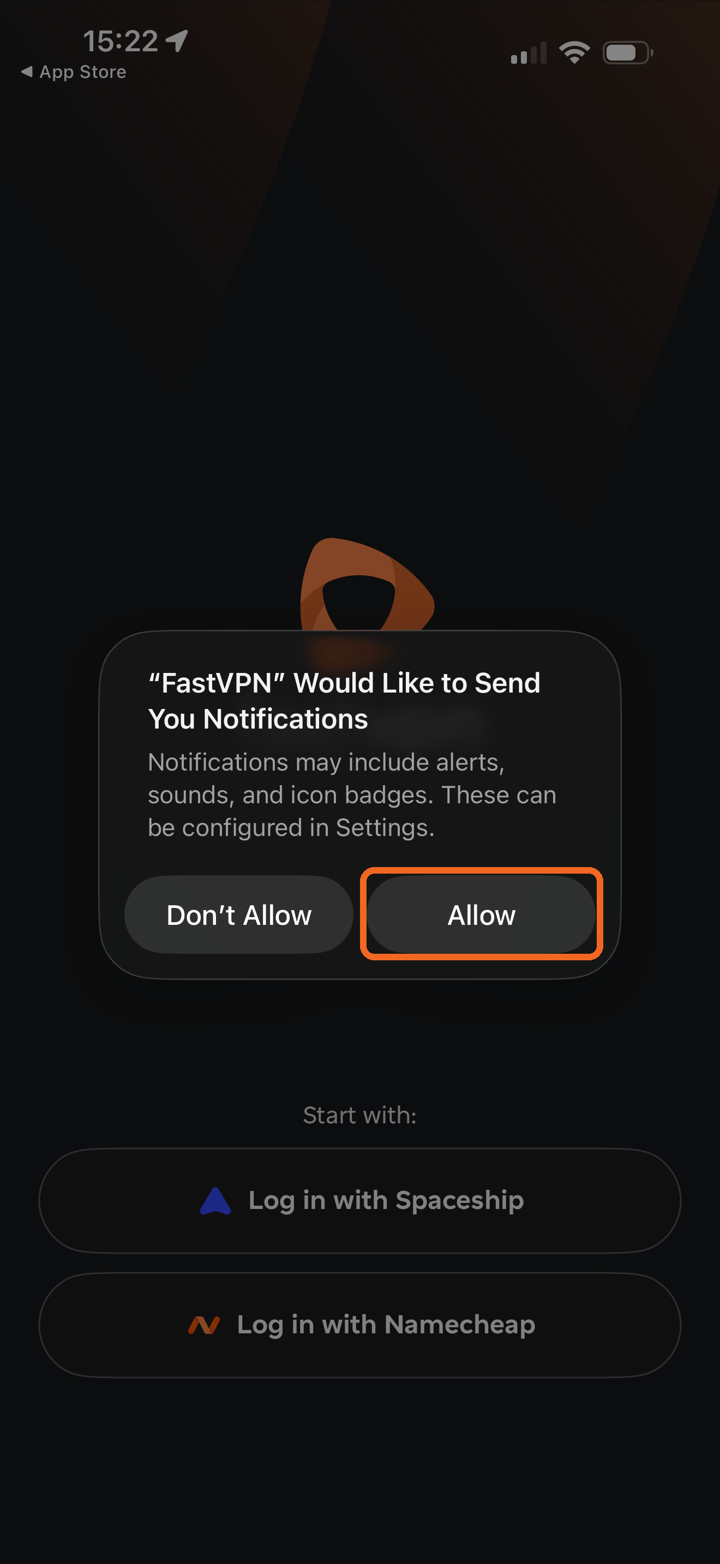
Open FastVPN. iOS will ask whether FastVPN can send you notifications. Tap Allow to receive status and security alerts, or Don't Allow to skip - you can change this later in your iPhone Settings.
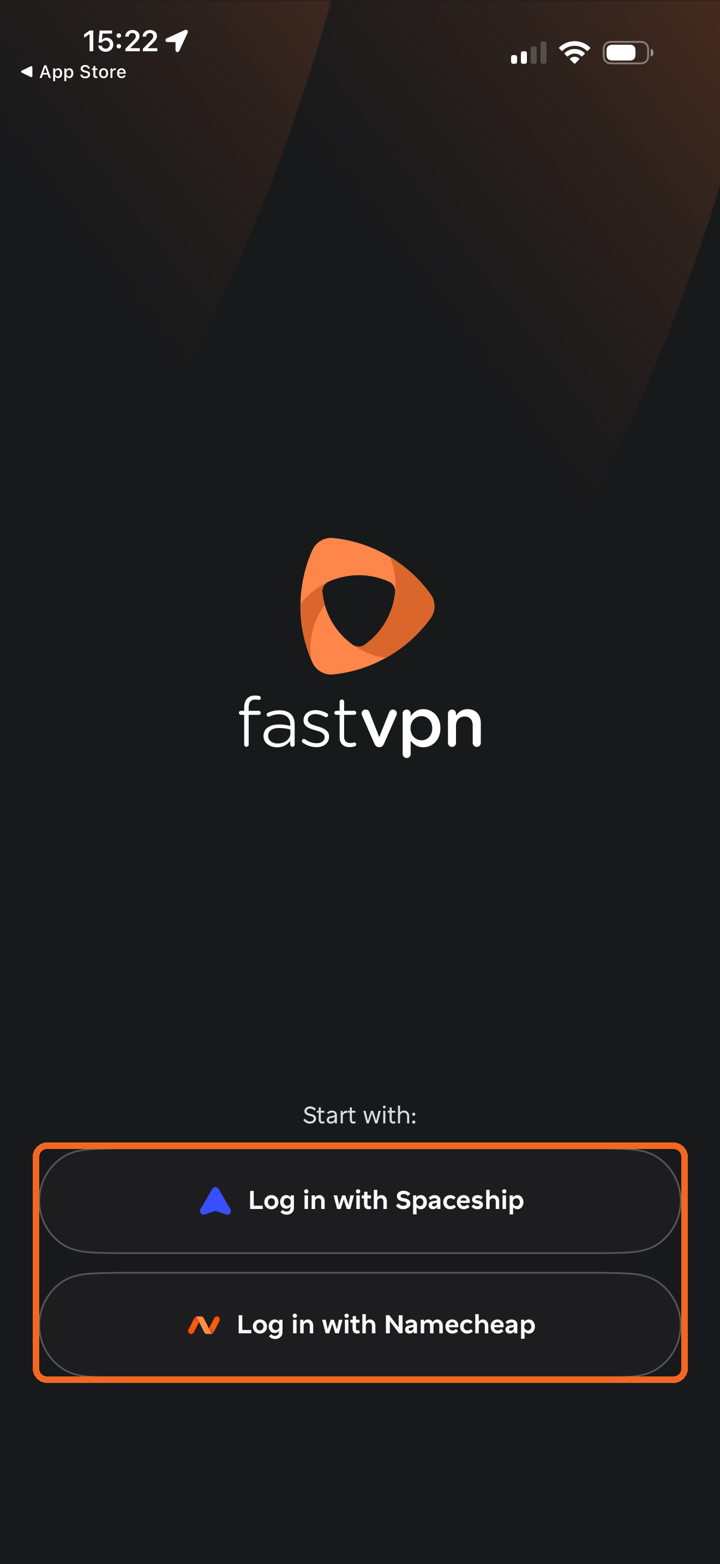
Then choose how to log in:
Log in with Spaceship if you purchased FastVPN with your Spaceship account.
Log in with Namecheap if you purchased FastVPN with your Namecheap account.
Step 3. Connect to the VPN
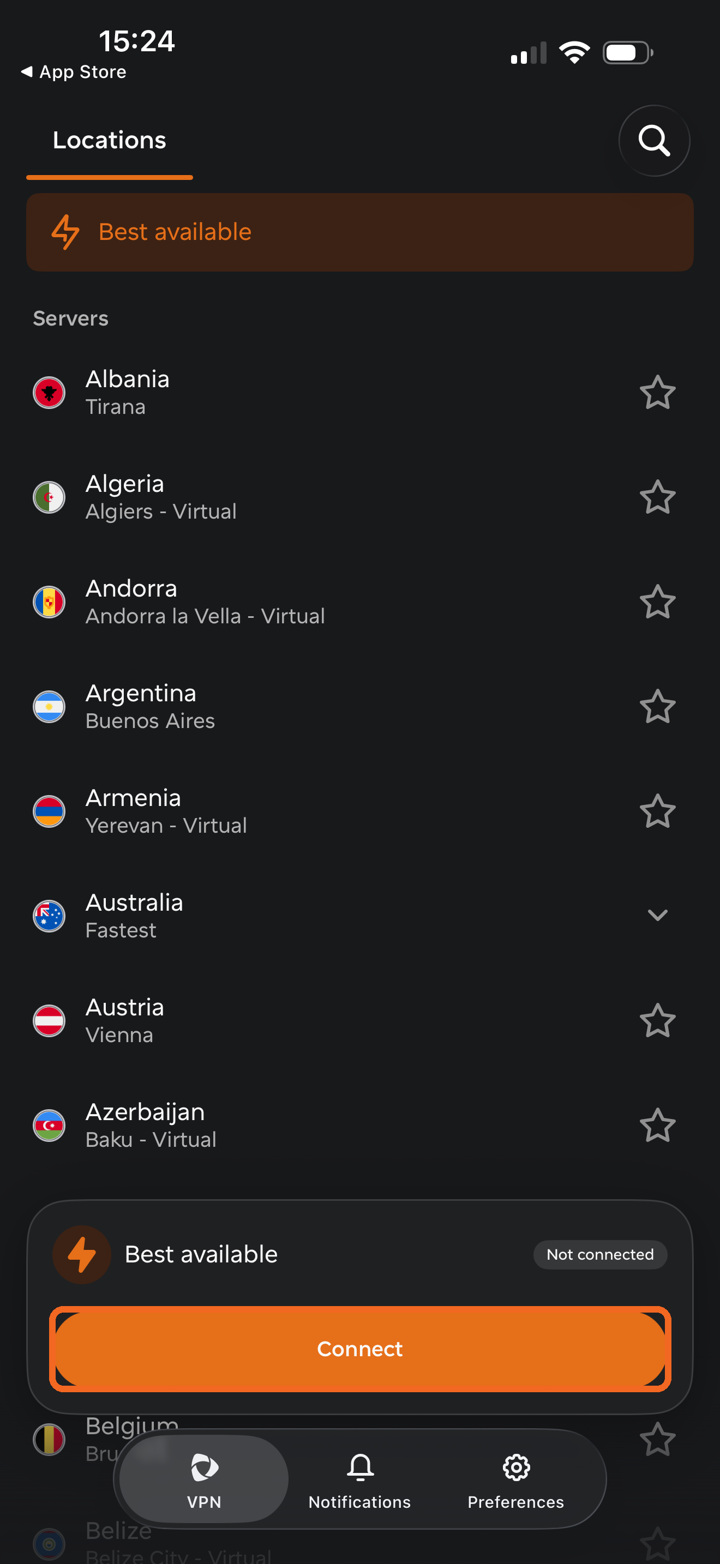
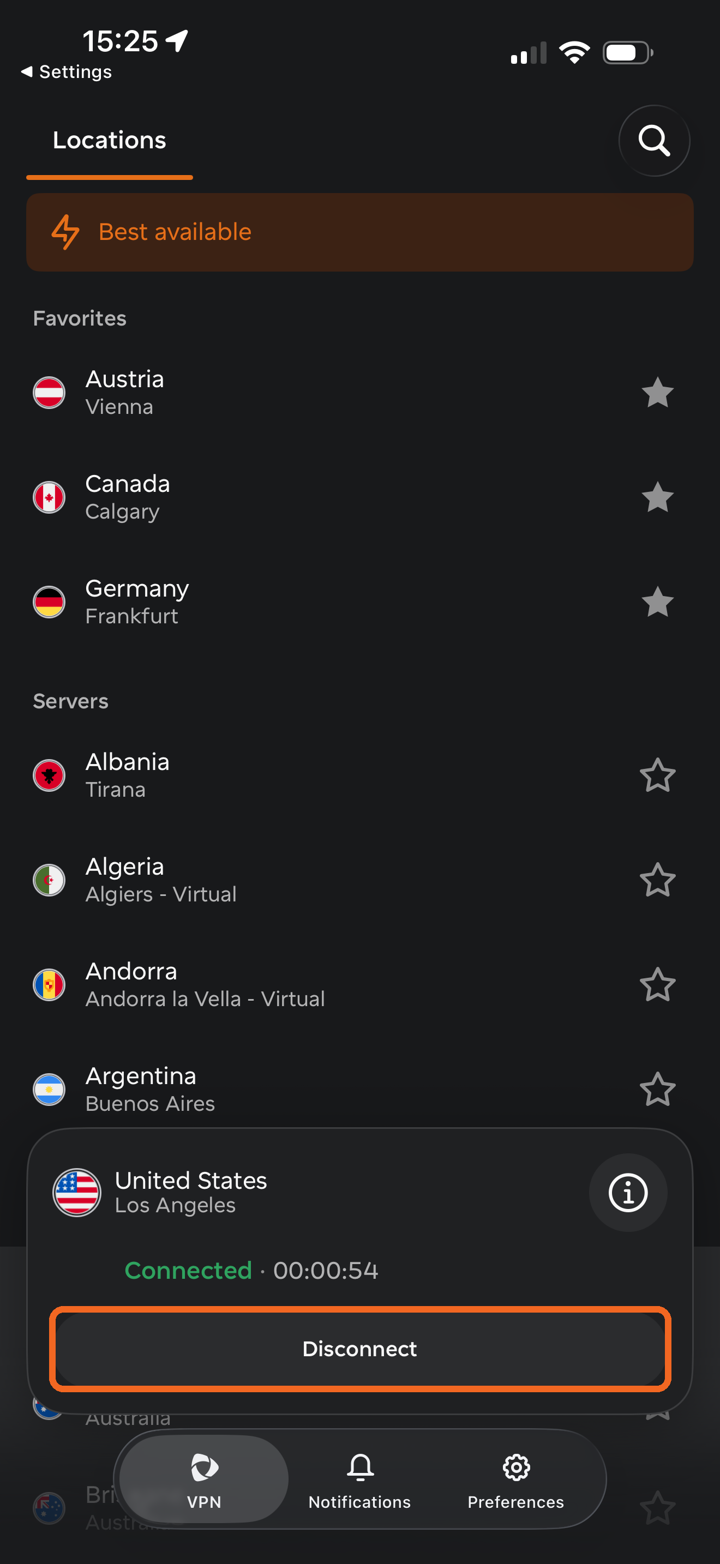
You will land on the VPN tab. It shows the list of locations, and the connection card at the bottom of the screen shows the selected location and your connection status.
By default, Best available is selected — the app picks the location with the most preferable download speed, latency, and distance for you. Tap Connect to connect to it.
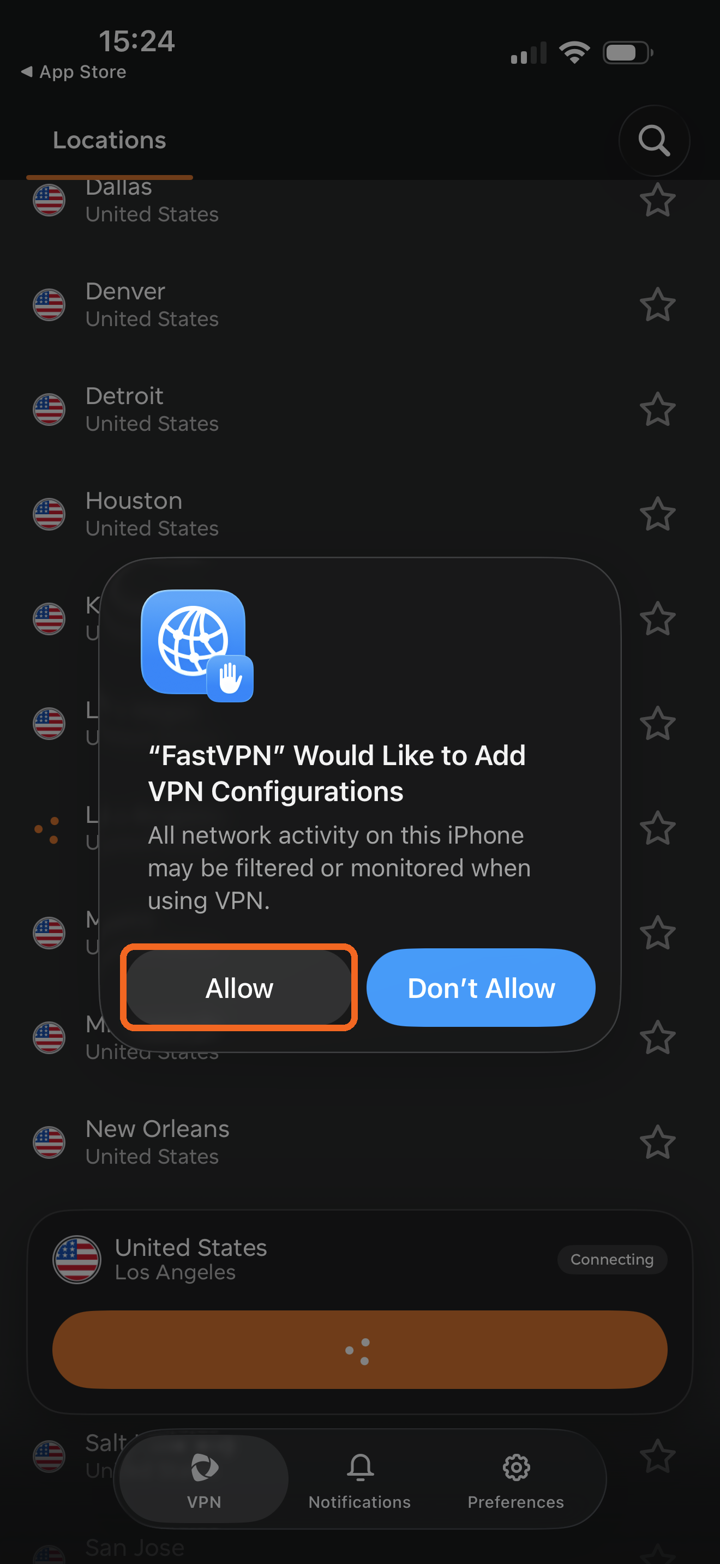
The first time you connect, iOS asks you to allow FastVPN to add VPN configurations. Tap Allow and confirm with Face ID, Touch ID, or your passcode if asked.
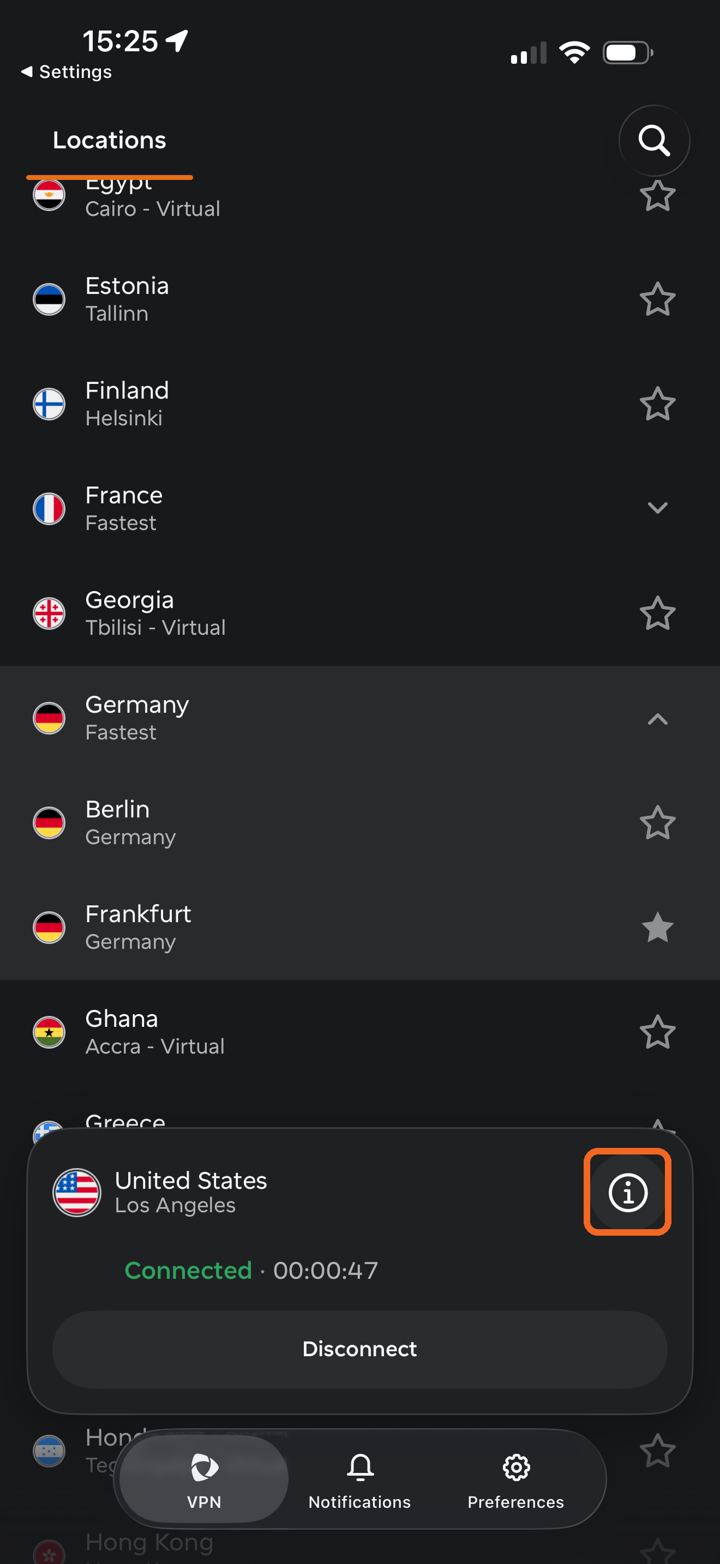
Once connected, the connection card shows your location, the Connected status and the connection time. The location you are connected to is marked with a green check mark in the list, and the VPN icon appears in the iOS status bar.
Note: The greater the distance between you and the chosen location, the greater the latency. The delay also depends on networking efficiency and the quality of the routing devices.
Step 4. Choose a location
To connect to a specific location instead of Best available, scroll through the Servers list on the VPN tab and tap the location you want. The app will automatically connect to the selected location.
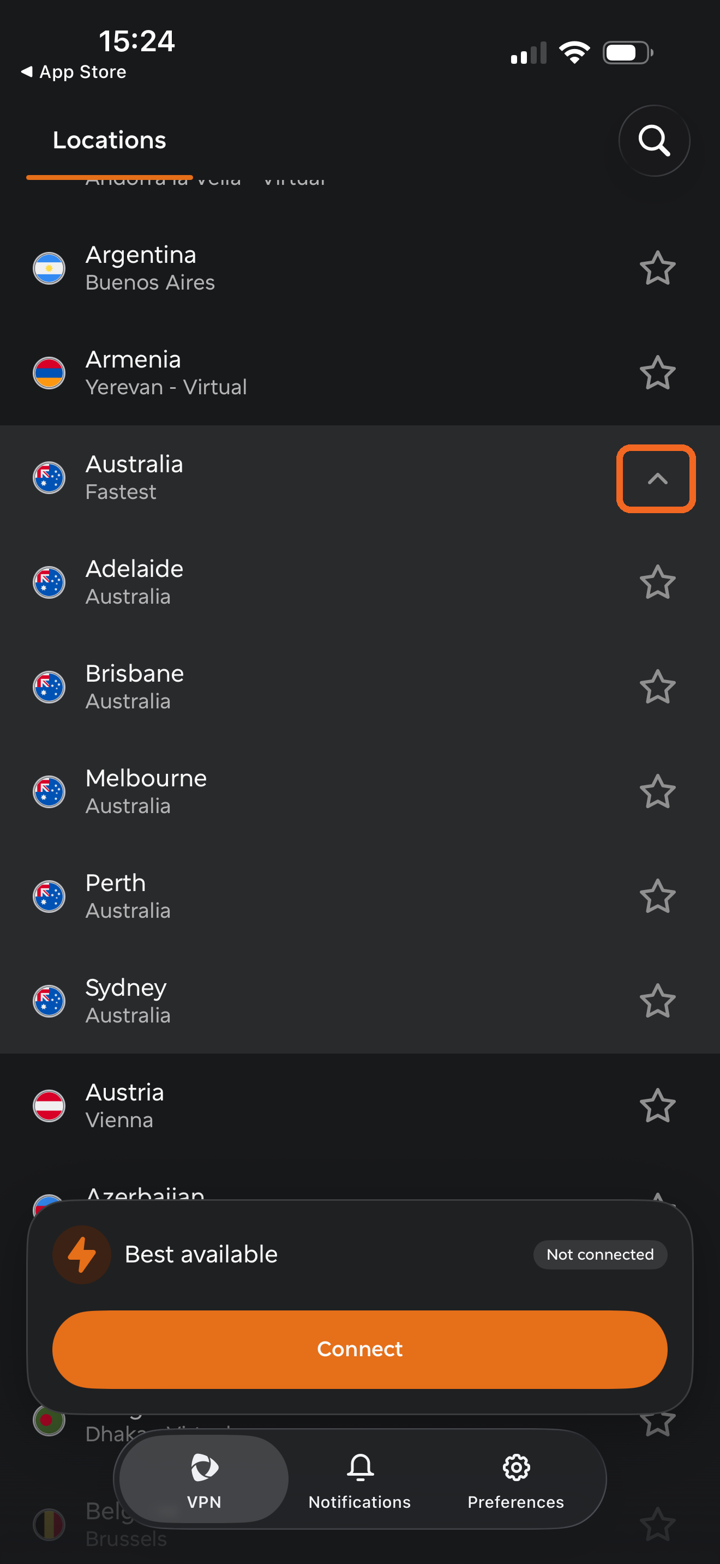
Countries with several cities show an arrow next to them. Tap the arrow to expand the list, then choose Fastest (the best server in that country) or a specific city:
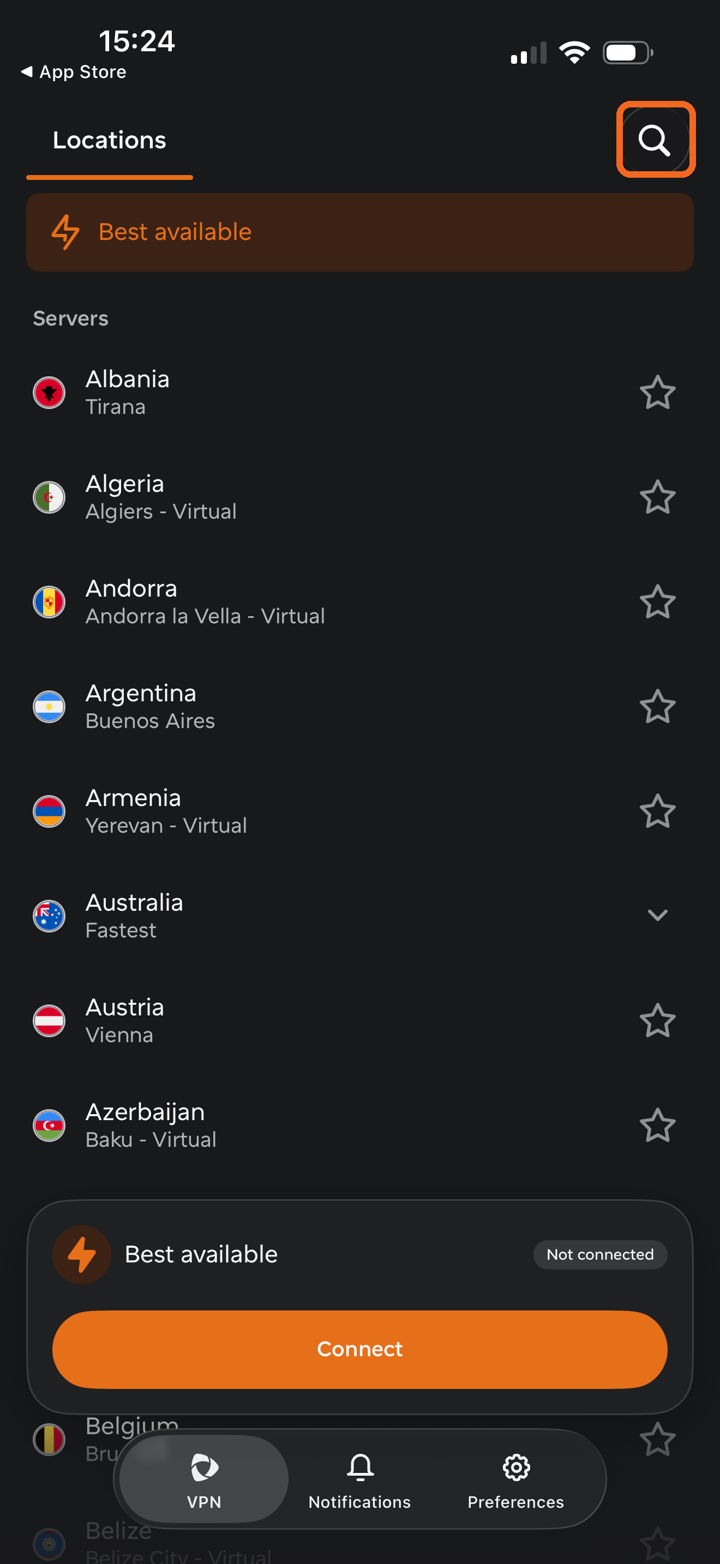
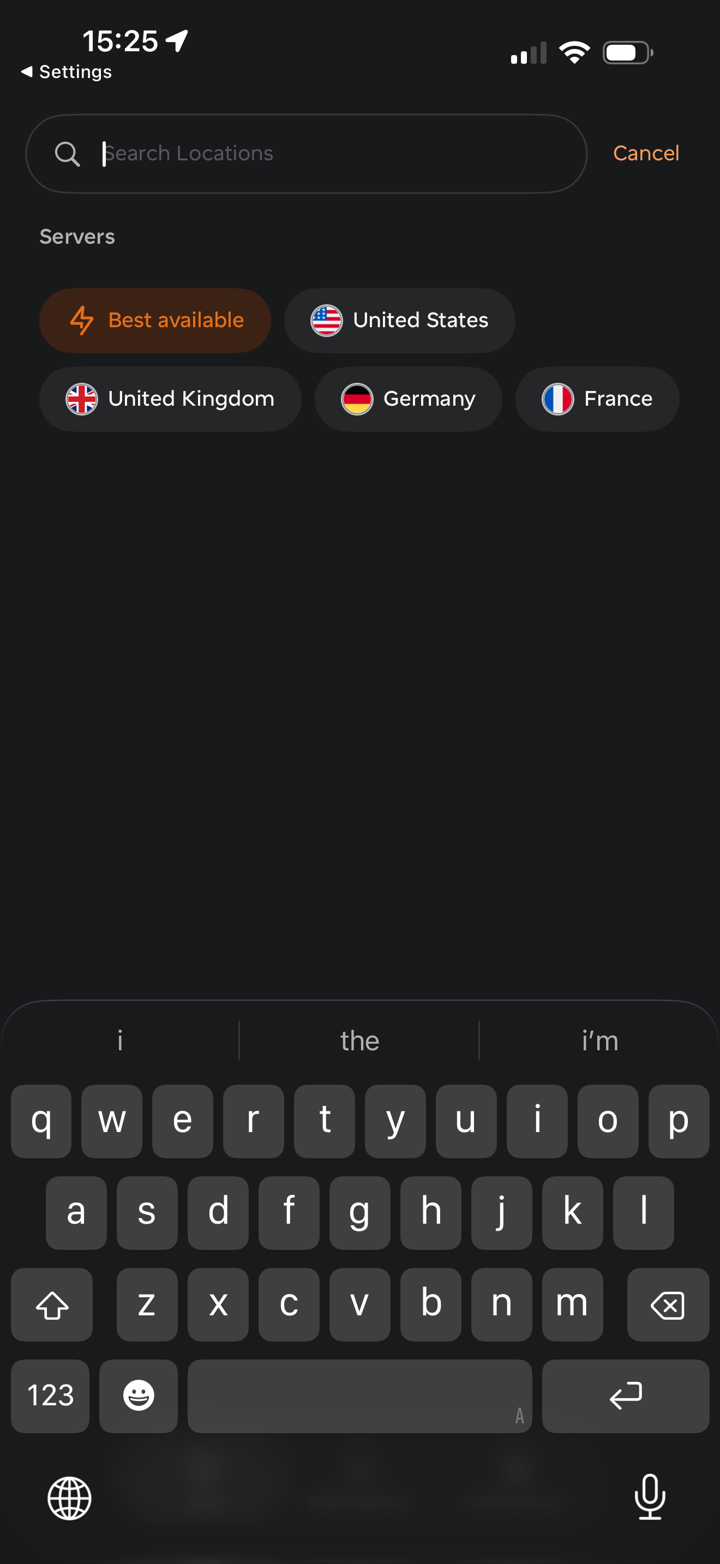
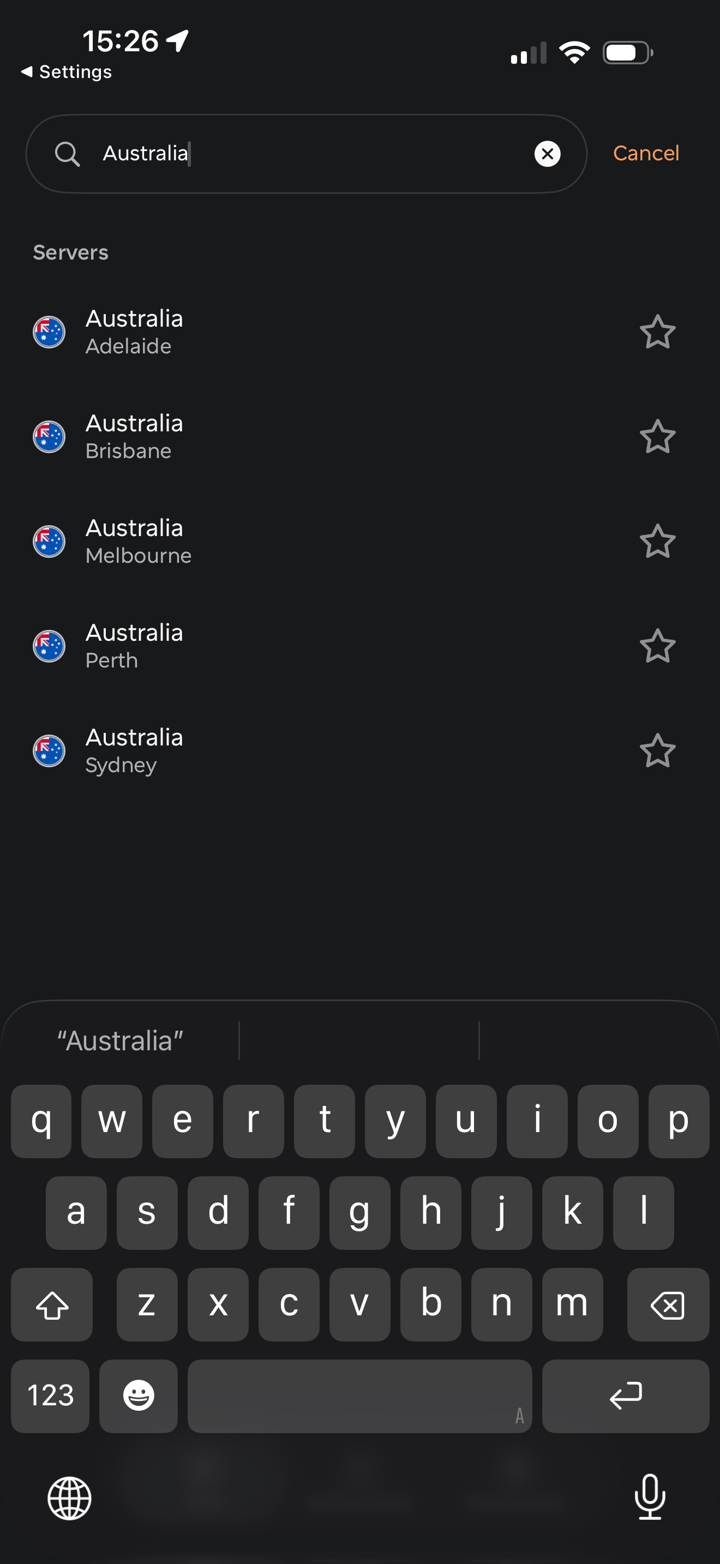
To find a location quickly, tap the search icon in the top-right corner. You can pick one of the suggestions or type a country or city name:
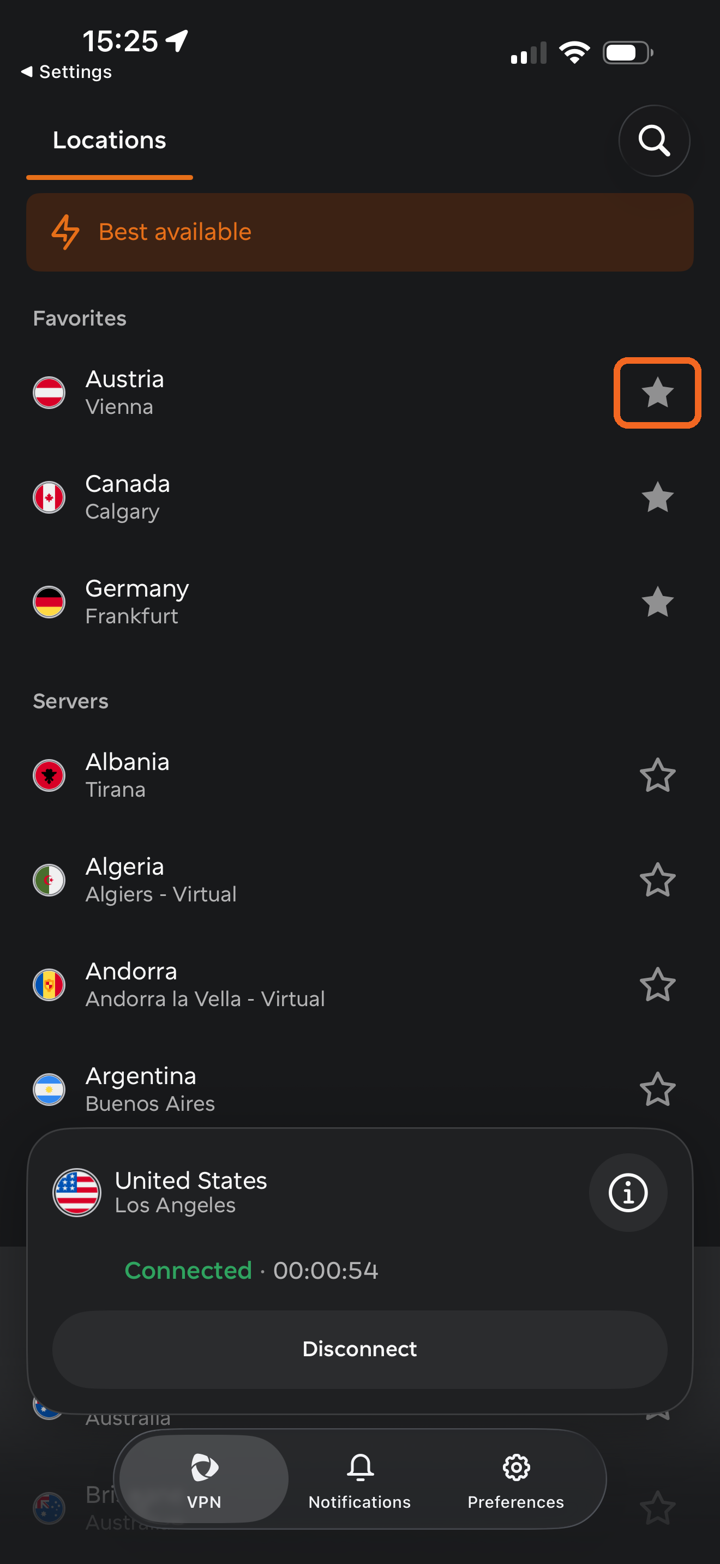
You can also add locations to Favorites by tapping the star icon next to them. Your favorite locations appear in a separate Favorites section above the Servers list:
Step 5. View connection details and switch IP
While connected, tap the info (i) icon on the connection card to open Connection details. Here you can see your current IP address, download and upload statistics, and the protocol in use.
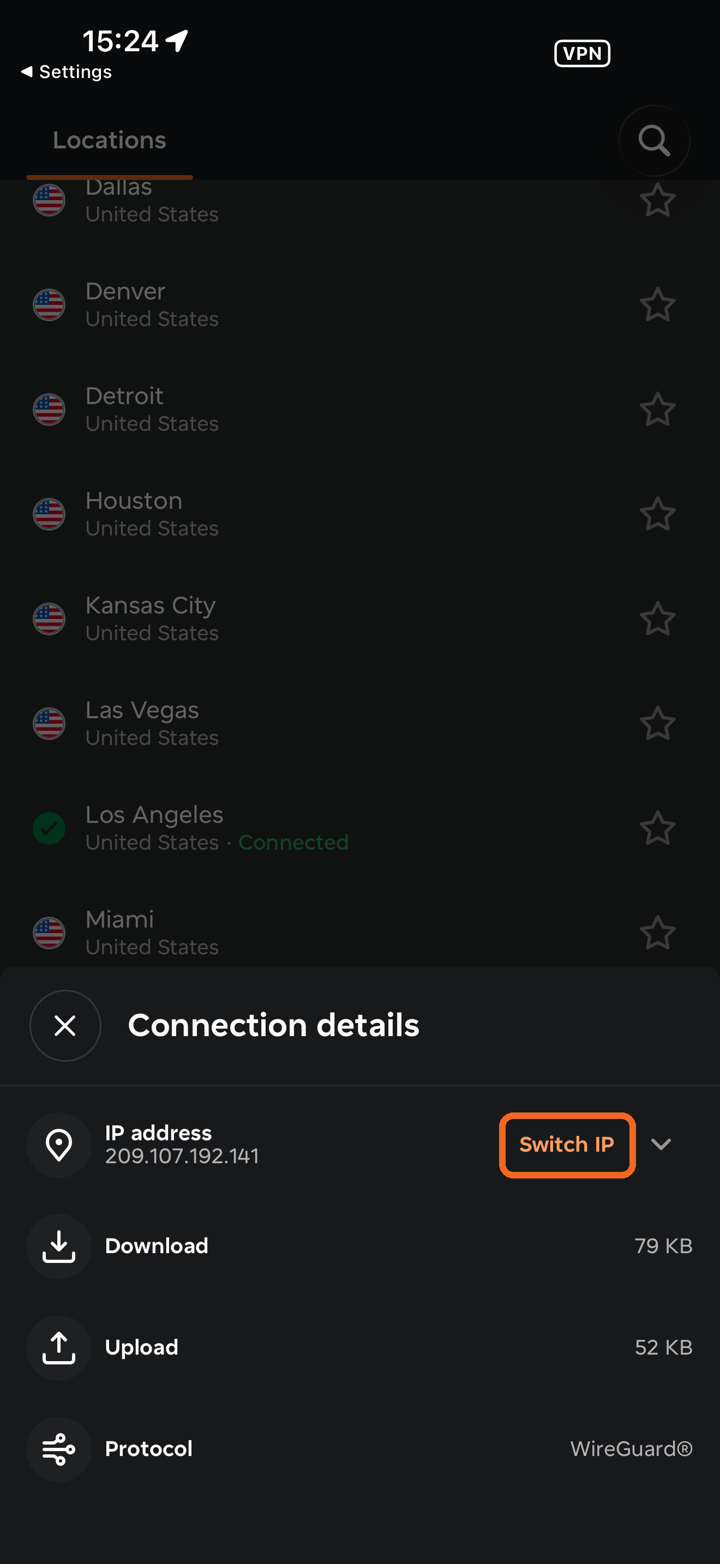
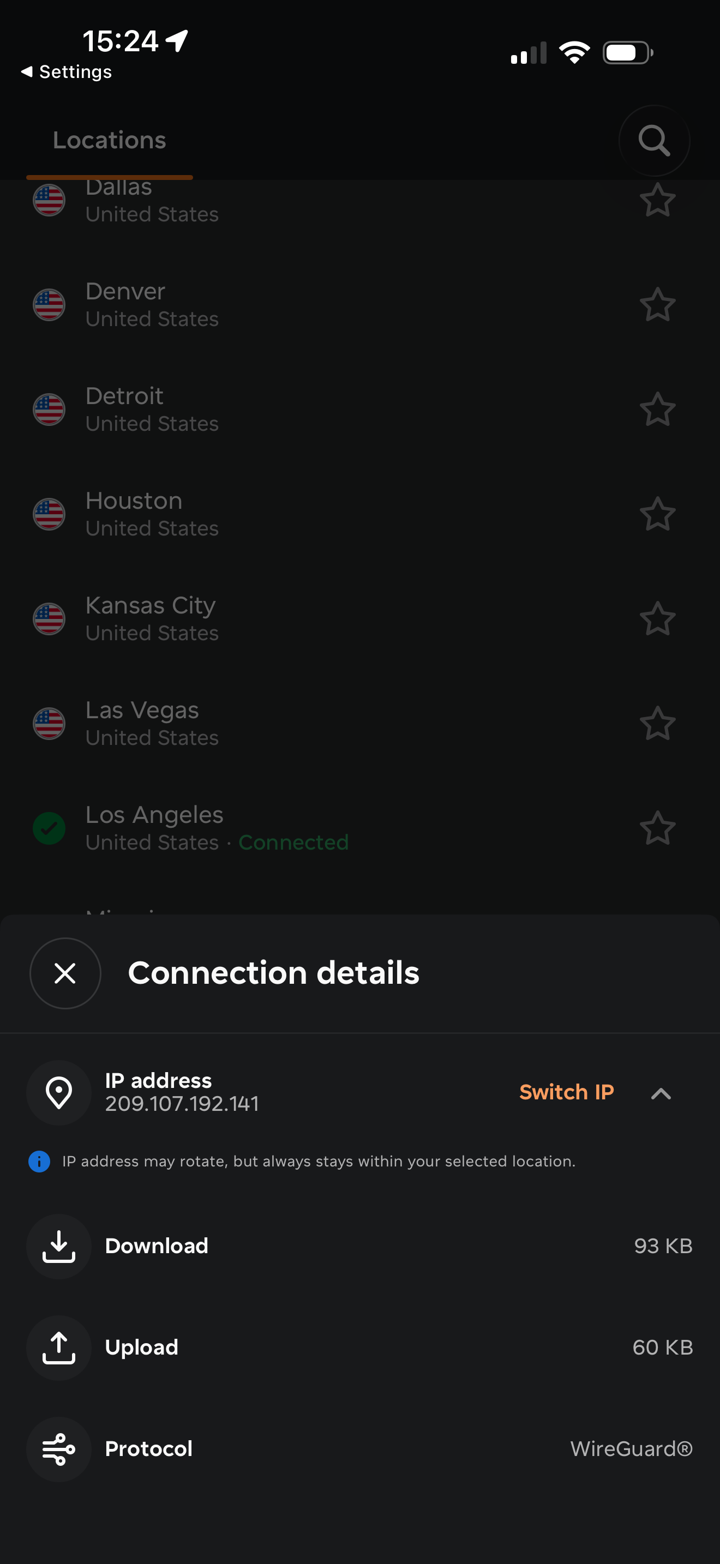
To change your IP address, tap Switch IP. Switch IP gives you a new IP address without changing your selected location. It's useful if a site blocks your IP or you want a fresh connection.
When you tap Switch IP, the VPN briefly disconnects, reconnects to another server in the same area, and gives you a new IP — usually in just a few seconds. This feature can help bypass IP blocks, fix slow speeds, or improve privacy without manually picking a new location.
Note: Your IP address may rotate, but it always stays within your selected location.
Step 6. Disconnect
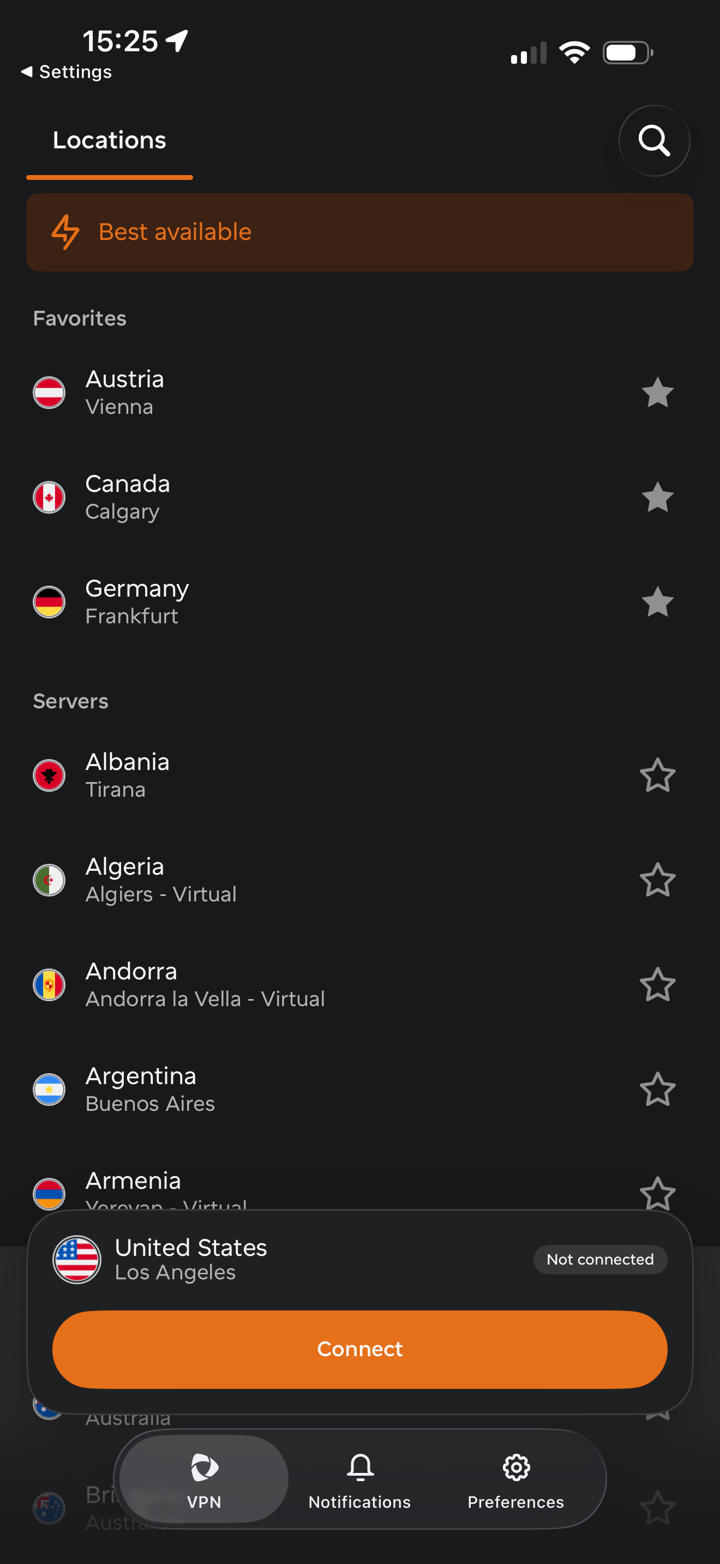
To disconnect, tap Disconnect on the connection card. The card then shows Not connected and keeps your last location selected, so you can reconnect with a single tap on Connect.
Notifications
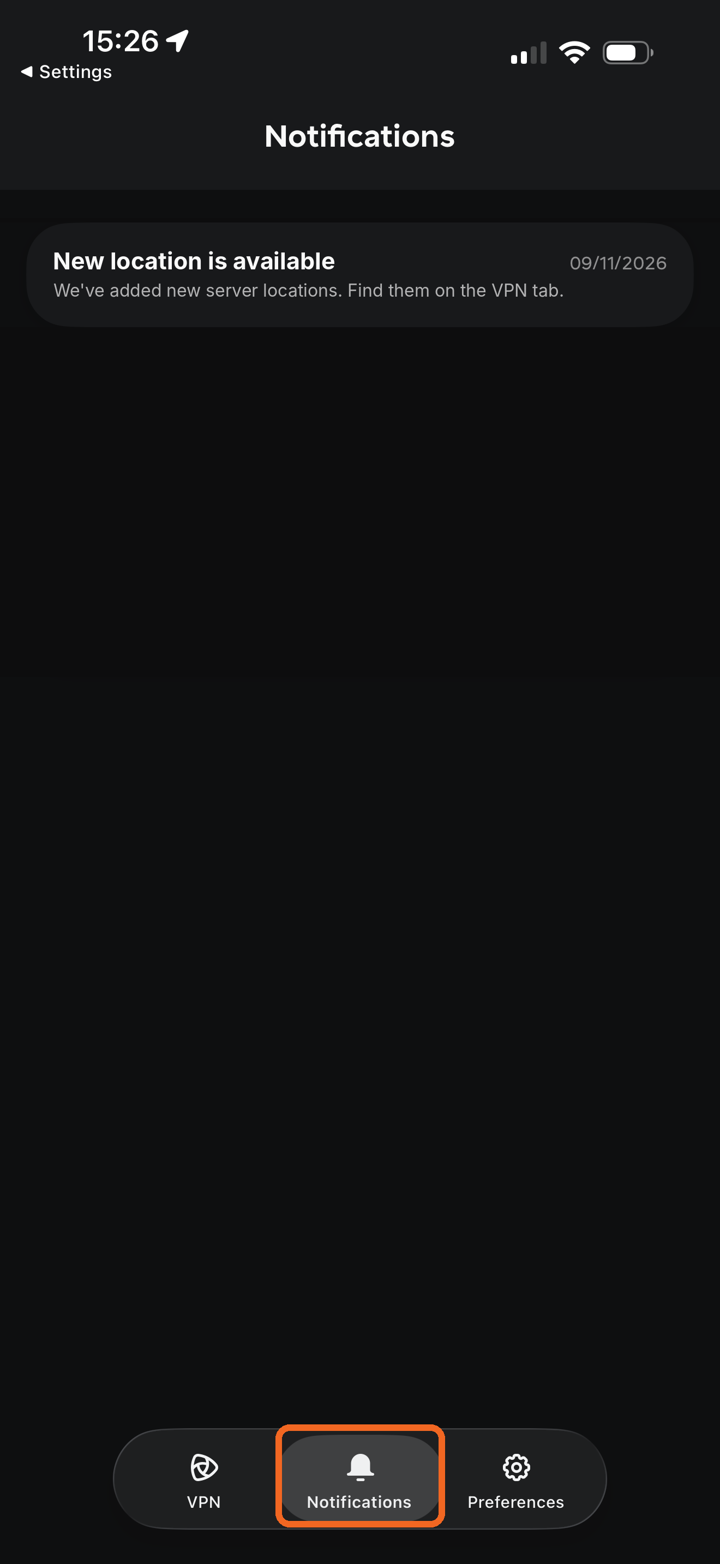
Tap Notifications in the bottom navigation bar to see important announcements and alerts from FastVPN, for example when new server locations become available:
Preferences
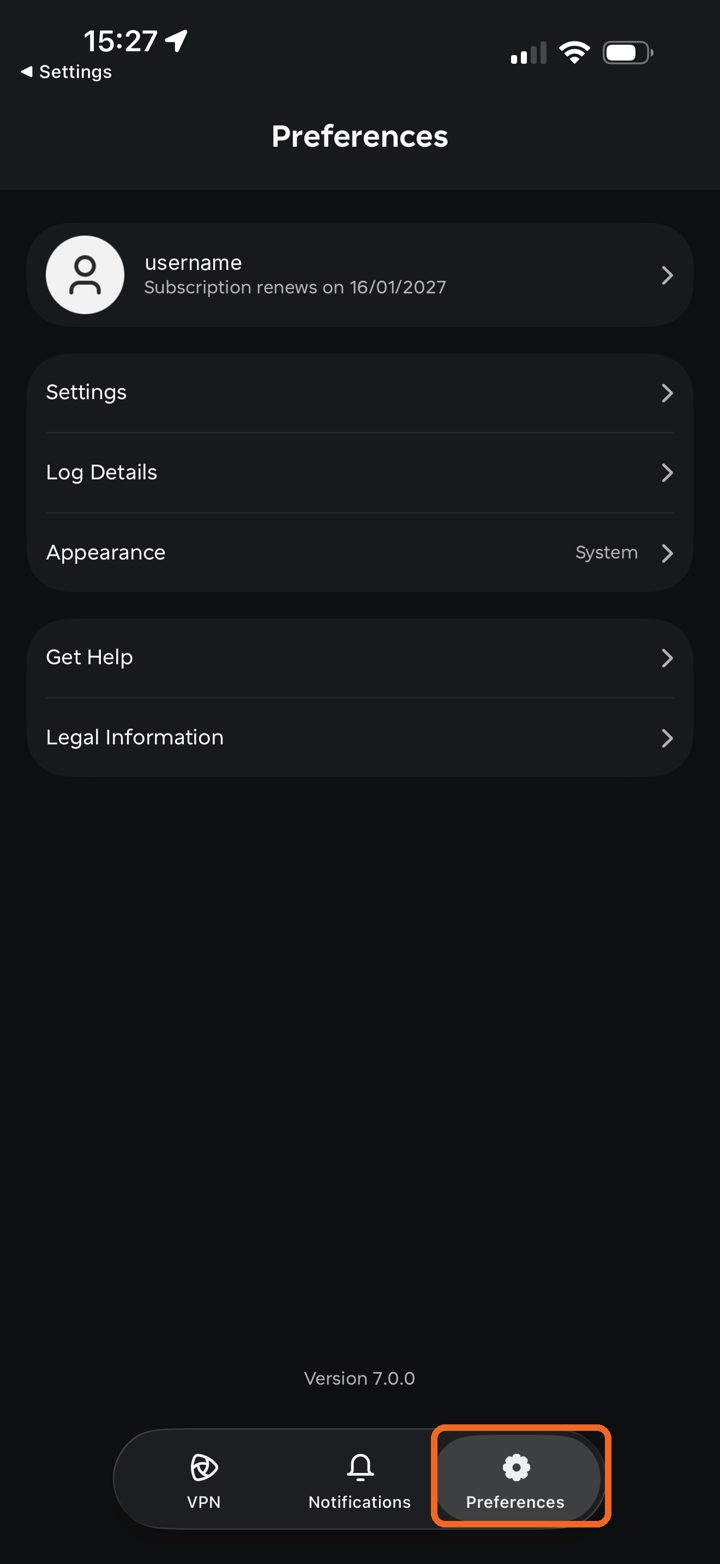
To open the app settings, tap Preferences in the bottom navigation bar. At the top you will see your account username and the date your subscription renews. Below are the following sections:
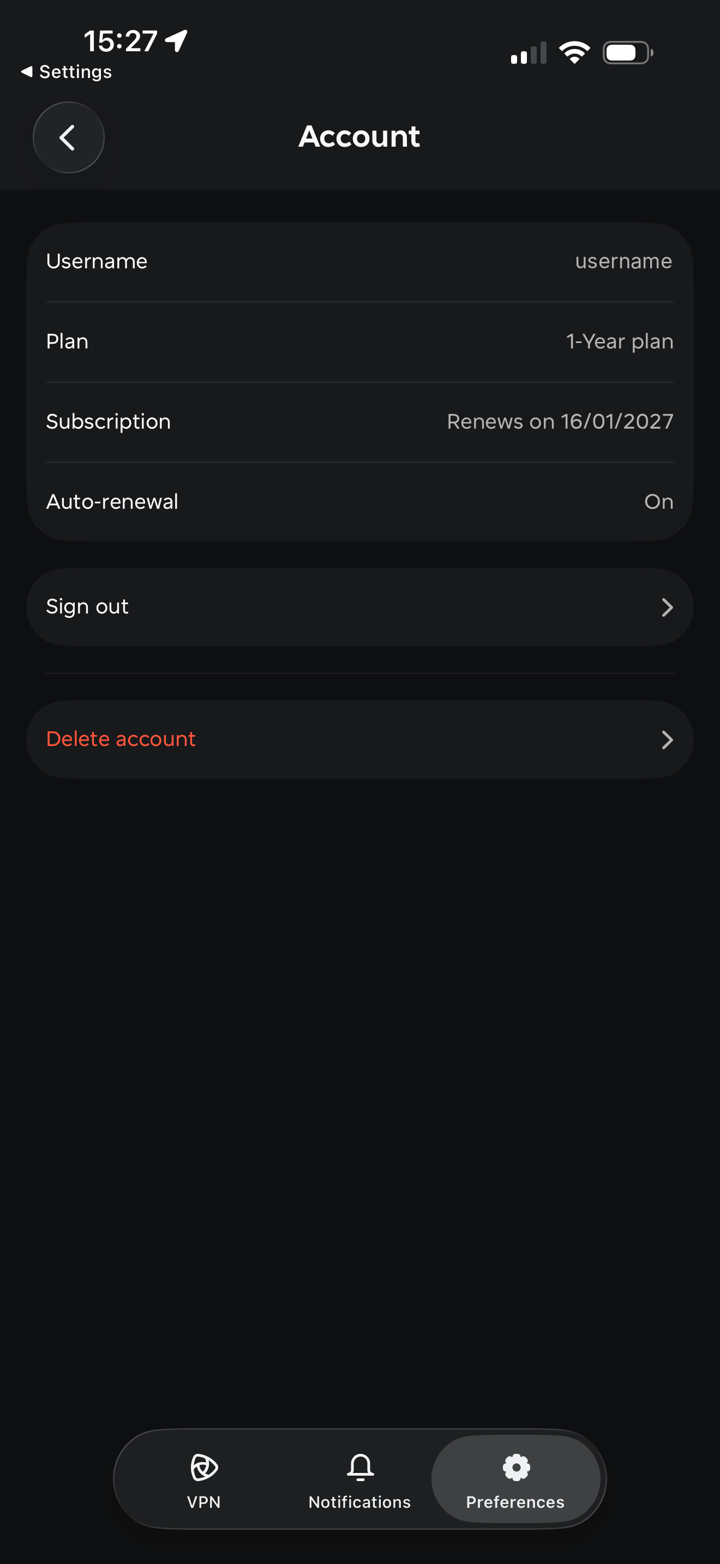
Account — tap your username to see your account details: Username, Plan, Subscription renewal date and Auto-renewal status. Here you can also Sign out or Delete account.
Settings contains the connection and browsing protection options:
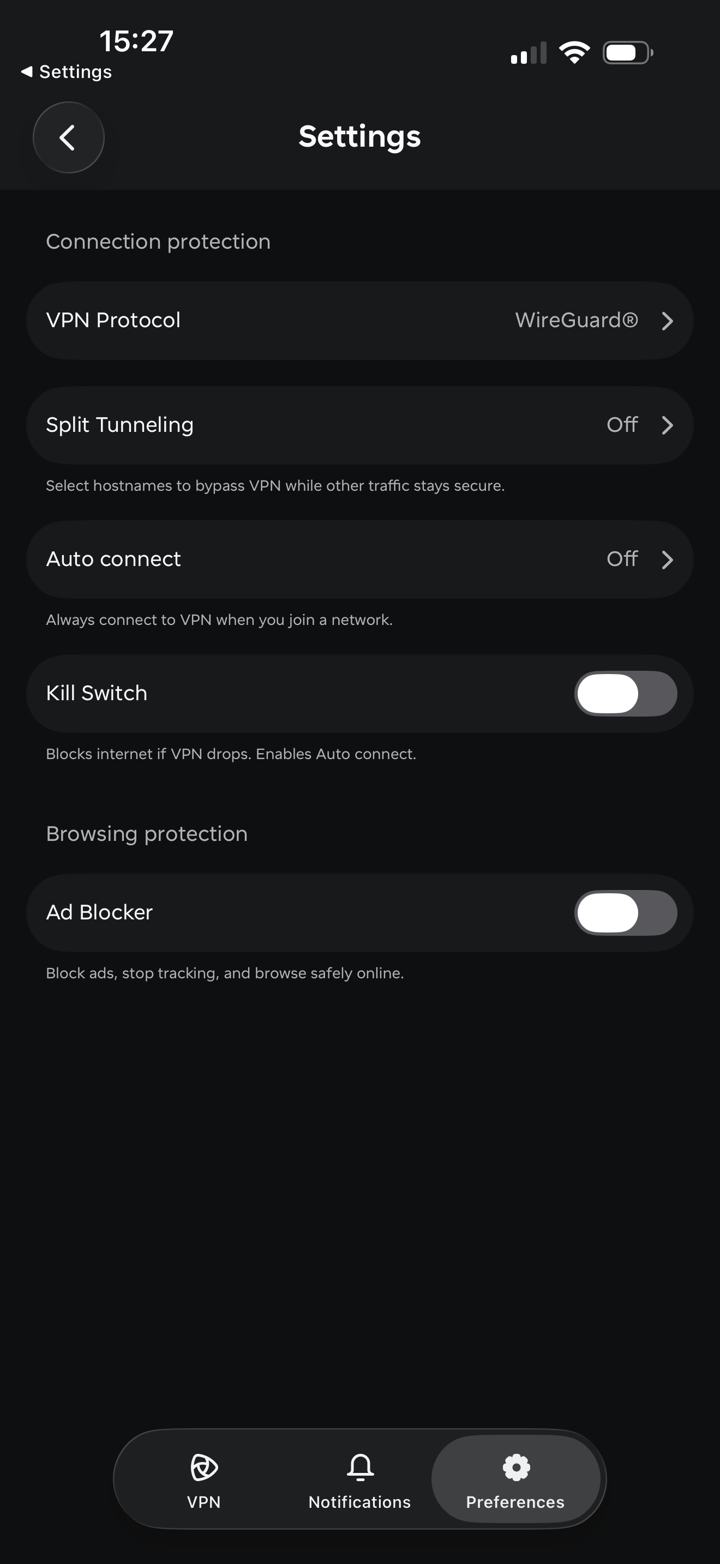
Under Connection protection, you will have:
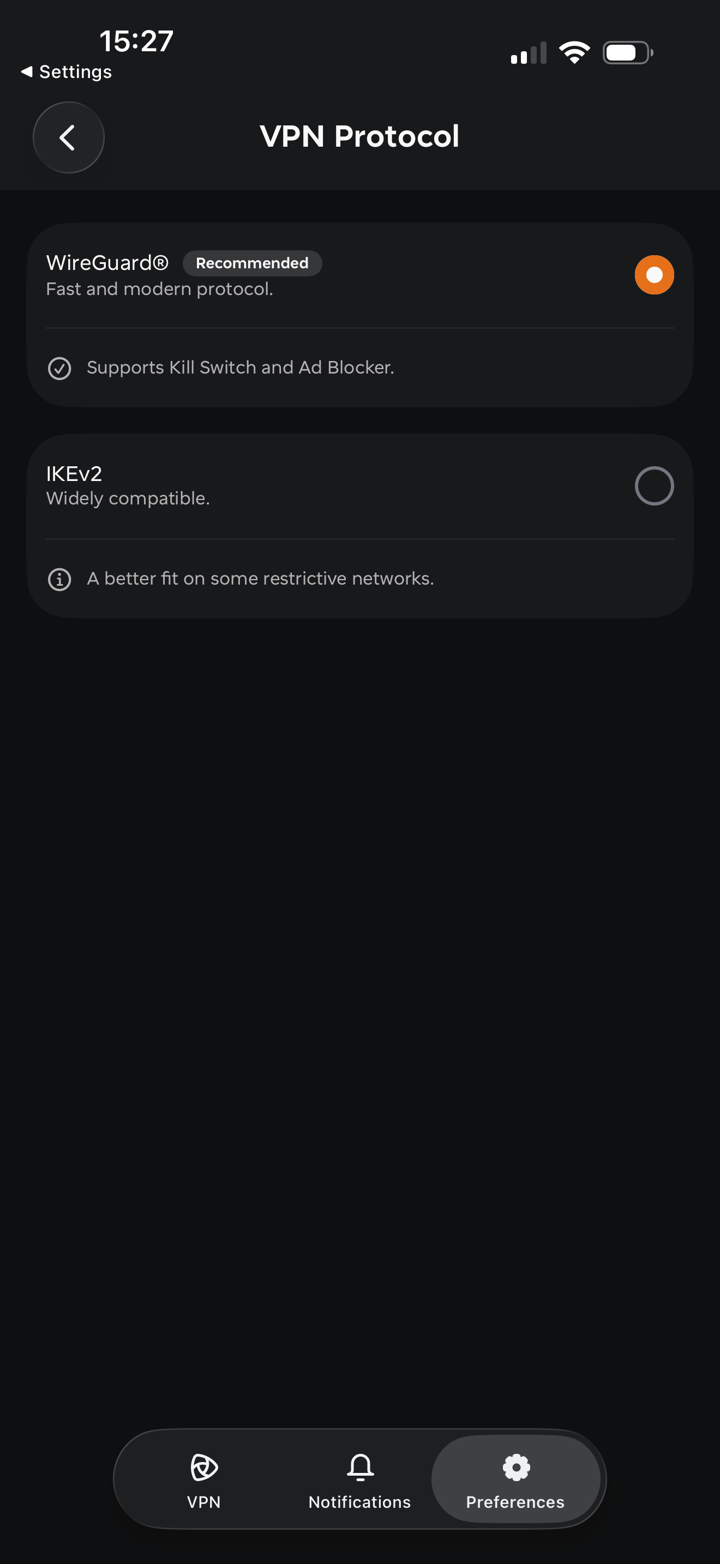
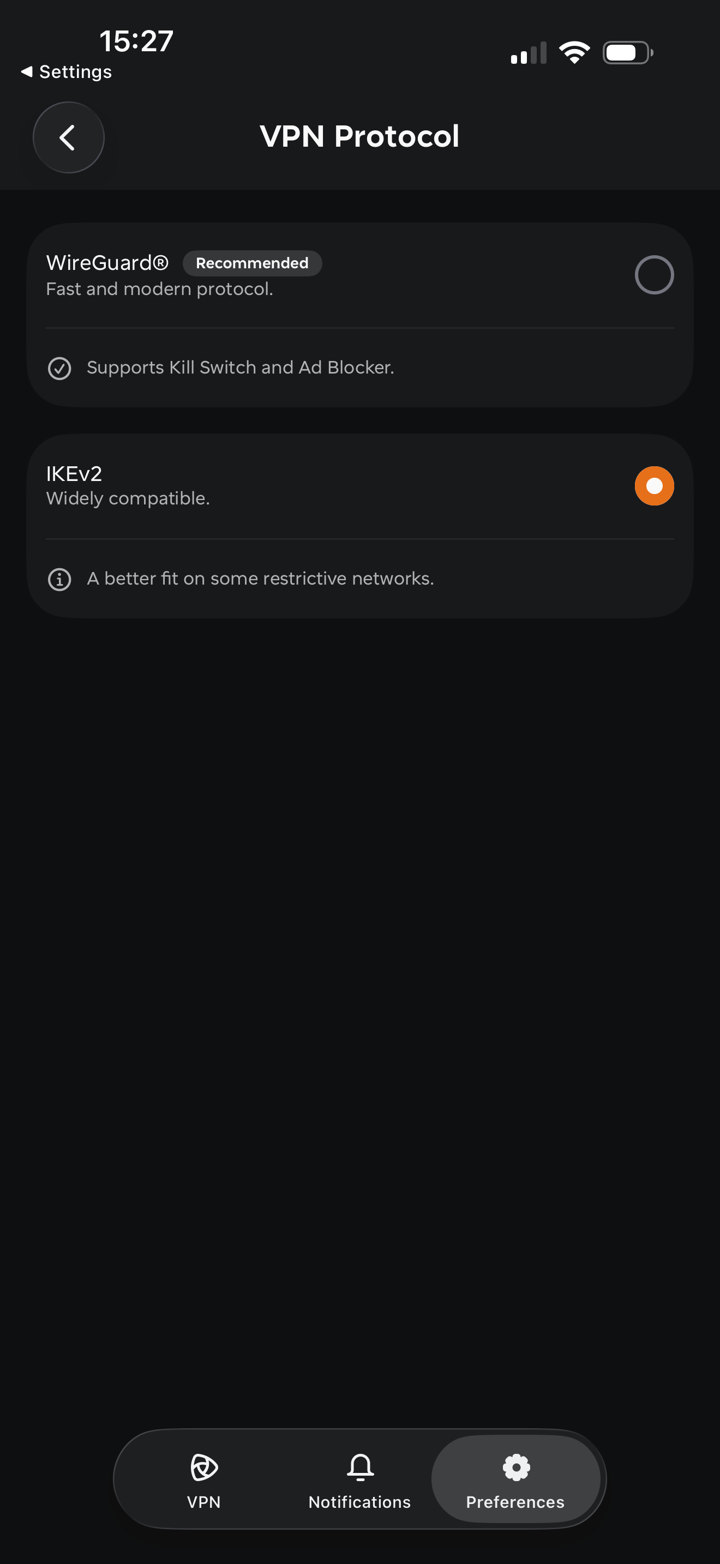
VPN Protocol lets you choose the protocol used for your connection:
WireGuard®* (Recommended) — a fast and modern protocol with strong encryption, perfect forward secrecy, and minimal attack surface. Supports Kill Switch and Ad Blocker.
IKEv2 — a secure, stable and widely compatible protocol. A better fit on some restrictive networks.
*All Rights Reserved. "WireGuard" and the "WireGuard" logo are registered trademarks of Jason A. Donenfeld.
Split Tunneling lets you select hostnames that bypass the VPN while all other traffic stays secure. Learn more
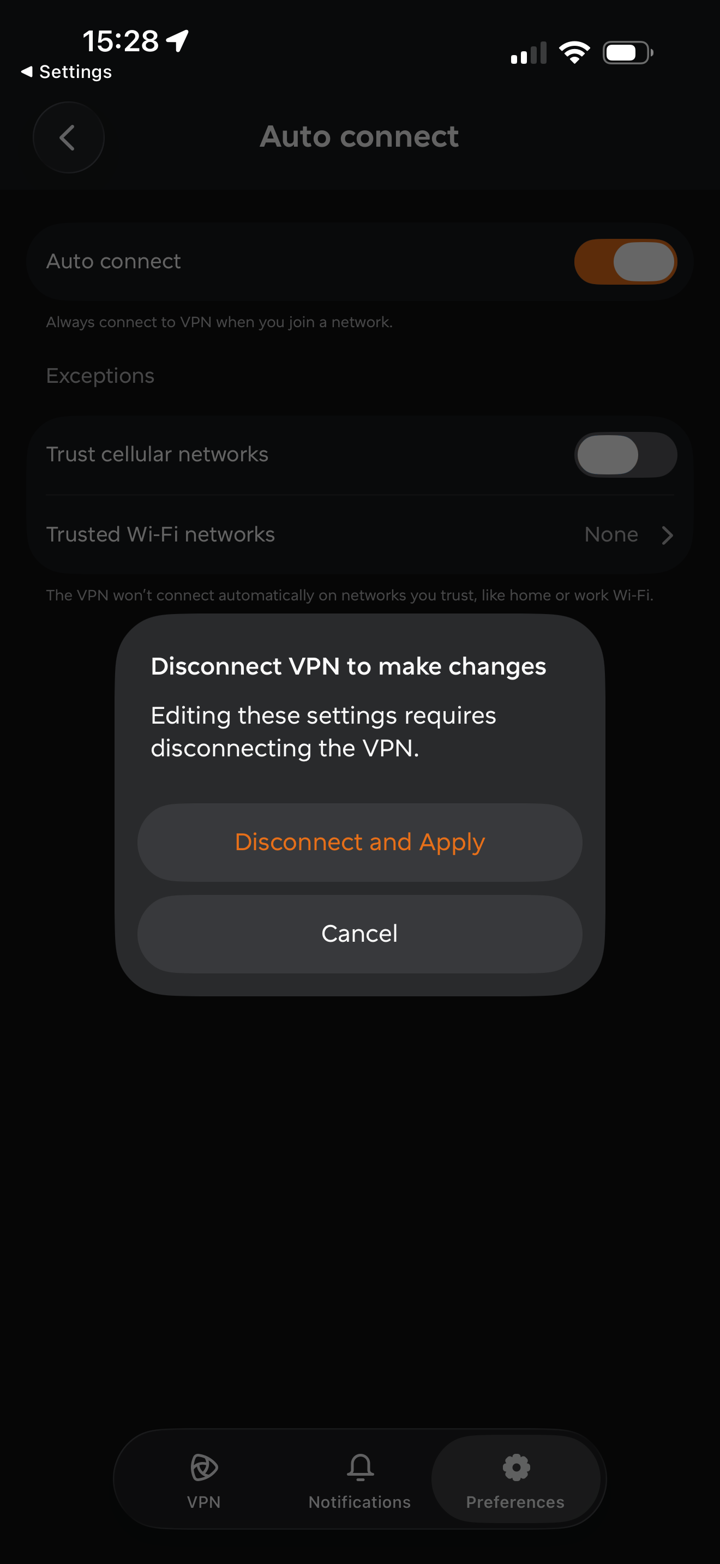
Auto connect always connects you to the VPN when you join a network. Under Exceptions, you can turn on Trust cellular networks and add Trusted Wi-Fi networks, such as your home or work Wi-Fi, where the VPN won't connect automatically.
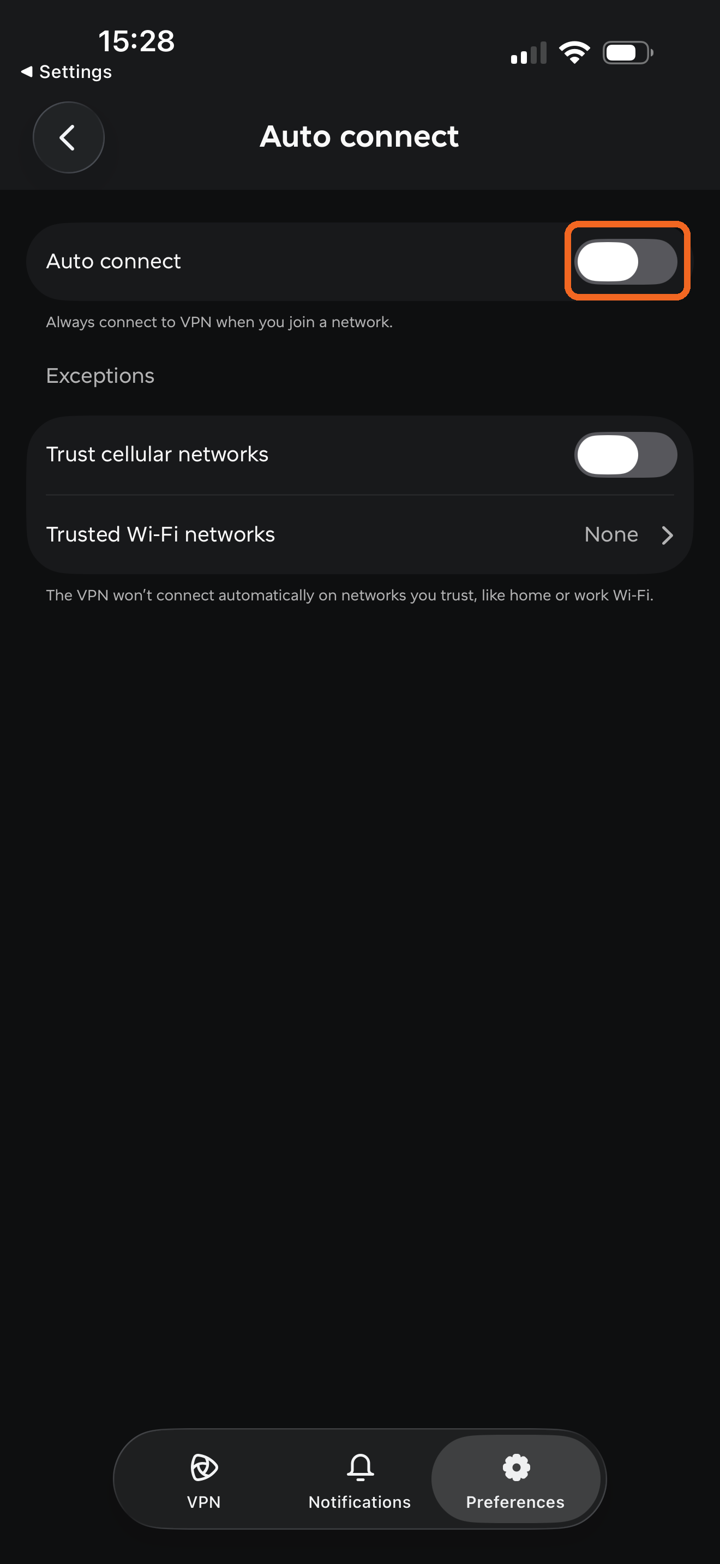
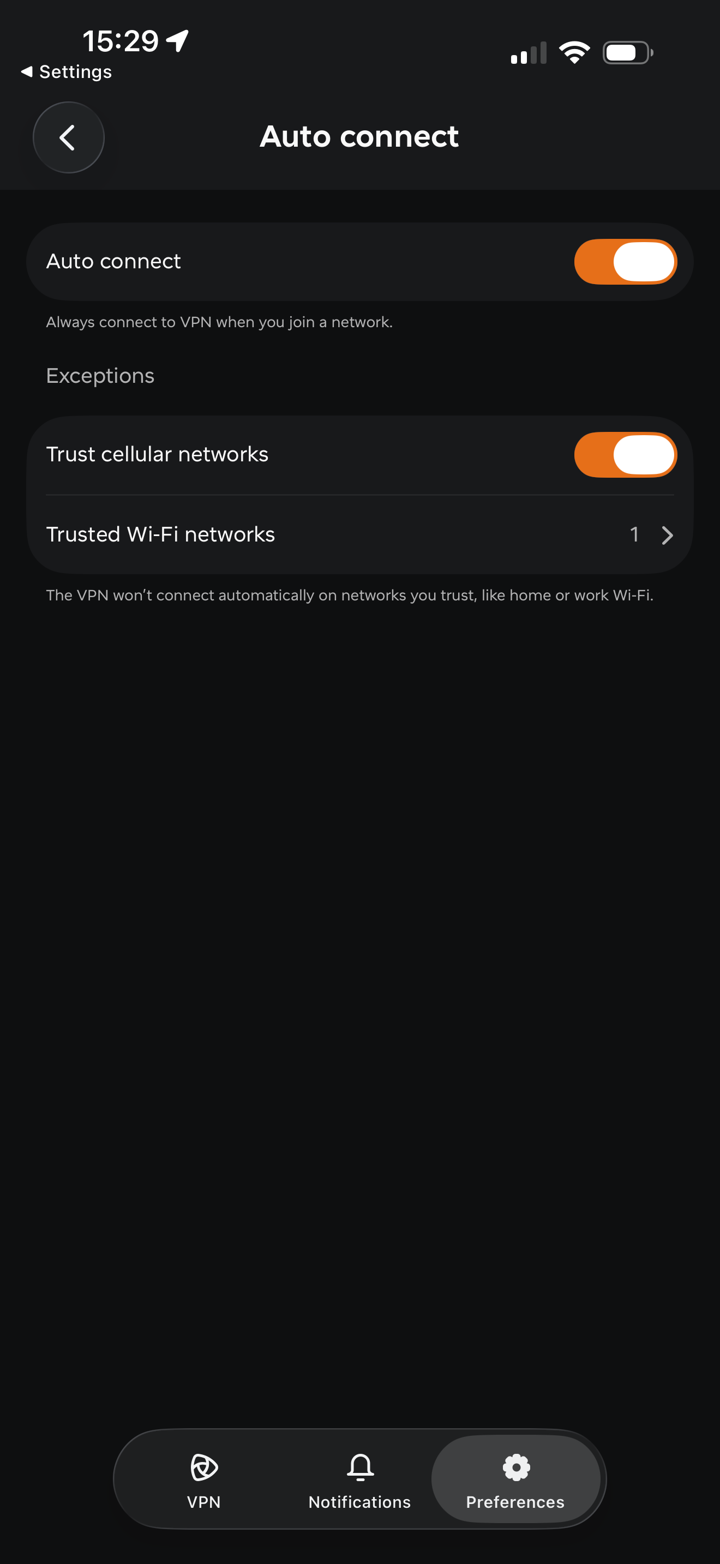
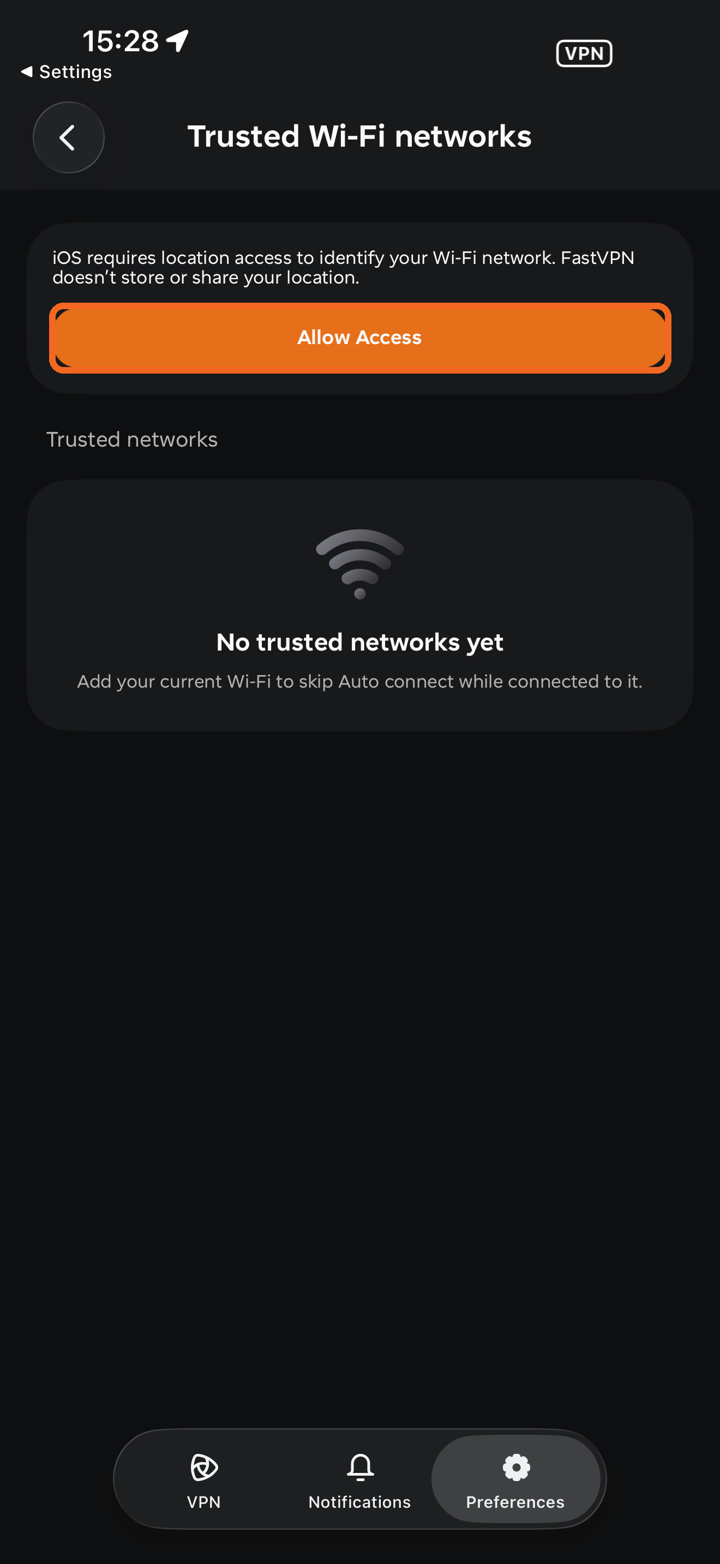
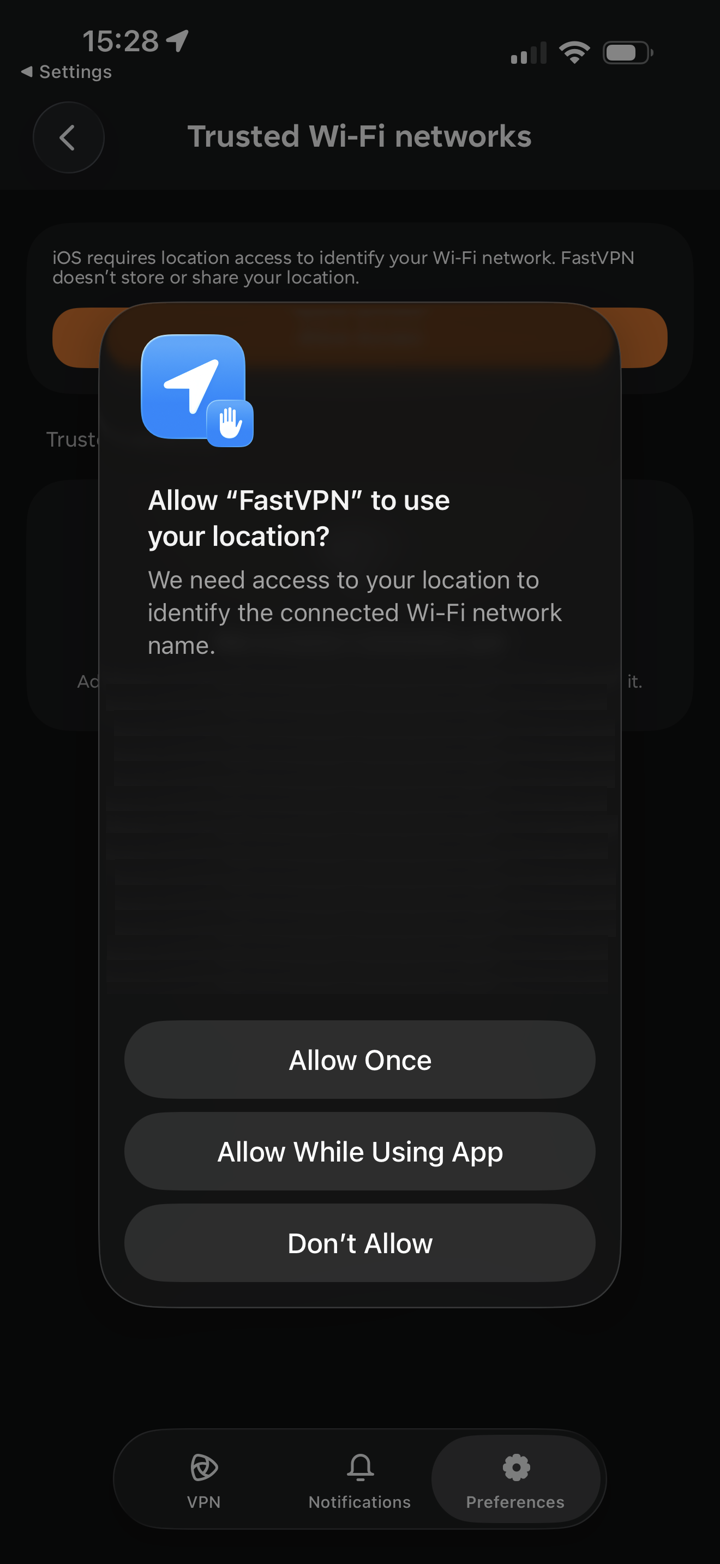
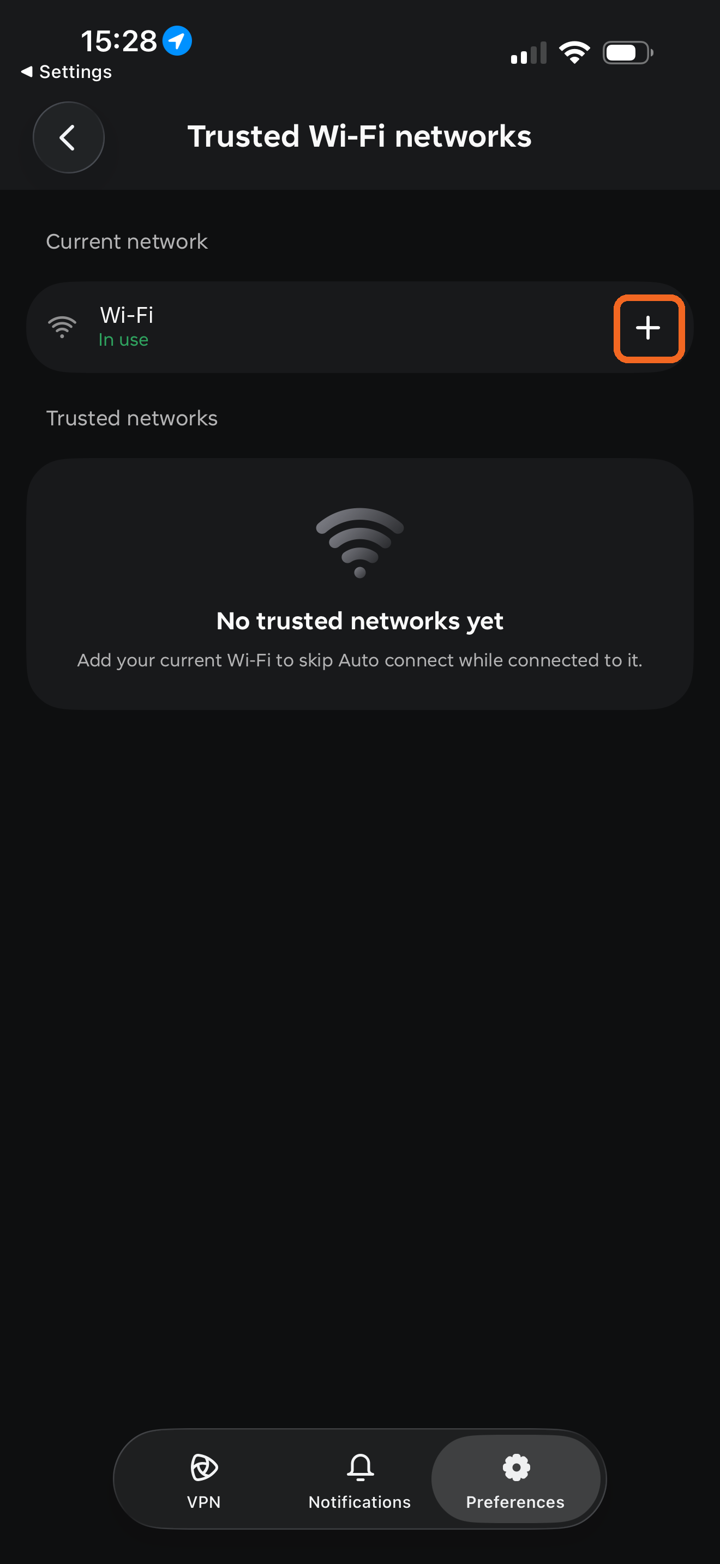
To add a trusted Wi-Fi network, tap Trusted Wi-Fi networks and then Allow Access. iOS requires location access to identify your Wi-Fi network; FastVPN doesn't store or share your location. Choose Allow While Using App in the iOS prompt.
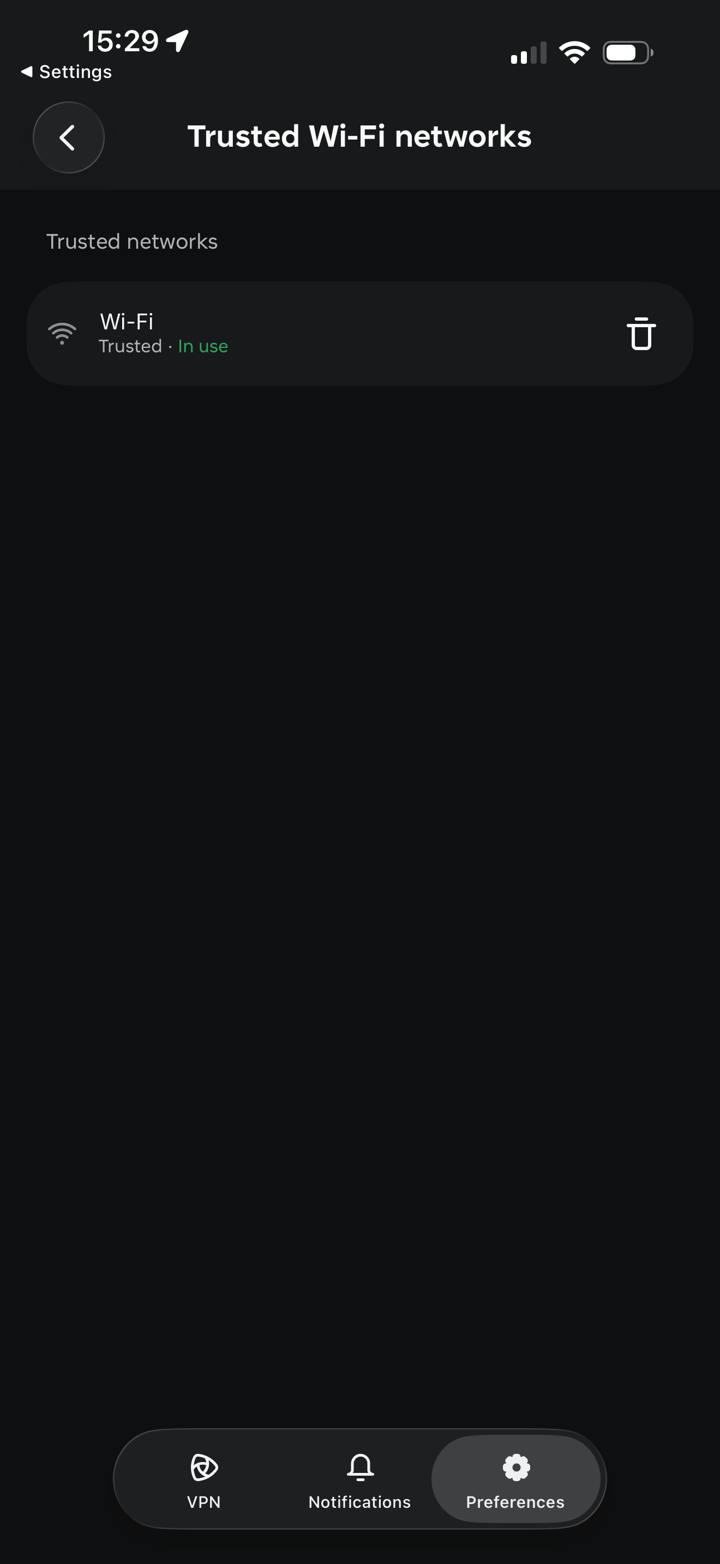
Your current Wi-Fi network appears under Current network. Tap the + icon to add it to Trusted networks. To remove a network, tap the trash icon next to it.
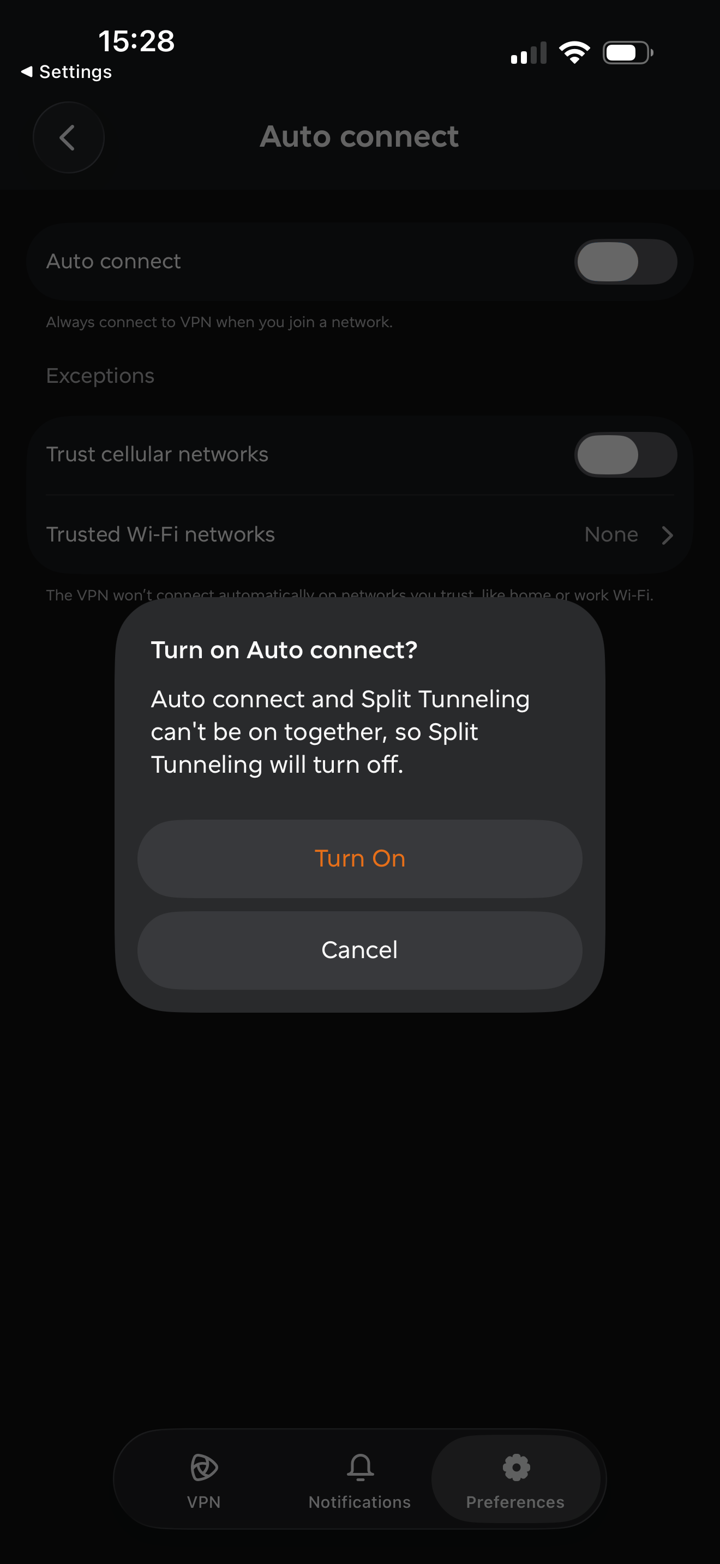
Note: Auto connect and Split Tunneling can't be on together. When you turn on Auto connect, Split Tunneling turns off and shows Unavailable until you turn Auto connect off again.
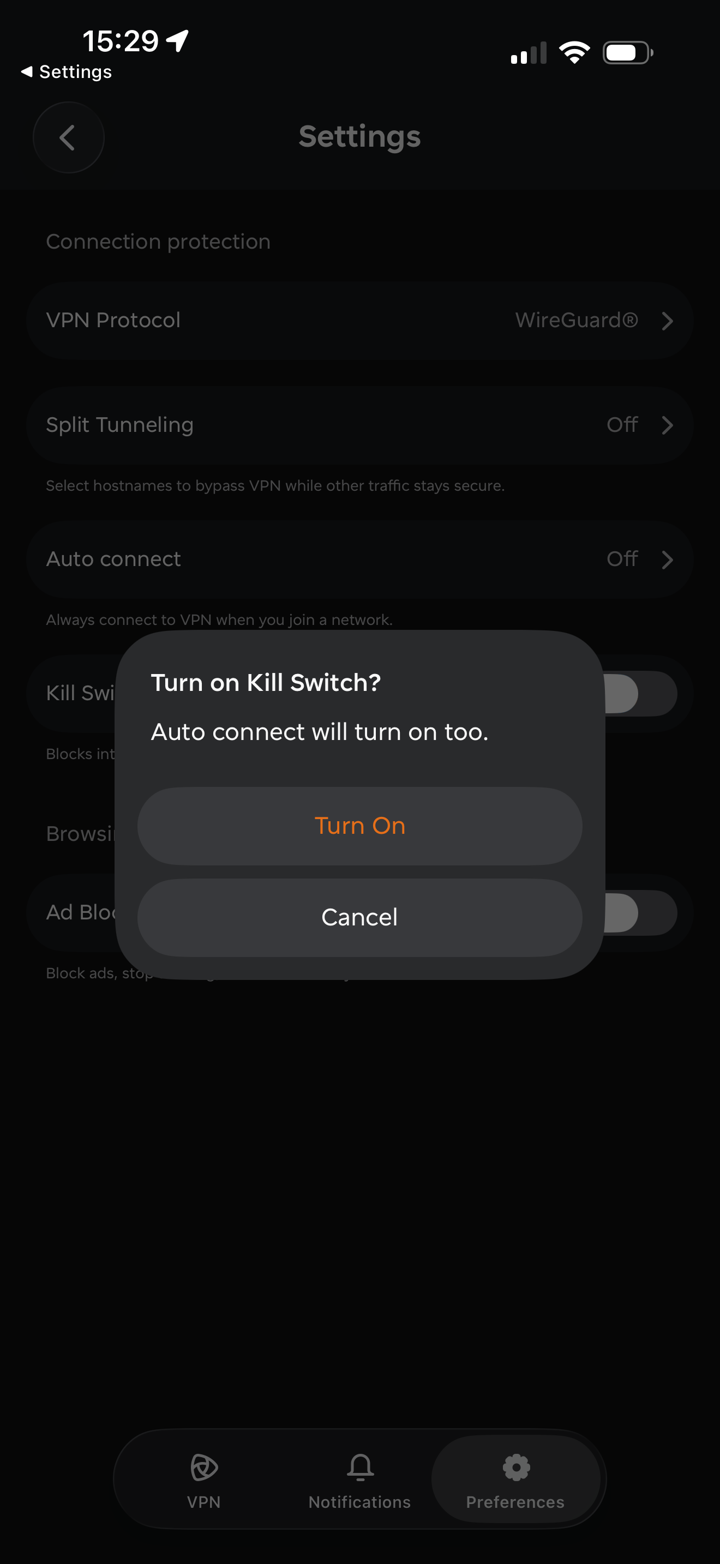
Kill Switch blocks internet access if the VPN connection drops, ensuring your online security. Turning on Kill Switch also turns on Auto connect. Tap Turn On to confirm, then Reconnect and Apply if you are connected.
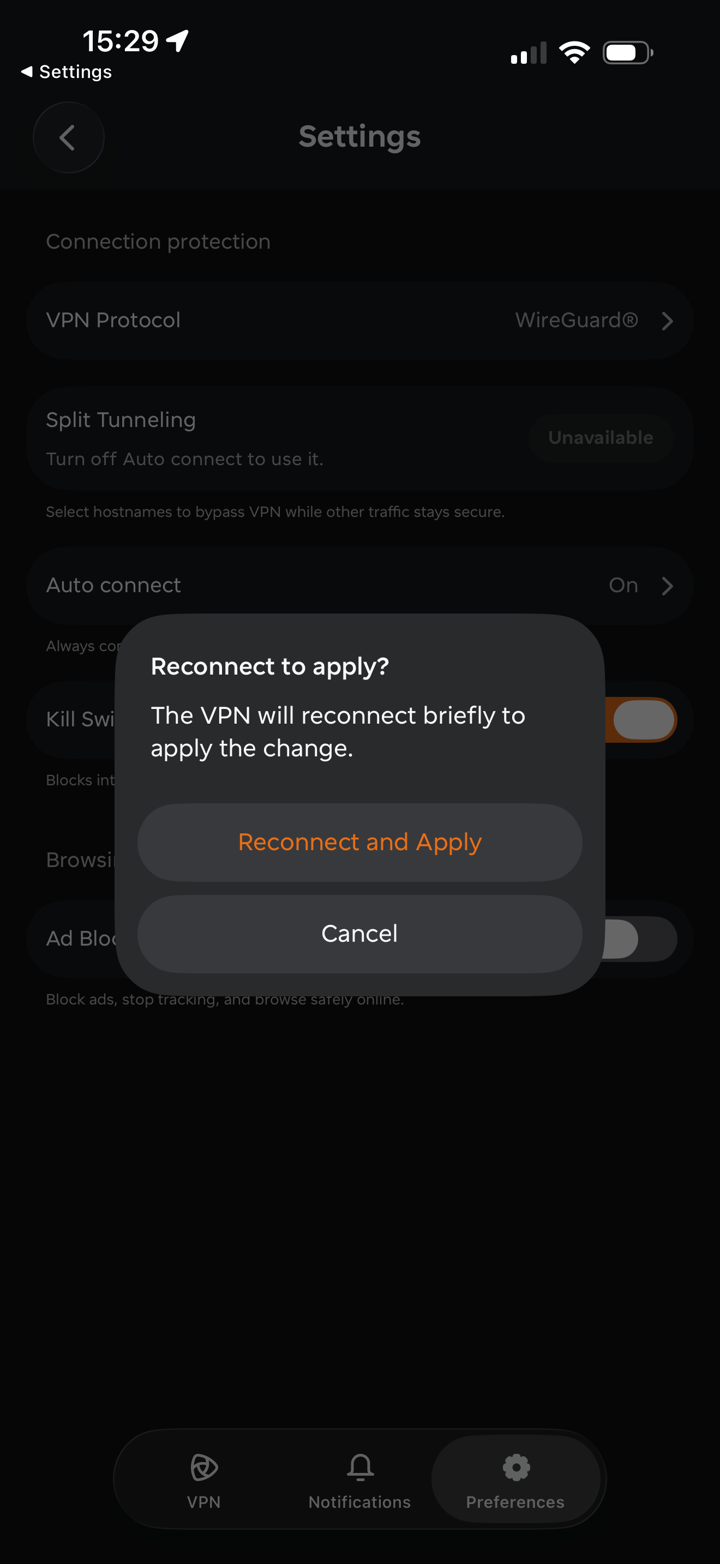
Under Browsing protection, you will have:
Ad Blocker blocks ads, stops tracking, and helps you browse safely online by reducing access to malicious content.
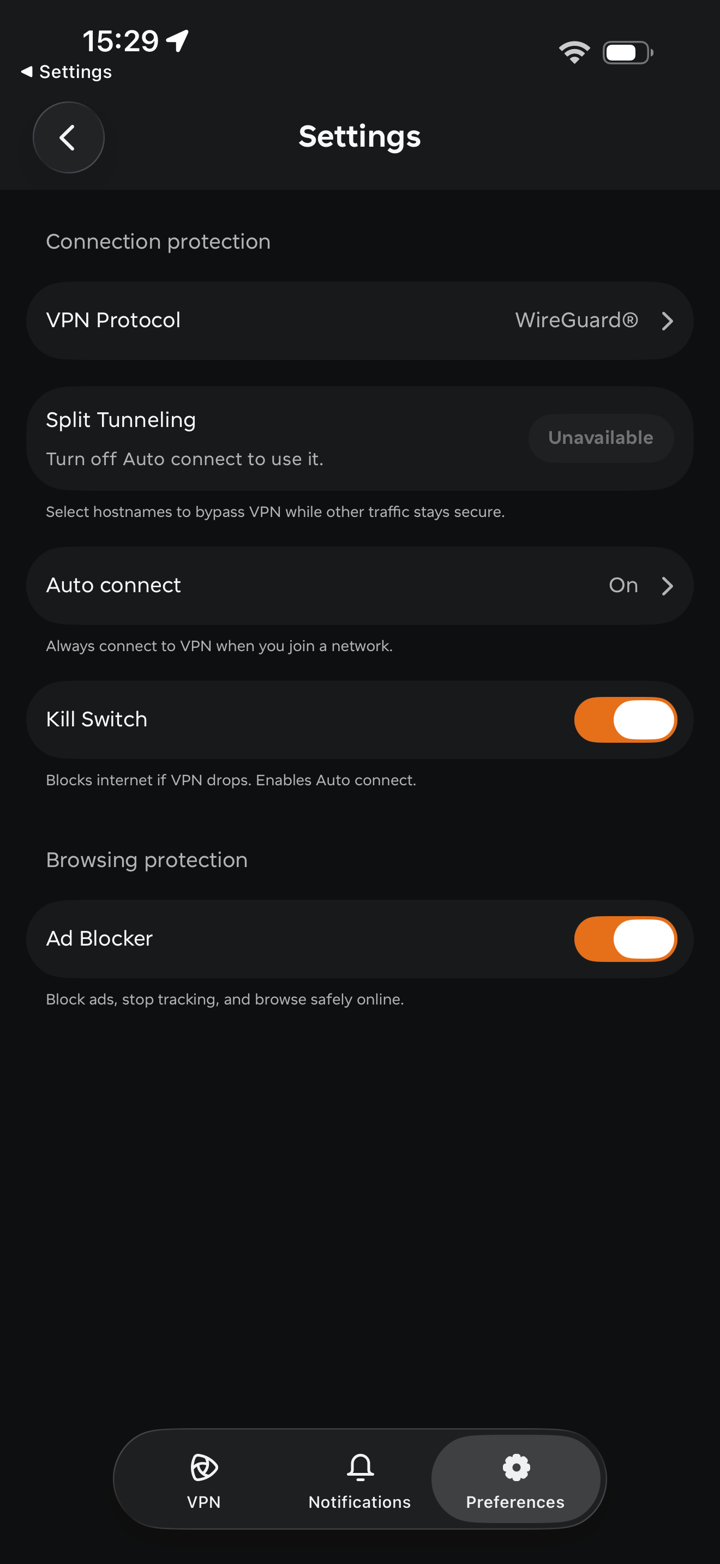
Note: Some settings can only be changed while the VPN is disconnected. If you change them while connected, the app will ask you to Disconnect and Apply.
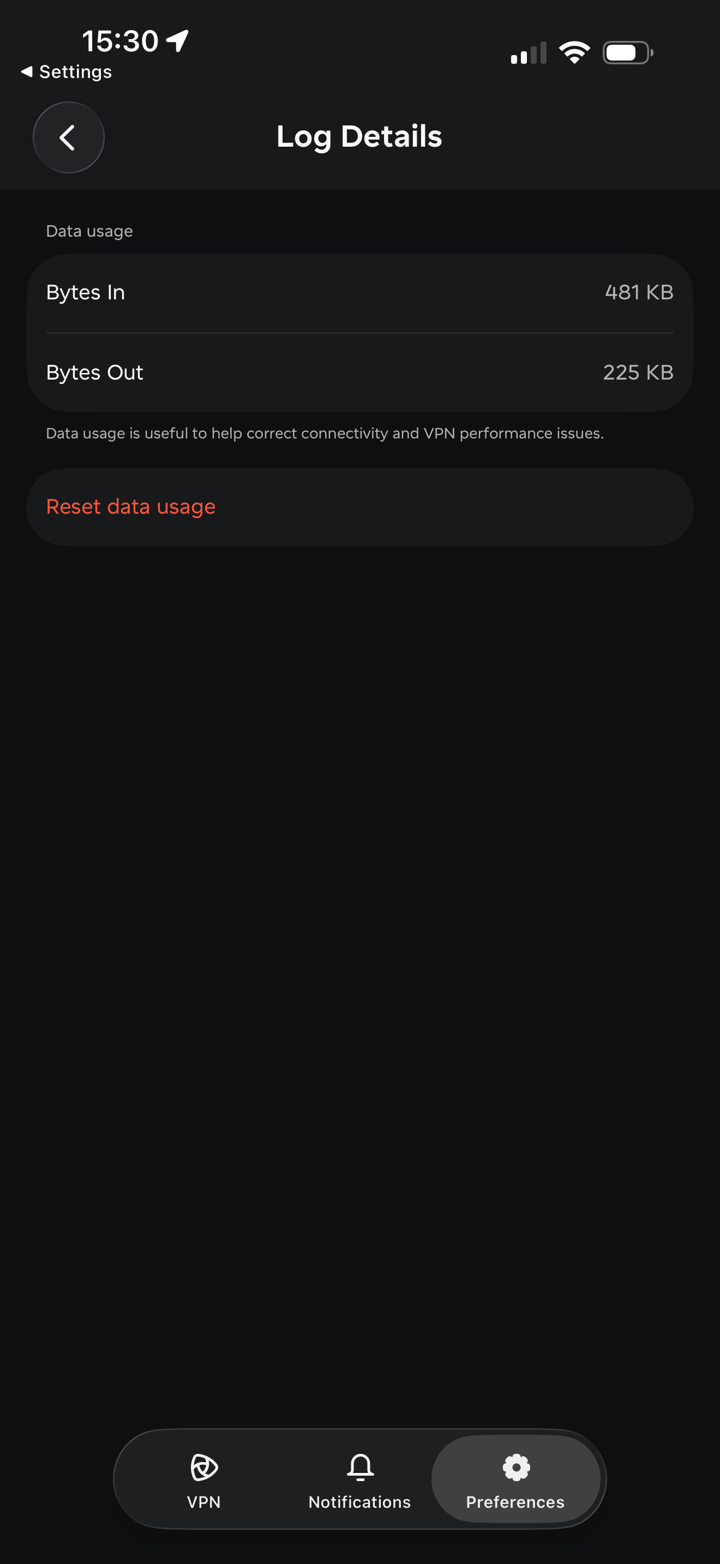
Log Details shows your data usage: Bytes In and Bytes Out. This information helps us correct connectivity and VPN performance issues. Tap Reset data usage to clear the counters.
Appearance lets you choose a Light or Dark theme for the app, or select System to follow your device's theme.
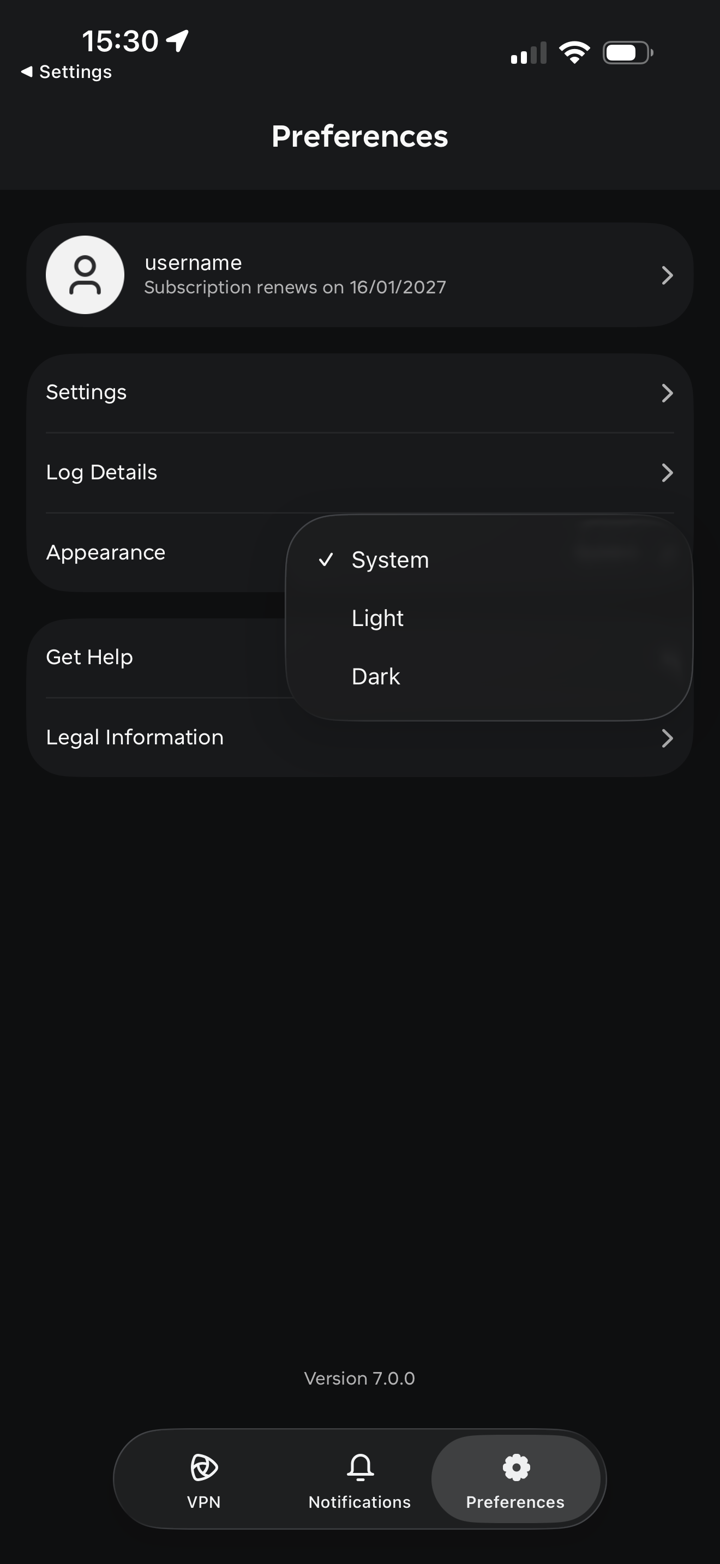
Get Help gives you the following options:
Share feedback or Report an issue — send feedback or report a problem directly to our team from the app.
Live support chat — connect with our support team in real time.
Frequently asked questions — browse answers to common questions and troubleshooting steps in our Knowledge Base.
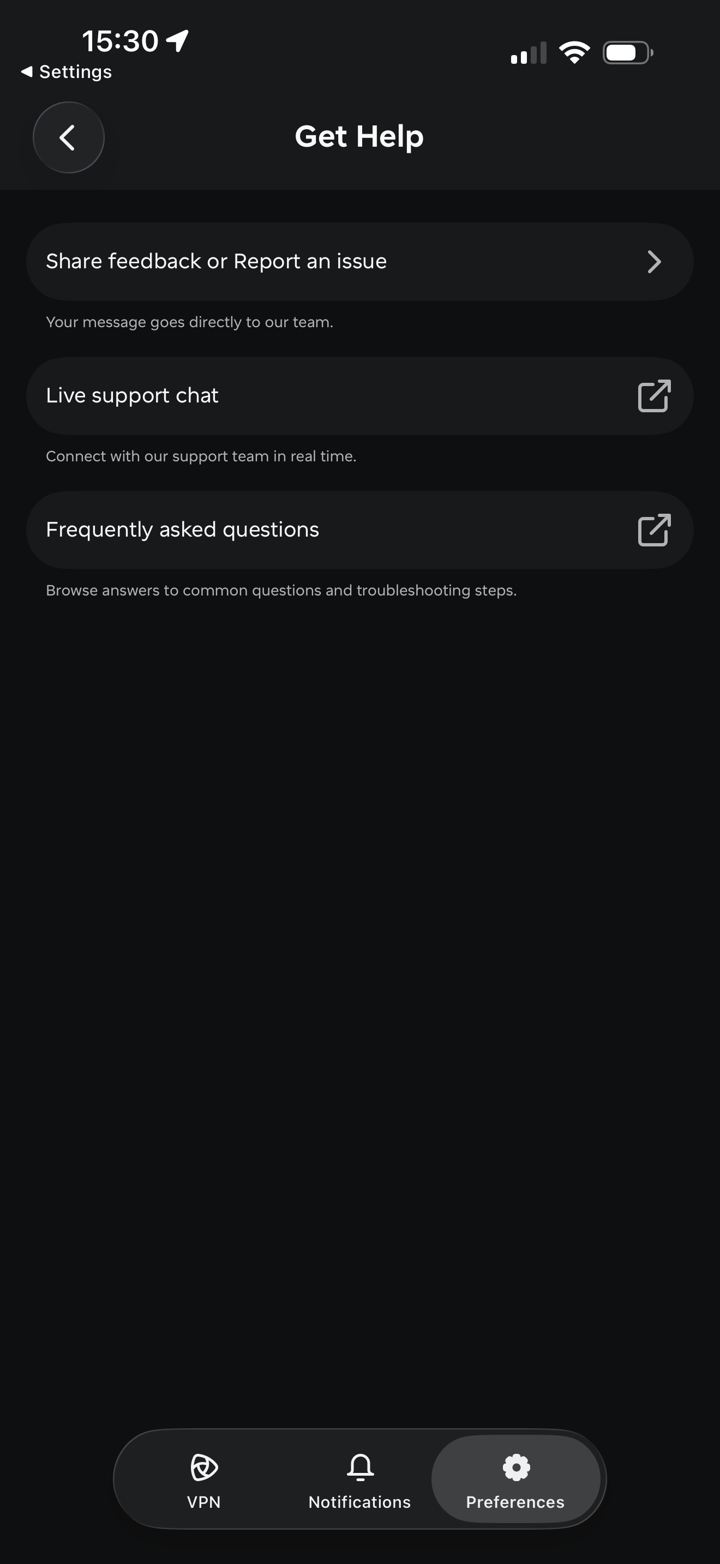
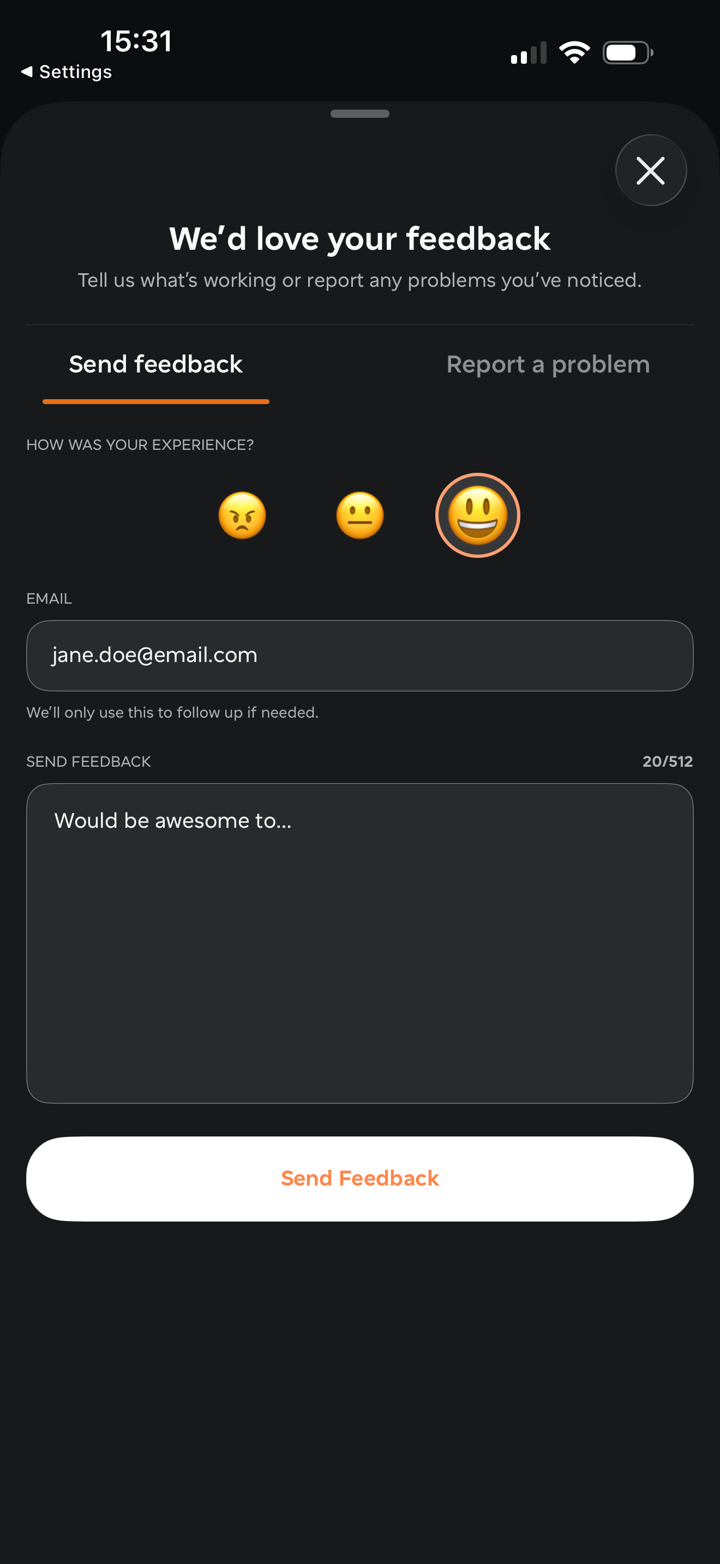
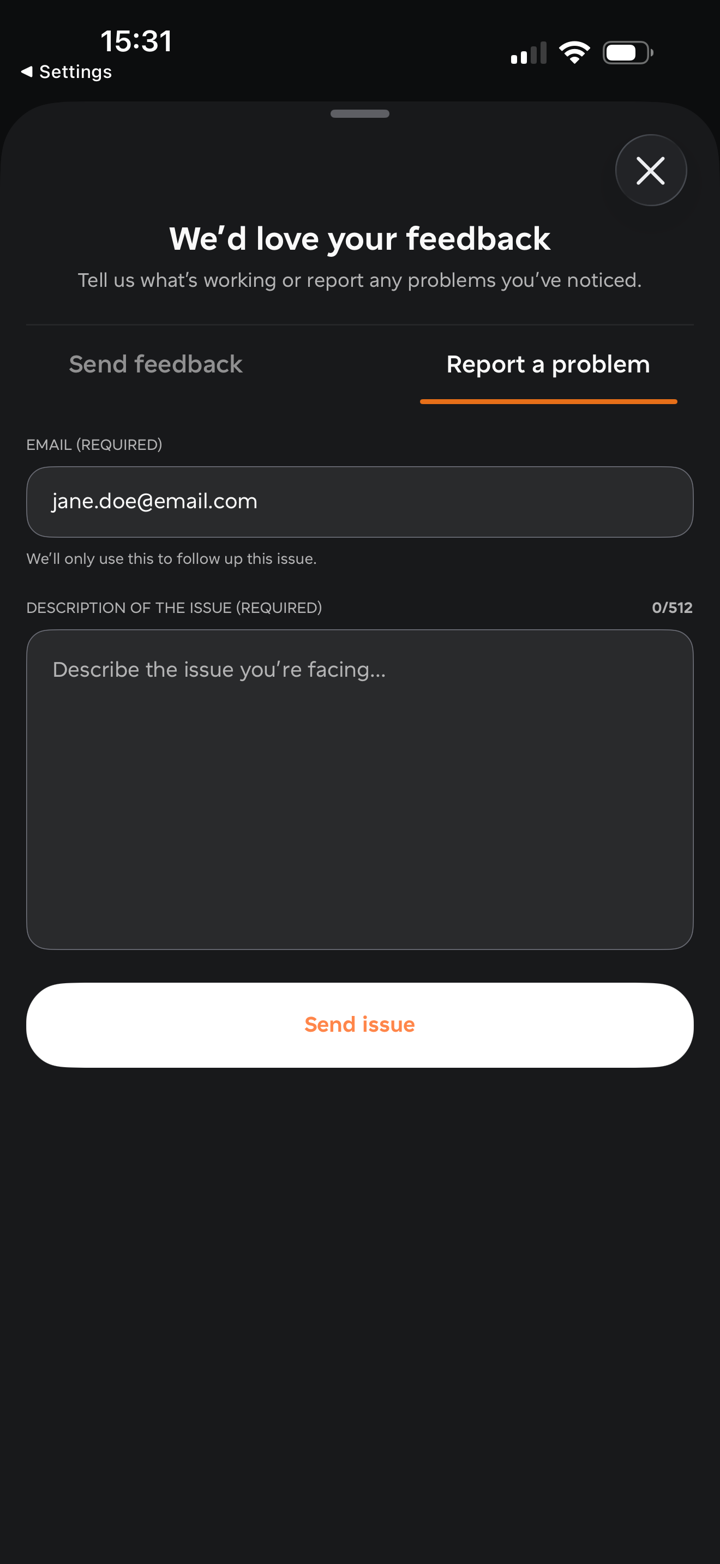
When you tap Share feedback or Report an issue, a form opens with two tabs:
Send feedback — rate your experience, optionally add your email, write your message and tap Send Feedback.
Report a problem — enter your email (required, used only to follow up on the issue) and a description of the issue (required), then tap Send issue.
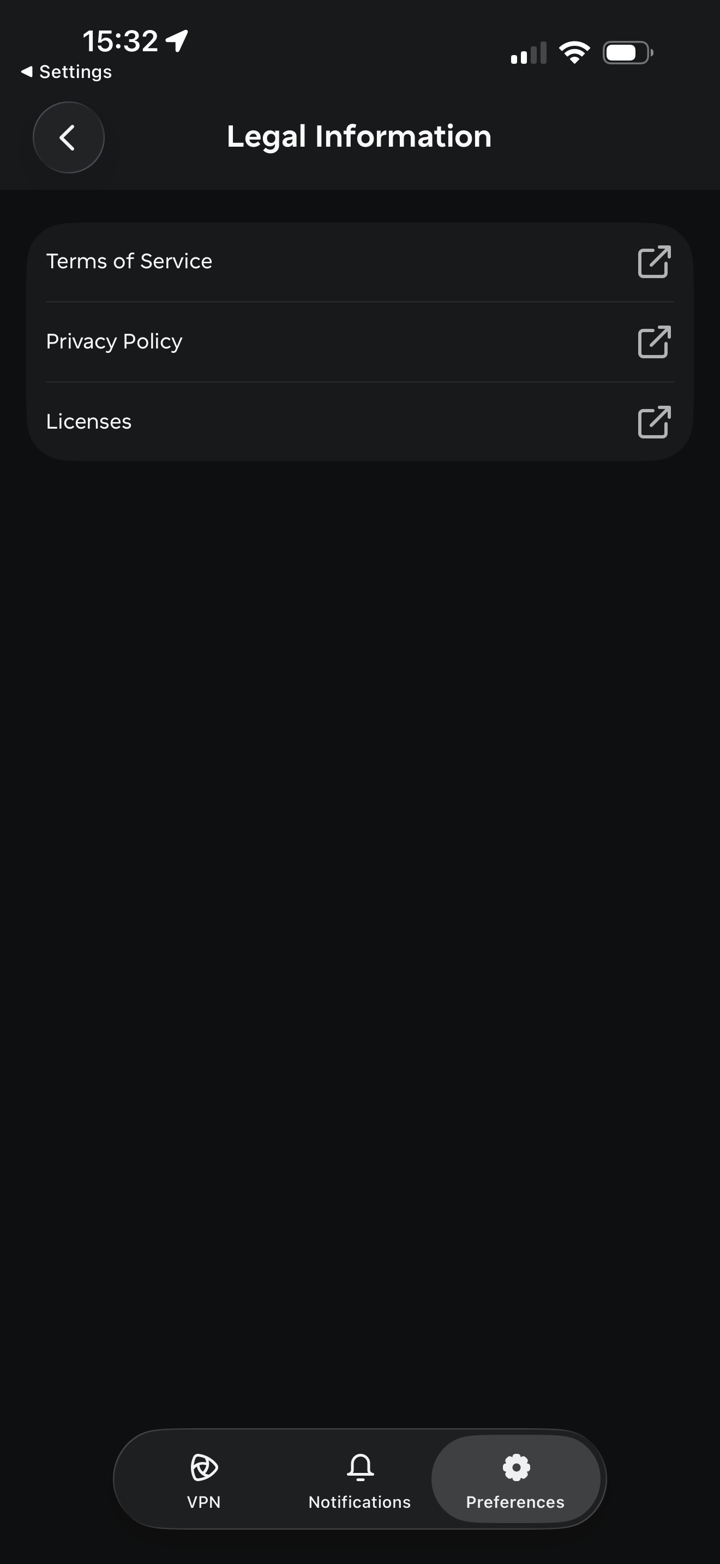
Legal Information gives you access to the Terms of Service, Privacy Policy and Licenses.
If you need any further assistance, please contact our Support Team.