How to set a profile picture in Spacemail
You can set a profile picture for your Spacemail mailbox following these steps:
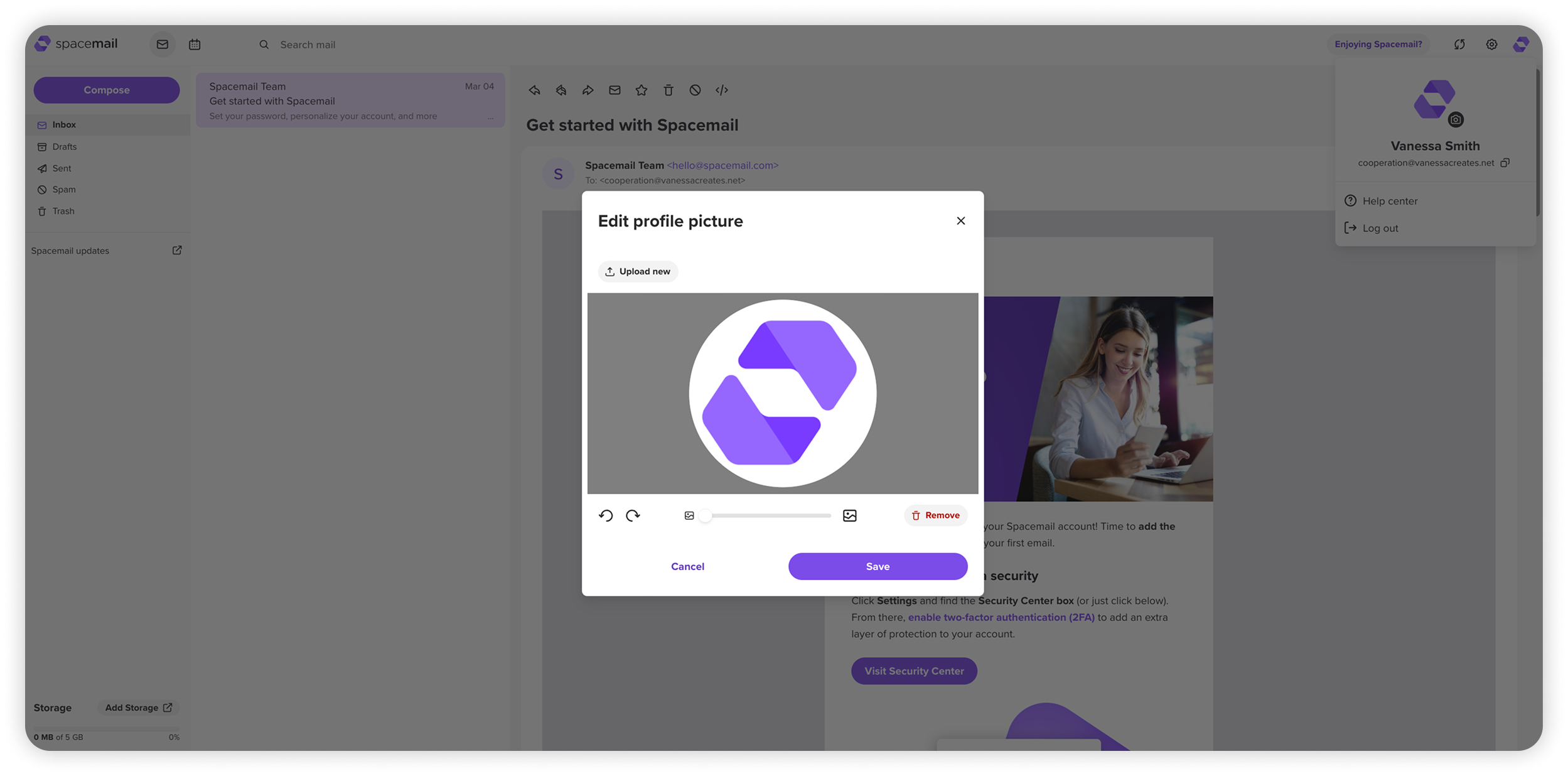
Clicking on your profile icon
Log in to your Spacemail mailbox using your mailbox name and password.
Click the round profile icon in the top right corner.
To upload a new picture or change the existing one, click Upload new and select an image from your device.
NOTE: This feature is currently unavailable in the Spacemail mobile app. You can set or update your profile picture using the PC or mobile version (through your mobile browser).Adjust the image if needed, then click Save.
Choosing the option in Settings
Log in to your Spacemail mailbox using your credentials.
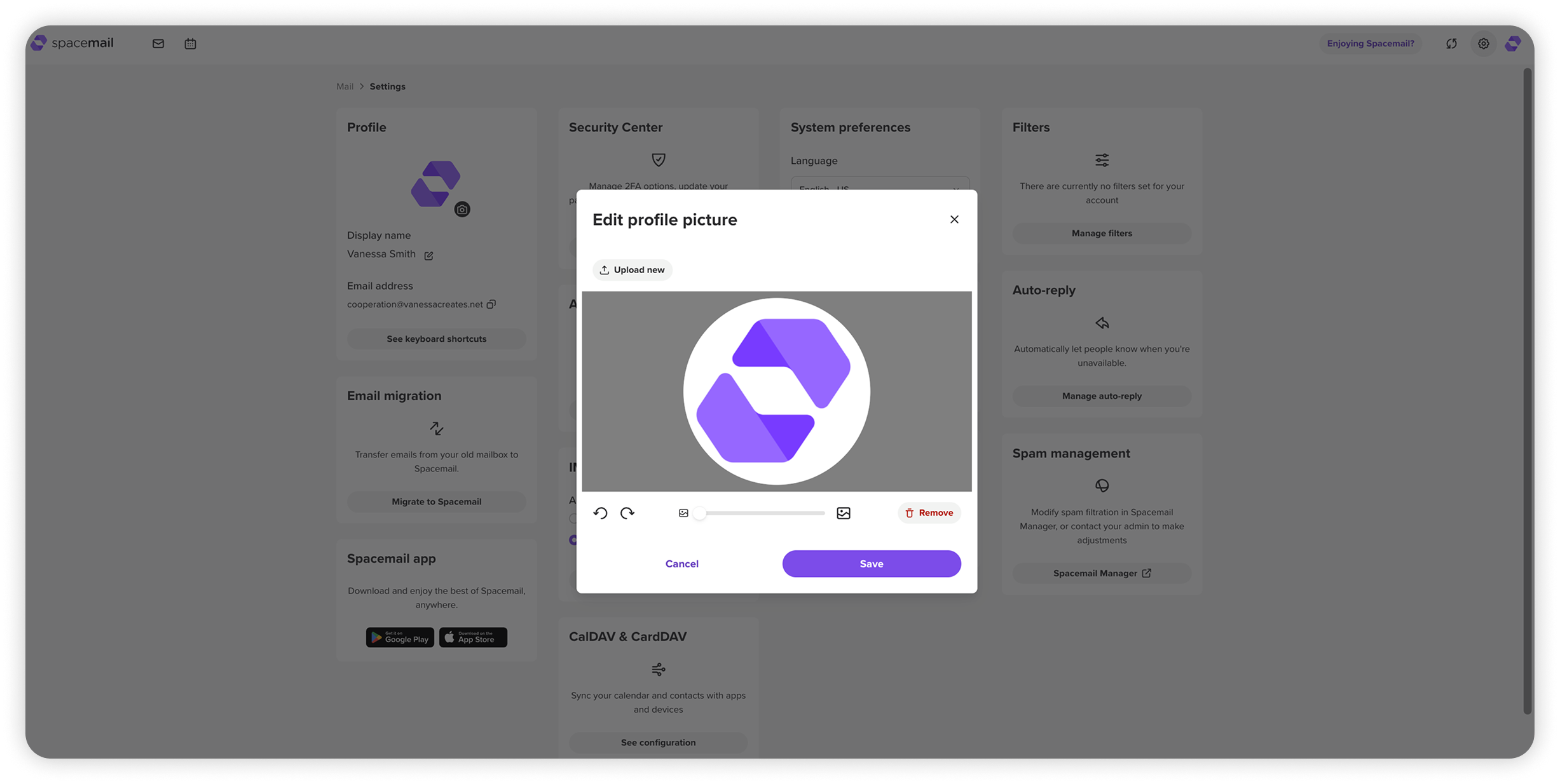
Click on the Settings in the upper right corner.
If you're using the mobile version in your browser, tap the three-dot menu (More options) in the top corner and choose Settings.Locate the Profile widget and click on the round profile icon.
Click Upload new, crop or resize the image if needed, then click Save.
NOTE: The image you upload will be visible only to other Spacemail users and won't be visible to users of third-party email providers, such as Gmail or Yahoo.
Why are profile pictures not visible to other email providers
A profile picture is not included in the email itself. When an email is between mail servers, only the following information is transmitted:
Envelope data (MAIL FROM / RCPT TO)
Headers (From, To, Message-ID, etc.)
MIME body (text, HTML, attachments)
Email standards define these elements, but they do not include any field for a profile picture. As a result, the image is not sent with the email.
Another reason for this is that profile pictures are stored separately in each provider’s user database. Other providers do not have access to this data, so they cannot display the image.
This is standard behavior across all email services.
What is BIMI, and how can it help to display your logo across email providers
If you want your company logo to appear in other email providers (such as Gmail or Apple Mail), this requires a separate industry standard called BIMI (Brand Indicators for Message Identification).
BIMI allows supported email providers to display a verified company logo next to authenticated email messages. It applies only to official business logos and does not support personal profile photos.
Setting up BIMI is an advanced configuration and is typically recommended for businesses with technical experience managing DNS and email authentication.
To set up BIMI for your domain, the process usually looks like this:
Set up email authentication: SPF and DKIM records need to be correctly configured for the domain. A DMARC record is mandatory with a policy of either quarantine or reject.
Prepare the logo: The logo should be in SVG Tiny PS format and must be hosted over HTTPS. The file must meet BIMI requirements.
Add a BIMI record to the DNS: Add a BIMI TXT record to the DNS zone for your domain. This record points to the location of the hosted logo file.
Verify logo ownership: Other providers may display a BIMI logo without a VMC, but requirements vary, and logo visibility is not guaranteed.
To obtain a VMC:
- Your logo must be officially registered as a trademark.
- The certificate must be issued by a BIMI-accredited certificate authority
- The VMC subscription must remain active.
NOTE: Not all email providers support BIMI. Even with the correct configuration, logo display cannot be guaranteed across all email services. Spacemail currently does not display BIMI logos for incoming messages. However, domains using Spacemail can configure BIMI, so their logo may appear in supported external email providers (such as Gmail) if all requirements are met.