Jak naprawić błąd „Error establishing a database connection” w WordPress na Spaceship Hosting
Komunikat „Błąd nawiązywania połączenia z bazą danych” w WordPress oznacza, że strona nie może połączyć się z bazą danych. W większości przypadków dzieje się tak z powodu nieprawidłowych danych dostępowych do bazy danych w pliku konfiguracyjnym WordPress:
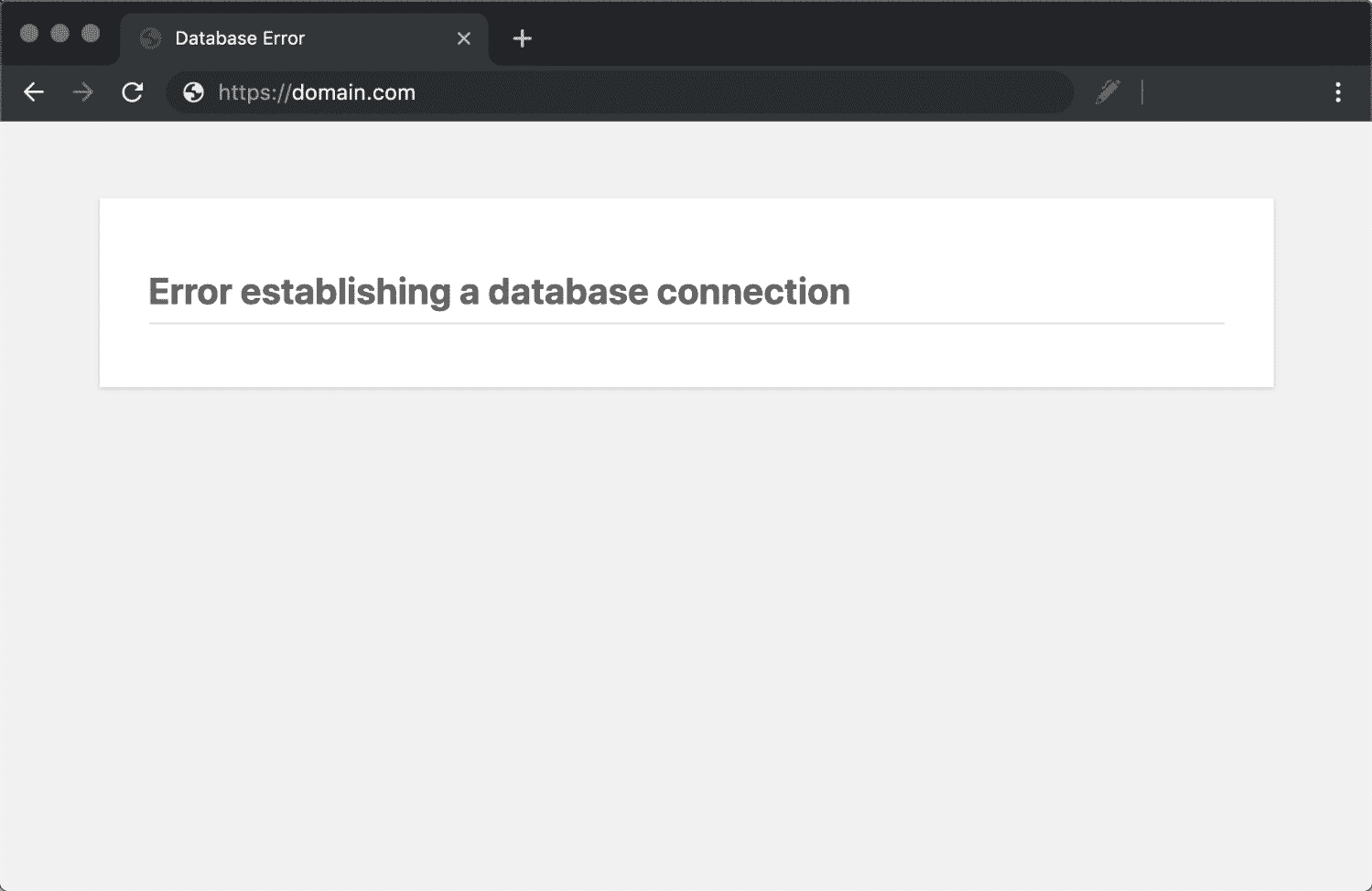
W tym przewodniku omówimy najczęstsze przyczyny tego błędu i przeprowadzimy Cię przez kroki naprawy.
Co może powodować ten błąd?
W większości przypadków błąd „Błąd nawiązywania połączenia z bazą danych” pojawia się, gdy WordPress używa nieprawidłowych danych dostępowych do bazy danych. Często zdarza się to po:
Migracji strony do nowego dostawcy hostingu
Zmianie haseł do bazy danych
Przywracaniu kopii zapasowej
Ręcznej edycji plików konfiguracyjnych
Przenoszeniu plików między serwerami lub planami hostingowymi
Sprawdź dane połączenia z bazą danych
WordPress łączy się z bazą danych, używając nazwy bazy danych, nazwy użytkownika bazy danych, hasła, hosta bazy danych oraz uprawnień dostępu przypisanych użytkownikowi bazy danych.
Należy więc upewnić się, że spełnione są wszystkie poniższe warunki:
Nazwa bazy danych istnieje na serwerze i odpowiada istniejącej nazwie bazy danych
Nazwa użytkownika bazy danych odpowiada istniejącemu użytkownikowi bazy danych
Hasło jest poprawne dla tego użytkownika
Użytkownik bazy danych jest przypisany do bazy danych
Użytkownik ma pełne uprawnienia dostępu (ALL PRIVILEGES)
Jak sprawdzić dane bazy danych?
Wszystkie dane połączenia z bazą danych są przechowywane w pliku wp-config.php znajdującym się w katalogu głównym instalacji WordPress. Aby je sprawdzić i zweryfikować, wykonaj następujące kroki:
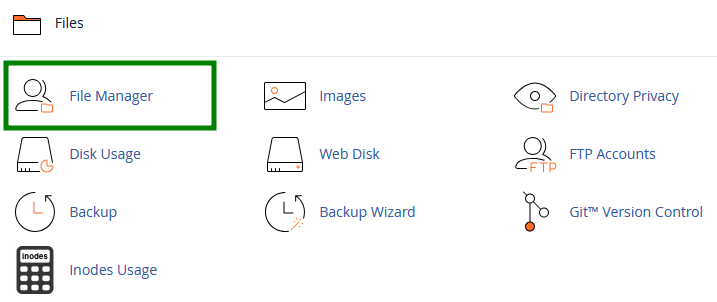
Zaloguj się do cPanel i przejdź do Menedżera plików:
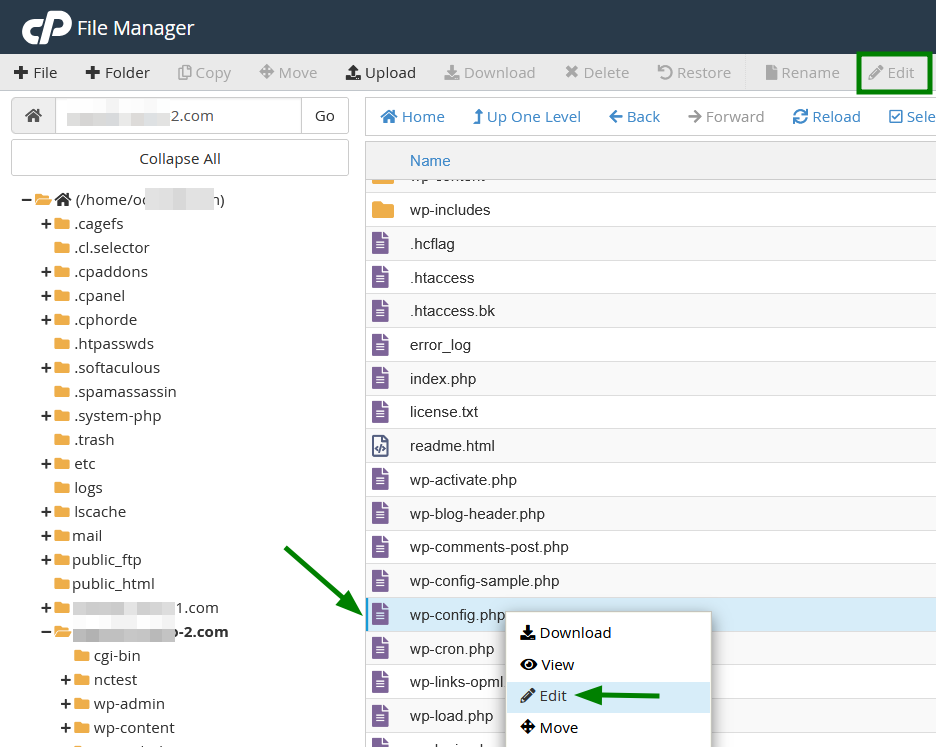
Przejdź do katalogu głównego WordPress i otwórz plik wp-config.php (za pomocą opcji Edytuj lub Podgląd ):
Uwaga: Wybierając Edytuj, możesz chcieć utworzyć kopię zapasową pliku wp-config.php: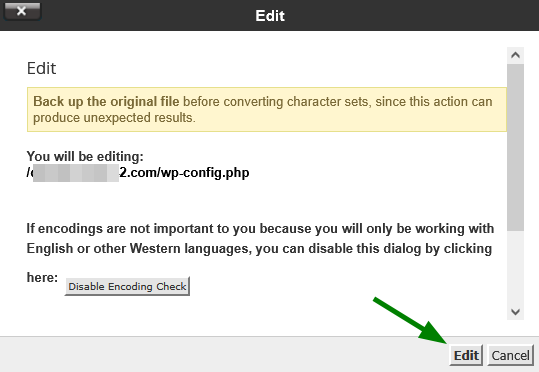
Znajdź te linie zawierające nazwę bazy danych, użytkownika i hasło:
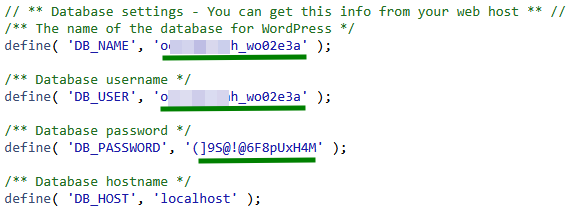
W innej karcie otwórz menu Zarządzaj moimi bazami danych:
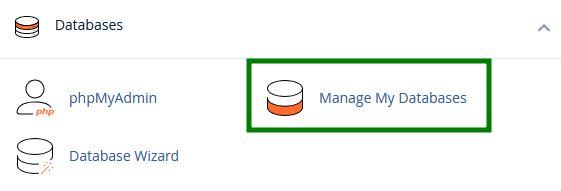
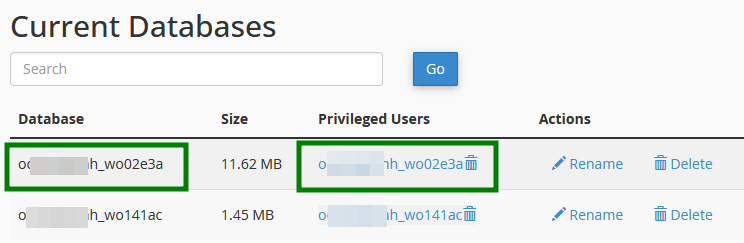
Dokładnie sprawdź, czy nazwa bazy danych i użytkownik zgadzają się z tymi podanymi w wp-config.php:
Przewiń w dół i upewnij się, że użytkownik bazy danych faktycznie istnieje na serwerze:
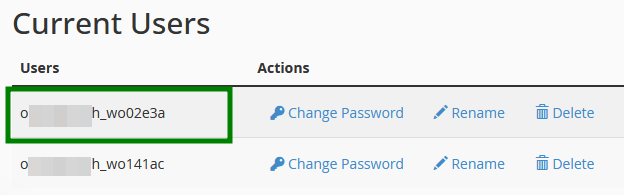
Nie ma możliwości sprawdzenia, jakie hasło jest ustawione dla użytkownika bazy danych, dlatego należy je ustawić, klikając Zmień hasło:
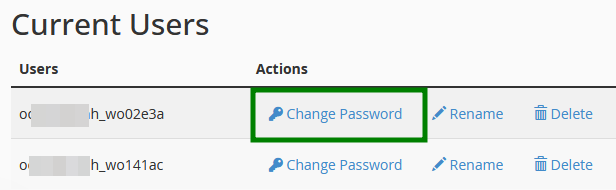
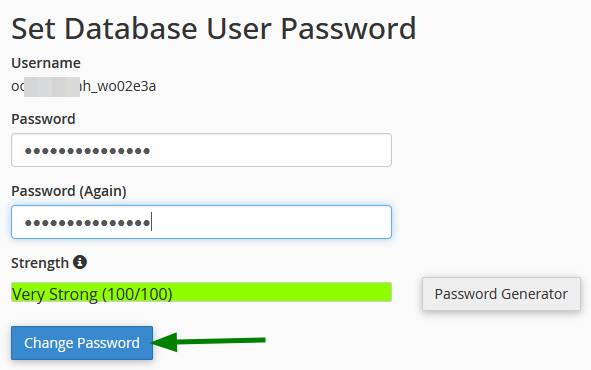
Zaktualizuj wartości w pliku wp-config.php, jeśli to konieczne.
Upewnij się, że właściwy użytkownik bazy danych jest przypisany do bazy danych i ma włączone Wszystkie uprawnienia (kliknij użytkownika >> zaznacz Wszystkie uprawnienia >> Zapisz zmiany):
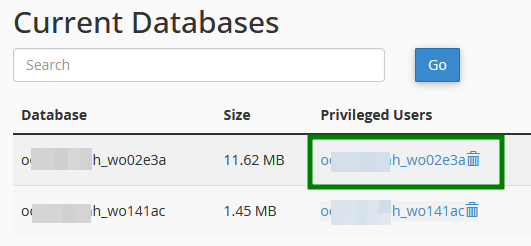
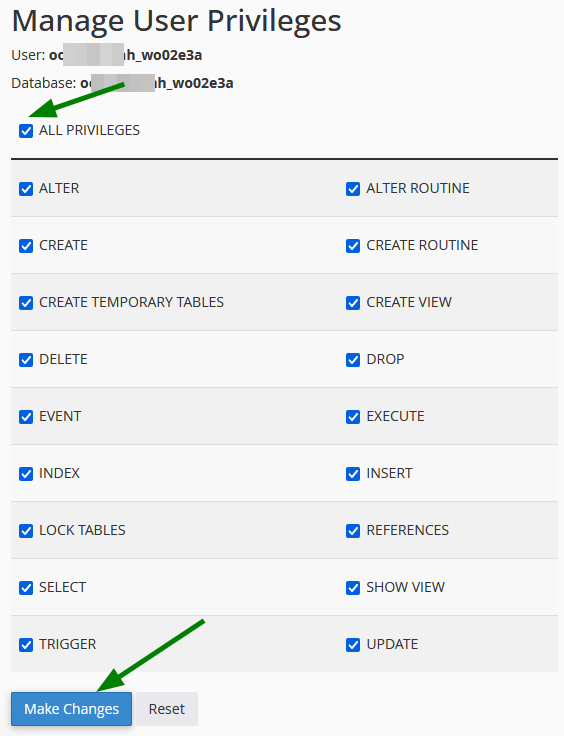
Odśwież swoją stronę! Jeśli dane są poprawne, strona powinna załadować się prawidłowo.
Wciąż widzisz ten błąd?
Jeśli dane dostępowe do bazy danych są poprawne, a błąd nadal występuje, problem może być spowodowany przez:
Uszkodzoną bazę danych
Tymczasową awarię serwera MySQL
Uszkodzone pliki główne WordPress
Na tym etapie skontaktuj się z naszym Zespołem Wsparcia, abyśmy mogli sprawdzić status usługi bazy danych i logi.