How to switch protocols for FastVPN on iOS
In this article, you will find instructions on how to change the VPN protocol in the FastVPN app for iOS.
1. Start the FastVPN for iOS app.
2. Log in with your Spaceship account.
3. Open Preferences from the bottom navigation bar and tap Settings.
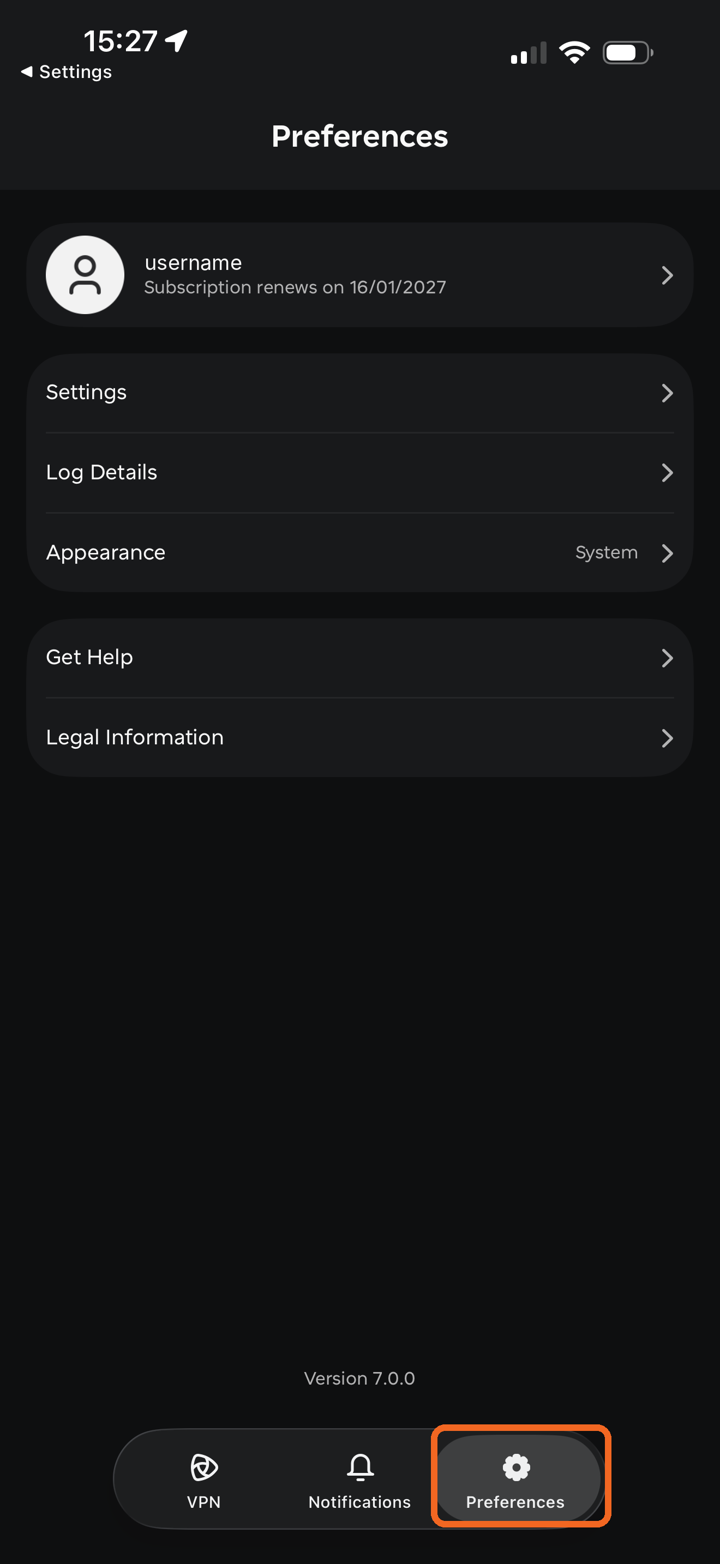
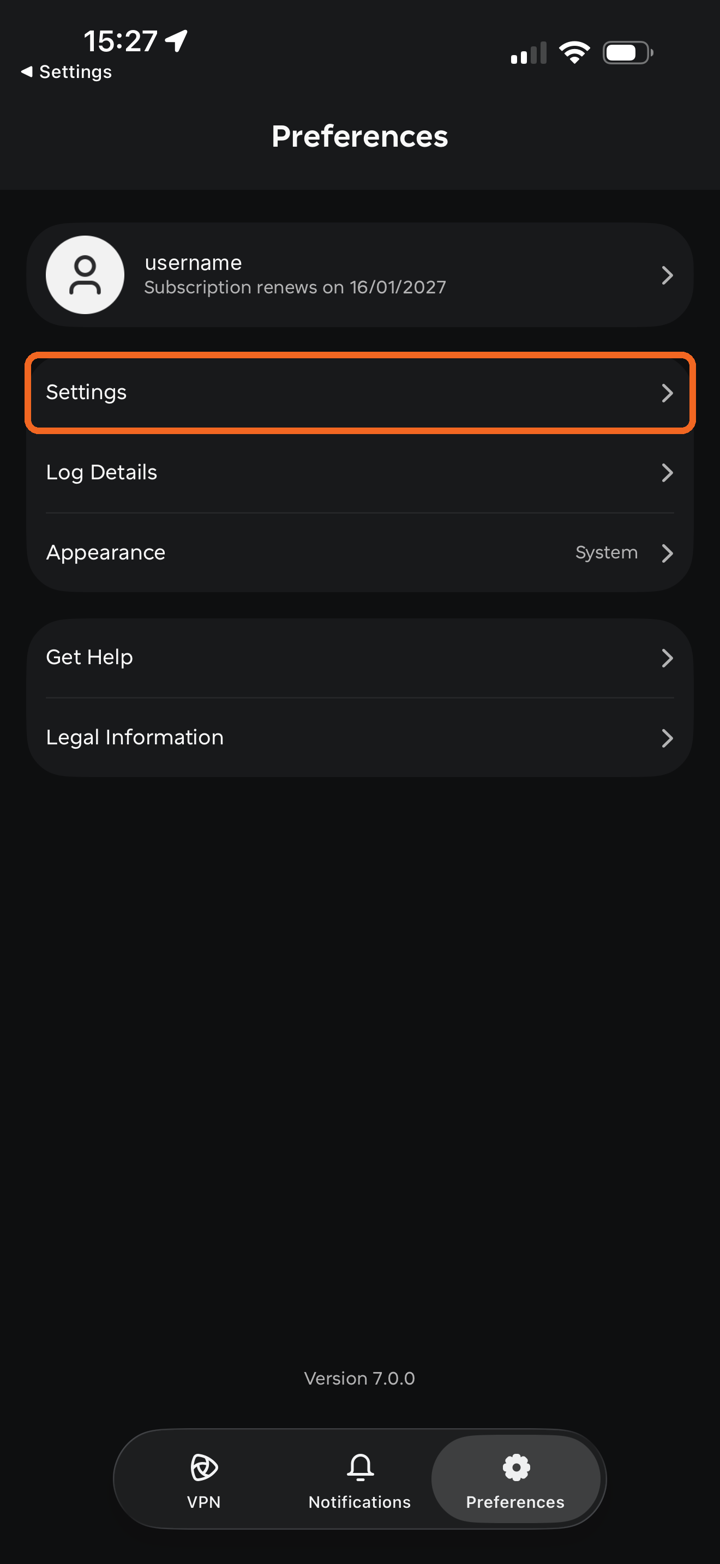
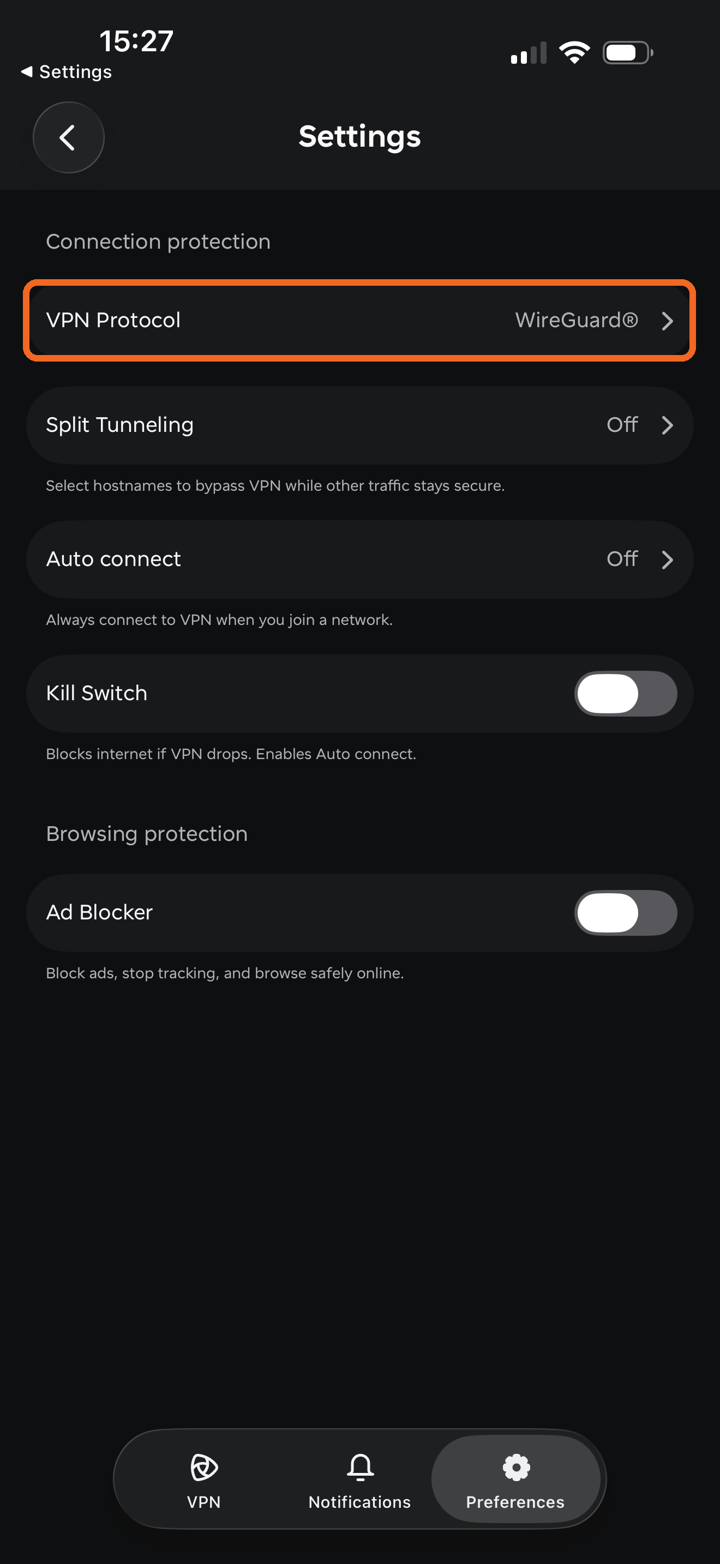
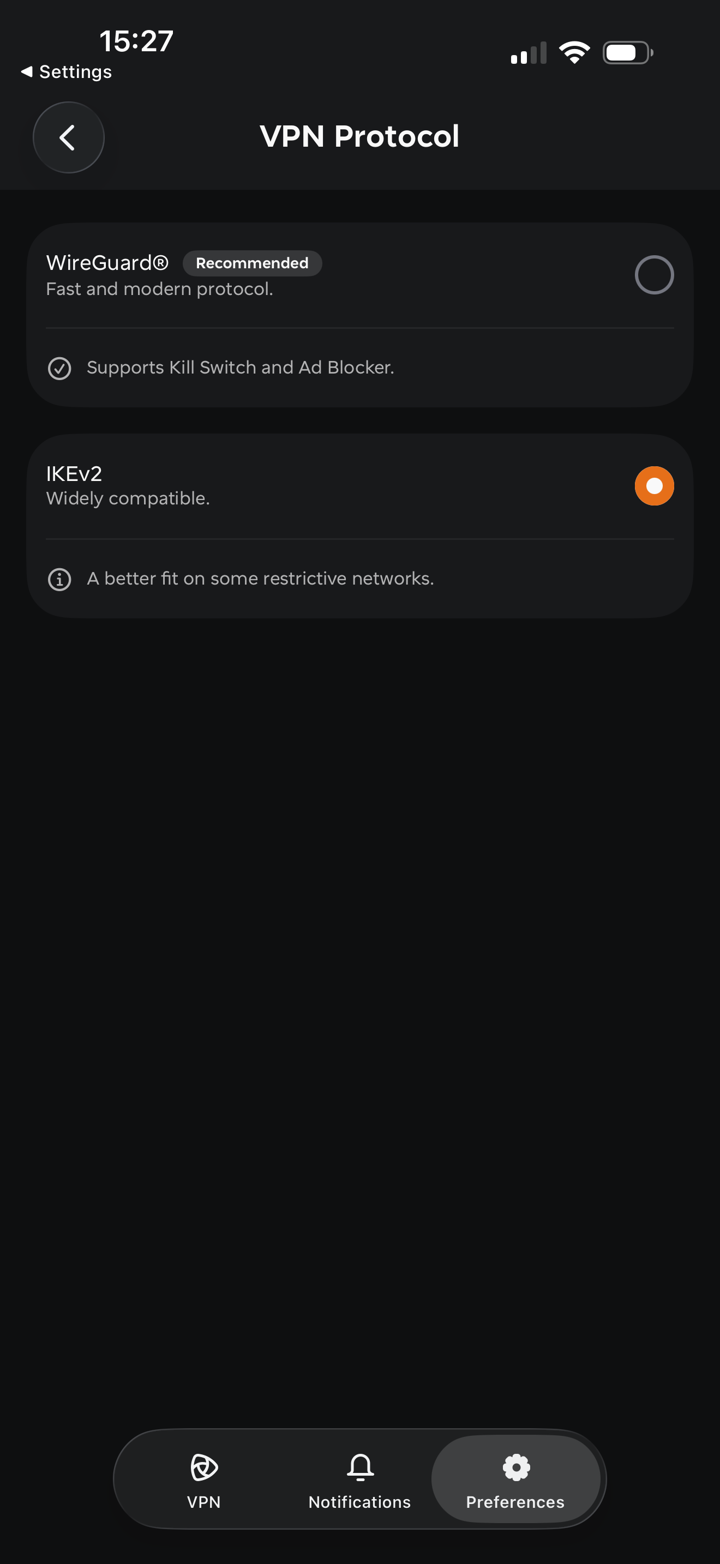
4. Under Connection protection, tap VPN Protocol. The currently selected protocol is shown next to it.
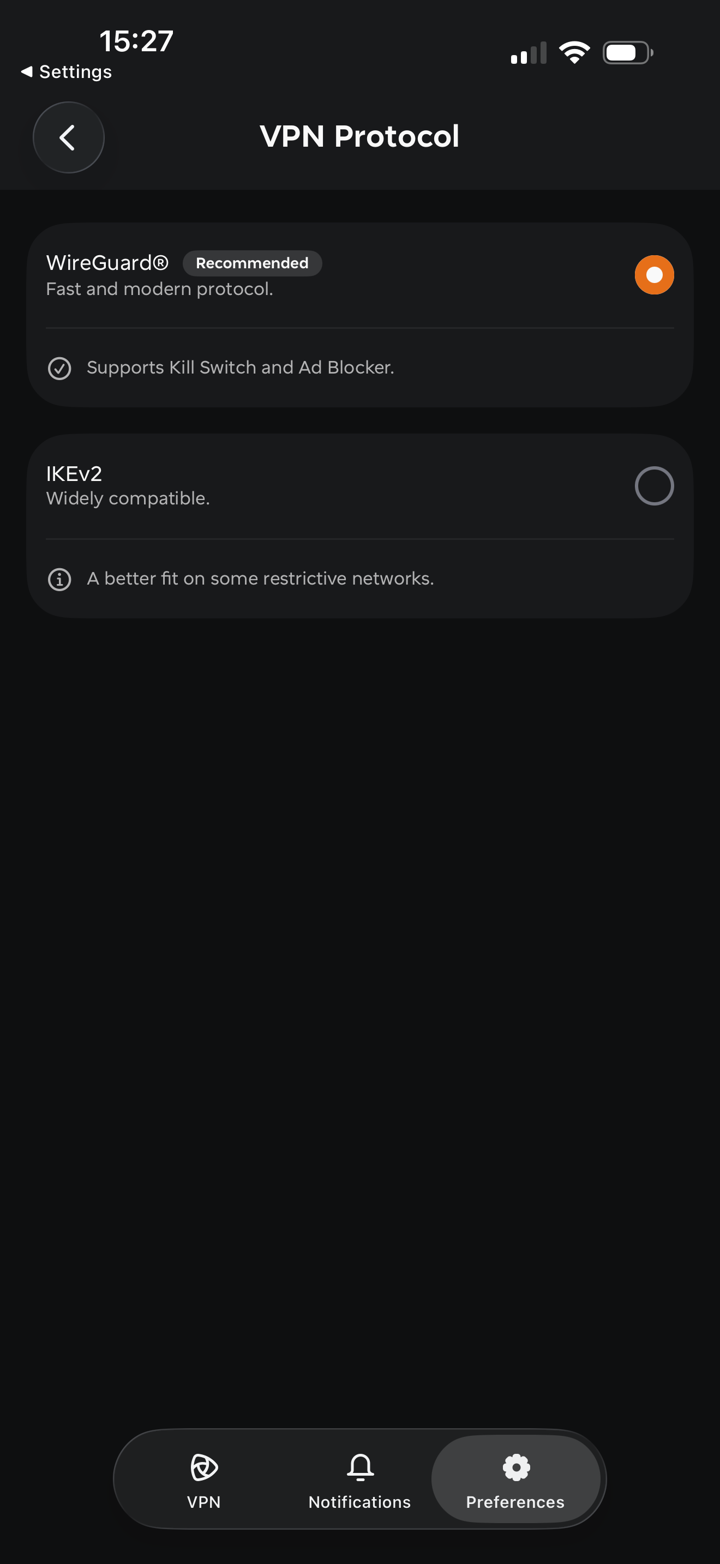
5. Select the preferred protocol:
WireGuard®* (Recommended) - a fast and modern, secure, easy-to-use protocol with strong encryption, perfect forward secrecy, and minimal attack surface. WireGuard® offers improved performance, security, and simplicity compared to traditional VPN protocols, with faster VPN speeds, better encryption, and lower latency. WireGuard® supports Kill Switch and Ad Blocker.
IKEv2 - a widely compatible protocol with 256-bit encryption; secure, stable and mobile-oriented. A better fit on some restrictive networks.
*All Rights Reserved. "WireGuard" and the "WireGuard" logo are registered trademarks of Jason A. Donenfeld.
Note: If you are connected when you change the protocol, the app will ask you to Disconnect and Apply.
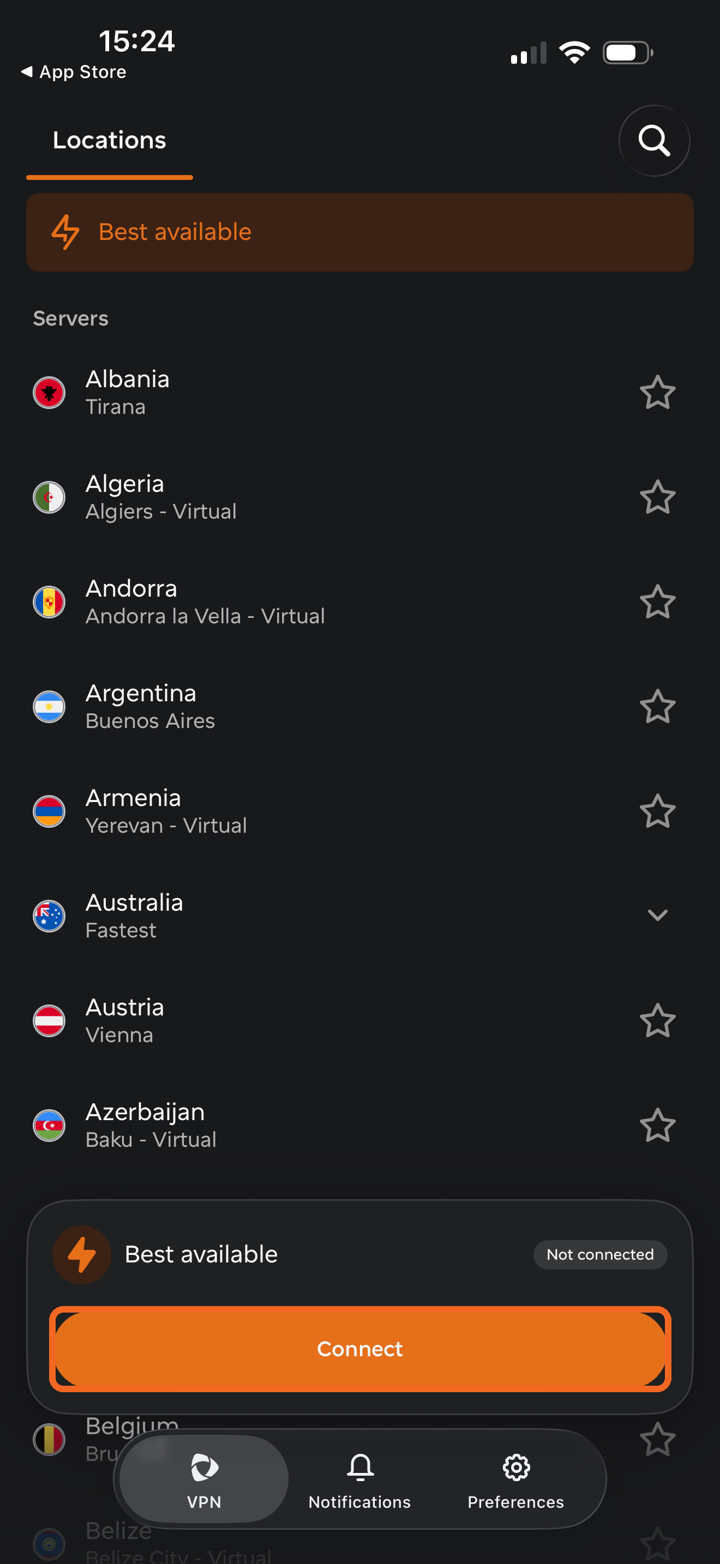
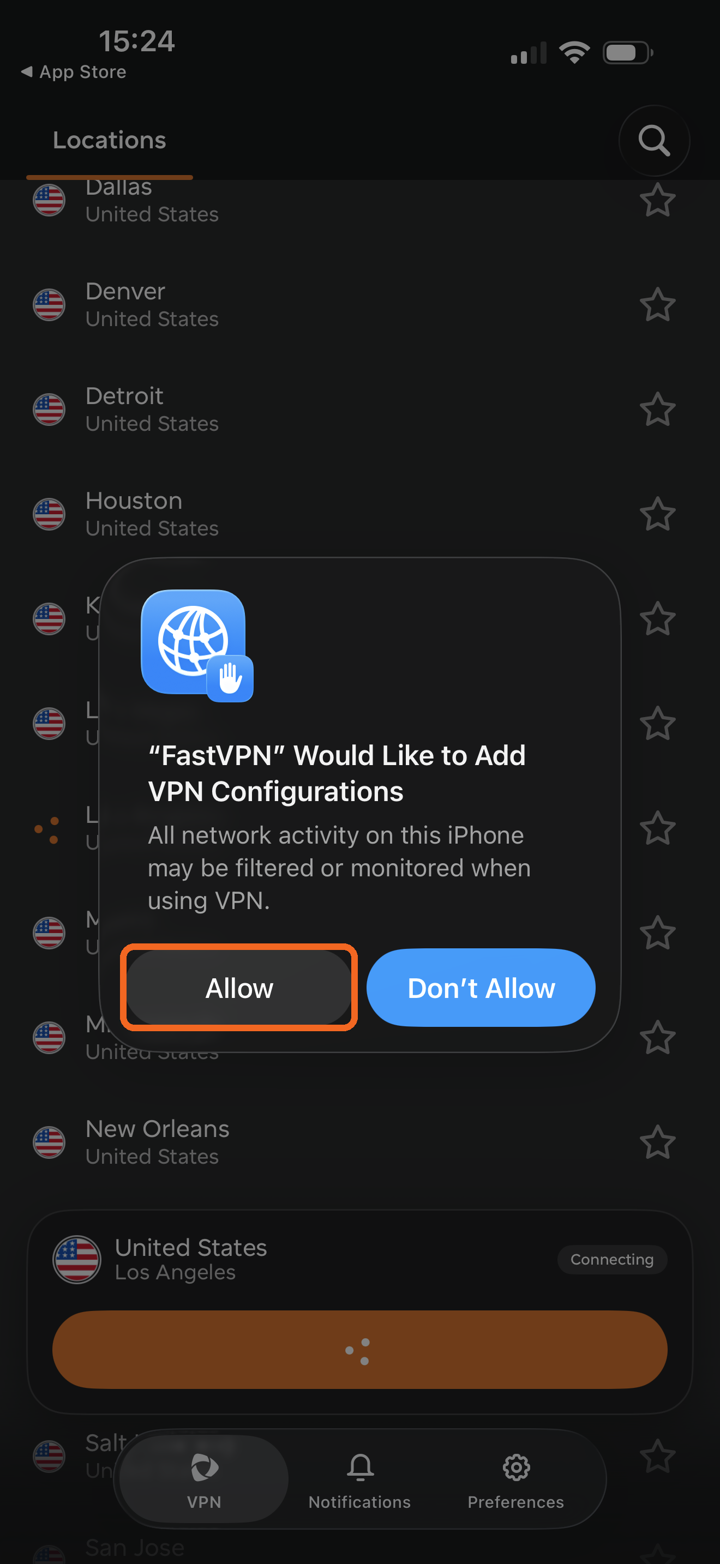
6. Go back to the VPN tab and tap Connect. If iOS asks to add VPN configurations, tap Allow. FastVPN will automatically establish a secure VPN connection using the selected protocol.
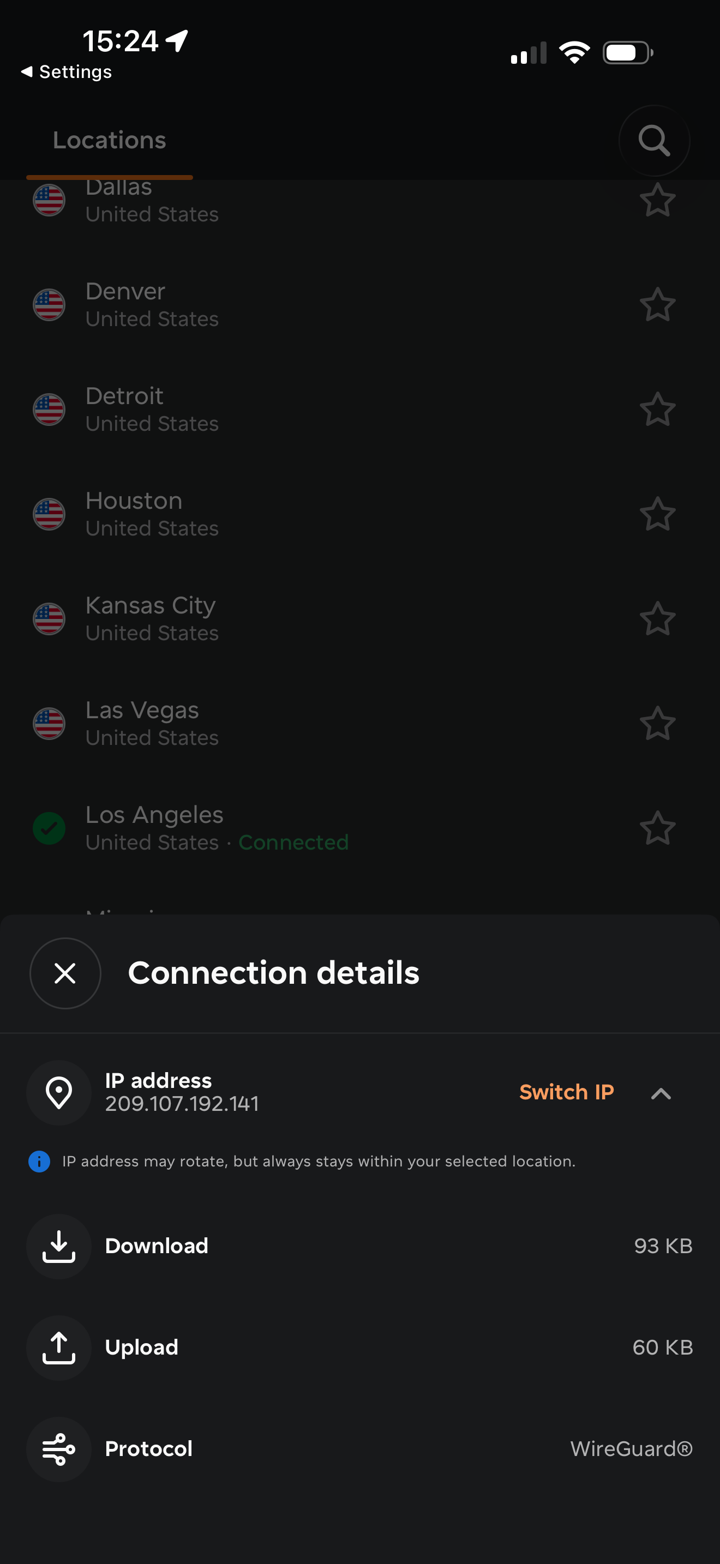
To check which protocol is in use, tap the info (i) icon on the connection card while connected. The protocol is shown in Connection details:
If you need any further assistance, please contact our Support Team.