Cài đặt Spacemail CalDAV trong Thunderbird
Trong bài viết này, bạn sẽ tìm thấy hướng dẫn từng bước về cách thiết lập lịch Spacemail trong ứng dụng email Thunderbird bằng giao thức CalDAV.
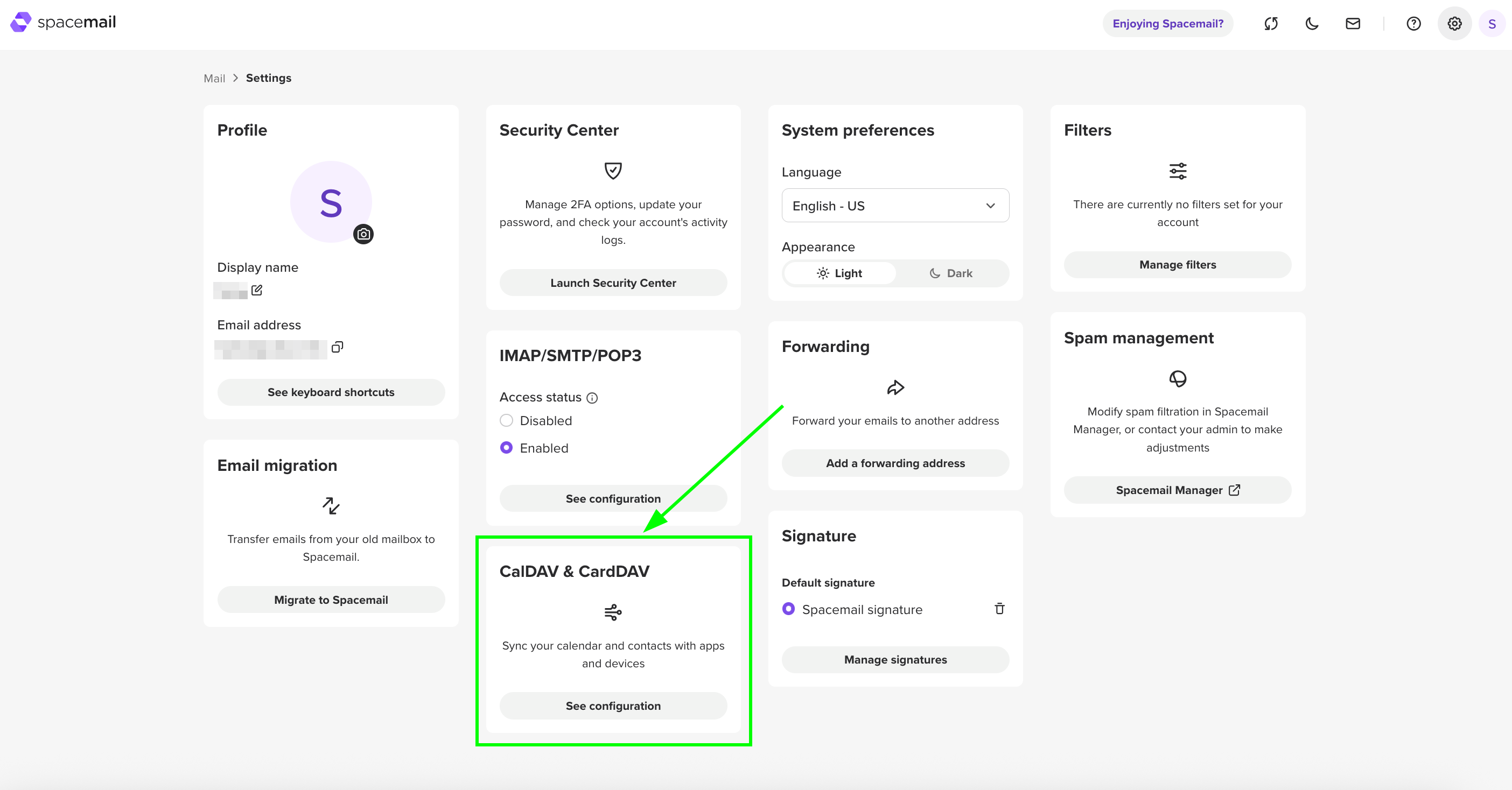
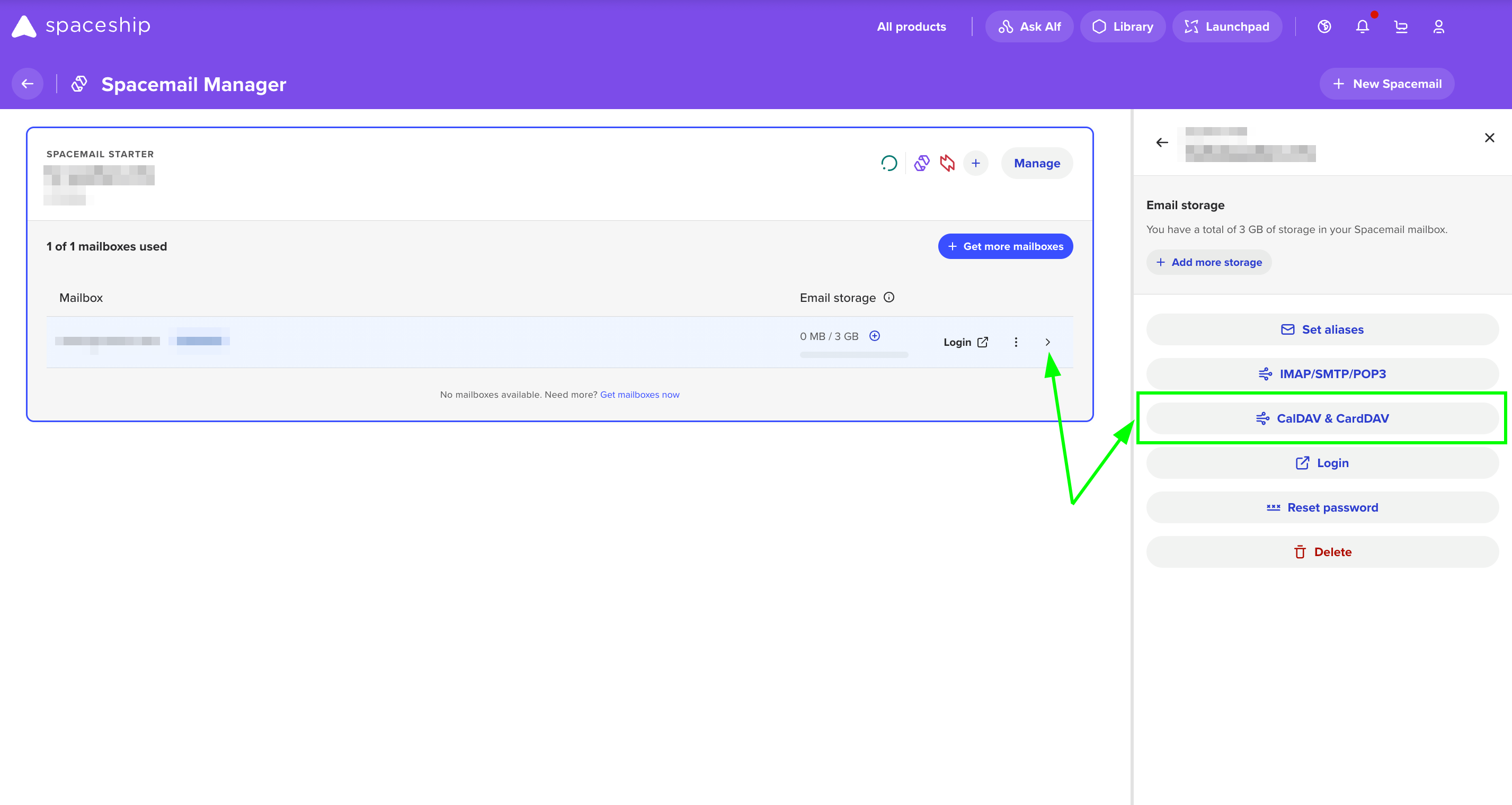
Đây là cách bạn có thể tìm các cài đặt cần thiết cho kết nối này:
Trong Cài đặt của webmail Spacemail:
Trong Trình quản lý Spacemail:
Khi các thông tin cần thiết đã được lấy, vui lòng làm theo các bước sau để tiếp tục thiết lập:
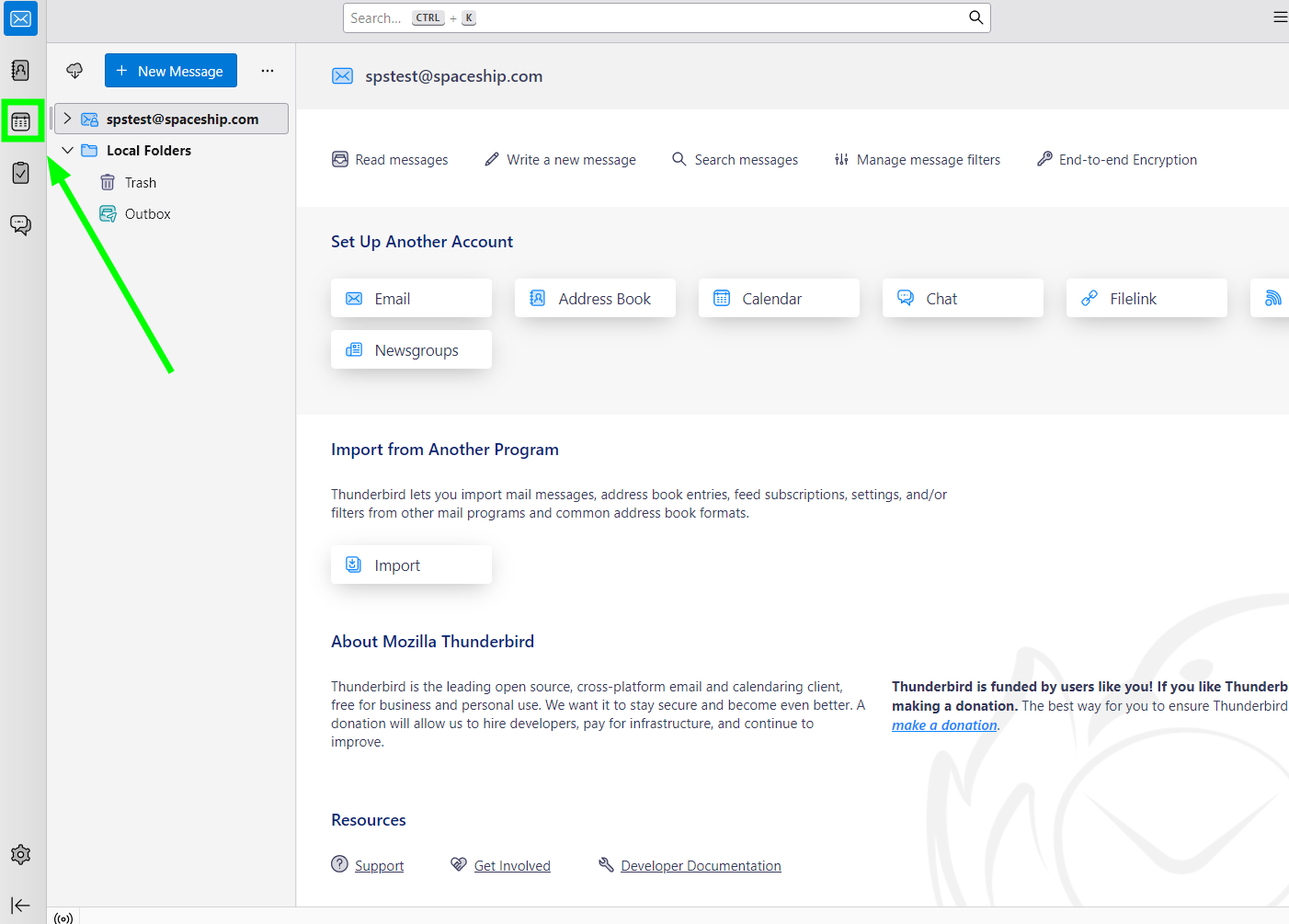
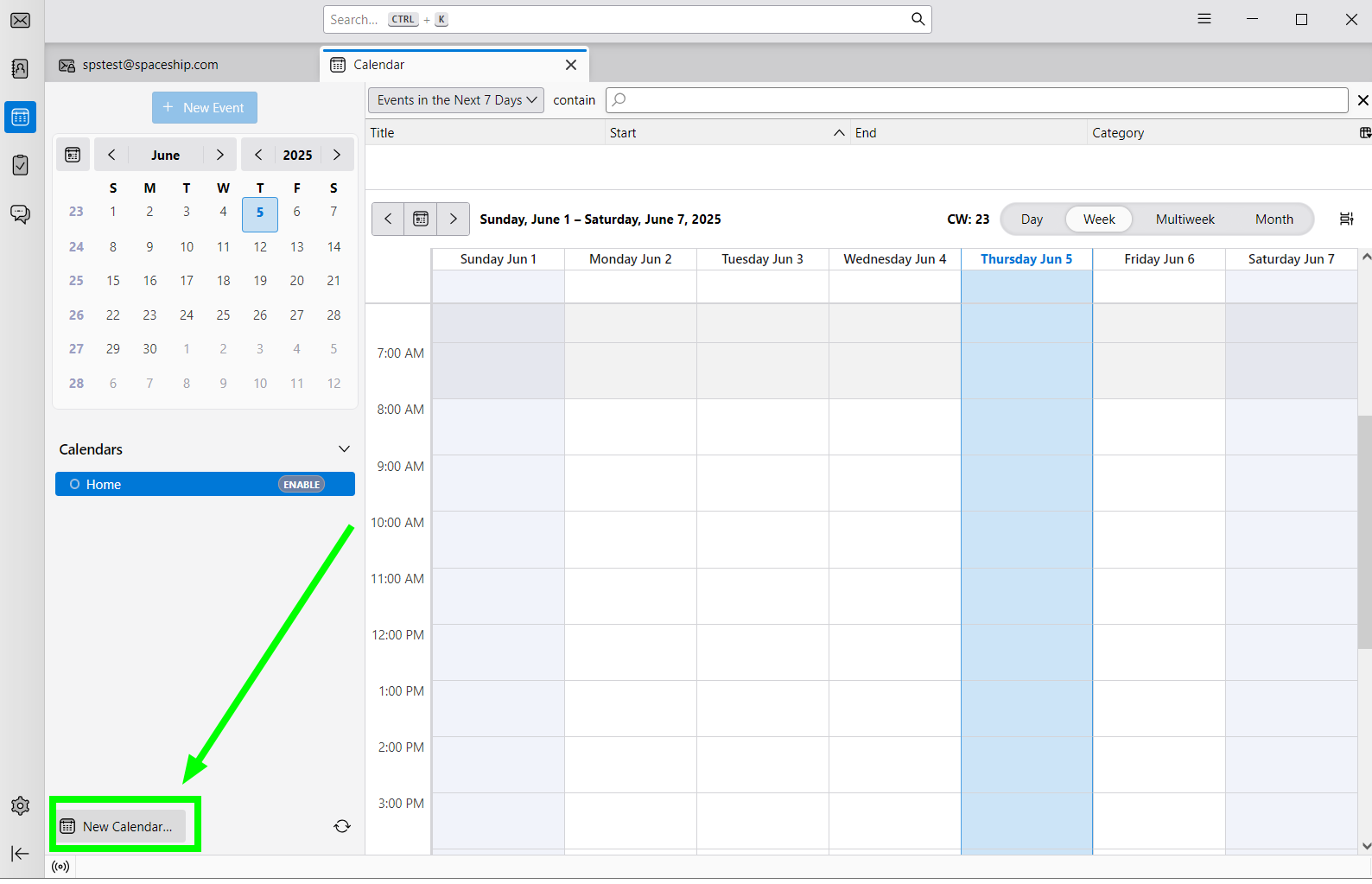
Mở Thunderbird và nhấp vào nút Lịch :
Sau đó nhấp vào Lịch Mới, nằm ở góc dưới bên trái của trang:
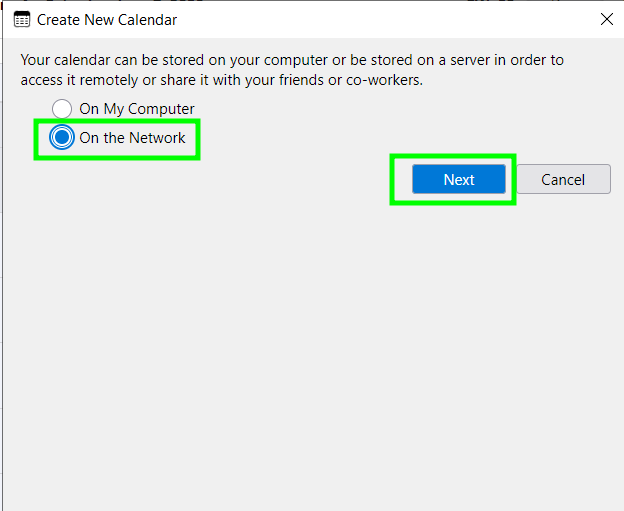
Chọn Trên Mạng và nhấn Tiếp theo:
Sau đó nhập thông tin CalDav của Spacemail:
Tên người dùng: địa chỉ email Spacemail đầy đủ của bạn (chúng tôi sử dụng địa chỉ email kiểm tra spstest@spaceship.com làm ví dụ)
Vị trí: caldav.spacemail.com
Hỗ trợ Ngoại tuyến: chọn
Vị trí này không yêu cầu thông tin xác thực: không nên được chọn
Khi đã nhập xong các cài đặt, nhấp vào Tìm Lịch: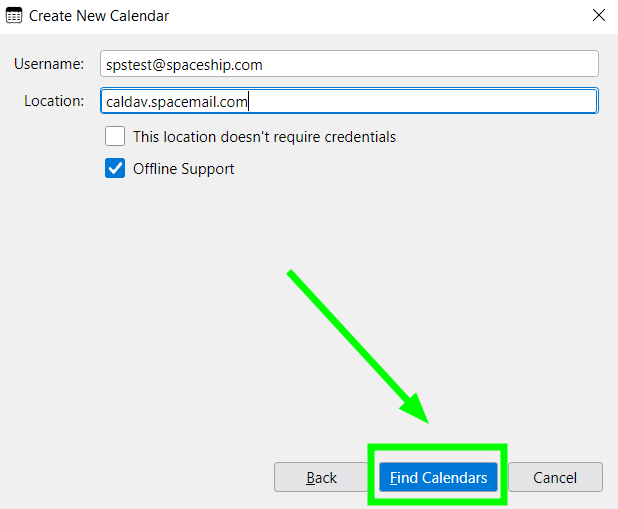
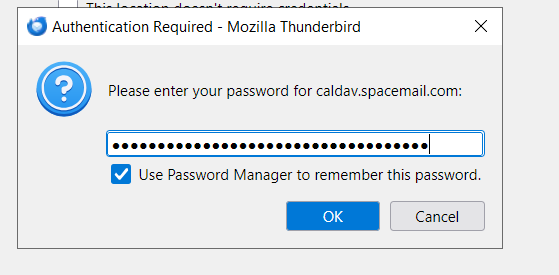
Ở bước tiếp theo, Thunderbird sẽ yêu cầu bạn nhập mật khẩu Spacemail. Vui lòng nhập mật khẩu hộp thư Spacemail của bạn vào trường Mật khẩu và nhấp vào OK:
Thông báo cài đặt Tạo Lịch Mới sẽ xuất hiện.
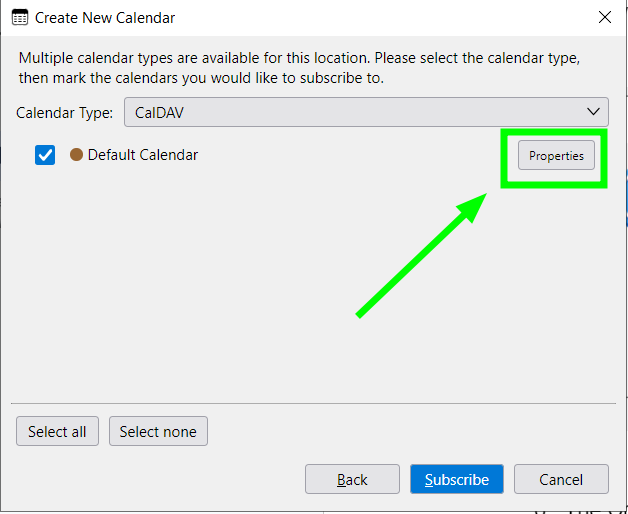
Chọn CalDAV làm loại Lịch. Bạn cũng có thể đặt nó làm Lịch mặc định.Bước tiếp theo: nhấp vào Thuộc tính để mở rộng cài đặt Lịch:
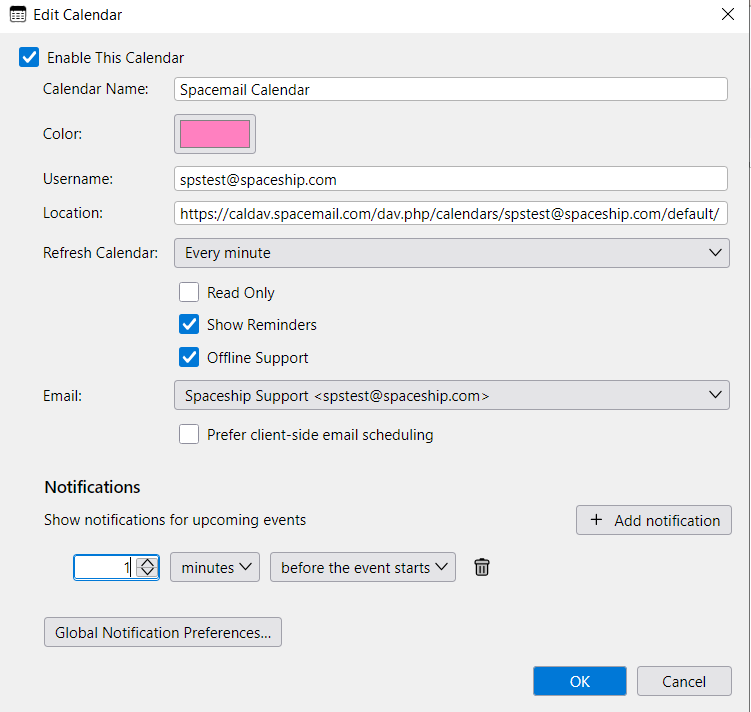
Tại đây bạn có thể đổi tên Lịch (trong ảnh chụp màn hình của chúng tôi là Spacemail Calendar), thay đổi tần suất đồng bộ lịch (trong trường Làm mới Lịch), thay đổi màu sự kiện và thiết lập thông báo:
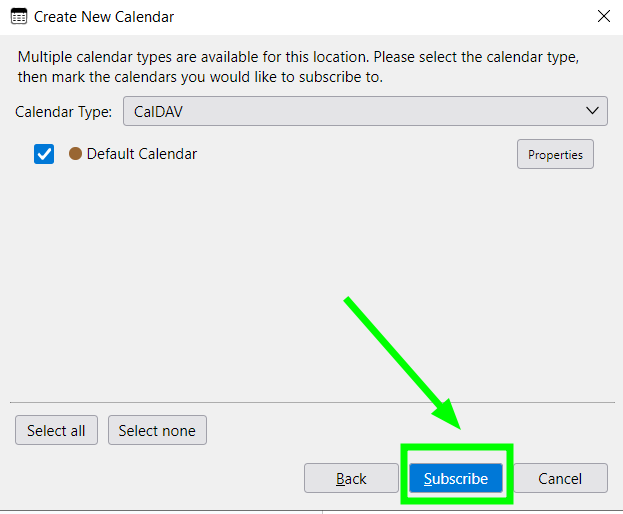
Khi hoàn tất, vui lòng nhấp vào OK.Bạn sẽ được chuyển hướng trở lại menu Tạo Lịch Mới. Nhấp vào Đăng ký và chờ Thunderbird đồng bộ Lịch của bạn trong giây lát:
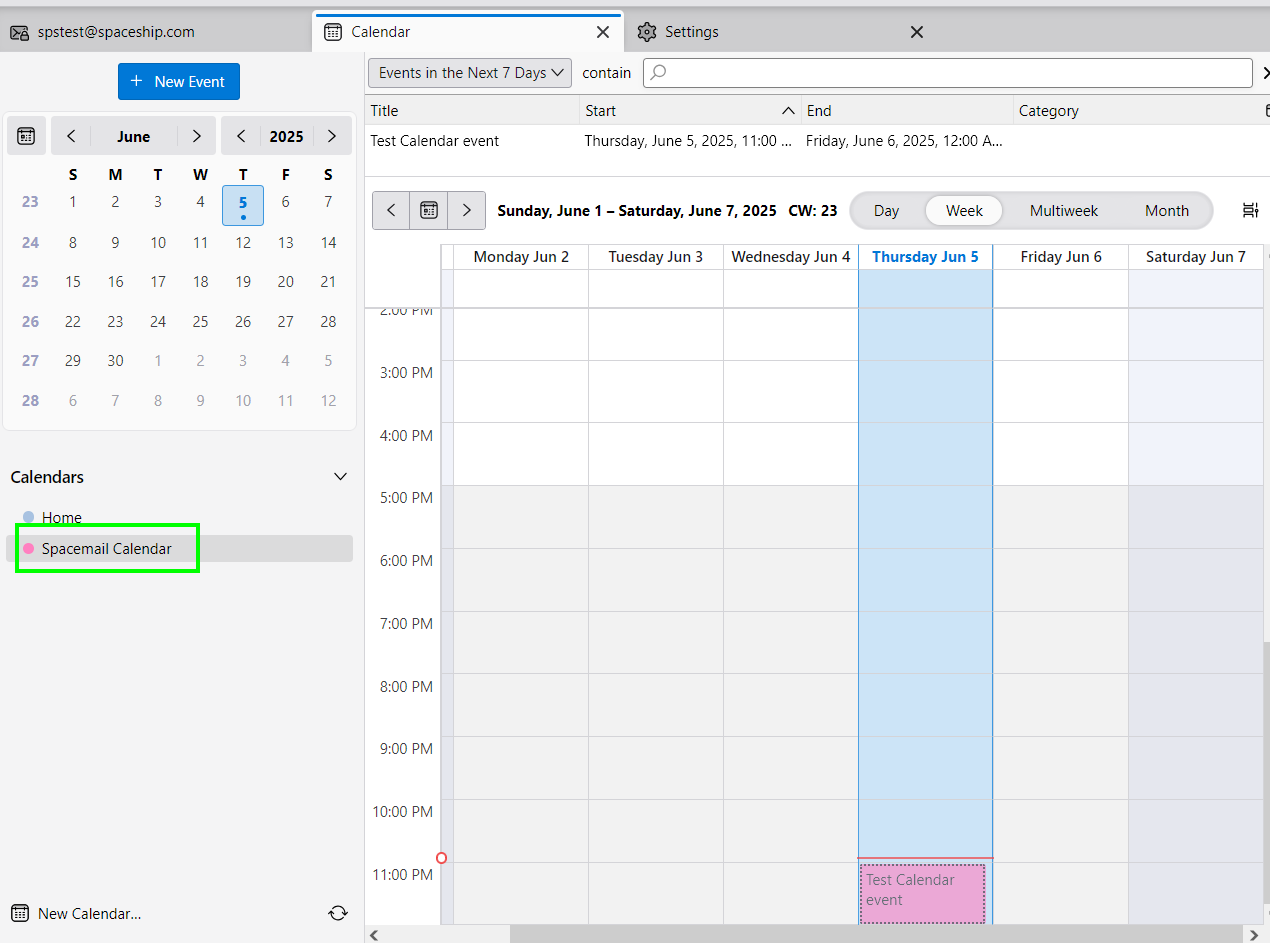
Hoàn tất! Lịch Spacemail sẽ xuất hiện trong danh sách Lịch Thunderbird của bạn: