How to set up FastVPN for macOS
From the FastVPN page, select your preferred plan:
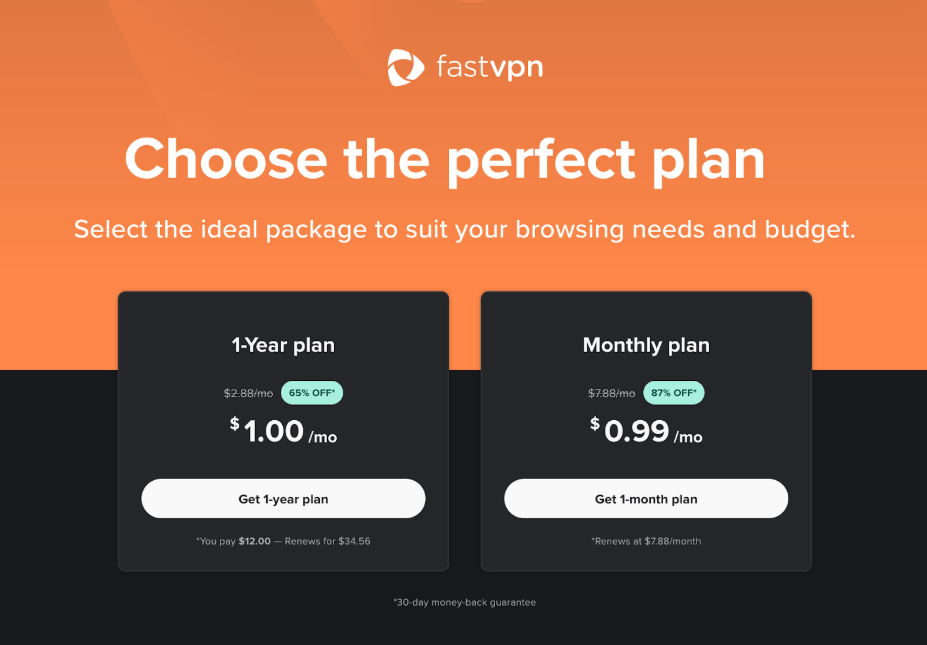
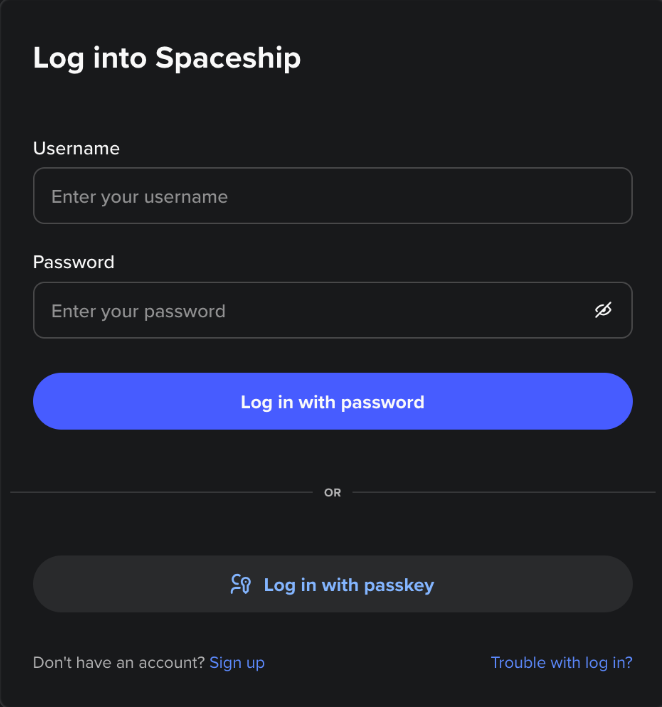
Once you click Get Started, you will be prompted to sign in to your Spaceship account:
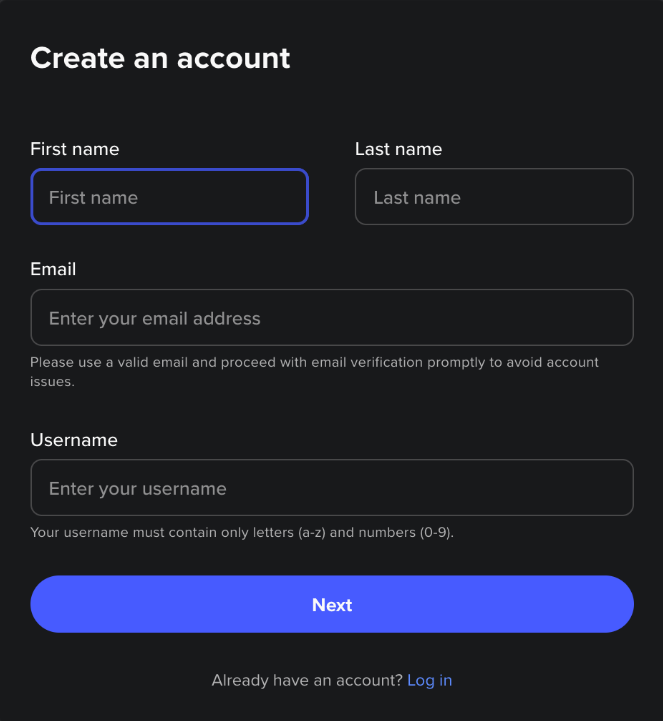
or to create a new account:
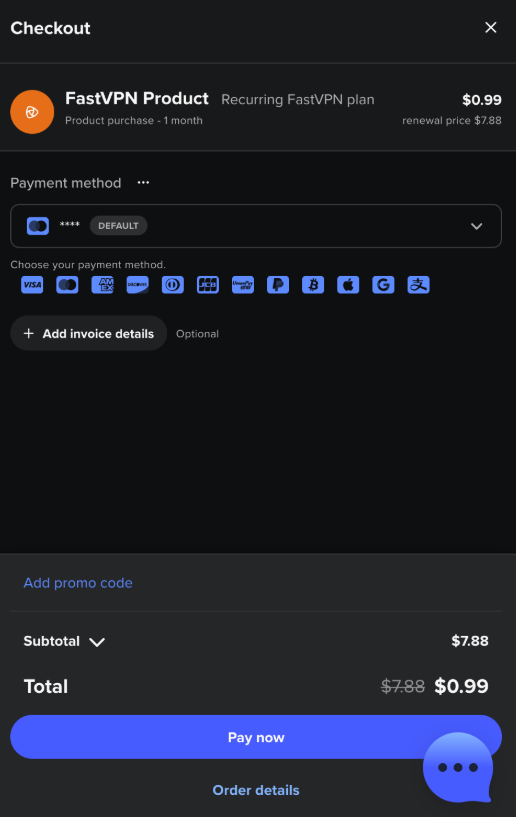
Once you have logged in, enter payment details and confirm your purchase:
To install the app, you can get the links directly from the Apple App Store.
Once the app is successfully installed, the FastVPN icon will appear in the menu bar. Click this icon and sign into your existing Spaceship account:
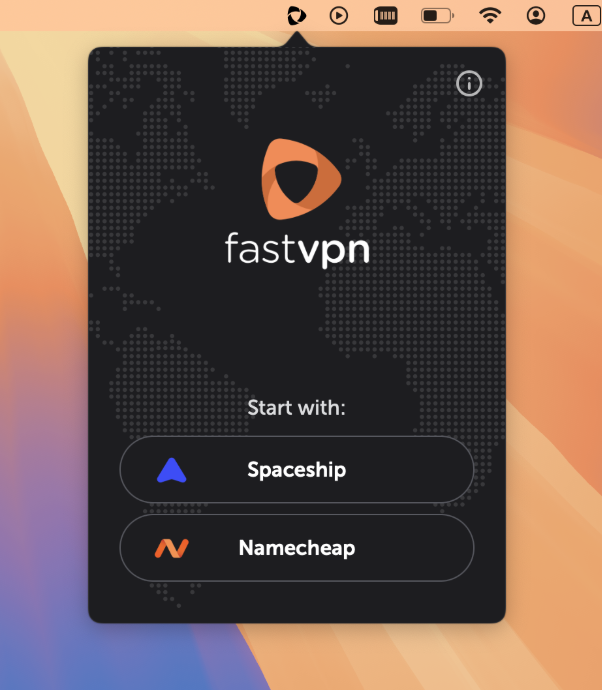
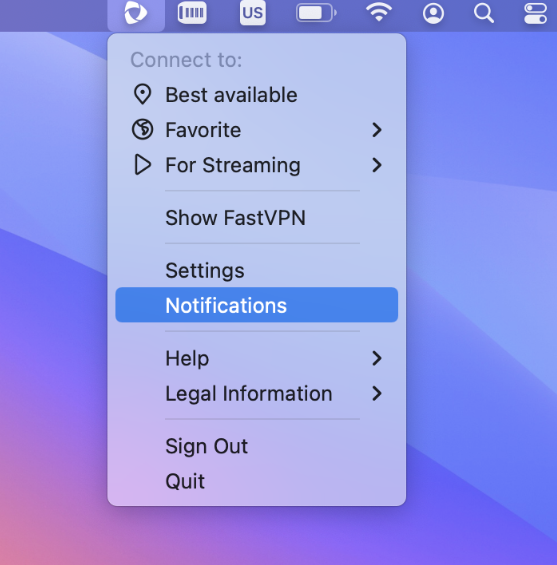
Once signed in, you will see the FastVPN system tray icon with Compact mode:
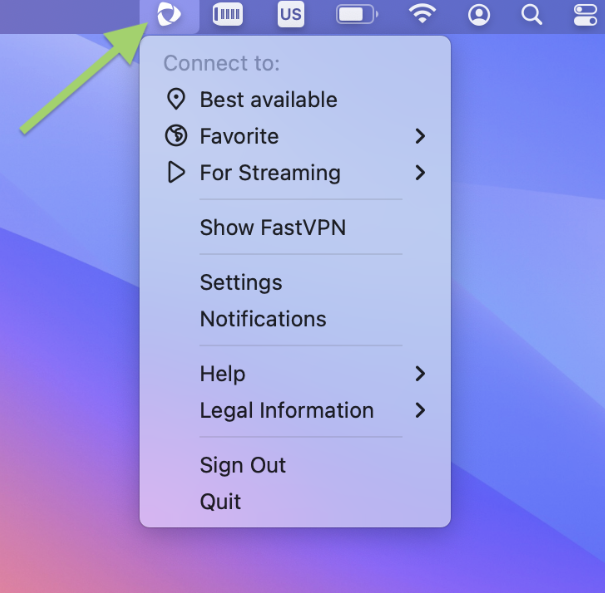
Under Compact mode, you will have:
Best Available
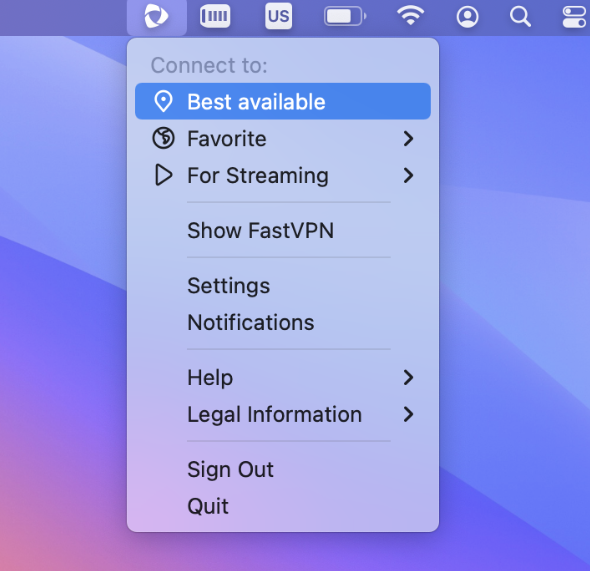
From here, you can connect to the “Best Available” location:
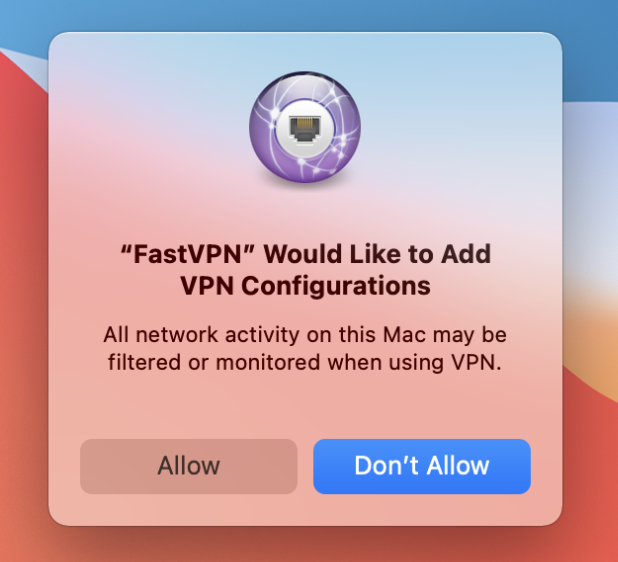
The next step allows FastVPN to be added to the VPN configurations on your Mac. Click Allow to continue:
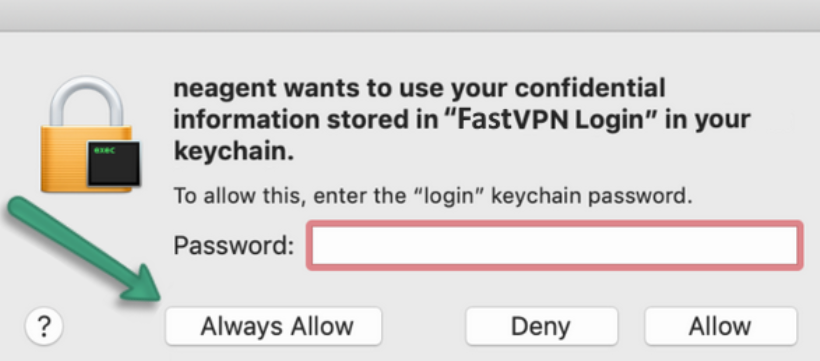
Once confirmed, you will be asked to enter your Mac user password twice in order to modify your settings. Click Always Allow:
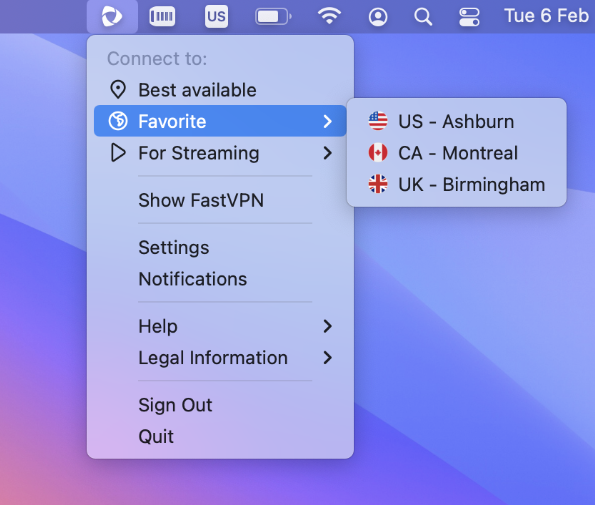
Favourite
From here you can connect to your favourite locations. Note that if you do not have a favourite location, you will be able to add your favourite location:
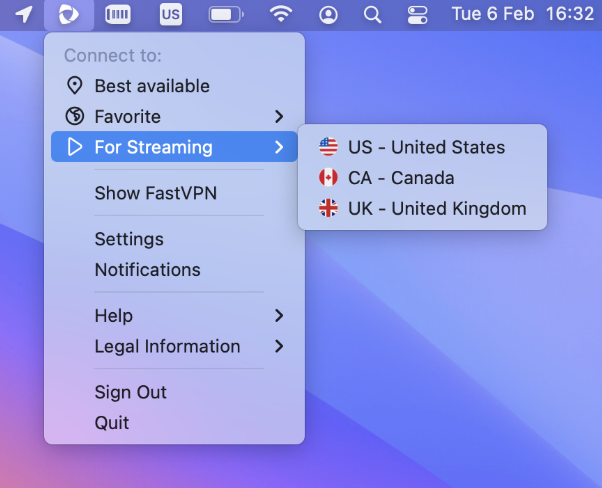
For Streaming offers convenient access to streaming servers, allowing you to quickly connect to your preferred streaming services with just a few clicks:
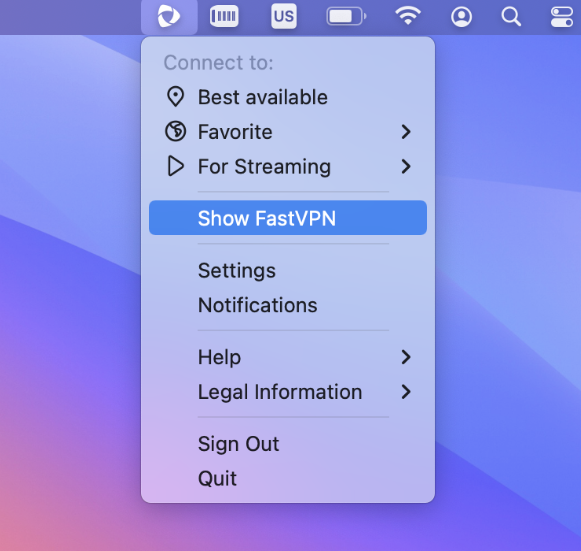
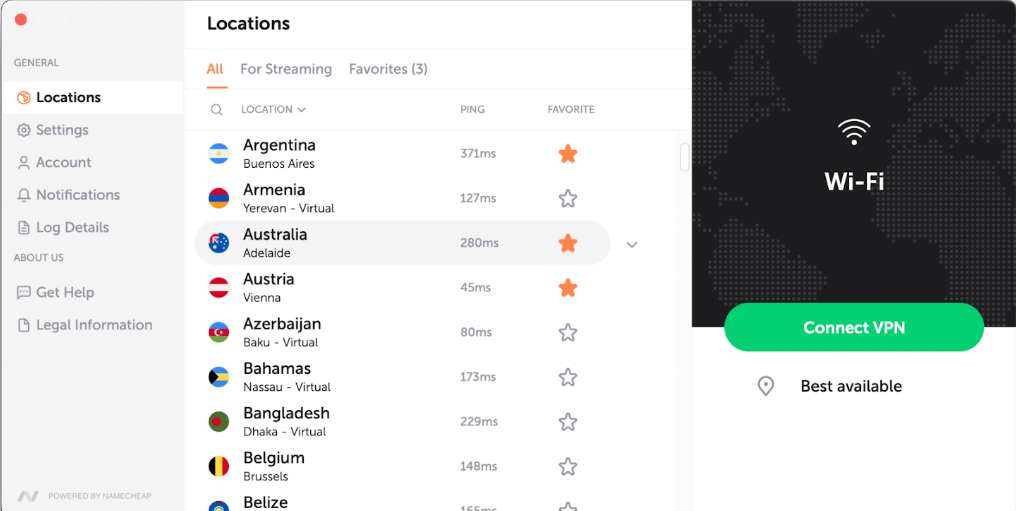
Show FastVPN will redirect you to the expanded view with more options where you can see all locations, add/remove the favourite country or city, connect to country or city:
Here, you'll find two modes: All servers and For streaming. All servers include our full range of servers for private browsing, while Streaming servers are optimised specifically for streaming services, providing smoother and faster streaming experiences.
In the All servers mode, you can favourite a country:
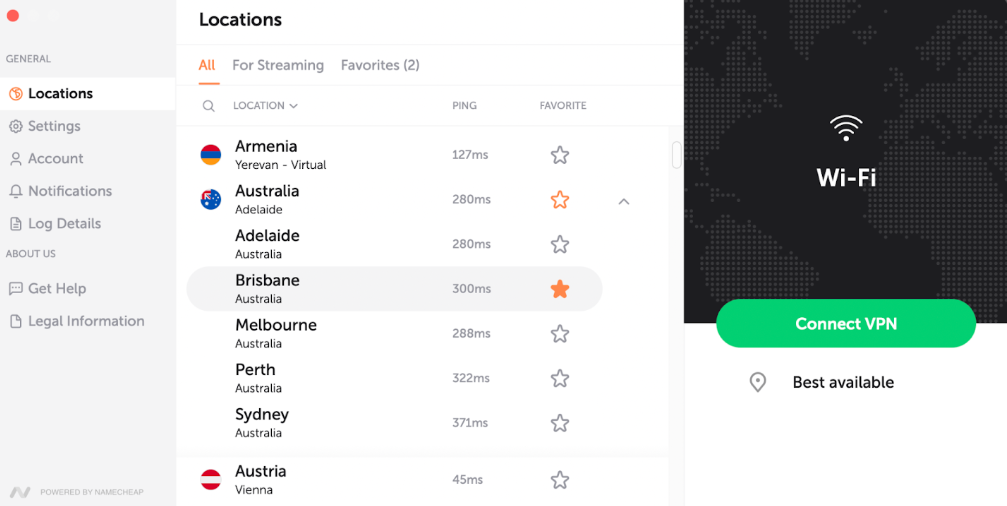
Or favourite a city:
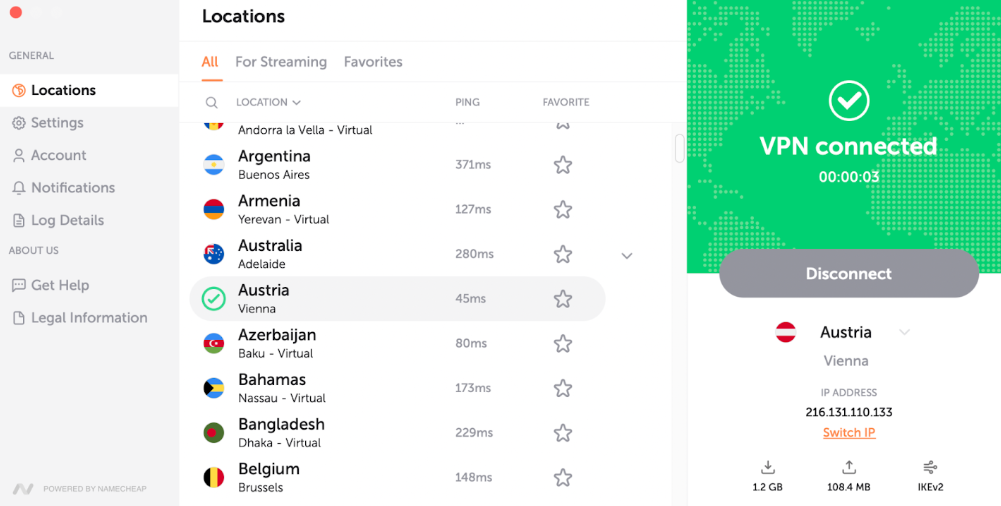
You can also have multiple levels of connections, either connect at country level:
Or connect to a city location:
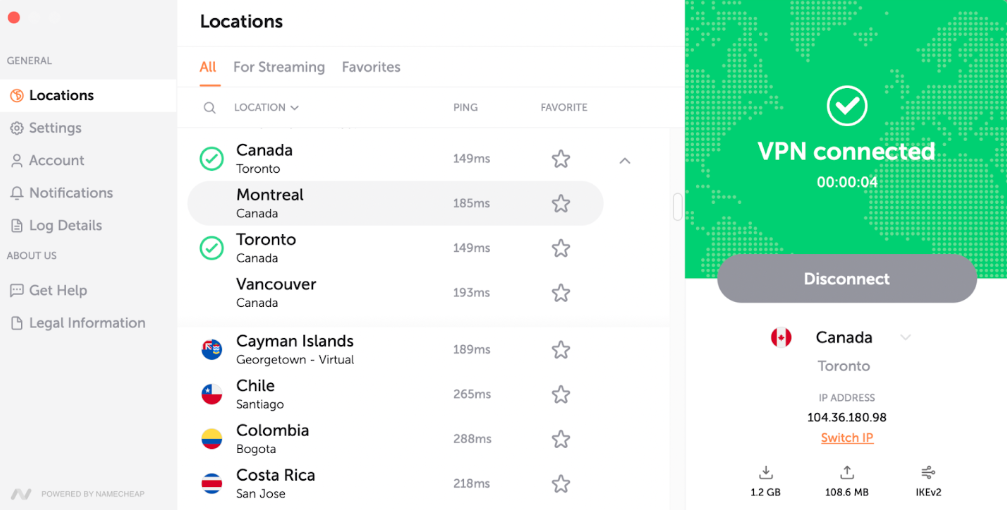
On the main screen, you can see your download and upload stats, the selected protocol, and the current IP. To change the IP, just click "Switch IP".
Shuffle IP gives you a new IP address without changing your selected location. It's useful if a site blocks your IP or you want a fresh connection.
When you click "Switch IP", the VPN briefly disconnects, reconnects to another server in the same area, and gives you a new IP - usually in just a few seconds.
This feature can help bypass IP blocks, fix slow speeds, or improve privacy without manually picking a new location.
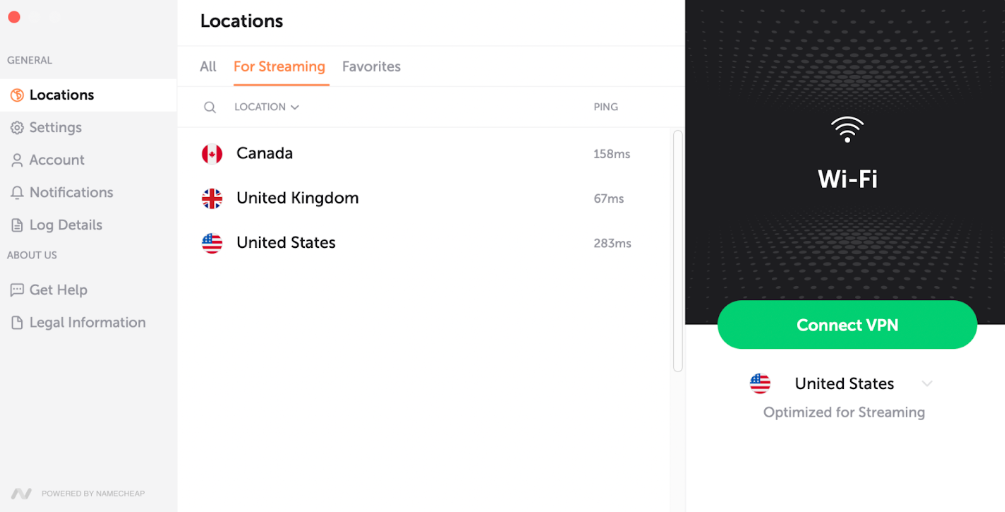
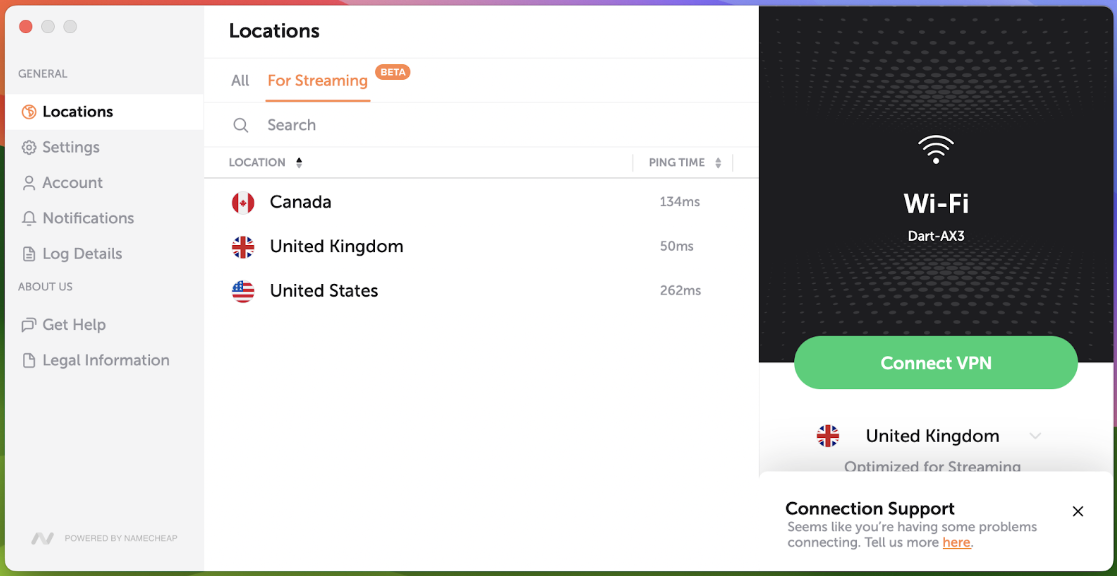
In the For streaming mode, you'll find locations optimised specifically for streaming services, ensuring smoother and faster streaming experiences:
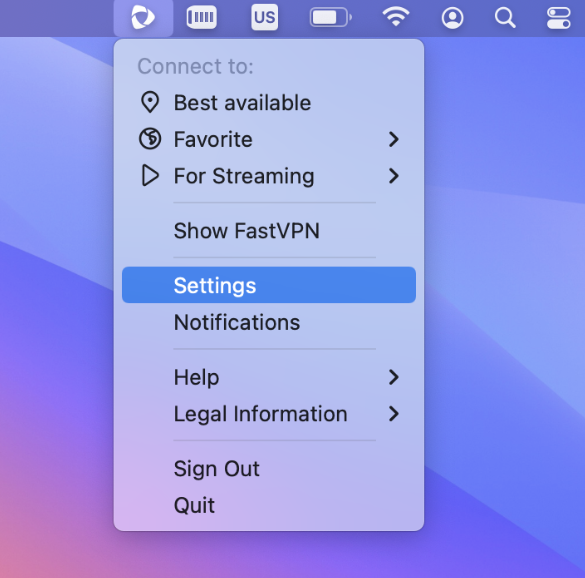
Settings will redirect you to the expanded view with more options:
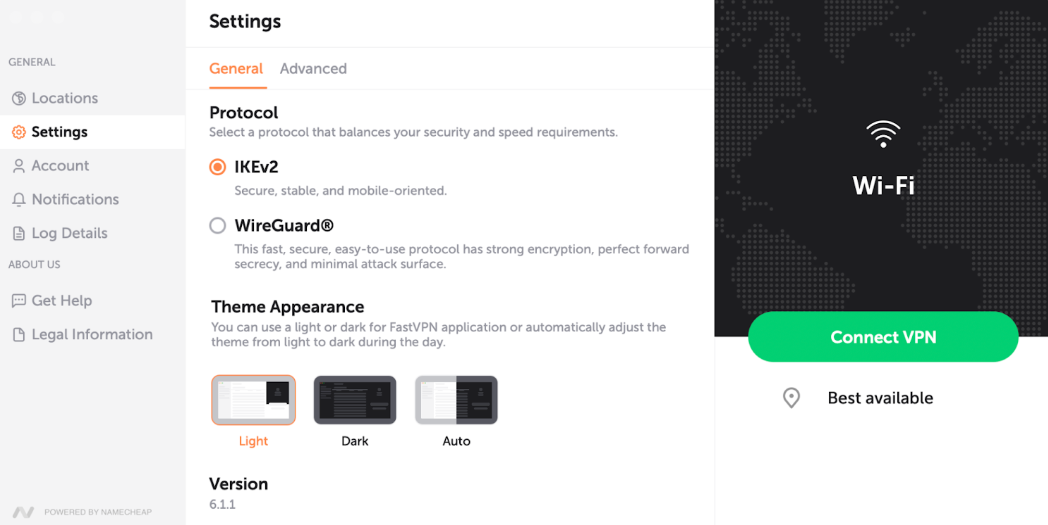
Settings are categorised into General and Advanced sections.
In the General settings, you'll find options that are commonly used, providing essential controls for your VPN experience. Here, you'll find:
Options for Protocol selection:
- IKEv2 Secure, stable and mobile-oriented protocol. Faster than other protocols but only supported on limited platforms.
- WireGuard®* fast, secure, easy-to-use protocol has strong encryption, perfect forward secrecy, and minimal attack surface.
*All Rights Reserved. "WireGuard" and the "WireGuard" logo are registered trademarks of Jason A. Donenfeld.
Theme Appearance allows you to choose light or dark themes for the FastVPN app or automatically adjust the theme from light to dark during the day.
FastVPN section with the Version number of the app that you are using:
NOTE: To use WireGuard® protocol:
update your FastVPN app to the latest version;
choose the WireGuard® protocol from the app settings;
allow FastVPN to install WireGuard® System Extension.
1. If the Extension is blocked, click "Open Security Preferences" to approve:
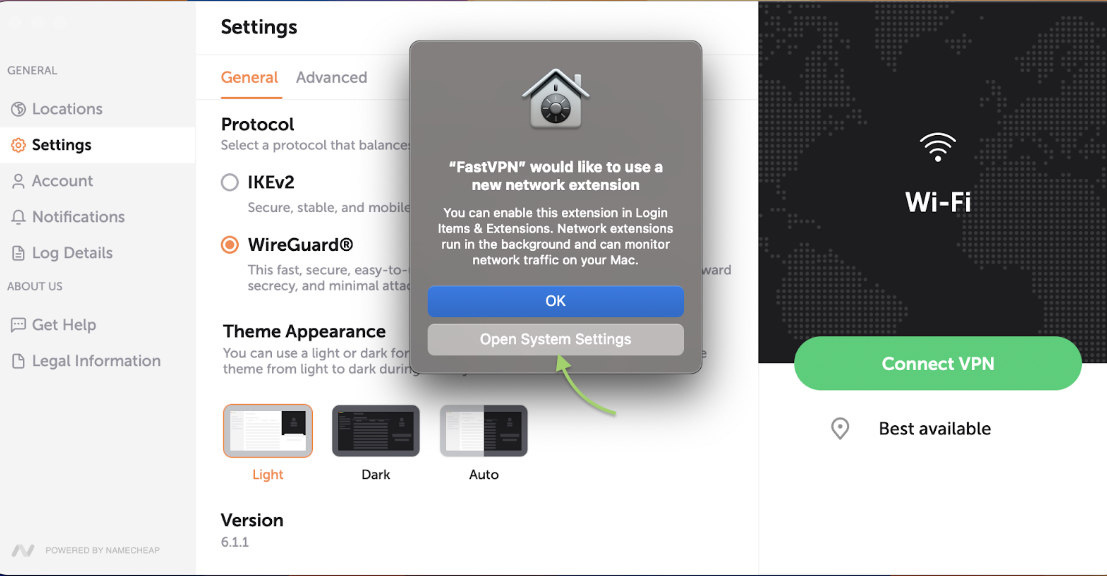
2. In the macOS settings, unlock Security & Privacy with a click on the lock, then press "Allow" to run the Extension.
3. Lastly, approve the VPN configuration installation:
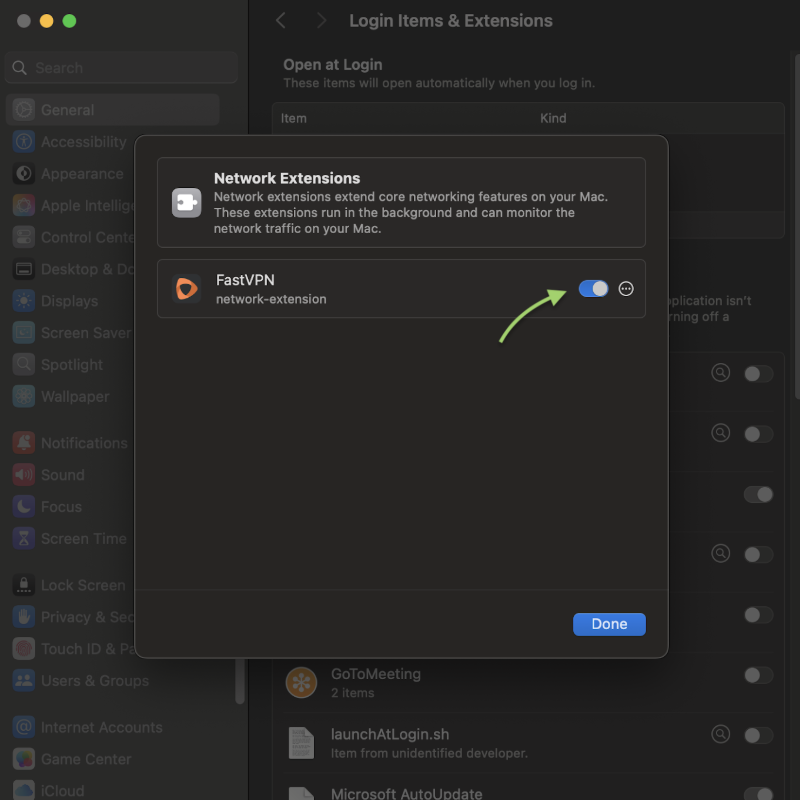
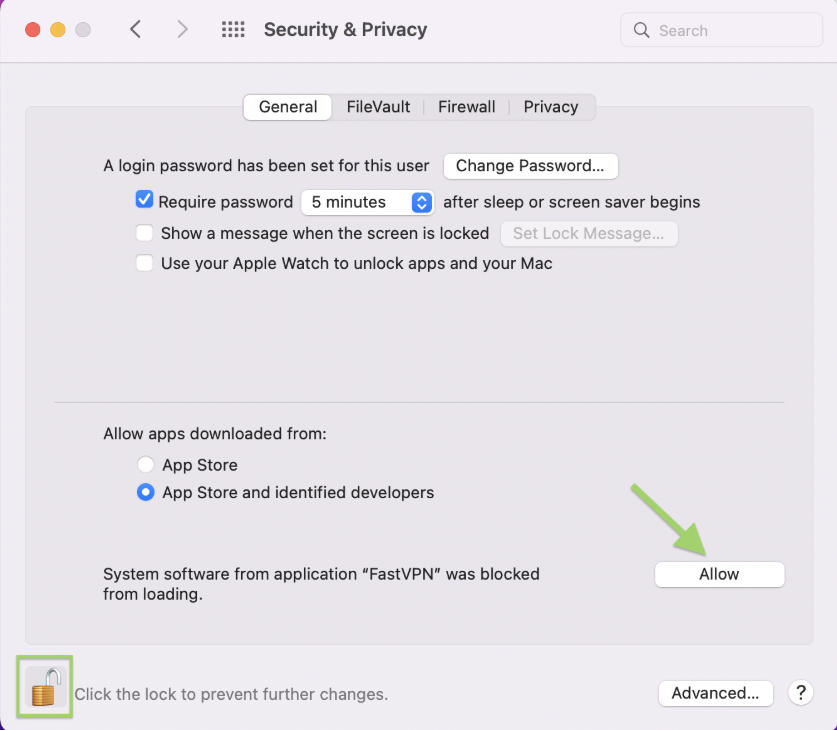
Select a server location;
Once you connect to the server, FastVPN will automatically establish a secure VPN connection using WireGuard®.
Under Advanced Settings, you will have:
Auto-Protect option - it will always keep your traffic protected when you use the Internet on your device.
Network detection notification - will ask to connect to VPN upon a new network detection.
Trusted WiFi networks - allows you to add a current network to trusted. Trusted WiFi networks are the WiFi networks that you trust or already have a VPN connection on, for which you do not want to use the FastVPN.
Ad Blocker allows you to browse safely by blocking ads, preventing online tracking, and reducing access to malicious content.
Kill Switch will disconnect your internet connection when Fast VPN is not available, ensuring your online security (Wireguard® Protocol Required).
*Note: in the event that Kill-Switch is on and you are not connected to VPN, the ping information cannot be retrieved. In such a case, what you need to do is:
- Turn Kill-Switch off;
- Connect to VPN;
- Then turn Kill-Switch back on.
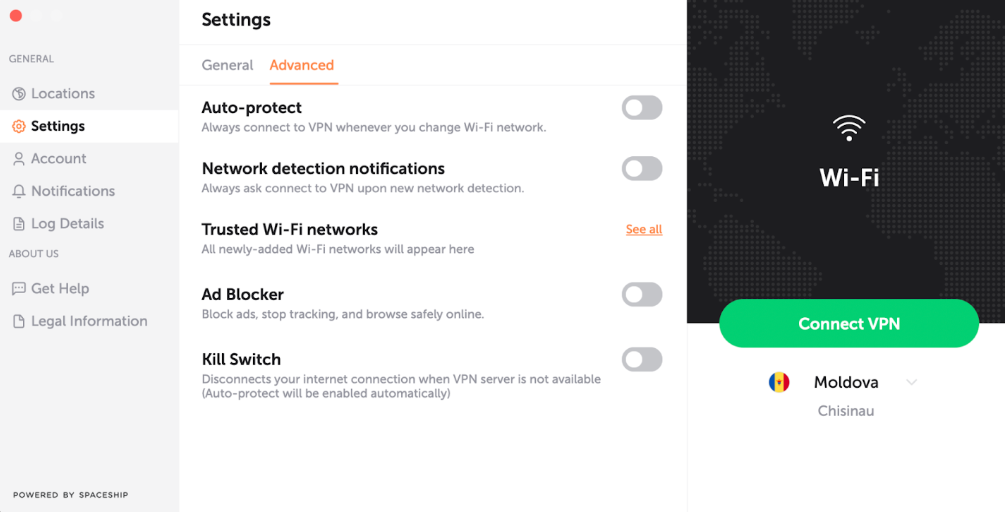
NOTE: To enhance user experience, Streaming Mode features a simplified interface with fewer settings, making it easy to use for everyone. While in Streaming Mode, Advanced settings and Protocols are not available for customisation.
Under Account, you will have:
Username;
Subscription information;
Delete account request;
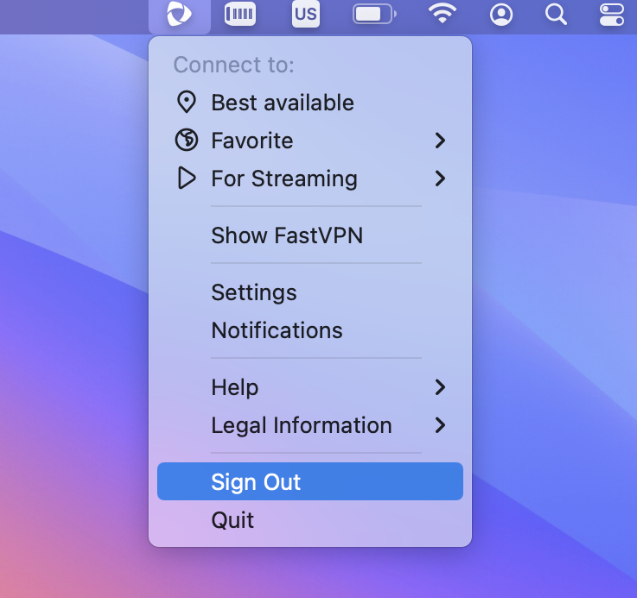
Sign Out option.
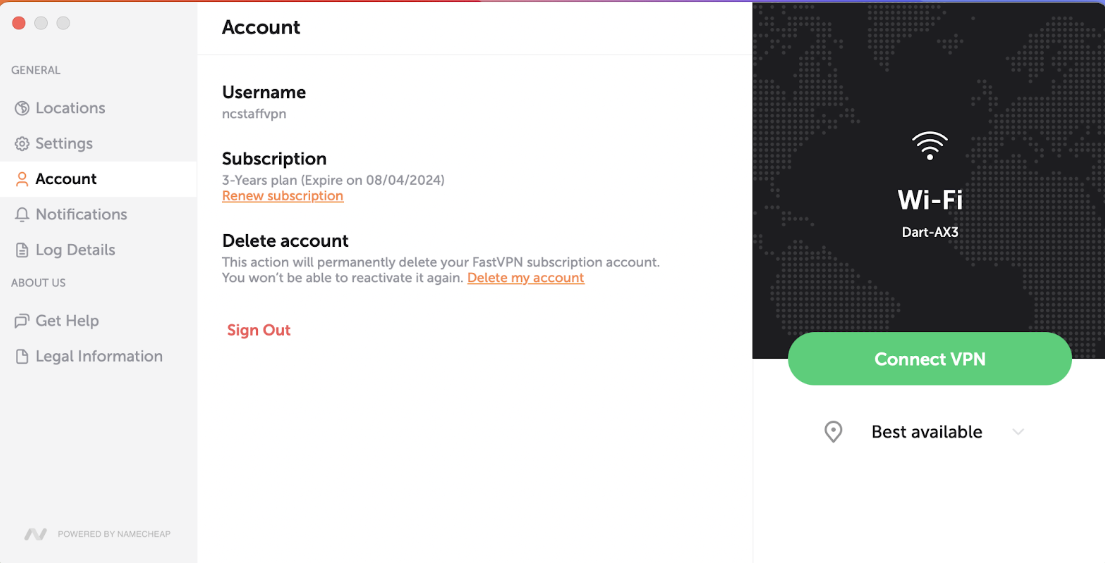
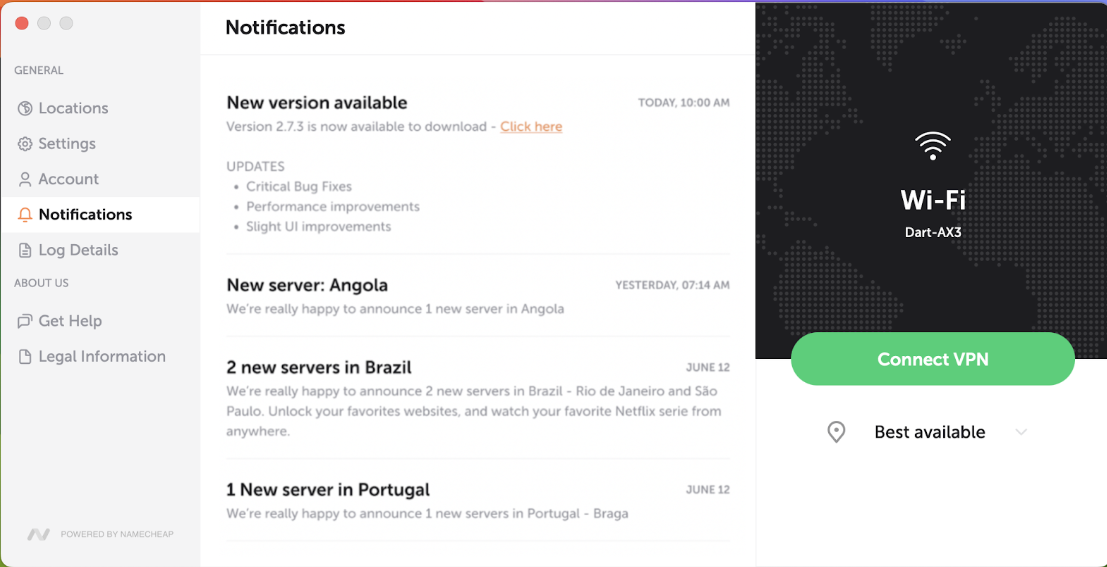
Under Notifications, you will be notified of important announcements and alerts:
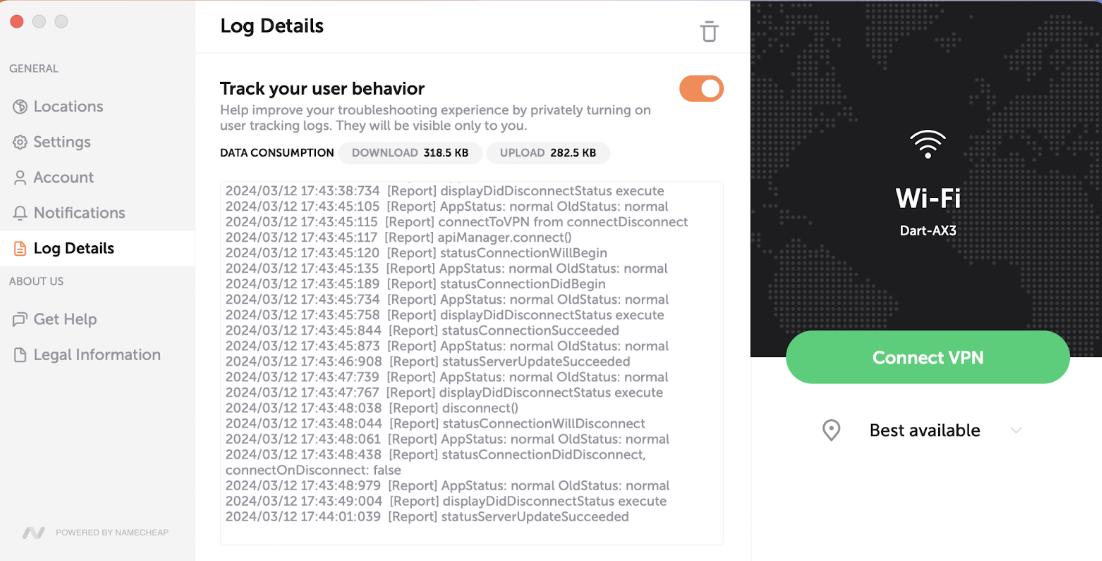
Under Log Details, you will have:
The Track Your User Behaviour option that allows you to privately turn on user tracking logs. They will be visible only to you.
Data Consumption section that allows you to track Downloads and Uploads.
Log Details section to improve your troubleshooting experience:
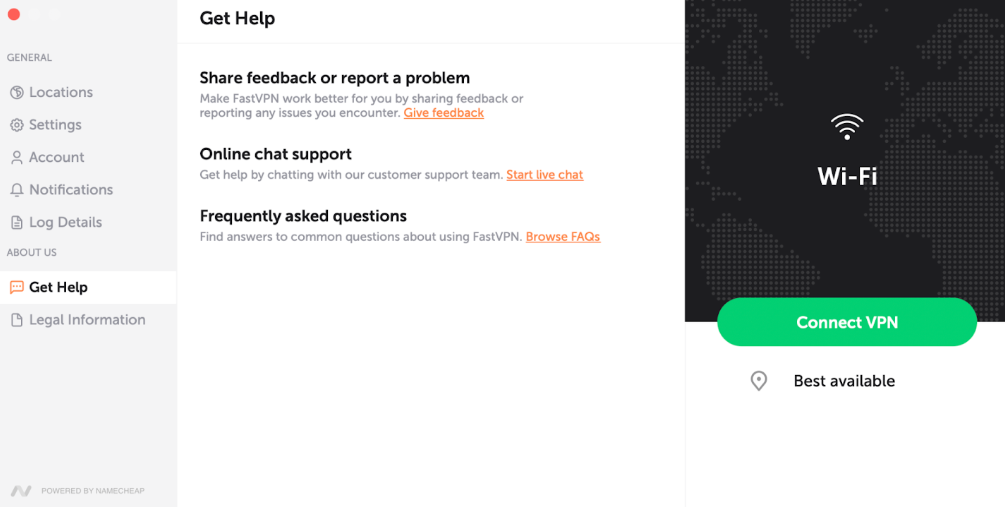
Under Get Help, you will have:
Share feedback or report a problem - allows you to send feedback or report a problem directly from the app.
Online chat support - allows you to contact our support directly by clicking the “Start live chat” link.
Frequently Asked Questions - to access our Knowledgebase.
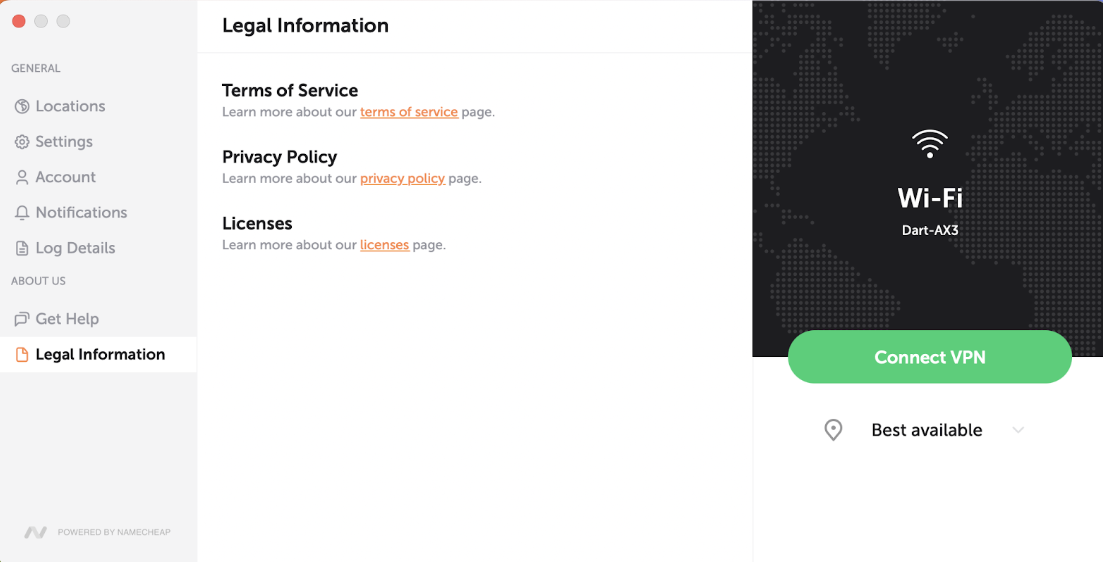
Under Legal Information, you will have:
Terms of Service;
Privacy Policy;
Licences;
Send feedback allows you to submit feedback from the app:
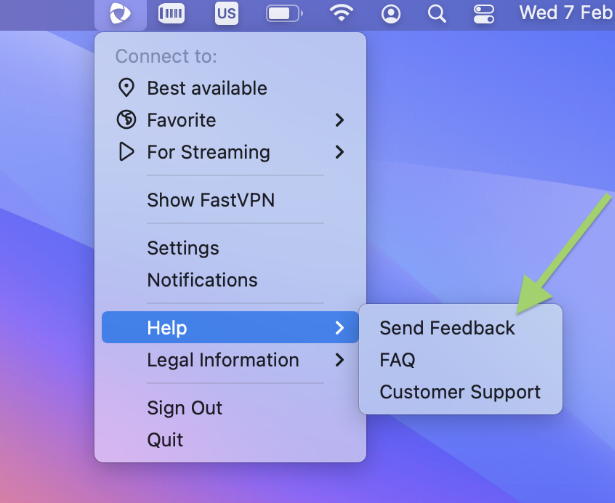
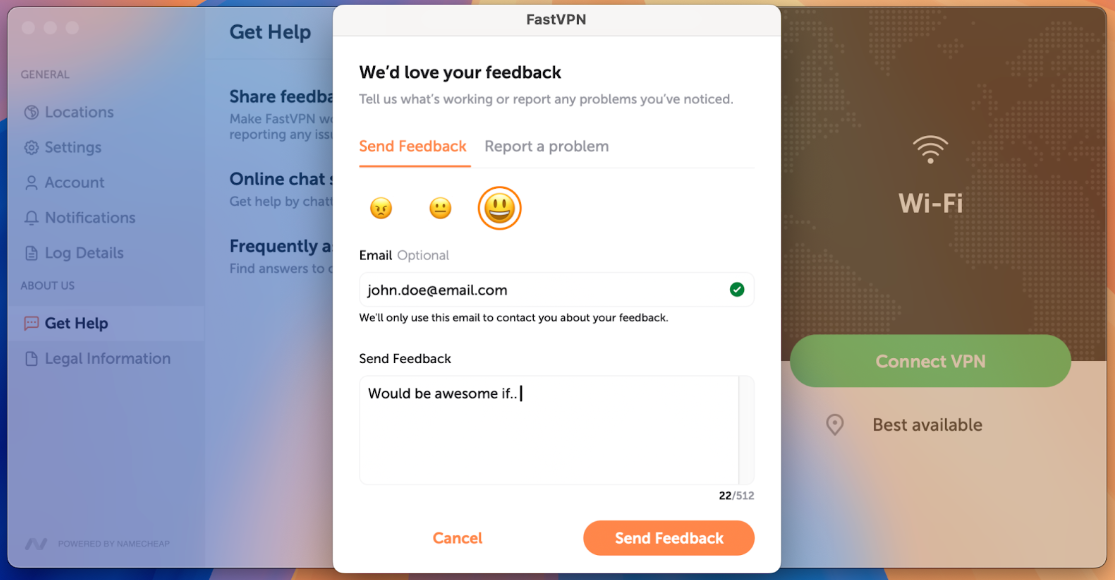
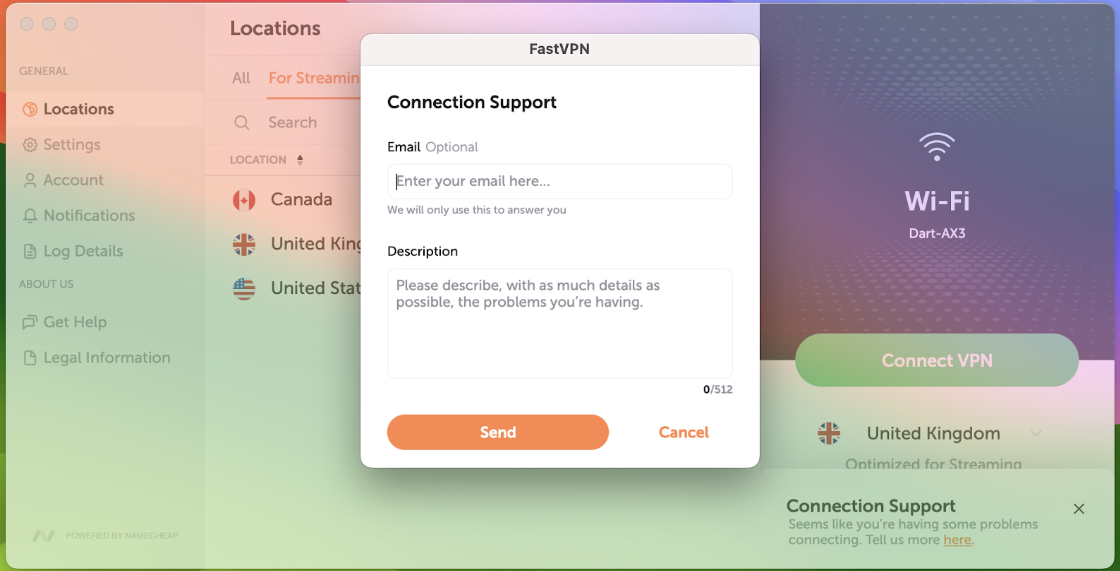
In case of failure in using the FastVPN application, you will be able to send a Problem Report to let us know about the issues you are having with FastVPN.
The corresponding pop-up will appear if there is a problem:
Sign Out:
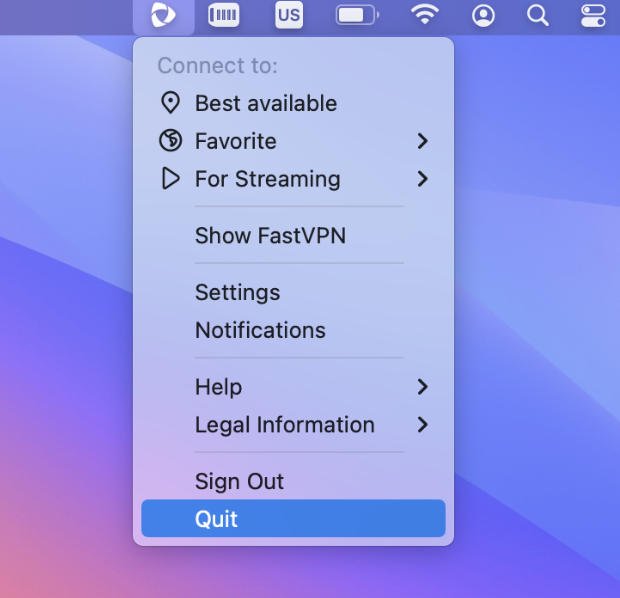
Quit:
And that's it! If you need any further assistance, please contact our Support Team.