How to Set Up Spacemail in Canary Mail on macOS (IMAP & SMTP Guide)
This article illustrates the process of adding your Spacemail mailbox to Canary Mail using IMAP and SMTP settings.
Before you begin, make sure that you have set up your Spacemail by following the steps in this guide.
Get a Canary Mail plan and download the application to your device.
Once done, please:
1. Run the Canary Mail app

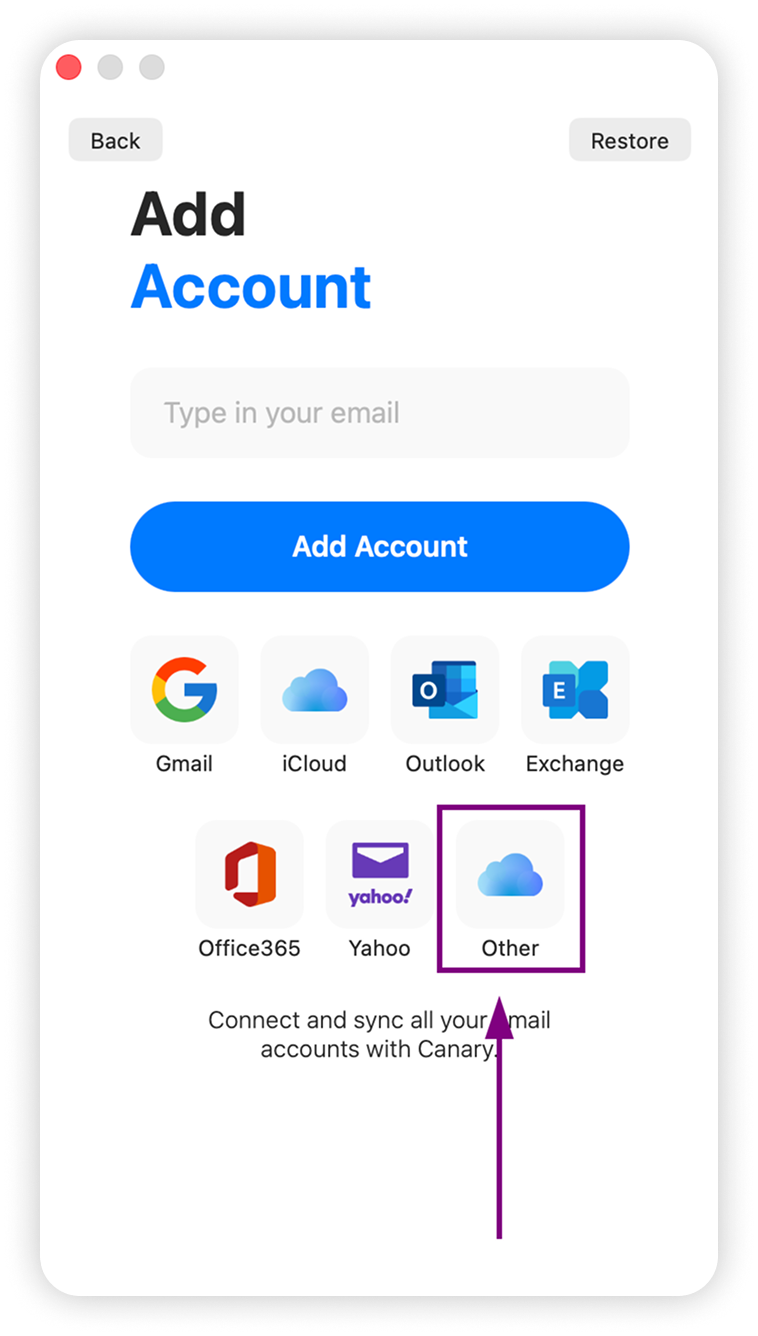
2. Press Continue to proceed to the account setup > select Other.
3. Input your mailbox name and password and press Show Advanced to add the other configuration details
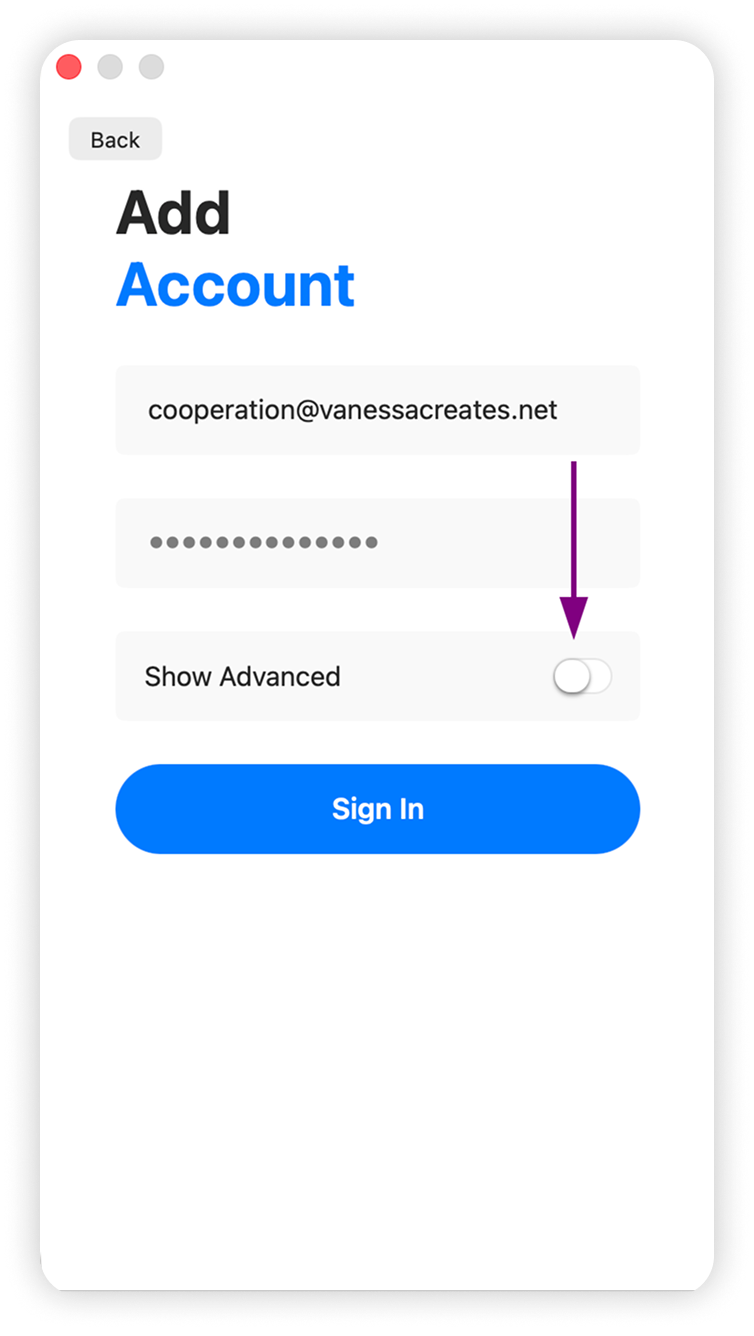
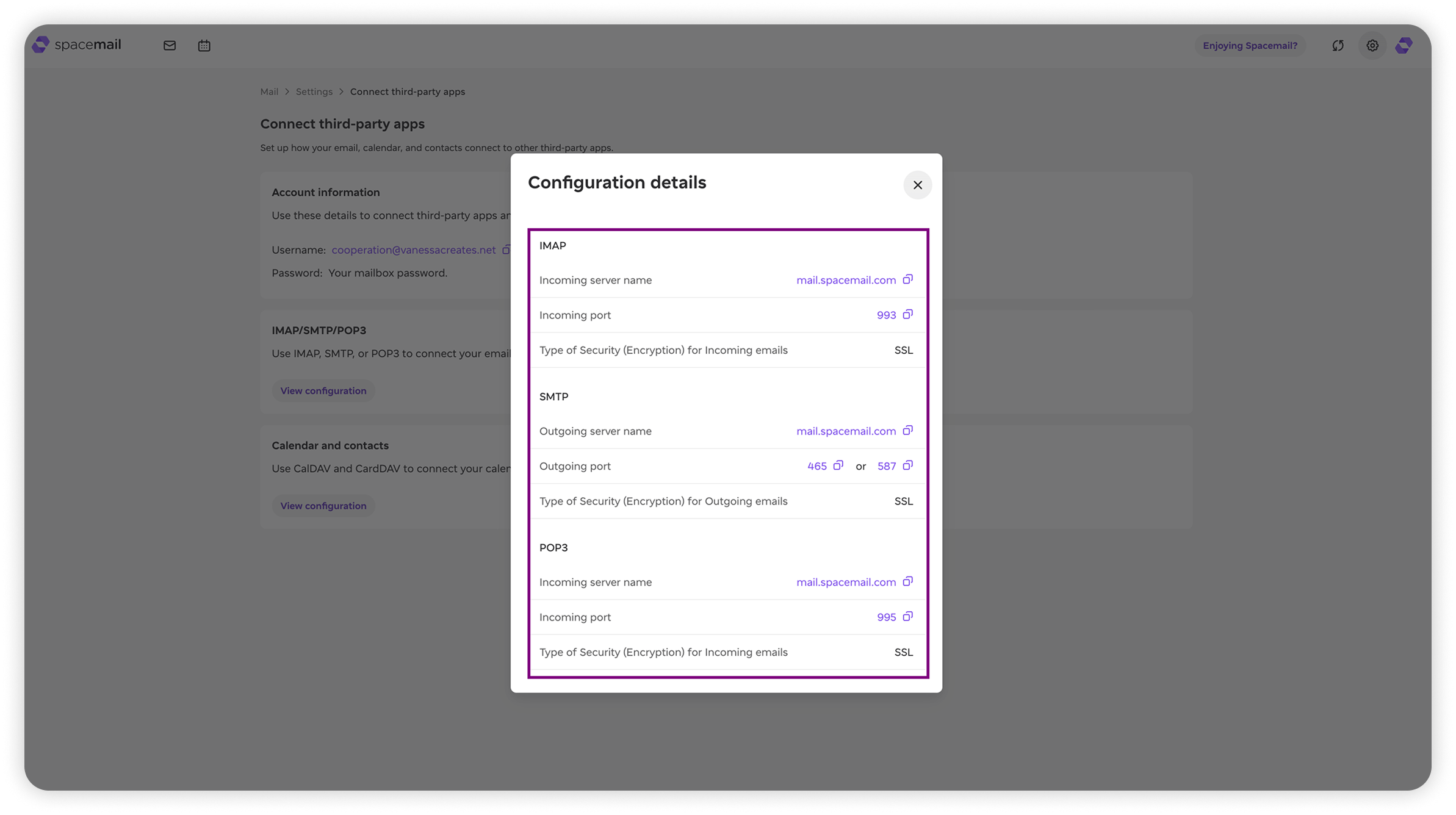
4. Add advanced details, like Username, Password, Incoming/Outgoing servers, Ports, Encryption, to configure the mailbox and press Sign In.
You can find those details for your Spacemail mailbox either in:
Spacemail Manager > select the mailbox in question > the IMAP/SMTP/POP3 section.
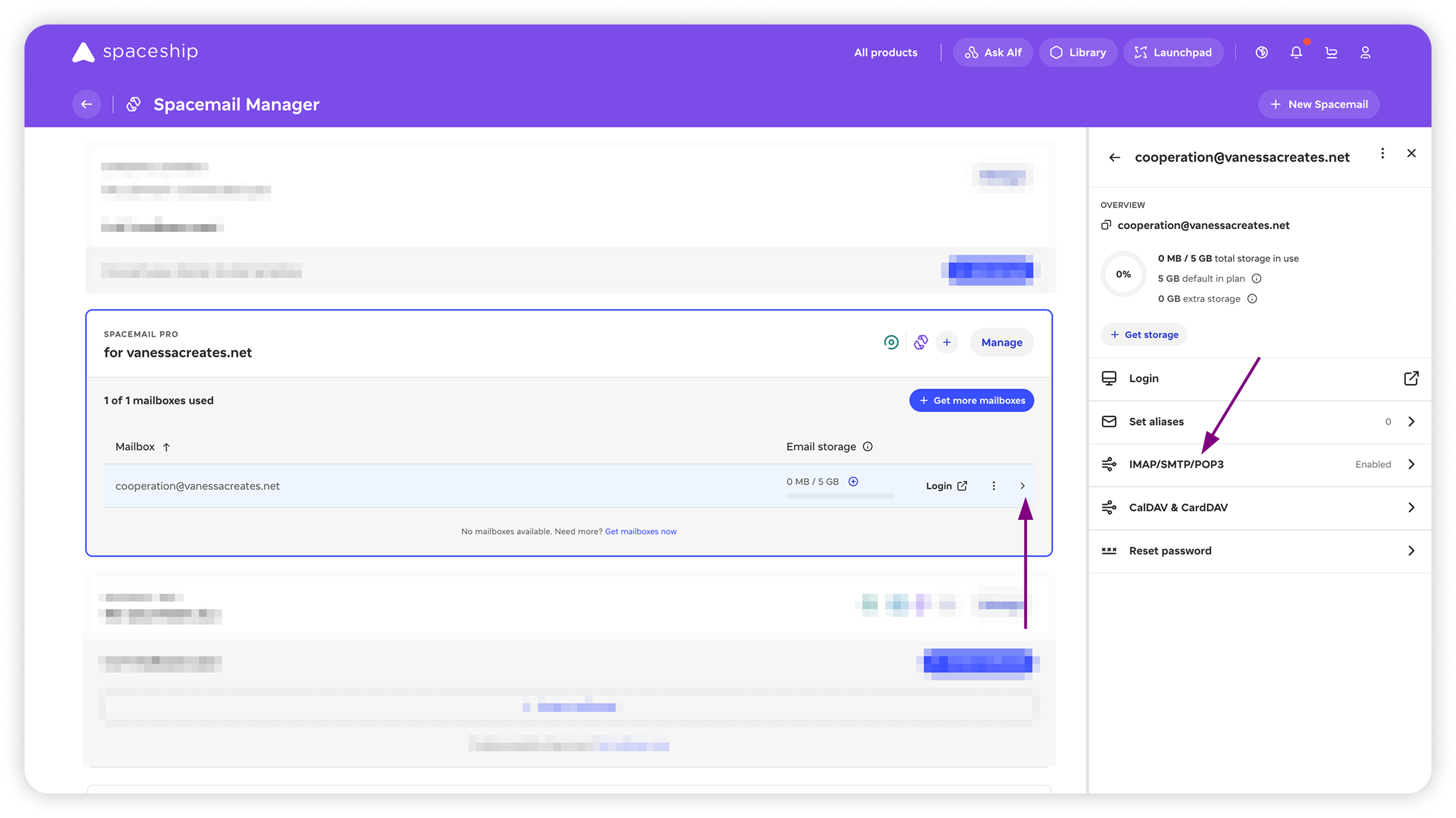
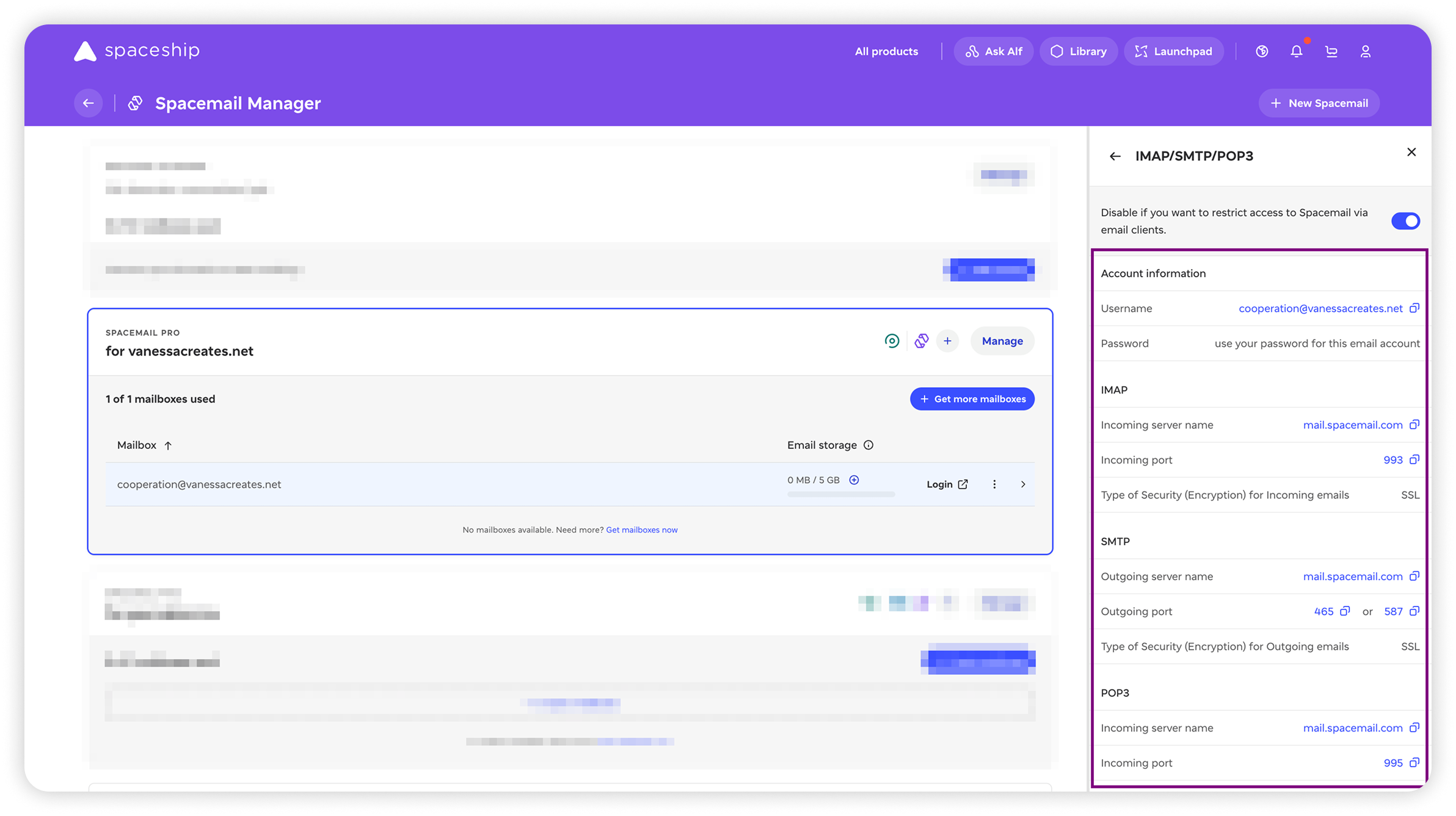
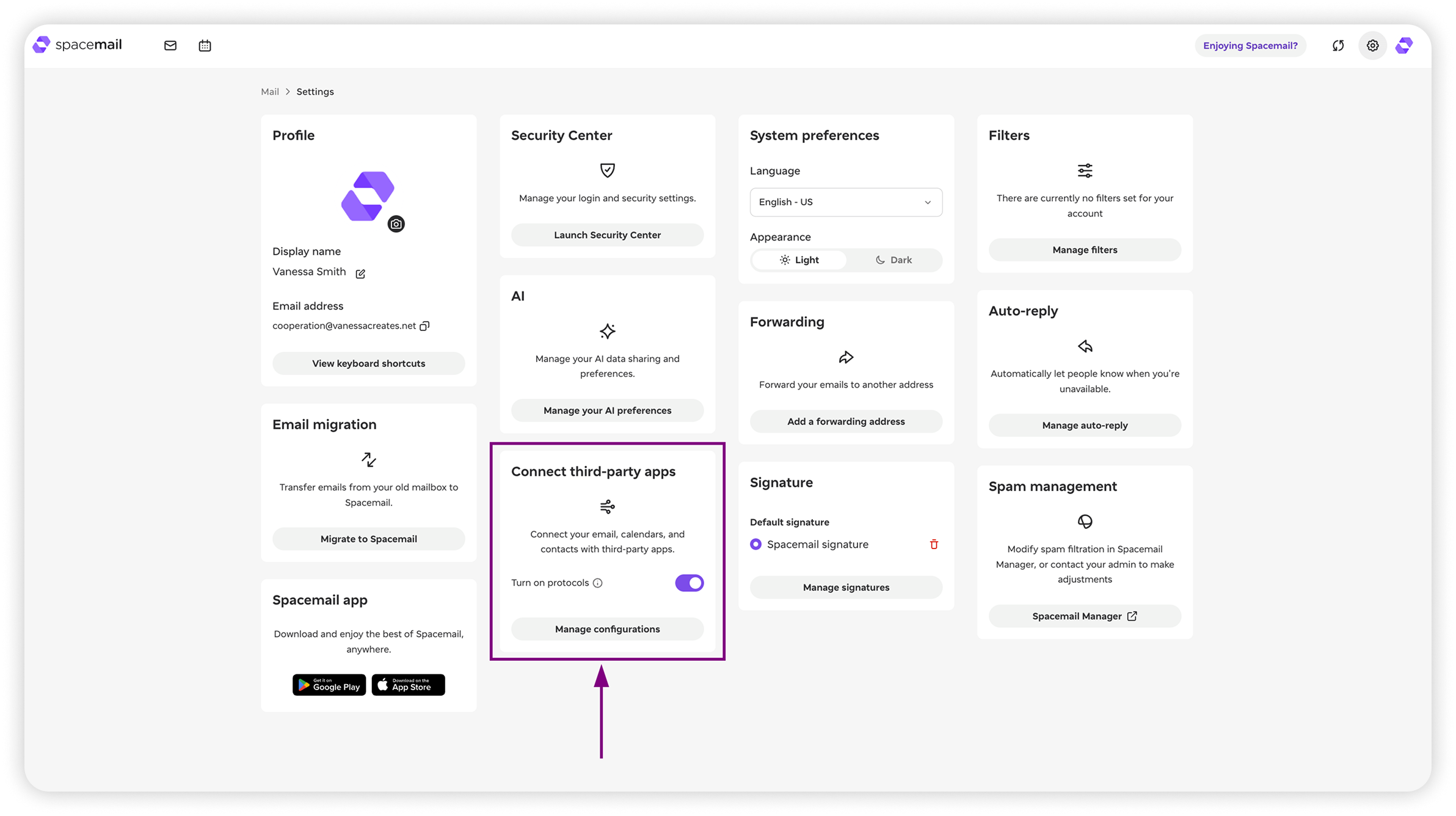
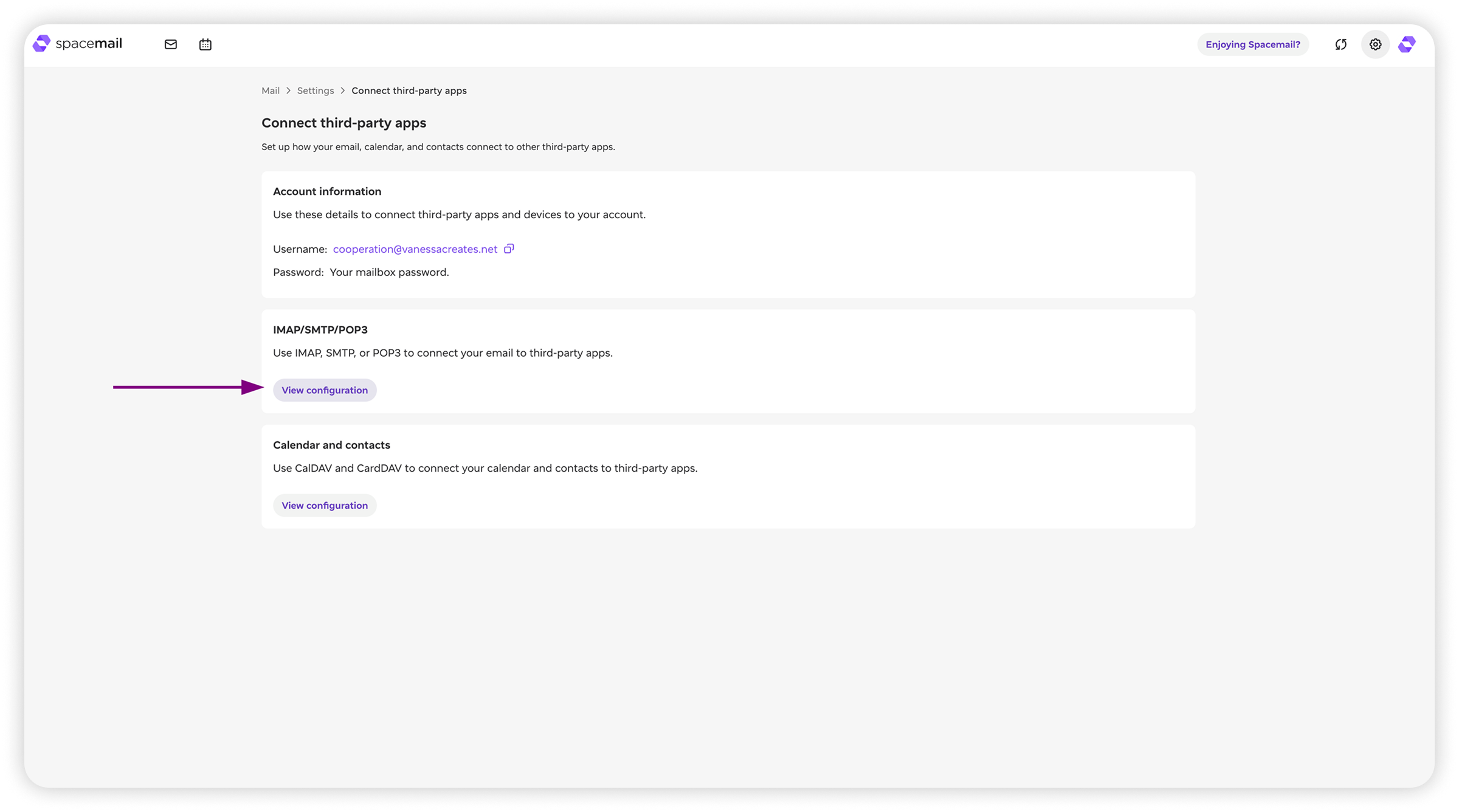
Spacemail Webmail Settings > press Manage configurations in the Connect third-party apps section > View configuration in the IMAP/SMTP/POP3 section.
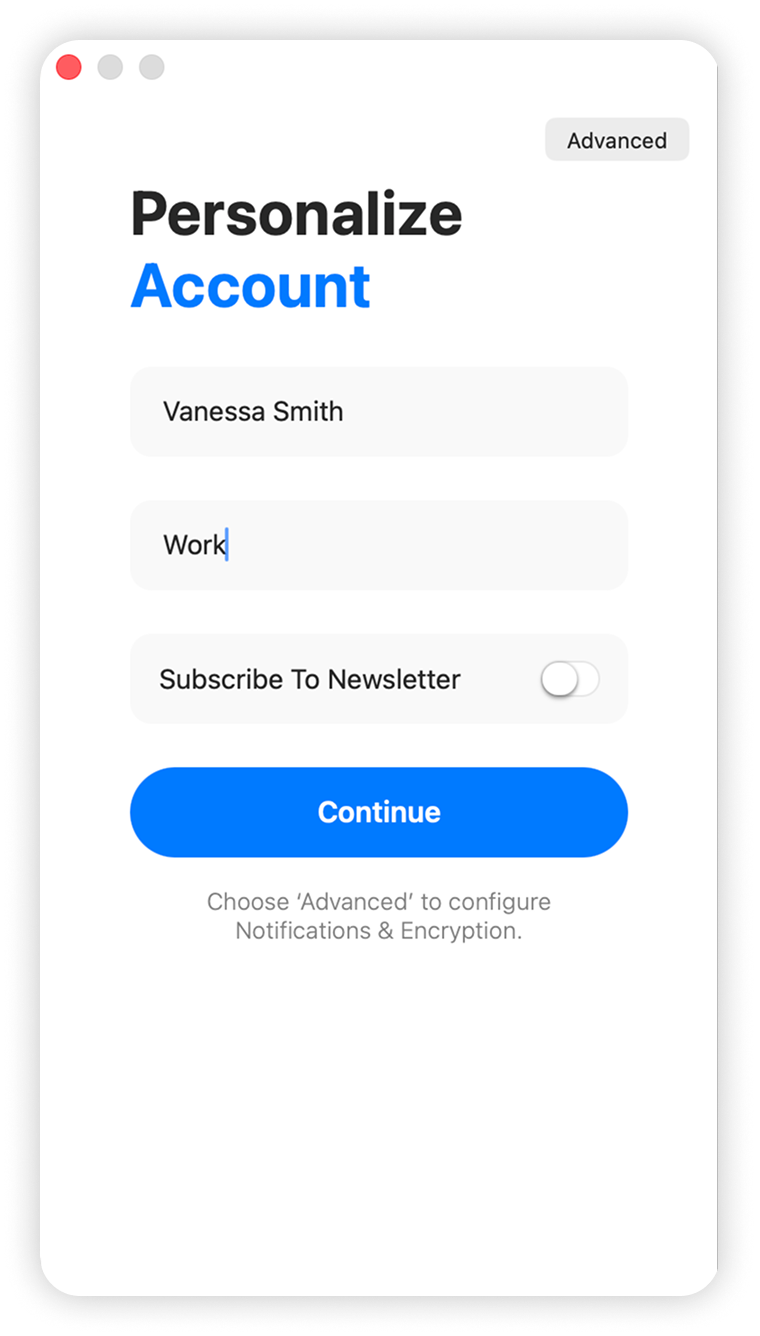
5. The next step is to indicate Your Name and Account type. Once filled it, press Continue.
6. If you do not have a subscription with Canary Mail yet, you will be prompted to order one for free for 7 days.

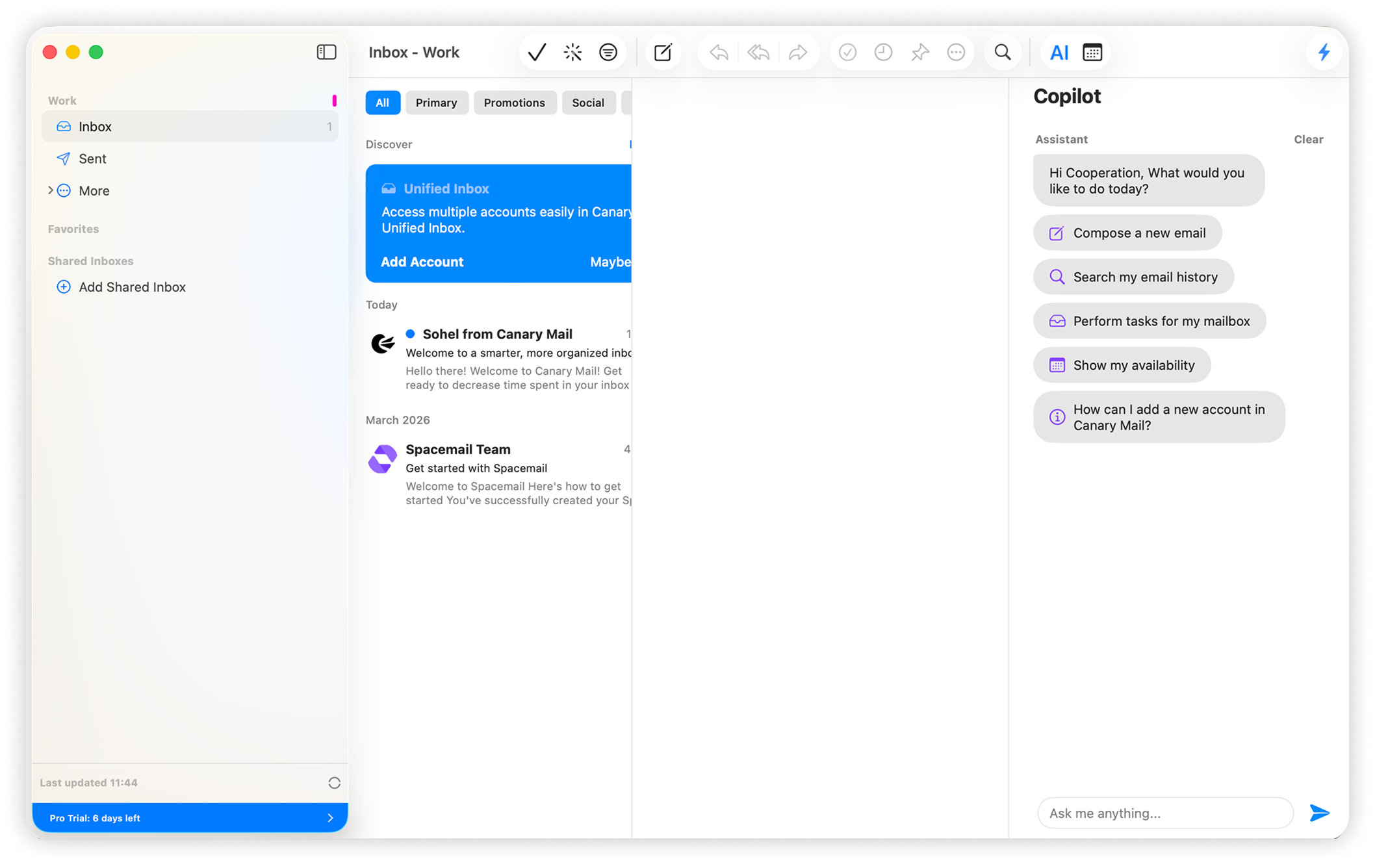
7. Congratulations! You’ve been set up.
If you have any questions, please don't hesitate to reach out to our Support Team for further assistance.
That’s it!