How to set up OpenVPN on Raspberry Pi OS
The following is required:
A FastVPN account (Don't have one? Sign up here);
Access to your FastVPN account panel in order to get your network credentials;
A working installation of Raspberry Pi OS;
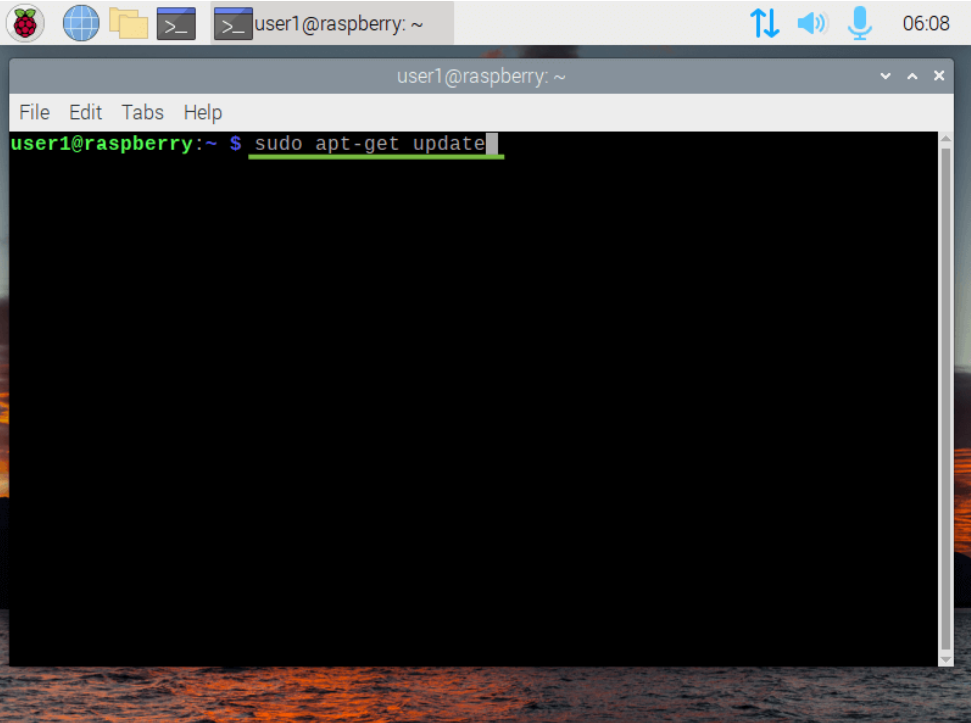
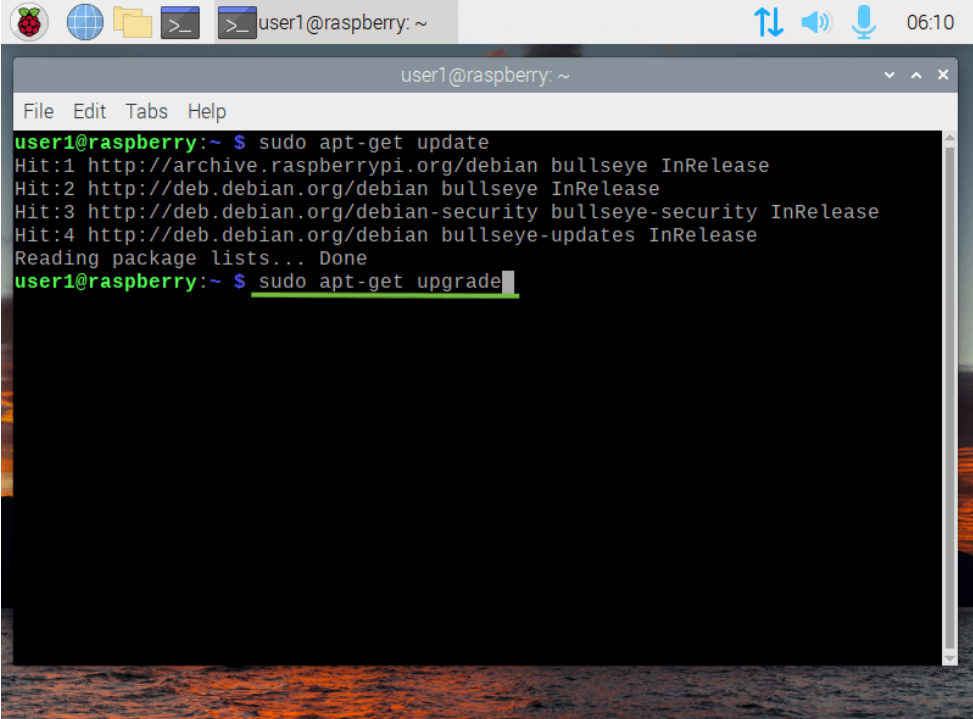
1. Update the Raspberry Pi OS
sudo apt-get update
sudo apt-get upgrade
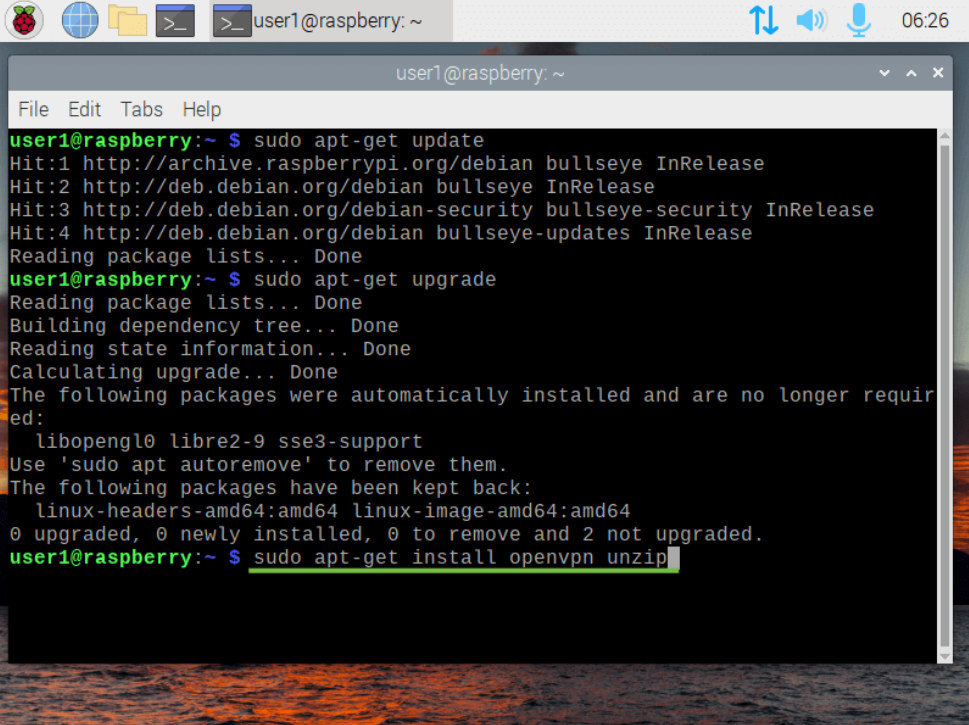
2. Install OpenVPN
sudo apt-get install openvpn unzip
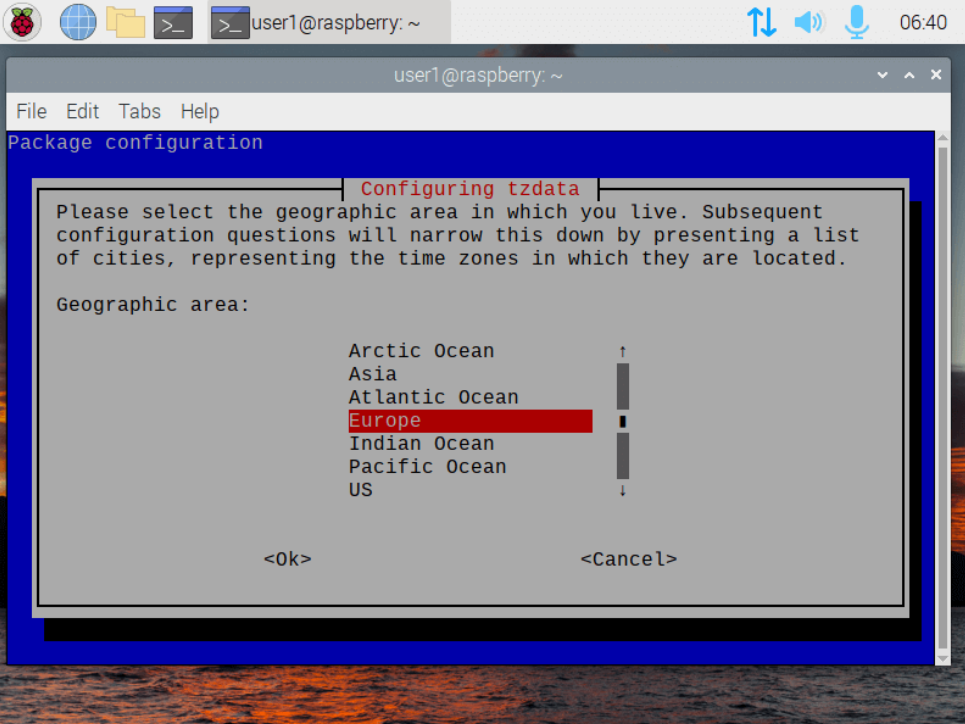
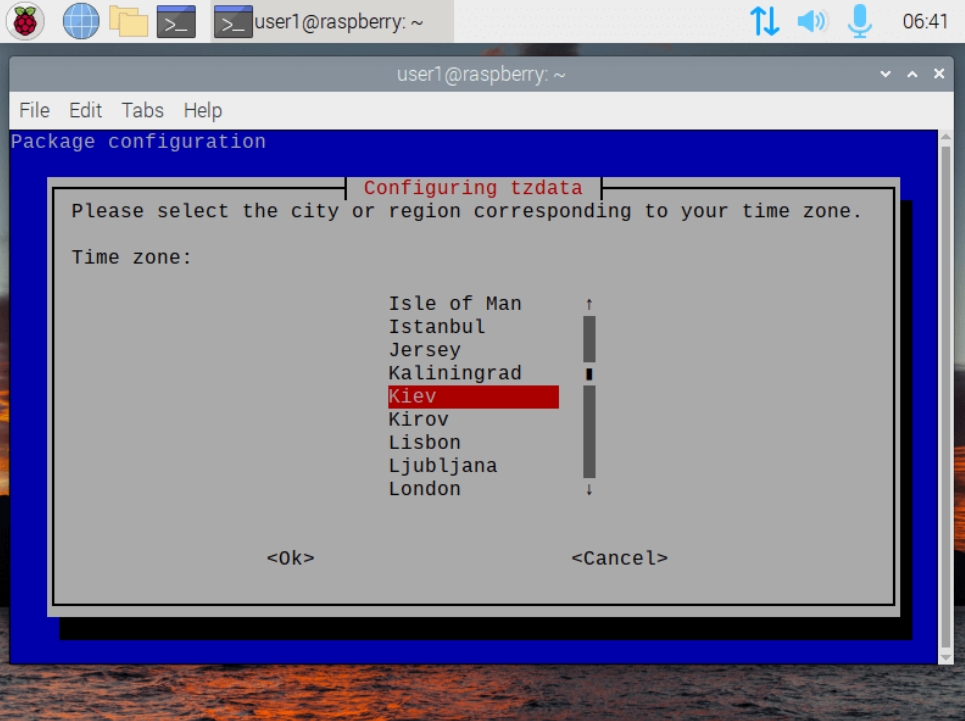
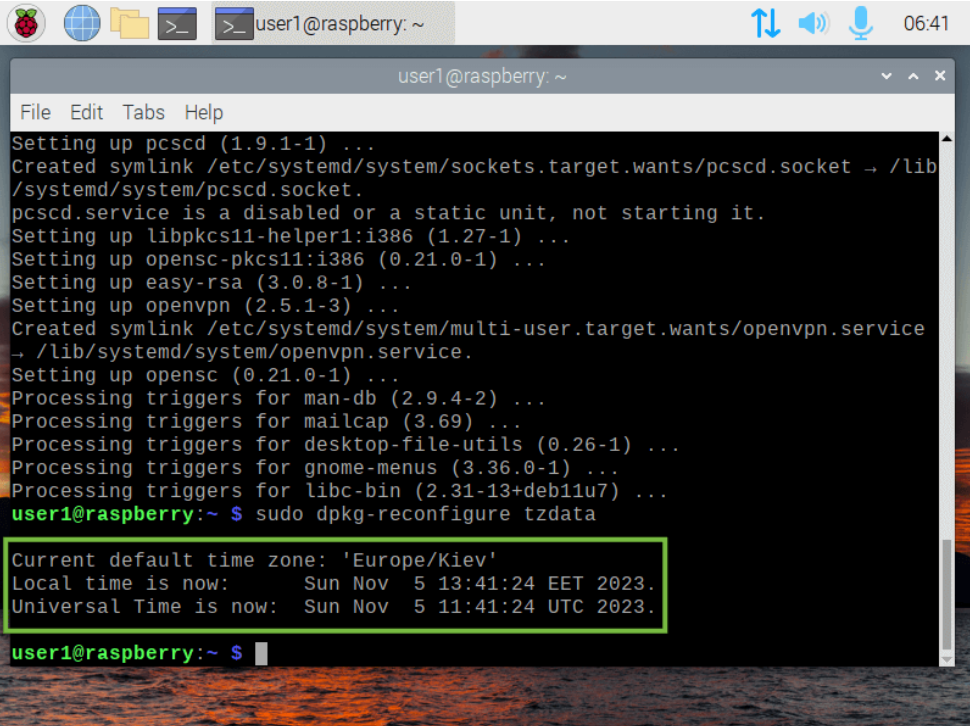
3. Make sure the time zone is correct
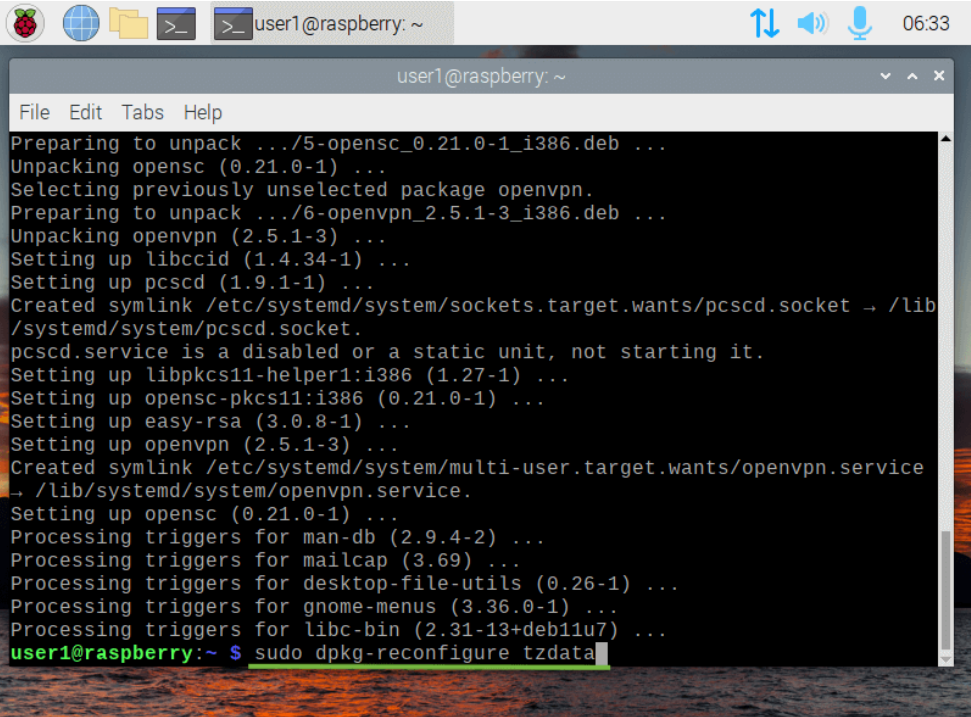
Run the command below and go through the configuration prompt to select the correct time zone:
sudo dpkg-reconfigure tzdata
4. Elevate your privileges to root
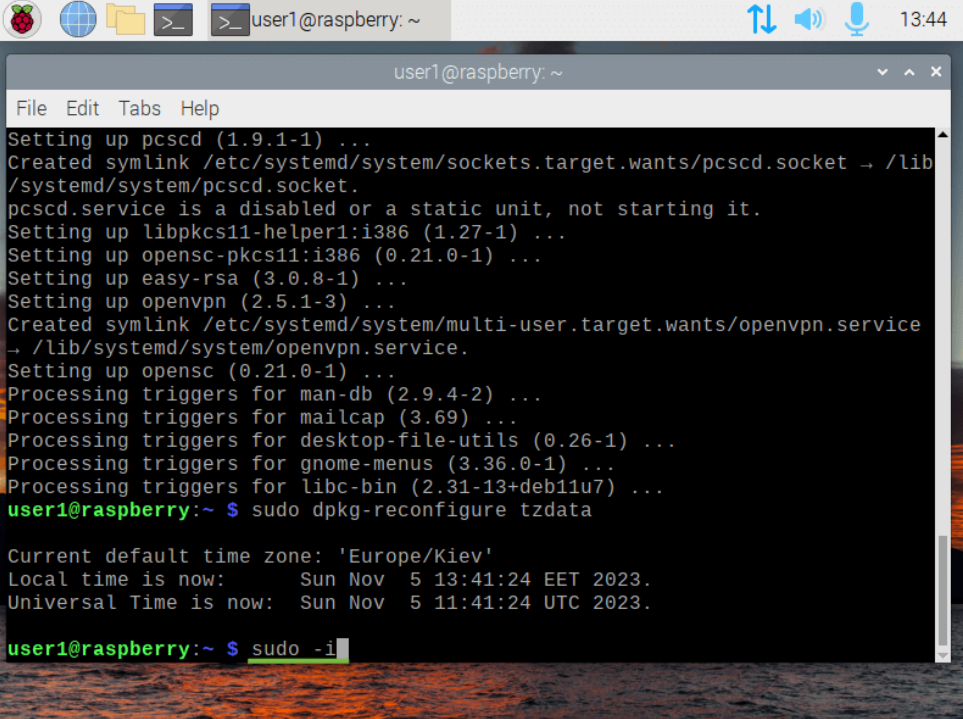
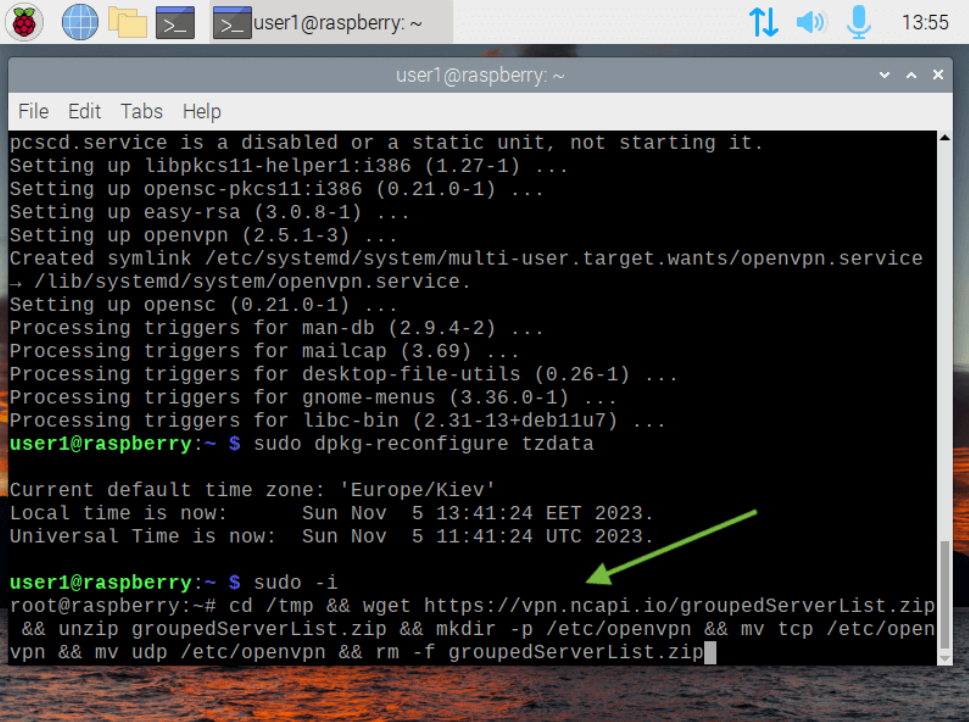
sudo -i
5. Download configuration file & setup FastVPN
cd /tmp && wget https://vpn.ncapi.io/groupedServerList.zip && unzip groupedServerList.zip && mkdir -p /etc/openvpn && mv tcp /etc/openvpn && mv udp /etc/openvpn && rm -f groupedServerList.zip
6. Start FastVPN
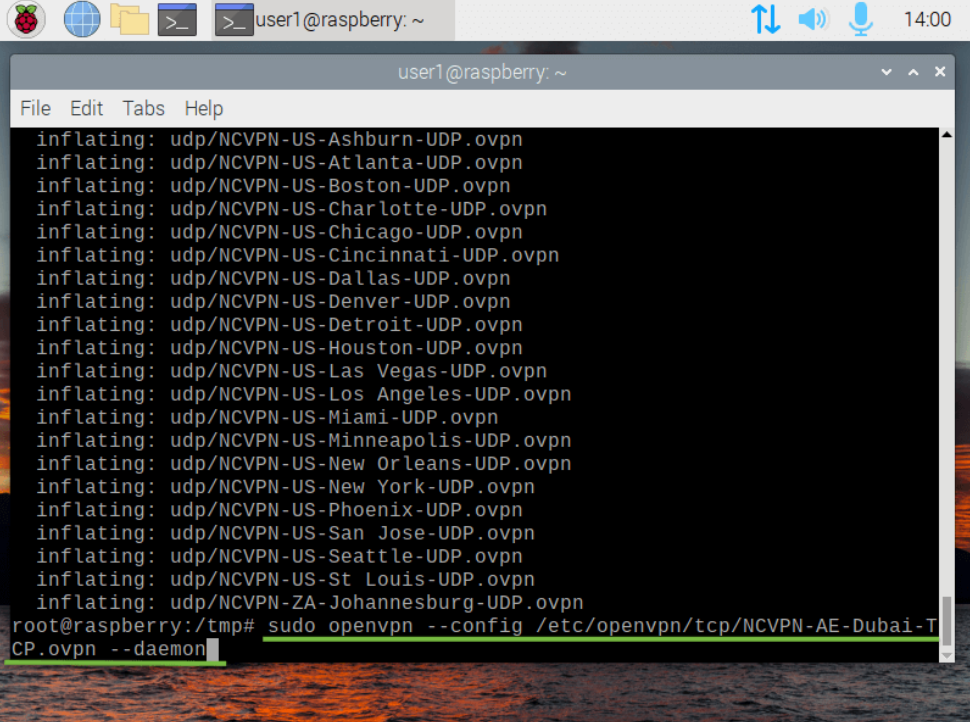
Depending on which protocol is preferable for you, you can start FastVPN in two ways:
TCP
sudo openvpn --config /etc/openvpn/tcp/NCVPN-AE-Dubai-TCP.ovpn --daemon
NOTE: “NCVPN-AE-Dubai-TCP.ovpn” could be changed to any preferred location from groupedServerList.zip
UDP
sudo openvpn --config /etc/openvpn/udp/NCVPN-AE-Dubai-UDP.ovpn --daemon
NOTE: “NCVPN-AE-Dubai-UDP.ovpn” could be changed to any preferred location from groupedServerList.zip
7. Enter your login credentials
Enter Auth Username
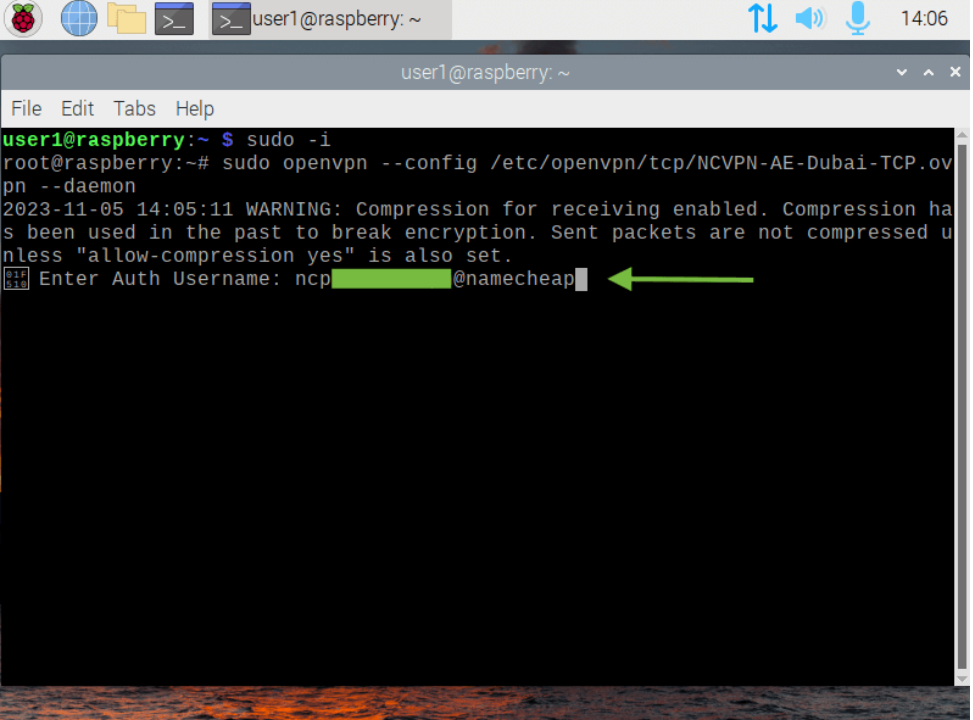
Auth Username is available from the FastVPN Account Panel
Enter Auth Password
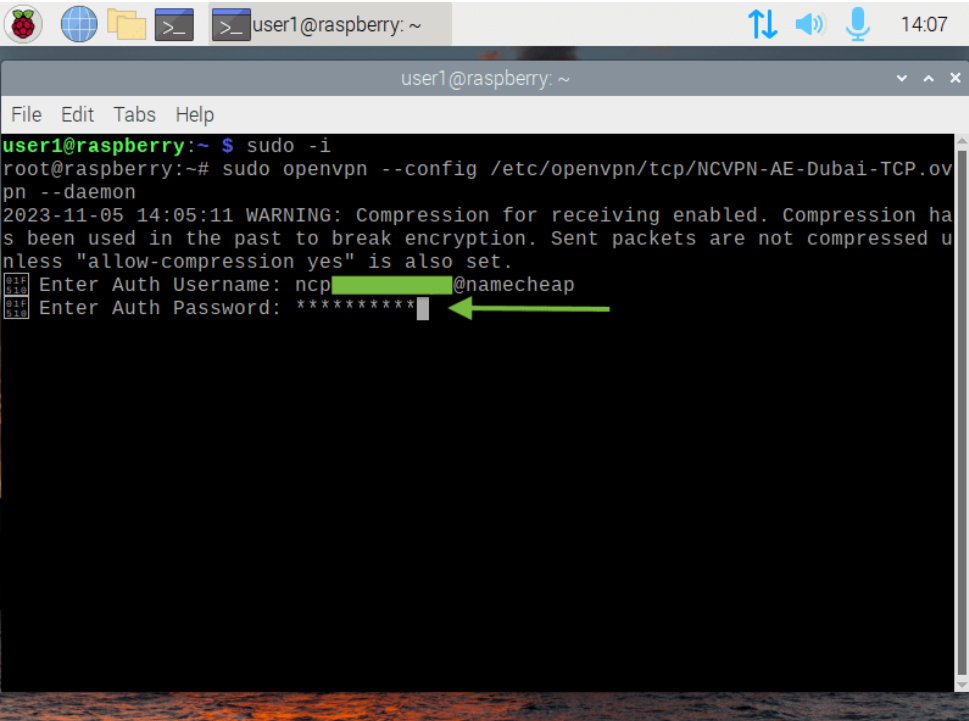
Auth Password is available from the FastVPN Account Panel
8. Verify that the connection was successful
Wait for about a minute after running the VPN connection, then run:
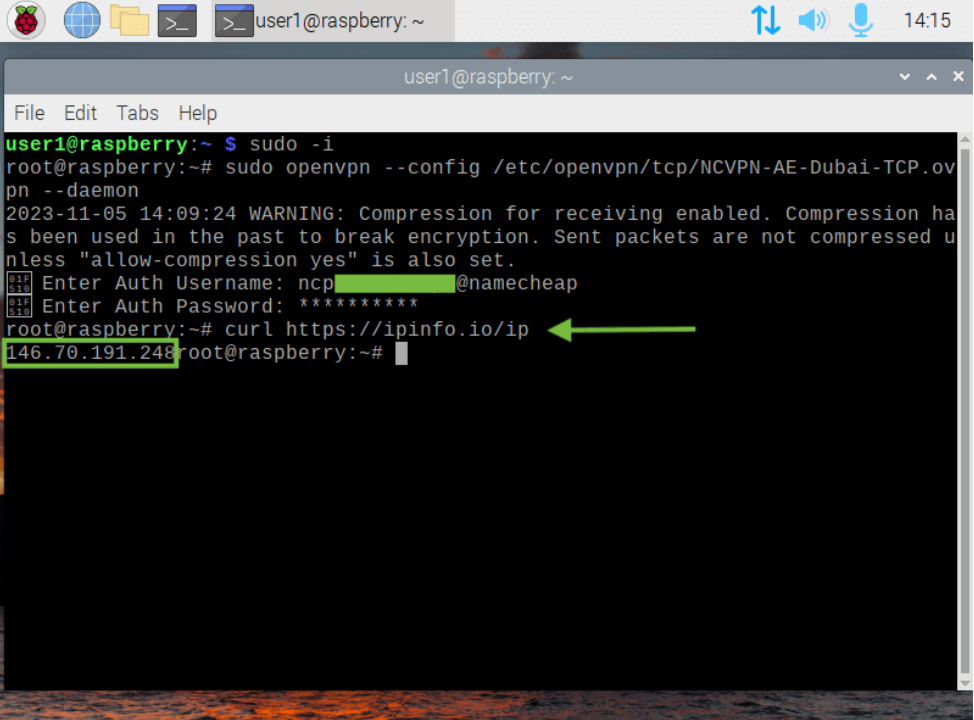
curl https://ipinfo.io/ip
Your new public IP will be displayed:
9. Change VPN connection
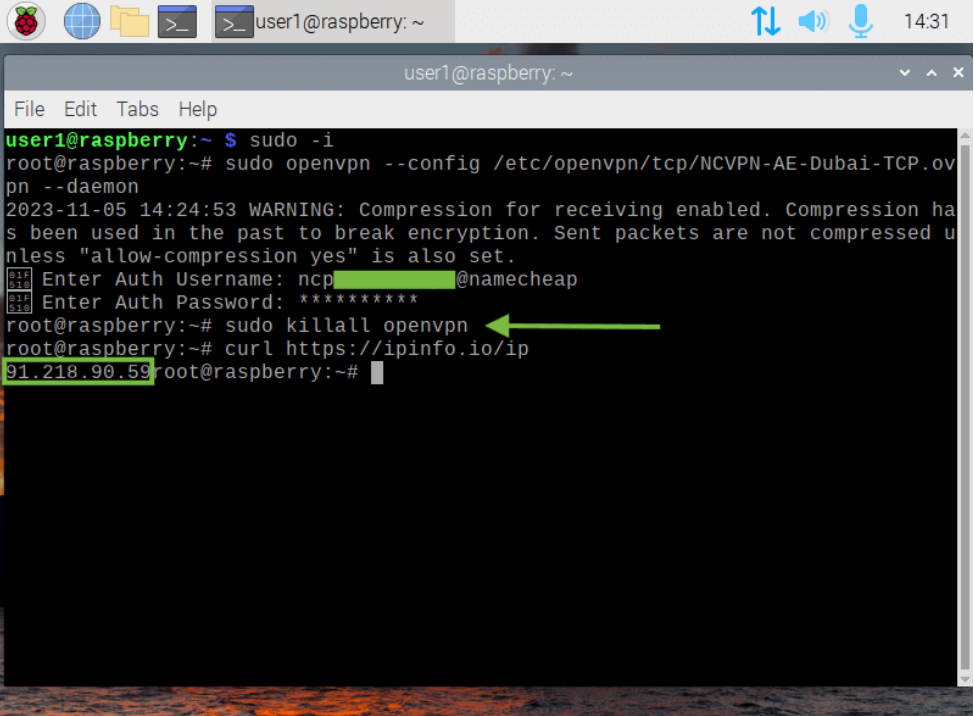
First, you need to stop all active VPN connections:
sudo killall openvpn
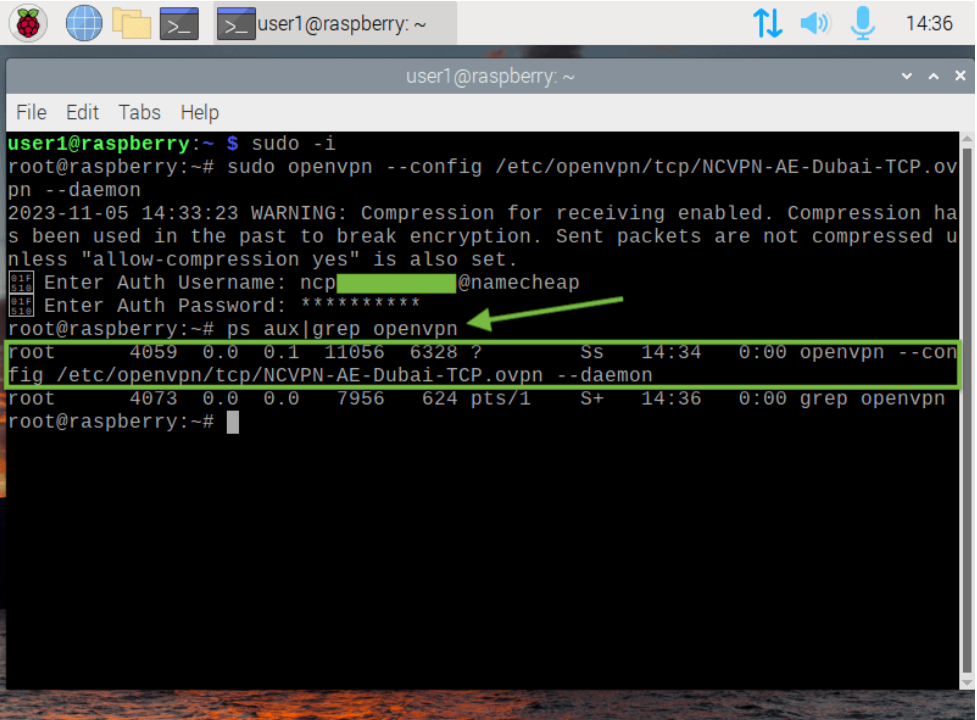
NOTE: You can also check what VPN connection is currently running by writing:
ps aux|grep openvpn
When all active VPN connections are stopped, please redo Step 7 to connect to any other preferred location.
10. Disconnect from FastVPN
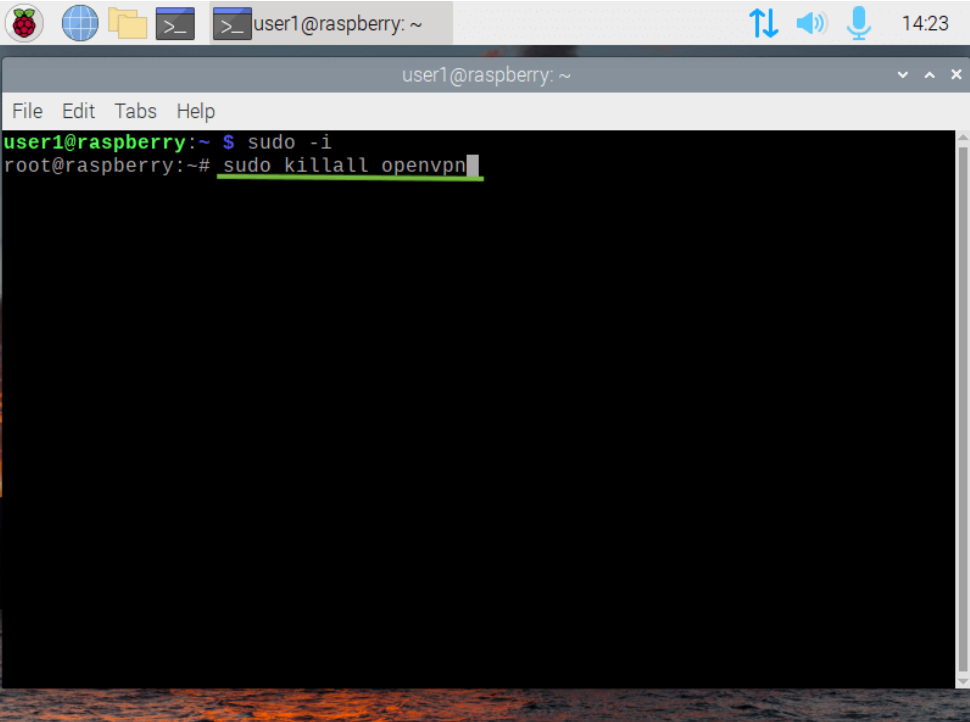
VPN connection can be stopped by following the command:
sudo killall openvpn
11. Done
Congratulations! Now your Raspberry Pi OS will run behind FastVPN. The Raspberry Pi OS will connect automatically when it is started.
If you need any further assistance, please contact our support team.