Understanding and managing file permissions in cPanel
File permissions define who can read, modify, or execute files and folders in your hosting account. Correct permissions are crucial for maintaining website security and proper functionality of both the cPanel account and hosted websites.
What are file permissions?
On Linux-based hosting servers (used by cPanel), every file and folder has an Owner, a Group, and a set of Permission rules.
Permissions determine what actions are allowed for:
User (Owner) - your cPanel account
Group - server-level group
Others/World - everyone else on the server
Each of these can have three types of access to files and directories:
Read (r) - allows viewing of file contents / listing files inside the folder
Write (w) - allows modifying the file / adding or deleting files inside the folder
Execute (x) - allows running the file (scripts, applications) / entering /accessing the folder
Note: A folder must have Execute (x) permission to be accessible.
The access level is also defined in numbers:
0 - no access to the file
1 - execute only
2 - write only
3 - write and execute
4 - read only
5 - read and execute
6 - read and write
7 - read, write, and execute (full permissions)
Examples: the most common 755 and 644
Owner: 7 - read, write, execute
Group: 5 - read, execute
Others: 5 - read, execute
Owner: 6 - read, write
Group: 4 - read
Others: 4 - read
To ensure your website files are displayed correctly in the browser, we recommend using the following permissions:
HTML and image files should be set to 644 (0644) - this allows all users to read the files, while only the account owner can modify them. These permissions are typically applied automatically when the file is created.
Folders should be set to 755 (0755) - this allows others to read and access the folder contents, while only the account owner can modify them. These permissions are usually assigned automatically upon folder creation.
CGI files (commonly located in the cgi-bin folder) should be set to 755 (0755). This allows others to read and execute the files, while only the account owner can modify them. These permissions are not always set automatically and may need to be adjusted manually.
Notes:
Avoid setting permissions to 777, as this creates a serious security risk.
Incorrect permissions may significantly weaken the security of your hosting account, allowing unauthorised users to modify your files, expose sensitive configuration data, and increase the risk of malware infections.
From the website functionality side, improper permissions may cause 500 Internal Server Error, "403 Permission denied" errors, media upload failures, plugin or theme installation issues, etc.
How to change permissions for files and directories
Permissions can be modified in three main ways: using the File Manager (in cPanel), SSH (command line), or a cron job (automated command execution). Each method is suitable for different situations.
File Manager
Useful when you need to change permissions for one or a few files/folders.
Log in to your cPanel account, navigate to the Files section, and open the File Manager menu.
Or from Hosting Manager, click Manage next to the hosting plan, go to Files and Storage, and hit Manage Files near the website name. You will be redirected to the domain root folder in File Manager.
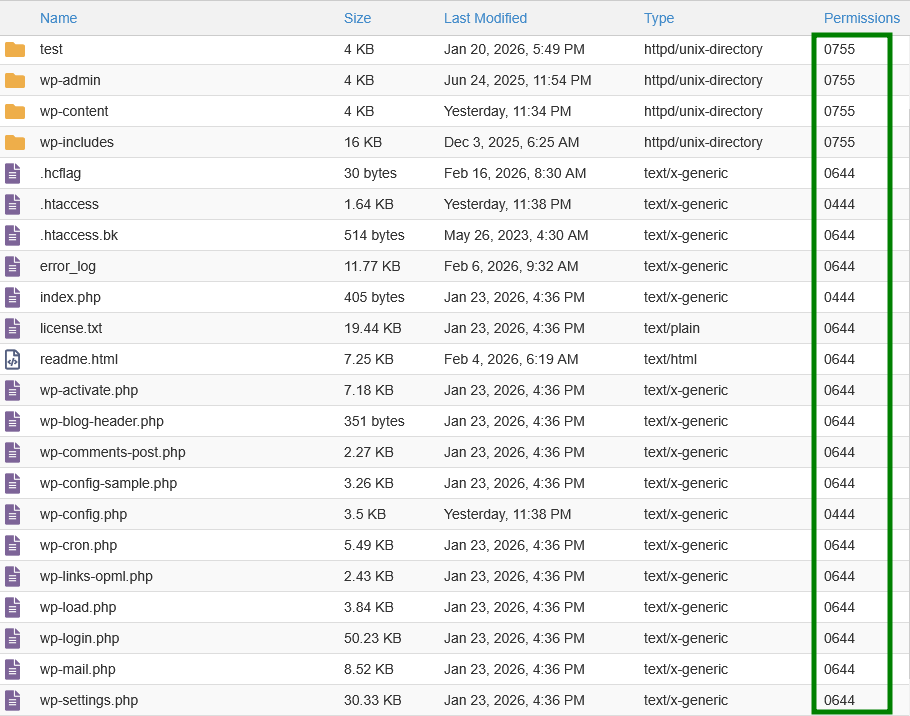
You will see current permissions in the right-hand column called Permissions:
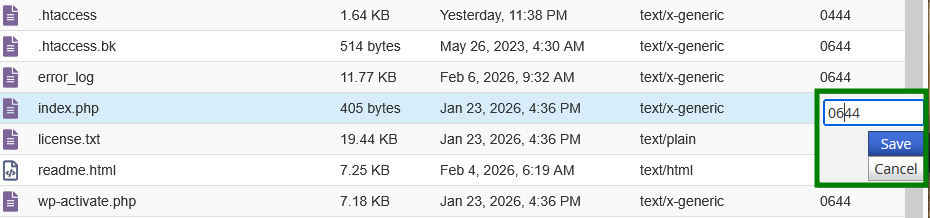
To edit current permissions for a certain file/folder, simply click once on file permissions, set the needed numbers, and press Save (or Enter):
Also, permissions can be modified by right-clicking on a file/folder and selecting the Change Permissions option. A related window pops up:
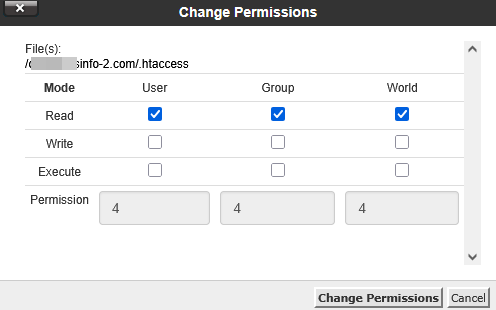
Adjust the checkboxes and click Change Permissions to save.
Tip: The same settings table opens when using the File Manager upper-bar menu, the Permissions option: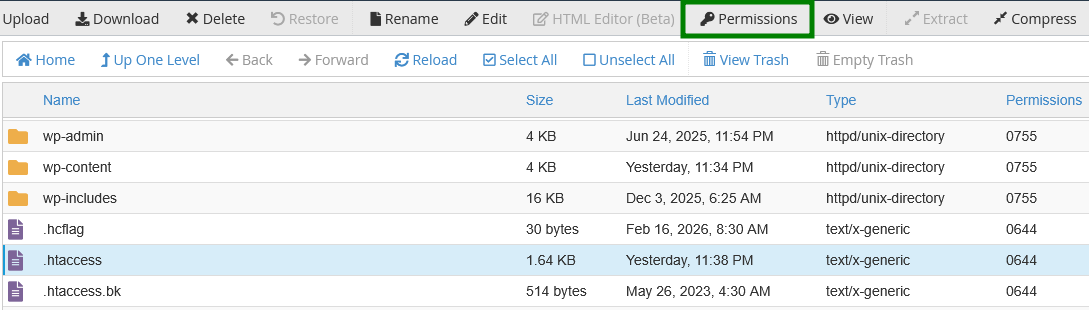
SSH command line
SSH allows you to modify permissions using the chmod command. This method is useful when you need to change permissions for many files.
Access your hosting account via SSH.
Next, navigate to your domain’s root directory using the following command:
cd /home/username/root_folder
Note: Be sure to replaceusernamewith your actual cPanel username androot_folderwith the correct directory name for your domain: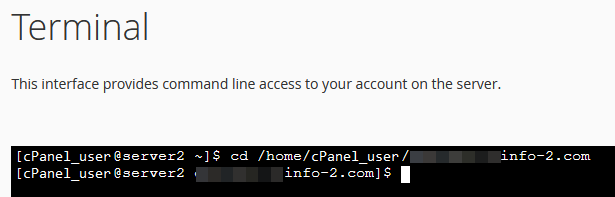
Run the command below to set directory permissions to 0755 and file permissions to 0644:
find ./ -type f -not -perm 644 -not -name ".ftpquota" -exec chmod 644 -c {} \;; find ./ -type d -not -perm 755 -not -group nobody -exec chmod 755 -c {} \;After the command completes, a list of the files and folders whose permissions were updated will be displayed:

Cron Jobs
A Cron job allows you to schedule a command (such as chmod) to run automatically at specific intervals.
In your cPanel, go to the Cron Jobs menu:
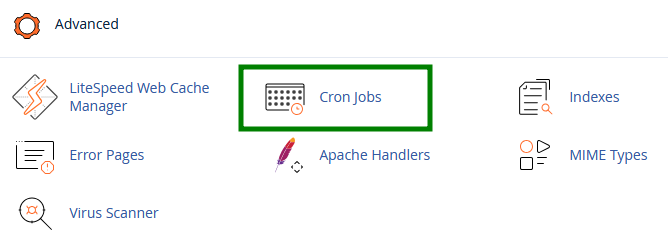
In the Add New Cron Job section, set the Common Settings parameter to Once Per Five Minutes and add the following script to the Command line:
cd /home/username/root_folder && find ./ -type f -not -perm 644 -not -name ".ftpquota" -exec chmod 644 -c {} \;; find ./ -type d -not -perm 755 -not -group nobody -exec chmod 755 -c {} \;
Note 1: Be sure to replaceusernamewith your actual cPanel username androot_folderwith the correct directory name for your domain.
Note 2: The script must not be executed in the main home directory (e.g., under /home/username). The home directory contains system and account-specific folders with custom permission settings required for proper cPanel functionality. Changing those permissions to default values (0755/0644) may lead to security issues, service conflicts, or cause the control panel to malfunction. It can be fixed only by restoring a full cPanel backup.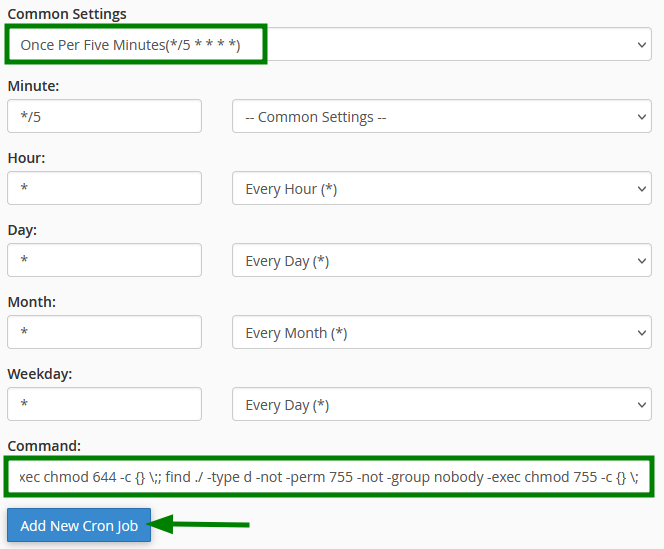
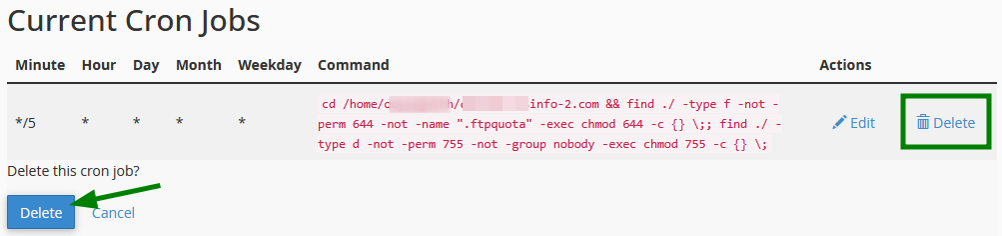
Run the cron job and wait for up to 5 minutes for the script to make the corresponding changes. After that, it is necessary to remove it:
If you are unsure of the correct permission settings, it is best to make minimal changes or contact support to prevent potential security risks or service disruptions.