Wie Sie PHP-Einstellungen auf Spaceship-Webservern konfigurieren
In dieser Anleitung erfahren Sie, wie Sie PHP-Einstellungen auf unseren Spaceship Webservern verwalten, insbesondere wie Sie das PHP Tweaks Plugin verwenden, mit einer php.ini-Datei arbeiten und die PHP-Konfiguration überprüfen.
Unsere Shared-Server verwenden das LiteSpeed-Modul und unterstützen die PHP-Versionen 7.0–7.4 sowie 8.0–8.5.
So verwalten Sie PHP-Einstellungen mit dem PHP Tweaks Plugin
1. Melden Sie sich bei Ihrem cPanel-Konto an.
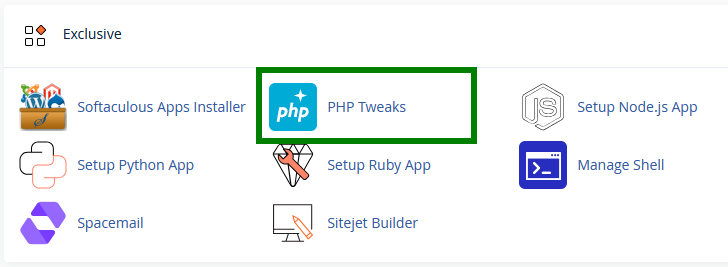
2. Gehen Sie zum Bereich Exklusiv und klicken Sie dann auf das Menü PHP Tweaks:
ODER
a. Öffnen Sie den Hosting-Manager.
b. Suchen Sie Ihren Hosting-Tarif und klicken Sie auf Verwalten.
c. Navigieren Sie zum Bereich Advanced.
d. Erweitern Sie die Option Entwicklungstools und klicken Sie auf PHP. Sie werden zum Fenster PHP-Einstellungen weitergeleitet.
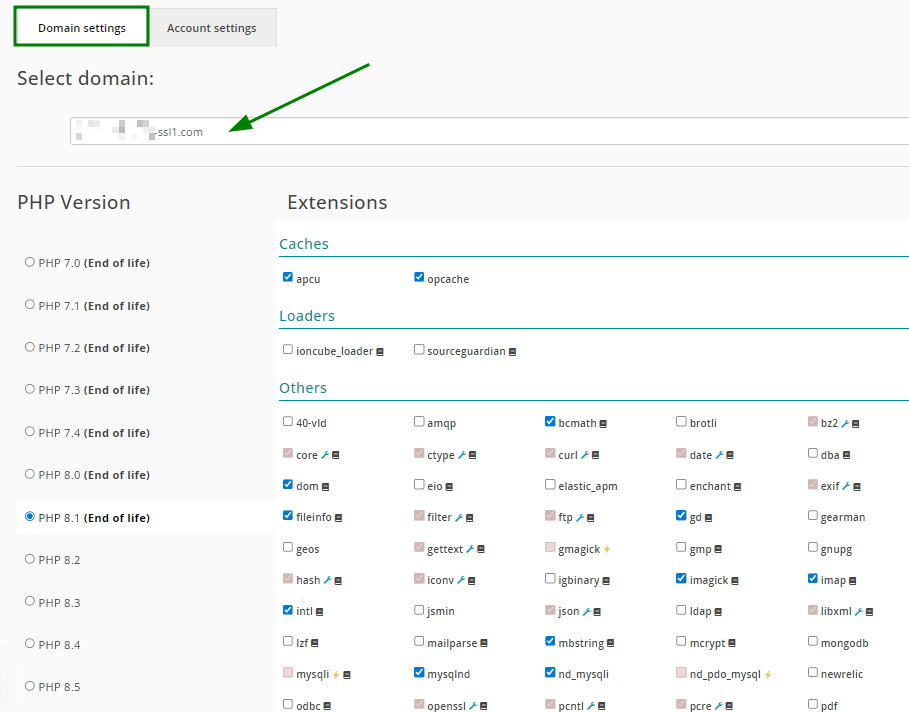
3. Wählen Sie die gewünschte Domain aus der Dropdown-Liste:
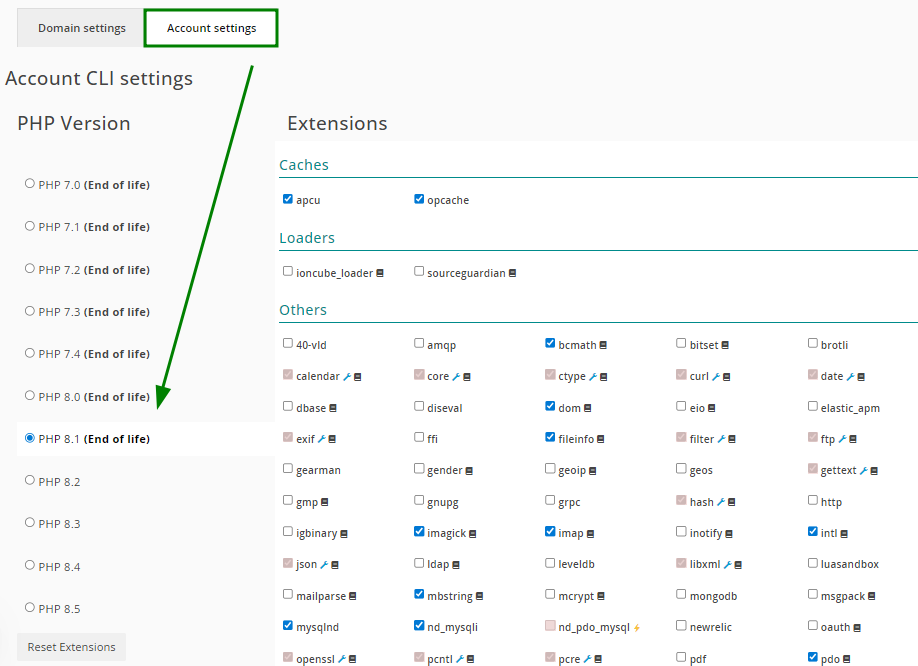
Alternativ können Sie die Registerkarte Kontoeinstellungen verwenden, um Änderungen für Ihr gesamtes cPanel-Konto anzuwenden (dadurch werden alle gehosteten Domains aktualisiert):
Jetzt können Sie die folgende Gruppe von Einstellungen verwalten:
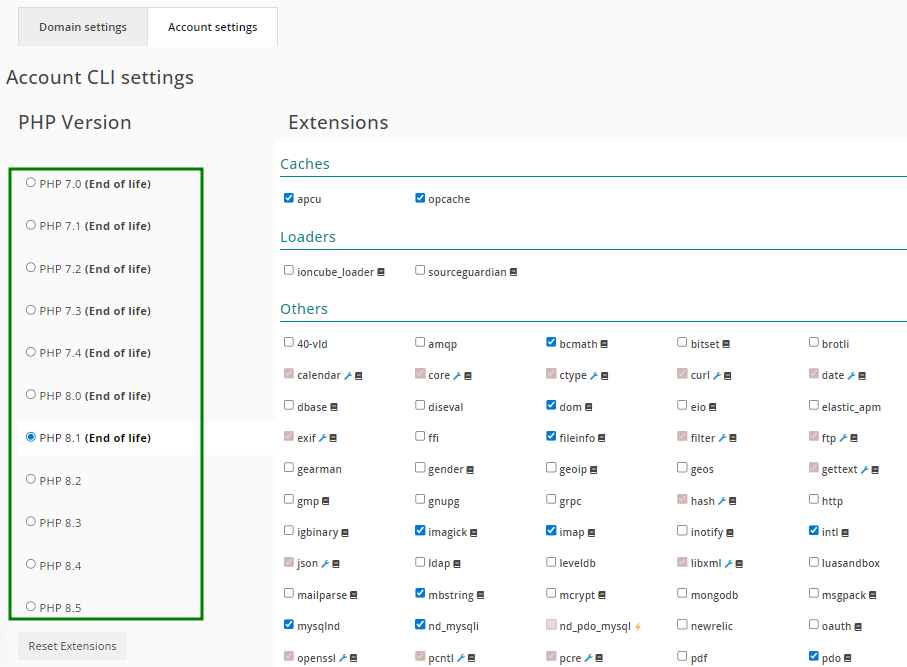
Im Abschnitt PHP-Version können Sie die aktuell verwendete Version prüfen und die gewünschte Version einstellen:
Folgendes sollten Sie beachten:
Verfügbare Module variieren je nach gewählter PHP-Version.
Angewandte PHP-Änderungen können einige Minuten benötigen, bis sie wirksam werden. Falls die Änderungen nicht sofort angezeigt werden, geben Sie ihnen bitte etwas Zeit zur Aktualisierung.
Wenn sich die in den Kontoeinstellungen festgelegte PHP-Version von der in den Domaineinstellungen unterscheidet, hat die Domaineinstellung Vorrang.
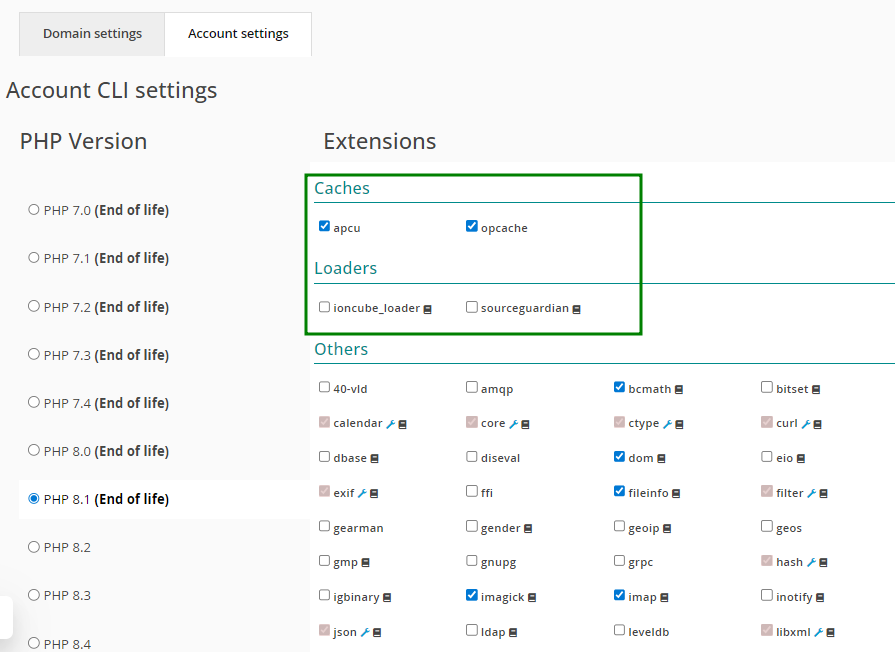
Die Abschnitte Loader und Caches ermöglichen es Ihnen, den PHP-Loader für Ihre Skripte und den PHP-Beschleuniger für das Caching des kompilierten Bytecodes Ihrer PHP-Skripte auszuwählen:
Im Abschnitt Sonstiges finden Sie eine Liste zusätzlicher Module und Erweiterungen, die Sie nach Bedarf aktivieren können:
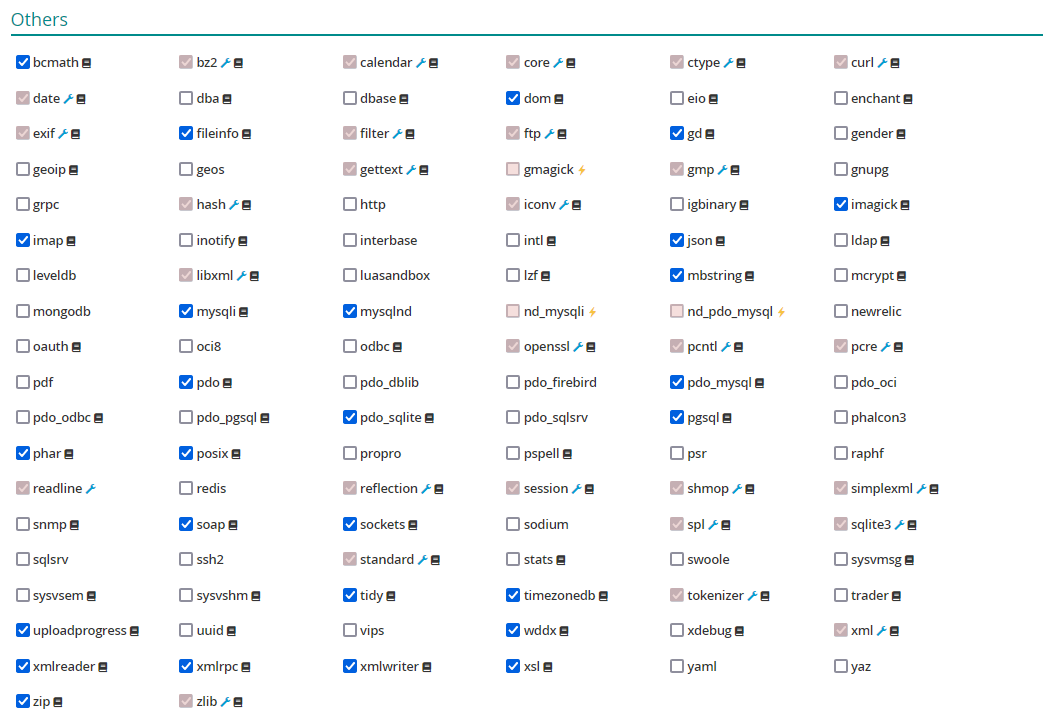
PHP-Erweiterungen, die über PHP Tweaks aktiviert werden, sind für Skripte aktiv, die von einem Webserver verarbeitet werden. Sollten Sie bei der Arbeit über die Kommandozeile oder bei der Installation von Skripten über Softaculous auf PHP-bezogene Probleme stoßen, wenden Sie sich bitte an unseren Kundensupport für weitere Unterstützung.
Bitte beachten Sie die folgenden Modulkonflikte:
nd_mysql steht im Konflikt mit mysql;
nd_mysqli steht im Konflikt mit mysqli;
nd_pdo_mysql steht im Konflikt mit pdo_mysql;
gmagick steht im Konflikt mit imagick.
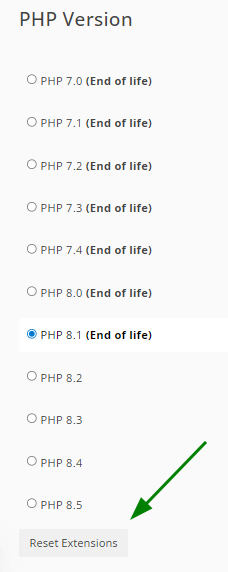
4. Um die Standard-PHP-Einstellungen für eine Domain wiederherzustellen, wählen Sie diese im Dropdown-Menü aus und klicken Sie auf Erweiterungen zurücksetzen. Dadurch werden alle Änderungen rückgängig gemacht und die Standardkonfiguration angewendet:
So arbeiten Sie mit einer php.ini-Datei
Manchmal müssen Sie PHP-Limits (wie memory_limit, post_max_size, upload_max_filesize usw.) über die php.ini-Datei anpassen, anstatt das PHP Tweaks Plugin zu verwenden.
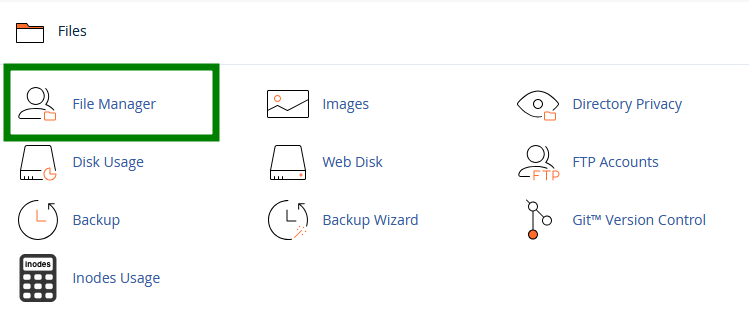
1. Melden Sie sich bei Ihrem cPanel-Konto an und navigieren Sie zum Bereich Dateien. Wählen Sie dann das Menü Dateimanager aus:
ODER
a. Öffnen Sie den Hosting-Manager.
b. Suchen Sie Ihren Hosting-Tarif und klicken Sie auf die Schaltfläche Verwalten.
c. Navigieren Sie zum Bereich Dateien und Speicher.
d. Klicken Sie auf Dateien verwalten neben Ihrem Domainnamen. Sie werden zum Stammverzeichnis Ihrer Website im Dateimanager weitergeleitet.
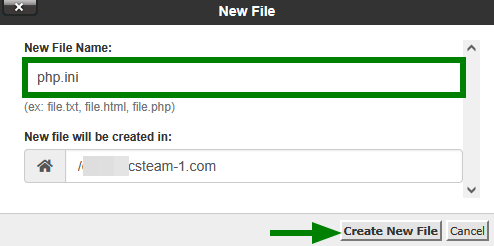
2. Klicken Sie im Stammordner der Domain auf +Datei und erstellen Sie eine Datei mit dem Namen php.ini:
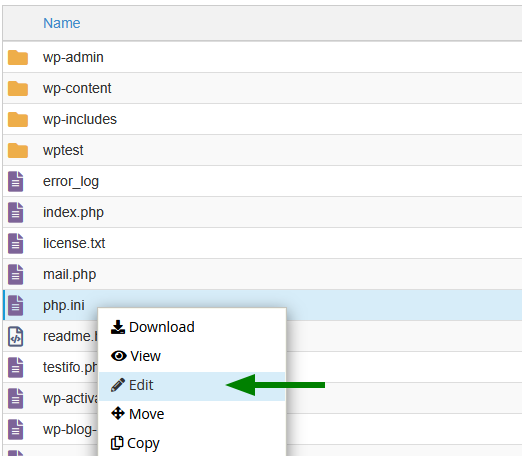
3. Suchen Sie die neu erstellte Datei in der Liste, klicken Sie mit der rechten Maustaste darauf und wählen Sie Bearbeiten:
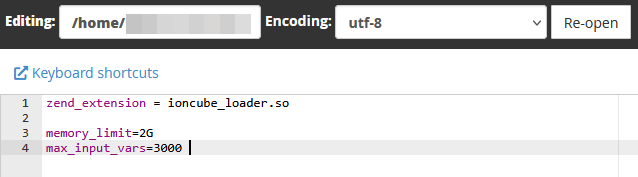
4. Fügen Sie die erforderlichen PHP-Einstellungen hinzu. In diesem Beispiel fügen wir memory_limit und max_input_vars hinzu:
5. Nachdem alle Änderungen abgeschlossen sind, klicken Sie auf Änderungen speichern.
So überprüfen Sie die PHP-Konfiguration
Um zu bestätigen, ob Ihre PHP-Einstellungen korrekt übernommen wurden, können Sie ein Skript mit der Funktion phpinfo() erstellen. Diese liefert detaillierte Informationen über Ihre aktuelle PHP-Konfiguration und ist hilfreich für die Fehlersuche, da sie alle EGPCS-Daten (Environment, GET, POST, Cookie, Server) enthält.
Führen Sie die Funktion wie folgt aus:
1. Gehen Sie im Dateimanager in das Stammverzeichnis Ihrer Website.
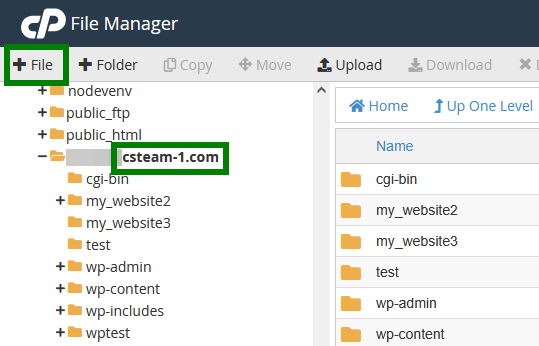
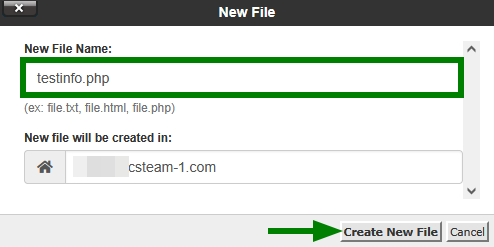
2. Klicken Sie auf +Datei, um eine neue Datei zu erstellen – nennen Sie sie beispielsweise testinfo.php:
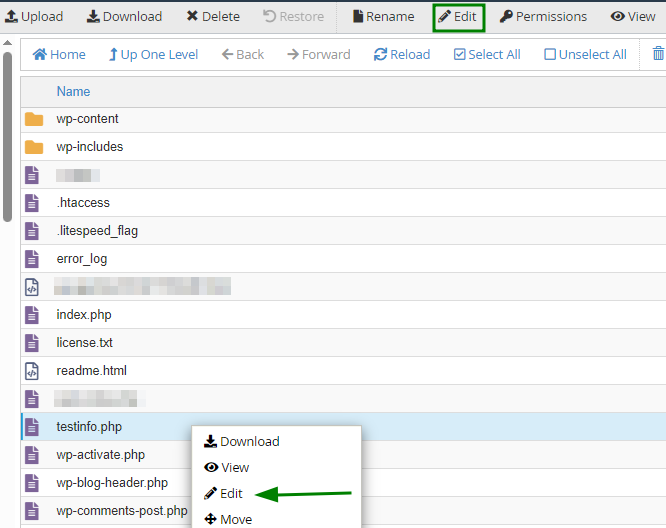
3. Suchen Sie die neu erstellte Datei in der Liste und klicken Sie im oberen Menü auf Bearbeiten oder klicken Sie mit der rechten Maustaste auf die Datei und dann auf Bearbeiten:
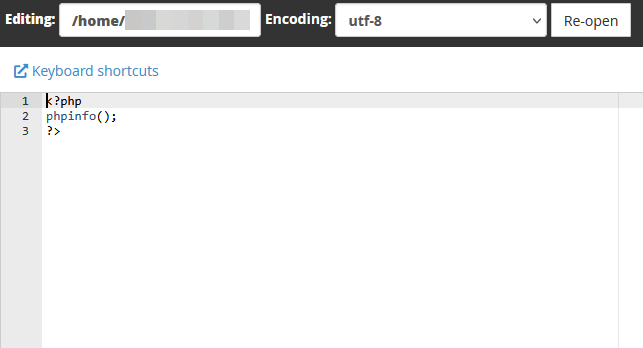
4. Fügen Sie folgenden Code ein:
<?php
phpinfo();
?>
Klicken Sie auf Änderungen speichern:
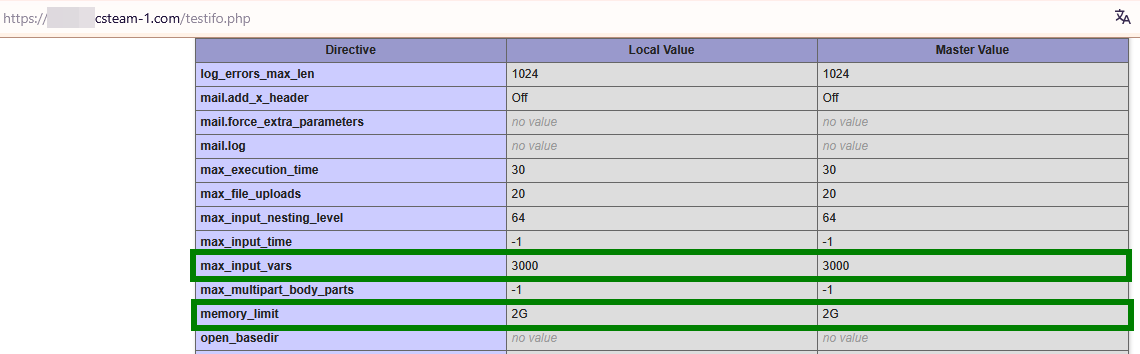
5. Um die detaillierten Informationen zur PHP-Konfiguration Ihrer Domain anzuzeigen, öffnen Sie http://yourdomain.tld/filename.php in Ihrem Browser, ersetzen Sie jedoch yourdomain.tld durch Ihre Domain und filename durch den Namen Ihrer PHP-Datei:
Sicherheitstipp: Löschen Sie diese Datei, nachdem Sie die Informationen überprüft haben, um zu vermeiden, dass sensible Konfigurationsdetails offengelegt werden.