E-postalarımı Spacemail'e nasıl taşıyabilirim?
İş e-postasını taşımak mı istiyorsunuz? E-postalarınızı Spacemail'e taşımanın iki yolu vardır: Geçiş aracımızı kullanmak veya üçüncü taraf bir e-posta istemcisi kullanmak.
Geçiş aracı, e-postaların IMAP protokolü üzerinden aktarılmasına olanak tanır, yedekleme dosyalarına gerek yoktur.
Üçüncü taraf e-posta istemcileri üzerinden aktarım, posta kutunuzu Outlook veya Thunderbird gibi bir e-posta istemcisine bağlayıp aktarımı onların arayüzünü kullanarak gerçekleştirerek yapılır.
Spacemail Geçiş aracıyla e-postaları aktarma
Aboneliğinizi unbox edip geçiş için posta kutusunu oluşturduktan sonra, Spacemail webmail'de oturum açın, Ayarlar > E-posta geçişi bölümüne gidin ve Spacemail'e taşı seçeneğine tıklayın.
.01kypnjjhbdjdzndpfggp9jke4.png)
Ayrıntıları doldurun
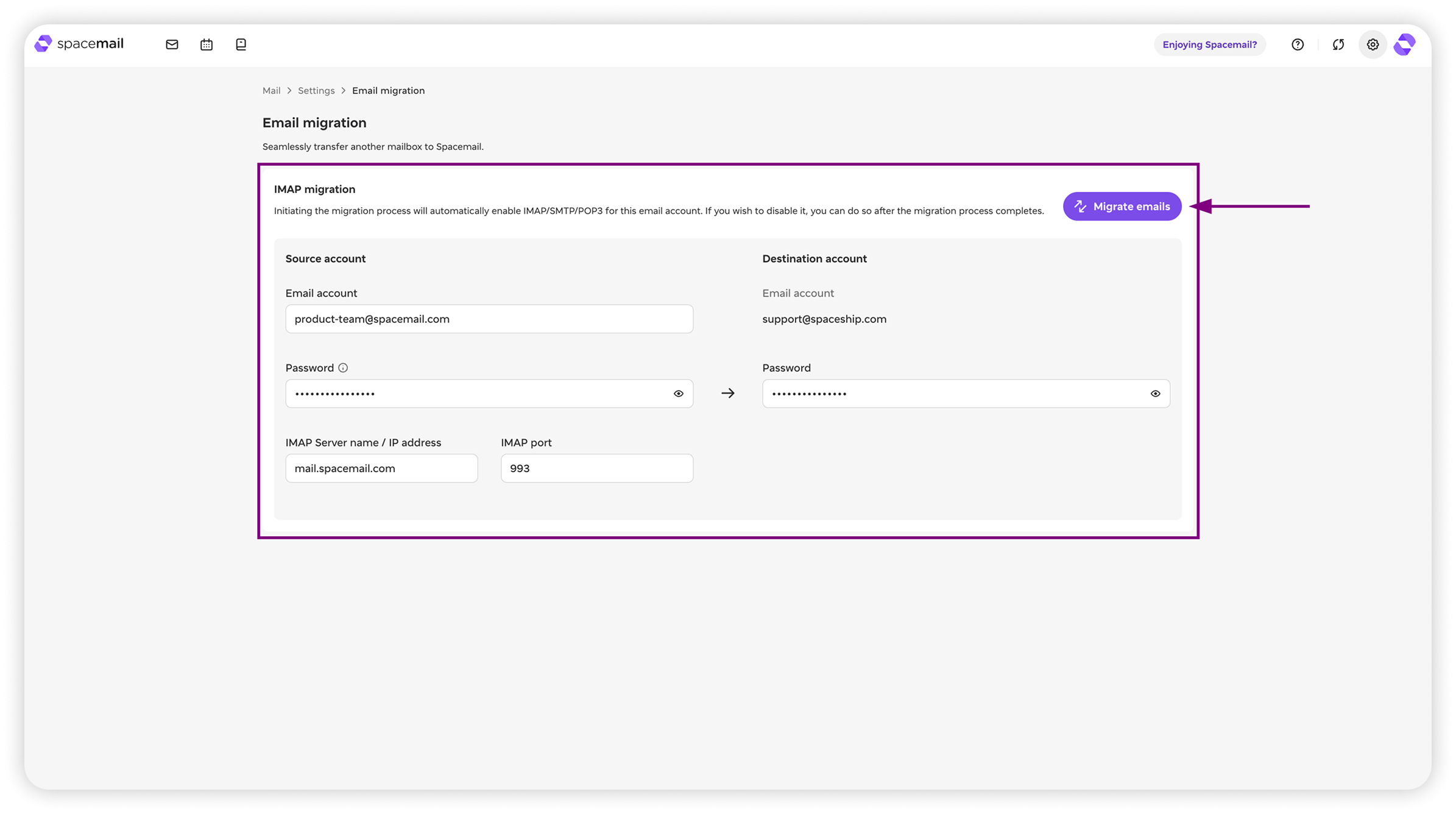
Geçiş aracı penceresinde, kaynak hesapla ilgili aşağıdaki ayrıntıları girin:
E-posta hesabı - yer tutucuda olduğu gibi tam adres.
Parola - o hesabın parolası
IMAP sunucu adı ve IMAP bağlantı noktası - bunlar sağlayıcınıza bağlı olarak değişir, bu nedenle bunları doğrudan hizmet sağlayıcınızla kontrol edin. Alternatif olarak, genellikle bir arama motoruna [sağlayıcı adı] için IMAP sunucusu ve bağlantı noktası yazarak IMAP ayarlarını bulabilirsiniz.
Ayrıntıları doldurduktan sonra, Spacemail hesabının parolasını girin.
E-postaları taşı
Not: geçişi başlatmadan önce, önce e-posta sağlayıcınız tarafında kaynak posta kutusu (e-postaların aktarıldığı posta kutusu) için IMAP ayarlarını açmanız gerekir. Aksi takdirde geçiş başarısız olur.
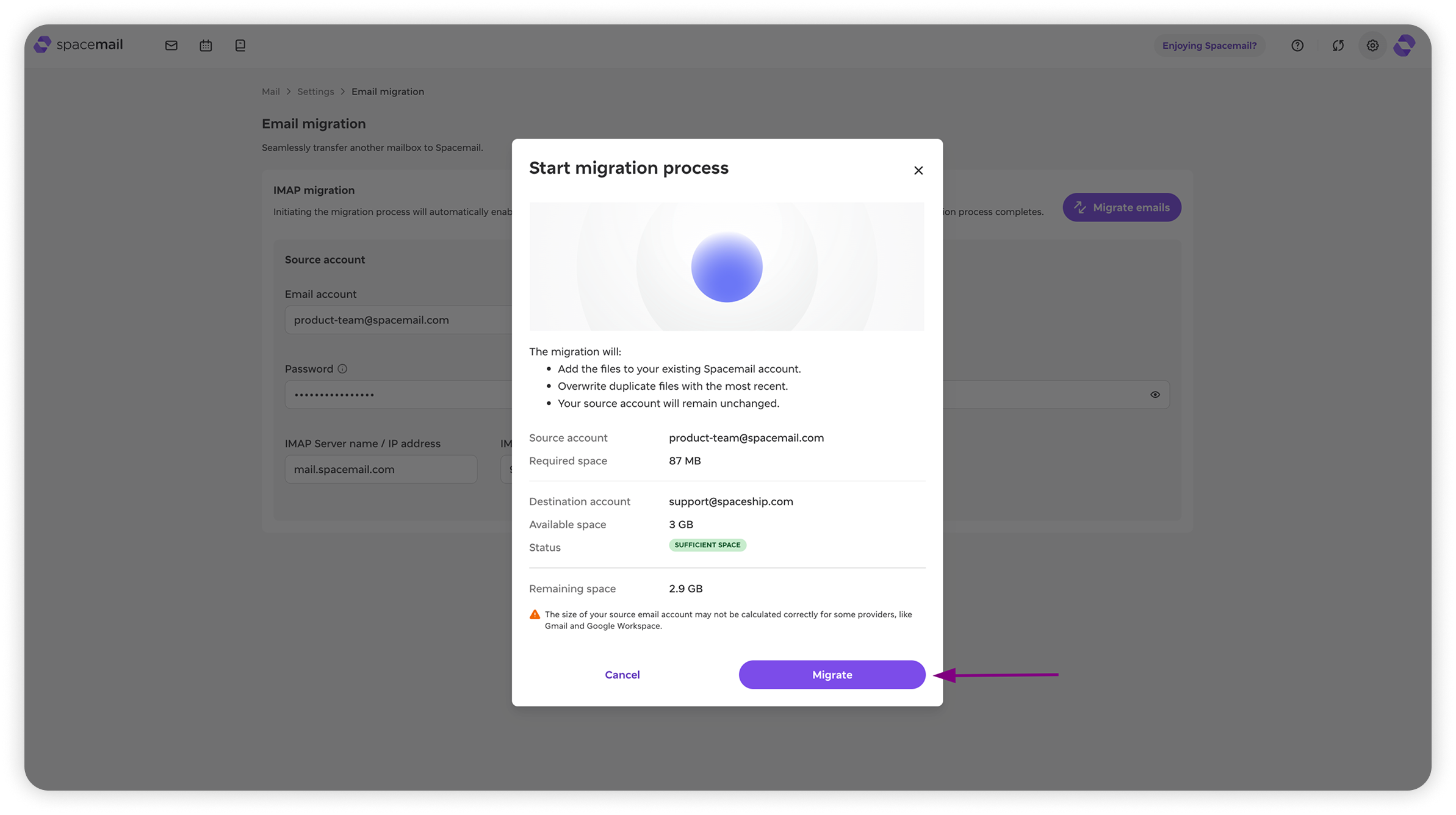
Tüm ayrıntılar doldurulduktan sonra E-postaları taşı seçeneğine tıklayabilirsiniz. Açılır pencerede, kaynak hesabın taşınması için ne kadar alan gerektiğini ve kullanılabilir alanı göreceksiniz. Yeterli alanınız varsa, işlemi başlatmak için Taşı seçeneğine tıklayın.
Yetersiz alan sorunu
Yeterli alan olmadığını gösteriyorsa, aşağıdakileri deneyebilirsiniz:
Bir üst plana yükseltmeyi deneyin. Starter ile Advanced arasında değişen üç planımız var. Her üst adım daha fazla depolama alanı sunar.
Planınızı yükseltmek için Spacemail Manager bölümüne gidin, yükseltmek istediğiniz aboneliğin yanındaki Yönet seçeneğine, ardından Planı değiştir seçeneğine tıklayın. İhtiyaçlarınıza en uygun planla devam edin.
Zaten Advanced planımızı kullanıyorsanız, kullanılabilir en fazla depolama alanına sahipsiniz. Geçişe devam etmek için kaynak posta kutunuzdan bazı e-postaları silmeniz veya abonelik için ek depolama alanı satın almanız gerekir. Bunu yapmak için Spacemail Manager bölümünü açın, aboneliğinizin yanındaki üç noktaya tıklayın ve Daha fazla depolama alanı ekle seçeneğini belirleyin.
E-posta adresi veya parola yanlış. Lütfen tekrar deneyin. hatası
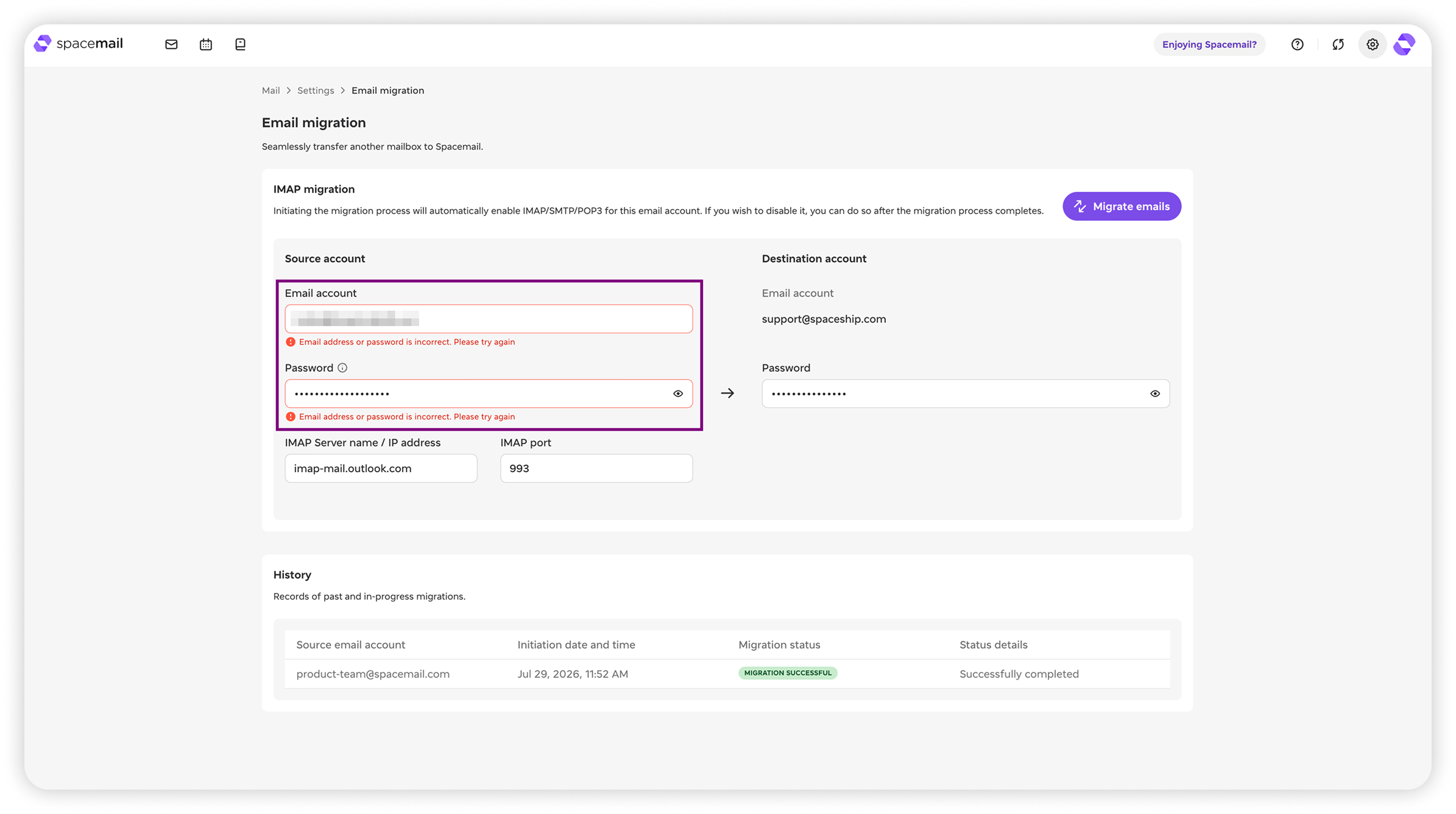
Geçiş sırasında bu hatayla karşılaşırsanız, lütfen kimlik bilgilerinizin doğru olduğunu kontrol edin ve tekrar deneyin. Doğru ayrıntılara rağmen hata görünmeye devam ederse, sorunu çözmeyi denemek için atabileceğiniz birkaç adım daha şunlardır:
Uygulama parolanızı kullanmayı deneyin
Hesap parolanız yerine uygulama parolanızı kullanmanız gerekebilir. Bunun ne olduğunu bilmiyorsanız, taşıma yaptığınız sağlayıcının tarafında (ör. Gmail) bunu ayarlamanız gerekebilir.
Bir uygulama parolası kullanıyorsanız, kaynak posta kutunuz tarafında 2FA açık olmalıdır.
Uygulama parolasını kullanmıyorsanız, lütfen geçiş sırasında kaynak posta kutusu için 2FA'yı kapatın (geçiş tamamlandıktan sonra tekrar açabilirsiniz).
IMAP ayarlarınızı kontrol edin
IMAP sunucu adının ve Bağlantı Noktasının kaynak hesabınızdakilerle eşleştiğini kontrol edin.
Kaynak e-posta hesabınız tarafında IMAP'in açık olduğunu kontrol edin.
Sorun devam ederse, lütfen bize bir talep gönderin — size 7/24 yardımcı olmak için buradayız.
İlerlemeyi izleme
Not: Aynı anda yalnızca 1 geçiş çalıştırmak mümkündür.
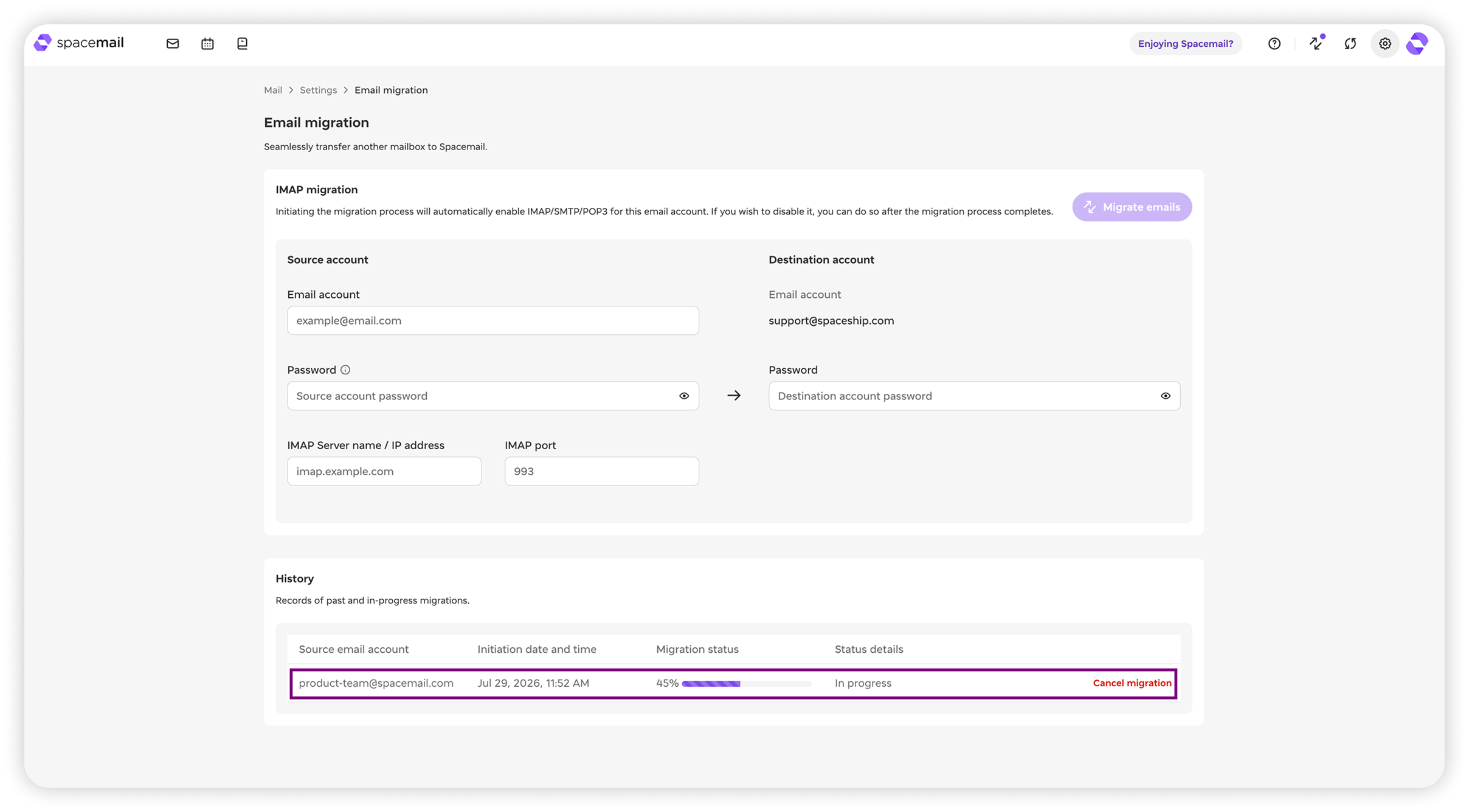
Geçiş süresi; taşıdığınız posta kutusunun boyutu, internet hızı ve diğer değişkenler gibi faktörlere bağlıdır — bu nedenle kesin bir zaman aralığı belirtmek mümkün değildir. Ancak geçişi başlattıktan sonra aşağıdaki Geçmiş bölümünde ilerlemeyi göreceksiniz. Bu bölüm tüm geçişlerinizi ve durumlarını gösterecektir. Bazen durum, e-postalar başarıyla taşınmış olsa bile Başarısız olarak görünebilir. Her ihtimale karşı tekrar kontrol etmek her zaman faydalıdır.
Hiç e-posta aktarılmadıysa, lütfen bize bir talep gönderin — size 7/24 yardımcı olmak için buradayız.
Geçişi iptal etmeye karar verirseniz, Geçişi iptal et seçeneğine tıklayın. Daha sonra yeniden başlatabilirsiniz.
Üçüncü taraf bir istemciyle e-postaları aktarma
Aboneliğinizi unbox edip taşımak istediğiniz bir posta kutusu oluşturduktan sonra, Spacemail webmail hesabınızda oturum açın.
Bir e-posta istemcisine bağlanın
Oturum açtıktan sonra Ayarlar bölümüne gidin ve IMAP/SMTP bağlantılarını etkinleştirin. Bir e-posta istemcisini yapılandırmak için ayrıntıları almak üzere Yapılandırmayı gör seçeneğine tıklayın. Aşağıdaki yapılandırma ayrıntılarını da kullanabilirsiniz:
Kullanıcı adı: tam Spacemail e-posta adresi
Parola: bu e-posta hesabının parolası
Gelen/Giden sunucu:mail.spacemail.com
IMAP sunucu bağlantı noktası: 993
SMTP sunucu bağlantı noktası: 465
Bağlantı güvenliği: SSL
Taşımak istediğiniz her iki posta kutusunu da kaynak ve hedef olarak tek bir arayüze eklemek için herhangi bir e-posta istemcisi kullanın (biz Thunderbird öneriyoruz).
E-postaları taşı
E-posta istemcisi içinde eski hesabınızdaki tüm iletileri seçin ve bunları eski gelen kutusu klasörünüzden yeni gelen kutusu klasörünüze taşıyın (sürükleyip bırakarak). Klasör yapınızı korumak için alt klasörleri de aynı şekilde taşıyabilirsiniz. İşlem, ileti sayısına bağlı olarak biraz zaman alabilir.