Cómo configurar FastVPN en Amazon Fire TV
Configurar una VPN en tu Amazon Fire TV te ayuda a transmitir de forma segura, proteger tu privacidad y acceder a tu contenido favorito sin límites. FastVPN para Amazon Fire TV lo hace sencillo — no se requiere configuración de router. En esta guía, aprenderás cómo instalar, activar y conectar FastVPN en Amazon Fire TV para disfrutar de streaming seguro y sin restricciones.
Lo que necesitarás:
Una suscripción activa de FastVPN;
Dispositivo Amazon Fire TV ;
Conexión a Internet;
Un dispositivo móvil con navegador para completar la autenticación.
Consigue una suscripción de FastVPN
Desde el navegador de tu dispositivo móvil, abre la página de FastVPN y selecciona el plan que desees:
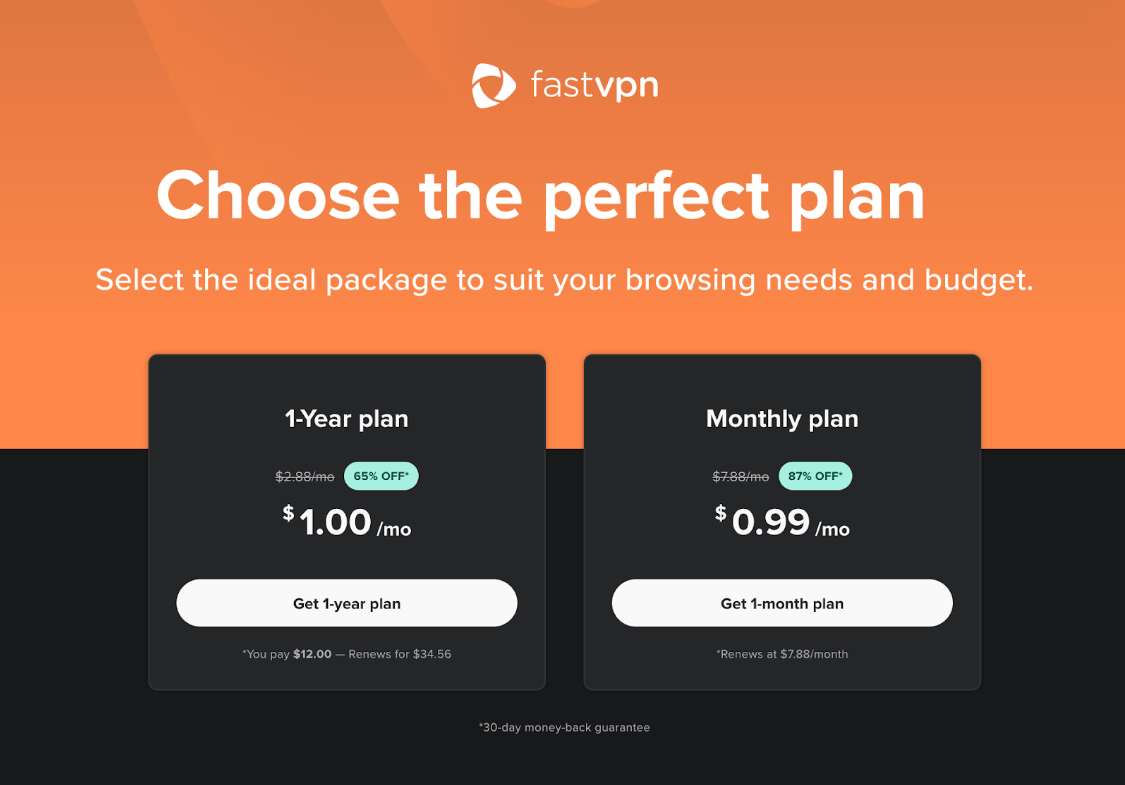
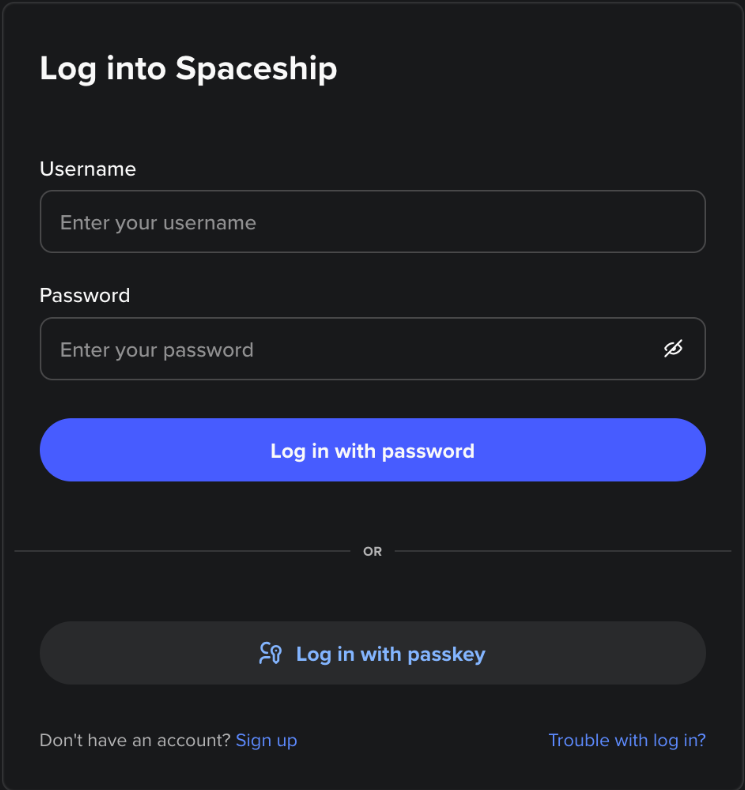
Una vez que hagas clic en Comenzar, se te pedirá que inicies sesión en tu cuenta de Spaceship:
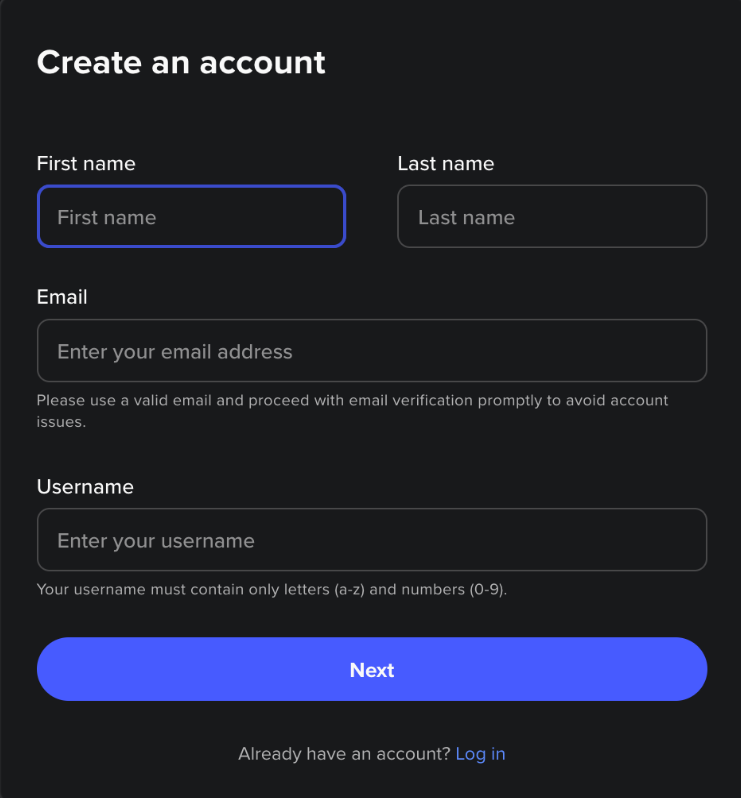
o crear una cuenta nueva:
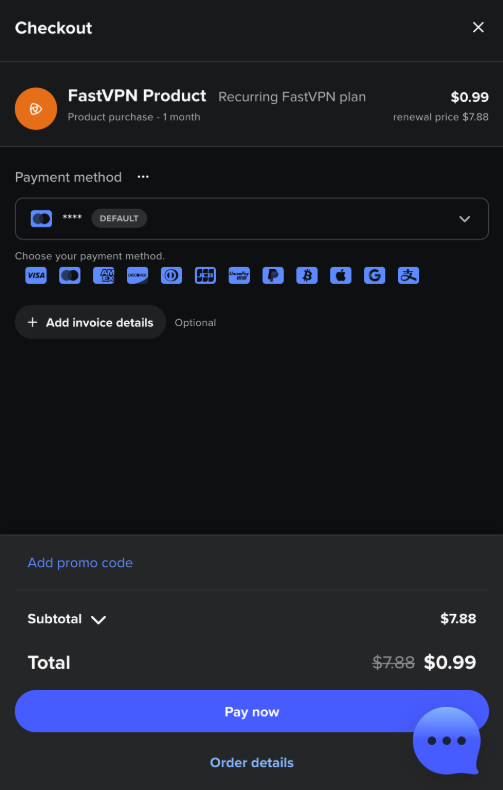
Una vez que inicies sesión, introduce los datos de pago y confirma tu compra:
Instala FastVPN en Amazon Fire TV
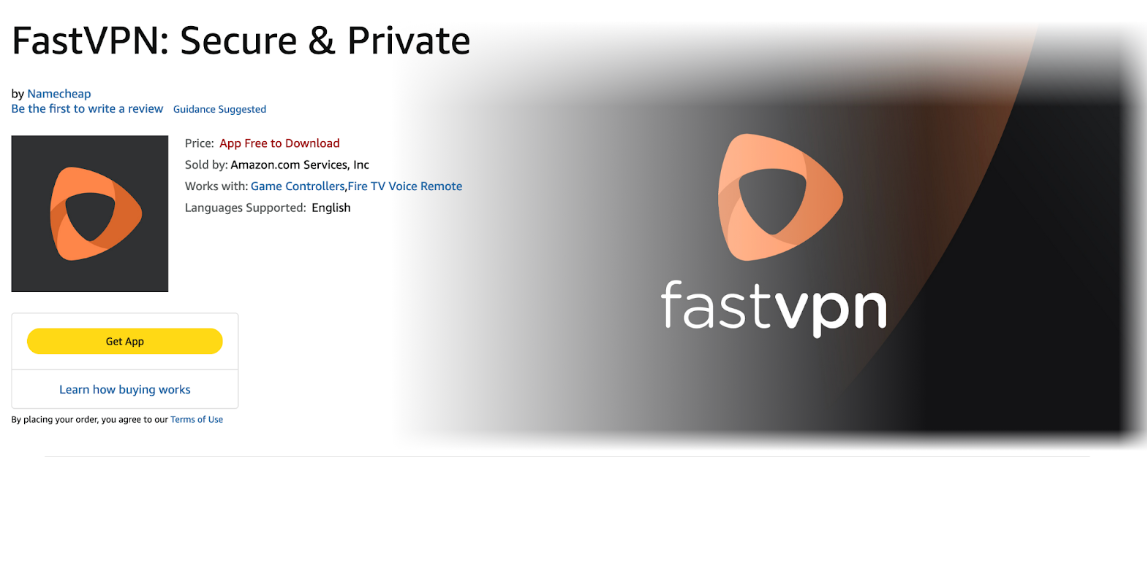
1) En tu Amazon Fire TV, abre la App Store.
2) En la barra de búsqueda, escribe FastVPN y selecciona la app o ve directamente al siguiente enlace: https://www.amazon.com/gp/product/B07H7L45RV.
3) Haz clic en Obtener App o Instalar:
Inicia sesión en tu cuenta de FastVPN
1) Inicia la app FastVPN en tu TV.
2) Después de la pantalla de inicio, aparecerá la pantalla Bienvenido a FastVPN con un código QR:
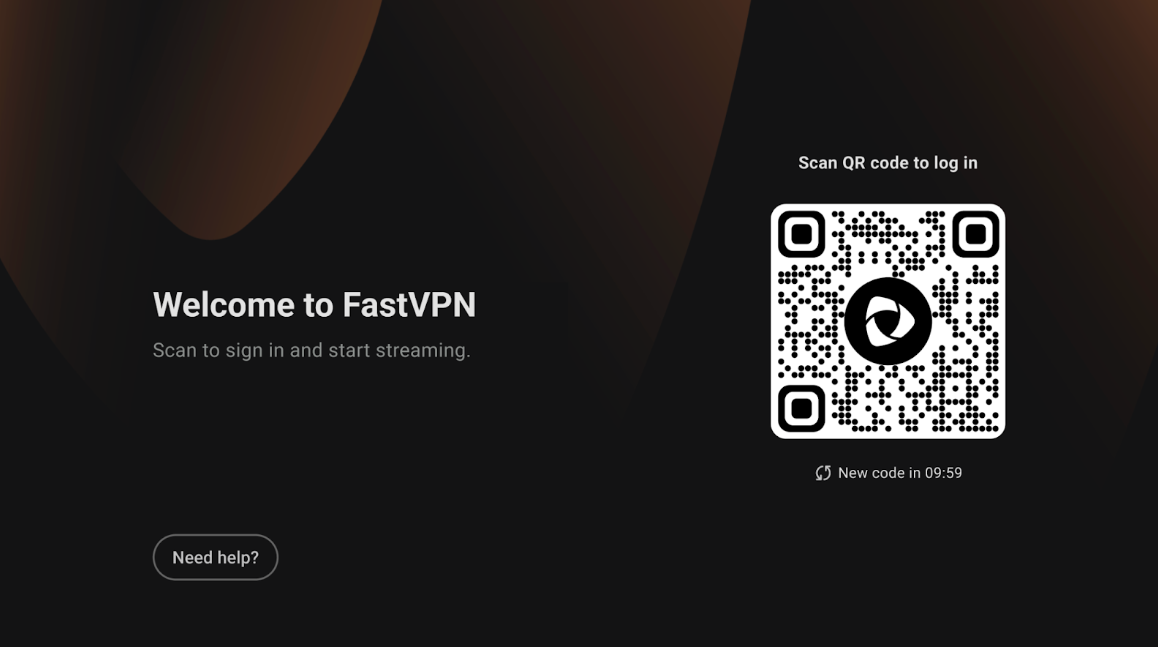
Escanea el código QR usando la cámara de tu teléfono móvil o tableta.
Se abrirá la página de inicio de sesión de FastVPN en tu navegador predeterminado.
3) Elige tu método de inicio de sesión:
Iniciar sesión con Spaceship — si compraste FastVPN a través de Spaceship.
Iniciar sesión con Namecheap — si tu suscripción de FastVPN está vinculada a tu cuenta de Namecheap.
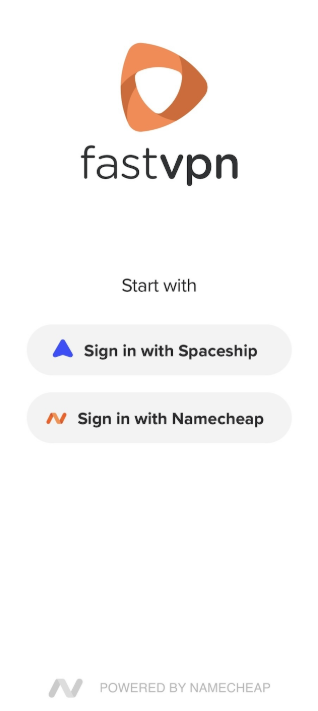
4) Introduce tus credenciales y pulsa Iniciar sesión.
5) Una vez completada la autenticación, verás el mensaje “Dispositivo vinculado correctamente” en el navegador de tu móvil:
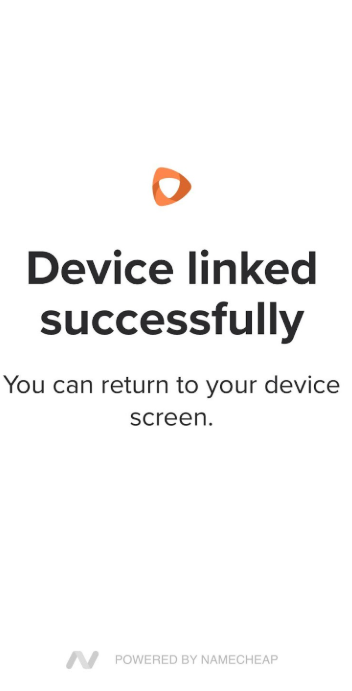
6) Vuelve a tu Amazon Fire TV — la app continuará automáticamente con el siguiente paso.
Revisa la Política de Privacidad
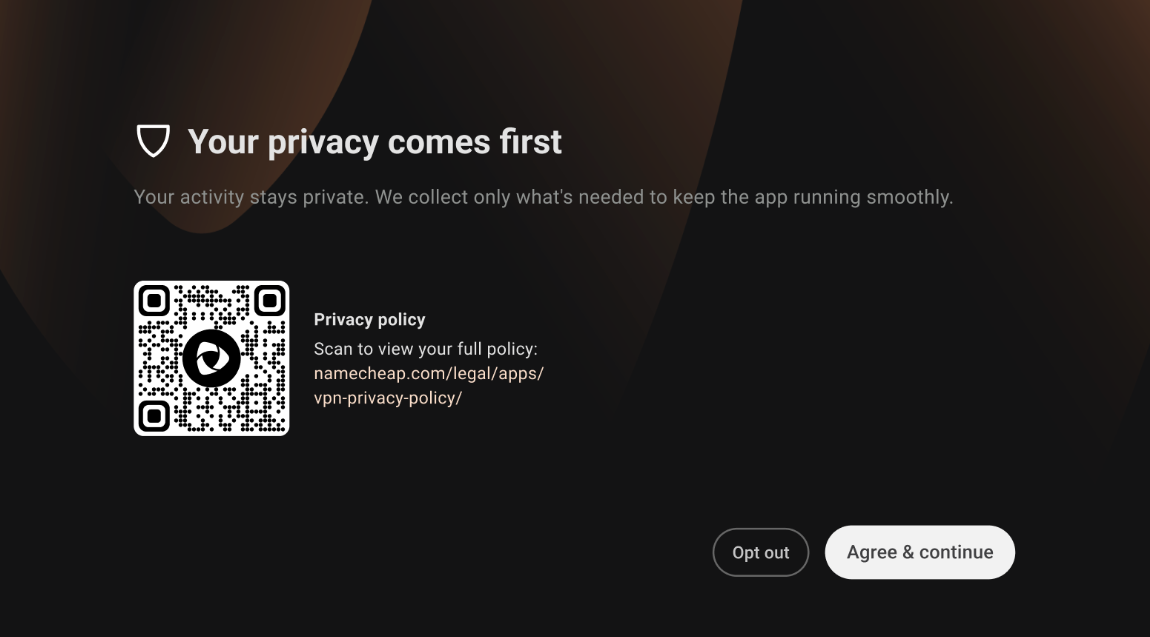
1) En tu Amazon Fire TV, la app mostrará una pantalla de Política de Privacidad.
2) Puedes escanear el código QR para ver la política completa en línea.
3) Selecciona Aceptar y continuar para proceder.
Conéctate a FastVPN
1) Después de la configuración, llegarás a la Pantalla principal de FastVPN.
2) La pantalla principal muestra:
Tu ubicación actual (por ejemplo, Estados Unidos – Para streaming).
Un botón de Conectar para iniciar una sesión VPN.
Una lista de regiones disponibles y servidores optimizados para streaming.
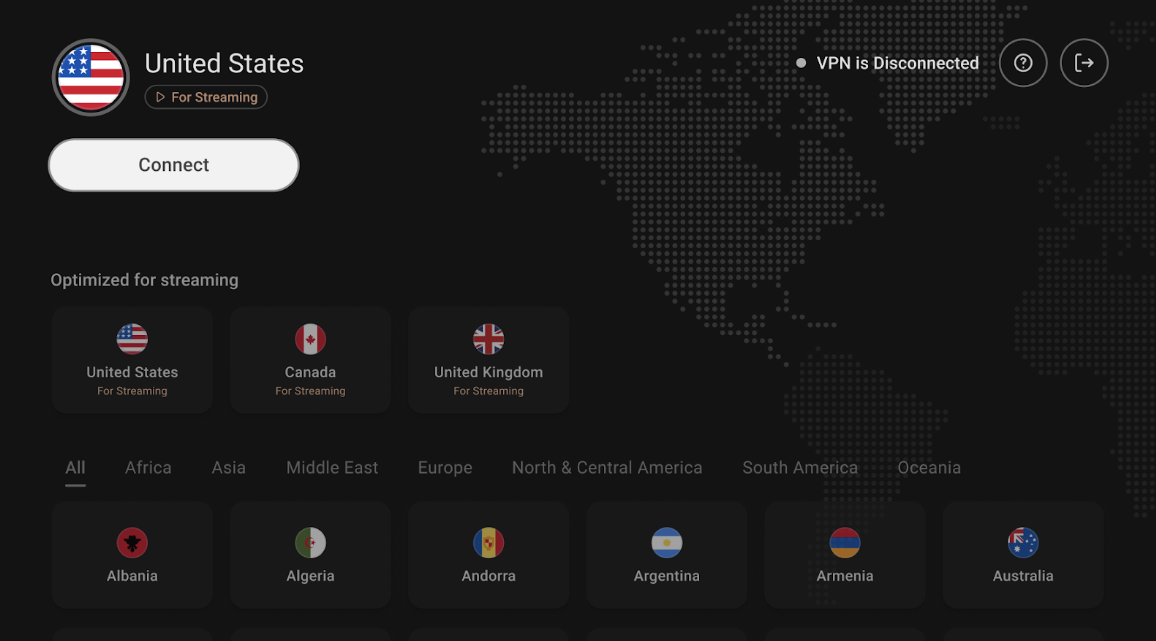
3) Selecciona tu país preferido y haz clic en Conectar.
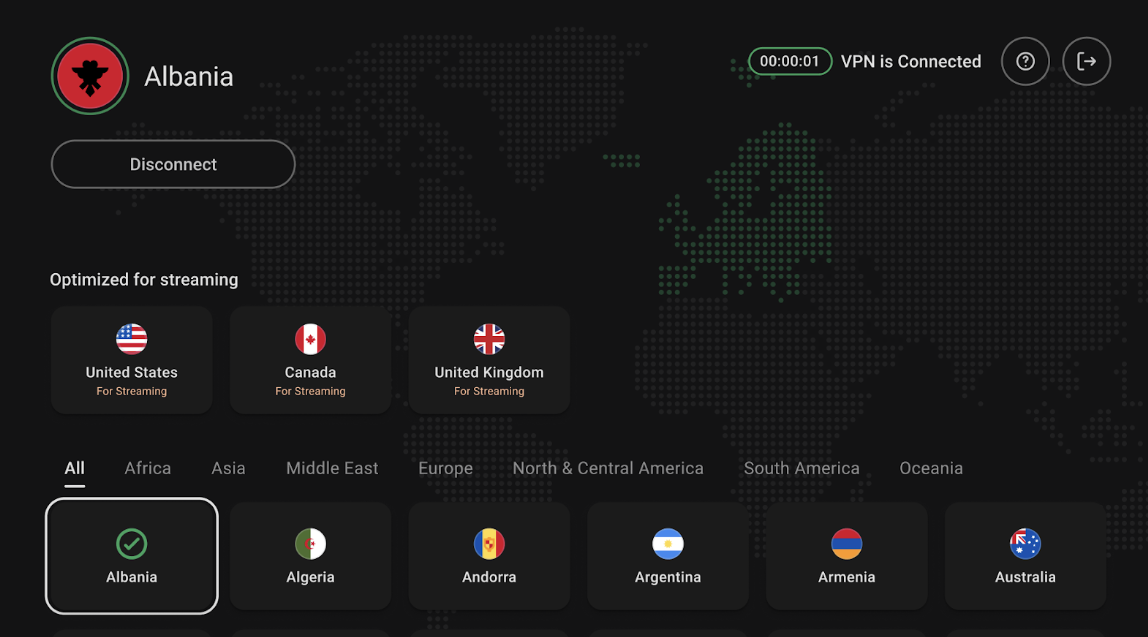
4) El estado de la VPN cambiará a Conectado una vez que se establezca la conexión:
Verifica la conexión
1) Desde la pantalla principal de FastVPN, confirma que el indicador de estado muestre Conectado.
2) Opcionalmente, abre una app de streaming (por ejemplo, Netflix, YouTube) para verificar el contenido regional.
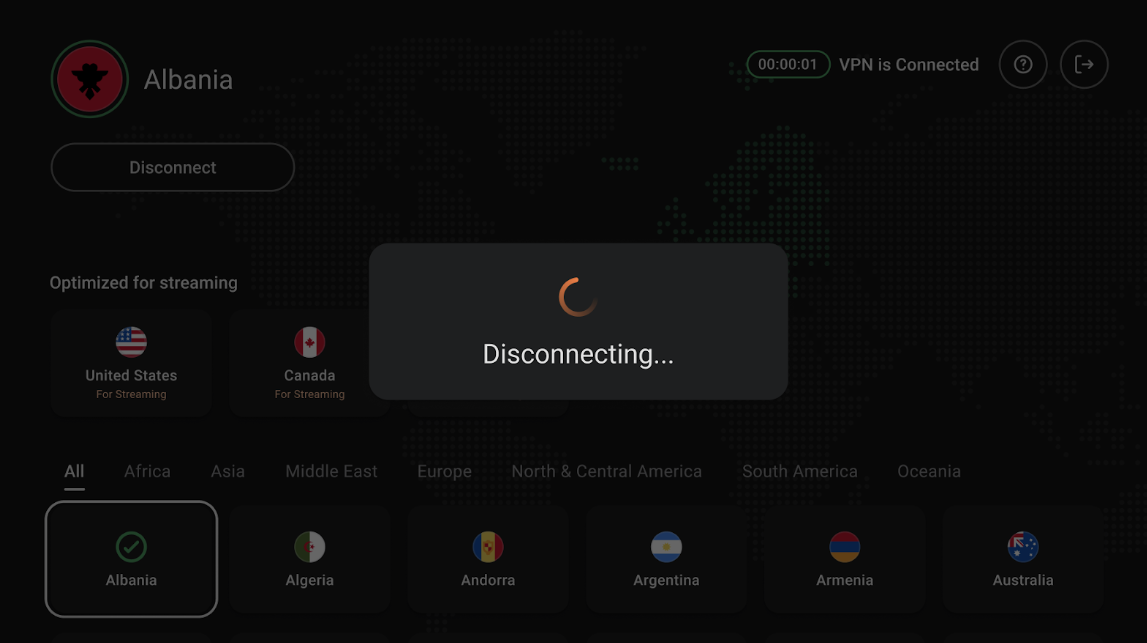
3) Para desconectarte, selecciona Desconectar desde la misma pantalla:
Contacta con Soporte o Envía Comentarios
Si necesitas ayuda o quieres compartir comentarios:
1) Desde la pantalla principal de FastVPN, selecciona el icono de ayuda (?) en la esquina superior derecha.
2) Aparecerá un código QR. Escanéalo con tu dispositivo móvil para enviar Comentarios o Reportar un problema.
¡Y eso es todo! Si necesitas más ayuda, por favor contacta con nuestro Equipo de Soporte.