Como alterar a minha palavra-passe do Spacemail?
É possível alterar a palavra-passe do endereço Spacemail de duas formas:
Altera a tua palavra-passe através do webmail do Spacemail
Gera uma nova palavra-passe usando o Gestor Spacemail
Altera a tua palavra-passe através do webmail do Spacemail
Para definires a tua própria palavra-passe, inicia sessão no Webmail do Spacemail.
Clica no botão Definições no canto superior direito.
Procura o cartão Centro de Segurança e clica em Abrir Centro de Segurança.
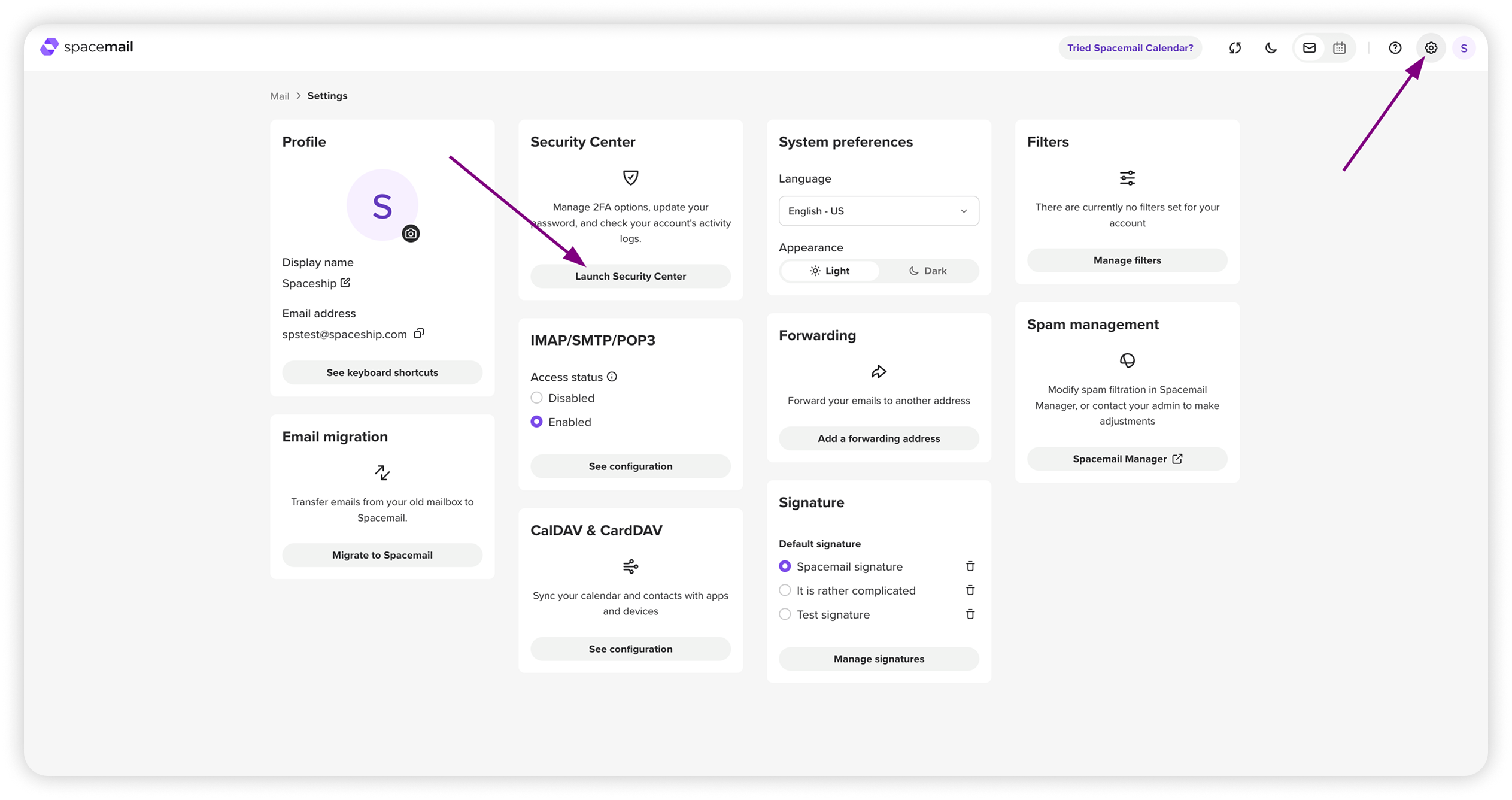
Clica em Alterar palavra-passe, introduz a tua palavra-passe atual e a nova, e clica em Guardar. Vais ver uma notificação pop-up sobre a alteração bem-sucedida da palavra-passe.
Altera a tua palavra-passe no Gestor Spacemail
Vai ao Gestor Spacemail e encontra a subscrição Spacemail associada à caixa de correio em questão.
Clica nos três pontos ao lado da caixa de correio pretendida e seleciona Repor palavra-passe.
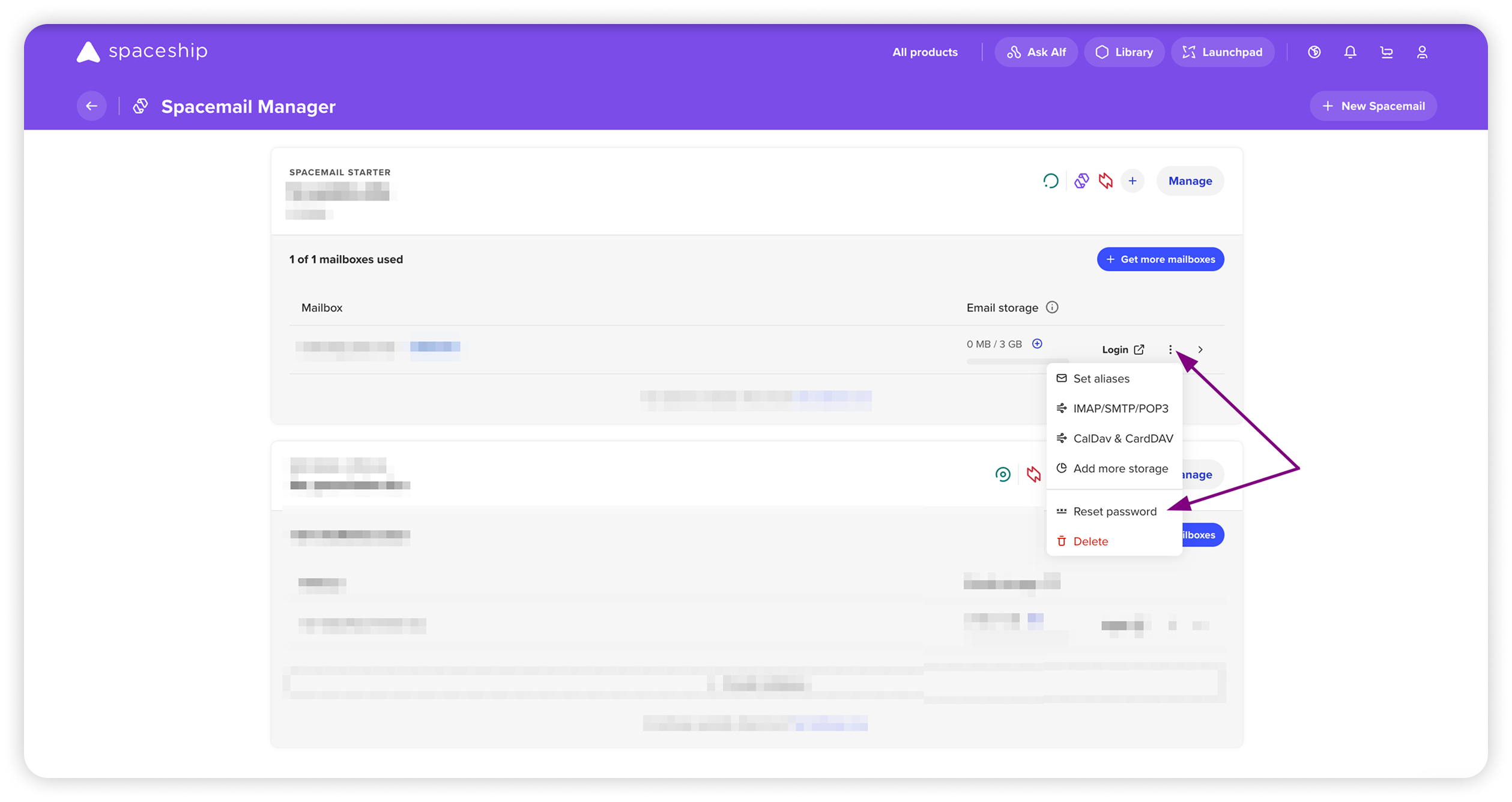
Introduz uma nova palavra-passe à tua escolha. Sugerimos que cumpra os seguintes requisitos:
• Ter pelo menos 8 caracteres
• Incluir letras maiúsculas e minúsculas
• Conter números
• Incluir pelo menos um carácter especial (por exemplo, !, @, #)
Depois de introduzires a nova palavra-passe, clica em Guardar palavra-passe. Vais ver uma notificação pop-up sobre a alteração bem-sucedida da palavra-passe.Em alternativa, podes usar o gerador de palavras-passe clicando no ícone de seta circular ao lado do campo da palavra-passe. Depois, clica em Guardar palavra-passe.
Usa a nova palavra-passe para iniciares sessão na tua caixa de correio Spacemail.
NOTA: Sente-te à vontade para usar qualquer gestor de palavras-passe (1Password, Bitwarden, etc.) para guardares as tuas palavras-passe e manteres as tuas contas seguras.