Cómo resolver problemas de uso excesivo de recursos
Todas las cuentas de alojamiento web tienen límites de recursos aplicados por CloudLinux LVE (Lightweight Virtual Environment), una tecnología a nivel de kernel integrada en el servidor. Los límites garantizan que todos los sitios web reciban un acceso justo e igualitario a su parte asignada de recursos.
Estos recursos incluyen CPU, memoria física, procesos de entrada y el número de procesos activos. Puedes encontrar los valores aceptables para estos recursos, así como sus valores de ráfaga suave y dura, en nuestra Política de Uso Aceptable.
Cuando tu cuenta alcanza constantemente estos límites, lo llamamos uso excesivo de recursos. Esto puede llevar a un rendimiento más lento del sitio, mensajes de error o tiempos de espera en los sitios alojados en tu cuenta.
NOTA: Si un dominio en tu cuenta de alojamiento supera el límite de recursos, todos los demás dominios alojados bajo la misma cuenta también se verán afectados, ya que comparten el mismo grupo de recursos.
Este artículo te ayuda a identificar y solucionar el uso excesivo de recursos.
Comprobando tu uso actual de recursos
Para comprobar el uso de recursos de tu cuenta de alojamiento en cPanel, consulta la sección Estadísticas que se muestra a la derecha:
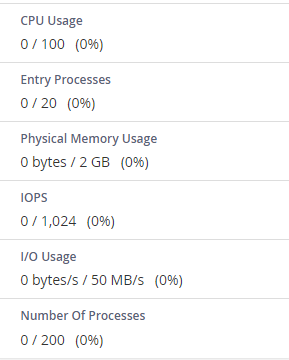
NOTA: También recibirás notificaciones sobre los límites de recursos de la cuenta de alojamiento dentro de tu cuenta de Spaceship. Sin embargo, para obtener información más completa, consulta el menú "Uso de alojamiento" de tu cuenta de cPanel.
Y las violaciones de nuestra Política de Uso Aceptable se mostrarán en el menú “Administrador de alojamiento” > haz clic en “Administrar” junto al paquete de alojamiento en cuestión > la sección Uso de alojamiento > el Registro de informes subsección.
Analicemos las métricas clave de recursos y cómo afectan al rendimiento de tu sitio:
Uso de CPU
El uso de CPU muestra cuánta potencia de CPU asignada se está utilizando en un momento dado. Se muestra como un porcentaje de la capacidad total de tu cuenta de alojamiento.
Si el uso de CPU alcanza el 100%, tu cuenta está consumiendo todos sus recursos asignados. Como resultado, cualquier proceso nuevo se retrasará (se pondrá en espera) hasta que los existentes finalicen. Esto puede causar ralentizaciones notables y, en casos extremos, tu sitio puede agotar el tiempo de espera.
Uso de memoria virtual
Esto se refiere a la cantidad de memoria que los procesos pueden solicitar dentro de tu LVE (Lightweight Virtual Environment).
Cuando un proceso intenta asignar memoria, CloudLinux verifica si el uso total de memoria virtual permanece dentro del límite establecido. Si se supera el límite, se bloquea la nueva asignación de memoria, lo que normalmente hace que el proceso falle.
Uso de memoria física (RAM)
La memoria física representa la RAM real asignada a tu cuenta. A diferencia de la memoria virtual (que a menudo utiliza almacenamiento en disco como archivos de intercambio), la memoria física gestiona tareas activas en tiempo real.
Por ejemplo, publicar una entrada grande puede consumir temporalmente toda la memoria física disponible. Aunque esto puede causar ralentizaciones a corto plazo, el uso normalmente vuelve a la normalidad una vez que la tarea se completa.
Si el uso de memoria física alcanza su límite, puedes encontrar errores PHP en tu sitio web. En casos raros, puede aparecer una página de error de CloudLinux. Estos problemas suelen ser breves y se resuelven automáticamente cuando el uso cae por debajo del umbral.
Procesos de entrada
Los procesos de entrada representan el número de procesos simultáneos que entran en tu cuenta. Cada script PHP o CGI ejecutado por un usuario inicia un proceso de entrada. Aunque a menudo se confunde con "el número de visitantes permitidos", los procesos normalmente se ejecutan y completan tan rápido que, incluso con varios usuarios, es poco probable que alcances el límite, a menos que tu sitio reciba un pico repentino de tráfico.
Número de procesos
Esta métrica incluye todos los procesos generados por tu cuenta, no solo PHP, SSH o tareas cron. Es un límite más amplio que refleja la actividad total.
Incluso bajo uso intensivo, este número suele mantenerse bajo porque la mayoría de los procesos que no son PHP son cortos y terminan rápidamente.
Uso de E/S (Entrada/Salida)
El uso de E/S mide cuánta actividad de disco genera tu cuenta. Cualquier operación que implique leer o escribir datos, como copias de seguridad o cargas de archivos, cuenta para este límite.
Para garantizar un rendimiento justo para todos los usuarios, cada cuenta tiene una velocidad de disco limitada. Si alcanzas este límite, tus procesos seguirán ejecutándose, solo que más lentamente.
En la mayoría de los casos, no notarás el uso de E/S a menos que estés realizando tareas intensivas en disco, como generar una copia de seguridad grande del sitio.
Definición de procesos activos ejecutándose en la cuenta
Si tu cuenta de alojamiento alcanza ciertos límites de recursos, el primer paso es identificar qué procesos están contribuyendo al uso excesivo.
Por SSH
Si el problema persiste durante más de unos minutos, puedes revisar los procesos activos que se ejecutan en tu cuenta en el momento del pico usando SSH:
Asegúrate de que SSH esté habilitado para tu cuenta de alojamiento comprobando el estado de la conexión en el menú “Administrar shell” de cPanel. Si SSH está deshabilitado, sigue los pasos de este artículo para activarlo.
Navega al menú Terminal en tu cPanel y ejecuta uno de los siguientes comandos para identificar los procesos activos en tu cuenta:
-ps faux
-top -c
Luego verás una lista de procesos que utilizan la mayor parte de los recursos de tu cuenta de alojamiento (CPU, memoria virtual, etc.). El número de tareas, así como sus estados (si están activas, en espera o detenidas), también se mostrarán en la salida del comando.
Nos gustaría mostrarte cómo se ve la salida del comando “top -c” y proporcionarte instrucciones sobre cómo interpretarla correctamente: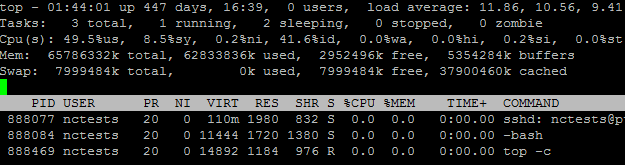
Aquí tienes una guía sencilla sobre cómo leer este tipo de salida:La primera línea - especifica la hora actual, el tiempo desde el último arranque, la sesión de usuario conectada y la carga promedio del sistema (durante el último minuto, 5 y 15 minutos).
La segunda línea - enumera todos los procesos dentro de una cuenta de alojamiento: en ejecución, en espera, detenidos y zombie (los que fueron terminados pero no eliminados correctamente).
La tercera línea - proporciona información sobre cómo se utiliza la CPU en %, donde:
us = procesos de usuario
sy = procesos del sistema
ni = prioridad nice mejorada
wa = tiempo esperando la finalización de E/S
hi = interrupciones de hardware
si = interrupciones de software
st = tiempo robado de la máquina virtual por la tarea del hipervisor
La cuarta y quinta líneas - indican el uso de memoria (RAM): total, usada, libre y buffers.
Las siguientes filas proporcionan detalles sobre los procesos actuales:
PID - ID del proceso
USER - usuario de cPanel que es el propietario del proceso
PR - prioridad del proceso
NI - valor nice del proceso
VIRT - memoria virtual usada por el proceso
RES - memoria física usada por el proceso
SHR - memoria compartida usada por el proceso
S - estado del proceso (S - en espera, D - espera ininterrumpible, R - en ejecución, T - detenido, Z - zombie)
%CPU - porcentaje de CPU usado por este proceso
%MEM - porcentaje de memoria física usada por este proceso
TIME+ - tiempo total de CPU usado por el proceso
COMMAND - nombre del proceso
Antes de terminar cualquier proceso durante un posible hackeo, revisa los trabajos cron existentes en el menú Trabajos cron de tu cuenta de cPanel. Si encuentras entradas sospechosas o trabajos cron de los que no estás seguro, lo mejor es eliminarlos para evitar que se ejecuten scripts potencialmente peligrosos.
Una vez que hayas identificado un proceso específico que está causando problemas, puedes terminarlo ejecutando elkill -9 PIDcomando SSH en el menú “Terminal”, donde PID es el ID del proceso del paso anterior.
Para terminar todos los procesos excepto los esenciales del sistema, puedes usar el siguiente comando:ps aux | grep -v 'bin/bash' | awk '{ print $2 }' | grep -v PID | xargs kill -9A continuación, identifica qué procesos MySQL están actualmente en ejecución.
Puedes comprobar todos los procesos MySQL de tu cuenta de cPanel (1) o revisarlos por usuario MySQL (2).
Para hacerlo, abre el Terminal en tu cPanel y ejecuta uno de los siguientes comandos:
Para comprobar los procesos MySQL de toda la cuenta de alojamiento:mysql -u $CPANEL_USER -p -e "SHOW PROCESSLIST;"
Para comprobar los procesos MySQL de un usuario MySQL:mysql -u $MYSQL_USER -p -e "SHOW PROCESSLIST;"
Asegúrate de reemplazar “CPANEL_USER” con tu nombre de usuario de cPanel para comprobar los procesos de la cuenta de alojamiento (1) y “$MYSQL_USER” con el nombre de usuario específico de la base de datos MySQL para revisarlos por cada usuario MySQL individual (2).
Luego, introduce la contraseña de la cuenta de cPanel (1) o la contraseña del usuario de la base de datos específica (2):
El último paso es terminar los procesos MySQL para un usuario de base de datos en particular. Esto solo puede hacerlo nuestro equipo de soporte. No dudes en contactarnos y estaremos encantados de ayudarte.
Desde el menú “Uso de recursos”
Si el problema dura solo unos segundos, puede ser difícil identificar los procesos que lo causan, ya que los datos no se registran en periodos tan cortos.
Pero siempre puedes consultar el menú Uso de recursos en cPanel para revisar tendencias históricas. Esto puede ayudarte a identificar patrones o determinar qué recursos están cerca de sus límites:
Se mostrará un mensaje sobre los recursos más frecuentemente alcanzados justo después de abrir el menú > en su sección “Panel” con una referencia a los límites exactos:
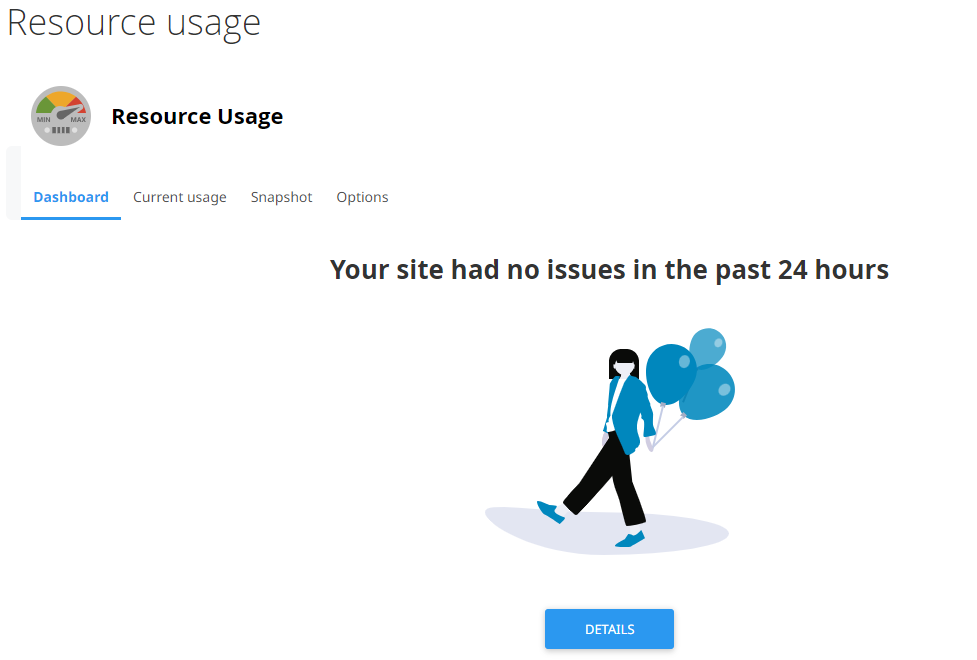
En la sección Uso actual del menú, utiliza el desplegable Periodo de tiempo para elegir un periodo y comprobar cómo se usaron los recursos de la cuenta durante ese tiempo:
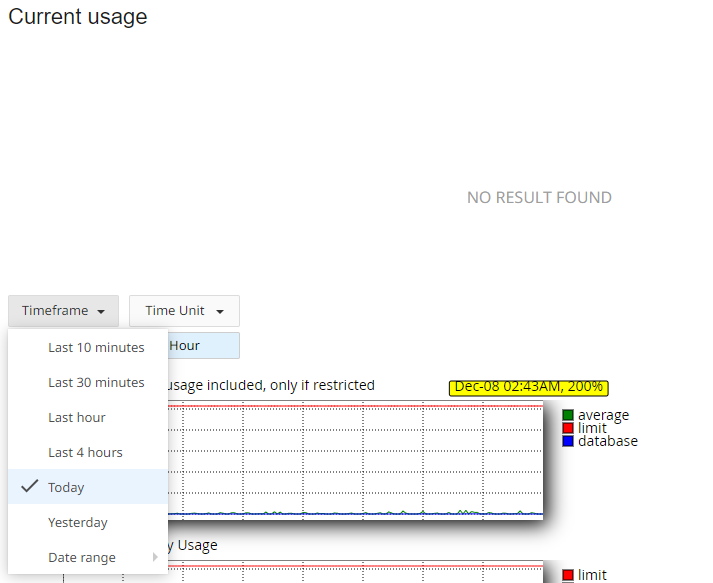
Una vez seleccionado, verás diagramas y tablas que muestran estadísticas detalladas:
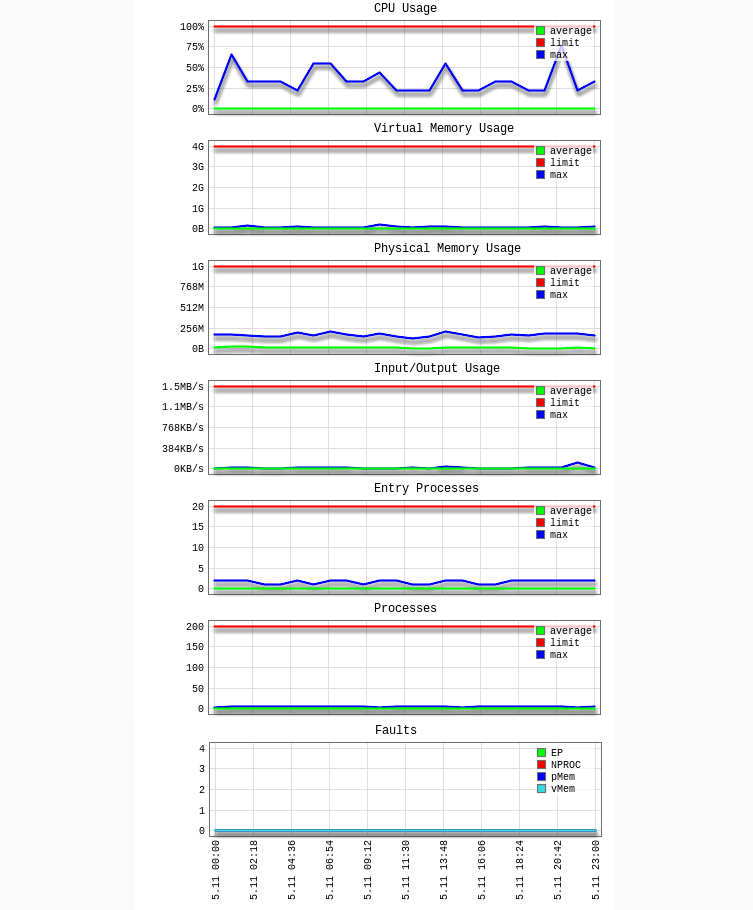
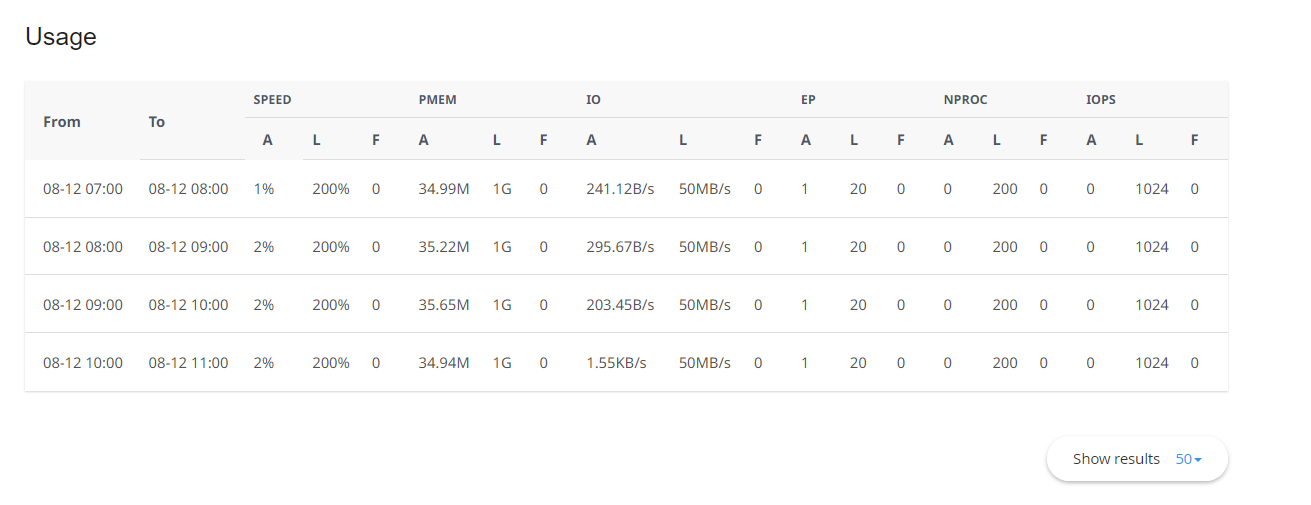
Aquí tienes una guía sencilla de los valores listados en la tabla anterior:
CPU – límite de CPU
vMEM/vM – límites de Memoria Virtual
pMEM/pM – límites de Memoria Física
EP – Procesos de Entrada
nPROC/nP – Número de Procesos
IO – límites de Entrada/Salida
A – promedio usado
L – límite establecido para la cuenta
F – fallo
Posibles problemas al terminar procesos activos en cPanel
Detener procesos activos en cPanel puede ayudar a abordar problemas de rendimiento, pero hazlo con precaución: puede crear nuevos problemas. A continuación, algunos puntos clave a tener en cuenta:
Integridad de los datos: Forzar la terminación de un proceso puede comprometer la integridad de los datos. Especialmente si este proceso implica escribir o actualizar datos en la cuenta. Es mejor comprobar que el proceso no esté vinculado a operaciones críticas de base de datos antes de terminarlo.
Transacciones incompletas: Detener un proceso a mitad de operación puede dejar transacciones sin finalizar y causar problemas con los estados de la base de datos. En casos extremos, esto podría resultar en corrupción o pérdida de datos.
Interrupción del servicio: Algunos procesos, como los relacionados con MySQL, son muy importantes para los servicios principales. Terminarlos puede causar interrupciones temporales del servicio y afectar la funcionalidad de tu sitio web.
Cambios no guardados: Si se termina un proceso que gestiona configuraciones o ajustes antes de guardar los cambios, puede afectar el comportamiento de las funciones o aplicaciones.
Asignación de recursos: Aunque terminar procesos puede liberar recursos del sistema, no resuelve las causas subyacentes del alto uso. Para evitar que el problema se repita, se necesita un análisis más profundo.
Estabilidad de la aplicación: Interrumpir procesos vinculados a aplicaciones web puede volverlas inestables. Es importante entender cómo funcionan los procesos antes de actuar.
Registro y monitoreo: Algunos procesos están involucrados en el registro o monitoreo del sistema. Terminarlos puede interrumpir estas funciones, así que asegúrate de que los registros críticos y las herramientas de monitoreo sigan operativas.
En situaciones críticas (por ejemplo, durante un uso excesivo de recursos o actividad maliciosa sospechada), puede ser necesario finalizar procesos a pesar de los riesgos. Pero siempre sopesa el impacto potencial antes de actuar.
Mejores prácticas para reducir el riesgo al terminar procesos
Haz una copia de seguridad de tus datos: Siempre crea una copia de seguridad antes de realizar cambios importantes, especialmente al trabajar con bases de datos.
Utiliza apagados controlados cuando sea posible: Intenta apagar los procesos de forma gradual para reducir el riesgo de pérdida o corrupción de datos.
Desactiva los componentes maliciosos: Si sospechas que una parte específica de tu sitio web (por ejemplo, un plugin o tema) está generando procesos maliciosos, desactívala de inmediato para evitar daños mayores. Si tienes dudas, consulta cualquier actividad sospechosa con un especialista.
Utiliza el modo de mantenimiento: Poner temporalmente tu sitio en modo de mantenimiento puede ayudar a determinar si ciertos procesos se están recreando automáticamente.
Supervisa de cerca: Después de finalizar cualquier proceso, observa cuidadosamente el comportamiento del sistema y prepárate para solucionar problemas inesperados.
Cómo reducir el uso de recursos después de identificar el proceso problemático
Una vez que hayas identificado qué procesos están haciendo que tu cuenta alcance los límites de recursos, prueba estas formas comunes de reducir el uso:
Picos de tráfico: Para ver cuándo tu cuenta tuvo demasiados procesos activos, abre el menú Uso de recursos > Instantáneas > pestaña Consultas HTTP:
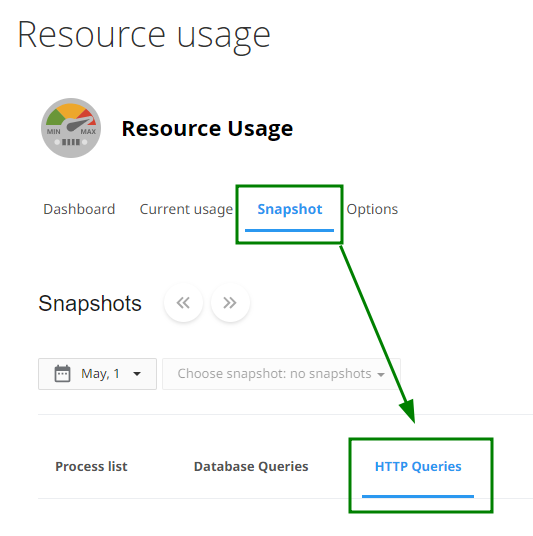
Si ves en el resultado que hay muchas solicitudes, por ejemplo, a la página index.php, esto puede deberse a un alto tráfico en el sitio web (por ejemplo, por visitantes o bots).
Consulta los menús Awstats y Visitantes en cPanel para obtener análisis detallados de los visitantes y localizar la causa exacta. Un aumento repentino del tráfico podría ser la razón de un mayor uso de recursos. Si el número de visitantes sigue creciendo y sigues experimentando limitaciones, puede que sea el momento de revisar y actualizar tu plan de hosting actual.
La sección Estadísticas del menú Awstats puede ayudarte a identificar la fuente del alto uso de CPU. Puedes encontrar esto haciendo clic en el botón “Ver” frente al nombre del dominio: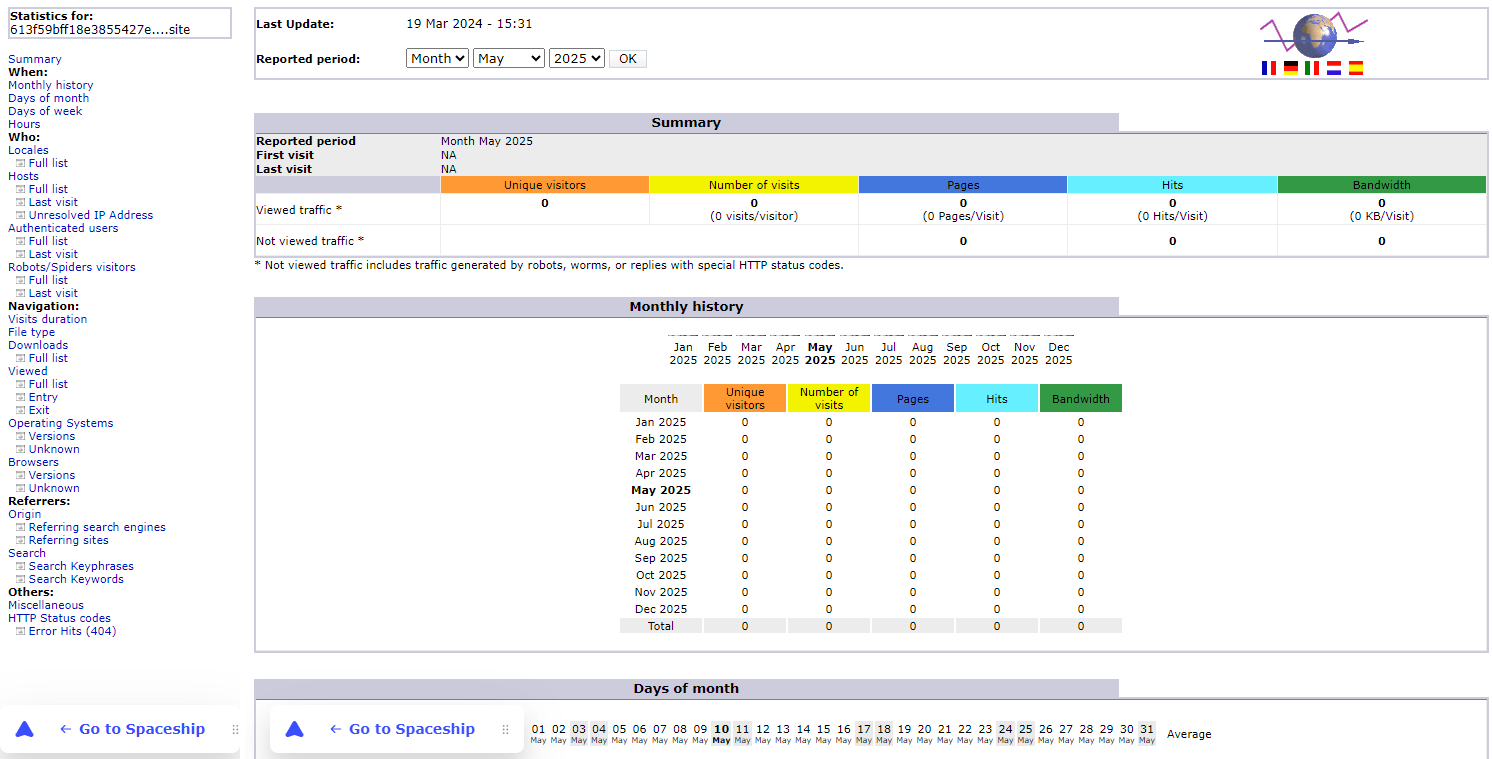
NOTA: Ten en cuenta que los datos del menú Awstats no se actualizan en tiempo real y solo estadísticas mensuales están disponibles. Asegúrate de comprobar cuándo se actualizaron los datos estadísticos para asegurarte de que la información está relacionada con tu caso. Encontrarás esta información en la línea “Última actualización”.
Una vez que accedas, verás estadísticas detalladas sobre cuántos recursos de ancho de banda consumen elementos específicos del sitio web, incluyendo:Bots desconocidos: Si no se espera este tráfico, los bots pueden bloquearse mediante el archivo robots.txt, limitarse la tasa (por ejemplo, para Googlebot), o bloquearse completamente mediante el archivo .htaccess y la cadena User-Agent.
NOTA: Estos cambios pueden afectar al SEO del sitio web. Si no estás seguro de si quieres proceder, es mejor consultar con un especialista en SEO.Imágenes: Si hay muchas solicitudes a una imagen, puede significar que hay un ataque DDoS o un auto-DoS sobre esa imagen.
Páginas: Una página web o un producto colocado en ella también puede verse afectado por un ataque DDoS.
archivos.
Archivos descargados, etc.
Cambios recientes en el sitio web: Si es la primera vez que experimentas problemas de uso de recursos, revisa cualquier actualización o cambio reciente realizado en tu sitio web. Estos podrían estar contribuyendo al aumento de la carga.
Nuevos plugins o temas: Si has instalado recientemente un nuevo plugin o tema, intenta desactivarlo y monitorea el rendimiento de tu sitio durante al menos 10 minutos.
Además, puedes encontrar plugins de carga lenta en el informe de GTmetrix > la pestaña Waterfall.
NOTA: Los cambios pueden no surtir efecto de inmediato. Recomendamos monitorear el comportamiento de tu sitio web hasta una hora para obtener resultados precisos.
Optimización del sitio web: Optimiza el rendimiento de tu sitio web usando herramientas como Google PageSpeed Insights.
Además, los siguientes plugins te ayudarán a monitorear el uso de recursos y el rendimiento general del sitio web, lo cual es sumamente útil para localizar cuellos de botella internos:
Si sigues teniendo problemas de recursos, por favor contacta a nuestro Equipo de Soporte por chat en vivo o correo electrónico. Estamos aquí para ayudarte a identificar y resolver cualquier problema.