Jak skonfigurować FastVPN dla Windows
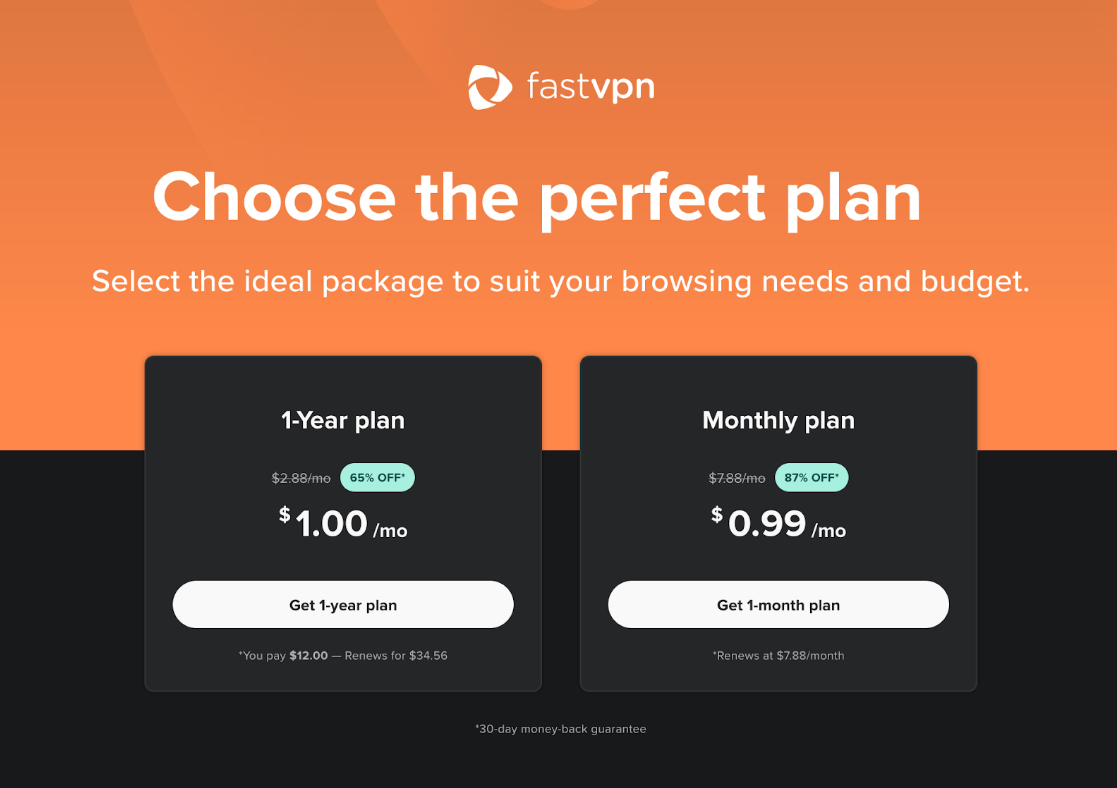
Na stronie FastVPN wybierz swój preferowany plan:
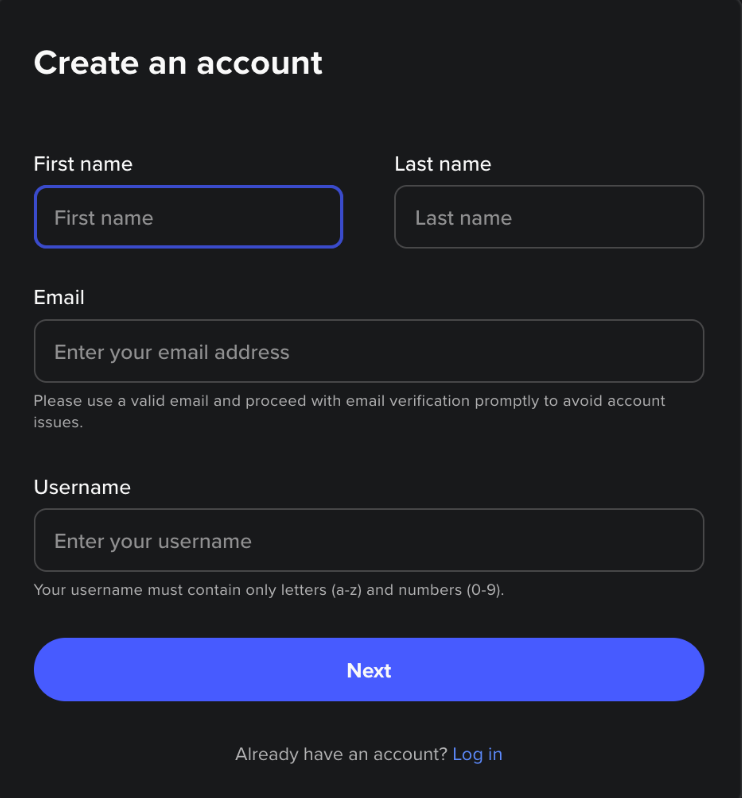
Konfiguracja aplikacji FastVPN dla Windows rozpoczyna się od uruchomienia aplikacji i zalogowania się na swoje konto Spaceship lub utworzenia nowego konta:
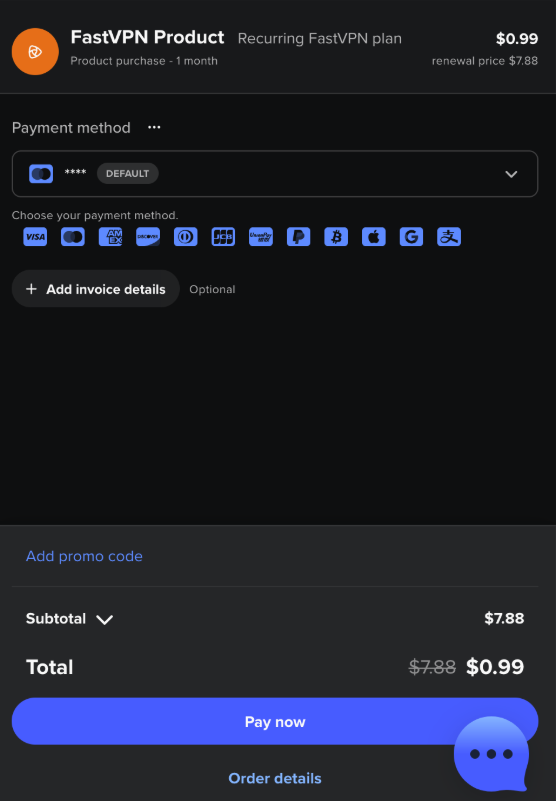
Po zalogowaniu wprowadź dane płatności i potwierdź zakup:
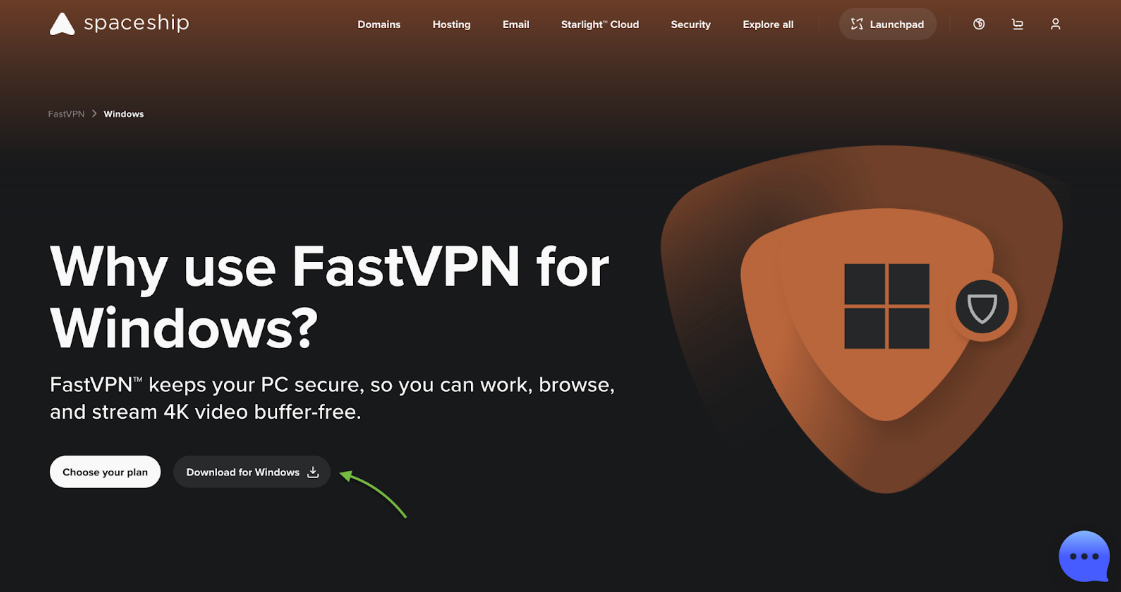
Aby zainstalować aplikację, przejdź na stronę FastVPN dla Windows i kliknij przycisk Pobierz w sekcji Pobierz FastVPN dla Windows PC:
Po pomyślnej instalacji aplikacji ikona FastVPN pojawi się na pasku menu. Kliknij tę ikonę i zaloguj się na swoje istniejące konto Spaceship:
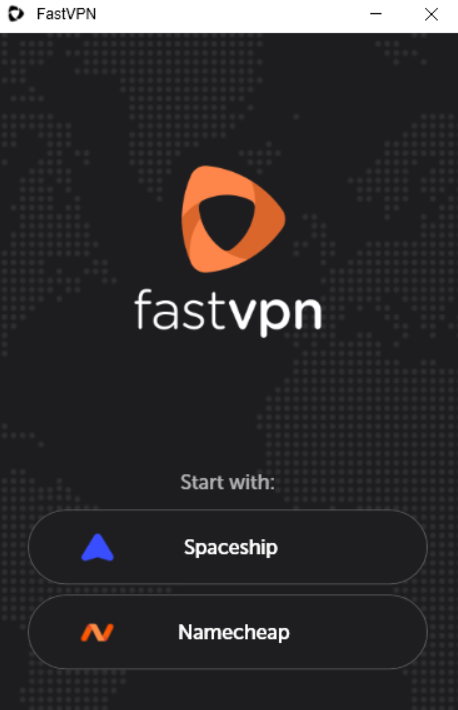
Po zalogowaniu zobaczysz ikonę FastVPN w zasobniku systemowym z trybem kompaktowym:
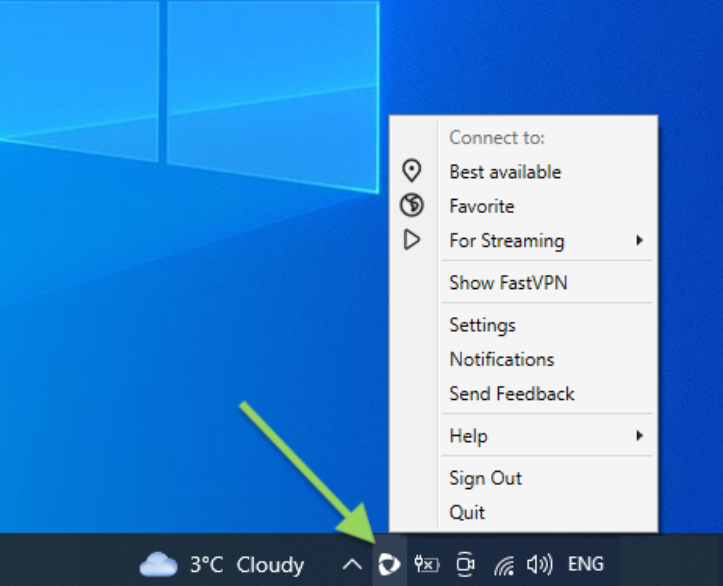
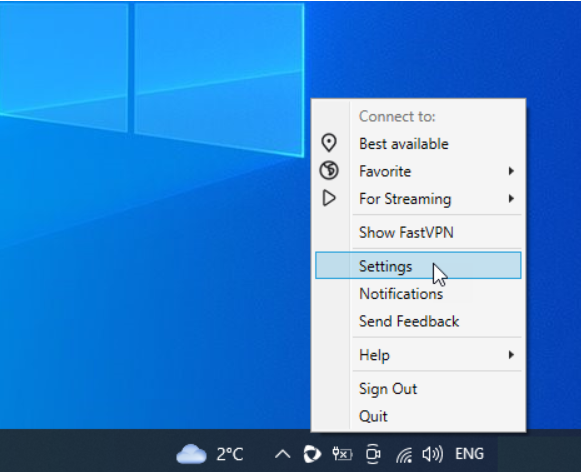
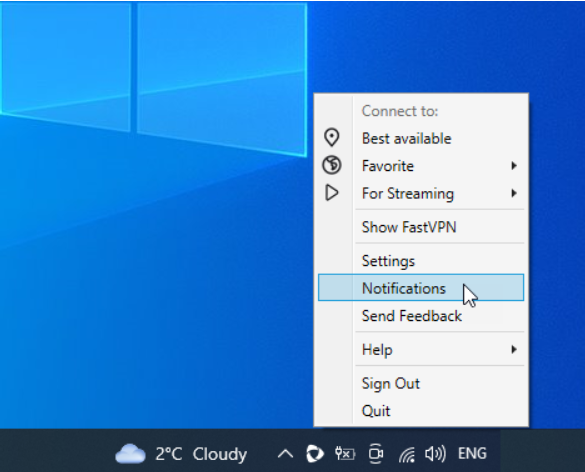
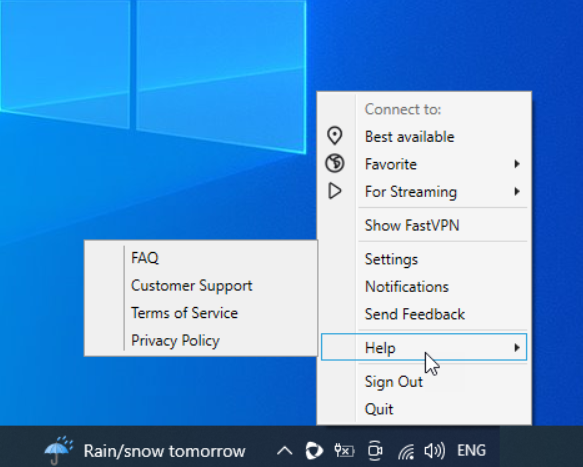
Kliknij prawym przyciskiem myszy ikonę FastVPN w menu zasobnika, aby przejść do trybu kompaktowego. W trybie kompaktowym znajdziesz:
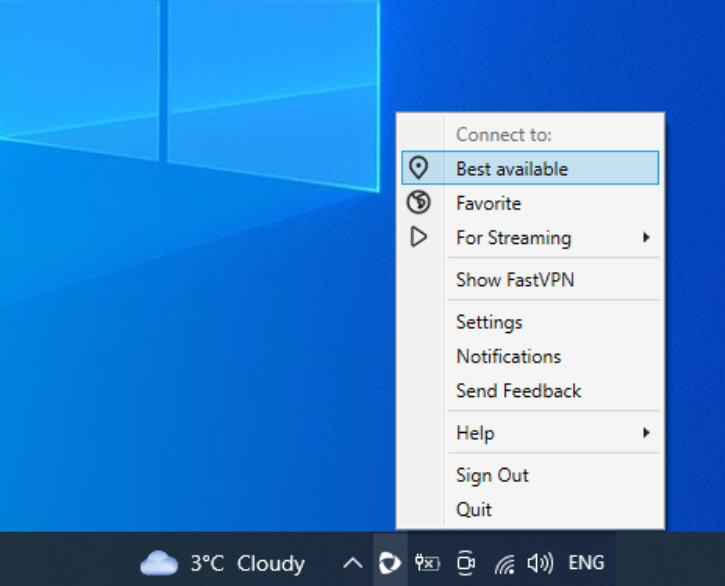
Najlepsza dostępna
Stąd możesz połączyć się z lokalizacją „Najlepsza dostępna”:
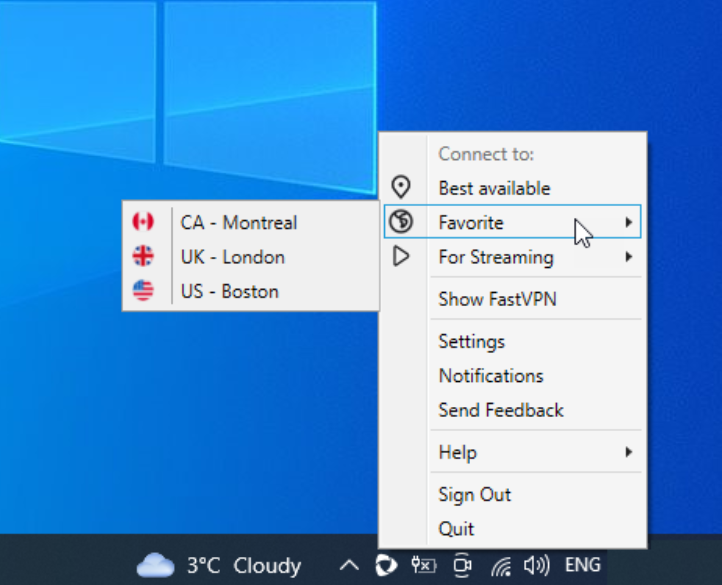
Ulubione
Stąd możesz połączyć się ze swoimi ulubionymi lokalizacjami. Zwróć uwagę, że jeśli nie masz ulubionej lokalizacji, będziesz mógł ją dodać:
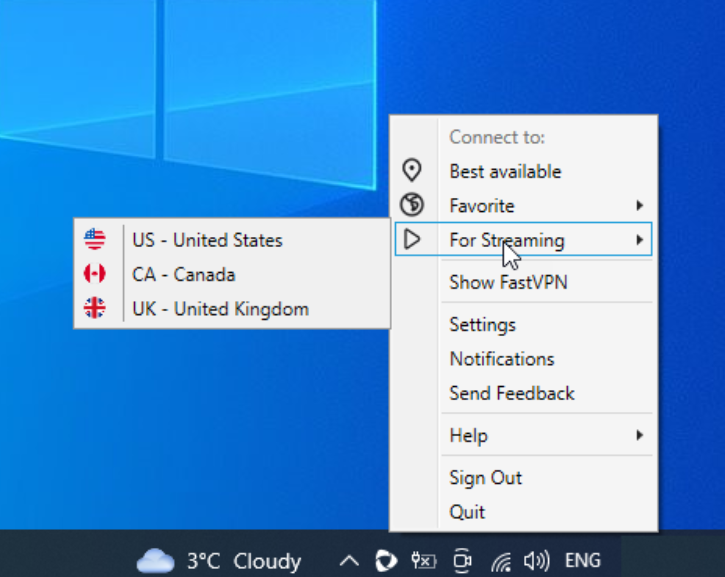
Dla streamingu opcja oferuje wygodny dostęp do serwerów streamingowych, umożliwiając szybkie połączenie z preferowanymi usługami streamingowymi za pomocą kilku kliknięć:
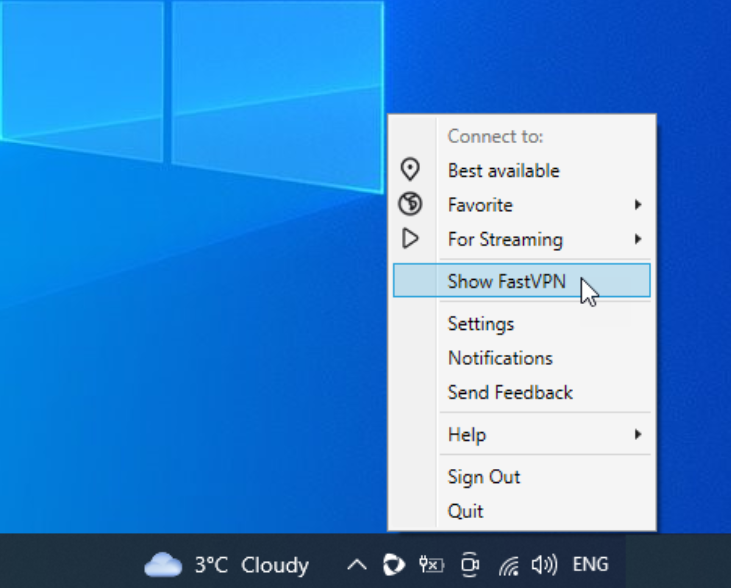
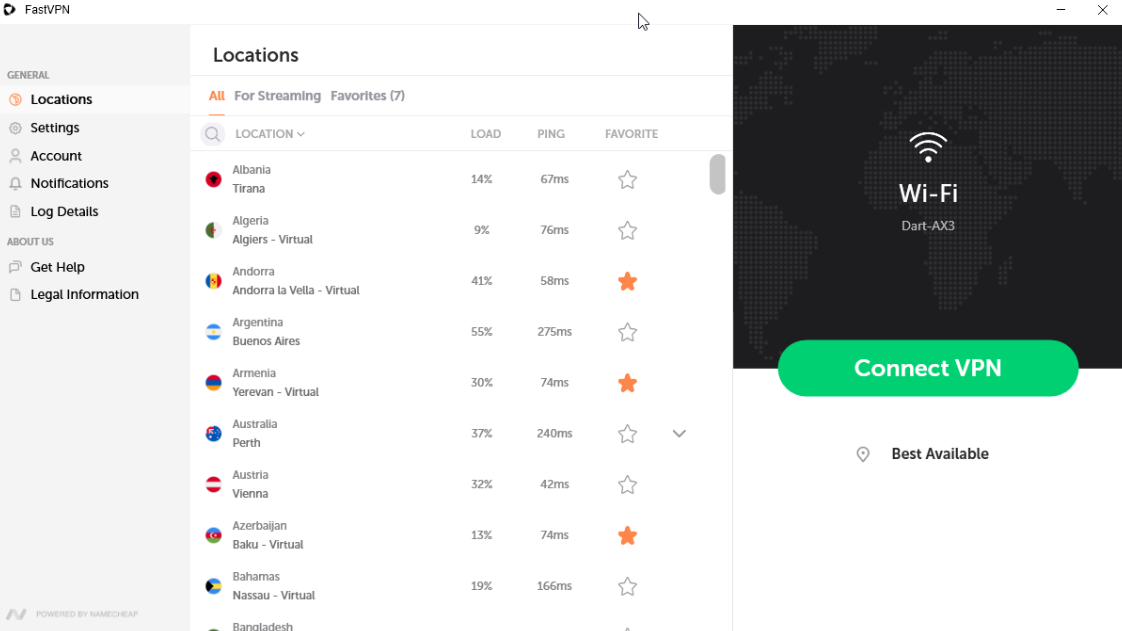
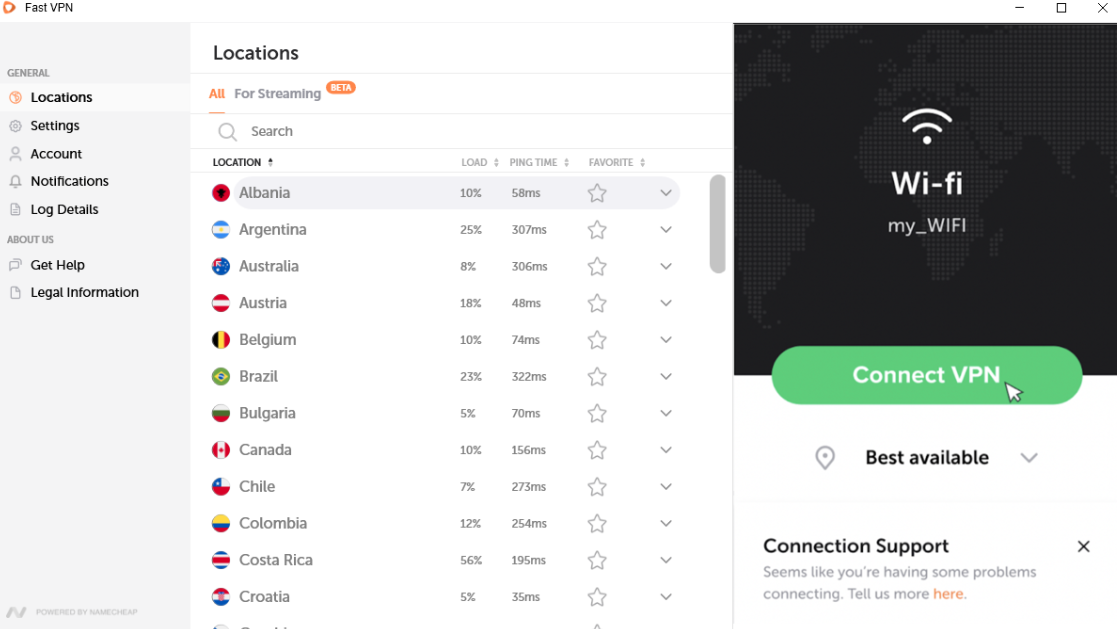
Pokaż FastVPN opcja przekieruje Cię do rozszerzonego widoku z większą liczbą opcji, gdzie możesz zobaczyć wszystkie lokalizacje, dodać/usunąć ulubiony kraj lub miasto oraz połączyć się z krajem lub miastem:
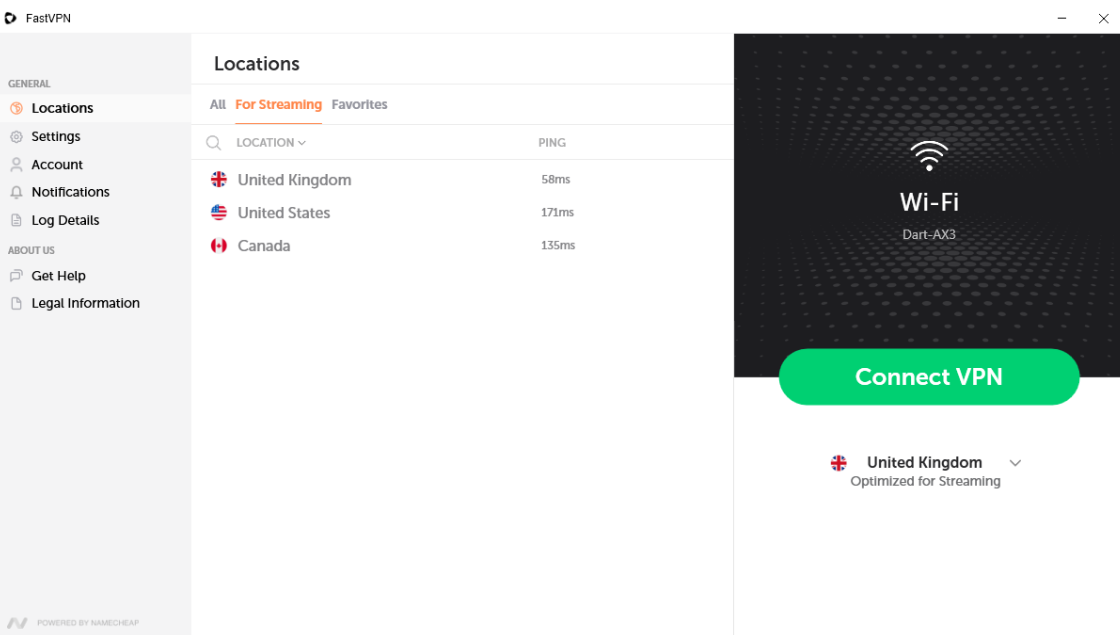
Tutaj znajdziesz dwa tryby: Wszystkie serwery oraz Dla streamingu. Wszystkie serwery obejmują pełną gamę serwerów do prywatnego przeglądania, natomiast serwery streamingowe są zoptymalizowane specjalnie pod kątem usług streamingowych, zapewniając płynniejsze i szybsze przesyłanie strumieniowe.
W trybie Wszystkie serwery możesz dodać kraj do ulubionych:
Lub dodać miasto do ulubionych:
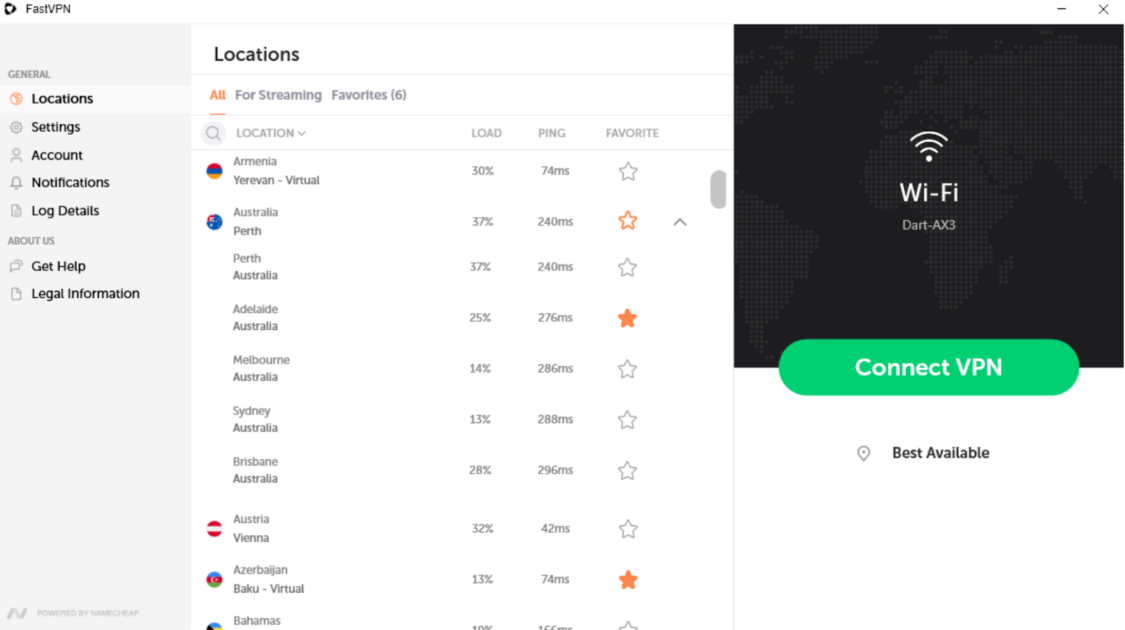
Możesz także mieć wiele poziomów połączeń, łącząc się na poziomie kraju:
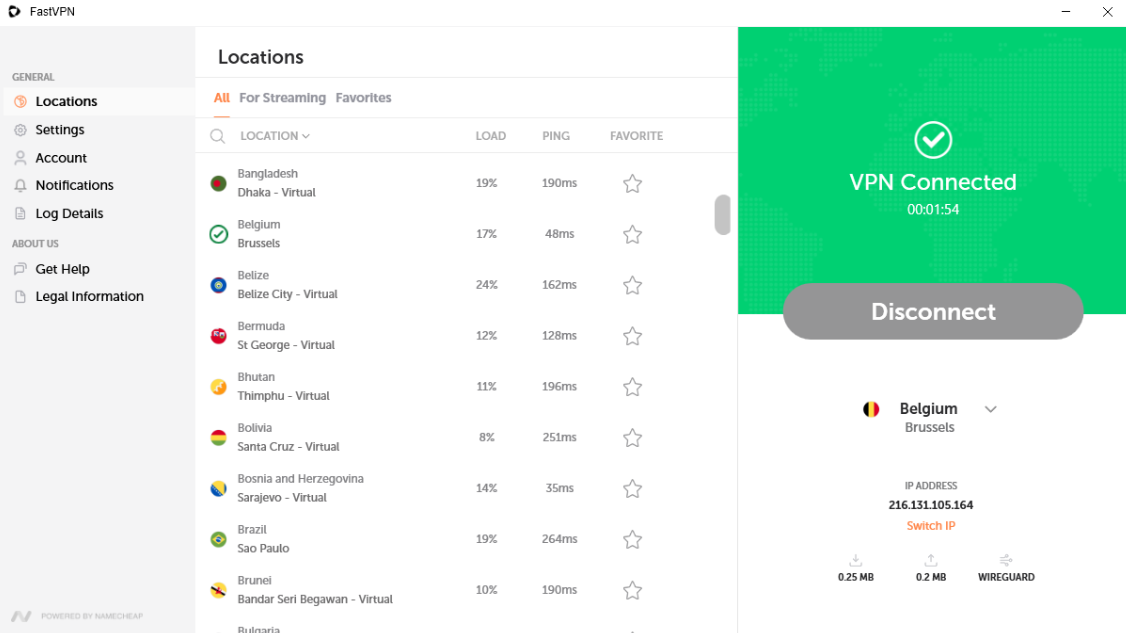
Lub połączyć się z lokalizacją w mieście:
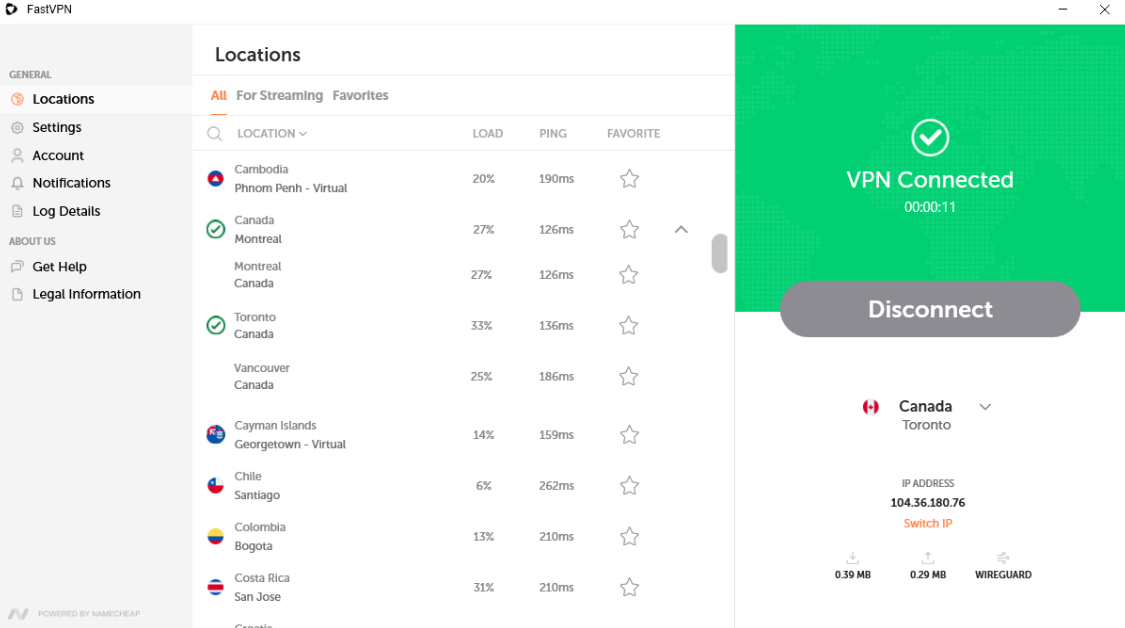
Na ekranie głównym możesz zobaczyć statystyki pobierania i wysyłania, wybrany protokół oraz aktualny adres IP. Aby zmienić IP, po prostu kliknij "Zmień IP".
Losowe IP daje Ci nowy adres IP bez zmiany wybranej lokalizacji. Jest to przydatne, jeśli strona blokuje Twój IP lub chcesz nowe połączenie.
Gdy dotkniesz "Zmień IP", VPN na chwilę się rozłączy, połączy z innym serwerem w tym samym regionie i przydzieli Ci nowy adres IP – zwykle w ciągu kilku sekund.
Ta funkcja może pomóc ominąć blokady IP, naprawić wolne prędkości lub poprawić prywatność bez ręcznego wybierania nowej lokalizacji.
W trybie Dla streamingu znajdziesz lokalizacje zoptymalizowane specjalnie pod kątem usług streamingowych, zapewniające płynniejsze i szybsze przesyłanie strumieniowe:
Ustawienia przekierują Cię do rozszerzonego widoku, gdzie zobaczysz więcej opcji:
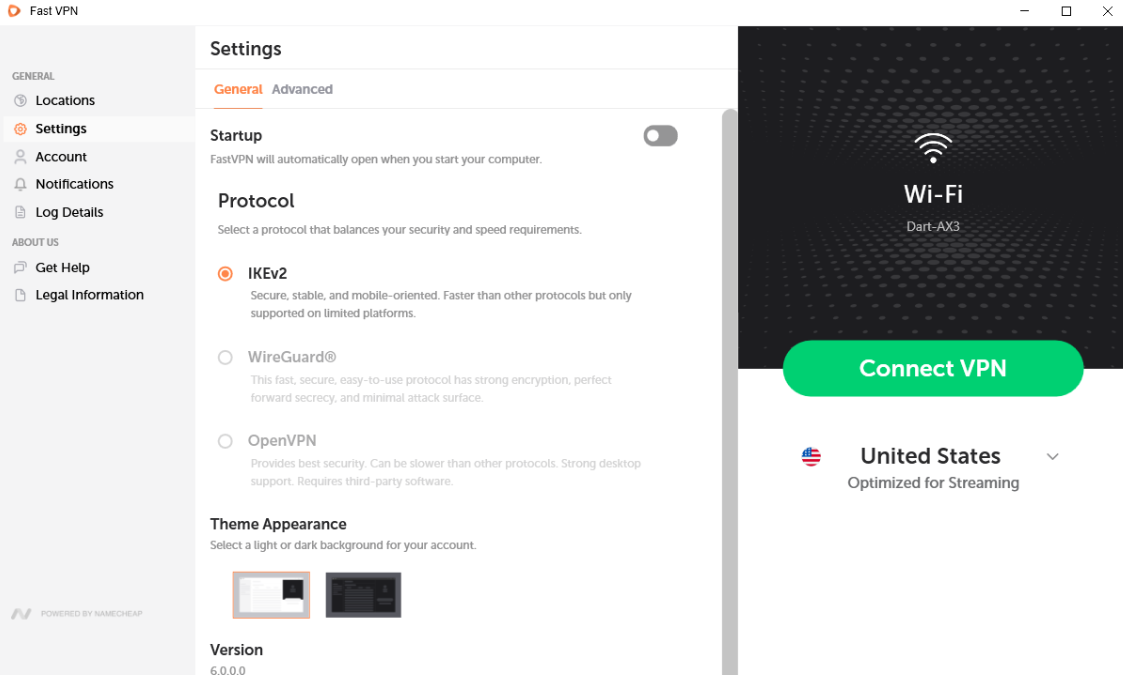
Ustawienia są podzielone na sekcje Ogólne i Zaawansowane.
W ustawieniach Ogólnych znajdziesz najczęściej używane opcje, zapewniające podstawową kontrolę nad korzystaniem z VPN. Tutaj znajdziesz:
Uruchamianie zapewni uruchamianie aplikacji przy starcie systemu.
Opcje wyboru Protokołu:
- WireGuard®* - szybki, bezpieczny, łatwy w użyciu protokół z silnym szyfrowaniem, perfect forward secrecy i minimalną powierzchnią ataku.
*Wszelkie prawa zastrzeżone. "WireGuard" oraz logo "WireGuard" są zarejestrowanymi znakami towarowymi Jasona A. Donenfelda.
- IKEv2 - szyfrowanie 256-bitowe, bezpieczny, stabilny i zorientowany na urządzenia mobilne.
- OpenVPN również posiada protokół szyfrowania 256-bitowego. Ma silne wsparcie dla komputerów stacjonarnych i wymaga oprogramowania firm trzecich.
* TCP (Transmission Control Protocol) – wysoka niezawodność i kompatybilność.
* UDP (User Datagram Protocol) – najlepszy dla wolnych połączeń i przesyłania danych wrażliwych na opóźnienia.
* Funkcja Scramble pozwala dodać możliwość zaciemniania do OpenVPN, aby ominąć czujniki sieci wykrywające korzystanie z VPN w celu jego blokowania.
* Instaluj/Przeinstaluj sterownik Tap zainstaluje wymagane oprogramowanie firm trzecich do korzystania z OpenVPN.
Wygląd motywu pozwala wybrać jasny lub ciemny motyw dla aplikacji FastVPN lub automatycznie dostosować motyw z jasnego na ciemny w ciągu dnia.
Sekcja FastVPN z wersją aplikacji, której używasz.
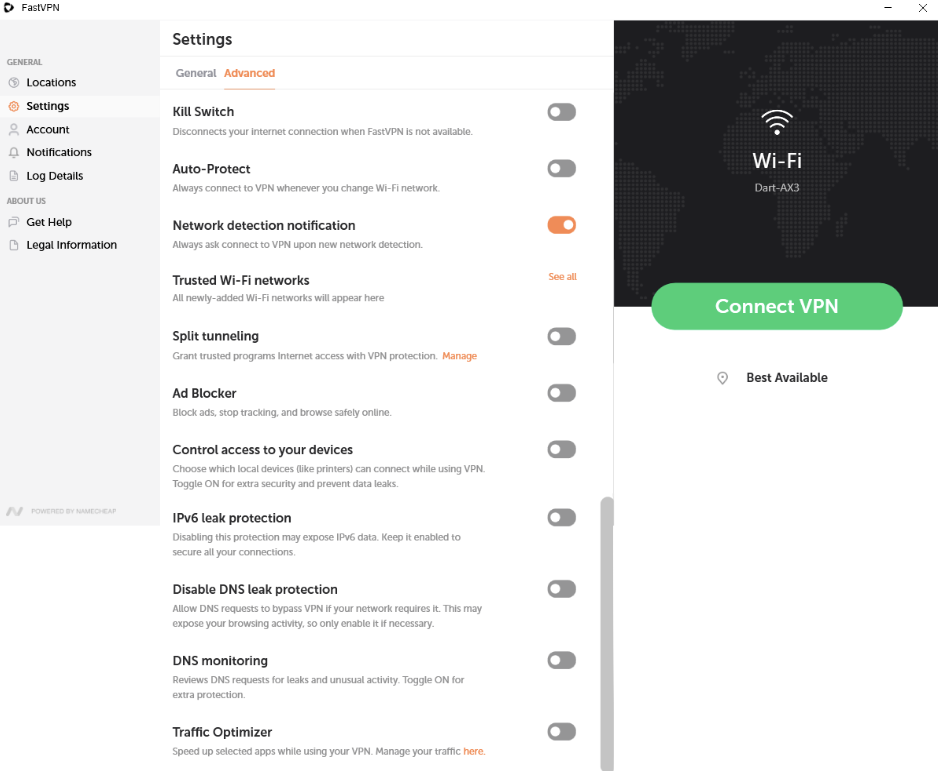
W sekcji Zaawansowane Ustawienia znajdziesz:
Wyłącznik awaryjny
- Odłączy Twoje połączenie internetowe, gdy Fast VPN nie będzie dostępny, zapewniając bezpieczeństwo online.
UWAGA: Gdy funkcja Kill-Switch jest włączona i nie jesteś połączony z VPN, informacje o ping nie mogą zostać pobrane. W takim przypadku należy:
* Wyłącz Kill-Switch;
* Połącz się z VPN;
* Następnie ponownie włącz Kill-Switch.
Auto-Ochrona zawsze chroni Twój ruch podczas korzystania z Internetu na Twoim urządzeniu.
Powiadomienie o wykryciu sieci poprosi o połączenie z VPN po wykryciu nowej sieci.
Zaufane sieci WiFi pozwalają dodać bieżącą sieć do zaufanych. Zaufane sieci WiFi to sieci, którym ufasz lub na których już masz połączenie VPN i nie chcesz korzystać z FastVPN.
Podział tunelowania pozwala wybrać aplikacje, które mają być kierowane przez Twojego dostawcę Internetu zamiast przez połączenie FastVPN.
Blokada reklam umożliwia bezpieczne przeglądanie poprzez blokowanie reklam, zapobieganie śledzeniu online i ograniczanie dostępu do złośliwych treści.
Kontrola dostępu do urządzeń pozwala wybrać, które urządzenia lokalne (np. drukarki) mogą się łączyć podczas korzystania z VPN. Włącz, aby zwiększyć bezpieczeństwo i zapobiec wyciekom danych.
Ochrona przed wyciekiem IPv6 zapobiega ujawnieniu ruchu IPv6. Zachowaj tę funkcję włączoną, aby wszystkie Twoje połączenia internetowe były bezpieczne.
Wyłącz ochronę przed wyciekiem DNS pozwala na ominięcie VPN przez zapytania DNS, jeśli wymaga tego Twoja sieć. Może to ujawnić Twoją aktywność w sieci, więc włączaj tylko w razie potrzeby.
Monitorowanie DNS analizuje zapytania DNS w celu wykrycia potencjalnych wycieków lub nietypowej aktywności. Zachowaj tę opcję włączoną, aby zapewnić dodatkową ochronę przed wyciekami DNS i niechcianym śledzeniem.
Optymalizator ruchu przyspiesza wybrane aplikacje, priorytetyzując ich ruch podczas połączenia z VPN.
UWAGA: Aby poprawić wygodę użytkownika, tryb Streaming oferuje uproszczony interfejs z mniejszą liczbą ustawień, dzięki czemu jest łatwy w obsłudze dla każdego. W trybie Streaming, Zaawansowane ustawienia oraz Protokoły nie są dostępne do personalizacji.
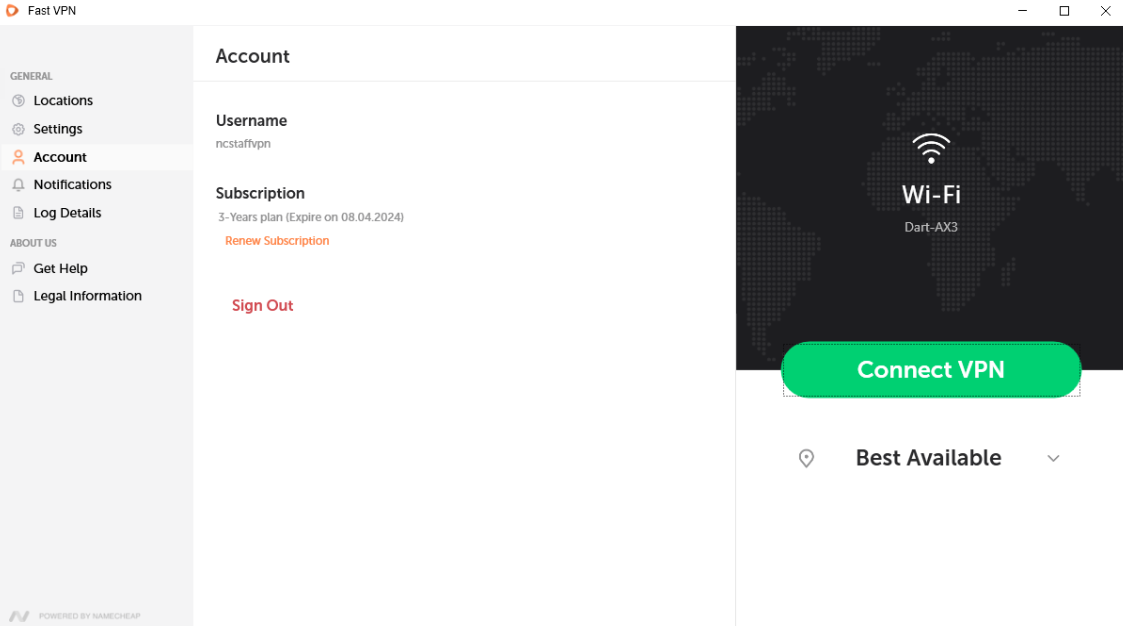
W sekcji Konto znajdziesz:
Nazwa użytkownika;
Informacje o subskrypcji;
Opcja Wyloguj.
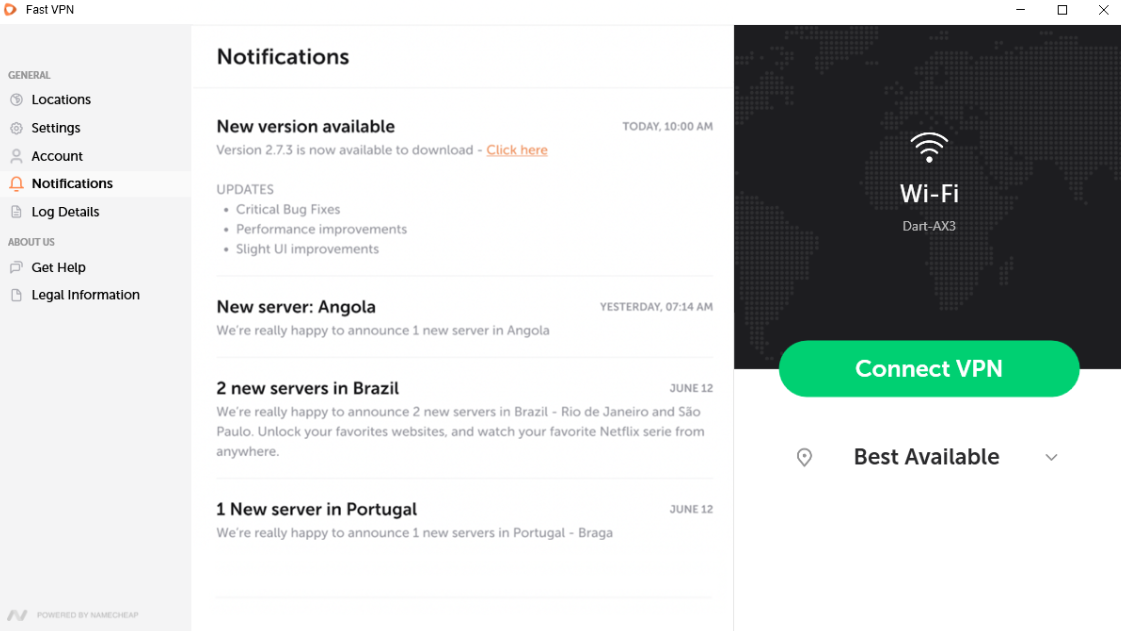
W sekcji Powiadomienia będziesz otrzymywać ważne ogłoszenia i alerty:
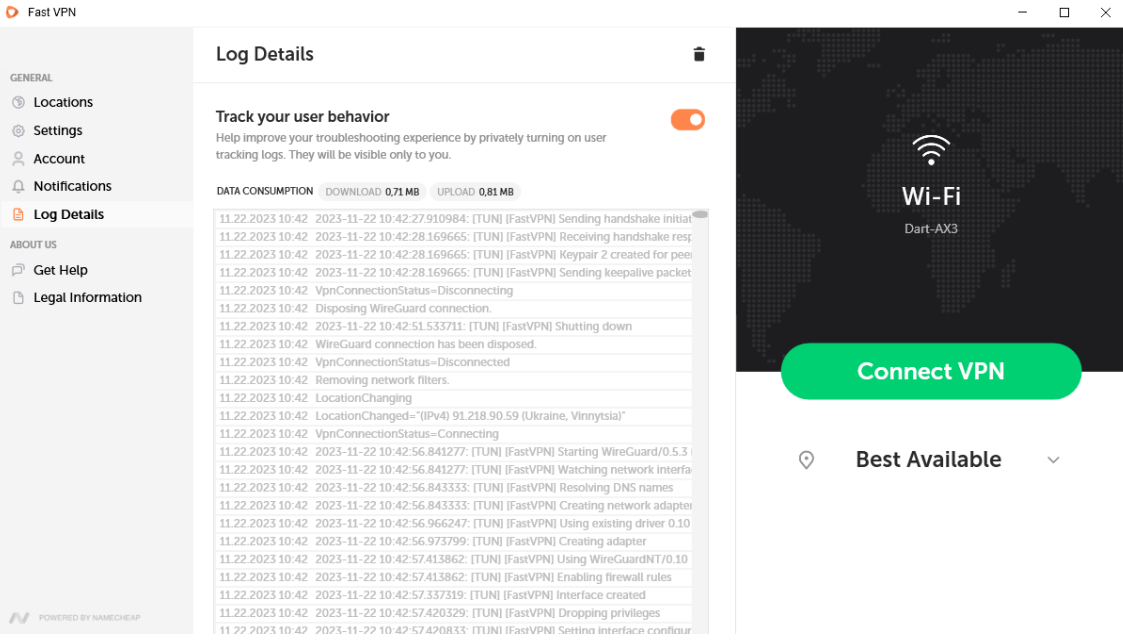
W sekcji Szczegóły logów znajdziesz:
Śledzenie zachowań użytkownika, umożliwiające prywatne włączenie logów śledzenia użytkownika. Będą widoczne tylko dla Ciebie.
Zużycie danych, umożliwiające śledzenie pobierania i wysyłania.
Szczegóły logów, aby poprawić doświadczenie rozwiązywania problemów.
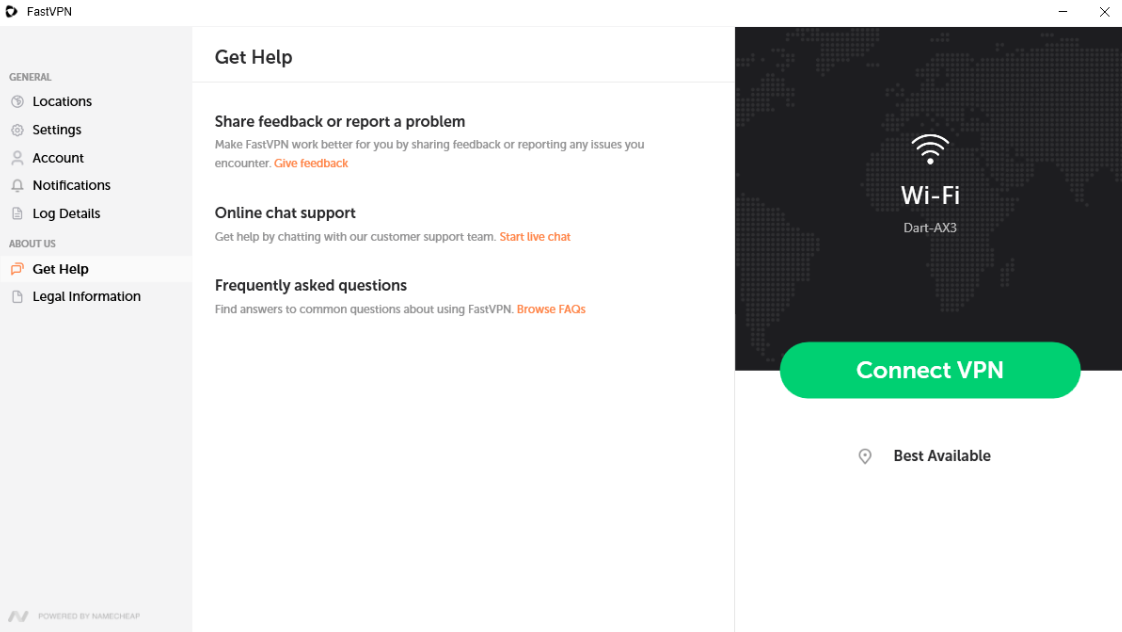
W sekcji Uzyskaj pomoc znajdziesz:
Prześlij opinię lub zgłoś problem: umożliwia przesłanie opinii lub zgłoszenie problemu bezpośrednio z aplikacji.
Wsparcie na czacie online: Umożliwia bezpośredni kontakt z naszym wsparciem poprzez link „Czat z konsultantem”.
Najczęściej zadawane pytania z dostępem do naszej bazy wiedzy.
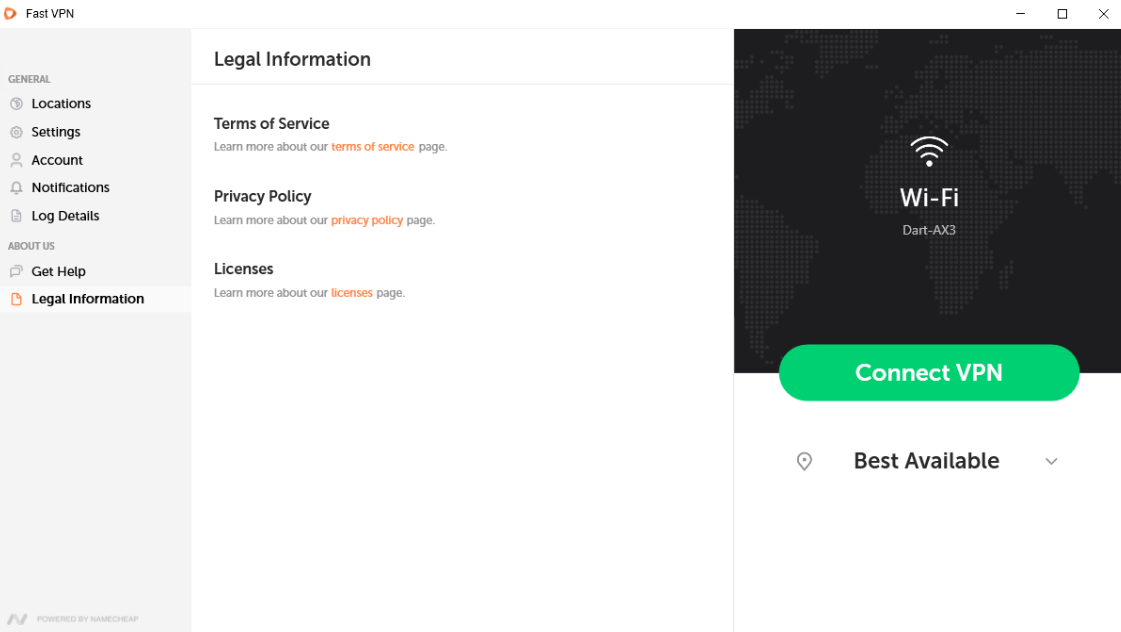
W sekcji Informacje prawne znajdziesz:
Regulamin;
Polityka prywatności;
Licencje.
Prześlij opinię opcja, umożliwiająca przesłanie opinii z aplikacji:
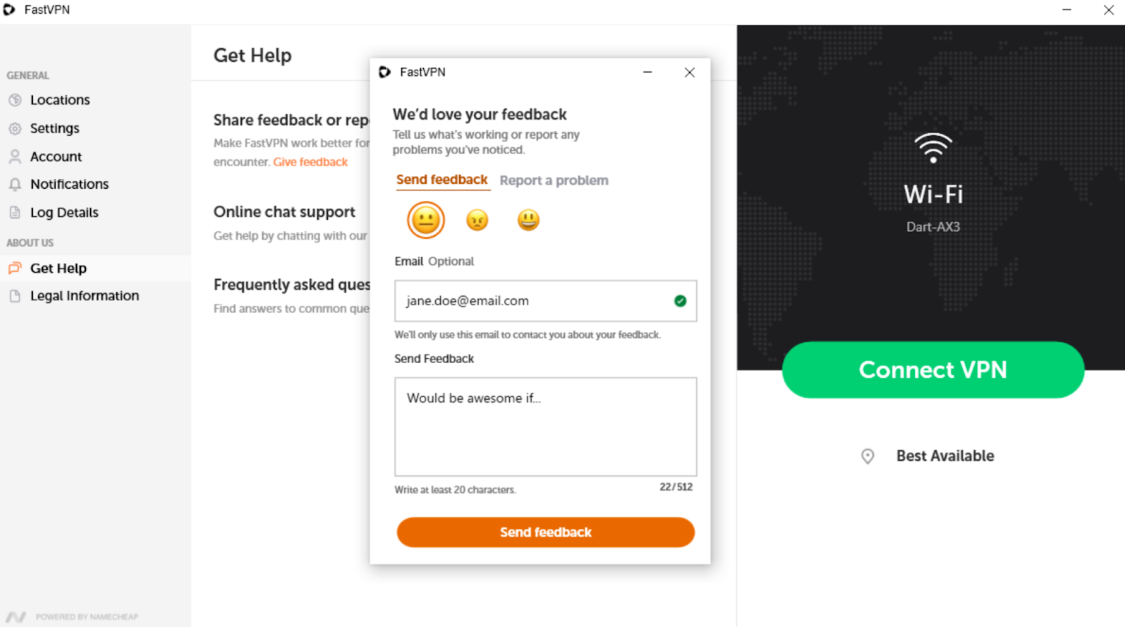
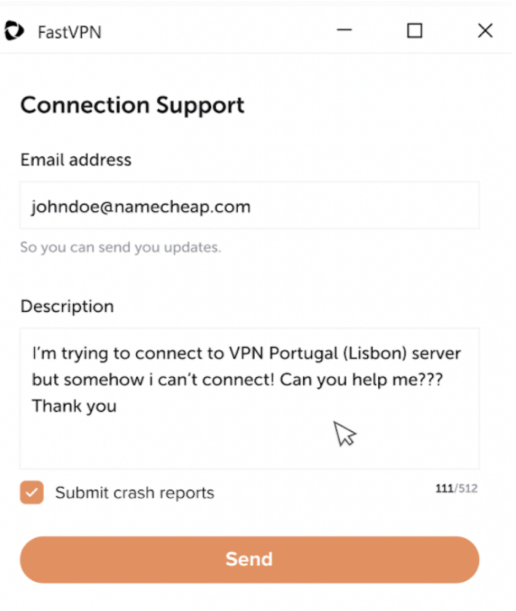
W przypadku problemów z korzystaniem z aplikacji FastVPN będziesz mógł wysłać raport o problemie, aby poinformować nas o napotkanych trudnościach.
Odpowiednie okno wyskakujące pojawi się w przypadku problemu:
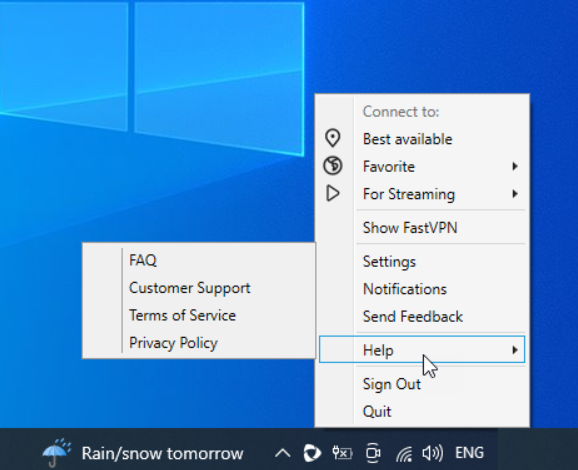
Pomoc
- FAQ;
- Wsparcie klienta;
- Regulamin;
- Polityka prywatności.
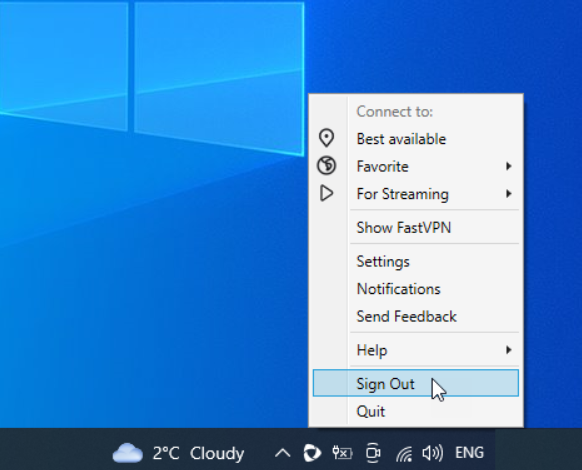
Wyloguj
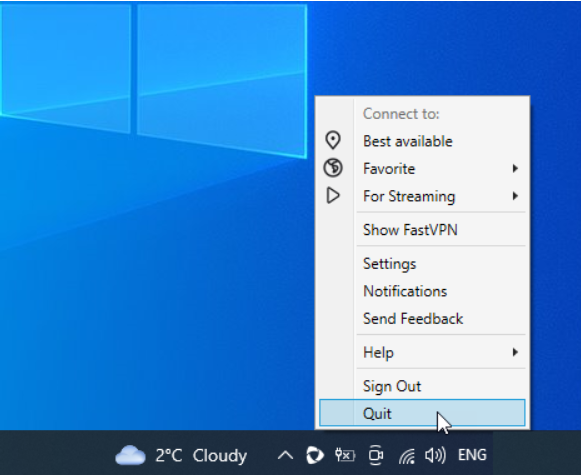
Zamknij
I to wszystko! Jeśli potrzebujesz dalszej pomocy, skontaktuj się z naszym Zespołem Wsparcia.