Hyperlift CLI를 사용하여 Hyperlift에 연결하는 방법
Hyperlift CLI는 터미널을 통해 Spaceship 플랫폼에서 Hyperlift 애플리케이션을 관리하기 위한 명령줄 도구입니다.
이 도구는 여기에서 오픈 소스로 제공됩니다. 이 도구는 Spaceship External API와 통신하며 API 키와 시크릿으로 인증합니다. 이를 통해 다음 작업을 수행할 수 있습니다:
애플리케이션 보기 및 관리;
애플리케이션 빌드, 시작, 중지 및 재시작;
런타임 및 빌드 로그 보기;
애플리케이션 메트릭 보기;
환경 변수 관리;
스크립팅 및 자동화를 위해 JSON 출력 사용;
CLI를 최신 상태로 유지하세요.
CLI는 Spaceship External API와 통신하며 인증을 위해 Spaceship API 키와 시크릿을 사용합니다. 따라서 CLI가 내부 서비스에 직접 액세스하므로 내부 및 관리 정보는 숨겨진 상태로 유지됩니다.
이 문서에서는 다음 내용을 다룹니다:
1. Hyperlift CLI 설치
Hyperlift CLI는 macOS, Windows 및 Linux에 설치할 수 있습니다. OS에 따라 설치 명령을 실행하세요. 스크립트는 운영 체제와 아키텍처를 자동으로 감지하고, 적절한 릴리스를 다운로드하여 검증한 다음 hyperlift 명령을 설치합니다.
macOS
Homebrew를 사용하는 경우 다음을 실행하세요:
brew install nccloud/tap/hyperlift
Windows
Scoop을 사용하는 경우 다음을 실행하세요:
scoop bucket add nccloud https://github.com/NCCloud/scoop-bucket
scoop install hyperlift
Linux 또는 macOS
설치 스크립트를 사용할 수도 있습니다:
curl -fsSL https://raw.githubusercontent.com/NCCloud/hyperlift-cli/main/scripts/install.sh | sh
수동 설치
또는 운영 체제에 맞는 아카이브를 Hyperlift CLI Releases page에서 다운로드하고 압축을 푼 다음 hyperlift실행 파일을 시스템의 PATH에 추가하세요.
2. API 자격 증명 생성
Hyperlift CLI는 요청을 인증하기 위해 Spaceship API 키와 시크릿을 사용합니다.
API 자격 증명을 생성하려면:
Spaceship 계정에 로그인하세요.
API Manager를 여세요.
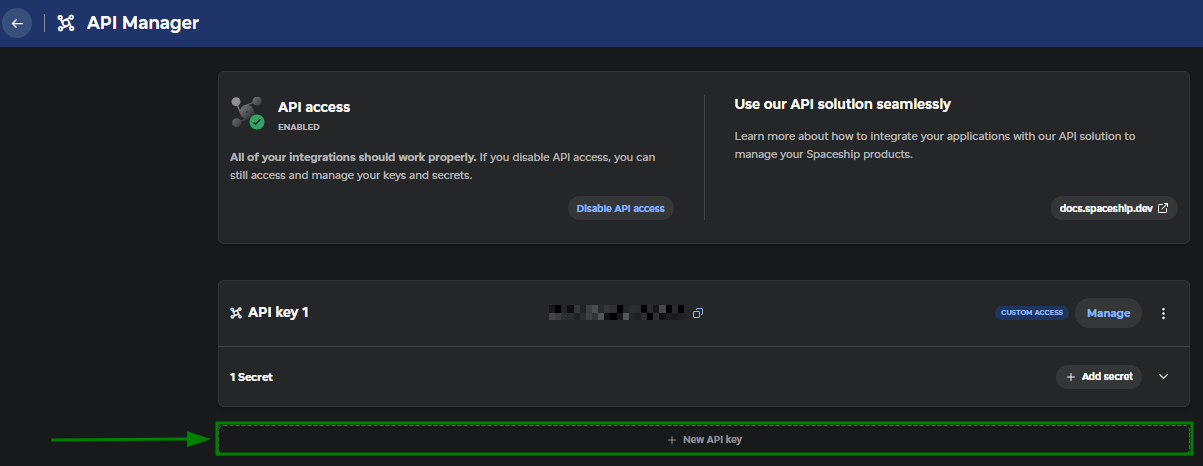
+ New API key 버튼을 클릭하여 새 키를 생성하세요:
키 이름을 지정하고 수행하려는 작업에 필요한 권한을 선택하세요:
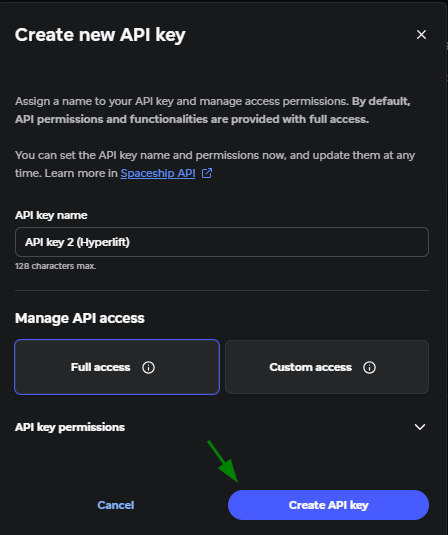
Custom access 수준을 선택하면 Hyperlift에 대한 세 가지 액세스 옵션이 있습니다:
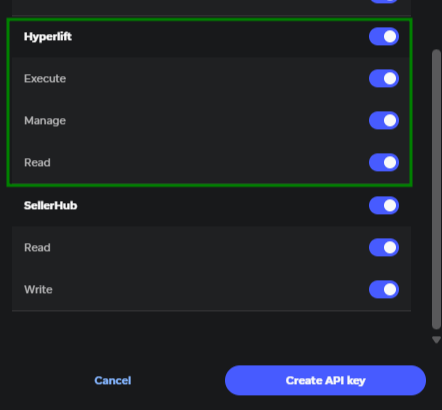
범위 | 권한 |
읽기 | 애플리케이션, 로그 및 메트릭 보기 |
실행 | 애플리케이션 빌드, 시작, 중지 및 재시작 |
관리 | 환경 변수 보기 및 관리 |
Read 범위만 있는 키는 애플리케이션, 로그 또는 메트릭만 확인하면 충분합니다. 애플리케이션 관리와 환경 변수에는 추가 범위가 필요합니다.
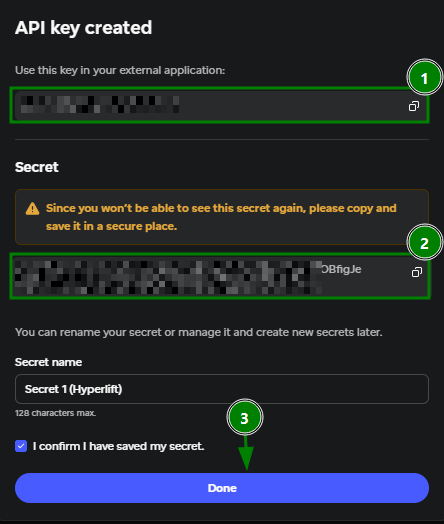
6. 생성된 API 키와 시크릿을 복사하고 세부 정보를 저장하세요.
중요: API 시크릿은 자격 증명을 생성할 때 한 번만 표시됩니다. 안전하게 저장해 두세요.
Done을 클릭하세요:
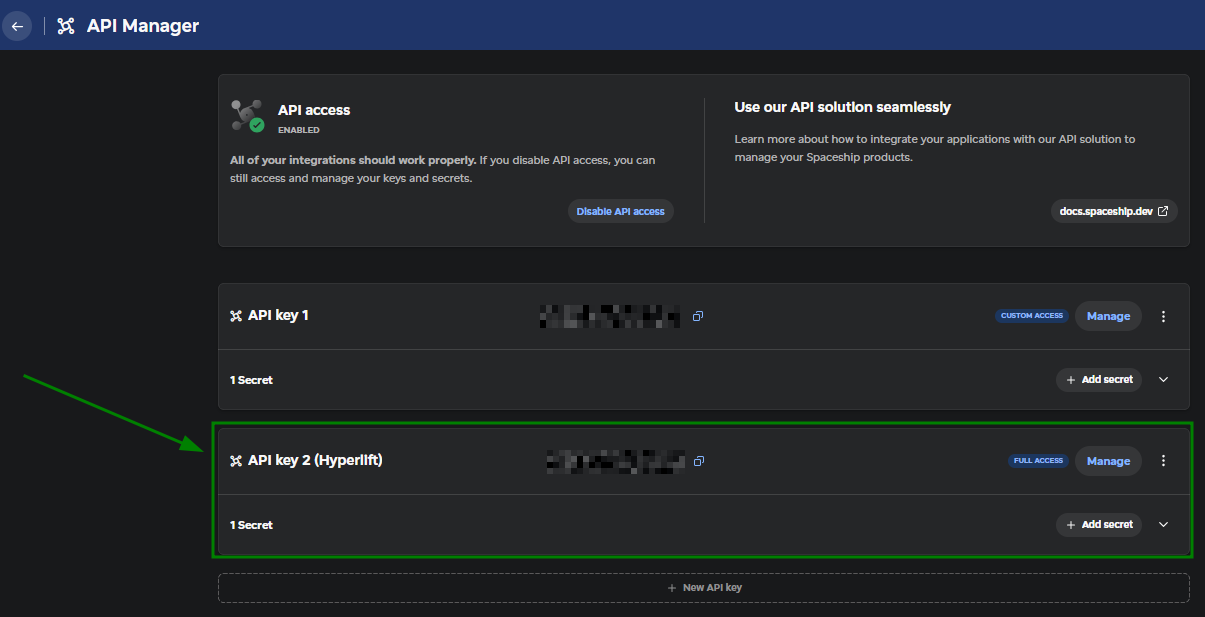
7. 생성된 키는 API Manager 메뉴 아래에 표시됩니다:
3. Hyperlift CLI에 로그인
CLI를 설치하고 API 자격 증명을 생성한 후 다음을 실행하세요:
hyperlift auth login
CLI가 API 키와 시크릿을 입력하라고 요청합니다.
인증에 성공하면 API 키는 Hyperlift 구성 파일에 저장되고, API 시크릿은 가능한 경우 운영 체제의 키링에 안전하게 저장됩니다.
로그인 상태를 확인하려면 다음을 실행하세요:
hyperlift auth whoami
로그아웃하고 저장된 자격 증명을 제거하려면 다음을 실행하세요:
hyperlift auth logout
팁: "Not logged in" 메시지가 표시되면 hyperlift auth login을 다시 실행하세요. 403 오류가 표시되면 API 키에 필요한 범위가 없을 수 있습니다.
비대화형 인증
스크립트에서 인증해야 하는 경우 명령줄 옵션을 사용하여 자격 증명을 제공할 수 있습니다:
hyperlift auth login --key "$KEY" --secret "$SECRET"
하지만 --secret을 사용하면 시크릿이 명령줄 인수로 노출됩니다. 더 나은 보안을 위해 표준 입력을 통해 시크릿을 전달할 수 있습니다:
printf '%s' "$SECRET" | hyperlift auth login --key "$KEY" --with-stdin
4. Hyperlift 애플리케이션을 관리하기 위한 기본 명령
Hyperlift 애플리케이션을 보고 관리하려면 apps 명령을 사용하세요.
애플리케이션 보기
Hyperlift 애플리케이션을 보고 관리하려면 apps명령을 사용하세요.
명령 | 설명 |
| 애플리케이션 목록 보기 |
| 특정 애플리케이션에 대한 정보 보기 |
애플리케이션 빌드
애플리케이션 빌드를 시작하려면 다음을 실행하세요:
hyperlift apps build <app-id>
기본적으로 이 명령은 API가 빌드 요청을 수락한 후 반환됩니다.
빌드가 완료될 때까지 CLI가 대기하도록 하려면 --wait 옵션을 추가하세요:
hyperlift apps build <app-id> --wait
CLI가 대기할 시간을 지정할 수도 있습니다:
hyperlift apps build <app-id> --wait --timeout 15m
기본 시간 제한은 10분입니다.
애플리케이션 시작, 중지 또는 재시작
다음 명령어를 사용하여 애플리케이션 상태를 관리하세요:
작업 | 명령어 |
시작 |
|
중지 |
|
재시작 |
|
기본적으로 이러한 명령어는 API가 요청을 수락하면 반환됩니다. 작업이 완료될 때까지 CLI가 기다리도록 하려면 --wait를 추가하세요.
예:
hyperlift apps restart <app-id> --wait
애플리케이션 로그 보기
logs 명령어를 사용하여 런타임 로그와 빌드 로그를 모두 볼 수 있습니다.
명령어 | 설명 |
| 애플리케이션의 런타임 로그 보기 |
| 빌드 로그 보기 |
| 새 로그 항목을 계속 확인 |
참고:--follow 옵션은 새 로그 항목을 주기적으로 확인합니다. 실시간 스트리밍 연결을 설정하지는 않습니다.
애플리케이션 메트릭 보기
애플리케이션의 리소스 사용량을 모니터링하려면 metrics 명령을 사용하세요. 사용 가능한 메트릭은 다음과 같습니다:
메모리 사용량;
CPU 사용량;
네트워크 수신 속도;
네트워크 전송 속도;
임시 스토리지 사용량;
영구 스토리지 사용량.
명령 | 설명 |
| 사용 가능한 메트릭 보기 |
| 지정된 기간의 사용 가능한 메트릭 보기 |
| 지정된 데이터 포인트 내의 사용 가능한 메트릭 보기 |
환경 변수 관리
환경 변수를 보고, 추가하고, 업데이트하고, 제거하려면 env명령을 사용할 수 있습니다.
명령 | 설명 |
| 환경 변수 보기 |
| 환경 변수 하나 추가/업데이트 |
| 여러 변수를 한 번에 업데이트 |
| 환경 변수 제거 |
중요: 환경 변수를 업데이트하면 애플리케이션이 다시 시작됩니다. 다른 환경 변수 변경을 하기 전에 애플리케이션이 다시 실행될 때까지 기다리세요.
Hyperlift는 애플리케이션이 사용 가능한 포트를 결정하기 위해 APPLICATION_PORT 환경 변수를 사용합니다. 기본값은 8080입니다.
명령 출력 사용자 지정
기본적으로 Hyperlift CLI 명령은 사람이 읽기 쉬운 형식으로 정보를 표시합니다.
스크립트나 다른 도구에서 출력을 사용해야 하는 경우 다음 옵션을 사용할 수 있습니다.
명령 | 설명 |
| 명령 출력을 JSON 형식으로 반환 |
| 기본 식별자만 출력 |
| 문제 해결을 위한 추가 정보 확인 이 옵션은 CLI가 수행한 HTTP 요청의 민감 정보가 가려진 추적을 표시합니다. |
참고:--json 및 --quiet 옵션은 함께 사용할 수 없습니다.
Hyperlift CLI 업데이트
명령 | 설명 |
| CLI의 최신 버전이 있는지 확인 |
| 최신 버전 다운로드 및 설치 업데이트 프로세스는 다운로드한 릴리스를 검증한 후 현재 CLI 버전을 교체합니다. |
또는
| 설치된 CLI 버전 확인 |
명령별 도움말 보기
각 Hyperlift CLI 명령에는 자체 도움말 정보가 있습니다.
명령 | 설명 |
| 일반 도움말 보기 |
| 특정 명령의 도움말 보기 |
| 개별 작업의 도움말 보기 |
도움말 출력에는 선택한 명령에 사용할 수 있는 옵션과 인수가 포함됩니다.
최신 명령 목록과 기술 세부 정보는Hyperlift CLI repository를 참조하세요.