Cách thiết lập OpenVPN trên Ubuntu
Trước khi cài đặt OpenVPN trên Ubuntu, cần chuẩn bị những điều sau:
Một tài khoản FastVPN (Chưa có tài khoản? Đăng ký tại đây);
Truy cập vào bảng điều khiển tài khoản FastVPN của bạn để lấy thông tin đăng nhập mạng;
Một bản cài đặt Linux Ubuntu đang hoạt động (Hướng dẫn này sử dụng phiên bản Ubuntu 22.04. LTS);
Làm theo các bước dưới đây để cấu hình FastVPN OpenVPN client trên Ubuntu.
Chọn một tài khoản có quyền quản trị và đăng nhập vào màn hình chính. Chọn và nhấp vào biểu tượng Terminal trên màn hình:
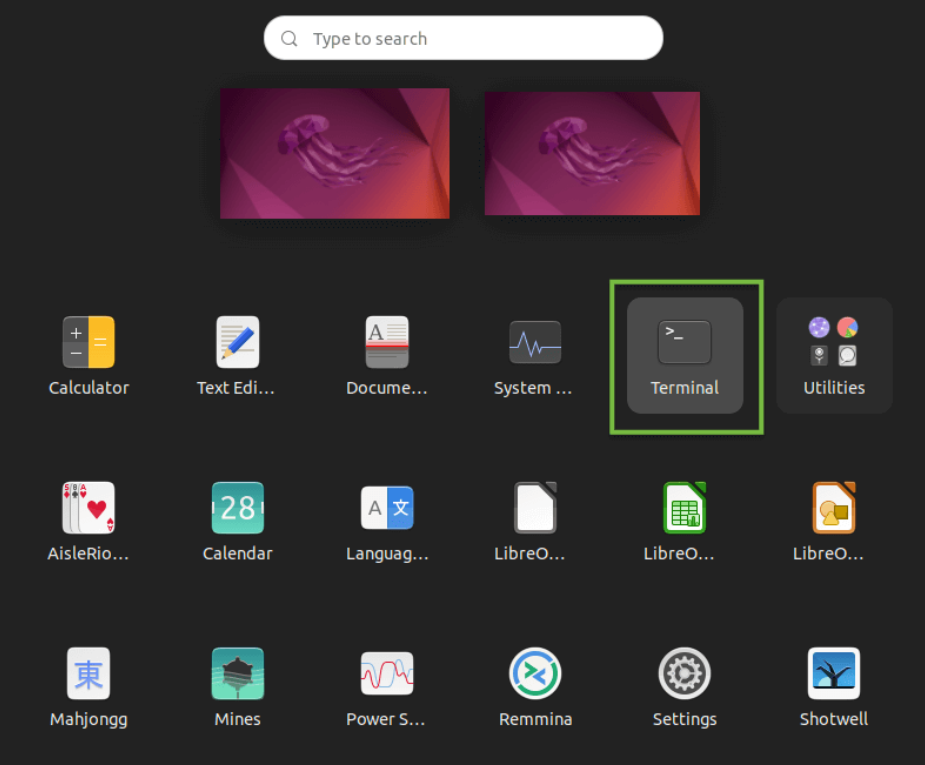
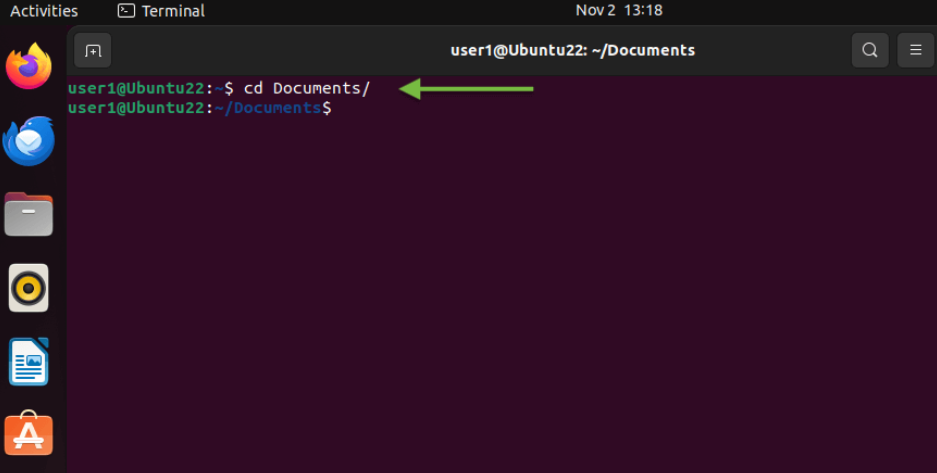
2. Bạn sẽ được chuyển đến cửa sổ Terminal, mở một shell mới, chờ nhập lệnh tiếp theo. Xác nhận rằng cửa sổ terminal đang được chọn và nhập lệnh sau:
cd Documents/
Nhấn phím Enter:
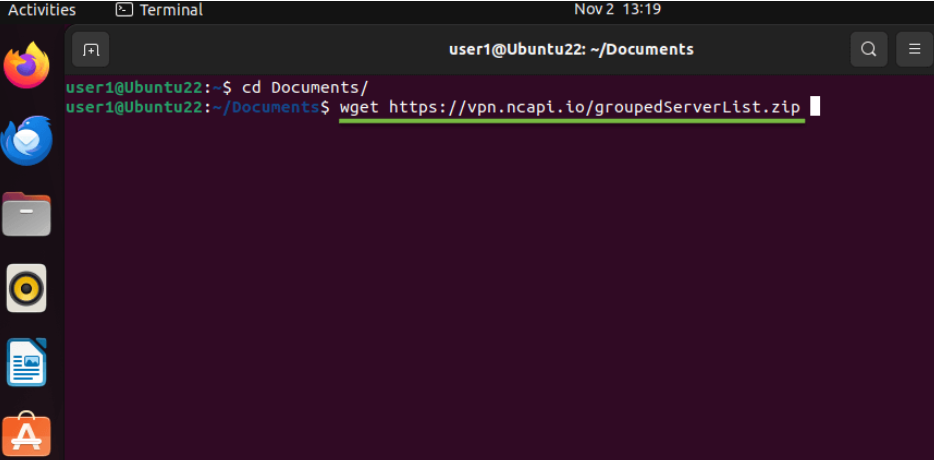
3. Nhập lệnh sau vào cửa sổ terminal:
wget https://vpn.ncapi.io/groupedServerList.zip
Lệnh này sẽ tải về và lưu tệp FastVPN OpenVPN config zip từ kho lưu trữ của chúng tôi. Nhấn phím Enter và tiếp tục bước tiếp theo:
4. Giải nén các tệp cấu hình vào thư mục Documents của bạn bằng cách nhập lệnh sau:
unzip groupedServerList.zip
Nhấn phím Enter:
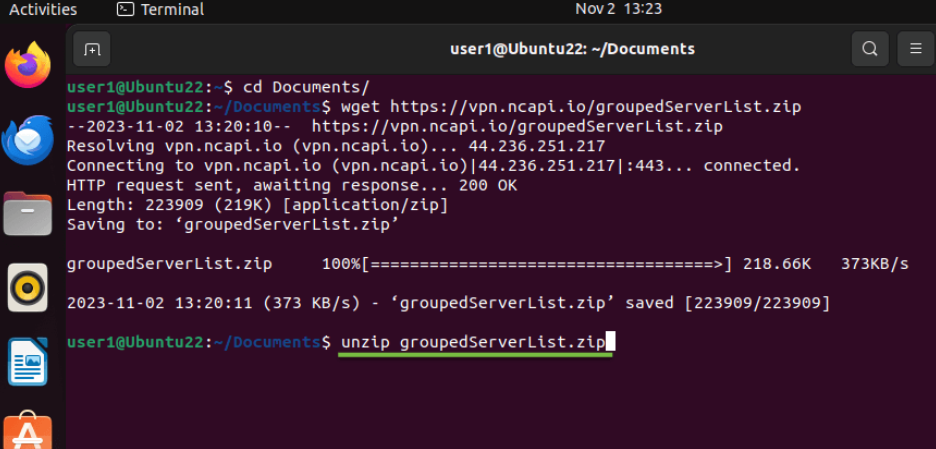
5. Các lệnh đã nhập trước đó sẽ giải nén các tệp cấu hình đã tải về. Kết quả sẽ hiển thị trong cửa sổ terminal, tương tự như ảnh chụp màn hình bên dưới:
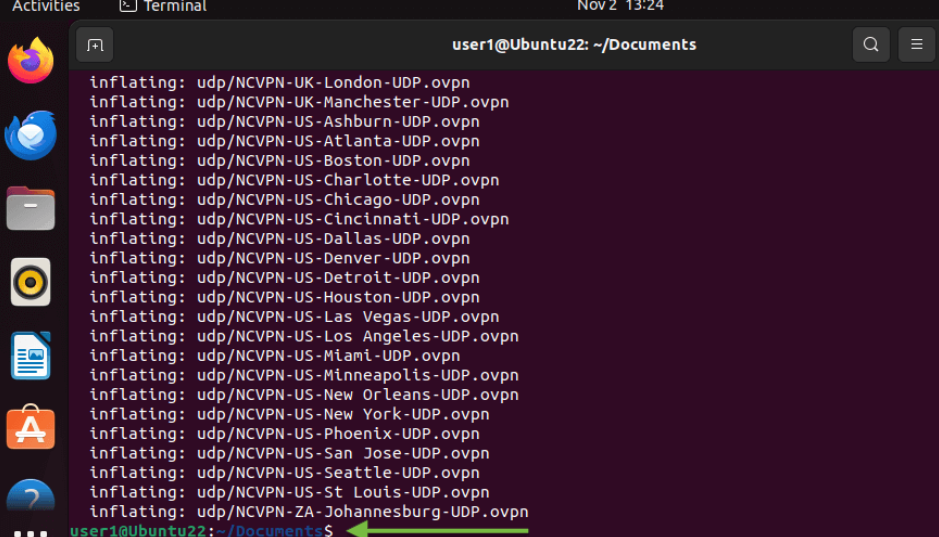
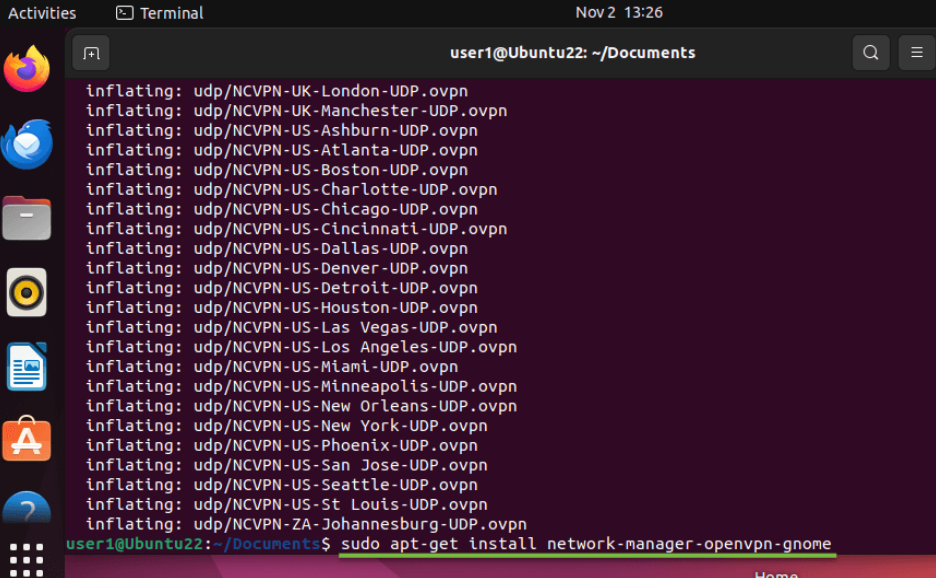
6. Tiếp theo, chúng ta cần cài đặt một gói bắt buộc để nhập và sử dụng các tệp cấu hình OpenVPN đã tải về ở bước 4 trước đó. Gói này sẽ cho phép chúng ta nhập tệp cấu hình qua giao diện đồ họa (GUI) rất dễ dàng. Việc cài đặt gói có thể thực hiện bằng lệnh sau:
sudo apt-get install network-manager-openvpn-gnome
Nhấn phím Enter và tiếp tục bước tiếp theo:
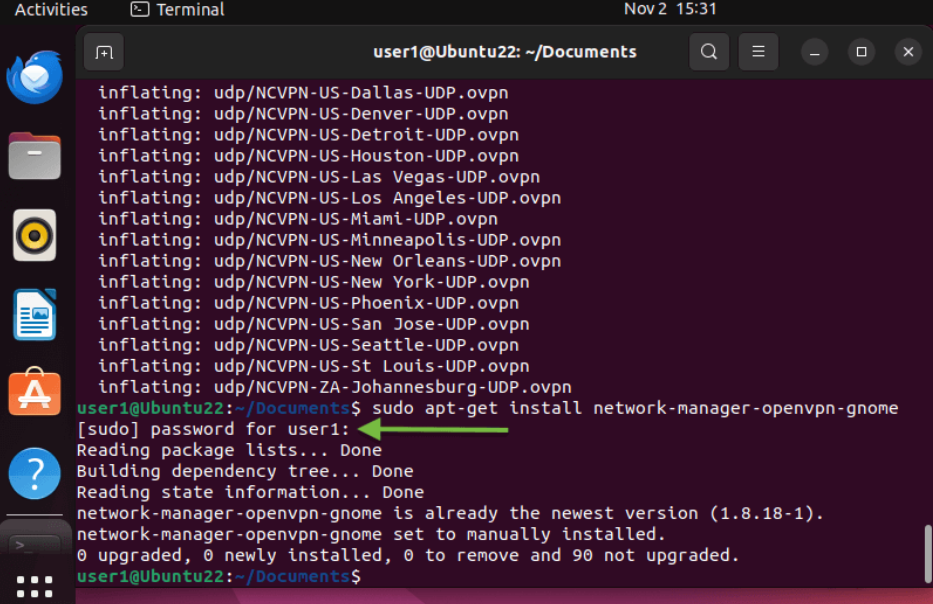
7. Nhập mật khẩu Linux Ubuntu 22 của bạn và nhấn phím Enter:
8. Để khởi động lại trình quản lý mạng và áp dụng cấu hình VPN của bạn, hãy sử dụng lệnh sau:
sudo systemctl restart NetworkManager.service
Lưu ý: Đối với các phiên bản Ubuntu cũ hơn, hãy sử dụng lệnh thay thế sau:
sudo service network-manager restart
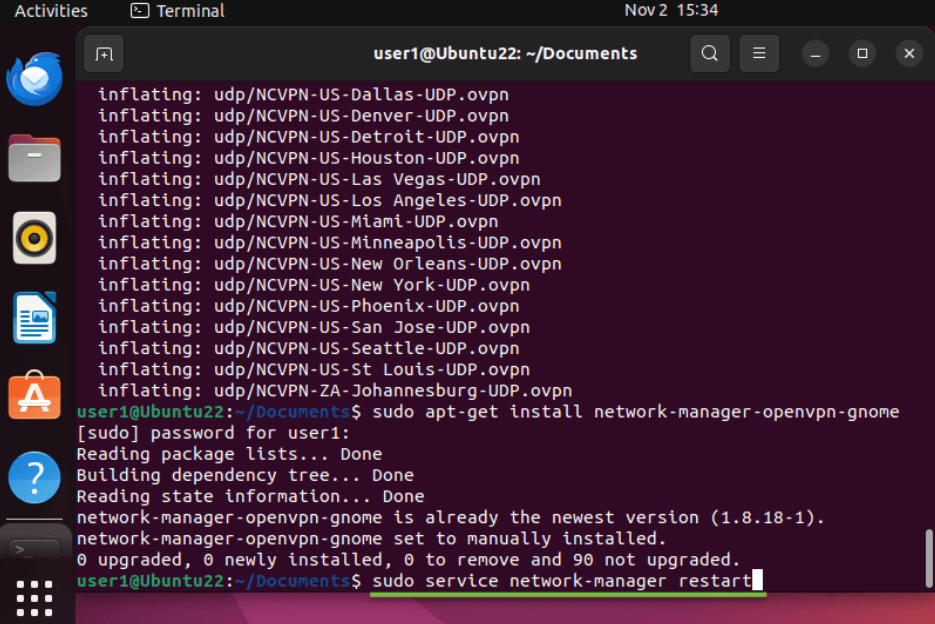
Lưu ý: Trong quá trình khởi động lại, mạng sẽ tạm thời không khả dụng cho đến khi trình quản lý mạng khởi động lại hoàn toàn.
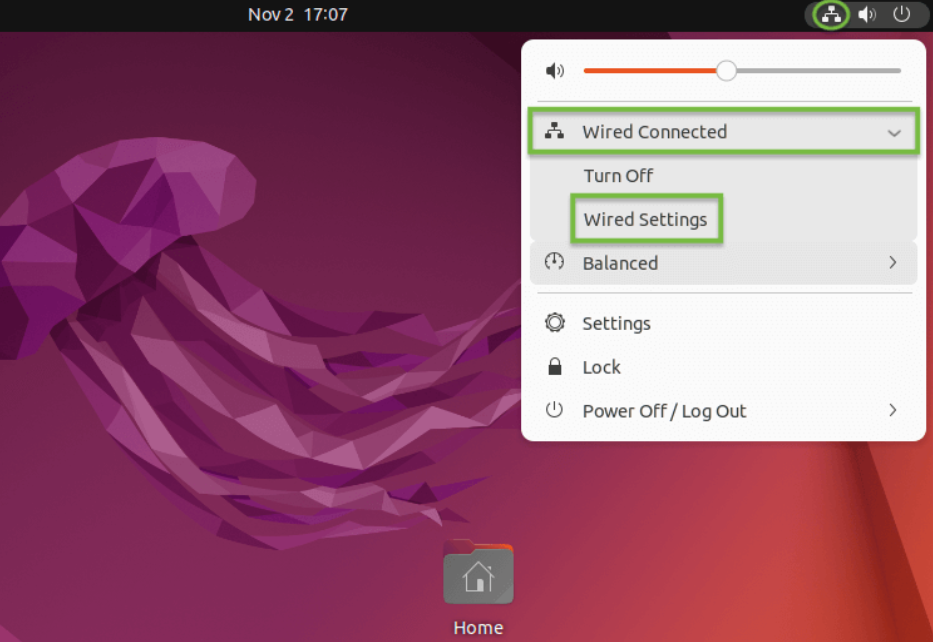
9. Điều hướng đến màn hình chính và nhấp vào biểu tượng Mạng ở góc trên bên phải màn hình như hình bên dưới. Một menu hiển thị tùy chọn Wired Connected sẽ xuất hiện. Nhấp vào tùy chọn Wired Settings:
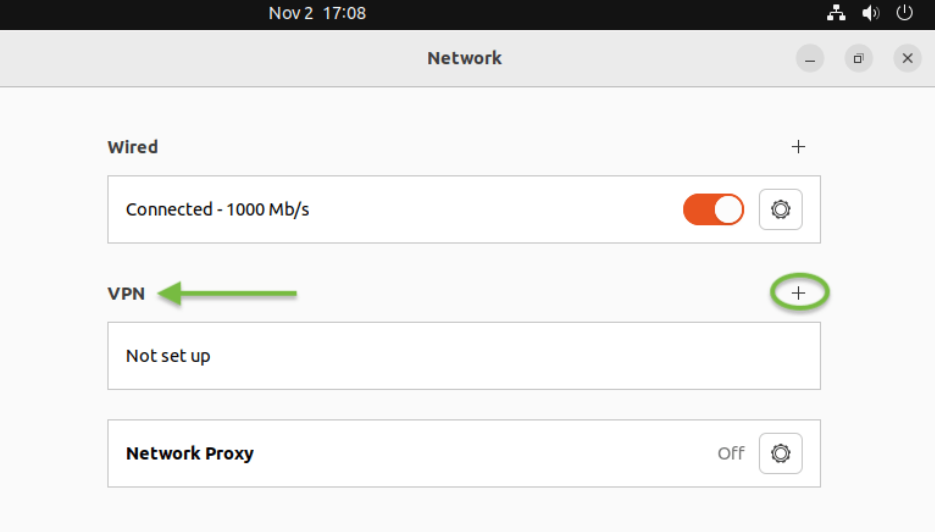
10. Nhấp vào nút Thêm (+) bên dưới tiêu đề VPN và chuyển sang bước tiếp theo:
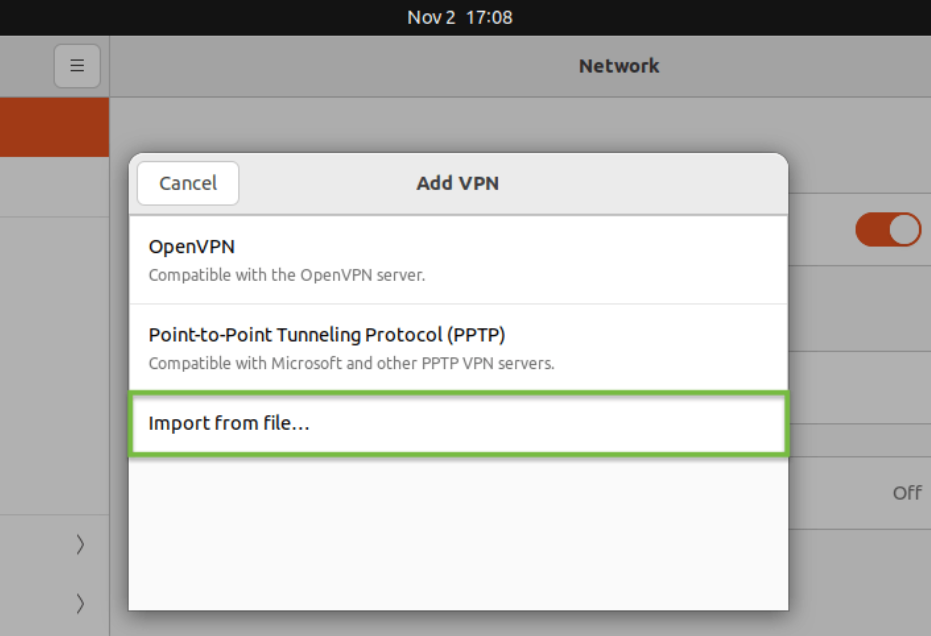
11. Cửa sổ Thêm VPN sẽ xuất hiện, nhấp vào menu thả xuống và chọn thẻ Nhập từ tệp…:
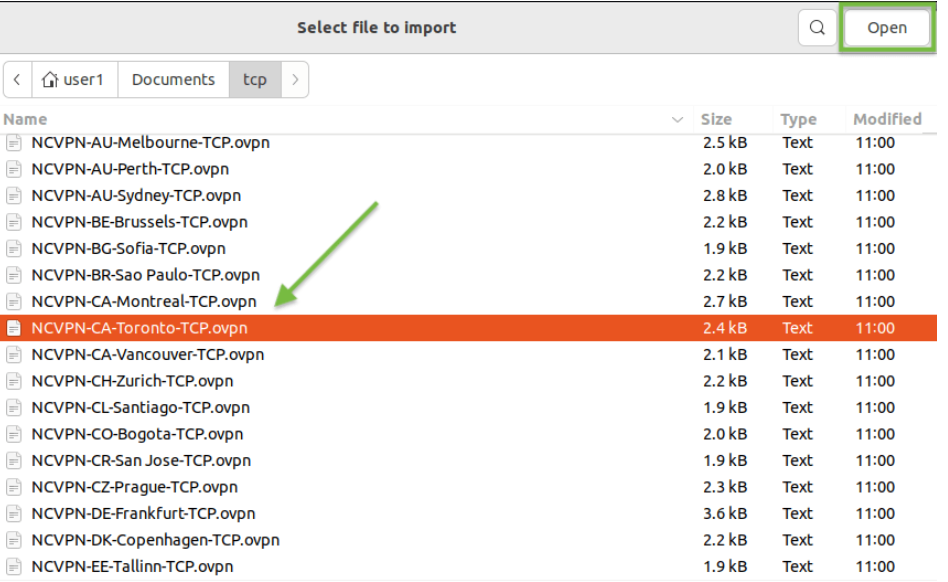
12. Chọn tệp cấu hình OpenVPN bạn muốn sử dụng đã tải về trước đó từ thư mục Documents của bạn. Trong ví dụ này, chúng tôi chọn mục 'NCVPN-CA-Toronto.ovpn'. Máy chủ có thể được chọn theo sở thích của bạn. Định dạng tên máy chủ của chúng tôi là Quốc gia-Vị trí-Địa chỉ máy chủ. Sau khi chọn tệp cấu hình, nhấp vào nút Mở ở góc trên bên phải:
13. Trong cửa sổ tiếp theo, tệp cấu hình OpenVPN đã chọn trước đó sẽ được nhập vào Network Manager dưới dạng phiên chưa lưu:
Xác nhận địa chỉ máy chủ trong trường Gateway;
Nhập Tên người dùng và Mật khẩu của bạn, có sẵn từ Bảng điều khiển tài khoản FastVPN;
Chọn tùy chọn Lưu mật khẩu cho tất cả người dùng trong trường mật khẩu;
Sau khi bạn đã nhập đầy đủ thông tin cần thiết, nhấp vào nút Thêm ở góc trên bên phải cửa sổ:
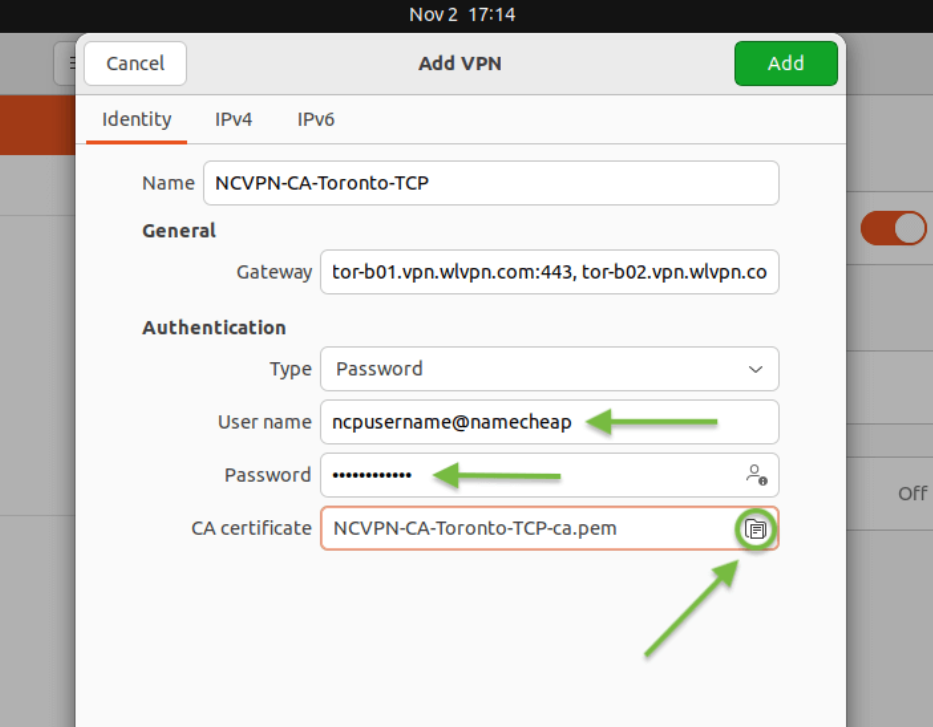
14. Sau khi cấu hình OpenVPN mới được cài đặt, bạn sẽ thấy phiên FastVPN OpenVPN vừa tạo xuất hiện trong khu vực lựa chọn chính của menu VPN. Nhấp vào công tắc trượt VPN để kích hoạt VPN và kết nối với FastVPN:
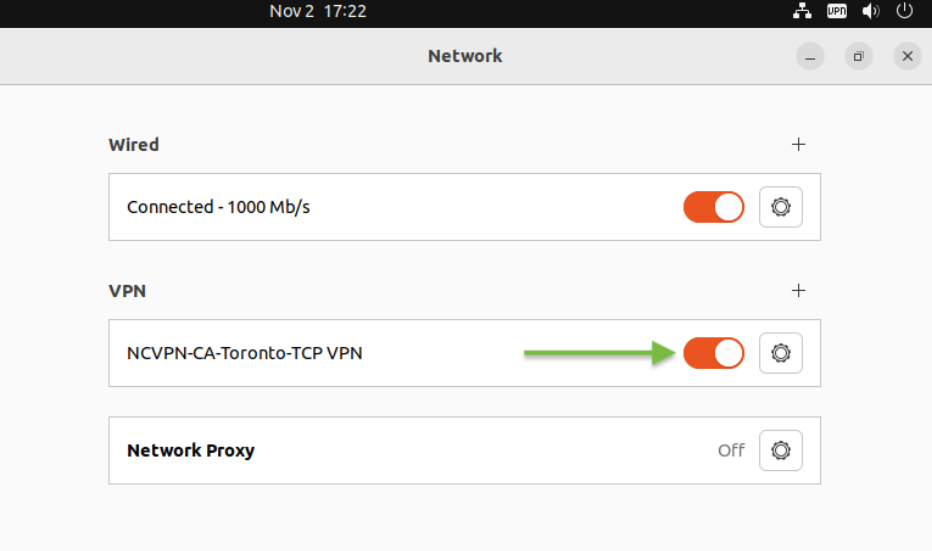
15. Bạn cũng có thể kết nối hoặc ngắt kết nối VPN từ màn hình chính như hình bên dưới:
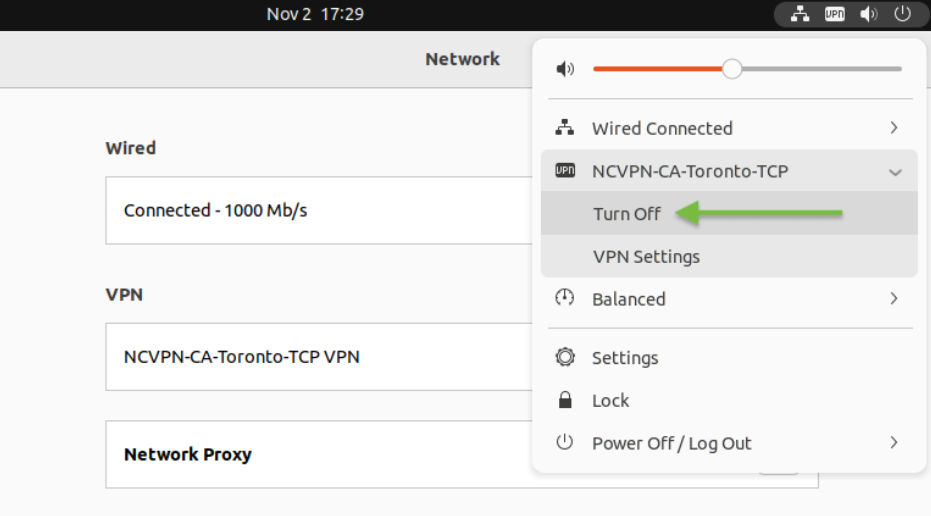
Để xác nhận rằng địa chỉ IP của bạn đã được thay đổi thành IP FastVPN ẩn danh và riêng tư, hãy mở trình duyệt web yêu thích và truy cập bất kỳ dịch vụ tra cứu IP nào, chẳng hạn như https://www.namecheap.com/vpn/what-is-my-ip/
Nếu bạn cần thêm hỗ trợ, vui lòng liên hệ với đội ngũ hỗ trợ của chúng tôi.