Cách tạo chữ ký email trong Spacemail?
Bạn có thể tạo chữ ký email để làm cho email của mình chuyên nghiệp hơn.
Bạn có thể thực hiện điều này trong Spacemail webmail: vào Cài đặt, sau đó ở ô Chữ ký , nhấp vào Quản lý chữ ký.
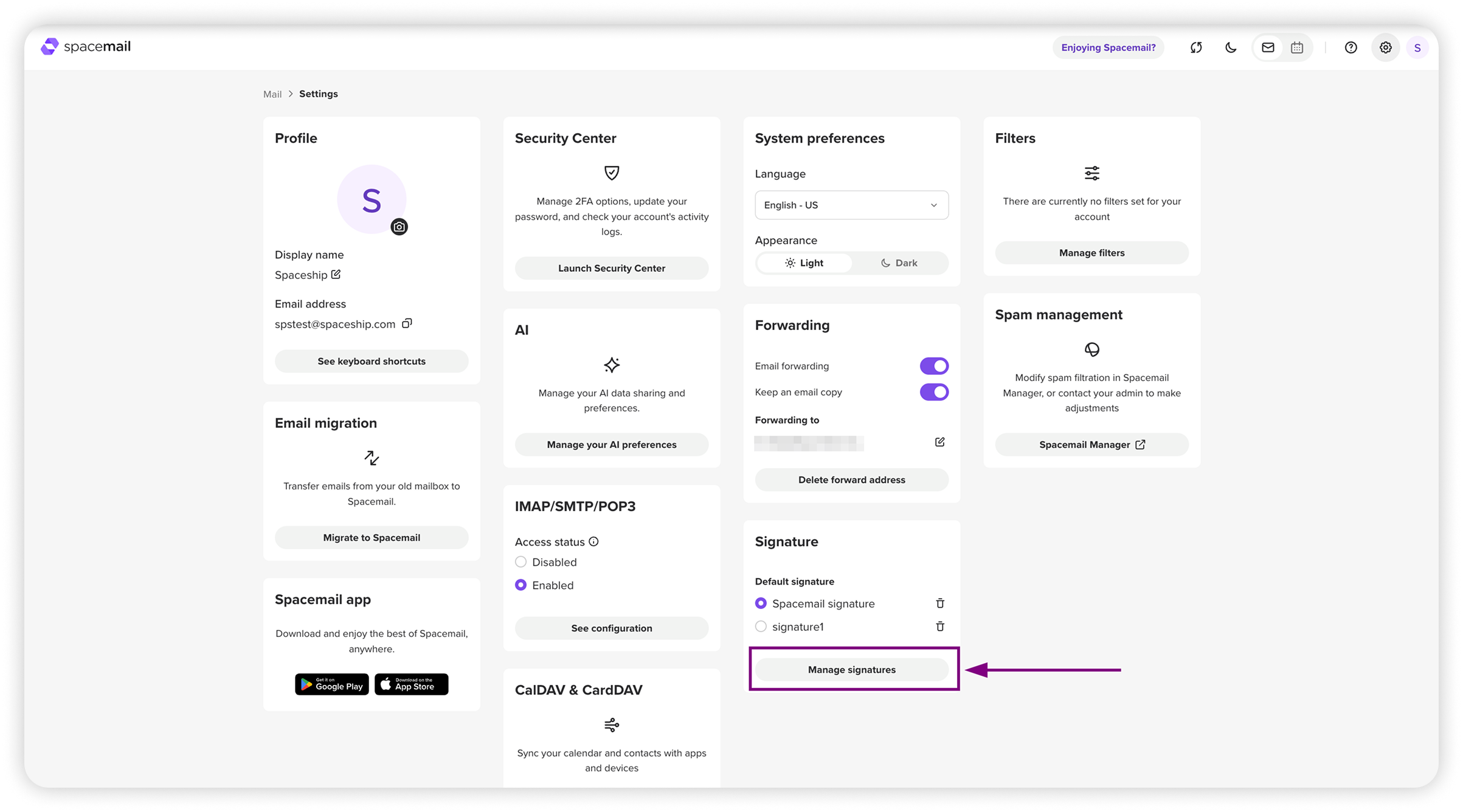
Một trang mới sẽ xuất hiện. Nhấn + Chữ ký mới, nhập tên (ví dụ, signature1), rồi nhấn Enter. Sau đó, nhập nội dung chữ ký của bạn vào trình soạn thảo văn bản.
Bạn có thể định dạng chữ ký của mình bằng cách sử dụng hoàn tác/làm lại, thay đổi phông chữ và kích thước, in đậm, nghiêng, gạch chân, gạch ngang, cũng như các công cụ để chèn hình ảnh hoặc liên kết, thay đổi màu chữ và nền (tô sáng), tạo danh sách dấu đầu dòng và đánh số, và căn lề trái cho văn bản. Các công cụ bổ sung dưới mũi tên bao gồm các tùy chọn căn lề khác, bảng, và xóa định dạng.
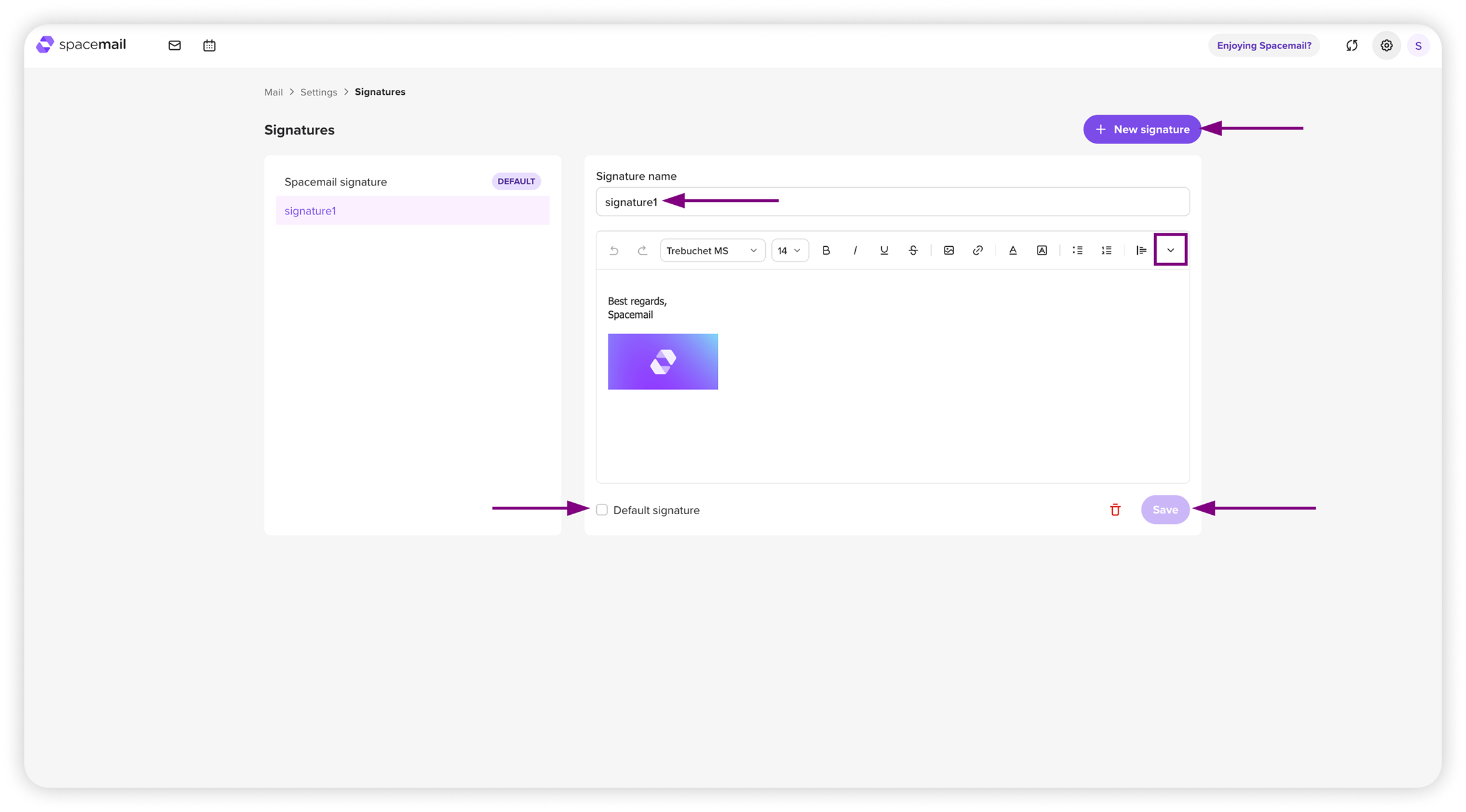
Bạn có thể chọn đặt chữ ký này làm mặc định (nếu bạn cần nhiều chữ ký) bằng cách nhấp vào dấu kiểm bên dưới trường chỉnh sửa. Bạn cũng có thể thực hiện điều này sau từ Cài đặt.
Khi một chữ ký đã được thêm, bạn sẽ thấy thông báo bật lên rằng chữ ký đã được lưu.
LƯU Ý: Nếu bạn sử dụng bất kỳ ứng dụng hoặc phần mềm email nào khác ngoài Spacemail webmail để gửi email, bạn sẽ cần thiết lập chữ ký trong các ứng dụng bên thứ ba này riêng biệt, vì chúng không đồng bộ qua IMAP.