Πώς να ρυθμίσετε το Spacemail στο Thunderbird
Αυτό το σεμινάριο θα σας βοηθήσει να ρυθμίσετε το γραμματοκιβώτιο Spacemail στο Thunderbird.
Αυτόματη ρύθμιση
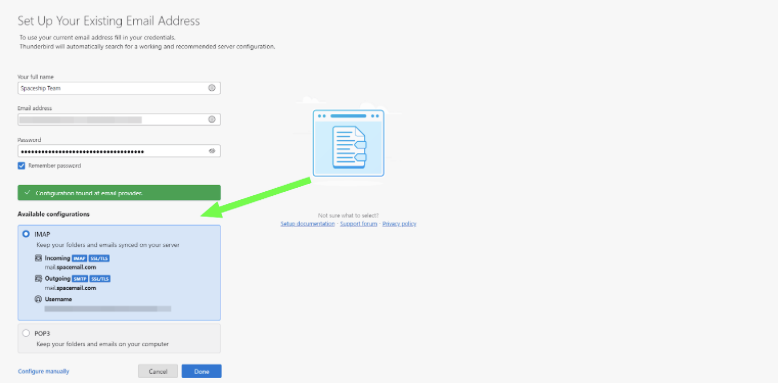
Η υπηρεσία Spacemail υποστηρίζει τη λειτουργία αυτόματης διαμόρφωσης για το Thunderbird, η οποία επιτρέπει τη ρύθμιση ενός λογαριασμού email αυτόματα.
Το μόνο που χρειάζεται να κάνετε είναι να εισάγετε το όνομα του γραμματοκιβωτίου σας και τον κωδικό πρόσβασης. Μετά από αυτό, ο πελάτης email θα βρει αυτόματα τις ρυθμίσεις:
Χειροκίνητη ρύθμιση
Μπορείτε επίσης να προχωρήσετε με χειροκίνητη διαμόρφωση εισάγοντας απευθείας τις ρυθμίσεις διακομιστή στο Thunderbird. Για να προσθέσετε το Spacemail στο Thunderbird χειροκίνητα, ακολουθήστε τα παρακάτω βήματα:
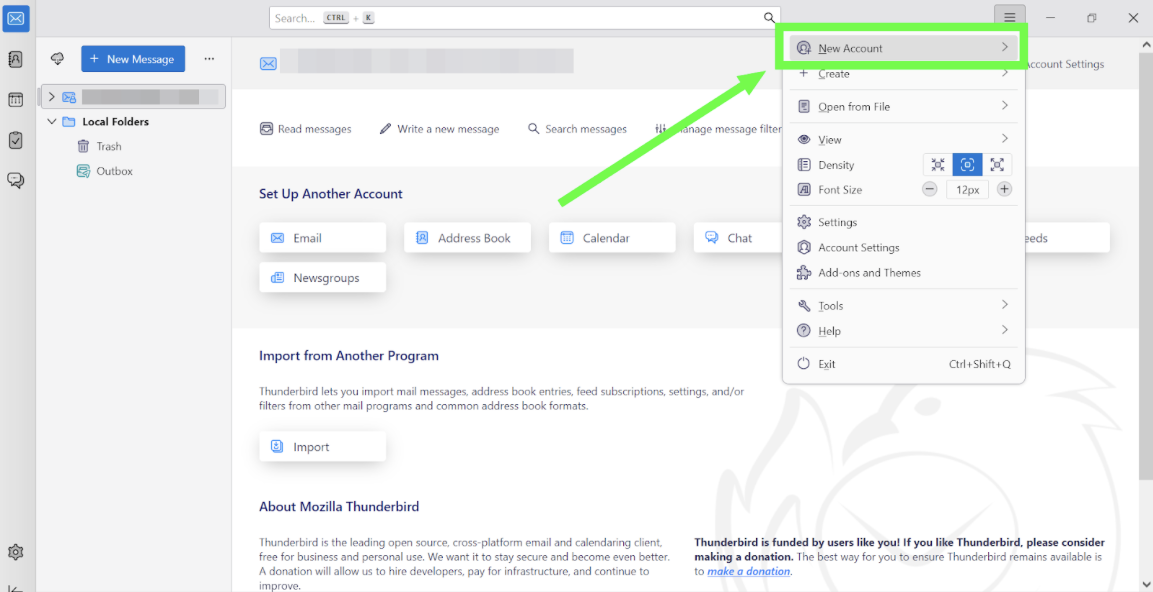
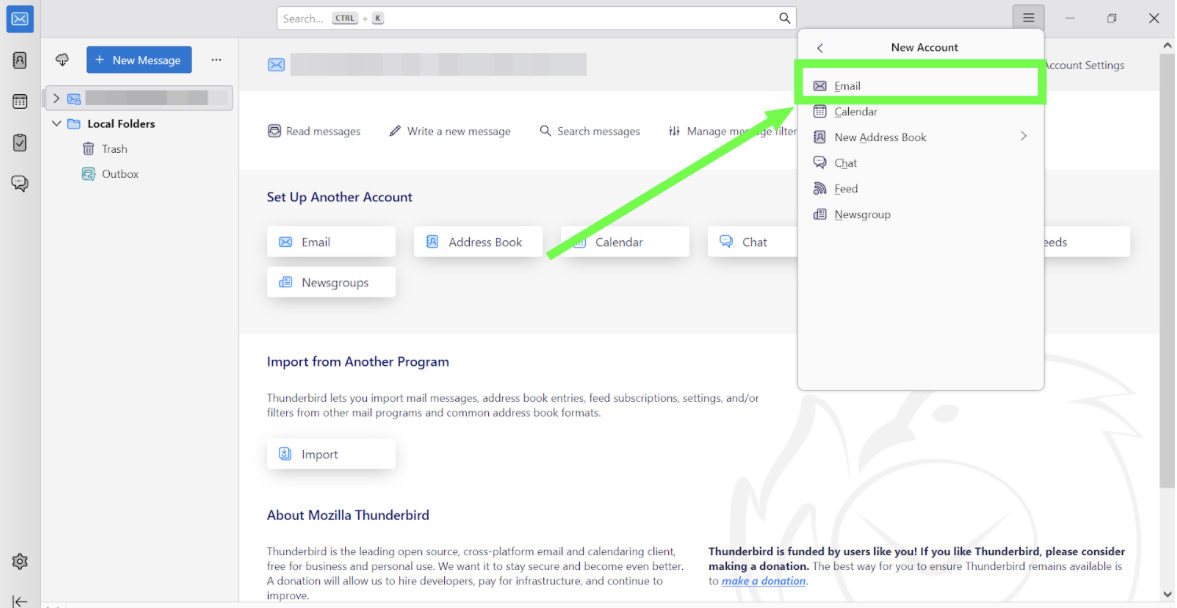
Βήμα 1. Κάντε κλικ στις 3 οριζόντιες γραμμές > Νέος Λογαριασμός > Email:
Βήμα 2. Εισάγετε τα παρακάτω στοιχεία:
Το πλήρες όνομά σας: το όνομα που θέλετε να βλέπουν οι παραλήπτες των email σας
Διεύθυνση Email: η πλήρης διεύθυνση Spacemail σας
Κωδικός πρόσβασης: ο κωδικός πρόσβασης για το γραμματοκιβώτιο Spacemail σας
Επιλέξτε Χειροκίνητα -> Διαμόρφωση Χειροκίνητα και συμπληρώστε τις παρακάτω ρυθμίσεις:
Ρυθμίσεις εισερχομένων:
Πρωτόκολλο: IMAP
Όνομα διακομιστή: mail.spacemail.com
Θύρα: 993
Ασφάλεια σύνδεσης: SSL/TLS
Μέθοδος ταυτοποίησης: Αυτόματη ανίχνευση
Όνομα χρήστη: το πλήρες όνομα του γραμματοκιβωτίου σας
Ρυθμίσεις εξερχομένων:
Πρωτόκολλο: SMTP
Όνομα διακομιστή: mail.spacemail.com
Θύρα: 465
Ασφάλεια σύνδεσης: SSL/TLS
Μέθοδος ταυτοποίησης: Αυτόματη ανίχνευση
Όνομα χρήστη: το πλήρες όνομα του γραμματοκιβωτίου σας
Σημείωση: Εάν για κάποιο λόγο δεν θυμάστε τον κωδικό πρόσβασής σας, μπορείτε εύκολα να τον επαναφέρετε χρησιμοποιώντας το παρακάτω σεμινάριο.
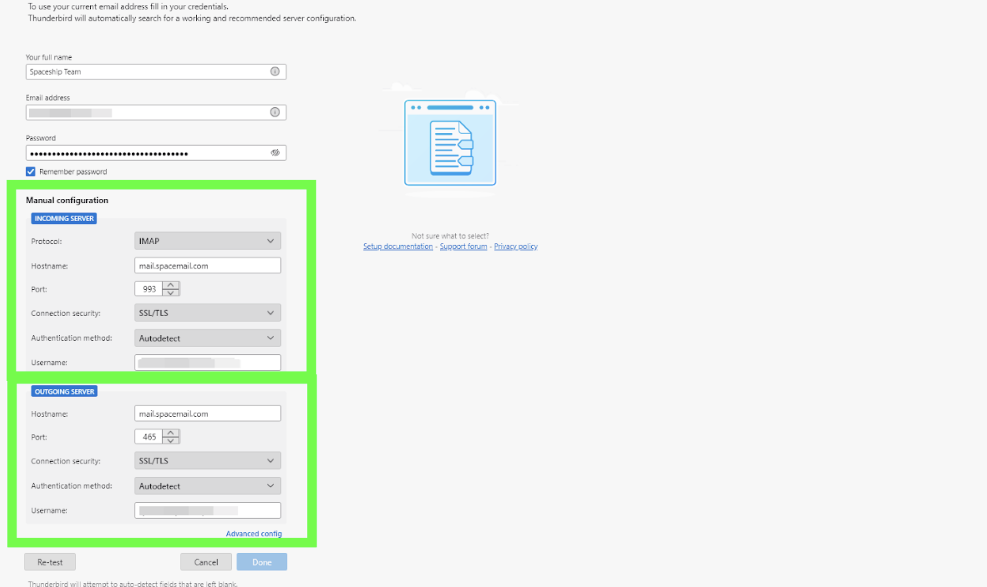
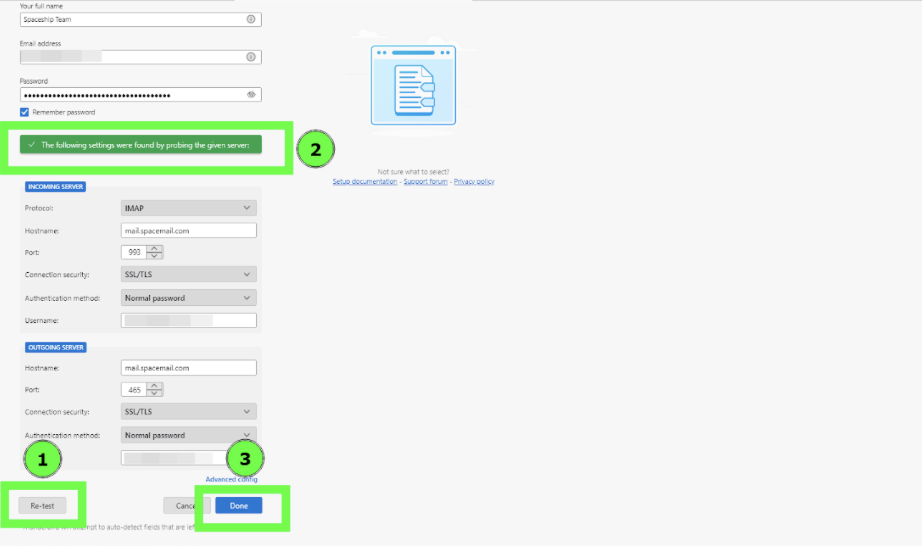
Βήμα 3. Αφού συμπληρώσετε όλα τα πεδία, κάντε κλικ στο Επαναδοκιμή, και θα δείτε ‘Οι παρακάτω ρυθμίσεις βρέθηκαν ελέγχοντας τον δοσμένο διακομιστή’, στη συνέχεια κάντε κλικ στο Τέλος, και ο λογαριασμός θα δημιουργηθεί με επιτυχία:
Εάν έχετε οποιεσδήποτε ερωτήσεις, μην διστάσετε να επικοινωνήσετε με την Ομάδα Υποστήριξής μας για περαιτέρω βοήθεια.