Hoe gebruik je de agenda in Spacemail
In deze handleiding leiden we je door de essentiële stappen voor het gebruik van de agenda in Spacemail. Met de agenda kun je evenementen aanmaken, deelnemers uitnodigen en je planning rechtstreeks beheren in de webmailinterface.
Toegang tot de agenda
1. Log in op Spacemail mailbox
2. Zodra je bent ingelogd, gebruik je de schakelaar bovenaan de interface om te wisselen tussen e-mail- en agendaweergave.

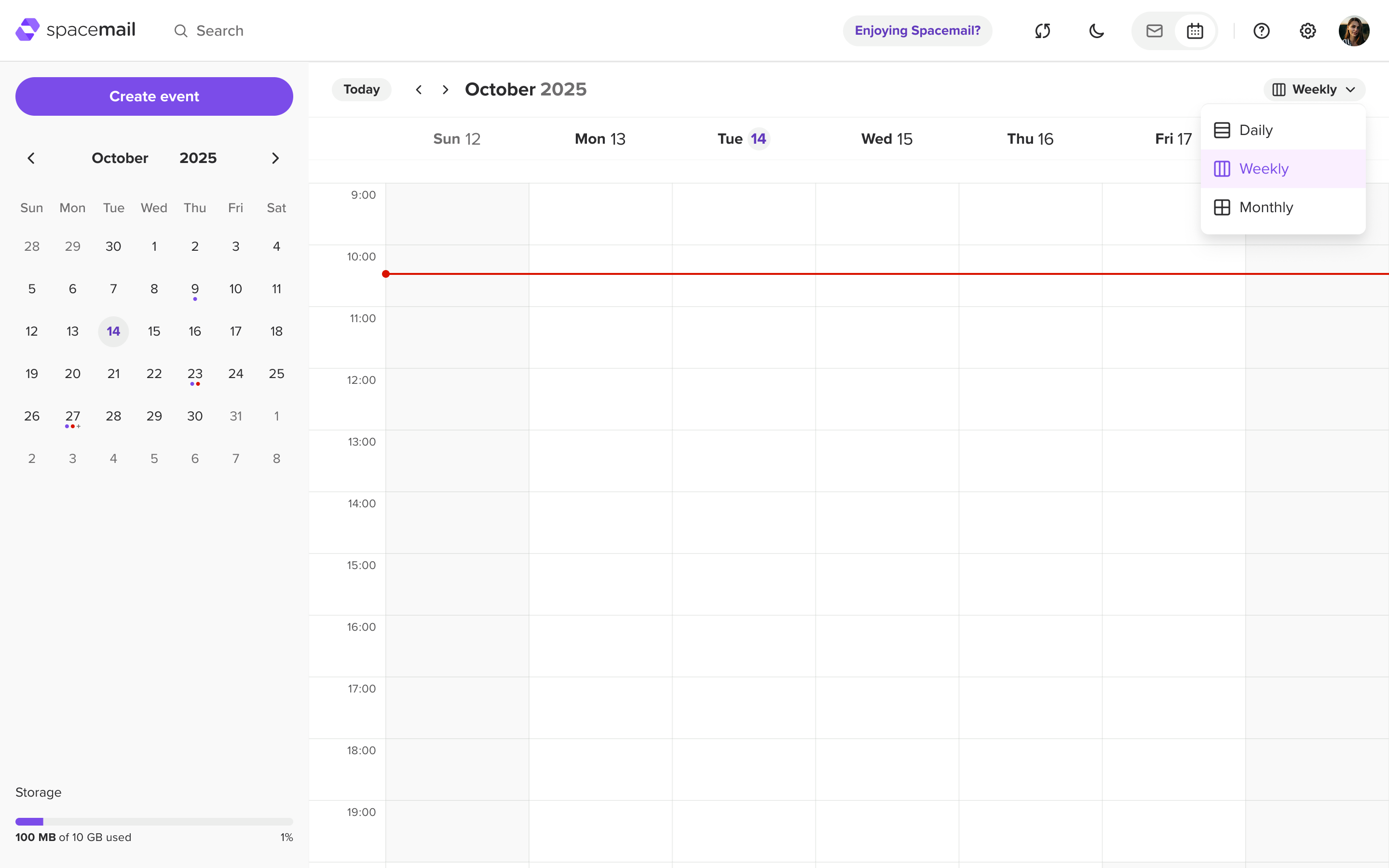
3. Je kunt ervoor kiezen om je planning op een van de volgende drie manieren te bekijken: Dagelijks, Wekelijks of Maandelijks. Selecteer hiervoor de optie in het vervolgkeuzemenu in de rechterbovenhoek van de agenda:
Een evenement aanmaken
1. Klik in de agenda op de knop “Evenement aanmaken” om een nieuw evenement toe te voegen. Er verschijnt een apart pop-upvenster waarin je de evenementgegevens kunt invoeren:
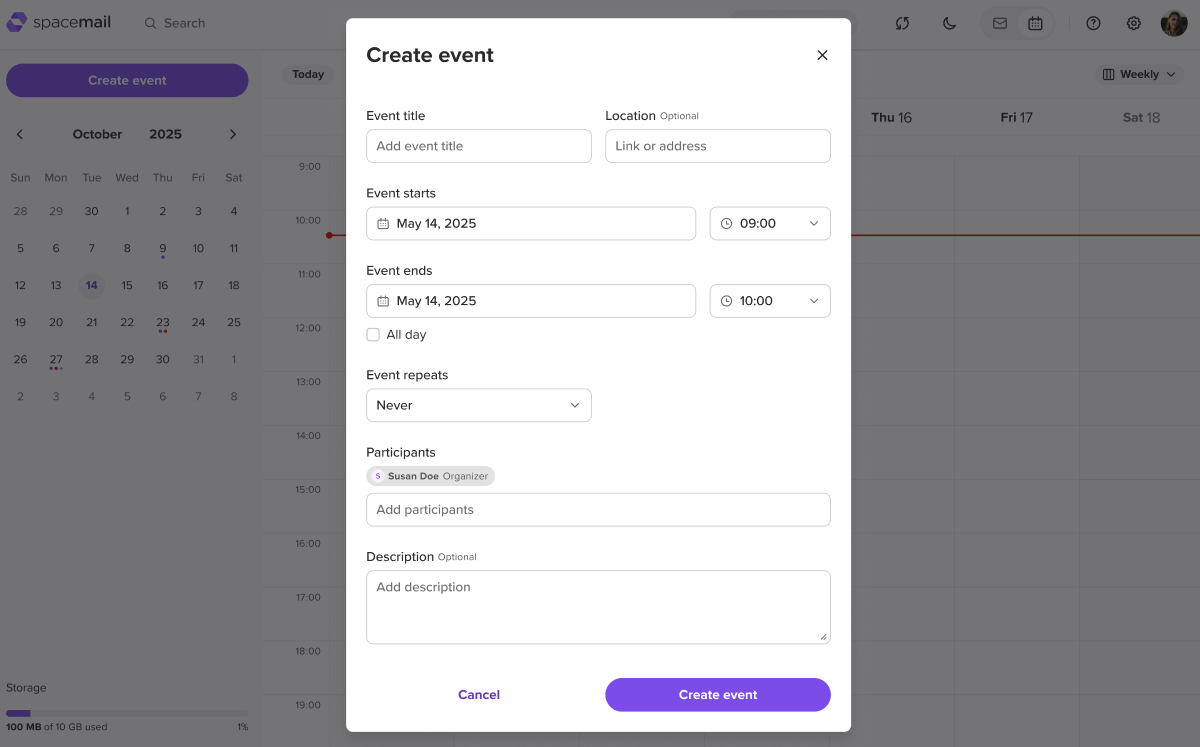
2. Vul de vereiste gegevens in:
Titel van evenement – voeg een naam toe voor je evenement
Locatie (optioneel) – voer een adres of vergaderlink in
Evenement begint/Evenement eindigt – kies de datum en tijd
Herhaling van evenement – kies hoe vaak het evenement moet worden herhaald: Nooit, Dagelijks, Wekelijks, Maandelijks of Jaarlijks. Je kunt er ook een evenement voor de hele dag van maken.
Deelnemers – voeg e-mailadressen toe van mensen die je wilt uitnodigen
Beschrijving (optioneel) – geef aanvullende details
OPMERKING:Evenementen voor de hele dag verschijnen bovenaan de datumcel of kolomkop, afhankelijk van de geselecteerde weergave.
3. Zodra alle gegevens zijn ingevuld, klik je op “Evenement aanmaken”.
Uitnodigingen ontvangen en beantwoorden
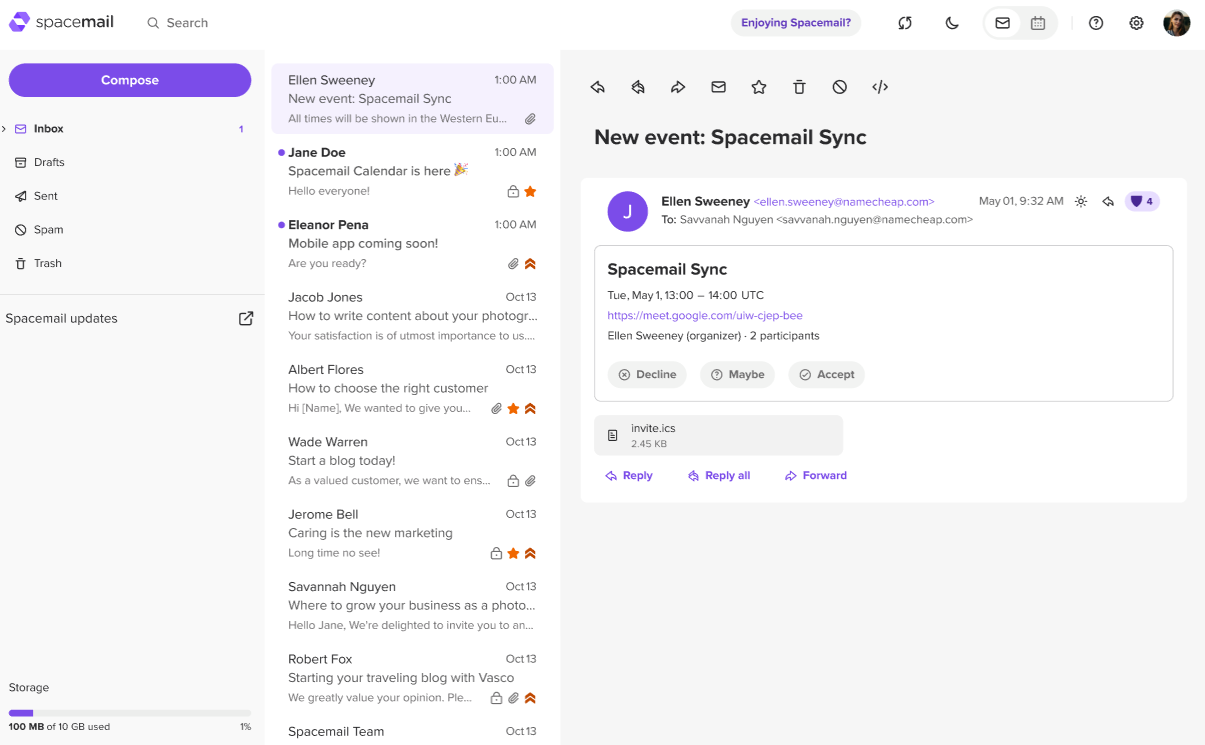
1. E-mailuitnodiging – er komt een e-mail binnen in je inbox met de evenementgegevens en antwoordopties: Accepteren, Weigeren of Misschien:
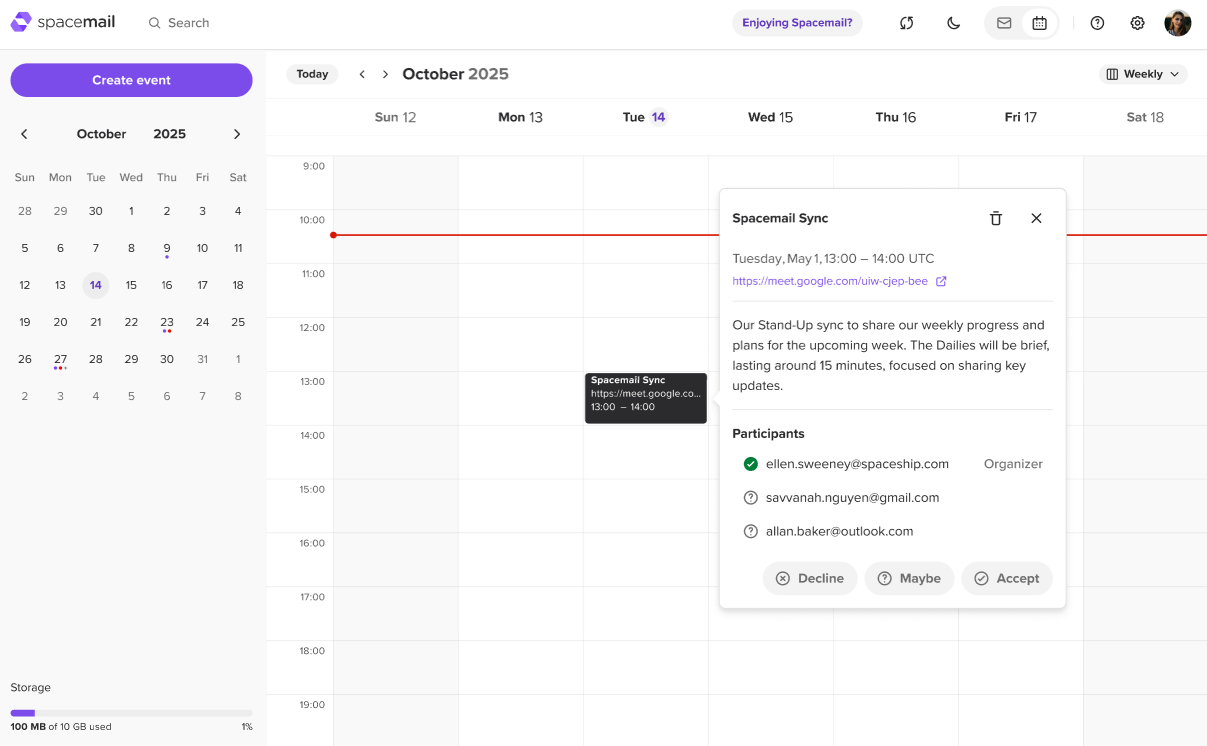
2. Agendaweergave – het evenement verschijnt ook in je agenda met de status in behandeling totdat je een van de antwoorden kiest: Accepteren, Weigeren of Misschien:
OPMERKING: Spacemail past tijden automatisch aan op basis van je tijdzone, zodat alle deelnemers het evenement in hun lokale tijd zien.
Uitnodigingen van derden bekijken in Spacemail Agenda
Spacemail ondersteunt de standaardindeling iCal (.ics). Dit betekent dat evenementen en uitnodigingen kunnen worden uitgewisseld met externe agenda's zoals Gmail, Outlook, Apple Calendar en vergelijkbare clients.
Uitnodigingen ontvangen: Als iemand je een evenementuitnodiging stuurt vanuit een externe agenda, verschijnt deze in je Spacemail-inbox en agenda. Je kunt reageren door Accepteren, Weigeren of Misschien te kiezen, en je antwoord wordt teruggestuurd naar de organisator.
Voorbeelden van Gmail-uitnodigingen die worden weergegeven in de Spacemail-inbox: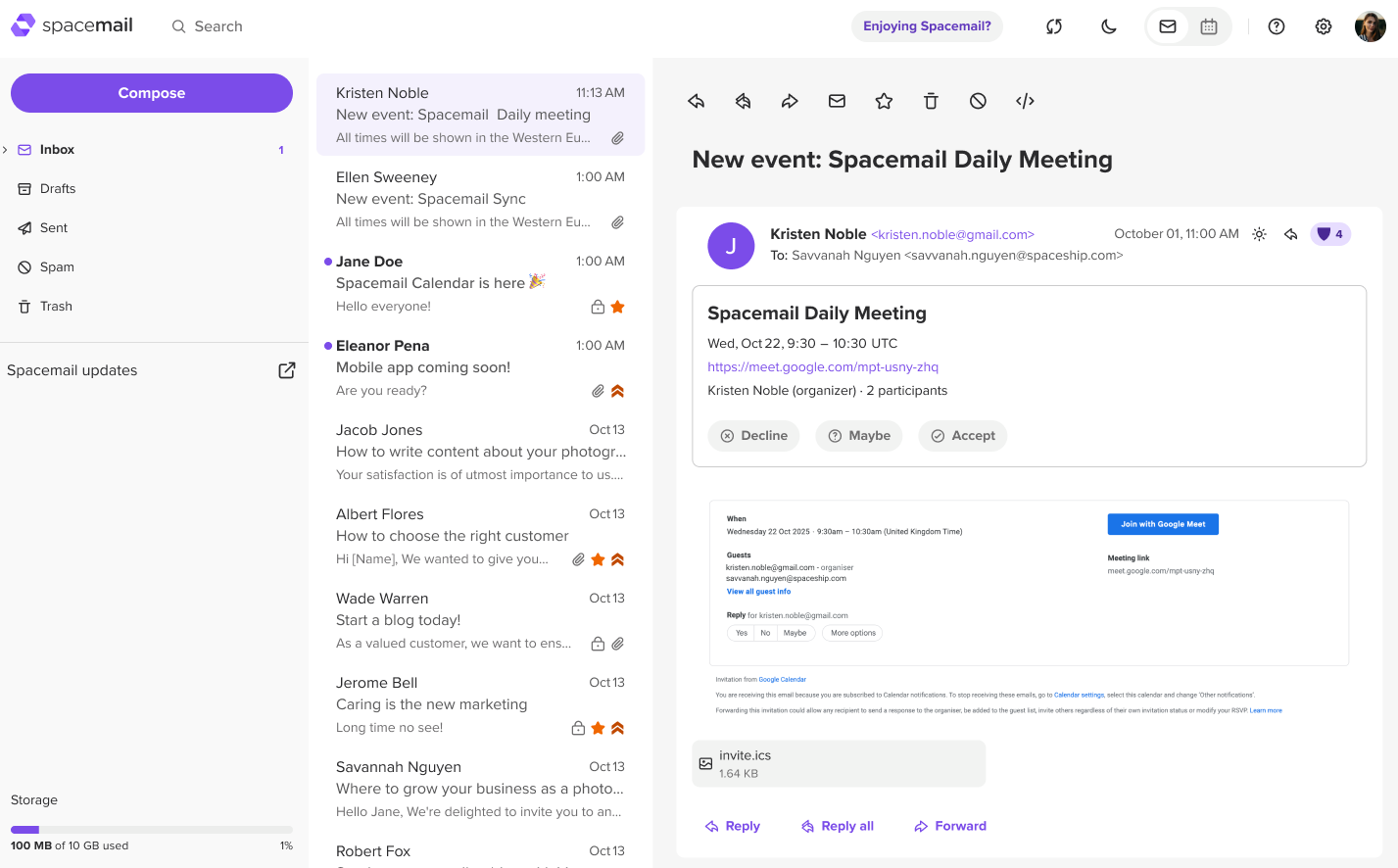
Uitnodigingen versturen: Je kunt evenementuitnodigingen rechtstreeks vanuit Spacemail versturen naar deelnemers die een andere agendaservice gebruiken. Zij ontvangen een standaard .ics-uitnodiging die werkt in hun agenda-app.
Dat is alles!