Konfigurace pravidel a přesměrování pomocí .htaccess
Soubor .htaccess je konfigurační soubor na úrovni adresáře, podporovaný webovým serverem Apache. Umožňuje upravovat nastavení webového serveru (například povolení nebo zakázání funkcí) pro konkrétní účet, aniž by to ovlivnilo globální konfiguraci serveru.
Tento soubor aplikuje svá nastavení na celý adresář, ve kterém se nachází, včetně všech souborů a podadresářů v tomto adresáři. Jakékoli změny provedené v souboru .htaccess se projeví okamžitě, bez nutnosti restartovat server.
Jak najít soubor .htaccess
Chcete-li najít soubor .htaccess:
1. Přejděte do svého účtu Spaceship >> zvolte Hosting Manager v Launchpad >> Spravovat vedle hostingového plánu >> Soubory a úložiště >> Spravovat soubory u názvu webu.
2. Budete přesměrováni do kořenové složky domény.
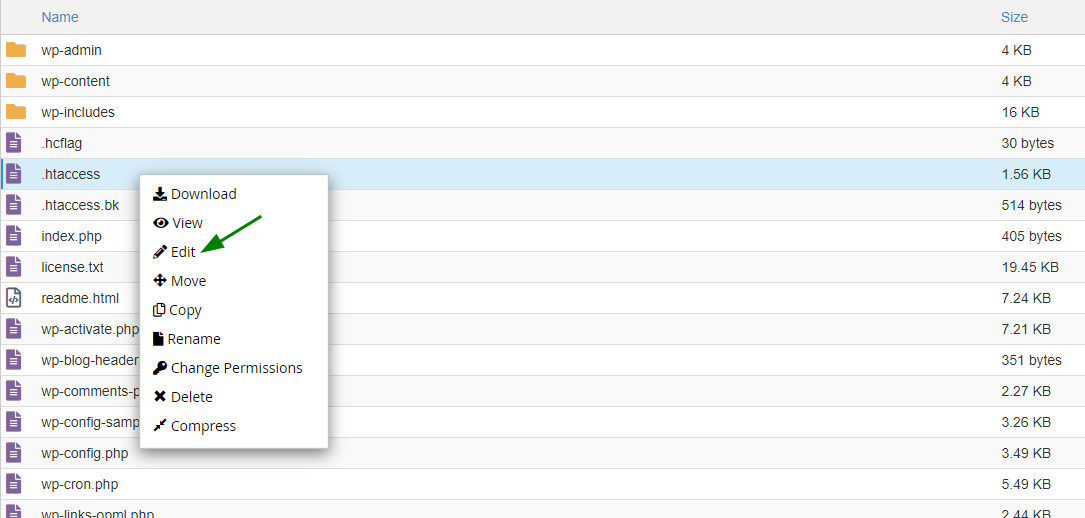
3. Pokud potřebujete upravit soubor .htaccess pro doménu, najděte soubor .htaccess v kořenové složce domény, klikněte na něj pravým tlačítkem a zvolte možnost Upravit :
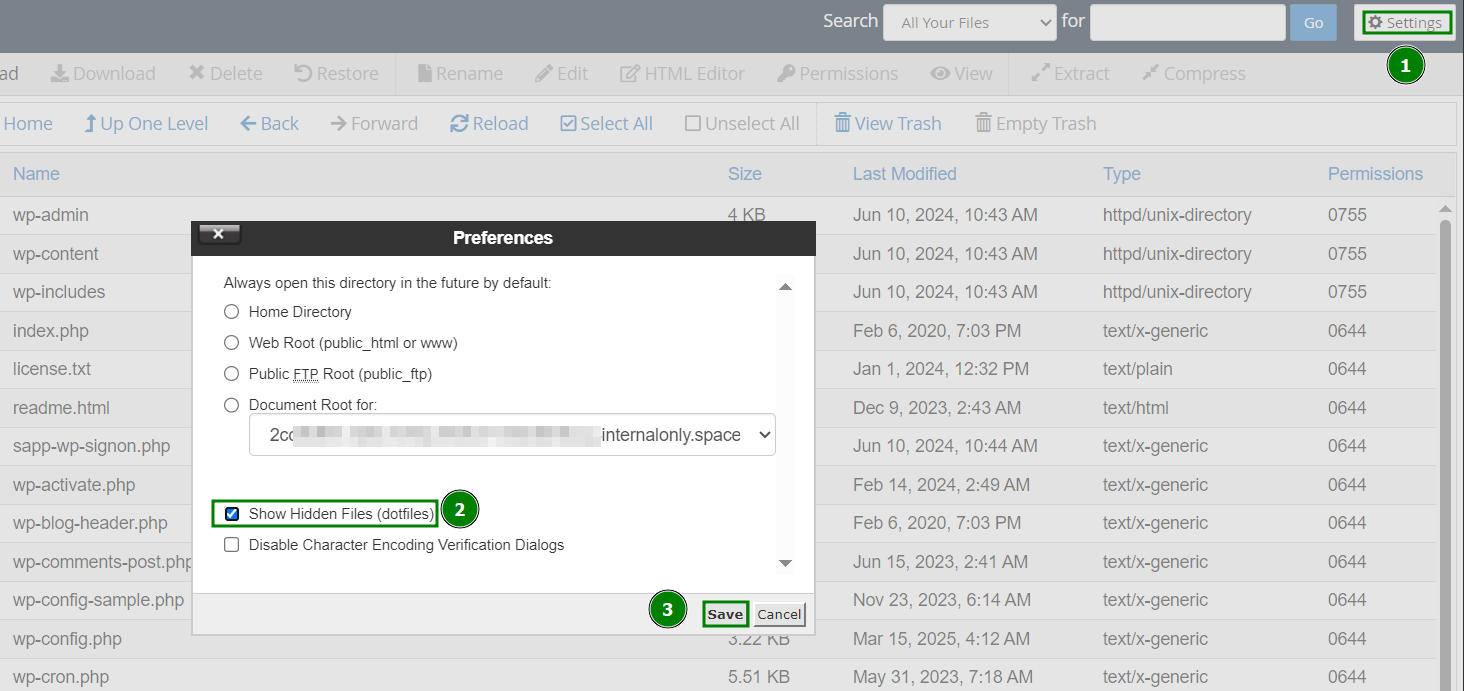
POZNÁMKA: Ujistěte se, že je v nabídce Zobrazit skryté soubory (dotfiles) povoleno v Nastavení:
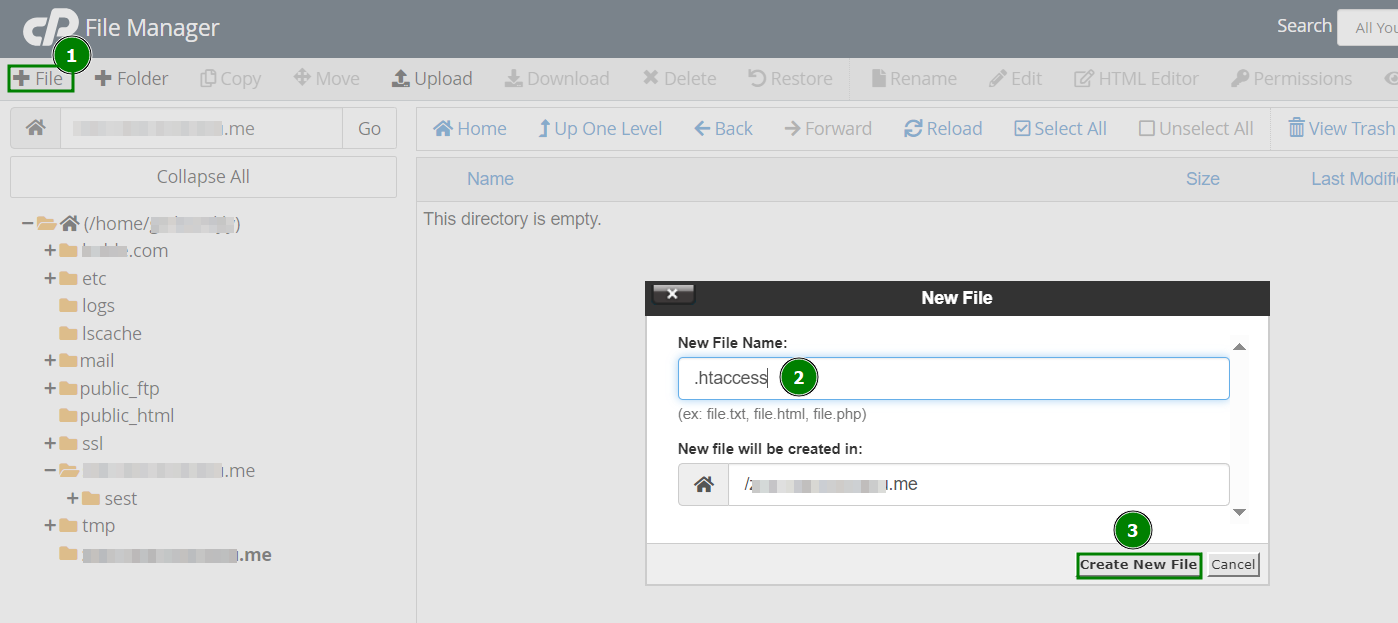
4. Pokud v Správci souborů není soubor .htaccess, můžete vytvořit nový pomocí tlačítka + Soubor:
5. Nyní můžete přidat vlastní konfigurační pravidla a uložit je.
Seznam běžně používaných pravidel .htaccess
Blokování
Tato metoda umožňuje blokovat uživatele na základě jejich IP adresy nebo domény. Je obzvláště užitečná pro omezení přístupu nežádoucím návštěvníkům nebo pro omezení přístupu do určitých částí vašeho webu, například do administrace, pouze pro vlastníka.
Pro implementaci konkrétních blokovacích pravidel vytvořte soubor .htaccess s následujícím obsahem:
(Pro povolení přístupu všem ostatním a blokování uživatelů s IP adresou X.X.X.X)
<RequireAll>
Require all granted
Require not ip X.X.X.X
</RequireAll>
(Pro blokování všech návštěvníků kromě konkrétních IP adres X.X.X.X a Y.Y.Y.Y)
<RequireAll>
Require all denied
Require ip X.X.X.X
Require ip Y.Y.Y.Y
</RequireAll>
POZNÁMKA: Nepoužívejte zastaralé direktivy Allow, Deny a Order s novou direktivou Require direktiva.
Mod_Rewrite (přesměrovací pravidla)
Mod_Rewrite určuje, jak jsou webové stránky a URL prezentovány návštěvníkům.
Ve výchozím nastavení Mod_Rewrite mapuje URL na odpovídající cestu v souborovém systému. Může však také přesměrovat jednu URL na jinou.
Před nastavením přesměrování je důležité zvolit typ přesměrování, který nejlépe vyhovuje vašim potřebám:
Permanentní přesměrování (301): Toto přesměrování odešle stavový kód 301, což znamená, že stránka byla trvale přesunuta. Je ukládáno do mezipaměti prohlížeče a signalizuje vyhledávačům a uživatelským agentům, aby aktualizovali URL ve svých databázích. Toto je nejběžnější typ přesměrování.
Dočasné přesměrování (302): Toto přesměrování odešle stavový kód 302, což znamená, že přesun je dočasný. Prohlížeč toto přesměrování neukládá do mezipaměti a i když přesměruje návštěvníky a vyhledávače, původní stránka bude nadále indexována. Tento typ přesměrování se doporučuje, pokud si nejste jisti, že se URL v budoucnu nezmění.
Níže je uveden seznam některých nejběžnějších a nejužitečnějších přesměrování, která lze nastavit pomocí souboru .htaccess:
Permanentní přesměrování z example1.com na example2.com
RewriteEngine On
RewriteCond %{HTTP_HOST} ^example1\.com$ [OR]
RewriteCond %{HTTP_HOST} ^www\.example1\.com$
RewriteRule ^(.*)$ "http\:\/\/example2\.com/$1" [R=301,L]
Dočasné přesměrování z exampledomain1.com na exampledomain2.com
RewriteEngine On
RewriteCond %{HTTP_HOST} ^example1\.com$ [OR]
RewriteCond %{HTTP_HOST} ^www\.example1\.com$
RewriteRule ^(.*)$ "http\:\/\/example2\.com\/" [R=302,L]
POZNÁMKA: Níže jsou uvedeny příklady permanentních přesměrování. Dočasná přesměrování lze definovat nahrazením [R=301,L] za [R=302,L] na konci kódu (kde je to potřeba).
Přesměrování z example1.com/subfolder na example2.com
RewriteEngine On
RewriteCond %{HTTP_HOST} ^example1\.com$ [OR]
RewriteCond %{HTTP_HOST} ^www\.example1\.com$
RewriteRule ^subfolder/$ "http\:\/\/example2\.com\/" [R=301,L]
Přesměrování z HTTP na HTTPS pro example.com
RewriteEngine On
RewriteCond %{HTTPS} !=on
RewriteRule .* https://example.com%{REQUEST_URI} [R,L]
nebo
RewriteCond %{SERVER_PORT} 80
RewriteCond %{HTTP_HOST} ^example\.com$ [OR]
RewriteCond %{HTTP_HOST} ^www\.example\.com$
RewriteRule ^(.*)$ https://www.example.com/$1 [R,L]
Přesměrování z non-WWW na WWW
pro jakoukoli doménu, .htaccess se uplatní:
RewriteEngine On
RewriteCond %{HTTP_HOST} !^www\.
RewriteRule ^(.*)$ http://www.%{HTTP_HOST}/$1 [R=301,L]
pro zadanou doménu:
RewriteEngine On
RewriteCond %{HTTP_HOST} ^example\.com$ [NC]
RewriteRule ^(.*)$ http://www.example.com/$1 [R=301,L]
Přesměrování z WWW na non-WWW
pro jakoukoli doménu .htaccess se uplatní:
RewriteEngine On
RewriteCond %{HTTP_HOST} ^www\.(.*)$ [NC]
RewriteRule ^(.*)$ http://%1/$1 [R=301,L]
pro zadanou doménu:
RewriteEngine On
RewriteCond %{HTTP_HOST} ^www\.example\.com [NC]
RewriteRule (.*) http://example.com/$1 [R=301,L]
Přesměrování všech stránek example.com na odpovídající stránky domain.com
RedirectMatch 301 ^/(.*)$ http://domain.com/$1
POZNÁMKA: Názvy všech stránek musí být na obou doménách shodné, jinak přesměrování povede k hlášení "Stránka nebyla nalezena".
Přesměrování jedné stránky na novou URL
Redirect 301 /old_page.html http://www.domain.com/new_page.html
POZNÁMKA: Tato technika může být užitečná pro přesměrování smazané stránky na chybu 404 nebo pro úpravy SEO po aktualizaci odkazů v obsahu.
Autorizace/autentizace
Tento typ pravidla definuje bezpečnostní omezení pro adresář nebo podadresář. Můžete chránit adresáře heslem, takže každý návštěvník, který se je pokusí otevřít, bude vyzván k zadání uživatelského jména a hesla.
Pro nastavení této ochrany:
1. Vytvořte adresář, který chcete chránit, ve složce /home/cpanel_user/.htpasswds/ (například pro domain.com/test je cesta .htpasswds/domain.com/test/).
2. V tomto adresáři vytvořte soubor passwd a přidejte hashované přístupové údaje pomocí online generátoru.
3. Přidejte následující direktivy do souboru .htaccess:
AuthType Basic
AuthName "Directory Name"
AuthUserFile "/home/cpanel_user/.htpasswds/public_html/test/passwd"
require valid-user
Vlastní chybové stránky
Tato funkce vám umožňuje vytvořit personalizované chybové stránky pro váš web. Je to užitečná možnost, protože umožňuje zobrazit návštěvníkům chybovou zprávu, která odpovídá vzhledu vašeho webu, pokud dojde k nefunkčním URL. Pomáhá tak zabránit zobrazení výchozí chyby '404 File Not Found' a místo toho vrací vlastní navrženou chybovou stránku s instrukcemi, jak se vrátit k obsahu webu, což předchází zmatení uživatelů.
Pro nastavení vlastní chybové stránky přidejte následující text do souboru .htaccess:
ErrorDocument 404 /404.html
Tento řádek instruuje webový server Apache, aby při chybě 404 (Soubor nenalezen) načetl soubor 404.html umístěný v kořenovém adresáři domény.
POZNÁMKA: Pro vytvoření vlastních chybových stránek pro jiné chyby (například 403 nebo 500) stačí nahradit 404 odpovídajícím kódem chyby a /404.html cestou k vašemu vlastnímu chybovému souboru.
Deaktivace existujících pravidel .htaccess
Pokud potřebujete dočasně deaktivovat některá existující pravidla, například pro účely testování, můžete je snadno zakomentovat. Stačí přidat znak # na začátek řádku.
Alternativně můžete deaktivovat jeden řádek nebo blok řádků jejich označením a použitím klávesové zkratky Ctrl + / .