วิธีใช้ปฏิทินใน Spacemail
ในคู่มือนี้ เราจะแนะนำคุณเกี่ยวกับขั้นตอนสำคัญในการใช้งานปฏิทินใน Spacemail ด้วยปฏิทินนี้ คุณสามารถสร้างกิจกรรม เชิญผู้เข้าร่วม และจัดการตารางเวลาของคุณได้โดยตรงในอินเทอร์เฟซเว็บเมล
การเข้าถึงปฏิทิน
1. เข้าสู่ระบบ กล่องจดหมาย Spacemail
2. เมื่อลงชื่อเข้าใช้แล้ว ให้ใช้ปุ่มสลับที่ด้านบนของอินเทอร์เฟซเพื่อสลับระหว่างมุมมองอีเมลและปฏิทิน

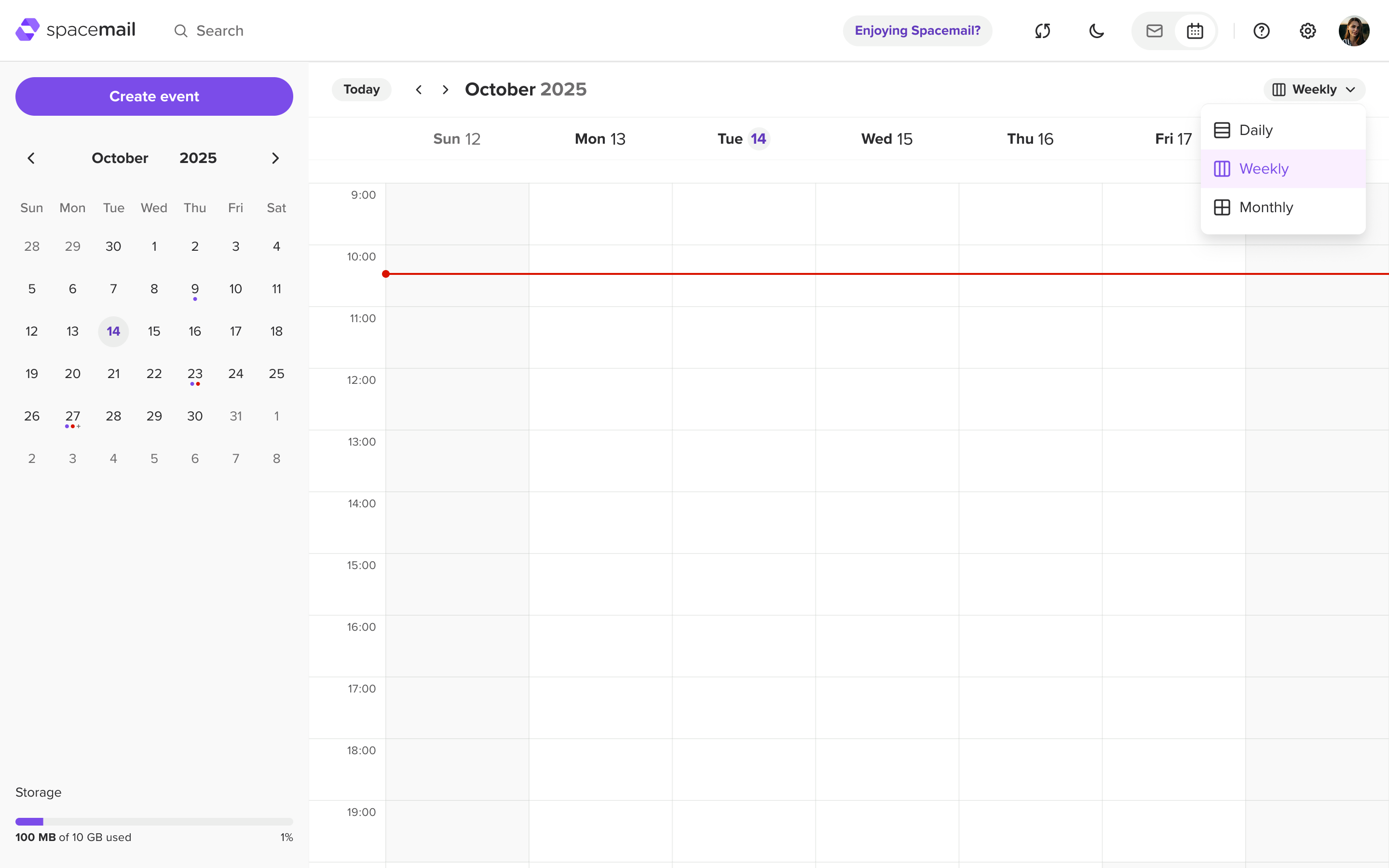
3. คุณสามารถเลือกดูตารางเวลาของคุณได้ 3 แบบ: รายวัน, รายสัปดาห์ หรือรายเดือน โดยเลือกตัวเลือกจากเมนูแบบเลื่อนลงที่มุมขวาบนของปฏิทิน:
การสร้างกิจกรรม
1. ในปฏิทิน ให้คลิกปุ่ม “Create event” เพื่อเพิ่มกิจกรรมใหม่ หน้าต่างป๊อปอัปแยกต่างหากจะปรากฏขึ้น ซึ่งคุณสามารถป้อนรายละเอียดกิจกรรมได้:
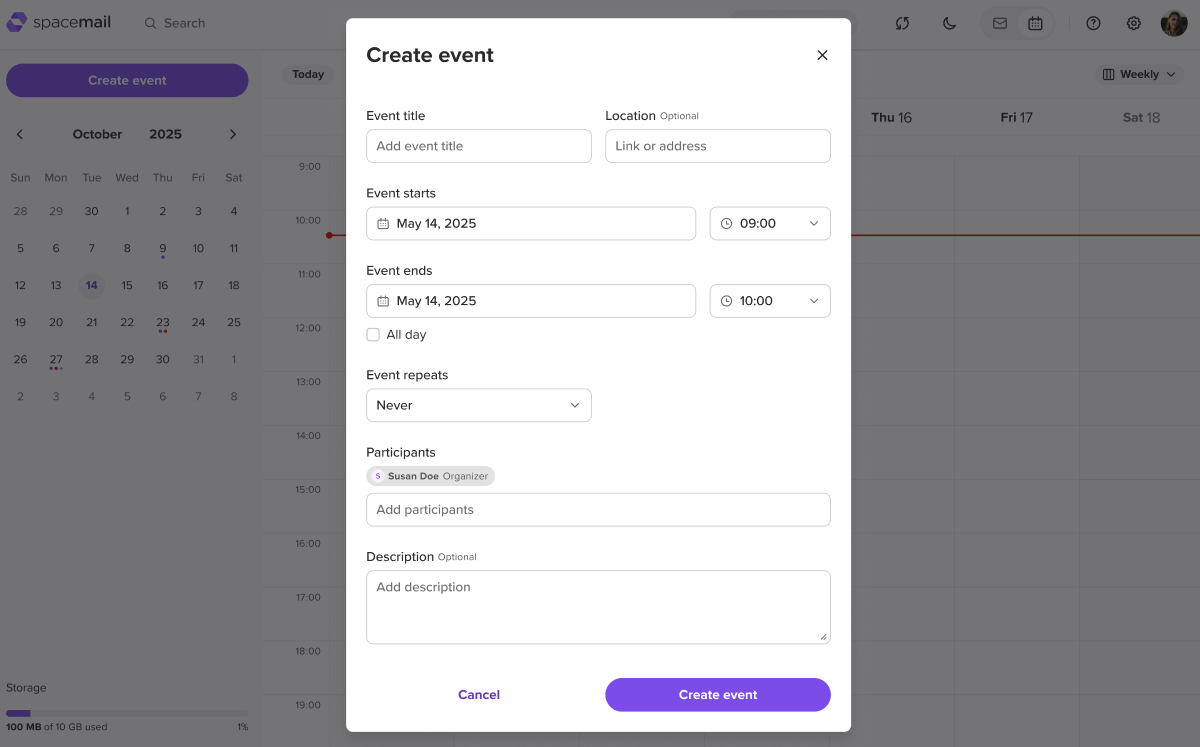
2. กรอกรายละเอียดที่จำเป็น:
ชื่อกิจกรรม – เพิ่มชื่อสำหรับกิจกรรมของคุณ
สถานที่ (ไม่บังคับ) – ป้อนที่อยู่หรือลิงก์การประชุม
กิจกรรมเริ่มต้น/กิจกรรมสิ้นสุด – เลือกวันที่และเวลา
การทำซ้ำของกิจกรรม – เลือกความถี่ที่กิจกรรมควรทำซ้ำ: ไม่เลย, รายวัน, รายสัปดาห์, รายเดือน หรือรายปี คุณยังสามารถตั้งให้เป็นกิจกรรมตลอดทั้งวันได้ด้วย
ผู้เข้าร่วม – เพิ่มที่อยู่อีเมลของผู้ที่คุณต้องการเชิญ
คำอธิบาย (ไม่บังคับ) – ระบุรายละเอียดเพิ่มเติม
หมายเหตุ:กิจกรรมตลอดทั้งวันจะแสดงที่ด้านบนของช่องวันที่หรือส่วนหัวของคอลัมน์ ขึ้นอยู่กับมุมมองที่เลือก
3. เมื่อกรอกรายละเอียดทั้งหมดแล้ว ให้คลิก “Create event”.
การรับและตอบกลับคำเชิญ
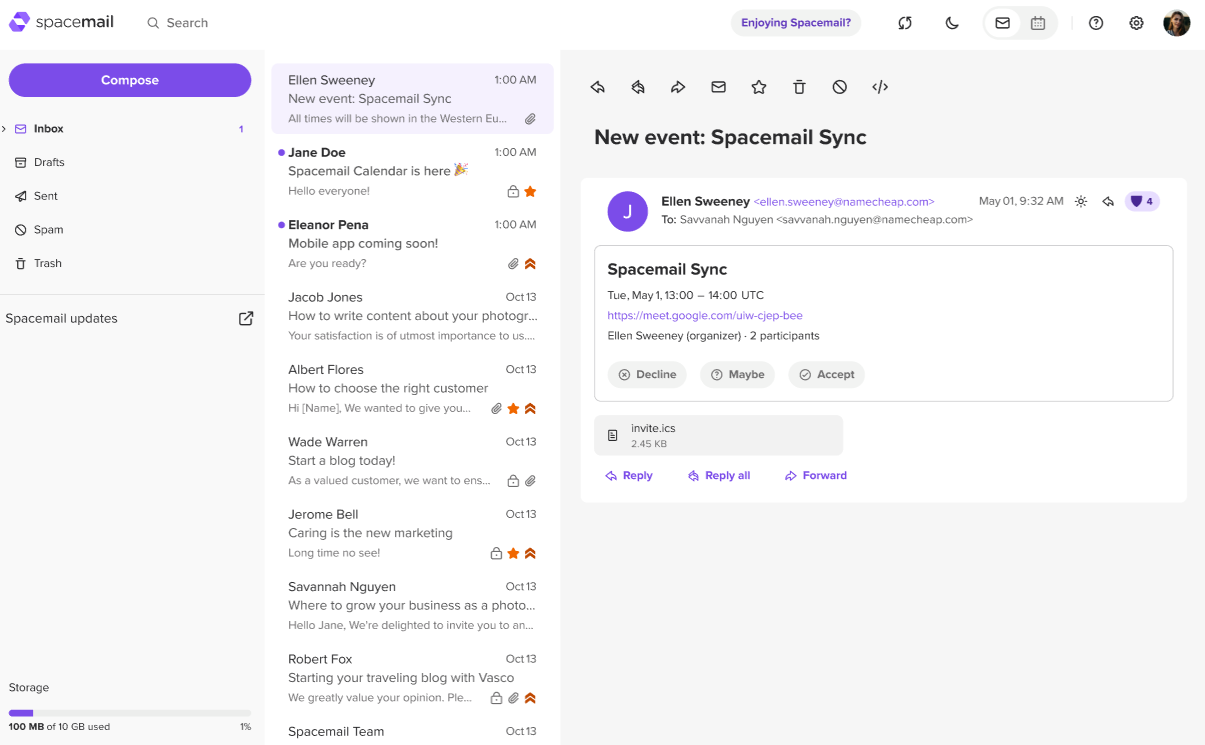
1. คำเชิญทางอีเมล – อีเมลจะถูกส่งมายังกล่องจดหมายของคุณพร้อมรายละเอียดกิจกรรมและตัวเลือกการตอบกลับ: ยอมรับ, ปฏิเสธ หรืออาจจะ:
2. มุมมองปฏิทิน – กิจกรรมจะแสดงในปฏิทินของคุณด้วยสถานะรอดำเนินการจนกว่าคุณจะเลือกหนึ่งในการตอบกลับต่อไปนี้: ยอมรับ, ปฏิเสธ หรืออาจจะ:
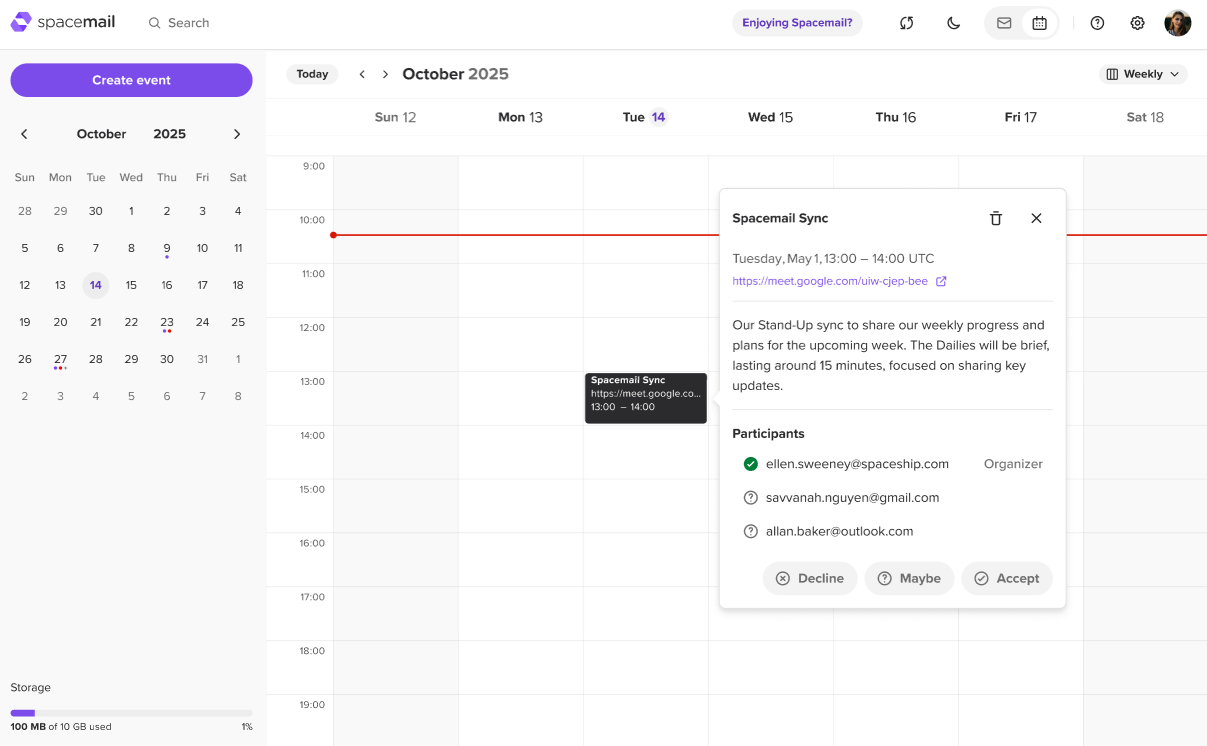
หมายเหตุ: Spacemail จะปรับเวลาโดยอัตโนมัติตามเขตเวลาของคุณ เพื่อให้ผู้เข้าร่วมทุกคนเห็นกิจกรรมตามเวลาท้องถิ่นของตน
การดูคำเชิญจากบุคคลที่สามในปฏิทิน Spacemail
Spacemail รองรับรูปแบบ iCal (.ics) มาตรฐาน ซึ่งหมายความว่าสามารถแลกเปลี่ยนกิจกรรมและคำเชิญกับปฏิทินภายนอก เช่น Gmail, Outlook, Apple Calendar และไคลเอนต์ที่คล้ายกันได้
การรับคำเชิญ: หากมีคนส่งคำเชิญเข้าร่วมกิจกรรมจากปฏิทินภายนอกมาให้คุณ คำเชิญนั้นจะแสดงในกล่องจดหมายและปฏิทิน Spacemail ของคุณ คุณสามารถตอบกลับได้โดยเลือก ยอมรับ, ปฏิเสธ หรืออาจจะ, และระบบจะส่งการตอบกลับของคุณกลับไปยังผู้จัดงาน
ตัวอย่างคำเชิญจาก Gmail ที่แสดงในกล่องจดหมาย Spacemail: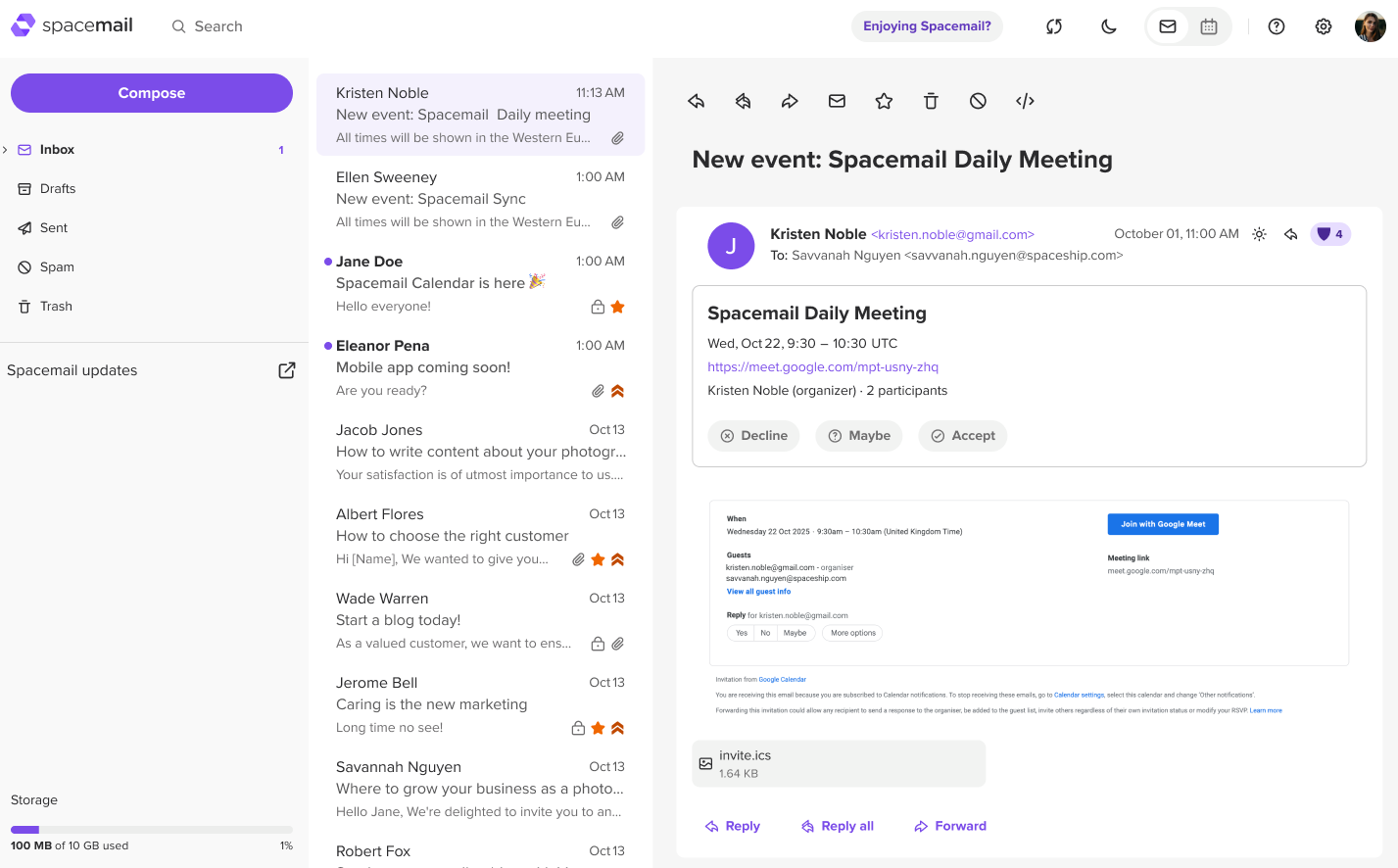
การส่งคำเชิญ: คุณสามารถส่งคำเชิญเข้าร่วมกิจกรรมได้โดยตรงจาก Spacemail ไปยังผู้เข้าร่วมที่ใช้บริการปฏิทินอื่น พวกเขาจะได้รับคำเชิญ .ics มาตรฐานที่ใช้งานได้ในแอปปฏิทินของตน
เพียงเท่านี้!