Як налаштувати Node.js-додаток у Spaceship Web Hosting
Інструмент Setup Node.js App у Spaceship Web Hosting дозволяє розгортати та керувати Node.js-додатками безпосередньо з вашої панелі керування. Функція працює на базі CloudLinux і запускає додатки за допомогою Passenger.
У цьому посібнику пояснюється, як працює інтерфейс, як створити додаток і як ним керувати.
Огляд
Після входу до вашого cPanel відкрийте Setup Node.js App у розділі Ексклюзив:
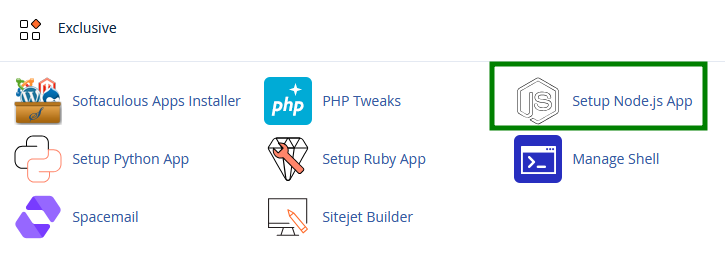
У верхній частині сторінки ви побачите кнопку Створити додаток. Нижче буде перелік усіх існуючих Node.js-додатків. Кожен запис додатка відображає його конфігурацію та опції керування:
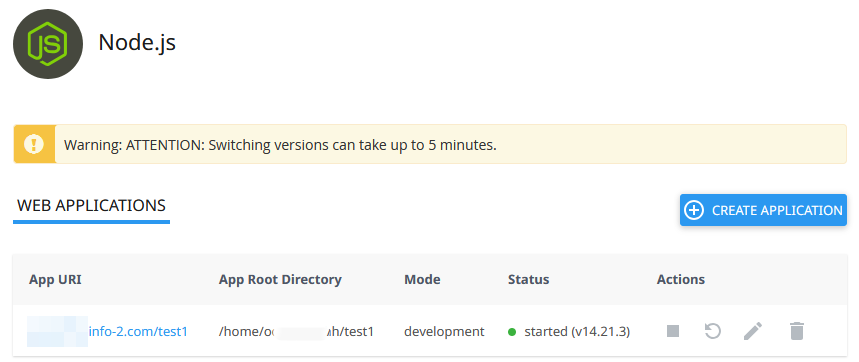
Для кожного створеного додатка інтерфейс дозволяє переглядати його загальні дані, включаючи URL (URI), кореневу директорію, режим (development або production) і поточний статус.
З цієї ж сторінки ви можете перезапустити або зупинити додаток, редагувати його конфігурацію та змінні середовища або видалити його повністю.
Порада: Таблицю додатків можна сортувати, натискаючи на заголовки стовпців, такі як App URI, Root Directory, Mode або Status. Це полегшує керування кількома додатками в одному акаунті.
Як створити додаток
Після натискання кнопки +Створити додаток потрібно налаштувати ваш додаток, ввівши такі параметри:
Версія Node.js
Оберіть версію, необхідну для вашого додатка. Завжди переконуйтеся у сумісності з вашим файлом package.json.Режим додатка
Виберіть між Development і Production. Для робочих сайтів рекомендується Production.Корінь додатка
Вкажіть директорію, де зберігатимуться файли додатка. Це створить відповідну папку в /home/username.URL додатка
Оберіть домен або піддомен, де буде доступний додаток.Стартовий файл додатка
Вкажіть головний файл, який запускає ваш додаток (наприклад, app.js або server.js)
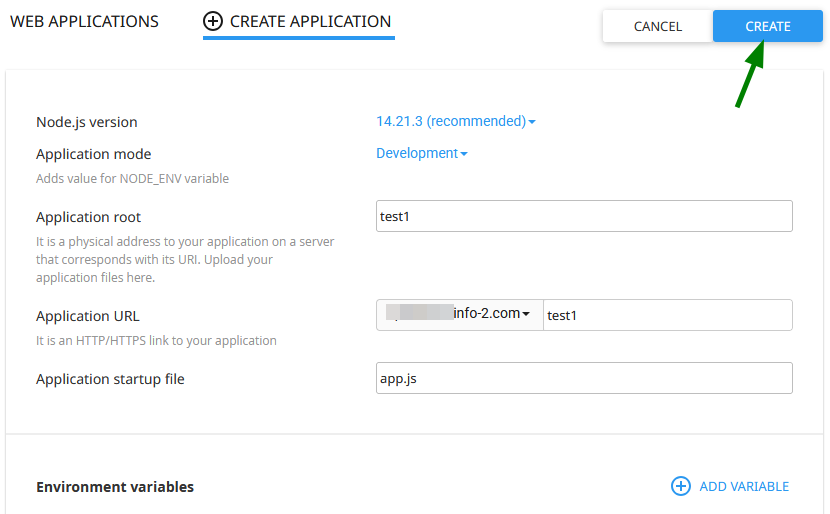
Після введення всіх налаштувань натисніть Створити. З'явиться повідомлення про успіх, після чого система ініціалізує середовище та відобразить деталі вашого додатка.
Керування додатком
Після розгортання вашим додатком можна керувати з того ж інтерфейсу. Тут ви можете:
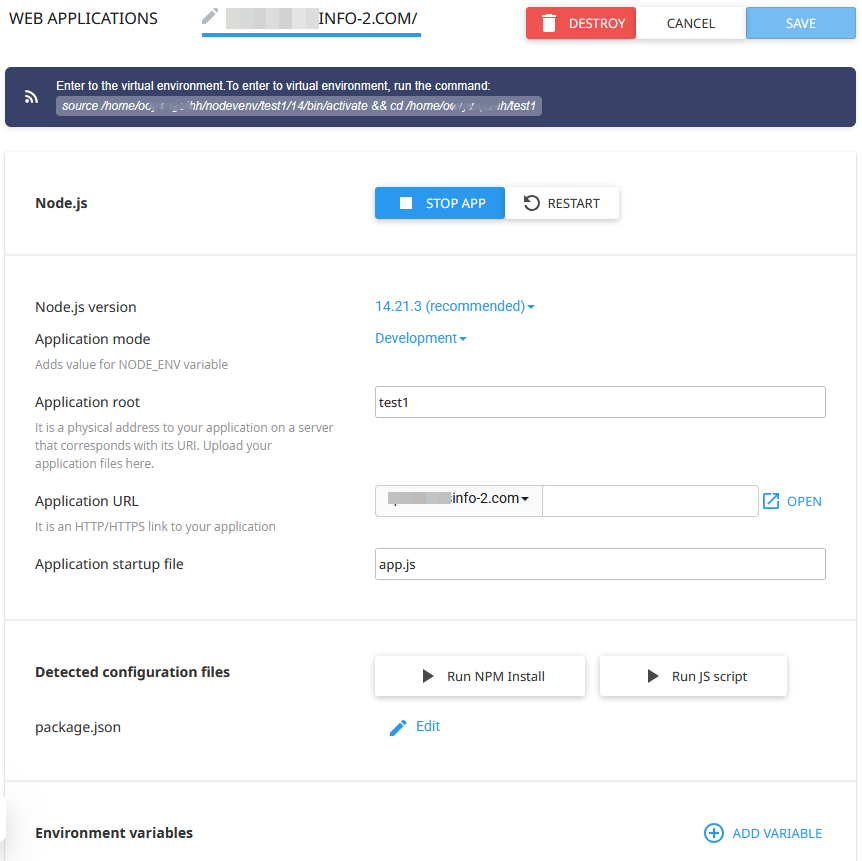
Редагувати додаток
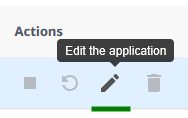
Відкриється сторінка редагування:
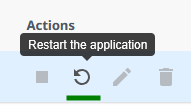
Перезапустити

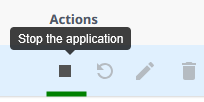
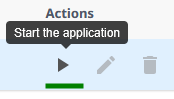
Зупинити/запустити


Видалити
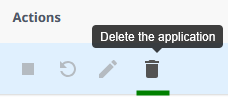

Примітка: Видалення додатка стирає конфігурацію, але не видаляє файли вашого проєкту автоматично, якщо ви не зробите це вручну.
Завантаження файлів та встановлення залежностей
Після створення додатка завантажте файли вашого проєкту (включаючи package.json) у вказану кореневу директорію додатка.
Далі ви можете встановити залежності двома способами:
У Setup Node.js App >> Run NPM Install:
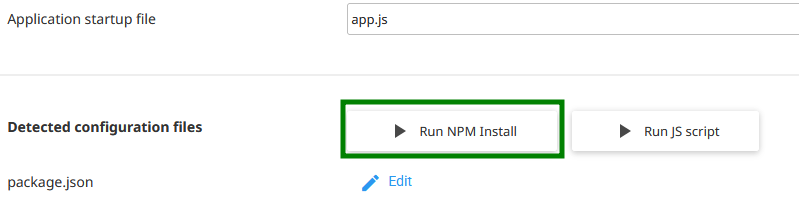
Система зчитає ваш package.json і встановить усі необхідні модулі.Через SSH >> віртуальне середовище.
Щоб увійти у віртуальне середовище через SSH, виконайте виділену команду, зазначену у верхній частині сторінки:
Далі виконайте командуnpm install. Це дає той самий результат, але дозволяє вам:Встановити конкретні пакети (
npm install package-name)Встановити інші модулі/залежності для розробки
Запустити build-скрипти (
npm run build)Виправити
npmпомилки безпосередньо.
Налаштування змінних середовища
Змінні середовища можна налаштувати у параметрах додатка. Ви можете визначити такі змінні, як NODE_ENV, API-ключі, облікові дані бази даних тощо.
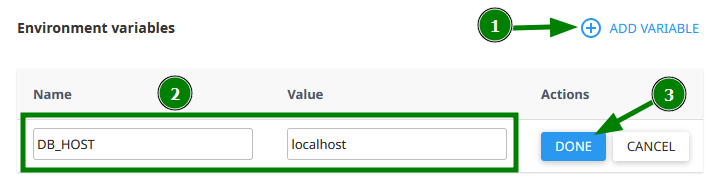
Збережіть зміни та перезапустіть додаток після цього.