Як оптимізувати ваш сайт на WordPress
WordPress — одна з найпоширеніших і найлегше налаштовуваних CMS. Однак у стандартній конфігурації вона досить повільна, особливо якщо на сайті багато відвідувачів і важкого контенту або використовується складна тема. Крім того, з 2010 року Google використовує час завантаження сторінки як фактор у своїх алгоритмах ранжування пошуку.
На щастя, гнучкість цієї CMS дозволяє використовувати багато методів для прискорення її роботи та зменшення часу завантаження сайту. Ви можете перевірити свій сайт за допомогою онлайн-інструментів, таких як наведені нижче, щоб відстежувати результати швидкості після кожного кроку:
Усі ці інструменти допоможуть зрозуміти, як завантажується ваш сайт і які його частини потребують оптимізації. Інструменти Google Page Speed і GTmetrix краще підходять для початківців, оскільки вони показують корисні поради щодо оптимізації сайту, тоді як Pingdom і WebPagetest мають більш технічний підхід і потребують більшого досвіду у веброзробці для розуміння.
Нижче ми розглянемо кілька способів оптимізації сайту на WordPress. Рекомендуємо дотримуватися цих порад під час створення вашого сайту.
ПРИМІТКА: Обов’язково створіть резервну копію сайту перед внесенням будь-яких змін.
Поради щодо прискорення роботи сайту
Оптимізація зображень
Пошукові системи віддають перевагу сайтам, які швидко завантажуються, тому оптимізовані зображення також можуть допомогти вам піднятися вище у результатах пошуку порівняно з повільнішими, неоптимізованими сайтами WordPress. Крім того, люди просто віддають перевагу швидкому завантаженню зображень і з більшою ймовірністю залишаться на сайті довше, якщо їм не доведеться чекати завантаження візуальних ресурсів.
Існує кілька технік, які можна використати для зменшення розміру файлів і покращення продуктивності сайту.
Стиснення зображень – Ви можете скористатися плагіном для стиснення зображень або програмою для редагування зображень, щоб зменшити розмір файлів. Деякі плагіни WordPress можуть автоматично стискати зображення під час завантаження, що робить цей процес беззусильним.
Зміна розміру зображень – Важливо переконатися, що ваші зображення мають відповідні розміри для їхнього призначення у вебі.
Конвертація зображень – Ще одна техніка — конвертація зображень у оптимізовані формати файлів, такі як WebP або AVIF. Ці формати забезпечують чудову ступінь стиснення без значної втрати якості.
Використання ледачого завантаження – Ледаче завантаження відкладає завантаження зображень до моменту, коли вони потрібні, наприклад, після того, як користувач прокрутив сторінку вниз. Це може суттєво покращити час початкового завантаження сторінки, особливо коли на сторінці є відеоконтент.
Видалення непотрібних метаданих – Більш просунута практика — видаляти всі непотрібні метадані та коментарі з ваших файлів зображень. Це можна зробити за допомогою програм для редагування зображень або плагінів оптимізації.
Ви можете звернутися до цього посібника для подальших інструкцій.
Використовуйте CDN
CDN розшифровується як Content Delivery Network. Це мережа серверів, кожен з яких містить копію даних вашого сайту. Коли відвідувач хоче переглянути ваш сайт, найближчий до нього сервер виконує це завдання. Використовуючи CDN, відвідувачі сайту отримують статичні файли з найближчого до них сервера. Оскільки CDN складається з серверів по всьому світу, статичні файли, розміщені в CDN, будуть доступнішими.
Якщо ви користуєтеся хостингом EasyWP, то отримуєте безкоштовний базовий Supersonic CDN у комплекті з вашим налаштуванням.
Усуньте блокуючий рендеринг JavaScript і CSS
Під час перевірки сайтів за допомогою Google Page Speed ви можете побачити одне або кілька повідомлень із червоним знаком оклику з текстом "Усуньте блокуючий рендеринг JavaScript і CSS у контенті, що знаходиться вище згину". Це означає, що жоден із елементів контенту, що знаходиться вище згину, не може бути відображений без очікування завантаження ресурсів.
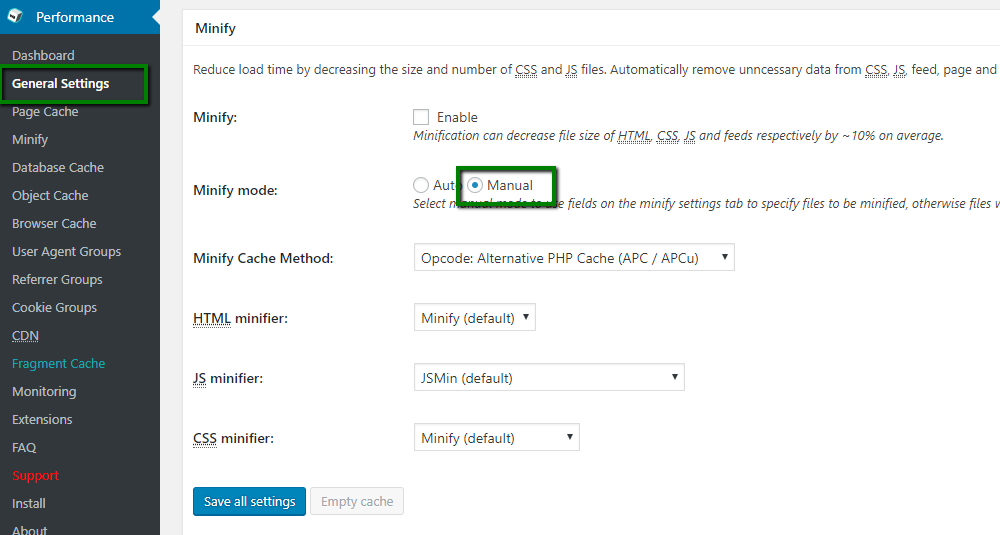
Це можна вирішити, увімкнувши додаткові налаштування Minify у плагіні W3 Total Cache. Для цього потрібно зайти у вкладку General Settings плагіна та встановити режим Minify на Manual, як показано нижче:
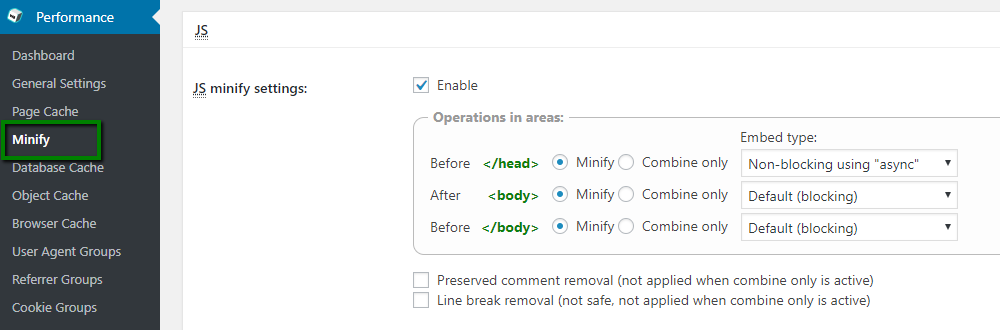
Перш ніж продовжити, переконайтеся, що поля JS minify settings у меню Minify встановлені на такі параметри:
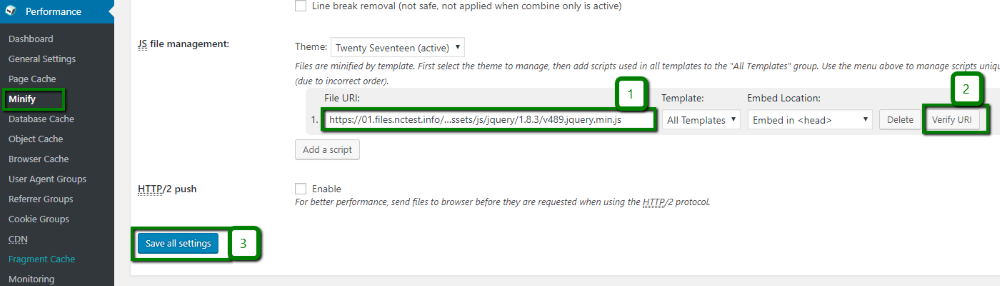
Після цього потрібно додати відповідні URL-адреси JavaScript, надані Google PageSpeed, у поле JS file management, як показано нижче:
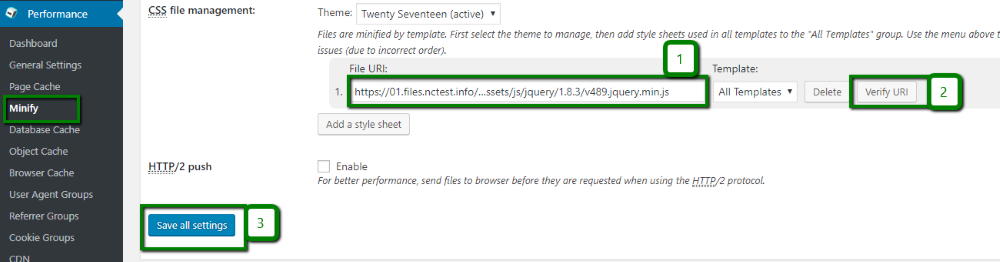
Виконайте ті ж дії для поля CSS file management, заповнивши CSS-адреси на цій же сторінці:
Ось і все! Повідомлення "Усуньте блокуючий рендеринг JavaScript і CSS у контенті, що знаходиться вище згину" не повинно з’являтися, якщо ви виконали всі кроки у правильному порядку.
Регулярно очищуйте вашу базу даних
База даних — це серце вашого сайту. У ній зберігається весь ваш контент, усі налаштування сайту, всі дані користувачів тощо. Проблема полягає в тому, що з часом база даних засмічується. Це результат численних операцій запису-оновлення-видалення, які іноді залишають залишки. Надмірна кількість такого сміття може призвести до уповільнення роботи сайту.
Ось чому час від часу слід очищати та оптимізувати базу даних. Прочитати про оптимізацію бази даних можна тут.
Використовуйте тему, оптимізовану для швидкості
Тема відіграє ключову роль у швидкості завантаження сайту. Якщо ви плануєте створити популярний блог, рекомендуємо провести дослідження та тестування, щоб знайти найлегшу та найоптимізованішу тему. Головне й найважливіше правило вибору теми для сайту на WordPress — тема повинна відповідати контенту вашого сайту. Спочатку визначте тему та контент сайту, а вже потім обирайте тему, яка відповідатиме вашим потребам.
Багато тем WordPress налаштовуються і дозволяють користувачам WordPress змінювати різні параметри для створення бажаного вигляду сайту. Однак ці параметри, якщо вони закодовані неправильно, можуть створити проблеми при зміні теми на іншу. Деякі теми WordPress, які на перший погляд виглядають привабливо, насправді можуть уповільнювати завантаження вашого сайту. Нижче наведено кілька корисних порад, які допоможуть вам вибрати найкращу тему для вашого сайту на WordPress:
Чим простіше, тим краще.
Обирайте тему з адаптивним дизайном.
Намагайтеся обирати лише високооцінені плагіни, сумісні з вашою версією WordPress
Звертайте увагу на наявність конструкторів сторінок, які йдуть у комплекті з темою.
Враховуйте SEO-дружність теми.
Також більшість розробників тем надають демонстраційні сайти, які показують, як працює та відображається тема. Обов’язково протестуйте ці сайти за допомогою таких інструментів, як Google Page Speed і GTmetrix, якщо це можливо.
Використовуйте лише необхідні плагіни
Плагіни — одна з найбільших переваг WordPress, але вони також часто є причиною повільної роботи сайтів. Хоча може виникнути спокуса встановити багато плагінів для розширення функціоналу, кожен додатковий плагін збільшує час завантаження сайту, навантаження на сервер і потенційні конфлікти. З часом це може призвести до помітного зниження продуктивності, особливо на тарифах нижчого рівня. Щоб уникнути цього, регулярно переглядайте встановлені плагіни та видаляйте ті, що неактивні, дублюють функції або більше не потрібні. Шукайте легкі альтернативи громіздким плагінам і уникайте встановлення кількох плагінів із подібною функціональністю. Якщо плагін дає лише незначні переваги, але суттєво впливає на продуктивність, подумайте, чи дійсно він вам потрібен. Вибір добре розроблених, активно підтримуваних плагінів, які виконують важливі функції, допоможе зберегти ваш сайт на WordPress швидким, безпечним і стабільним.