How to manage your Spacemail mailbox storage

Cleaning and optimizing your email mailbox is crucial for the smooth performance of your email account. This not only enhances your productivity through better organization but also prevents hitting storage limits, ensuring uninterrupted email flow.

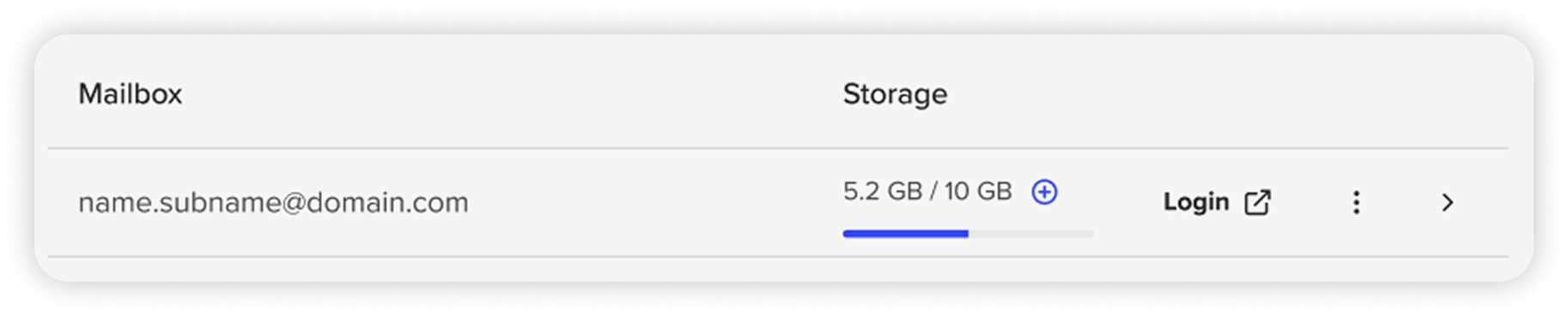
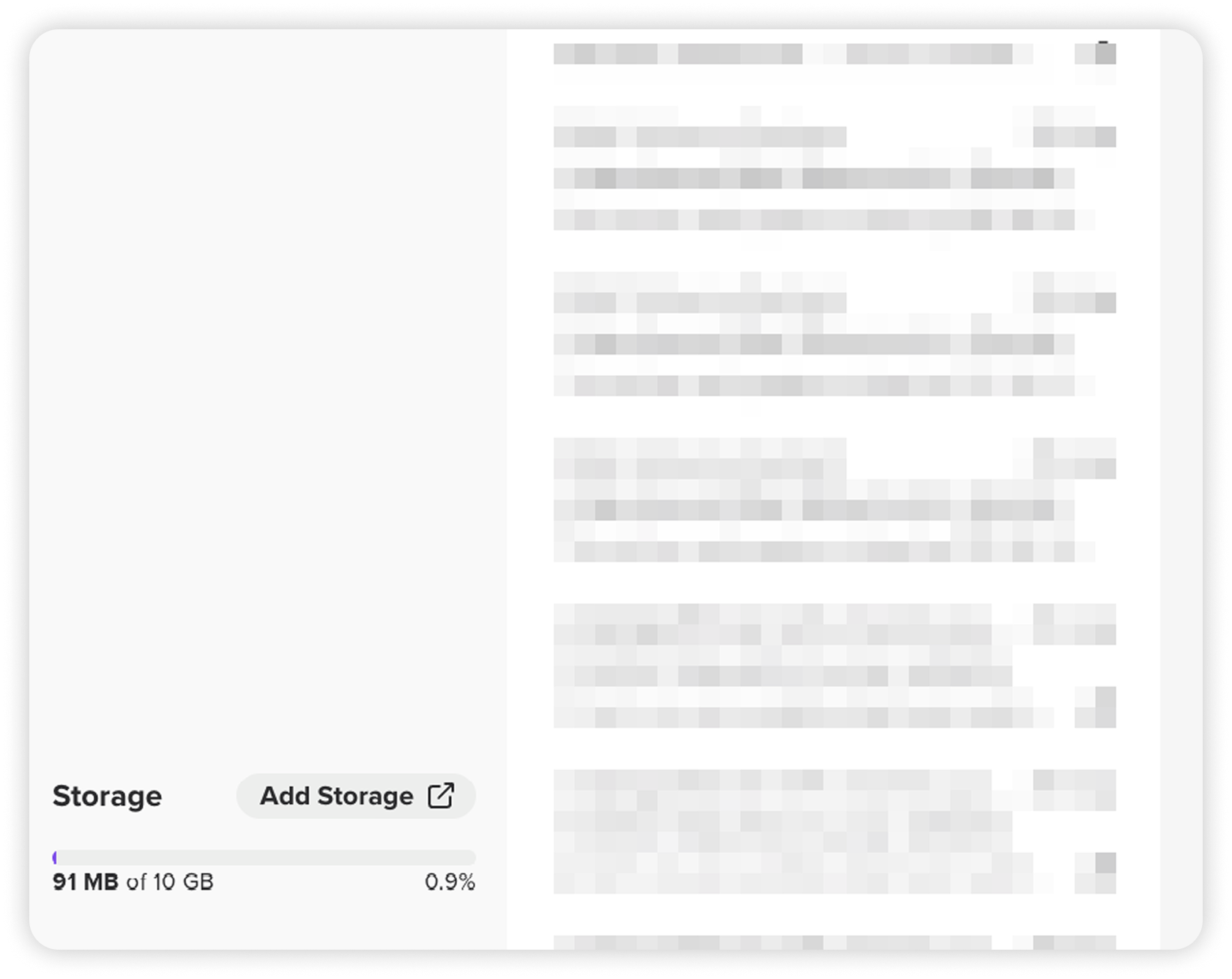
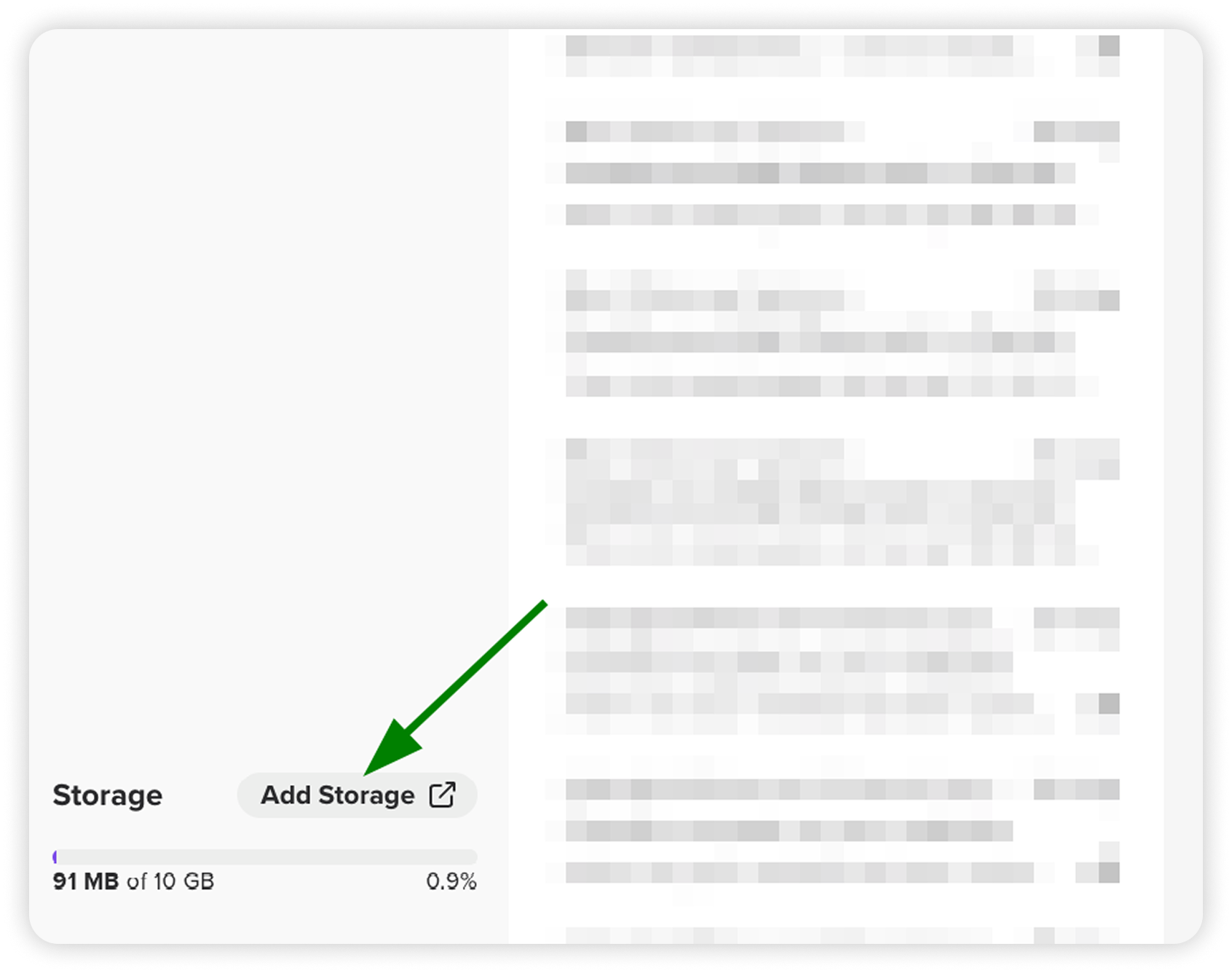
It is possible to check the current space consumption through:

Here are key tips to help you manage your mailbox storage efficiently, keeping your inbox light and your work seamless:

  1. Delete Excessive emails

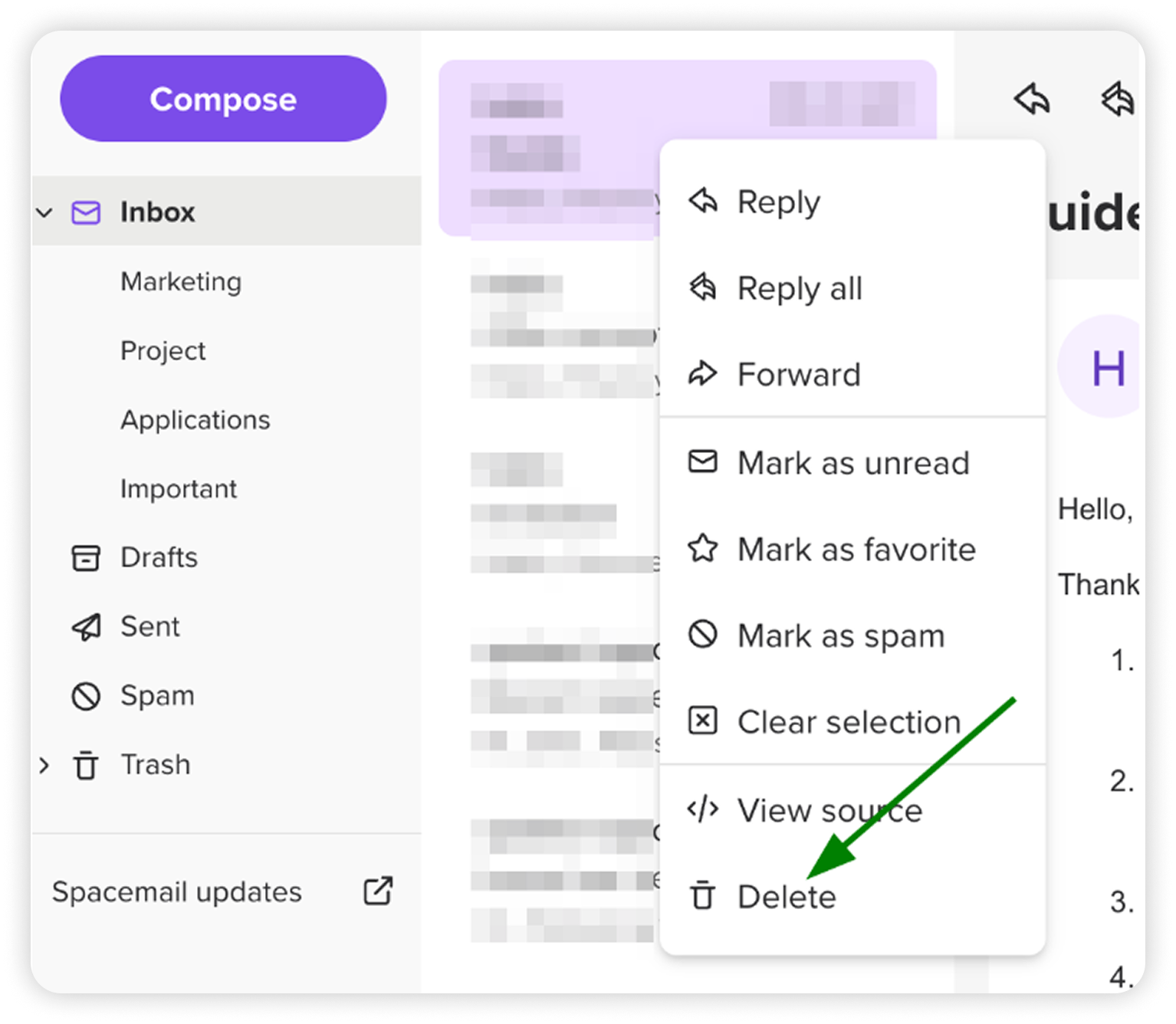
    Cleaning your inbox is the easiest way to free up space. When new emails arrive, decide if they're important enough to save. If the answer is no, consider their removal. Go through your existing emails and delete any other messages you don’t need. A cleaner inbox also means you will find important emails more easily.


  2. Regularly clean Trash/Spam folder

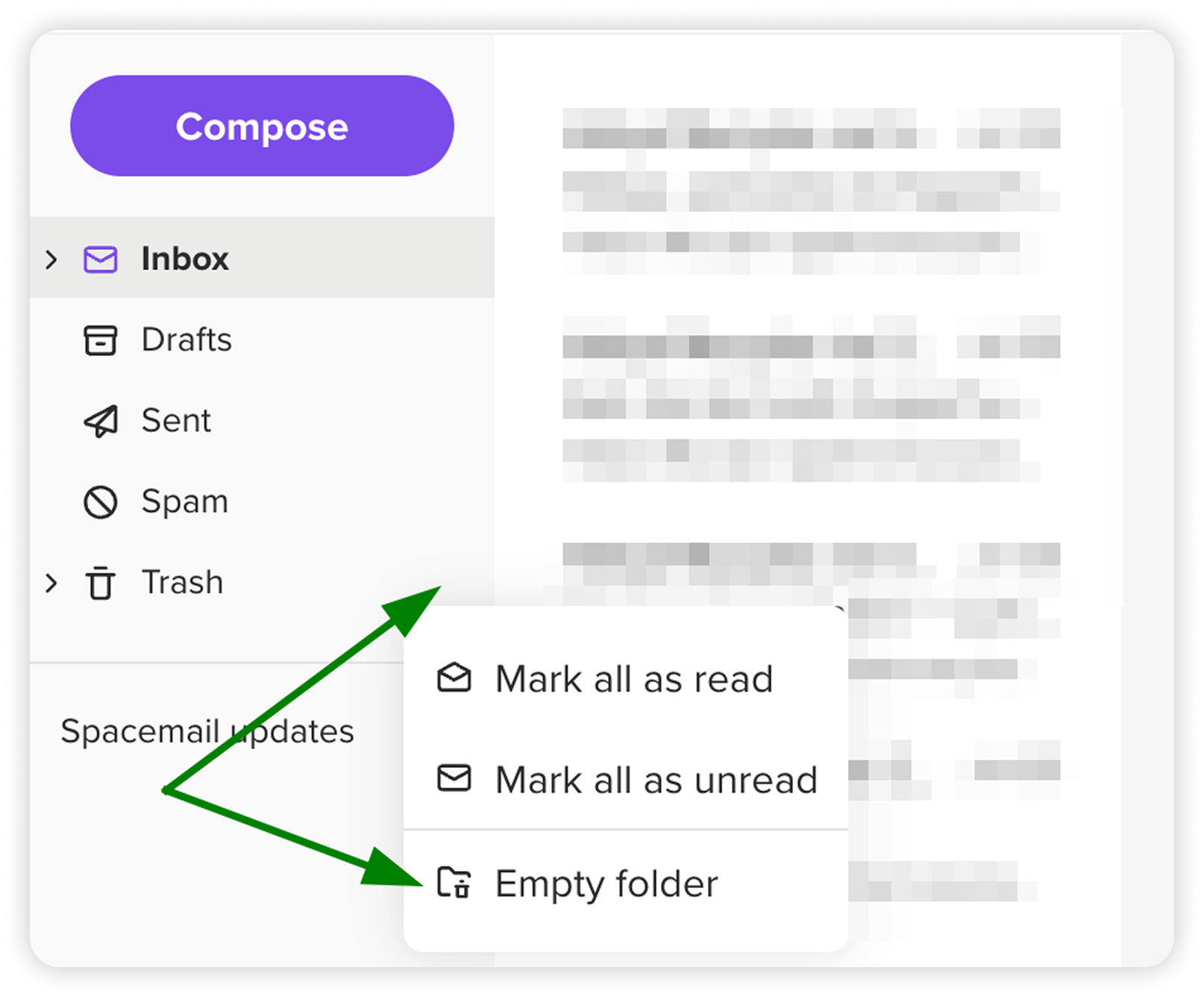
    Don't forget to empty your Trash and Spam folders regularly. This makes space for the emails you want to keep. To do this, just go into your Trash or Spam folder > click on the three dots > choose the Empty folder option:


  3. Delete unused folders

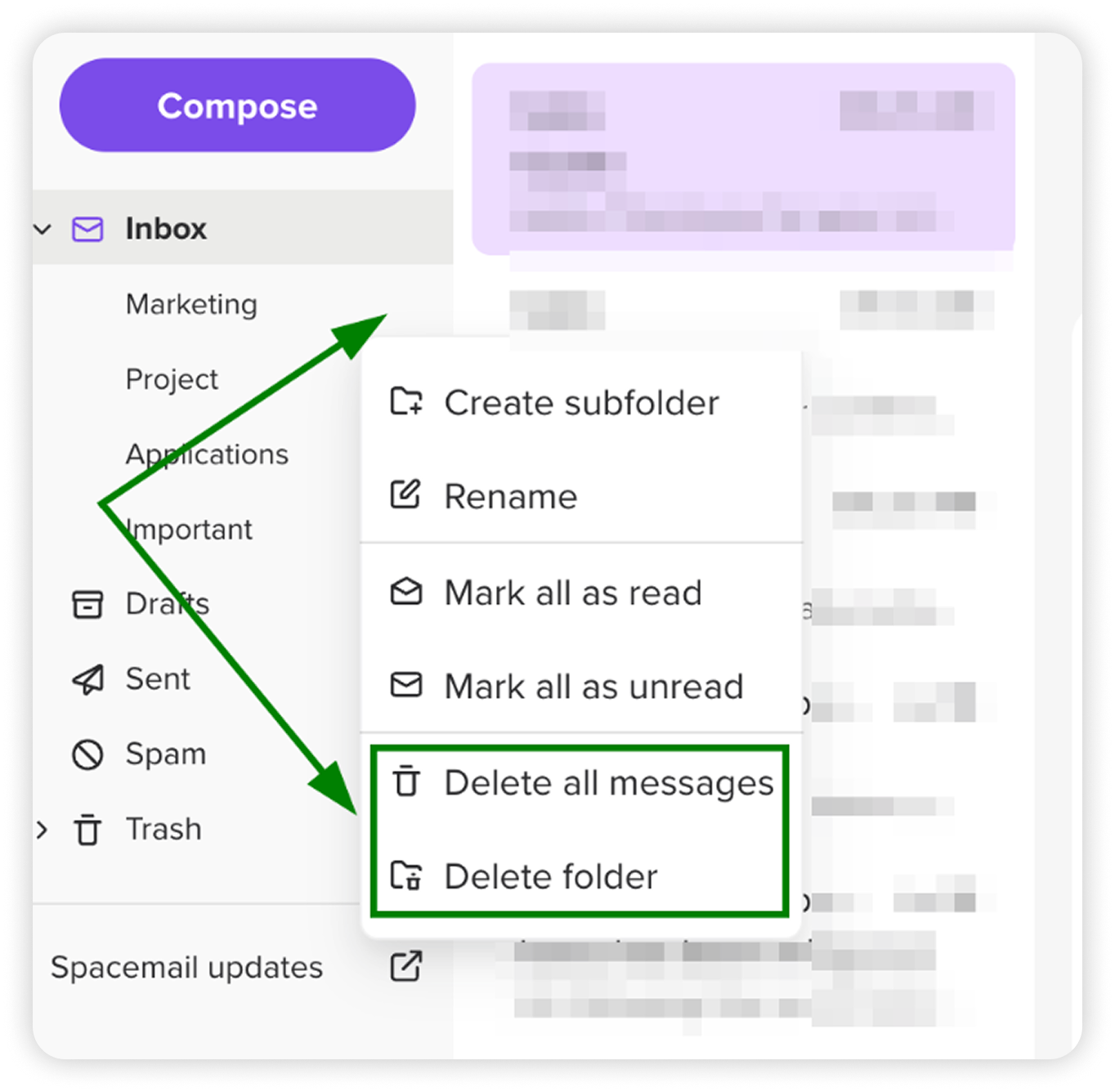
    Take a moment to review your existing email folders. You might find some that are no longer necessary, especially if they were created for temporary projects or issues that are now resolved. To clean your folders, there are two possible options.

    • Delete all messages: This will remove the emails, but keep the folder itself.

    • Delete folder: This will remove the folder and all its contents.


    To do this, select the folder > click on the three dots > select either Delete all messages or Delete folder.


  4. Ensure that you receive only wanted emails

    Even though our anti-spam system does a good job filtering out harmful emails, you might still get unwanted messages that aren't technically spam. When that happens, we suggest you check those emails and unsubscribe from any newsletters or marketing campaigns that are cluttering your inbox.


    If there's no option to unsubscribe from certain emails, you can always block unwanted senders or subject lines, IP addresses directly within the Jellyfish interface. Feel free to use this guide for instructions on how to do this.


  5. Get extra storage

    If it's not possible to delete emails, you can add more storage for your mailbox. To do it:


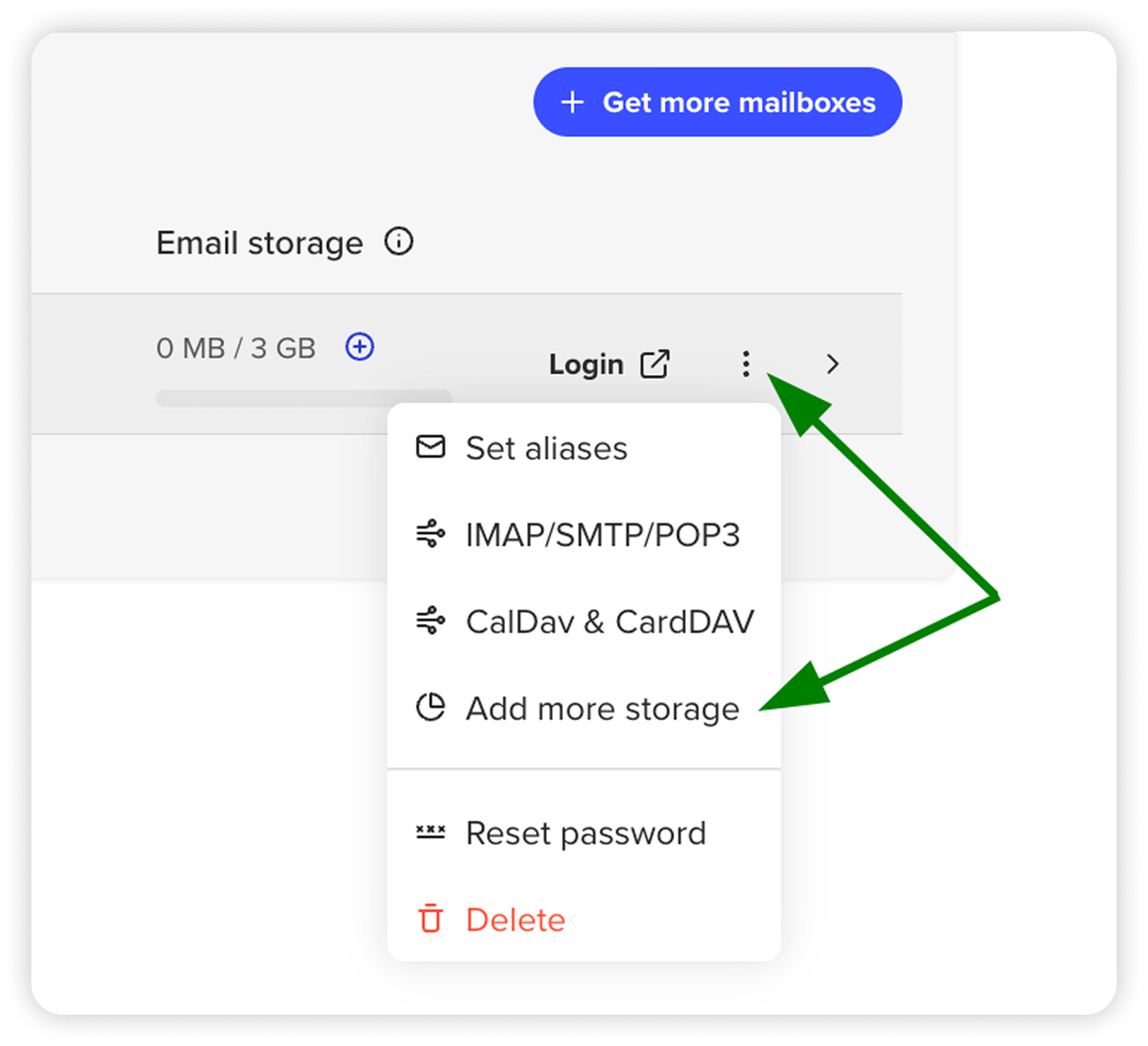
    • Launch Spacemail Manager, then locate the subscription and mailbox you want to add storage to.

    • Click the three dots on the right and then select Add more storage.


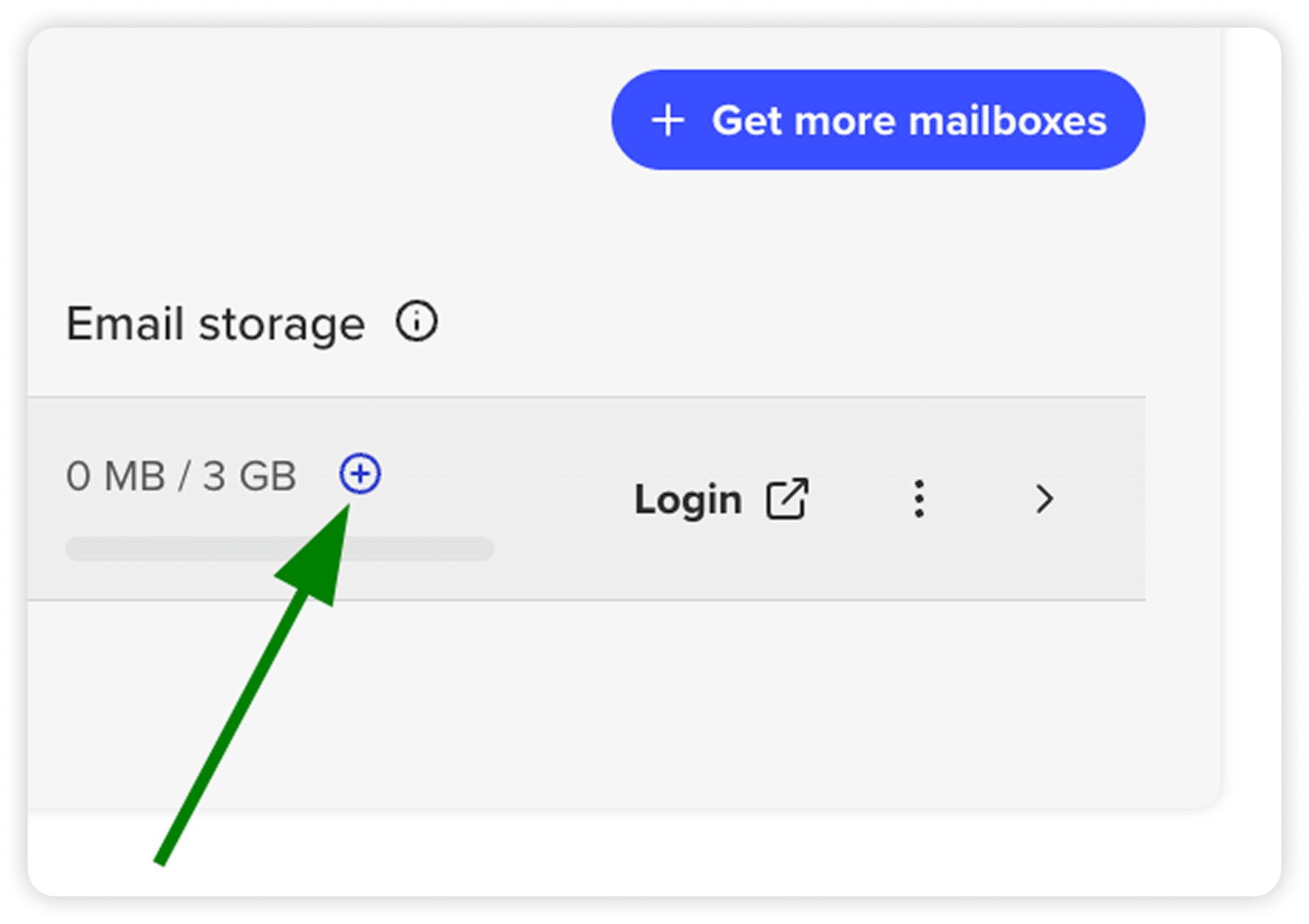
    • Alternatively, press + next to the Email storage indicator to add additional space.

    • Or click Add Storage in your Spacemail webmail to buy extra storage:


    NOTE: It is not possible to get additional storage for trial subscriptions. If you have a trial subscription, you will need to renew it first and then purchase additional storage for it.

    Please take into account that the remaining time of the trial subscription will be lost after the renewal.


  6. Upgrade your subscription

    If buying more disk space isn't what you're looking for, upgrading your Spacemail subscription is another choice: 


    • Access your Spacemail Manager.

    • Click Manage next to the subscription you want to upgrade.

    • Select Change plan to proceed with the option you need.


    That’s it!

A valid email is required