Hvordan endrer jeg Spacemail-passordet mitt?
Det er mulig å endre passordet for Spacemail-adressen på to måter:
Endre passordet ditt via Spacemail webmail
Generer et nytt passord med Spacemail Manager
Endre passordet ditt via Spacemail webmail
For å sette ditt eget passord, logg inn på Spacemail Webmail.
Klikk på Innstillinger-knappen øverst til høyre.
Finn kortet Sikkerhetssenter og klikk Start Sikkerhetssenter.
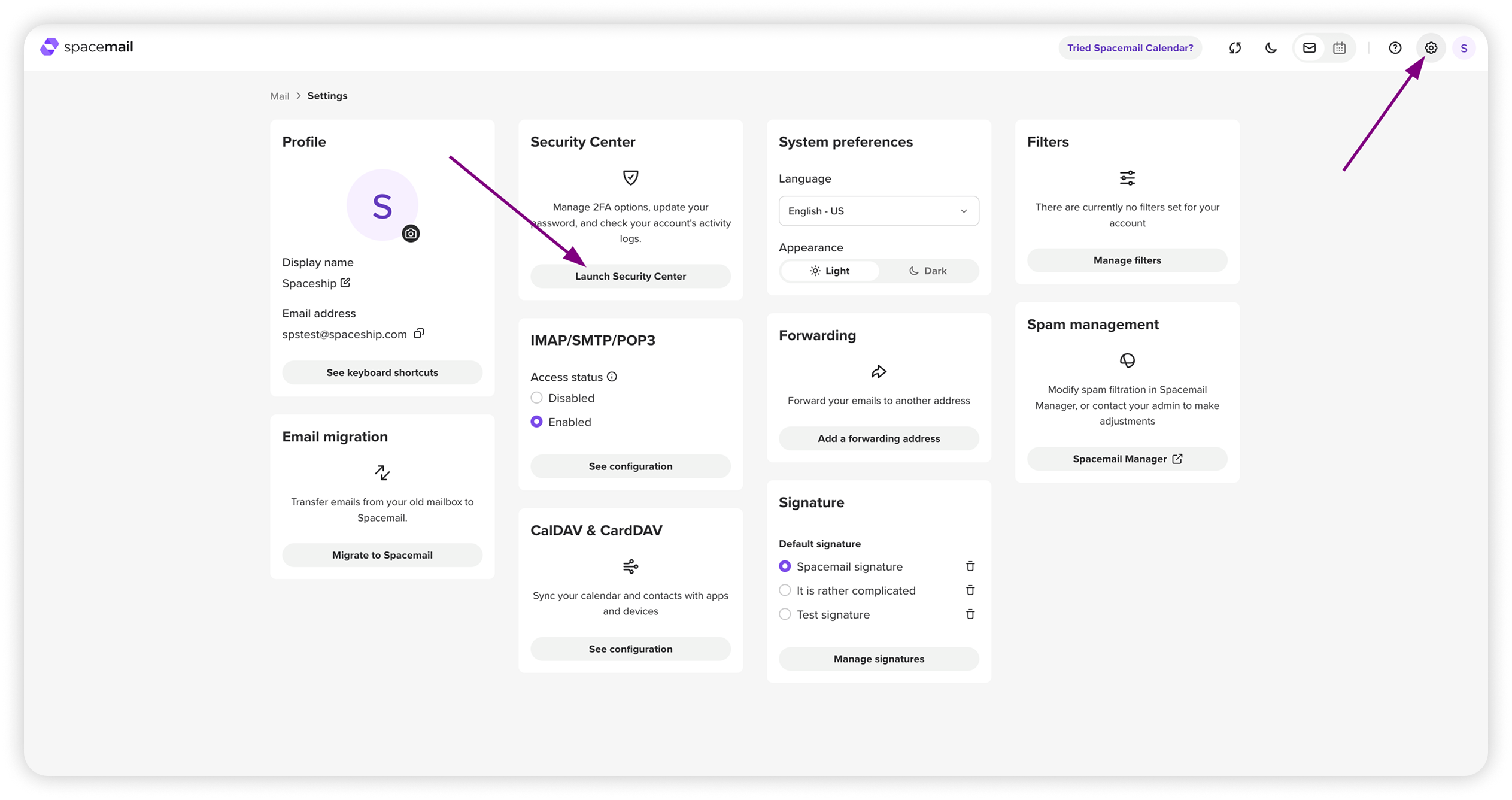
Klikk Endre passord, skriv inn ditt nåværende og nye passord, og klikk Lagre. Du vil se et popup-varsel om at passordet er endret.
Endre passordet ditt i Spacemail Manager
Gå til Spacemail Manager og finn Spacemail-abonnementet som er knyttet til den aktuelle postboksen.
Klikk på de tre prikkene ved siden av ønsket postboks og velg Tilbakestill passord.
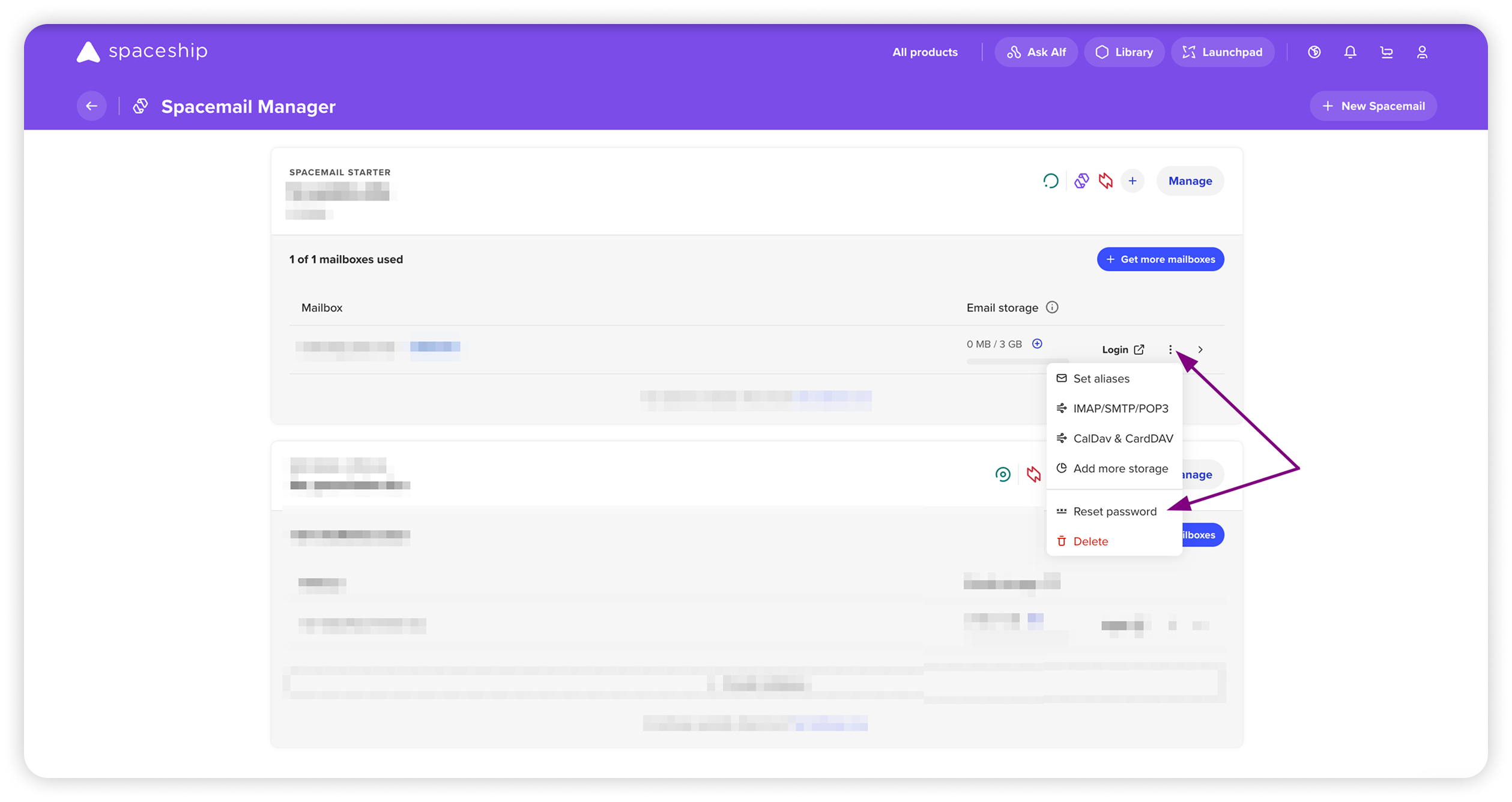
Skriv inn et nytt passord du ønsker. Vi foreslår at det oppfyller følgende krav:
• Vær minst 8 tegn langt
• Inkluder både store og små bokstaver
• Innehold tall
• Inkluder minst ett spesialtegn (f.eks. !, @, #)
Etter at du har skrevet inn ditt nye passord, klikk Lagre passord. Du vil se et popup-varsel om at passordet er endret.Alternativt kan du bruke passordgeneratoren ved å klikke på ikonet med sirkelpil ved siden av passordfeltet. Deretter klikker du Lagre passord.
Bruk det nye passordet for å logge inn på din Spacemail-postboks.
MERK: Du kan gjerne bruke en passordbehandler (1Password, Bitwarden, osv.) for å lagre passordene dine og holde kontoene dine sikre.