Cara menghubungkan domain dengan EasyWP
Untuk membuat situs web WordPress Anda, Anda dapat menggunakan nama domain Spaceship Anda. Namun, EasyWP sekarang mendukung nama domain apa pun, jadi jangan khawatir jika nama domain Anda tidak terdaftar di Spaceship. Selain itu, EasyWP juga dapat digunakan dengan subdomain.
Domain dan subdomain dapat dihubungkan ke langganan EasyWP Anda selama proses Unbox™ .
Untuk memulai proses Unbox™, beli langganan EasyWP (jika Anda belum melakukannya). Lalu, selesaikan langkah-langkah berikut.
Langkah-langkah menghubungkan langganan EasyWP dengan domain Spaceship Anda
Untuk menghubungkan langganan EasyWP dengan domain Spaceship Anda:
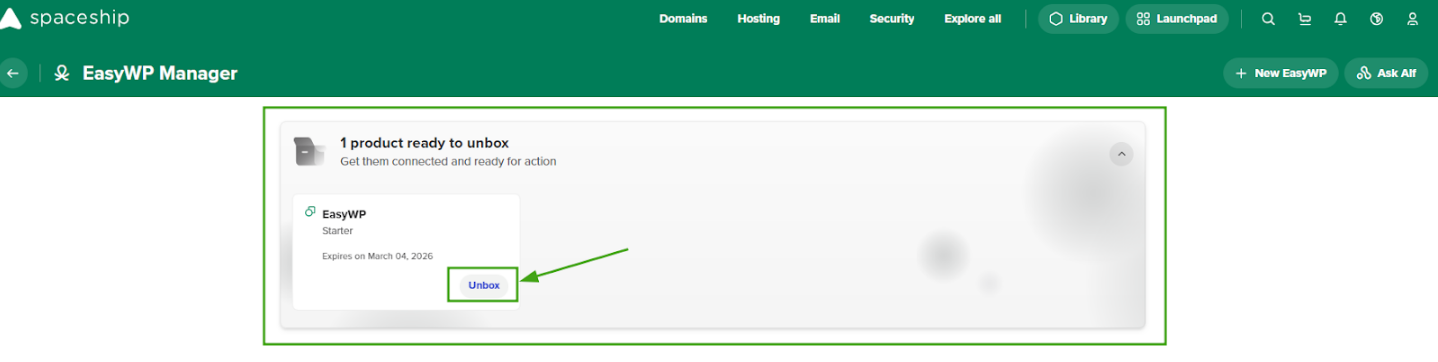
Masuk ke akun Spaceship >> EasyWP Manager untuk menemukan langganan Anda dan klik tombol Unbox .
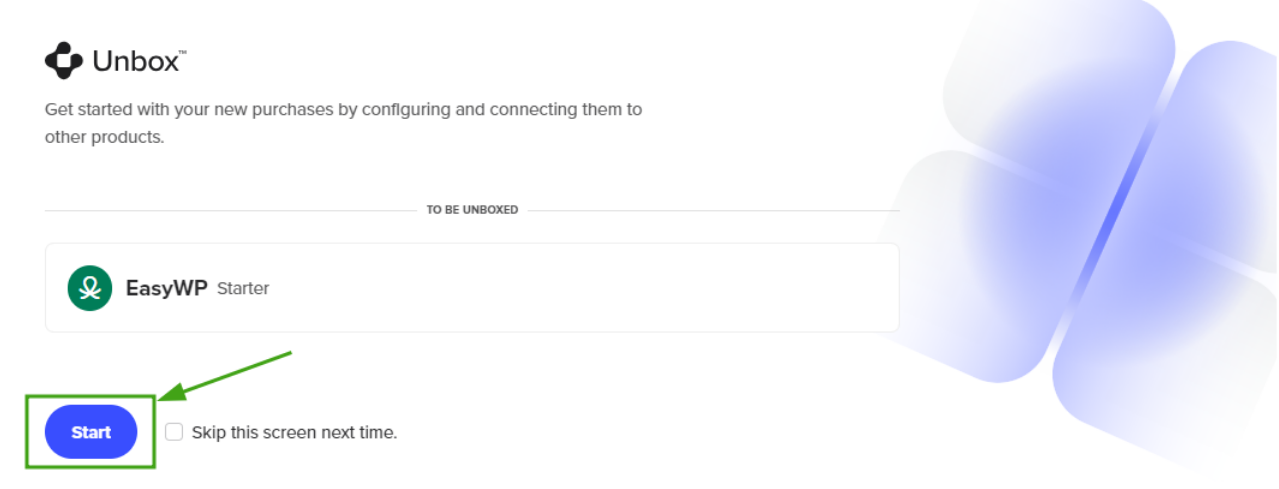
Klik tombol Mulai untuk memulai proses Unbox™:
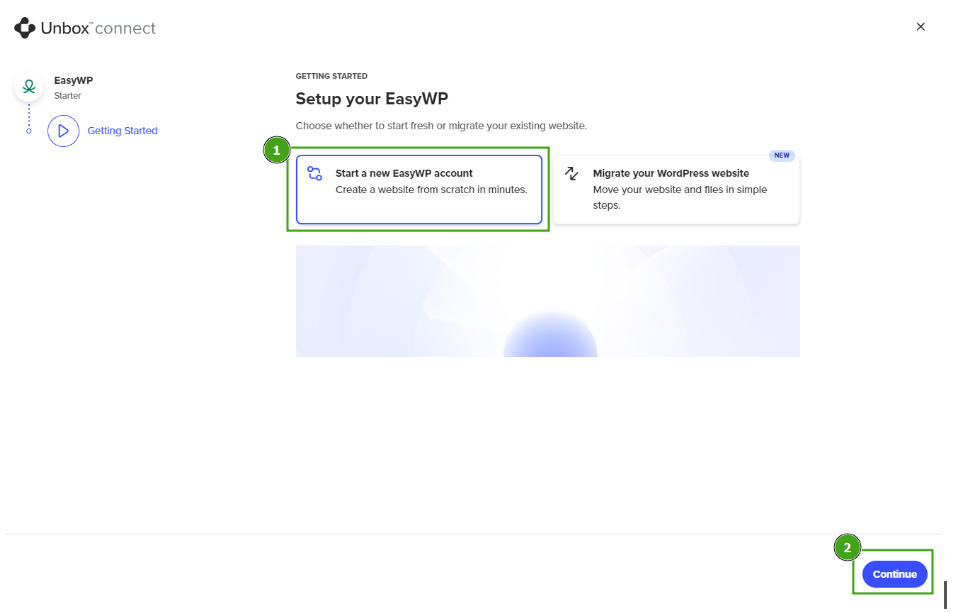
Untuk memulai situs web WordPress baru, pilih Mulai akun EasyWP baru dan klik Lanjutkan:
Selanjutnya, klik + Tambah domain dan pilih domain untuk dihubungkan dengan EasyWP:
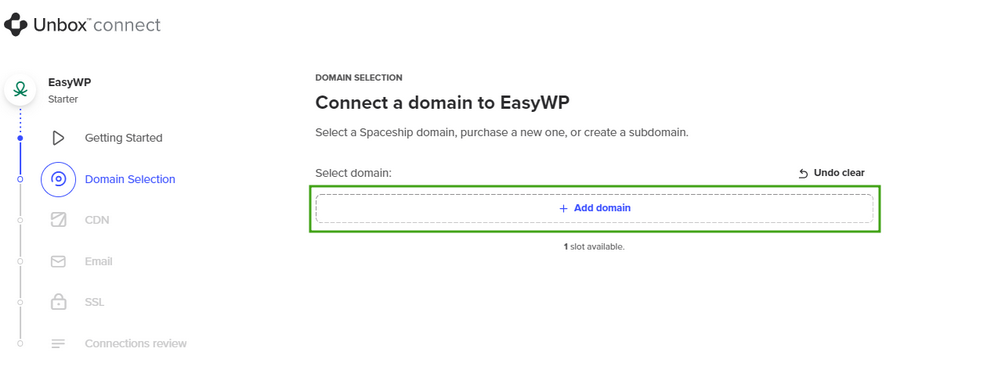
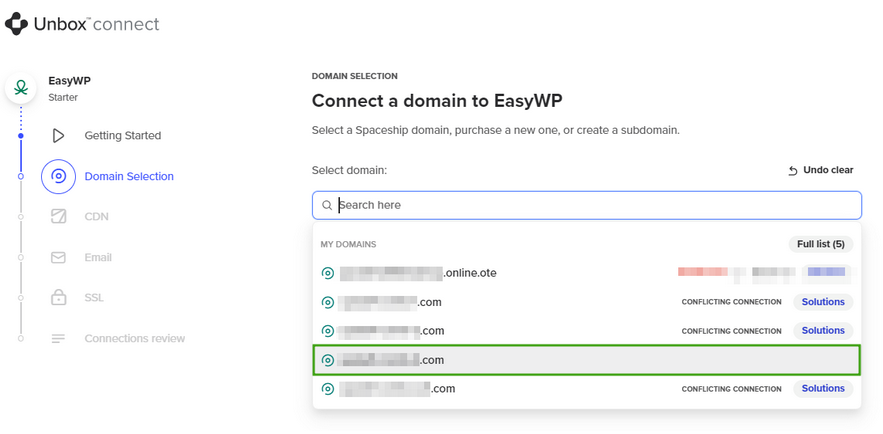
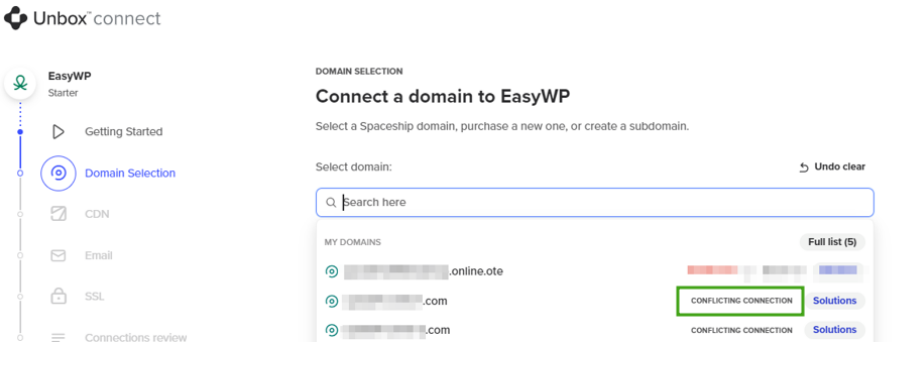
Catatan: Domain yang sudah terhubung dengan layanan lain akan ditandai sebagai Koneksi konflik.
Setelah Anda memilih domain yang relevan, klik Lanjutkan:
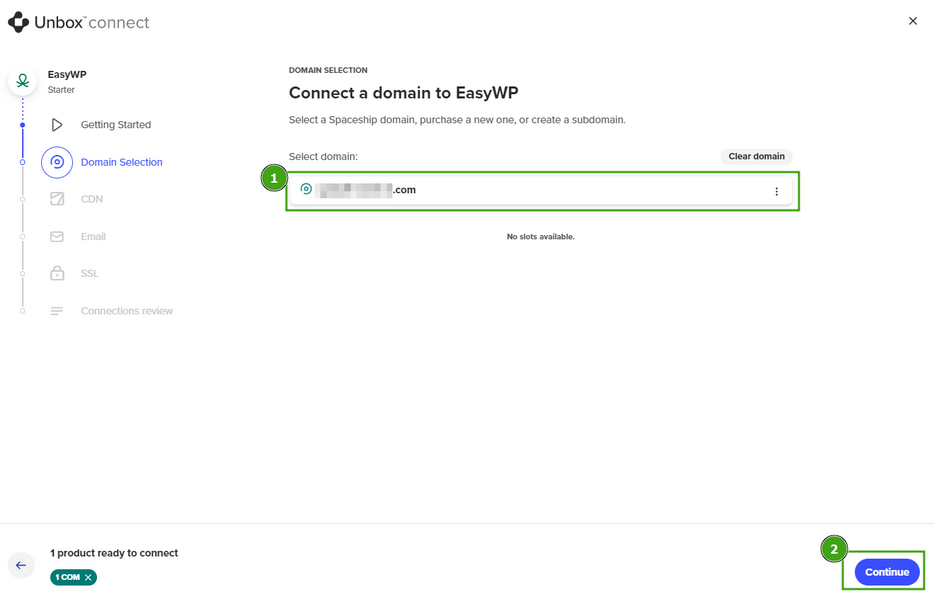
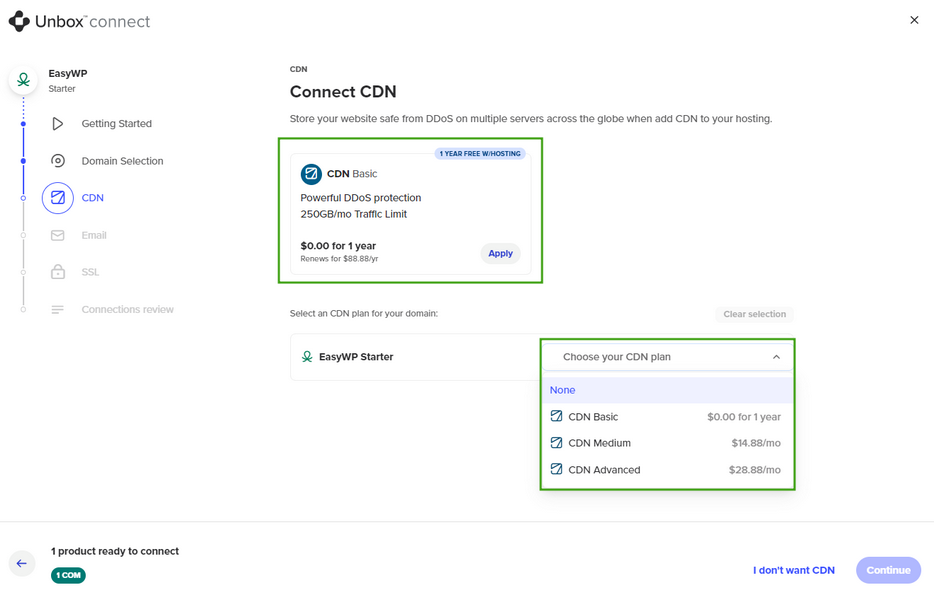
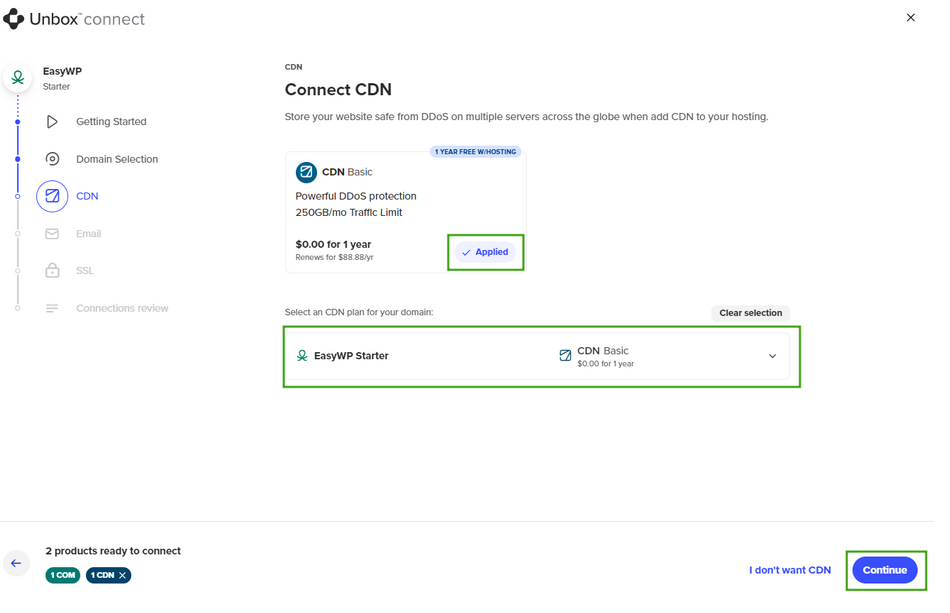
Pilih CDN gratis, paket CDN berbayar dari menu dropdown, atau klik Saya tidak ingin CDN.
Catatan: Paket CDN Basic dapat diperoleh secara gratis dan kemudian diperpanjang dengan harga perpanjangan standar. Selama proses unboxing, Anda hanya dapat menghubungkan paket CDN Basic yang disertakan atau membeli langganan baru. Langganan CDN yang sudah ada tidak dapat dihubungkan pada tahap ini.
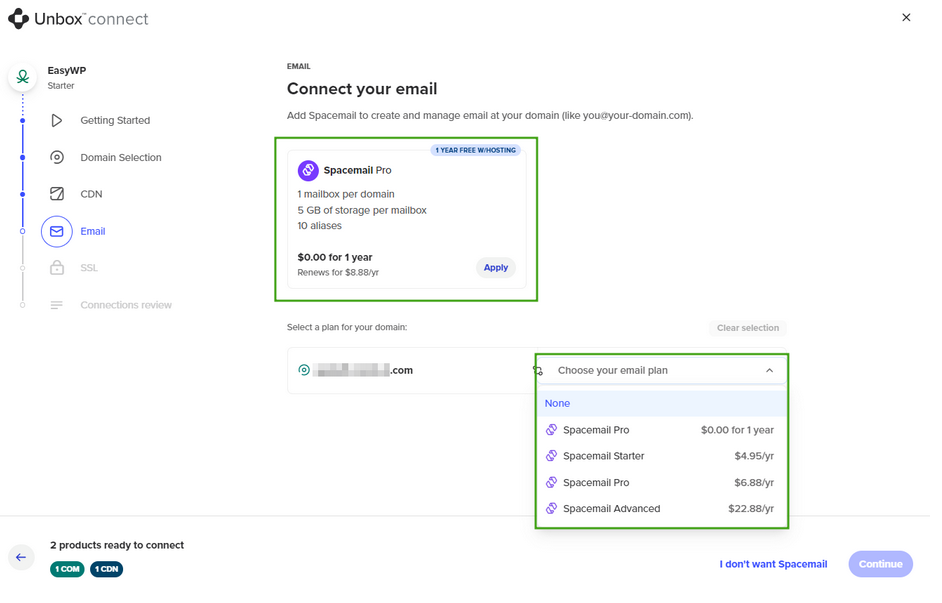
Sekarang, tambahkan Spacemail untuk membuat dan mengelola email di domain Anda (seperti you@your-domain.com).
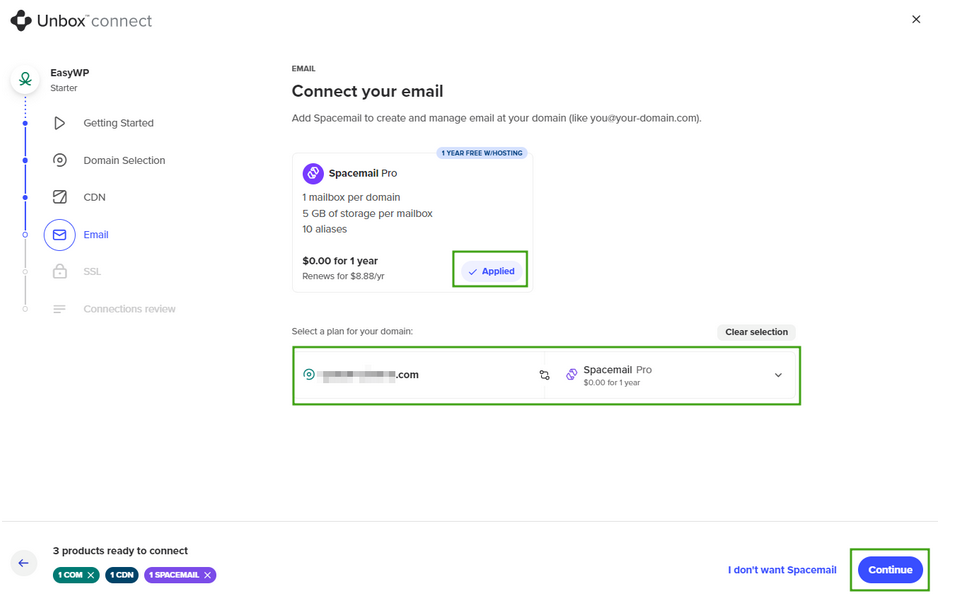
Anda juga dapat melewati langkah ini atau memilih paket Spacemail berbayar dari menu dropdown. Dalam contoh kami, kami memilih paket gratis:
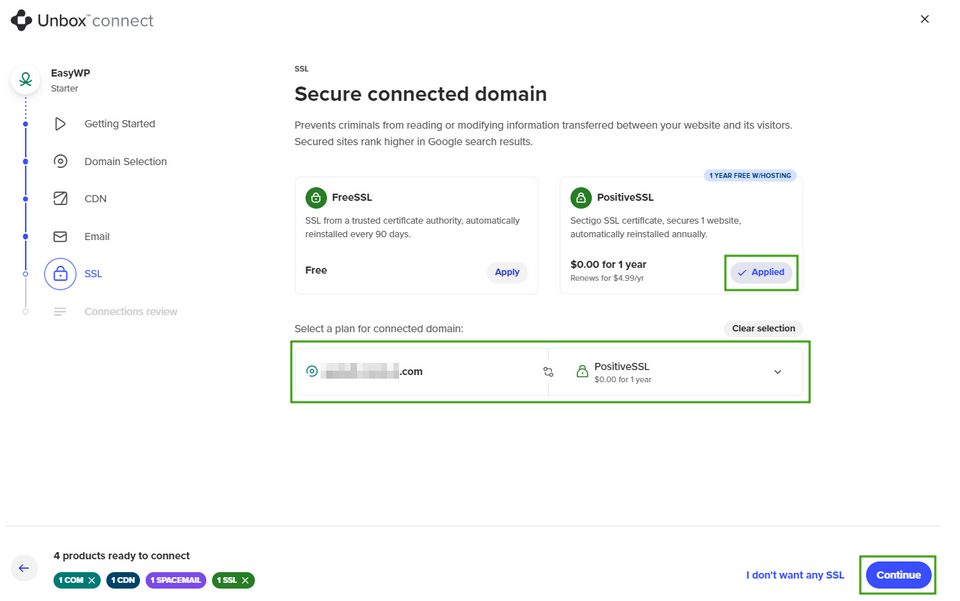
Selanjutnya, pilih sertifikat SSL untuk langganan EasyWP Anda: SSL Gratis (SSL dari otoritas sertifikat tepercaya, dipasang ulang secara otomatis setiap 90 hari) atau Positive SSL (sertifikat SSL Sectigo, mengamankan 1 situs web, dipasang ulang secara otomatis setiap tahun):
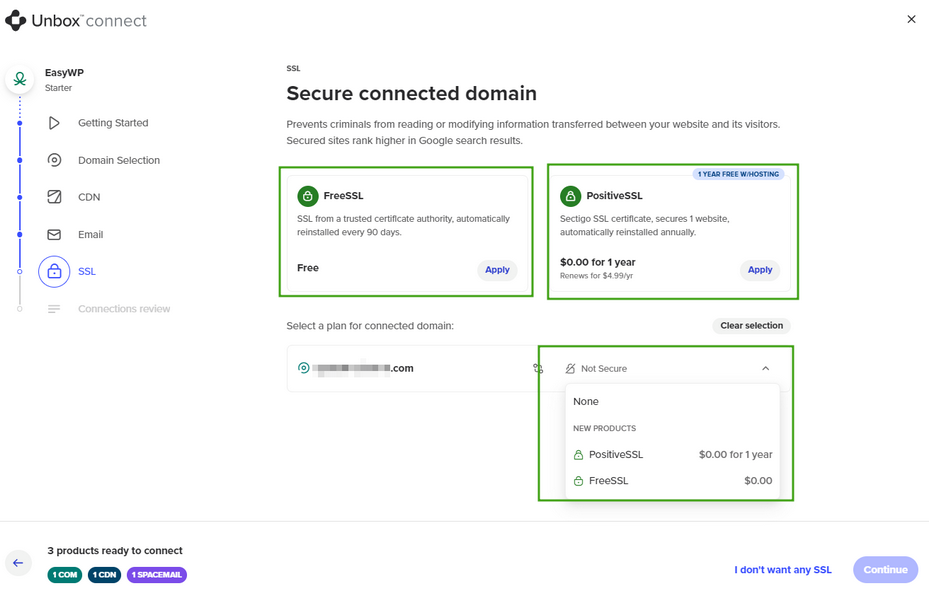
Anda juga dapat memilih keluar dengan memilih Saya tidak ingin SSL apa pun. Dalam contoh kami, kami memilih opsi FreeSSL:
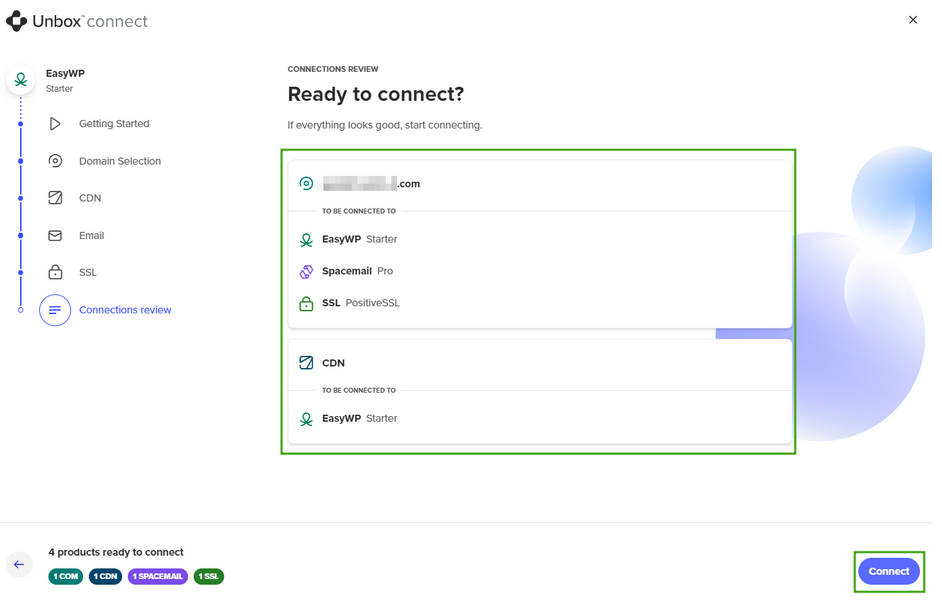
Ringkasan semua layanan terkait dan apa yang terhubung akan ditampilkan di layar tinjauan Koneksi. Jika semuanya sudah benar, klik Hubungkan.
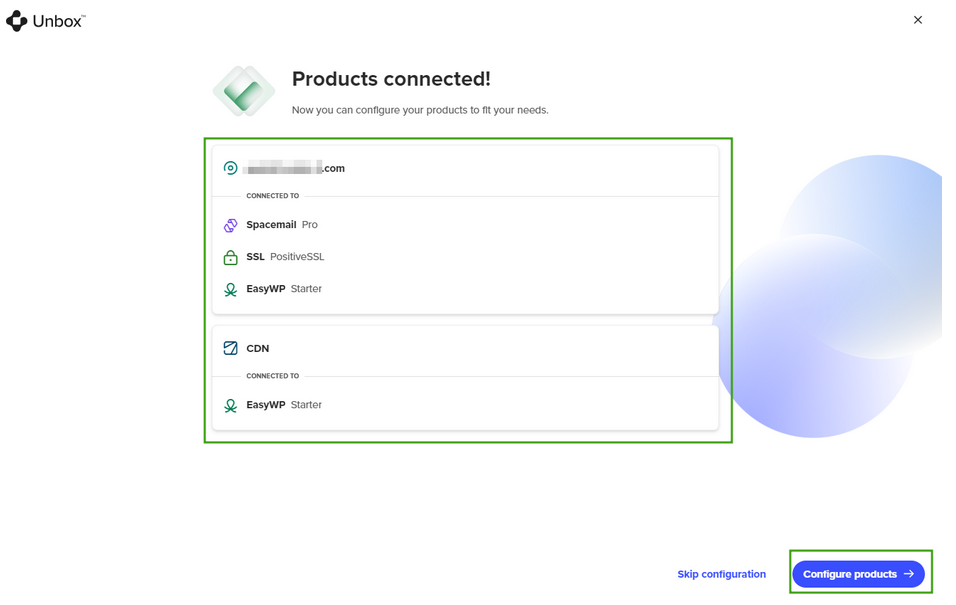
Setelah produk terhubung, klik Konfigurasi produk atau Lewati konfigurasi.
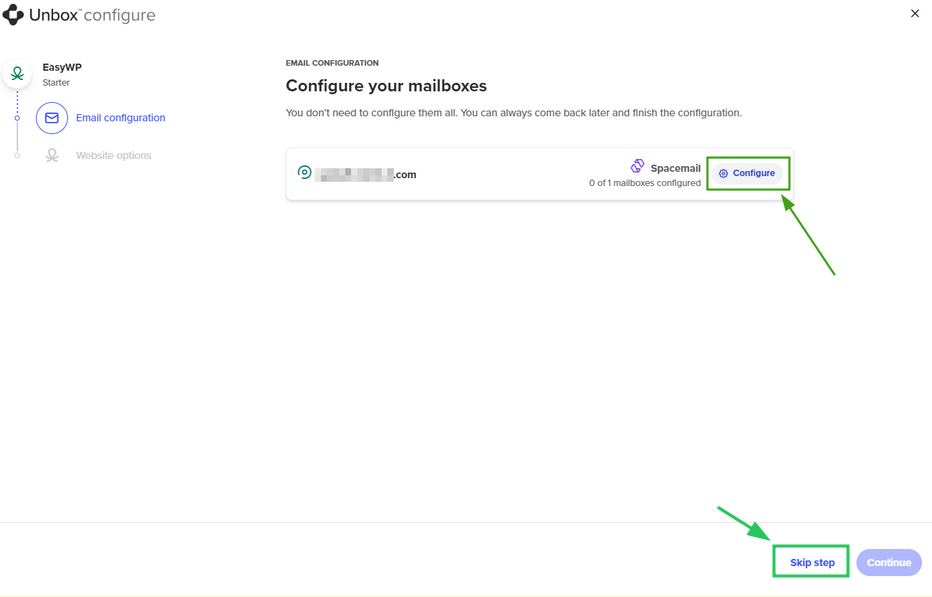
Spacemail akan dikonfigurasi terlebih dahulu. Klik Konfigurasi untuk melanjutkan konfigurasi email atau Lewati langkah untuk langsung melanjutkan konfigurasi EasyWP.
Selanjutnya, konfigurasikan pengaturan WordPress Anda dengan memasukkan nama situs web, nama pengguna, dan Kata Sandi:
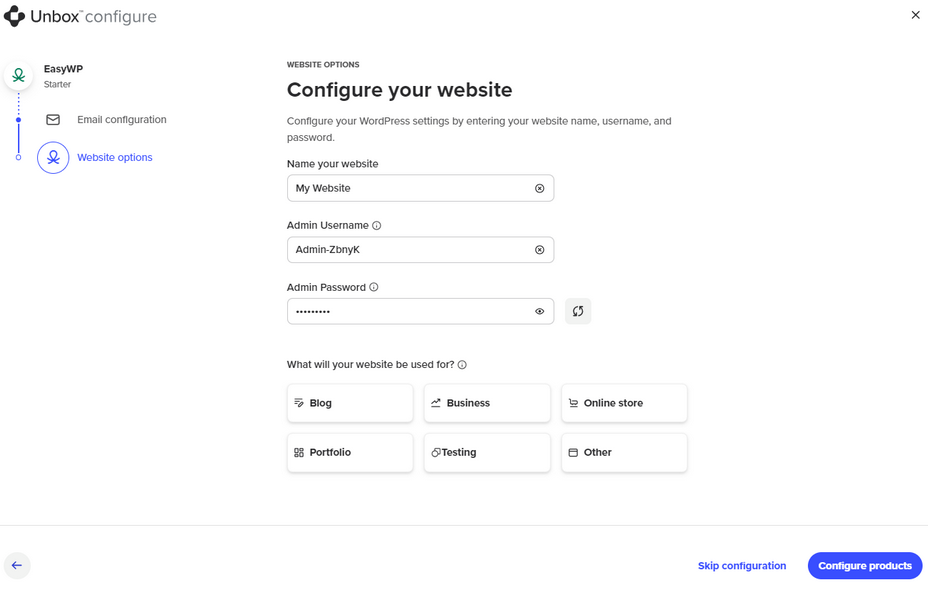
Klik Konfigurasi produk untuk menyelesaikan proses Unboxing. Untuk menyelesaikan, klik Selesai atau Buka di EasyWP Manager.
Cara menghubungkan EasyWP dengan domain eksternal
Domain eksternal dapat dihubungkan ke EasyWP selama proses Unbox™. Pengaturannya mirip dengan menghubungkan EasyWP dengan domain Spaceship. Namun, tidak seperti Spaceship, pengaturan record harus dilakukan secara manual setelah unboxing.
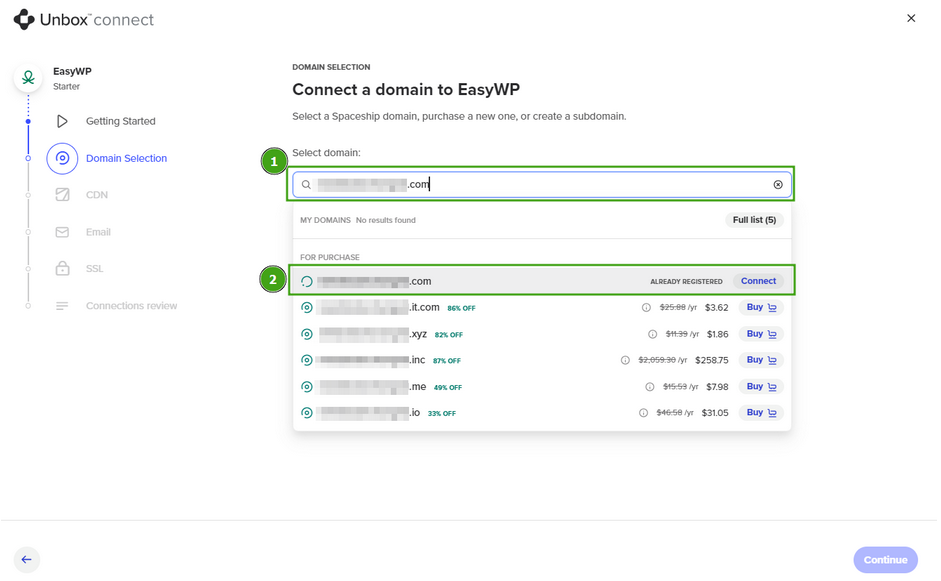
Domain eksternal yang memenuhi syarat akan memiliki status Sudah terdaftar dan tombol Hubungkan aktif di sebelahnya.
Jika domain eksternal saat ini digunakan dengan produk hosting lain di Spaceship, akan ditandai sebagai Koneksi konflik:
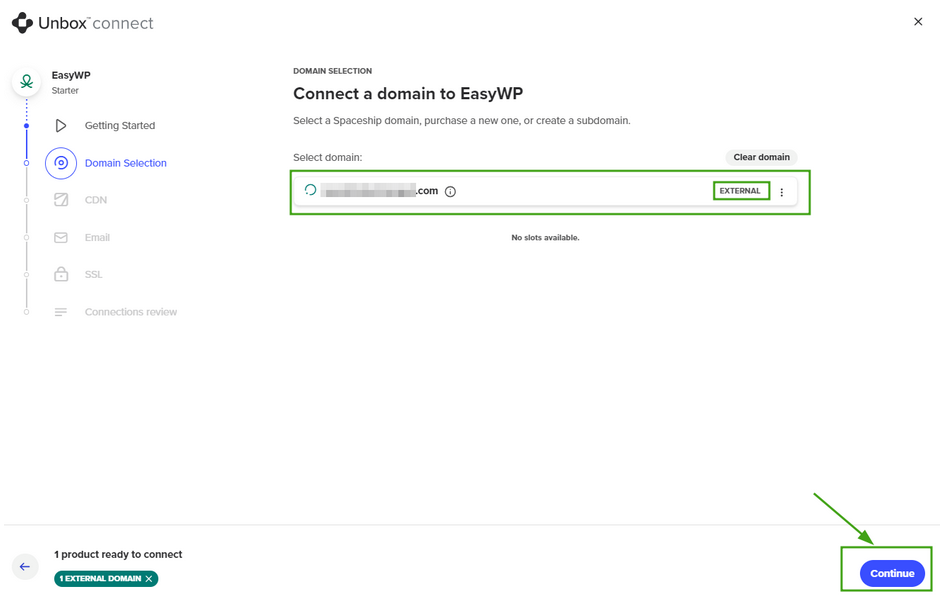
Domain eksternal yang terhubung akan ditandai dengan tag EKSTERNAL.
Mengonfigurasi record
Jika Anda belum menyelesaikan pengaturan DNS selama unboxing, Anda dapat menyelesaikannya nanti menggunakan EasyWP Manager. Pesan peringatan akan muncul di bawah domain yang terhubung ke langganan EasyWP Anda, menunjukkan bahwa pengaturan DNS perlu dikonfigurasi:
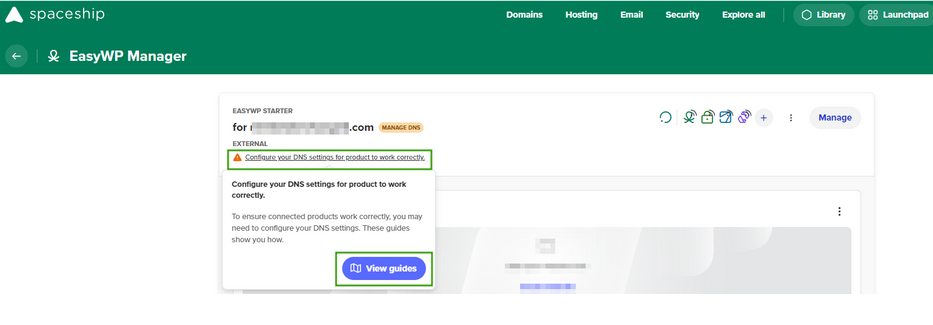
Setelah Anda klik Lihat panduan, opsi berikut akan tersedia:
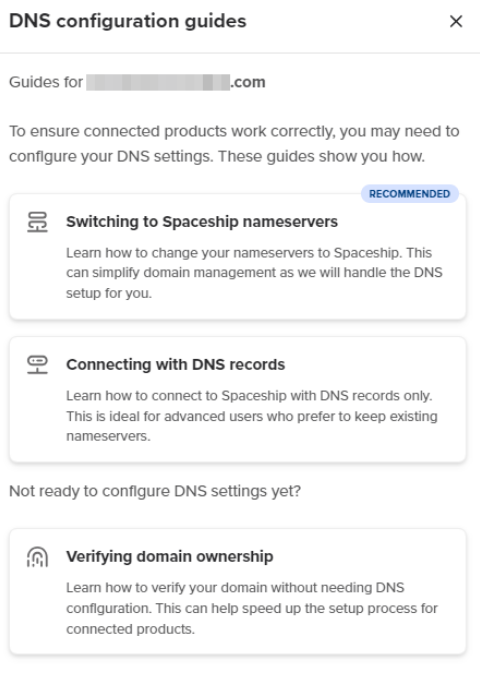
Ada beberapa opsi untuk menghubungkan domain eksternal ke EasyWP:
Konfigurasikan nameserver Spaceship di sisi Registrar Domain Anda:
launch1.spaceship.net
launch2.spaceship.net
Catatan: Sebaiknya gunakan pengaturan ini untuk menghubungkan domain ke langganan EasyWP Anda secara otomatis. Dengan opsi ini, Anda dapat mengelola record host untuk domain Anda di akun Spaceship Anda >> Domain Manager.
2. Buat record host di akun penyedia DNS Anda.
Catatan: Record host hanya akan ditampilkan setelah situs web dibuat dan proses Unbox™ selesai.
Setelah record dikonfigurasi, propagasi mungkin memerlukan waktu. EasyWP dan domain pihak ketiga akan aktif secara otomatis setelah propagasi selesai.
EasyWP dengan subdomain
Menggunakan subdomain dengan langganan EasyWP sangat mudah. Cukup masukkan subdomain selama proses Unbox™.
Saat menggunakan subdomain yang terkait dengan domain yang terdaftar di Spaceship, tombol Buat subdomain akan ditampilkan:
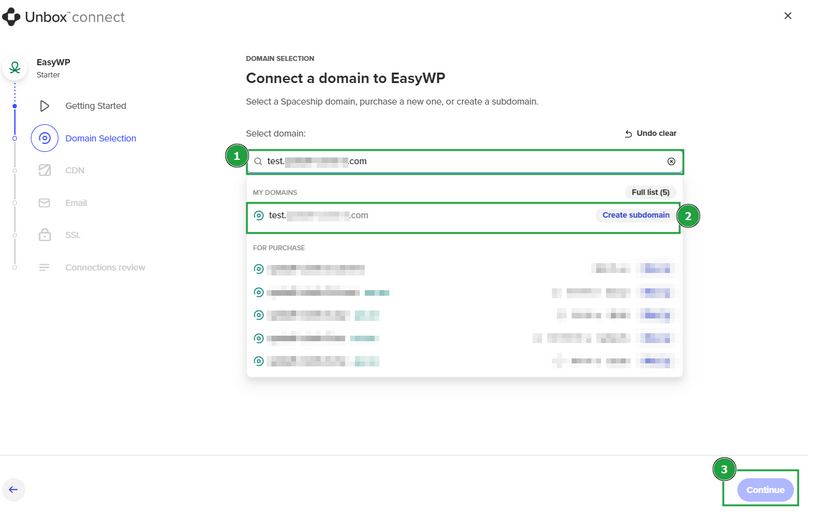
Jika Anda menghubungkan subdomain yang terkait dengan domain pihak ketiga, Eksternal akan ditampilkan di samping subdomain. Tekan Buat subdomain untuk melanjutkan.
Catatan: Agar subdomain berbasis domain pihak ketiga dapat berfungsi dengan baik dengan EasyWP di Spaceship, konfigurasikan nameserver Spaceship di sisi Registrar Domain.
Tidak memungkinkan untuk menghubungkan dan menggunakan langganan Supersonic CDN dan Spacemail Pro gratis untuk subdomain pihak ketiga dan yang terkait dengan Spaceship. Anda hanya akan memiliki opsi untuk memilih "Saya tidak ingin CDN"/"Saya tidak ingin Spacemail". Tombol Terapkan berwarna abu-abu dan tidak aktif.
Setelah subdomain terhubung dan proses Unbox™ selesai, record EasyWP akan dibuat secara otomatis. Propagasi dapat memakan waktu hingga 60 menit untuk subdomain yang terdaftar dengan domain Spaceship, dan hingga 48 jam untuk subdomain di bawah domain pihak ketiga, karena perubahan nameserver. Anda dapat memeriksa apakah propagasi sudah selesai dengan masuk ke akun Spaceship Anda dan menuju ke tab Advanced DNS untuk subdomain terkait.
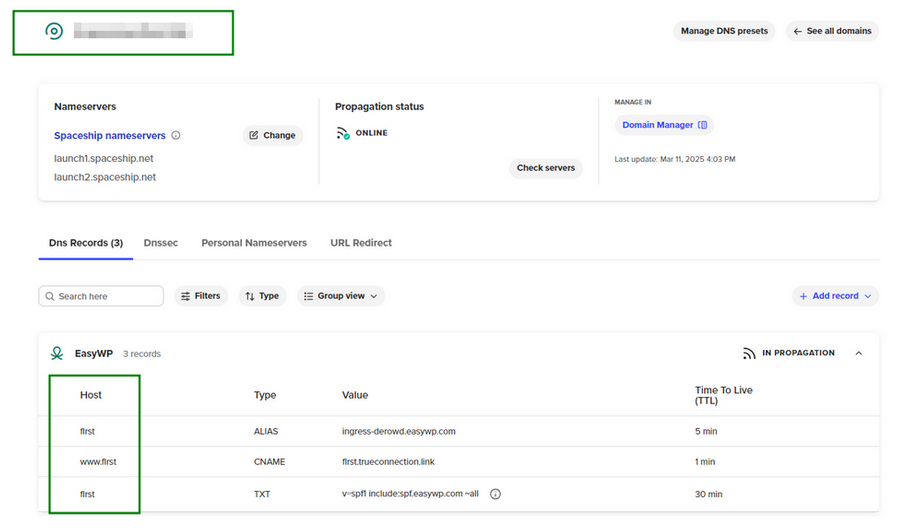
Berikut adalah record yang secara otomatis dibuat setelah Anda menyelesaikan unboxing, tergantung pada subdomain.
Record EasyWP untuk subdomain di bawah domain pihak ketiga
Subdomain, setelah situs web dibuat, akan muncul secara terpisah di menu Daftar Domain dengan record EasyWP berikut untuk @ dan www host.
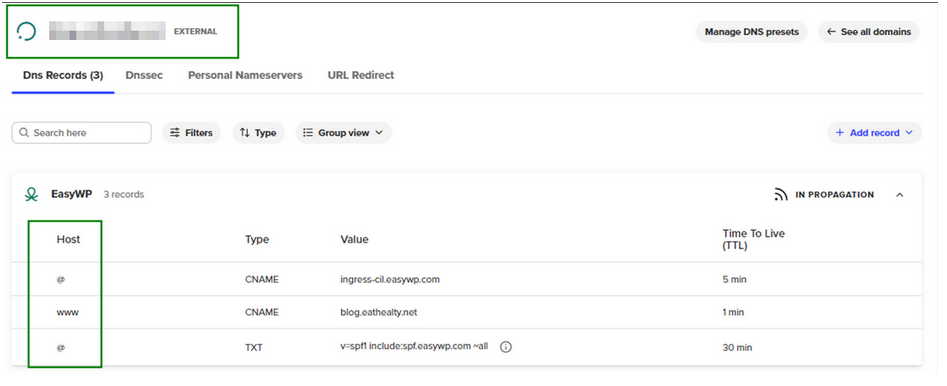
Record EasyWP untuk subdomain di bawah domain Spaceship
Tidak seperti subdomain pihak ketiga, yang akan muncul secara terpisah di menu Daftar Domain, record untuk subdomain Spaceship dibuat langsung untuk domain utama untuk www.subdomain dan subdomain host.