Hoe maak je een e-mailhandtekening in Spacemail?
U kunt een e-mailhandtekening aanmaken om uw e-mails professioneler te maken.
Dit kan in Spacemail webmail: ga naar Instellingen, klik vervolgens op de tegel Handtekening en klik op Handtekeningen beheren.
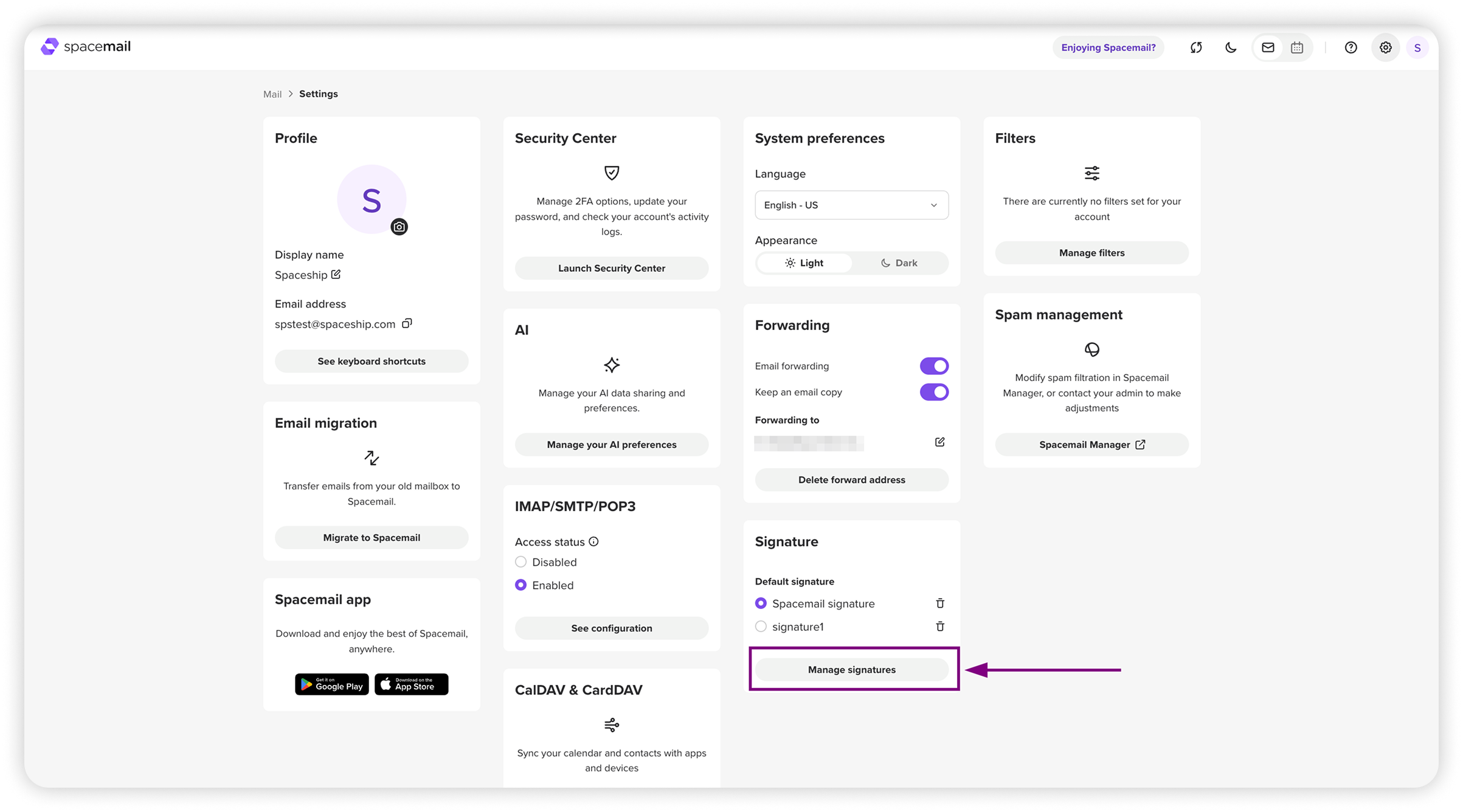
Er verschijnt een nieuwe pagina. Druk op + Nieuwe handtekening, voer de naam in (bijv. signature1), en druk vervolgens op Enter. Voer daarna uw handtekeningtekst in de teksteditor in.
Het is mogelijk om uw handtekening op te maken met ongedaan maken/opnieuw uitvoeren, lettertype- en groottewijzigingen, vet, cursief, onderstrepen, doorhalen, evenals hulpmiddelen om afbeeldingen of links in te voegen, tekst- en achtergrondkleur (markeren) te wijzigen, opsommingstekens en genummerde lijsten te maken en links uit te lijnen. Extra hulpmiddelen onder de pijl omvatten andere uitlijnopties, tabellen en het wissen van opmaak.
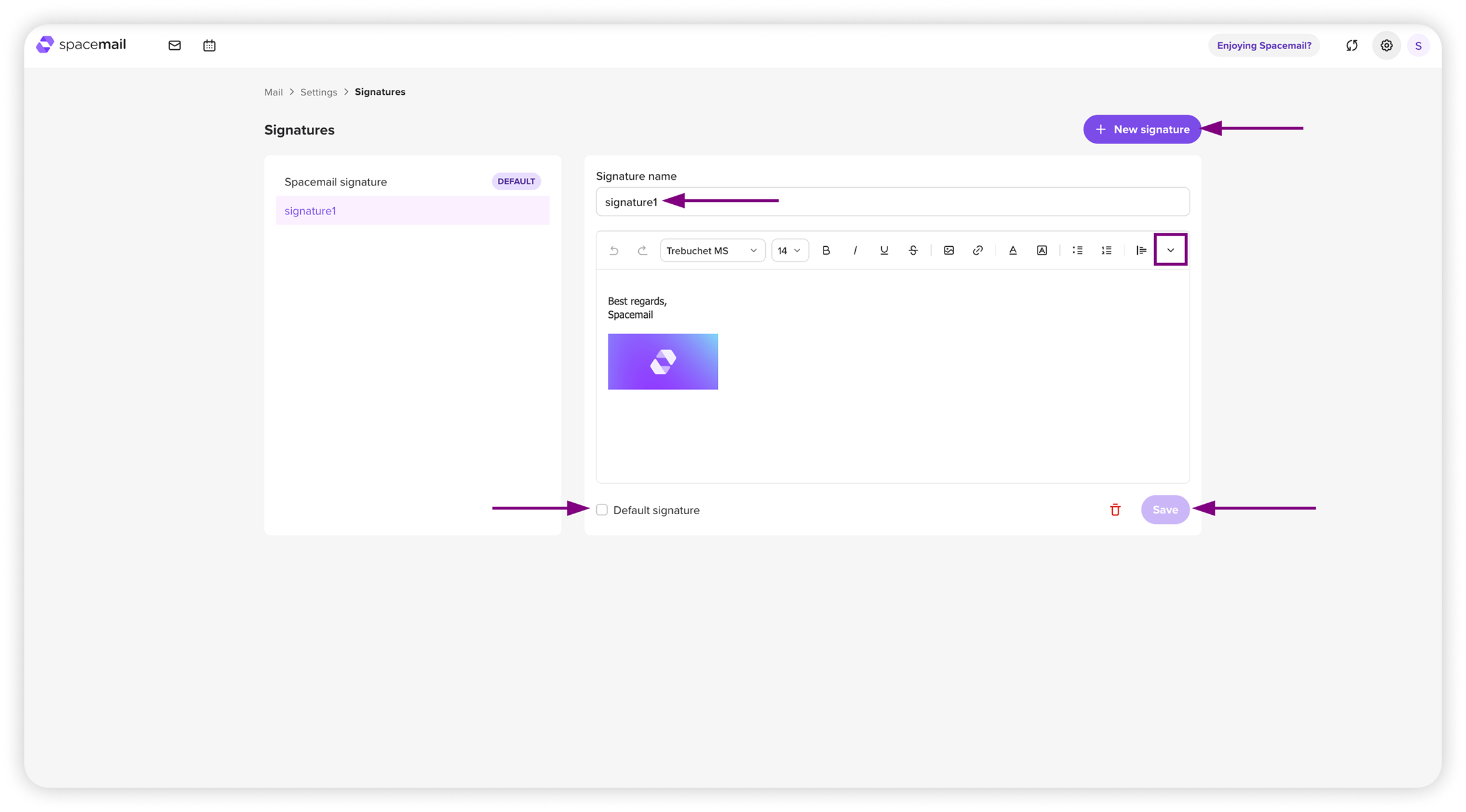
U kunt ervoor kiezen om deze handtekening als standaard in te stellen (als u er meerdere nodig heeft) door op het vinkje onder het bewerkingsveld te klikken. Dit kunt u later ook doen via Instellingen.
Zodra een handtekening is toegevoegd, ziet u een pop-upmelding dat een handtekening is opgeslagen.
OPMERKING: Als u een andere e-mailclient of app gebruikt om e-mails te verzenden dan Spacemail webmail, moet u uw handtekening apart instellen in deze externe apps, omdat ze niet synchroniseren via IMAP.