How to set up Spacemail in Spark desktop email app
In this guide, you’ll learn how to set up your Spacemail email account in the desktop Spark mail client.
Open the Spark Desktop app.
Enter your full Spacemail email address in the format name@domain.com and click Enter as shown in the screenshot.
*In the screenshot, we use spstest@spaceship.com as an example of the email address.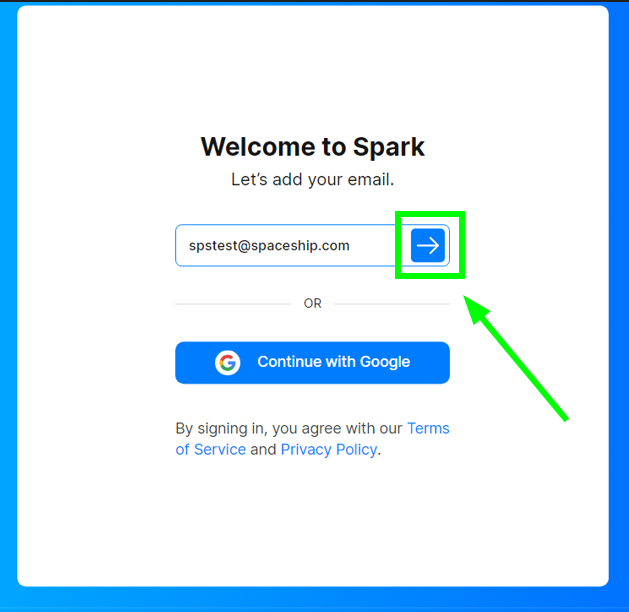
TIP: If you already have an email account in this email client, on the top bar, click Spark >> Add account >> choose Set up manually.Enter the following fields:
Name: your name (it will be shown to recipients)
Email: your Spacemail email address (this is pre-filled)
Password: the password you use to access this mailbox via webmailOnce done, click on Additional Settings. And enter the correct Spacemail server details:
Inbox server (IMAP)
Username: your full Spacemail email address (we use spstest@spaceship.com in this tutorial as an example of the email address)
Email Password: the password you use to access this mailbox via webmail.Server: mail.spacemail.com
Port: 993
Protection: SSL
Outbox server (SMTP)
Username: your full Spacemail email address (we use spstest@spaceship.com in this tutorial as an example of the email address)
Password: the password you use to access this mailbox via webmail.
Server: mail.spacemail.com
Port: 465
Protection: SSL
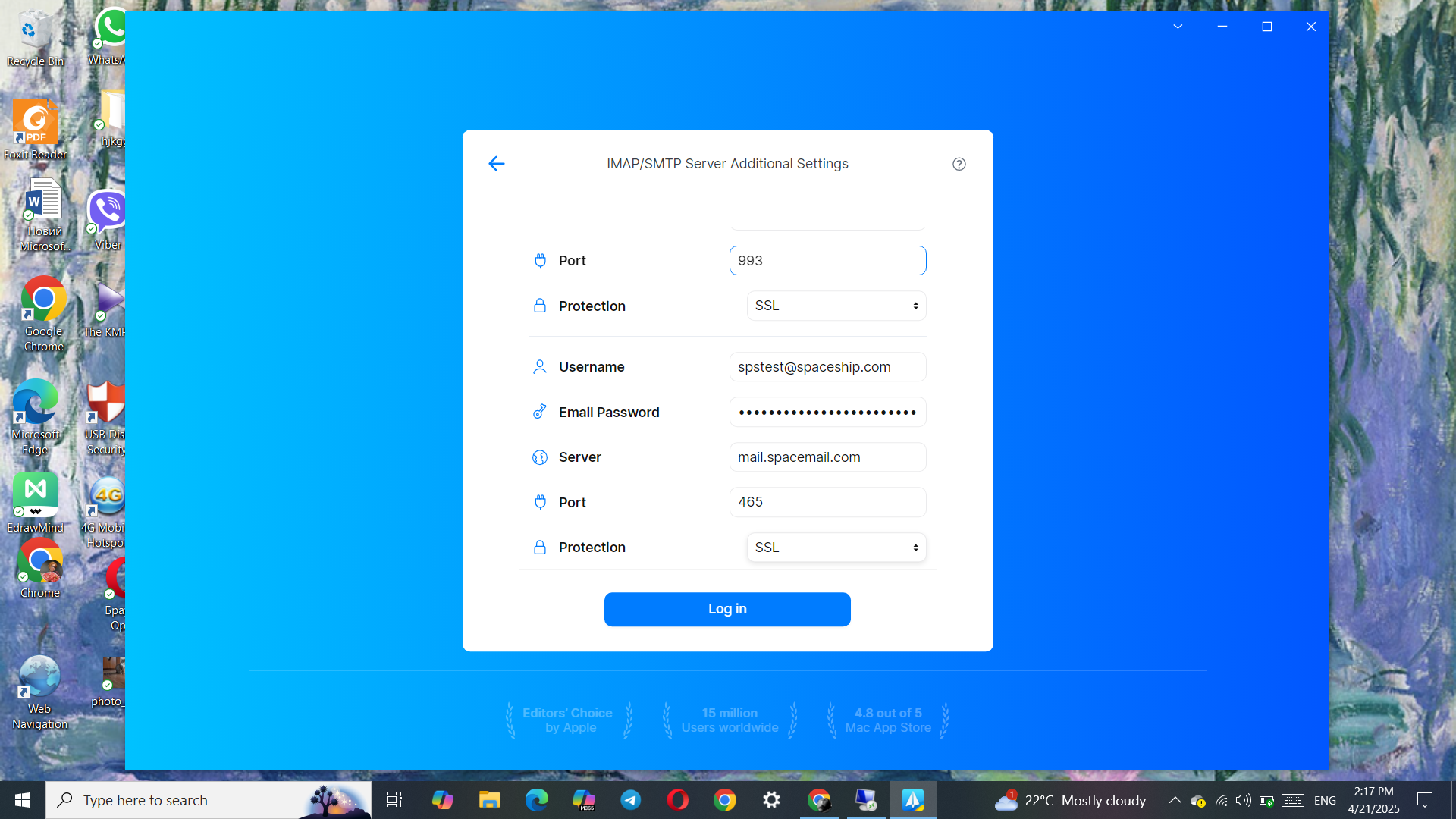
Click Log in and give the system a few minutes to verify your email account.
If you have any questions, please don't hesitate to reach out to our Support Team for further assistance.
That’s it!