Cum să configurezi Spacemail în aplicația Spark Mail pe mobil
În acest ghid, vei învăța cum să configurezi contul tău de e-mail Spacemail în aplicația Spark Mail de pe telefon.
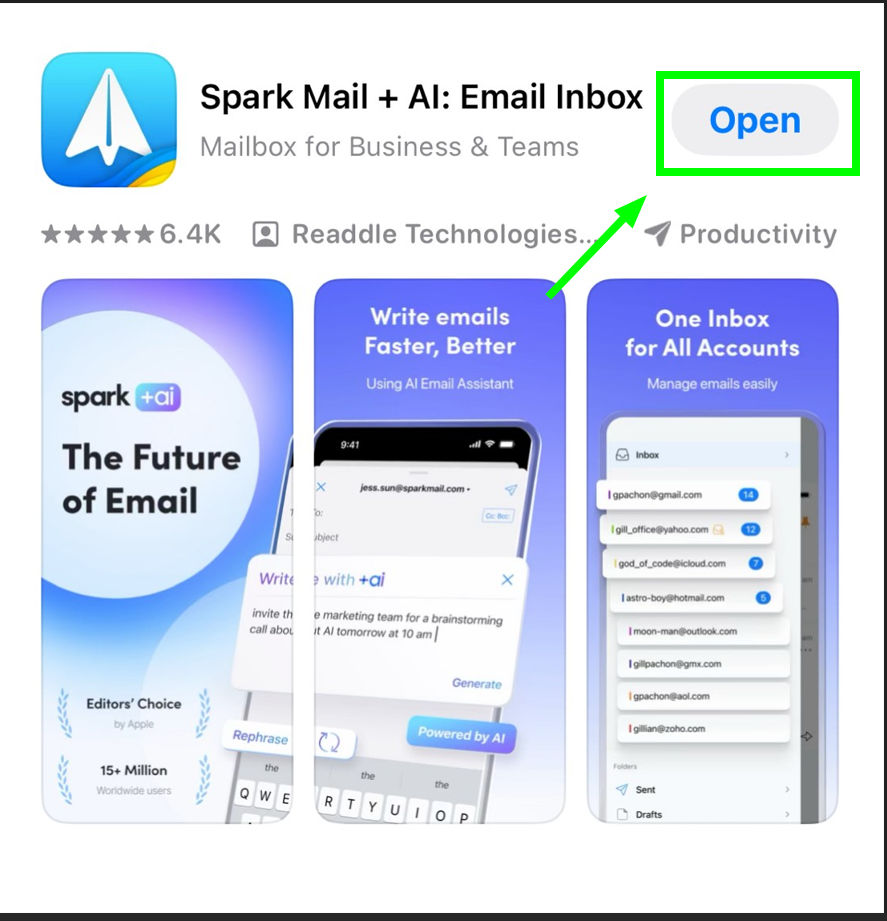
Deschide aplicația:
Apasă butonul Începe să folosești Spark.
În câmpul Adaugă e-mailul tău, te rugăm să introduci adresa ta completă de e-mail Spacemail în următorul format: nume@domeniu.com.
SFAT: Dacă ai deja un e-mail în aplicația Spark Mail de pe telefon, poți adăuga încă un cont de e-mail acolo prin Setări → Conturi de e-mail → Adaugă cont.După ce introduci adresa ta de e-mail Spacemail și apeși pe Autentificare, vei vedea o fereastră pop-up cu următoarea întrebare: Spark dorește să îți trimită notificări. Poți apăsa pe Permite.
Pe pagina următoare, introdu parola căsuței tale poștale Spacemail (ar trebui să fie parola pe care o folosești pentru a accesa această căsuță poștală prin webmail):
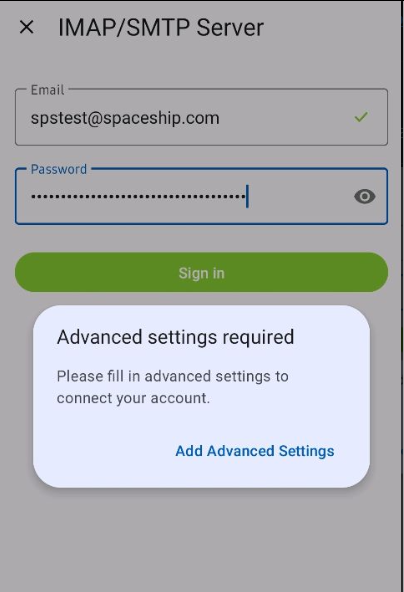
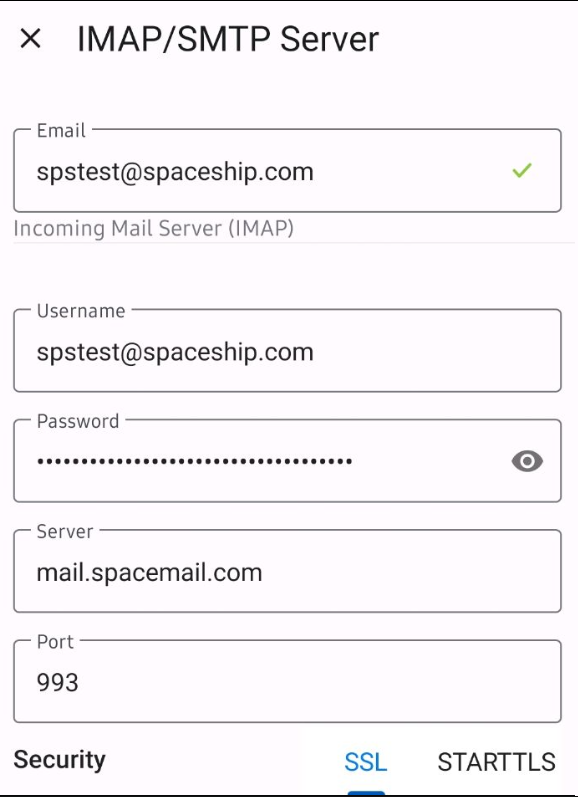
Și apasă pe „Setări avansate” pentru a specifica detaliile serverului Spacemail. Acestea sunt următoarele:
Server de e-mail de intrare (IMAP)
Nume utilizator: adresa ta completă de e-mail Spacemail (folosim spstest@spaceship.com ca exemplu de adresă de e-mail în acest tutorial)
Parolă: parola pe care o folosești pentru a accesa această căsuță poștală prin webmail
Server: mail.spacemail.comPort: 993
Securitate: SSL
Server de ieșire (SMTP)
Nume utilizator: adresa ta completă de e-mail Spacemail (folosim spstest@spaceship.com ca exemplu de adresă de e-mail în acest tutorial)
Parolă: parola pe care o folosești pentru a accesa această căsuță poștală prin webmail
Server: mail.spacemail.com
Port: 465
Securitate: SSL
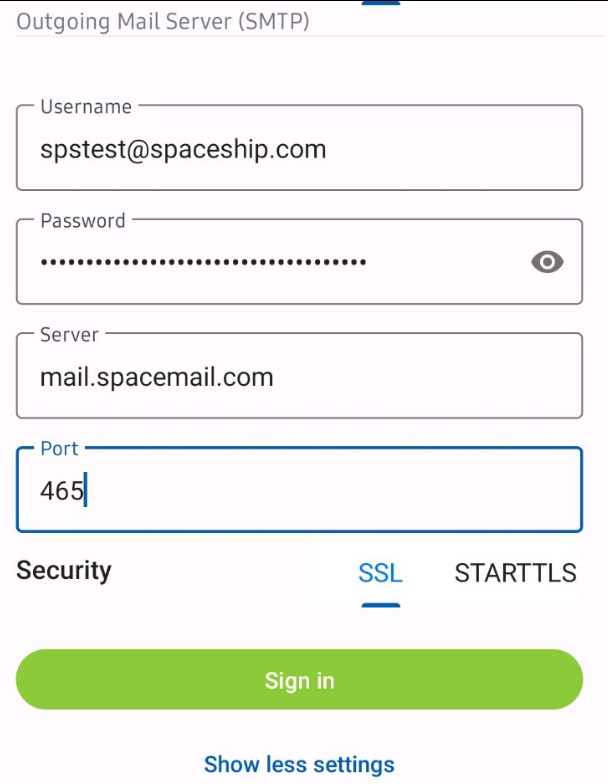
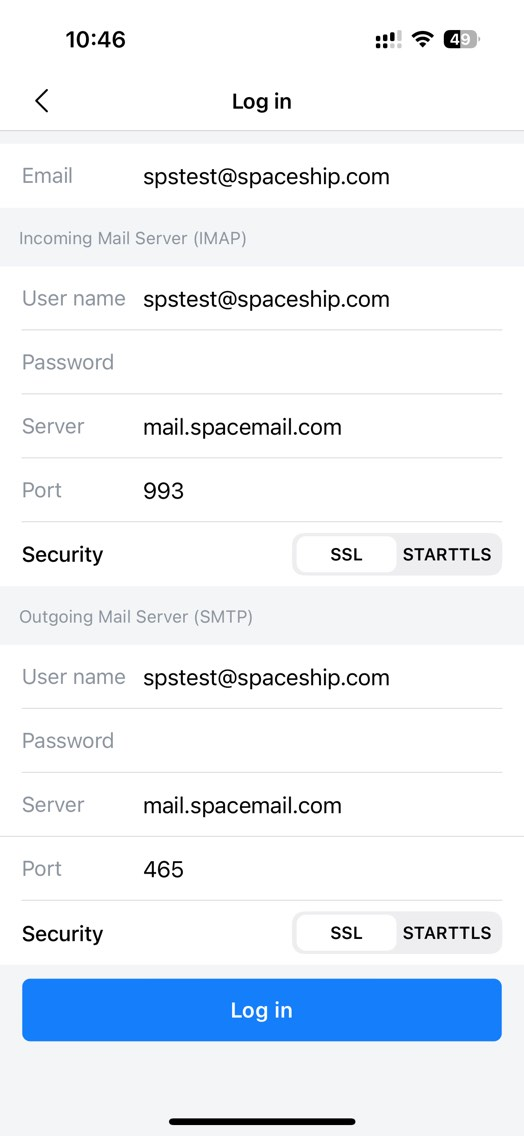
Verifică dacă ai introdus toate detaliile corect și apasă pe Autentificare.
Dacă ai întrebări, nu ezita să contactezi Echipa de Suport pentru asistență suplimentară.
Asta e tot!