How to set up FastVPN on a Tomato Router
This tutorial will guide you through setting up FastVPN OpenVPN on Tomato firmware and will help you establish a permanent VPN tunnel from your router. This guide was created based on an OpenVPN installation on a Netgear Nighthawk 7000 router that has been flashed with Tomato OpenVPN firmware.
Before you begin
The following is required to set up OpenVPN on Tomato firmware:
A FastVPN account (Don't have one? Sign up here);
An internet connection to the Tomato-flashed router;
Access to your FastVPN Account Panel.
IMPORTANT NOTE: Regardless of the router model you have or the version of Tomato firmware you are installing, there is a small risk of bricking your router (i.e., making the router completely unusable) if the process of installing Tomato on the router does not complete properly. Please read and follow the relevant documentation regarding the update procedure for your router carefully.
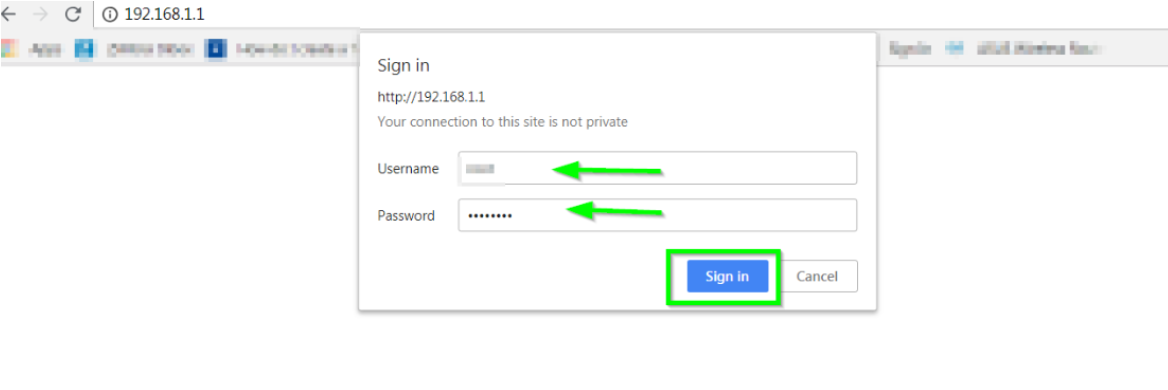
1. Log in to the router control panel by entering the router’s default IP address 192.168.1.1 into the address bar of your preferred browser (if you have changed your router's default IP address, enter that into your browser instead). When connecting using 192.168.1.1, the URL may change to http://192.168.1.1.
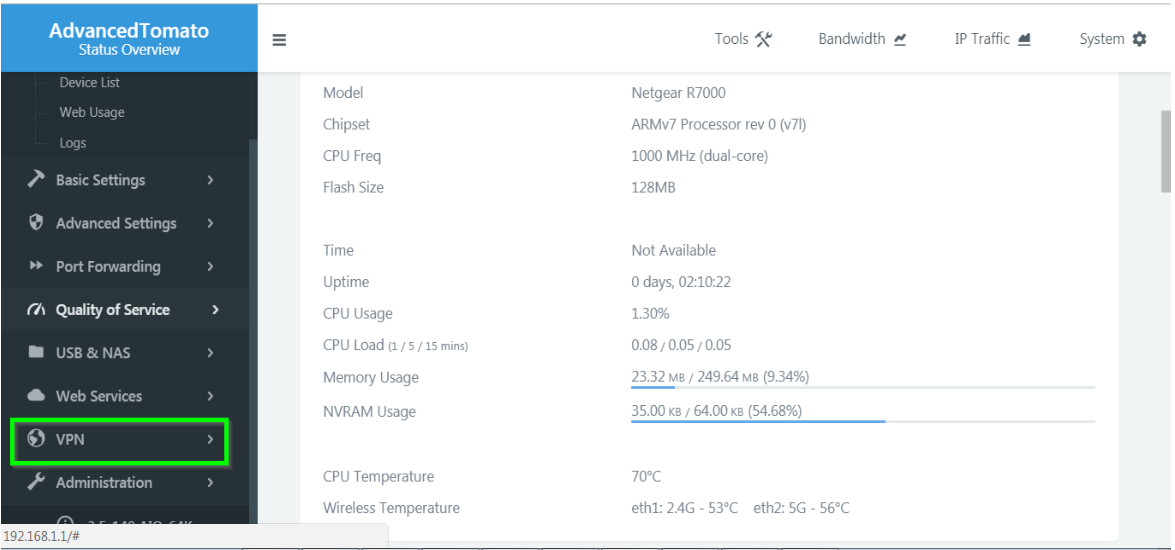
2. You will be redirected to the router's user interface; select VPN listed under Status Overview on the menu on the left:
3. Click the OpenVPN Client option, and you will land on its Basic tab:
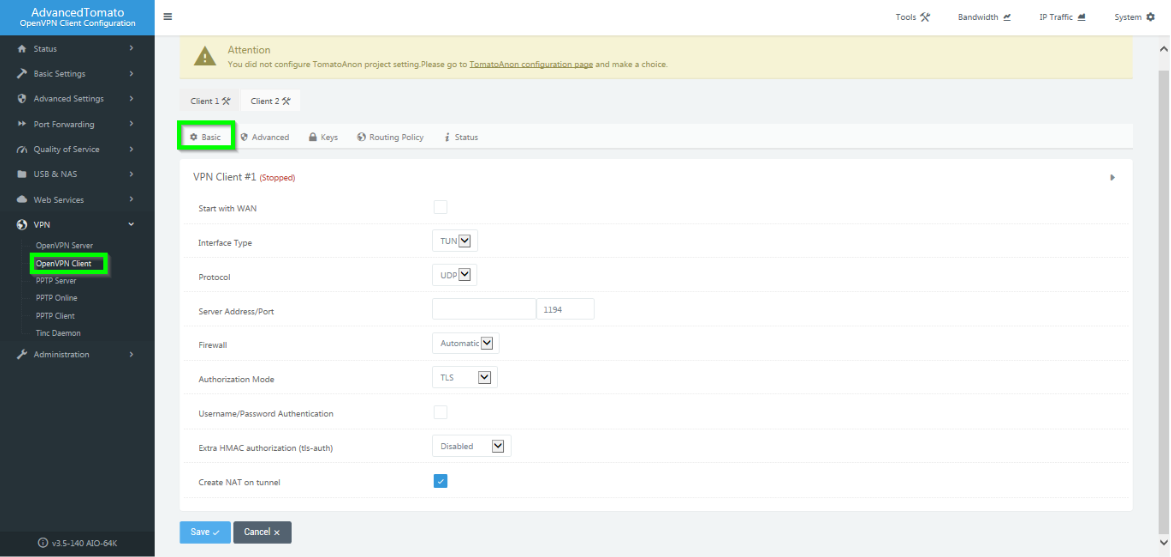
Basic
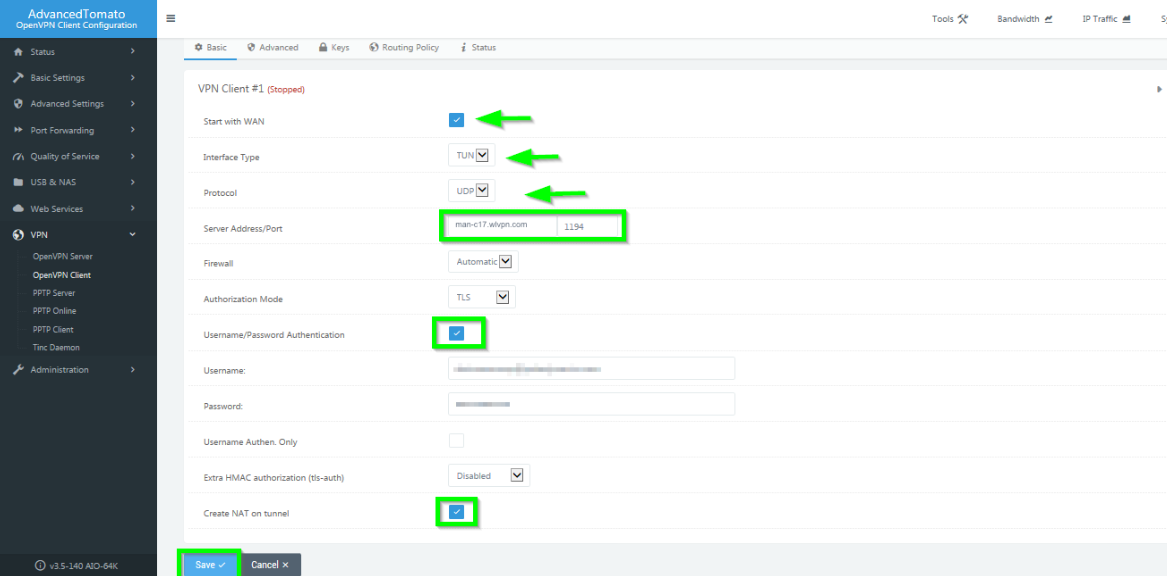
4. A more detailed overview of the step-by-step process is as follows. Enter the details as shown below:
Start with WAN: Click to enable;
Interface Type: TUN;
Protocol: UDP or TCP. However, UDP is the fastest and most preferred protocol;
Server Address/Port: Choose a server from our server list and enter the address in this field (to access the server list, log in to the FastVPN Account panel with your username and password, select the Server List tab to choose your preferred server)/1194.
Note: You can also use the server address without the .vpn addition. E.g. man-c17.wlvpn.com
Firewall: Automatic;
Authorisation Mode: TLS;
Username/Password Authentication: Click to enable;
Username: username from the FastVPN Account panel
Password: FastVPN Password, available from the FastVPN Account panel
Extra HMAC authorisation (tls-auth): Disabled;
Create NAT on tunnel: Click to enable;
Click the Save button at the bottom.
Advanced
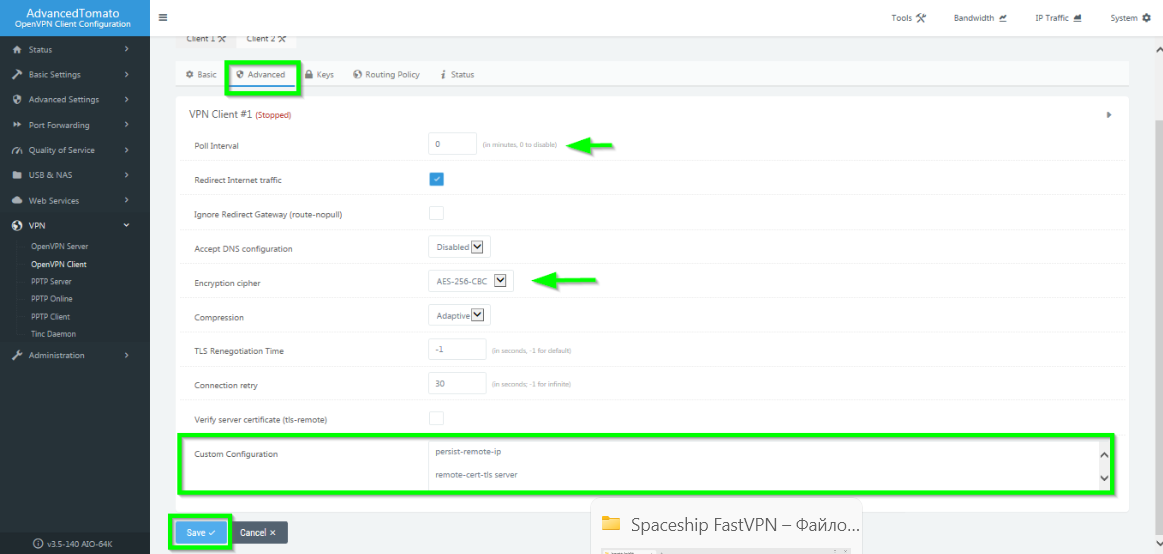
5. Go to the Advanced tab and enter the details as shown below:
Poll Interval: 0;
Redirect Internet traffic: Tick to enable;
Accept DNS configuration: Set to disabled;
Encryption cipher: AES-256-CBC;
Compression: Adaptive;
TLS Renegotiation Time: -1;
Connection retry: 30 seconds;
Verify server certificate (tls-remote): Leave unticked;
Custom Configuration box: Copy and paste the following italicised text into this box:
persist-remote-ip
remote-cert-tls server
keysize 256
tls-cipher TLS-DHE-RSA-WITH-AES-256-CBC-SHA:TLS-DHE-DSS-WITH-AES-256-CBC-SHA:TLS-RSA-WITH-AES-256-CBC-SHA
Click the Save button:
Keys
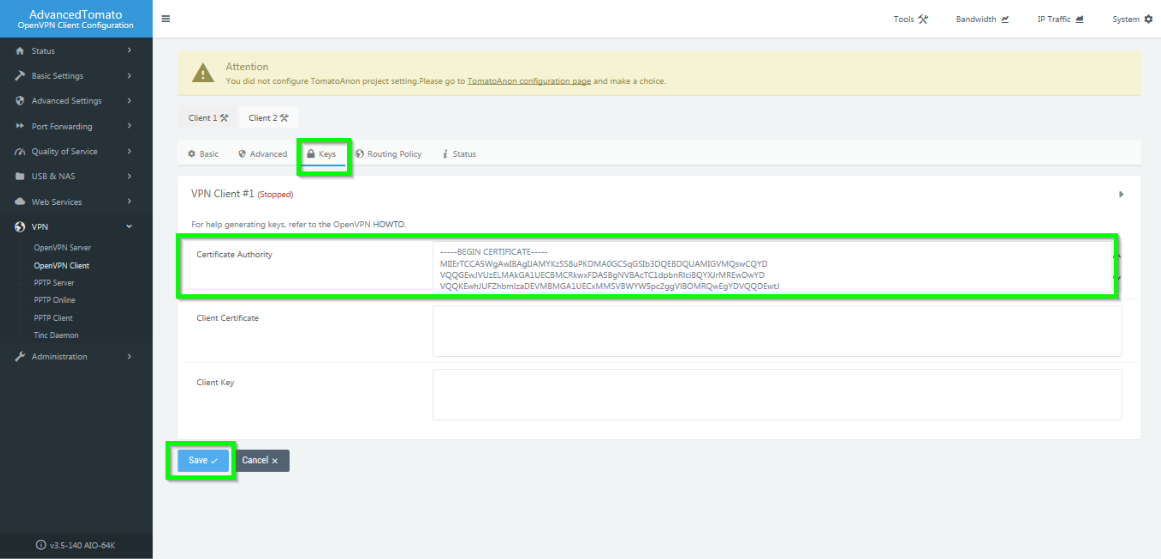
6. Copy and paste the entire content of the certificate into the FastVPN Certificate Authority box and click the Save button at the bottom:
Routing Policy and Status
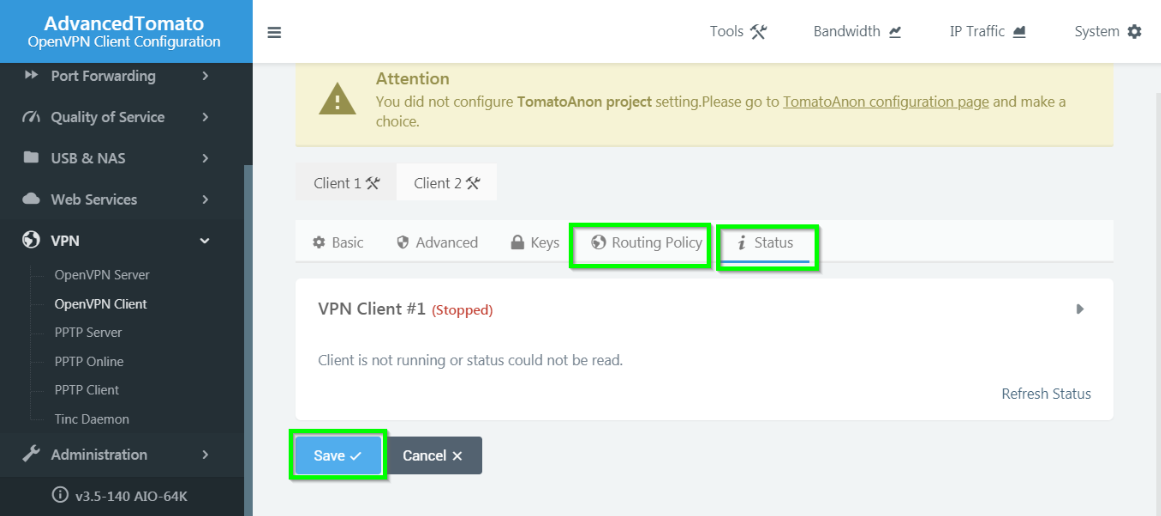
7. Leave the default settings for Routing Policy and Status. Click the Save buttons at the bottom of both tabs:
Connecting your Tomato Router to the VPN
8. Go back to the Basic tab and click the Start VPN Client play button to start connecting FastVPN via the OpenVPN protocol:
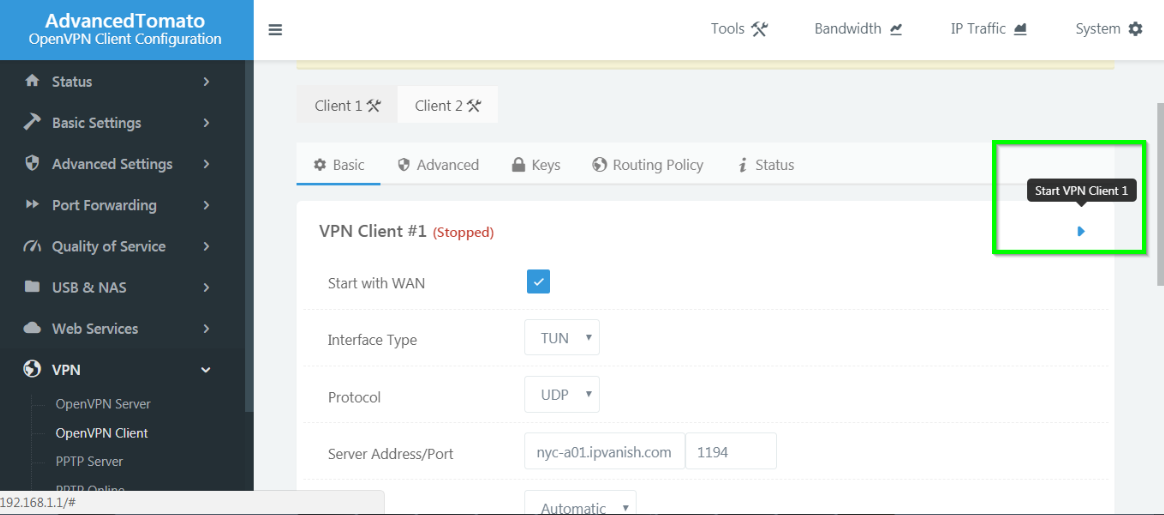
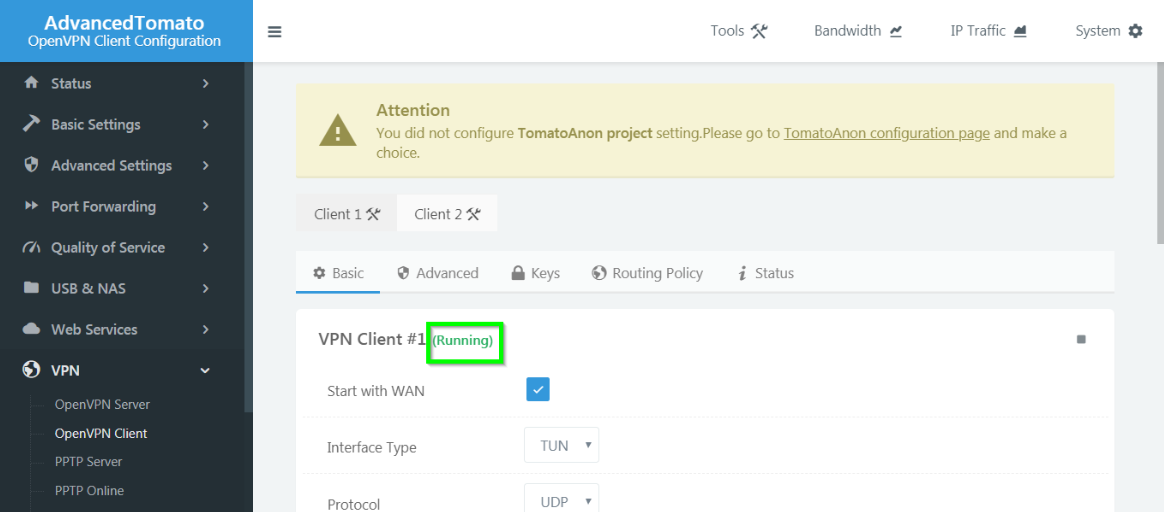
9. You can confirm the connection status from the Running prompt displayed next to the title VPN Client:
Disconnecting the VPN
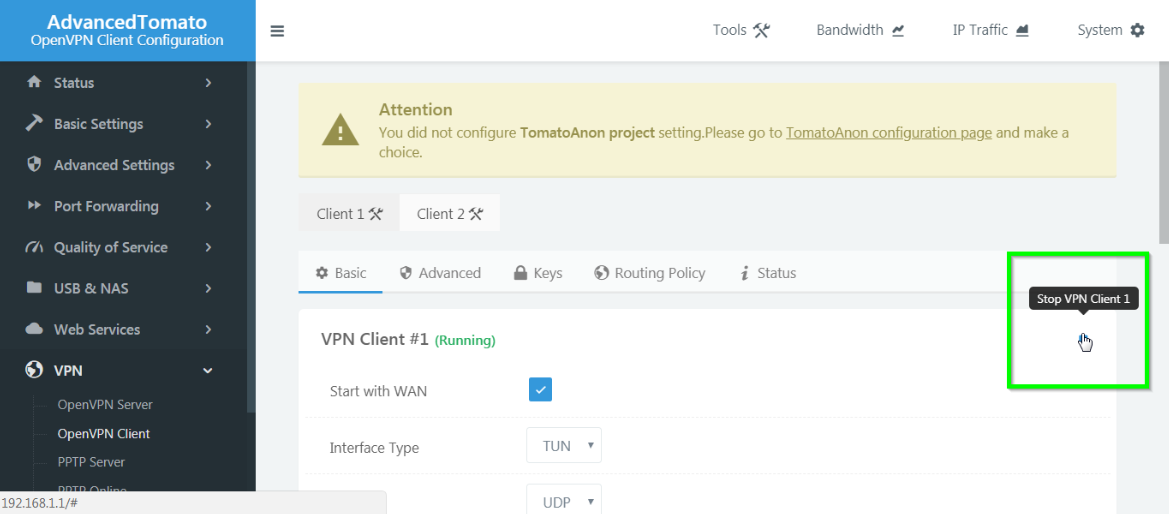
Click the Stop VPN Client button to disconnect FastVPN via the OpenVPN protocol on a Tomato router:
If you have any questions or issues setting up your Tomato router, contact our Support Team.