Cum să configurezi FastVPN pe un router OpenWrt
Acest ghid oferă o prezentare detaliată despre cum să configurați clientul OpenVPN pe un router OpenWrt.
Cerințe
Pentru a asigura funcționarea corectă a FastVPN cu clientul OpenVPN pe routerul OpenWrt, trebuie să aveți:
O conexiune FastVPN securizată (Nu aveți una? Înscrieți-vă aici);
O conexiune la internet;
Acces la Panoul de cont FastVPN.
Deschideți interfața web OpenWrt introducând adresa IP a panoului de administrare în bara de adrese a browserului. Pentru a face acest lucru, trebuie să introduceți următoarea adresă în browser: http://192.168.1.1 (dacă aceasta nu funcționează, consultați manualul routerului pentru a afla care este adresa implicită a gateway-ului). De asemenea, trebuie să setați conexiunea de rețea pentru a obține automat o adresă IP dacă vă conectați la router prin Ethernet.
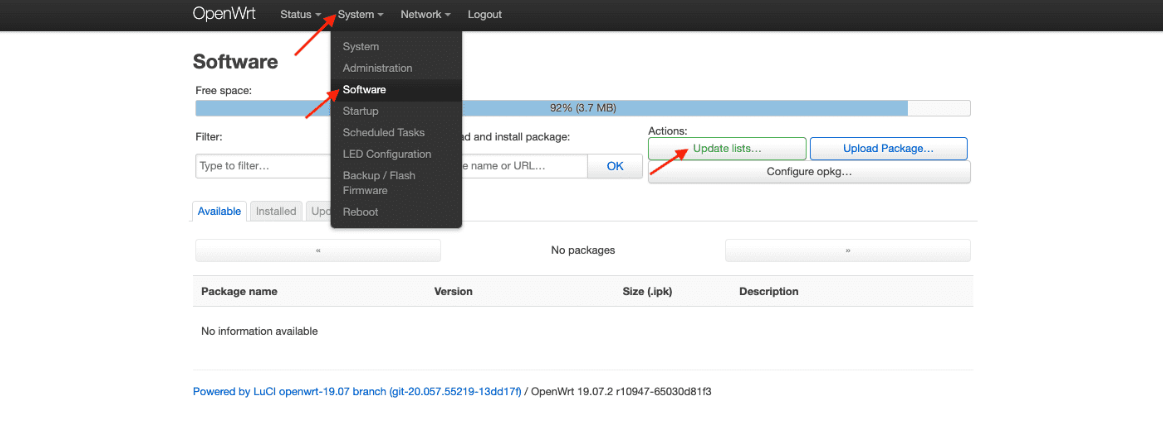
1. Accesați Sistem > Software și faceți clic pe Actualizează listele:
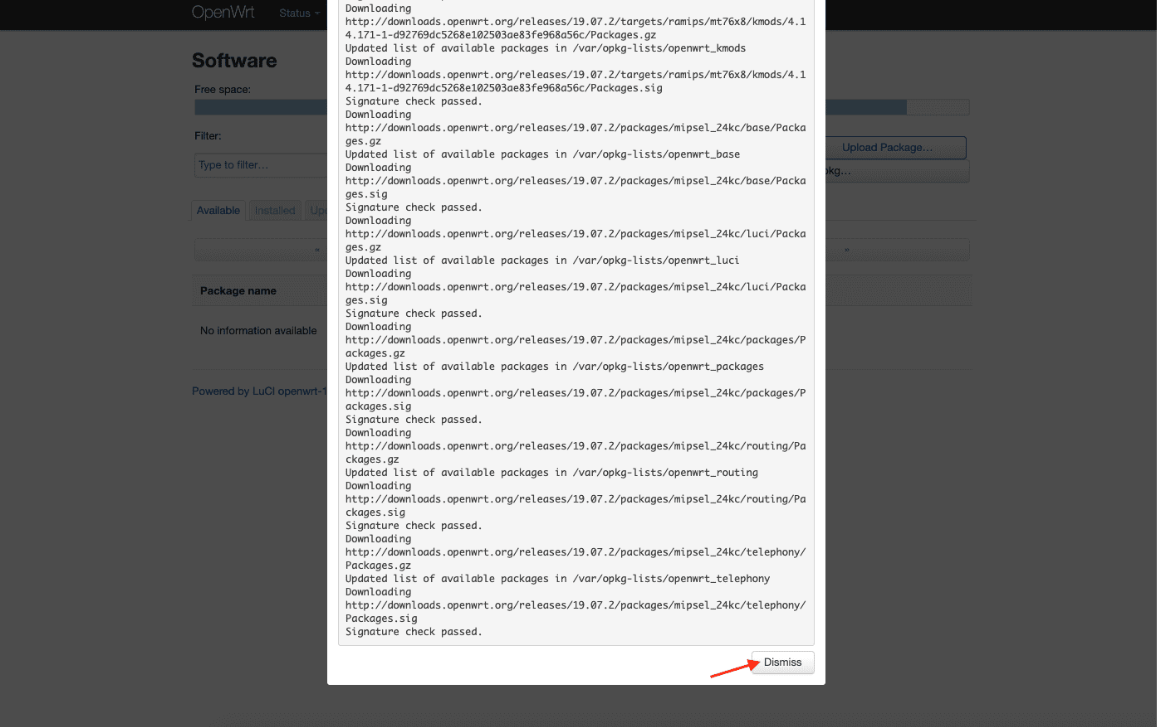
2. Așteptați până când operațiunea este finalizată și apăsați Închide:
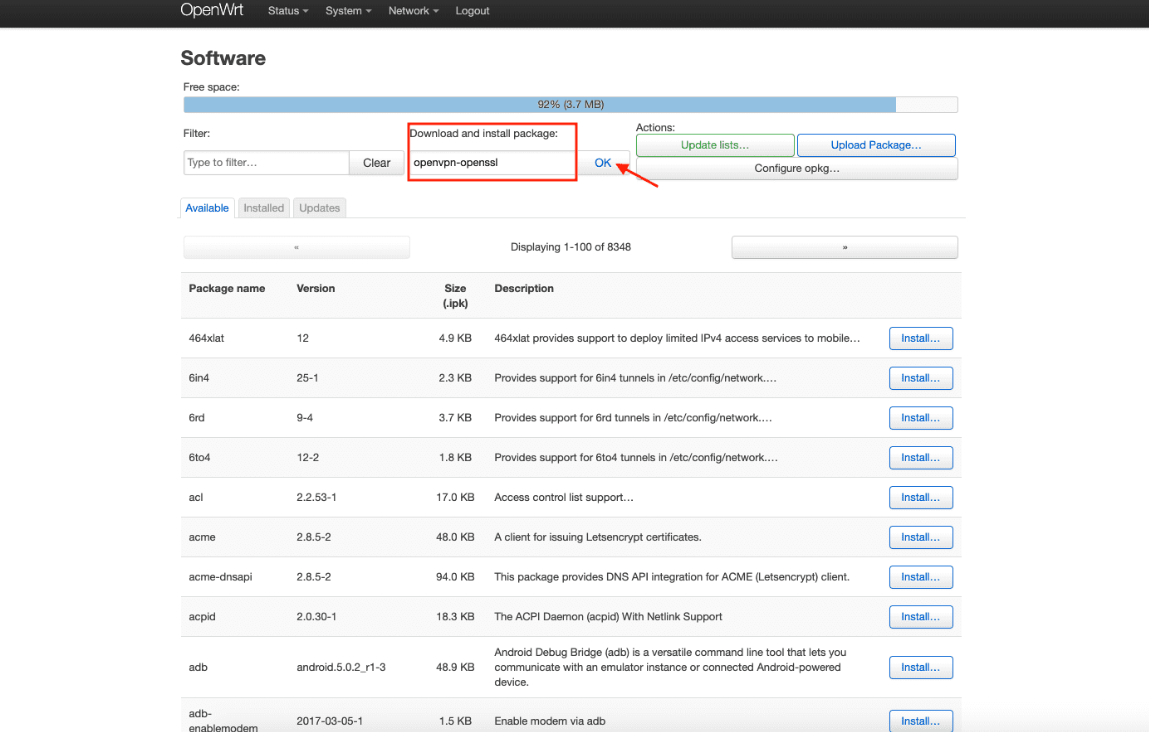
3. Tastați openvpn-openssl în câmpul Descarcă și instalează pachetul și apăsați OK:
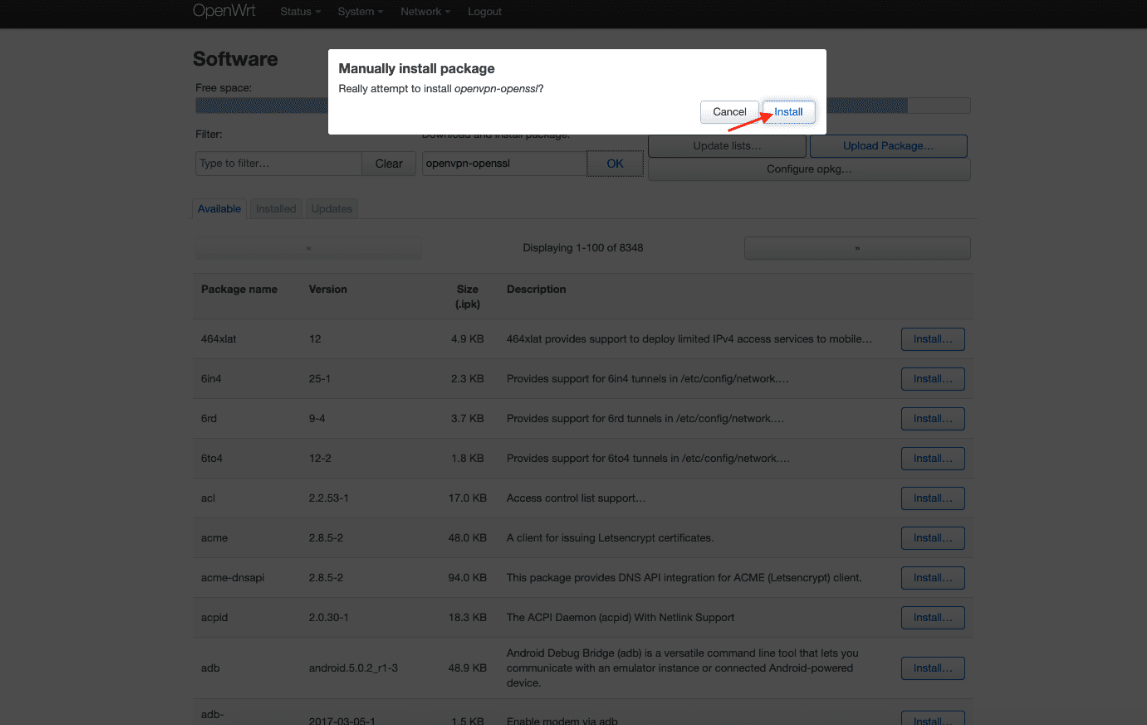
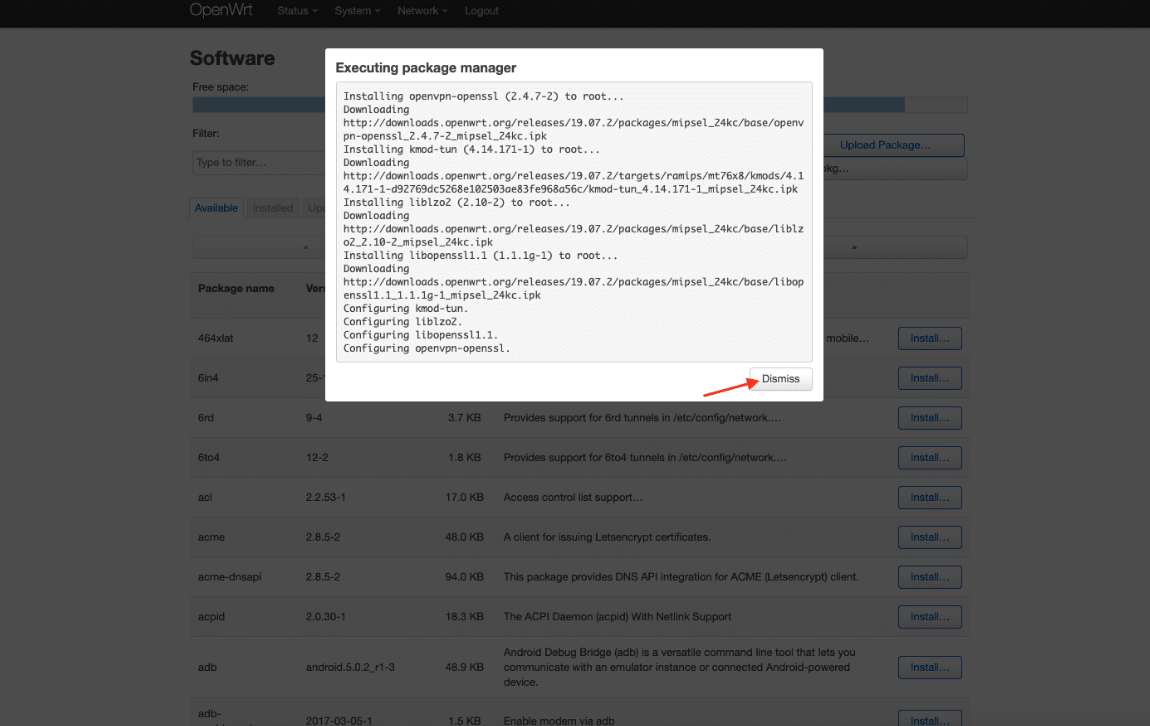
4. Apăsați Instalare și așteptați până când pachetul este descărcat. Apoi apăsați Închide:
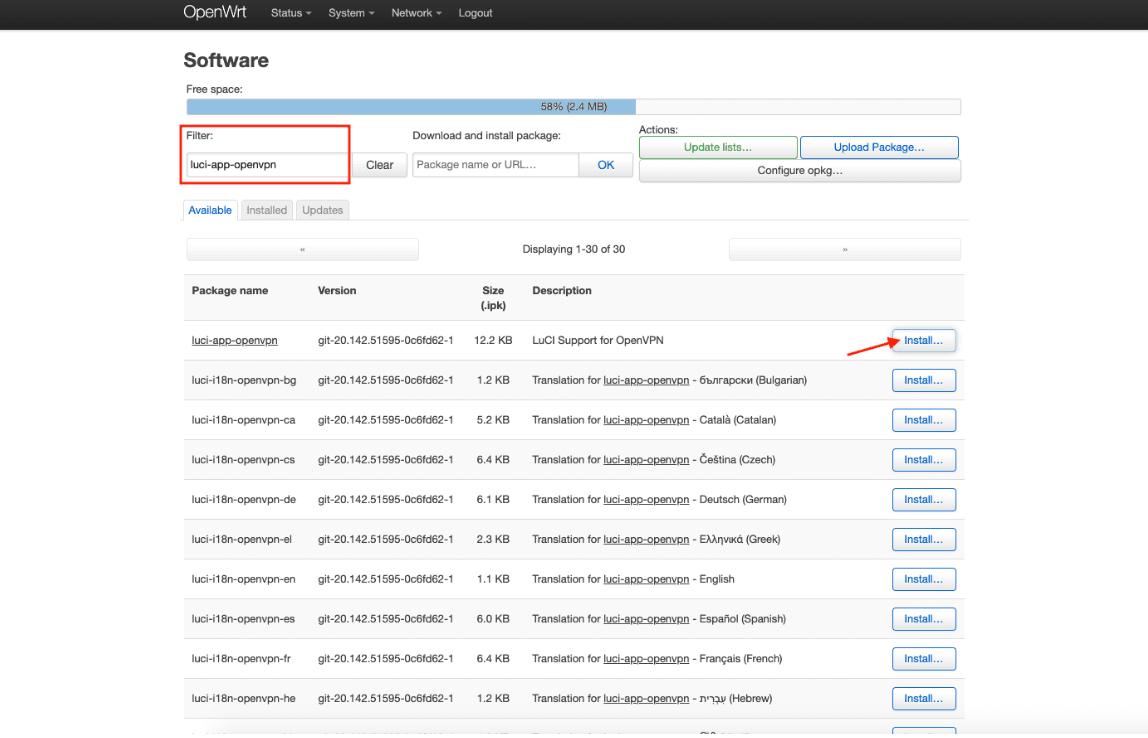
5. Tastați luci-app-openvpn în câmpul Filtru și faceți clic pe Instalare.
Apoi tastați luci-i18n-openvpn-en în câmpul Filtru și faceți clic pe Instalare:
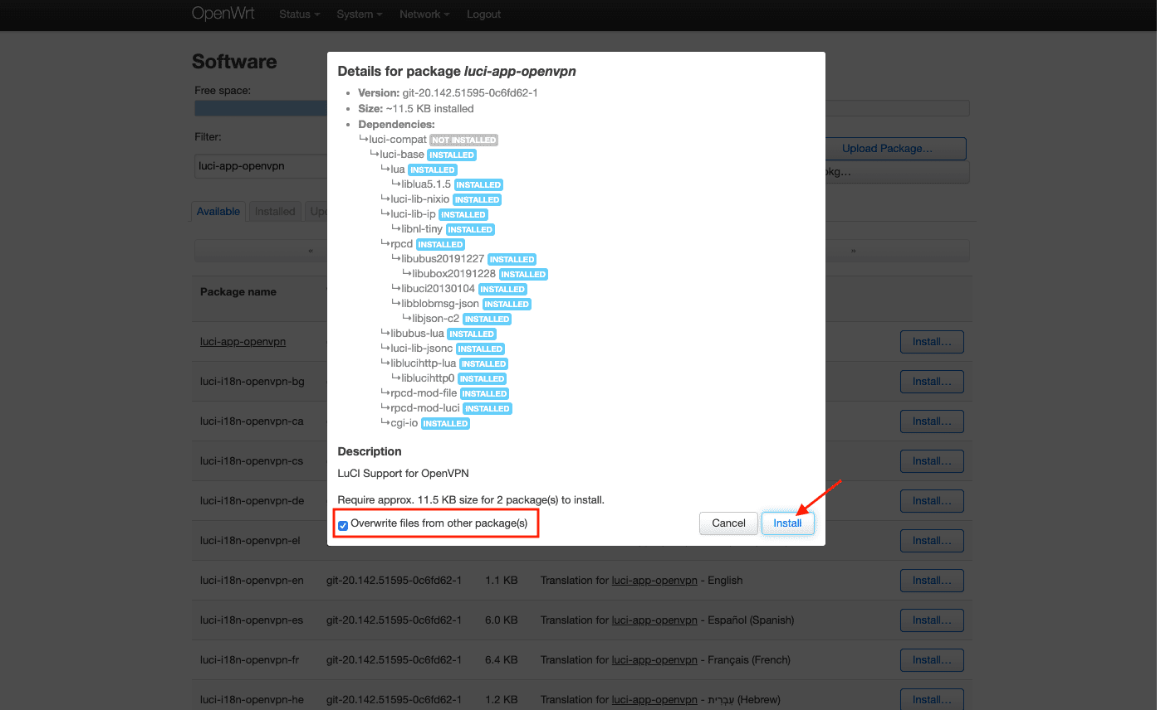
6. Bifați opțiunea Suprascrie fișierele din celelalte pachete și apăsați Instalare:
7. Așteptați până când ambele pachete sunt instalate și apăsați Închide.
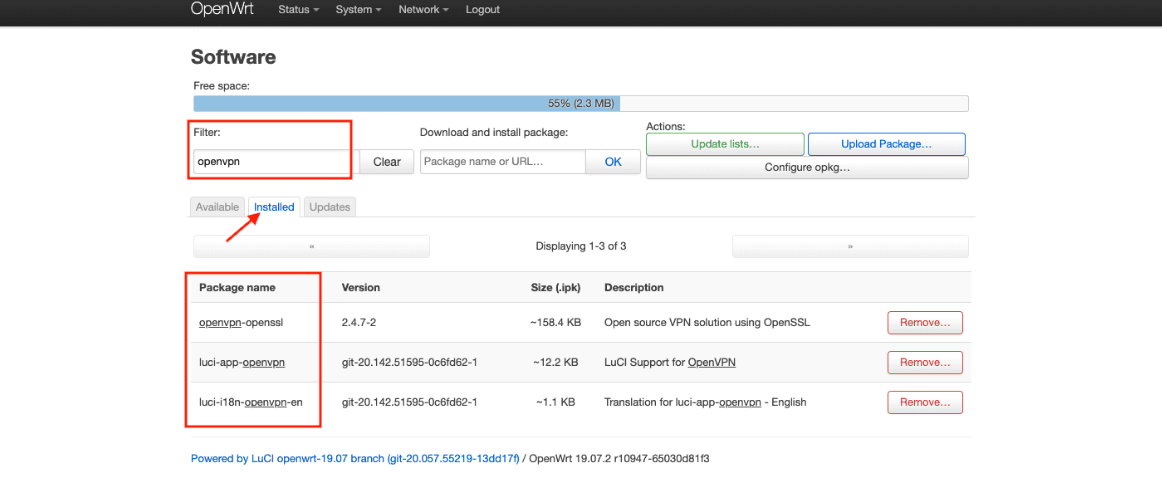
8. Asigurați-vă că toate pachetele au fost instalate cu succes. Pentru a face acest lucru, selectați fila Instalate și tastați openvpn în câmpul Filtru:
9. Pentru a aplica modificările, accesați fila Status și reporniți routerul.
Configurați conexiunea OpenVPN pe routerul OpenWrt
1. Accesați fila VPN > OpenVPN:
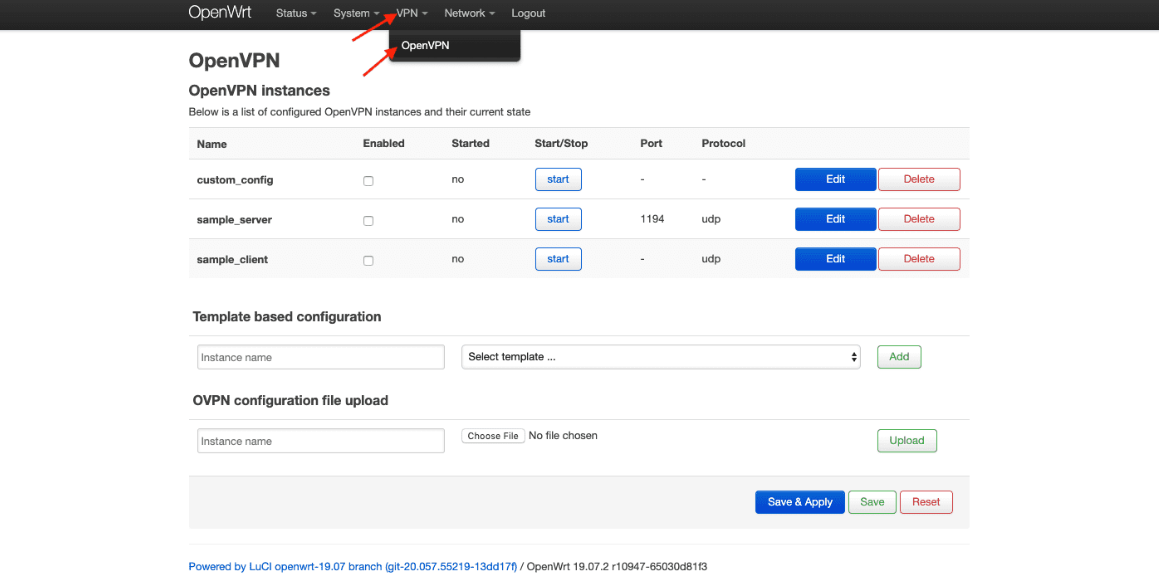
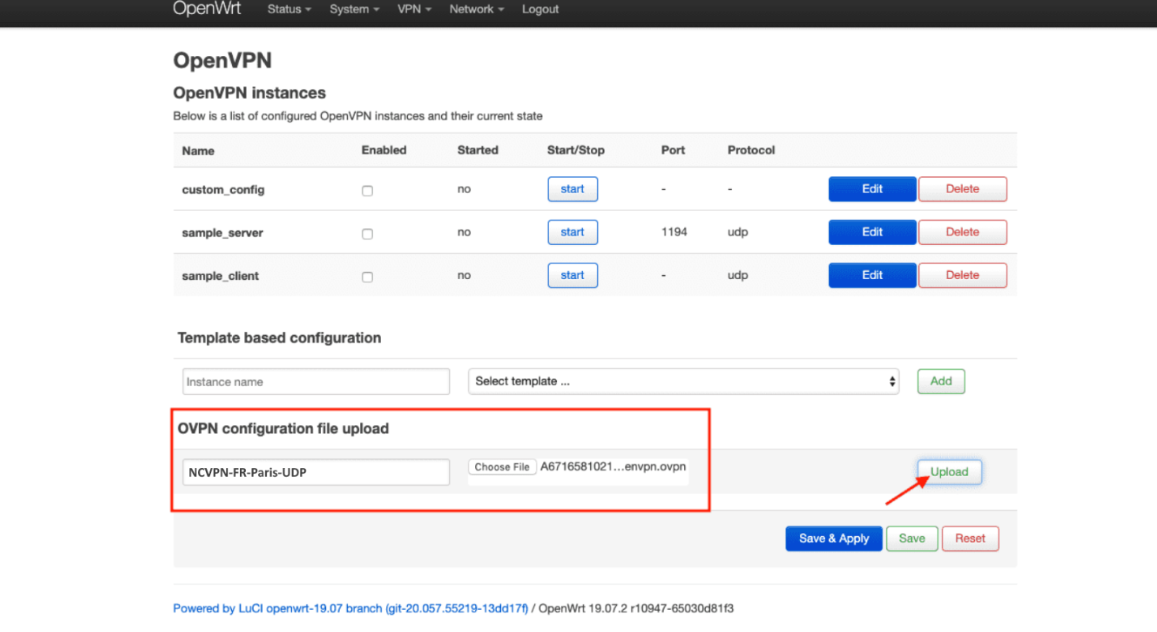
2. Găsiți câmpul de configurare OVPN, specificați un nume personalizat, de exemplu NCVPN, și alegeți fișierul dorit .ovpn pe care îl puteți descărca din Panoul de cont FastVPN.
NOTĂ: Puteți descărca toate fișierele de configurare pentru toate serverele noastre direct de la https://vpn.ncapi.io/groupedServerList.zip
Apoi apăsați Încărcare:
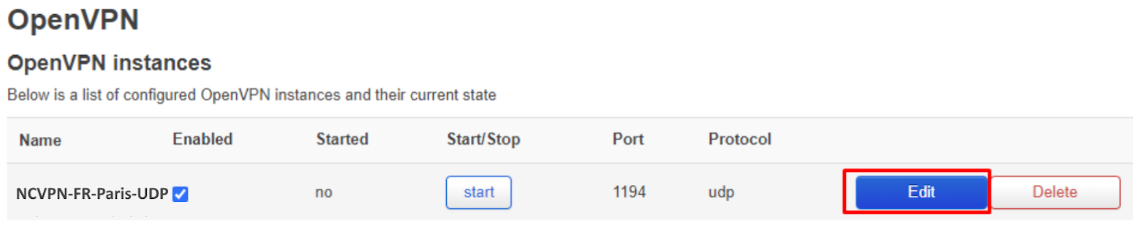
Pe configurația OpenVPN nou creată, faceți clic pe Editare:
În câmpul de text de jos, introduceți datele de autentificare VPN. Introduceți numele de utilizator pe prima linie și parola pe a doua linie. Puteți găsi numele de utilizator și parola VPN în Panoul de cont FastVPN.
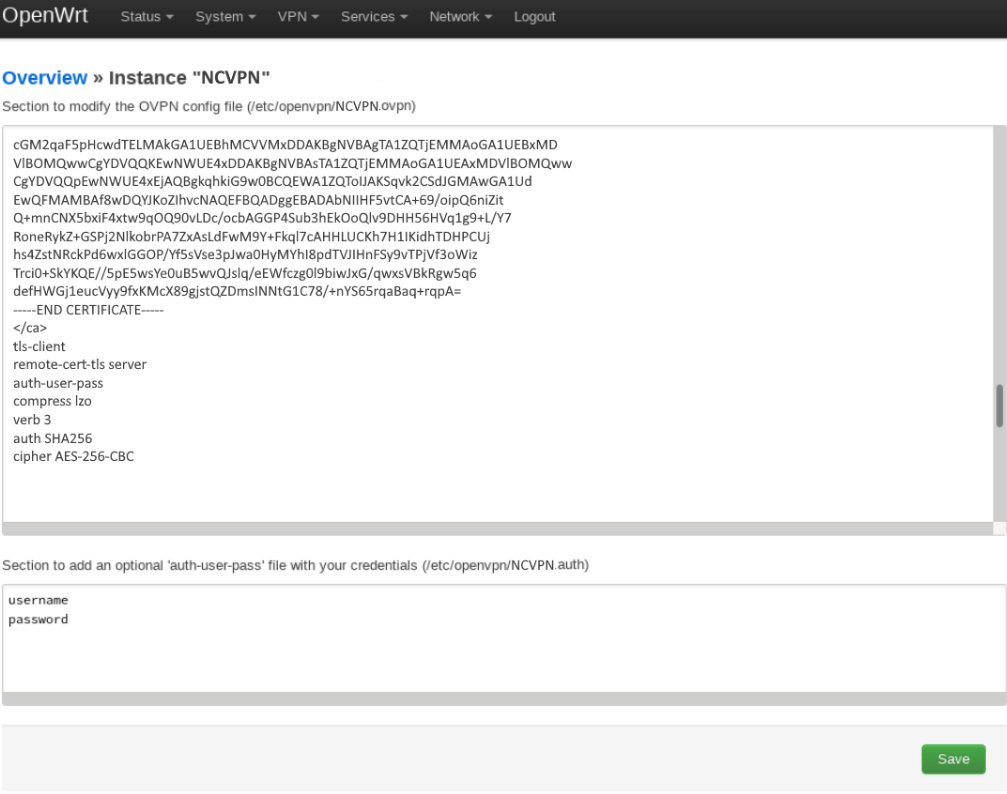
Acum editați linia care începe cu auth-user-pass în prima casetă de text pentru a include calea completă către fișierul .auth cu numele de utilizator/parolă. Calea completă este vizibilă chiar deasupra celei de-a doua casete de text. Pentru exemplul de mai sus:
auth-user-pass /etc/openvpn/NCVPN.auth
Faceți clic pe Salvează >> apoi pe Salvează & Aplică.
Adăugați interfața OpenVPN și configurați setările DNS
1. Accesați Rețea > Interfețe. Faceți clic pe butonul Adaugă interfață nouă…:
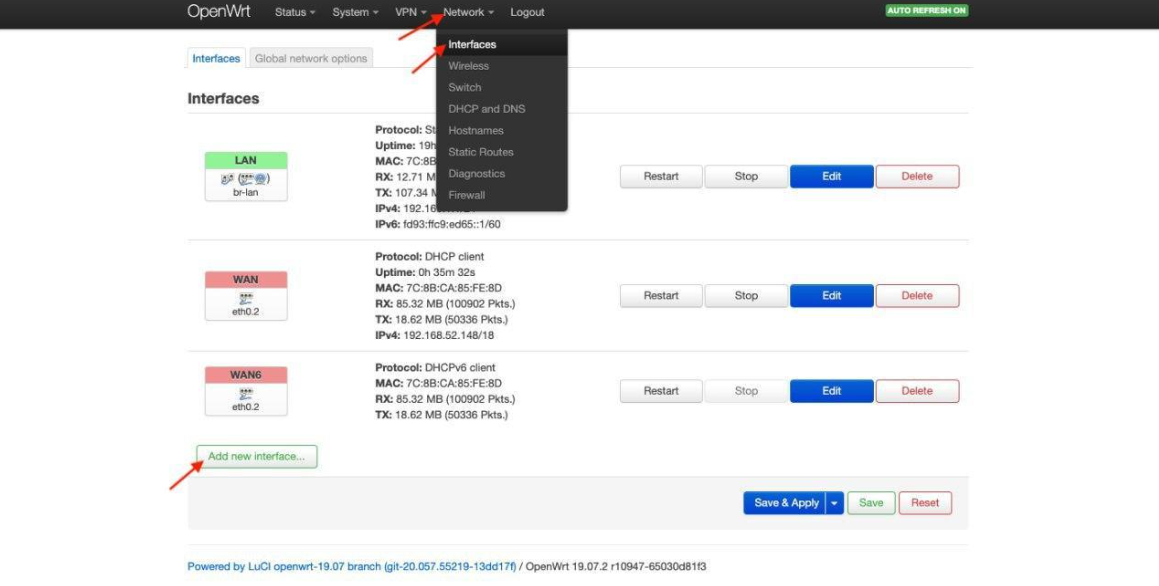
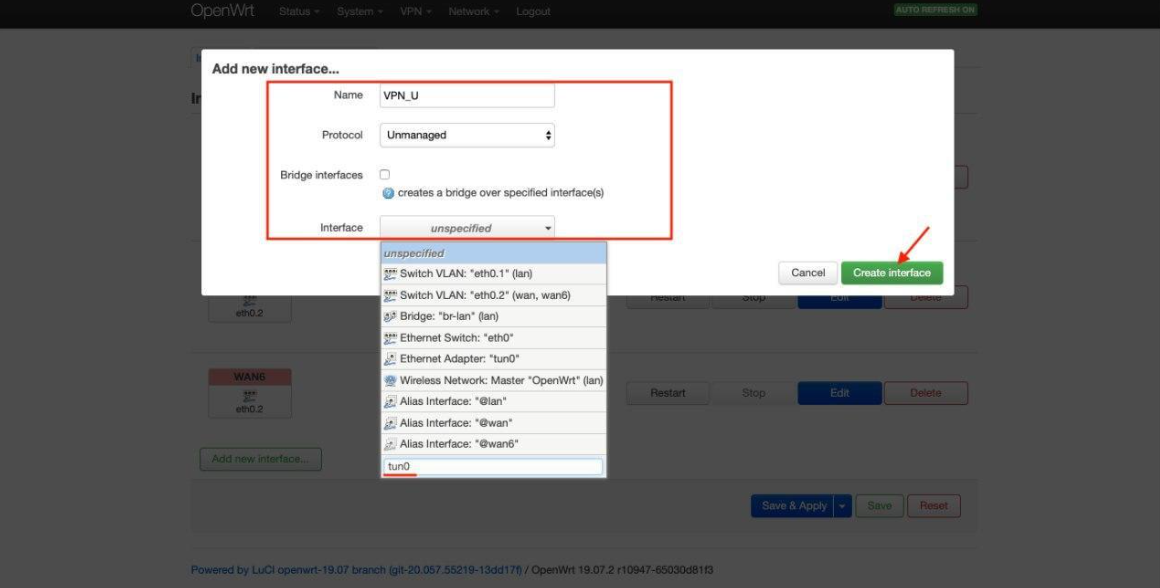
2. Introduceți următoarele date și faceți clic pe Trimite:
Nume: VPN_U
Protocol: Neadministrat
Interfață: Interfață personalizată: tun0
Faceți clic pe Creează interfață:
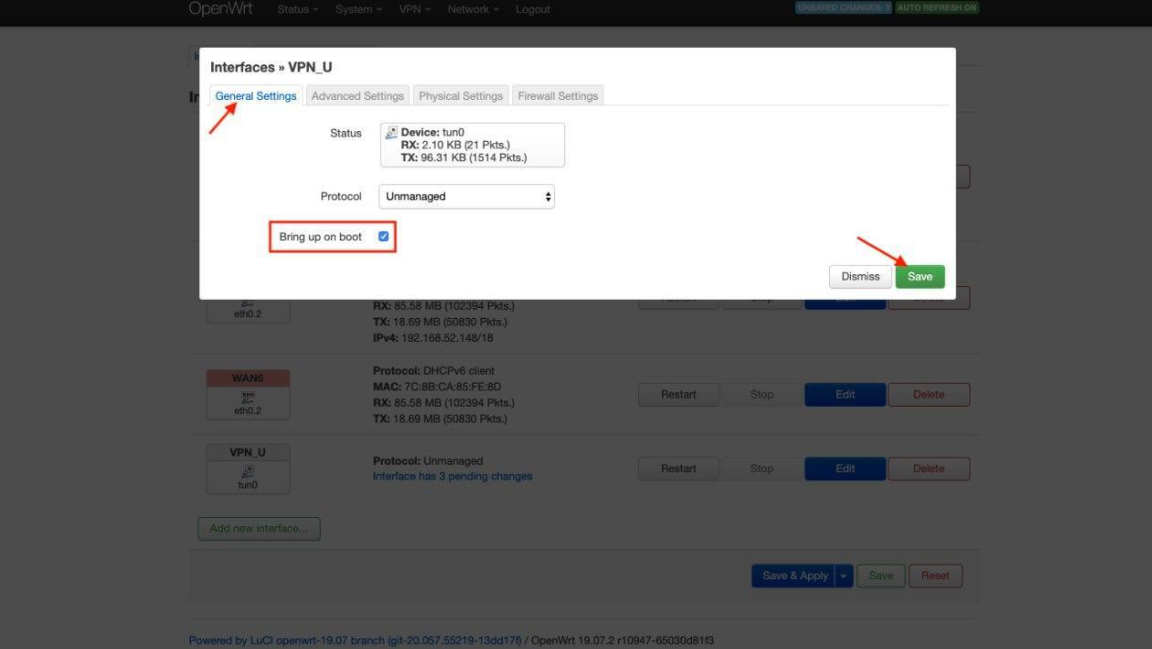
3. Activați parametrul Pornește la pornire.
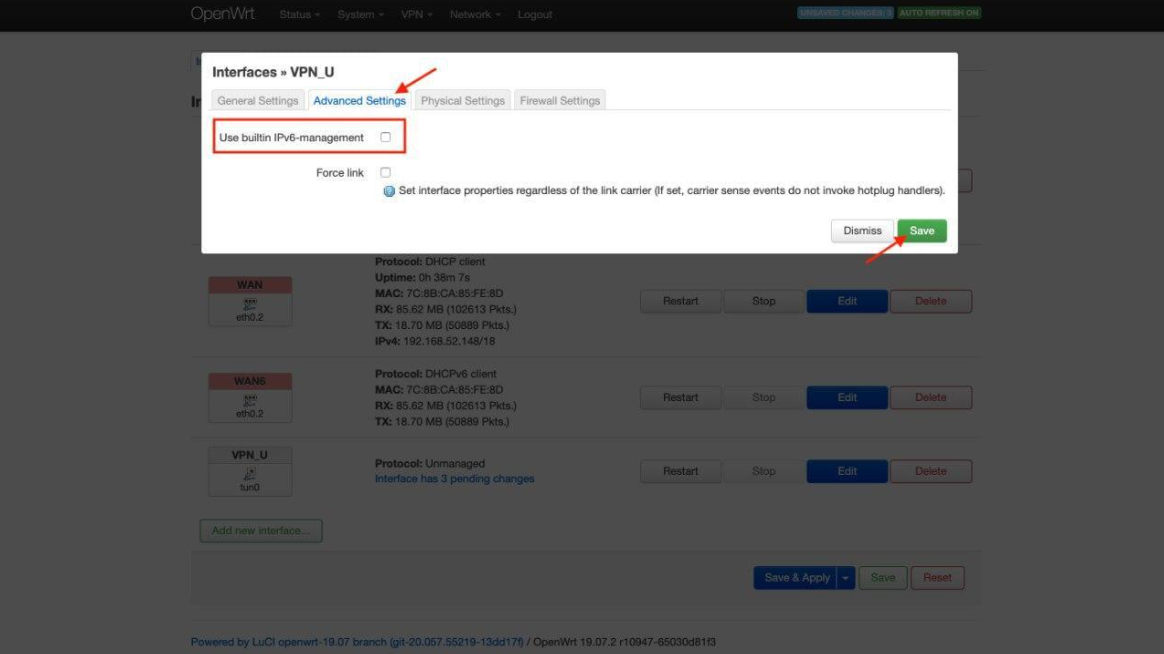
4. Accesați fila Setări avansate și dezactivați Folosește gestionarea IPv6 integrată.
5. Faceți clic pe Salvează:
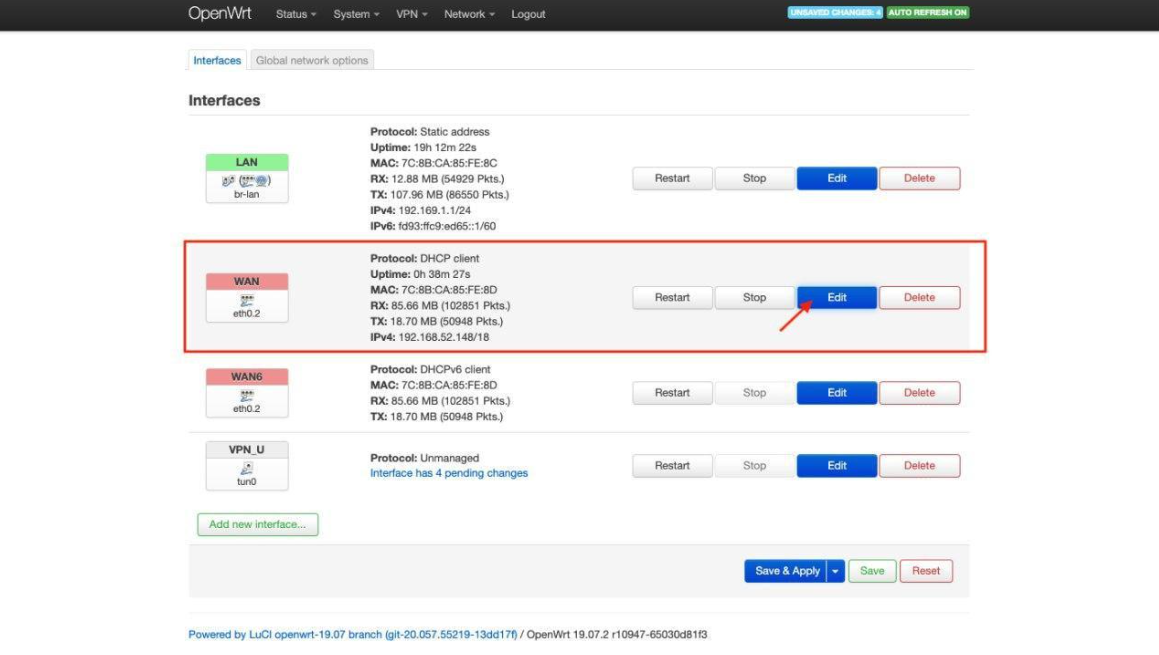
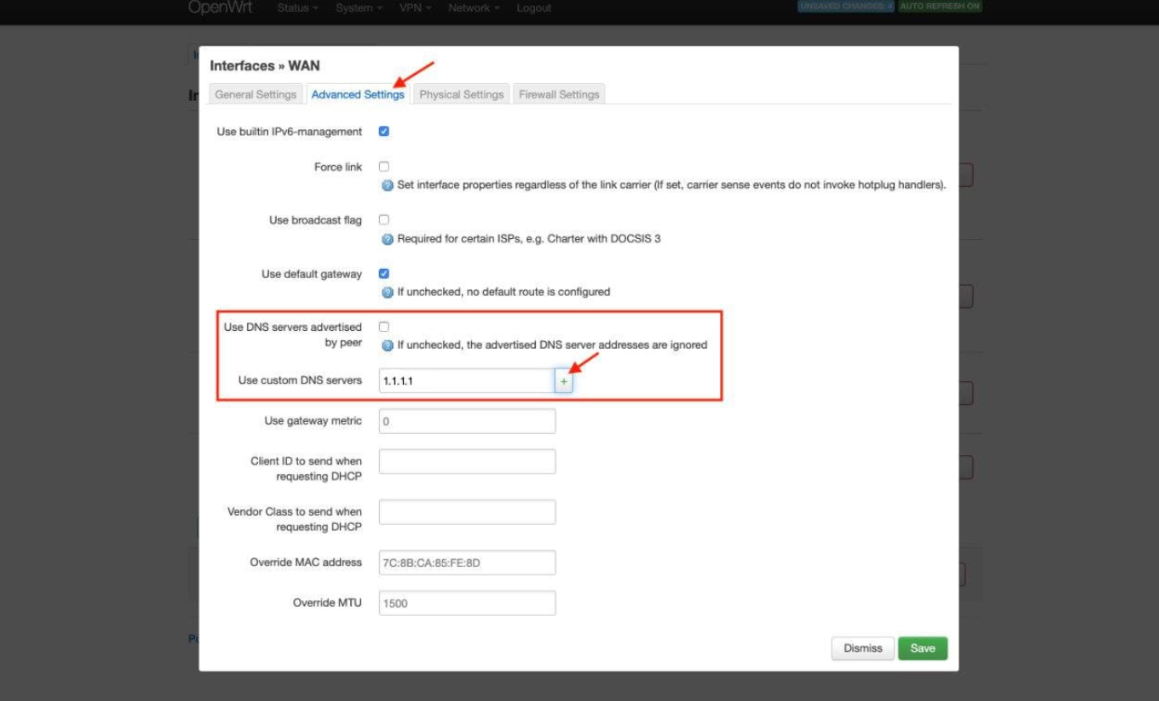
6. Navigați la WAN > Editare > Setări avansate. Debifați parametrul Folosește serverele DNS anunțate de partener și setați valoarea 1.1.1.1 pentru Folosește server DNS personalizat. Apăsați butonul +:
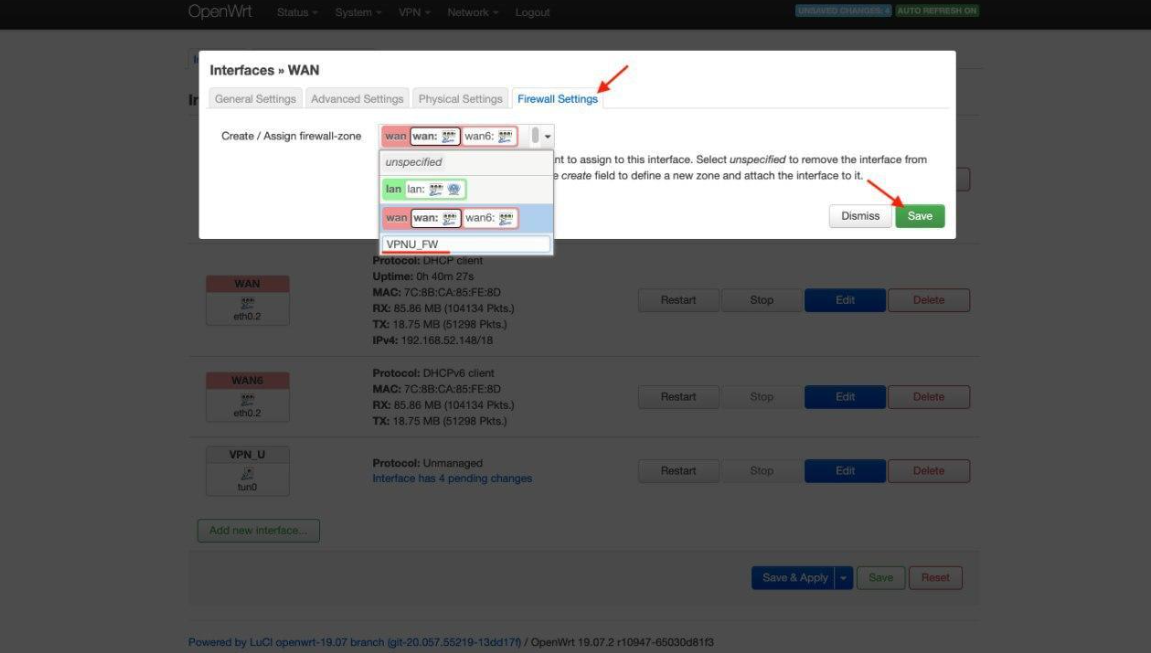
7. Accesați fila Setări firewall.
8. În câmpul Creează / Atribuie zonă firewall introduceți VPNU_FW.
9. Faceți clic pe Salvează:
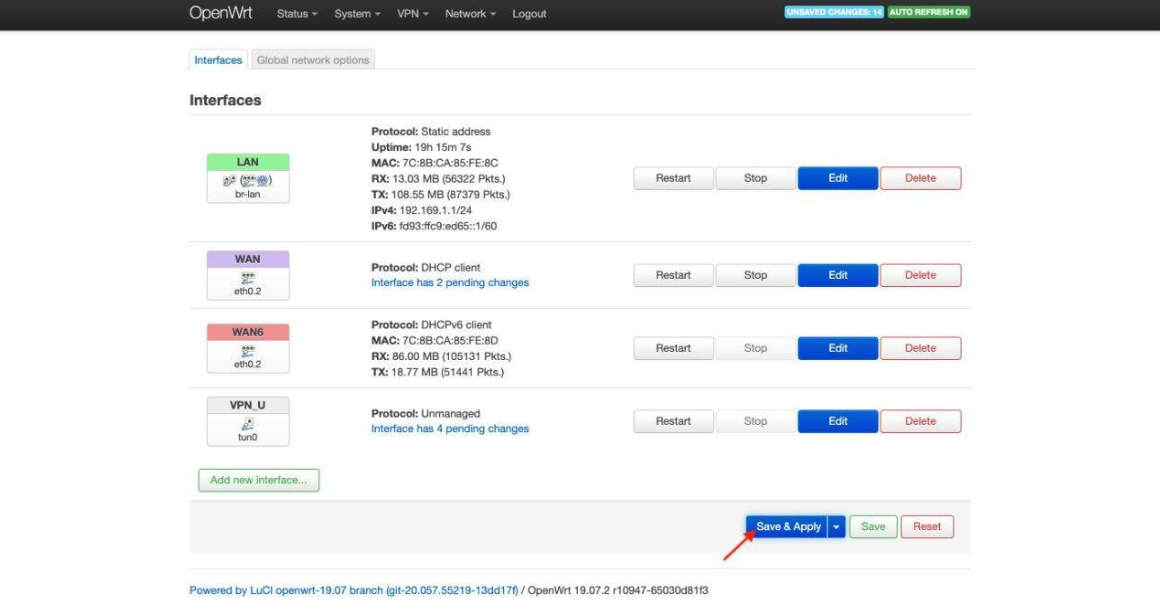
10. Apăsați Salvează & Aplică:
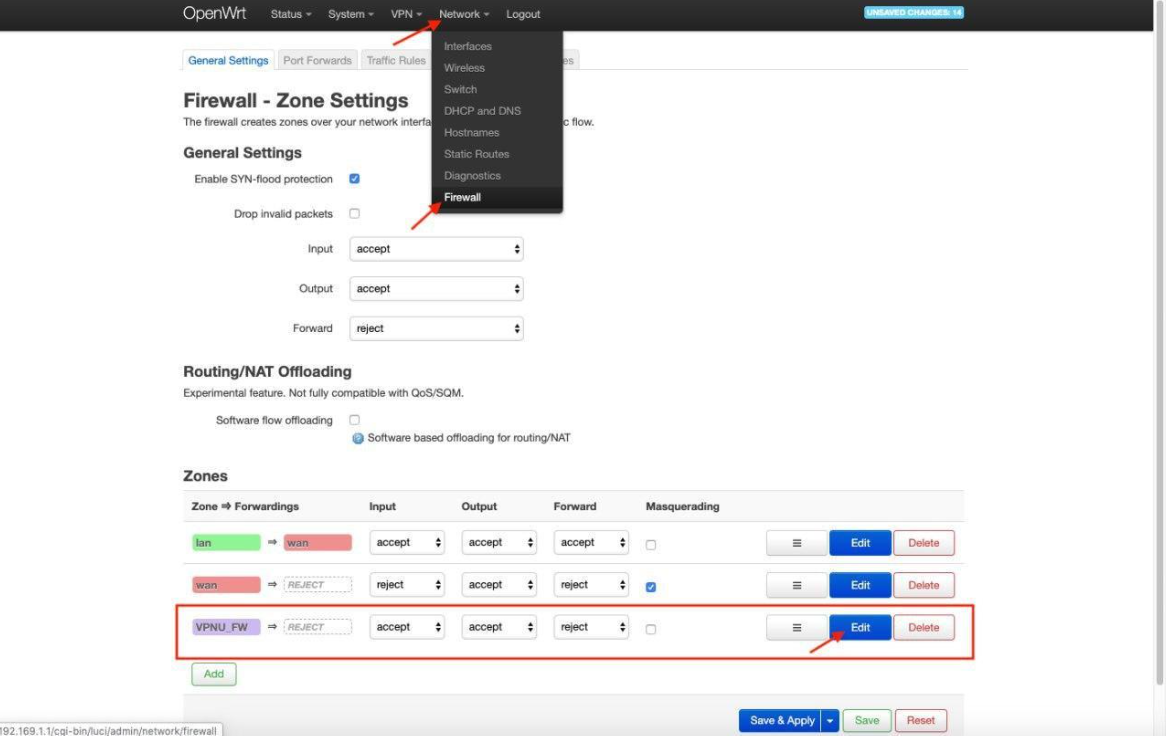
11. Accesați Rețea > Firewall, selectați VPNU_FW și faceți clic pe Editare:
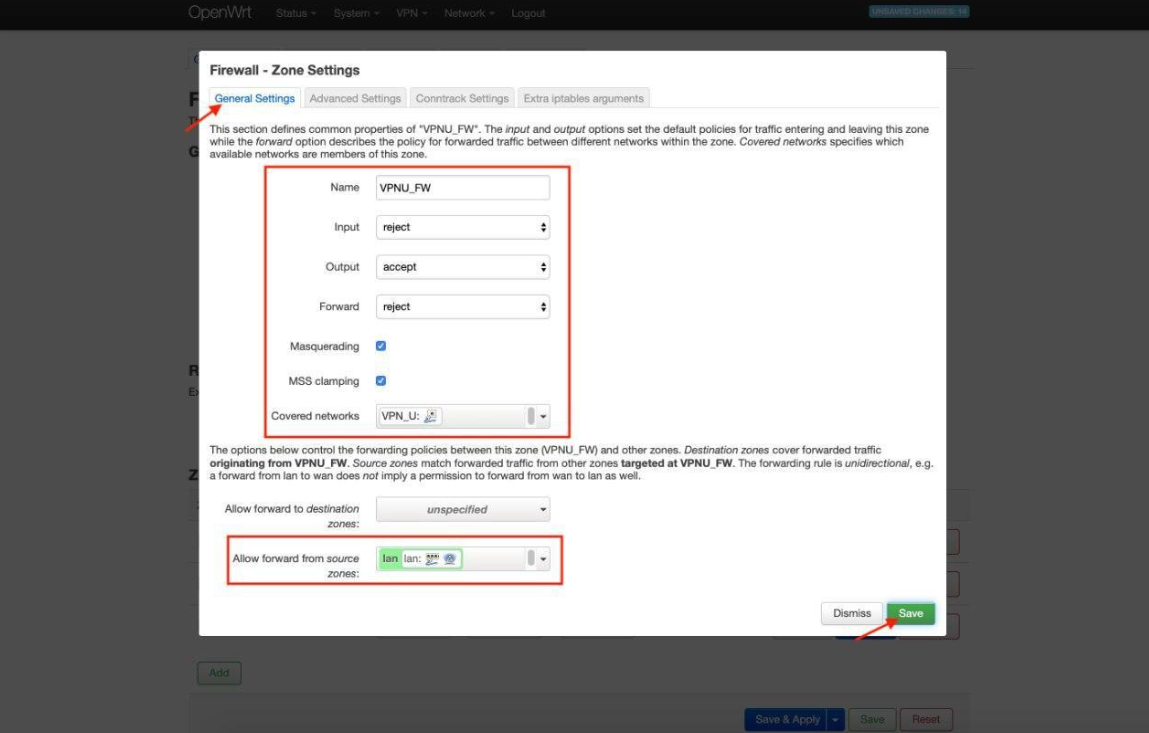
12. În fila Setări generale, configurați următoarele setări:
Intrare: respinge
Ieșire: acceptă
Redirecționare: respinge
Masquerading: bifat
MSS clamping: bifat
Rețele acoperite: bifat VPN_U
Permite redirecționarea din zonele sursă: bifați lan
Faceți clic pe Salvează:
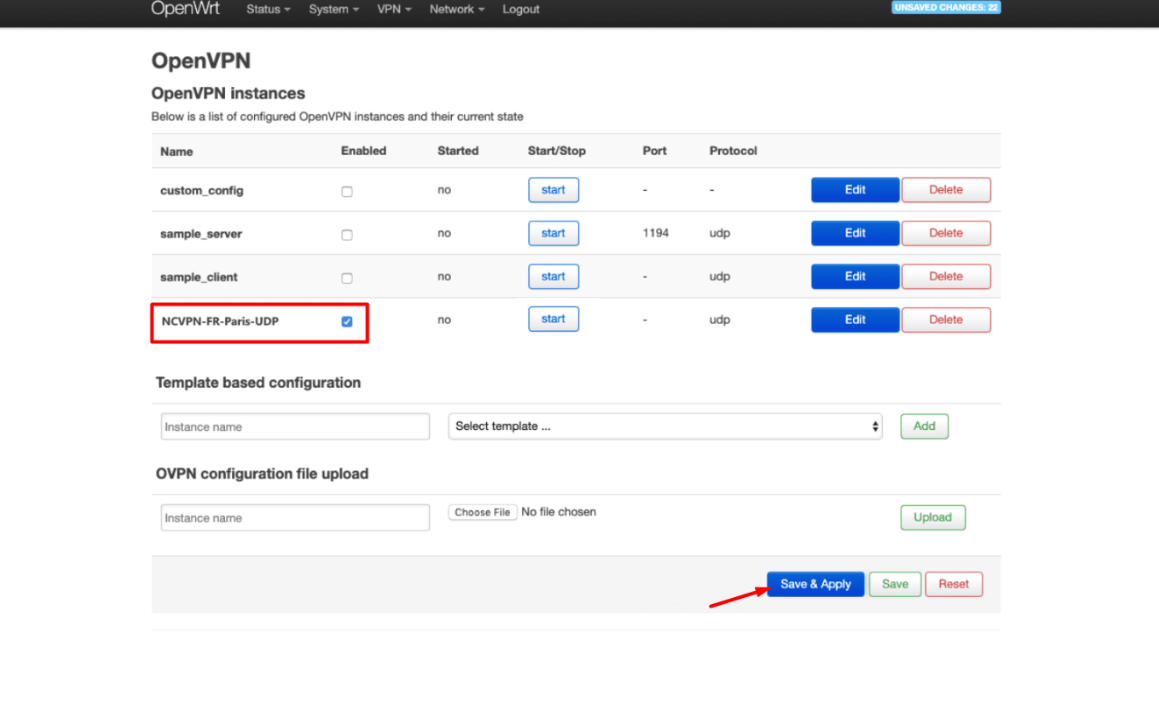
13. Accesați VPN > OpenVPN.
14. Bifați caseta Activat pentru FastVPN și apăsați Salvează & Aplică:
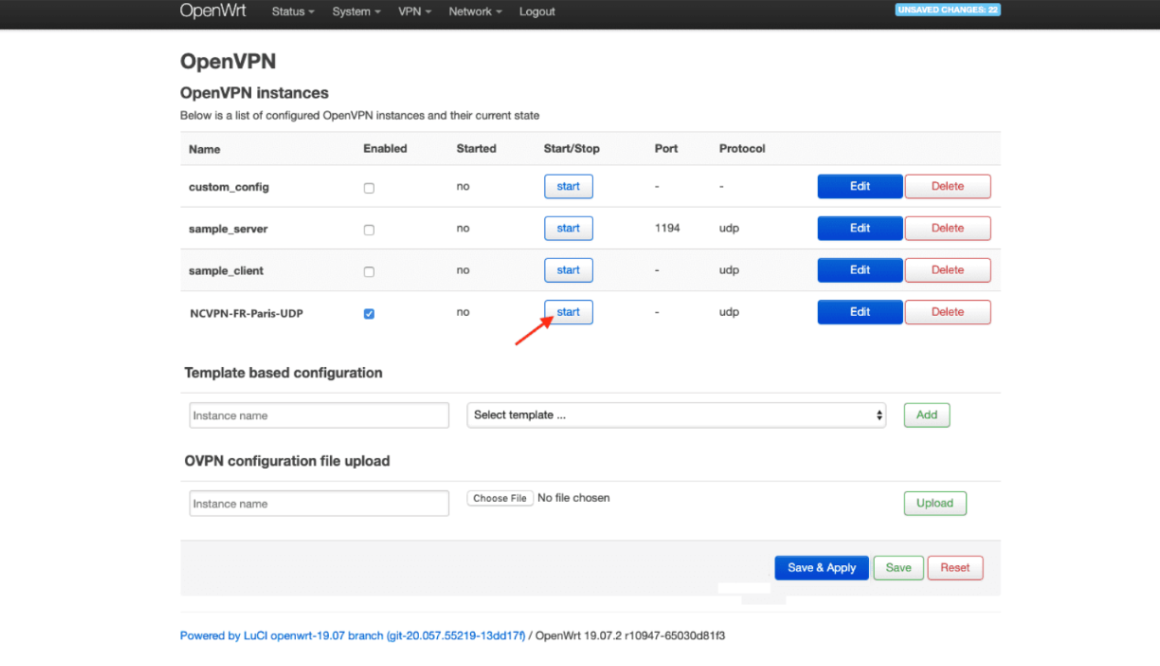
15. Așteptați un minut și faceți clic pe Pornește:
Dacă aveți nevoie de asistență suplimentară, vă rugăm să contactați Echipa de Suport.