Cara mengatur Spacemail di Thunderbird
Tutorial ini akan membantu Anda mengonfigurasi kotak surat Spacemail Anda di Thunderbird.
Pengaturan Otomatis
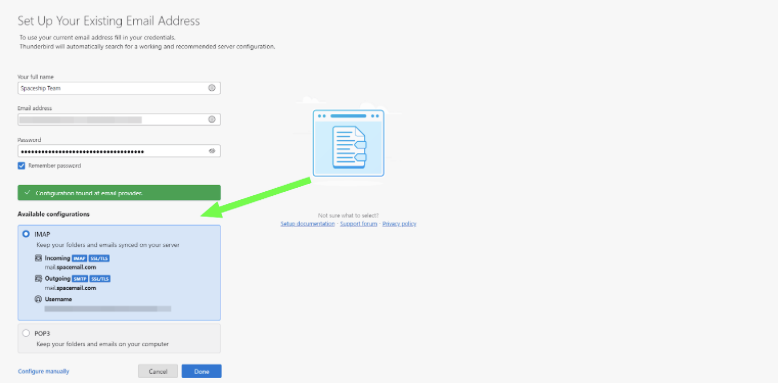
Layanan Spacemail mendukung fitur autoconfig untuk Thunderbird, yang memungkinkan pengaturan akun email secara otomatis.
Yang perlu Anda lakukan hanyalah memasukkan nama kotak surat dan kata sandi Anda. Setelah itu, klien email akan menemukan pengaturannya secara otomatis:
Pengaturan Manual
Anda juga dapat melanjutkan dengan konfigurasi manual dengan memasukkan pengaturan server secara langsung di Thunderbird. Untuk menambahkan Spacemail ke Thunderbird secara manual, ikuti langkah-langkah berikut:
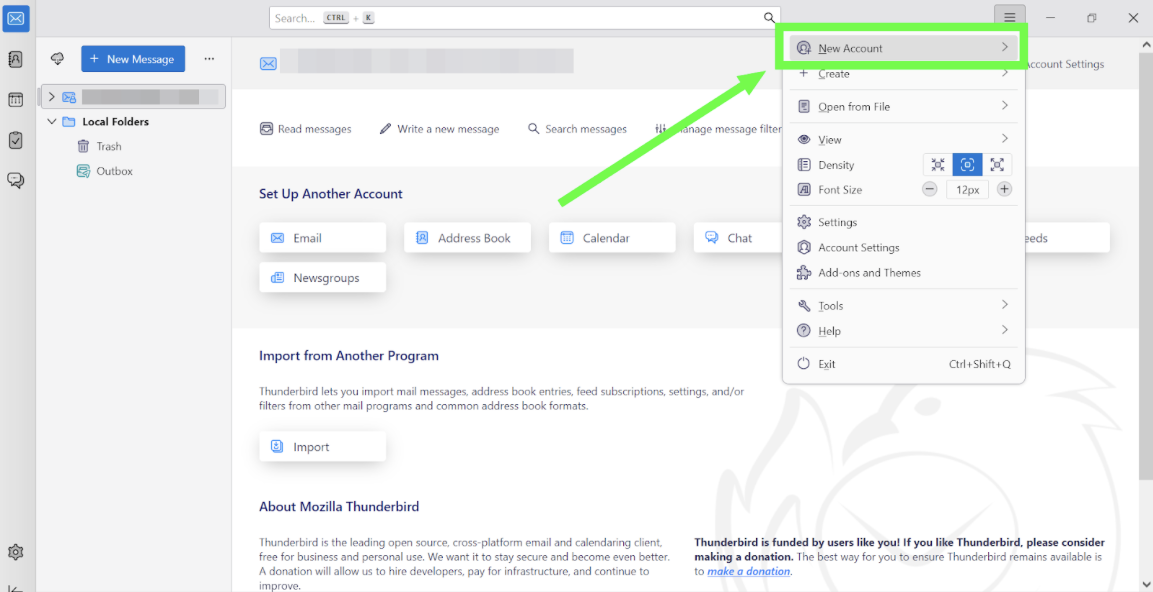
Langkah 1. Klik 3 garis horizontal > Akun Baru > Email:
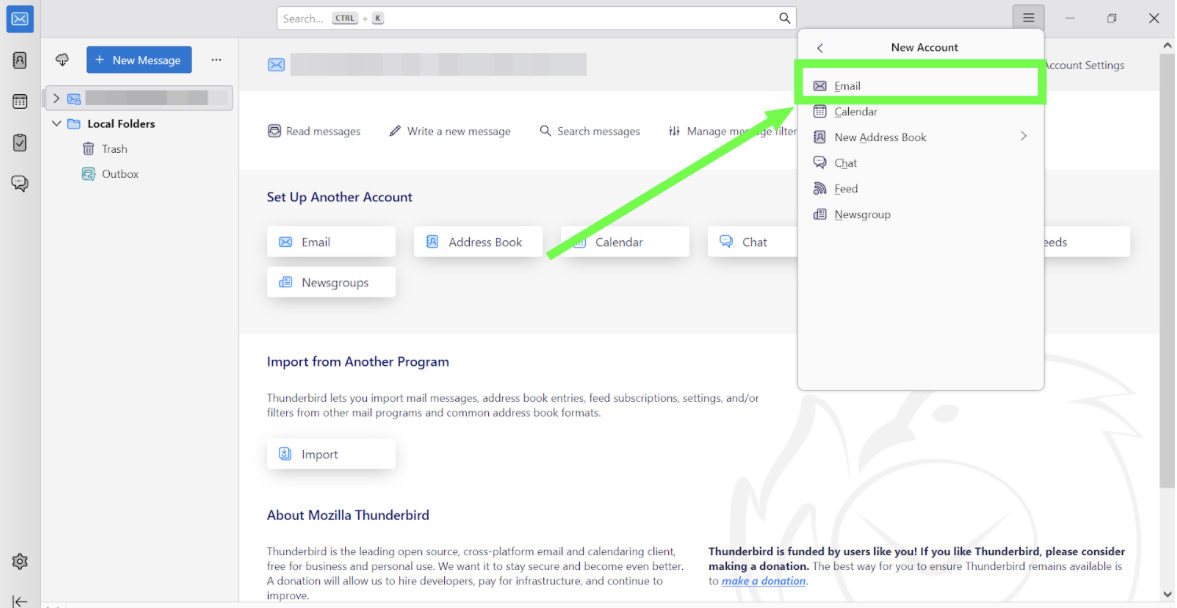
Langkah 2. Masukkan detail berikut:
Nama Lengkap Anda: nama yang ingin Anda tampilkan kepada penerima email Anda
Alamat Email: alamat Spacemail lengkap Anda
Kata Sandi: kata sandi untuk kotak surat Spacemail Anda
Pilih Manual -> Konfigurasi Manual dan isi pengaturan berikut:
Pengaturan Masuk:
Protokol: IMAP
Hostname: mail.spacemail.com
Port: 993
Keamanan Koneksi: SSL/TLS
Metode Autentikasi: Deteksi Otomatis
Nama Pengguna: nama kotak surat lengkap Anda
Pengaturan Keluar:
Protokol: SMTP
Hostname: mail.spacemail.com
Port: 465
Keamanan Koneksi: SSL/TLS
Metode Autentikasi: Deteksi Otomatis
Nama Pengguna: nama kotak surat lengkap Anda
Catatan: Jika Anda lupa kata sandi, Anda dapat dengan mudah mengatur ulang menggunakan tutorial berikut.
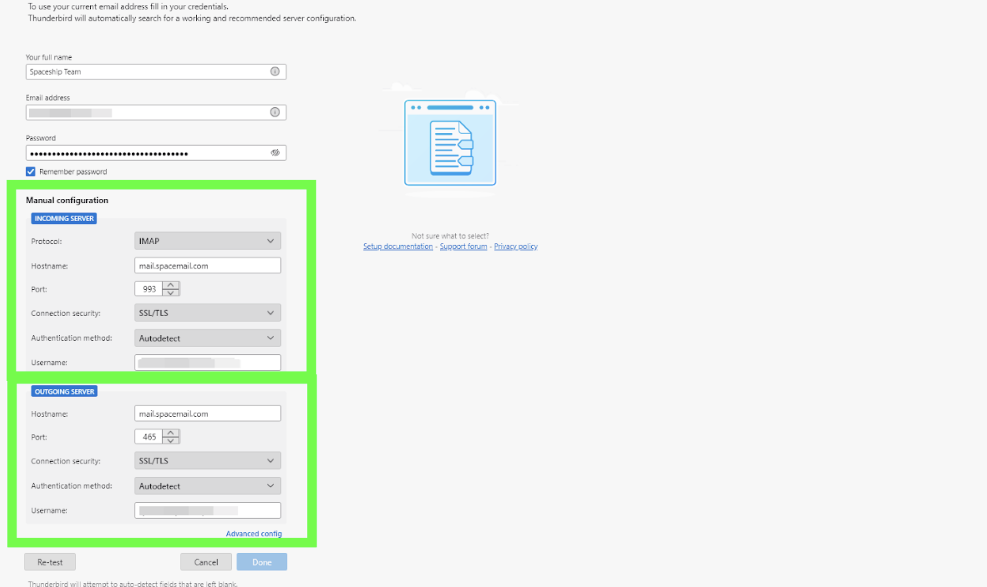
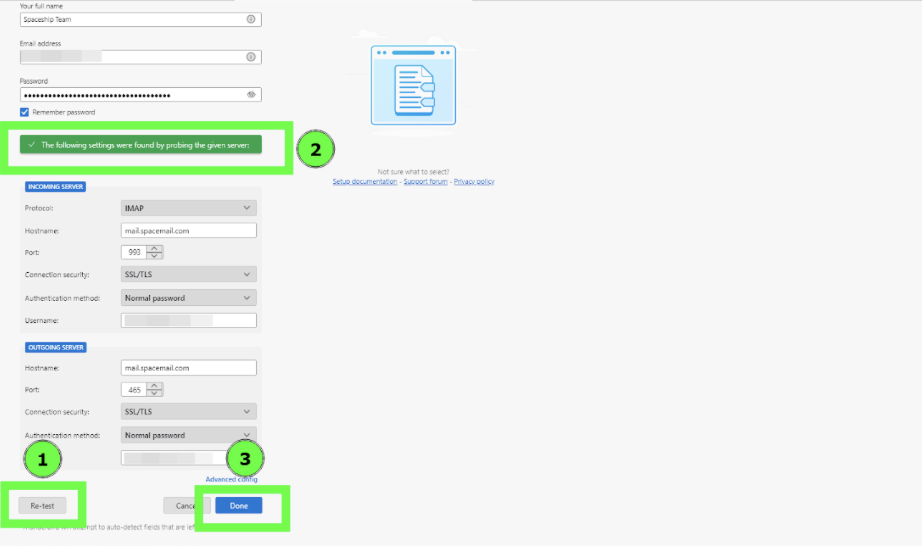
Langkah 3. Setelah semua kolom terisi, klik Uji Ulang, dan Anda akan melihat ‘Pengaturan berikut ditemukan dengan memeriksa server yang diberikan’, lalu klik Selesai, dan akun akan berhasil dibuat:
Jika Anda memiliki pertanyaan, jangan ragu untuk menghubungi Tim Dukungan kami untuk bantuan lebih lanjut.