Como configurar o OpenVPN no Raspbian
Este guia foi criado para Raspbian Buster Lite, no entanto, também pode ser usado para configurar um cliente FastVPN em Raspbian Buster com ambiente de trabalho.
É necessário o seguinte:
Uma conta FastVPN (Não tens uma? Regista-te aqui);
Acede ao teu painel de conta FastVPN account panel para obteres as tuas credenciais de rede;
Uma instalação funcional do Raspbian.
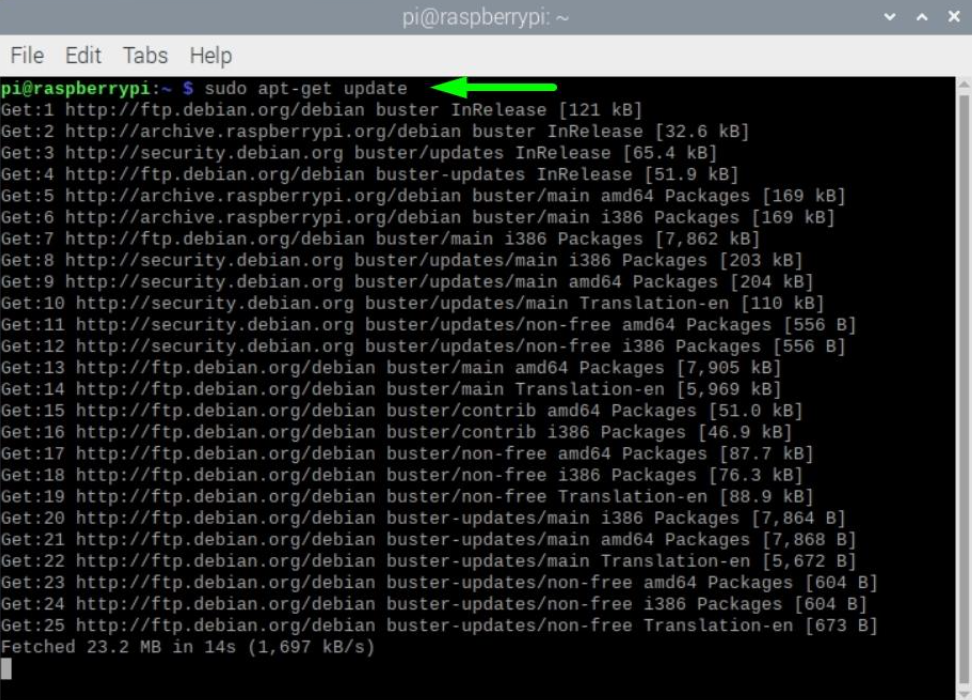
1. Atualiza o Raspberry Pi
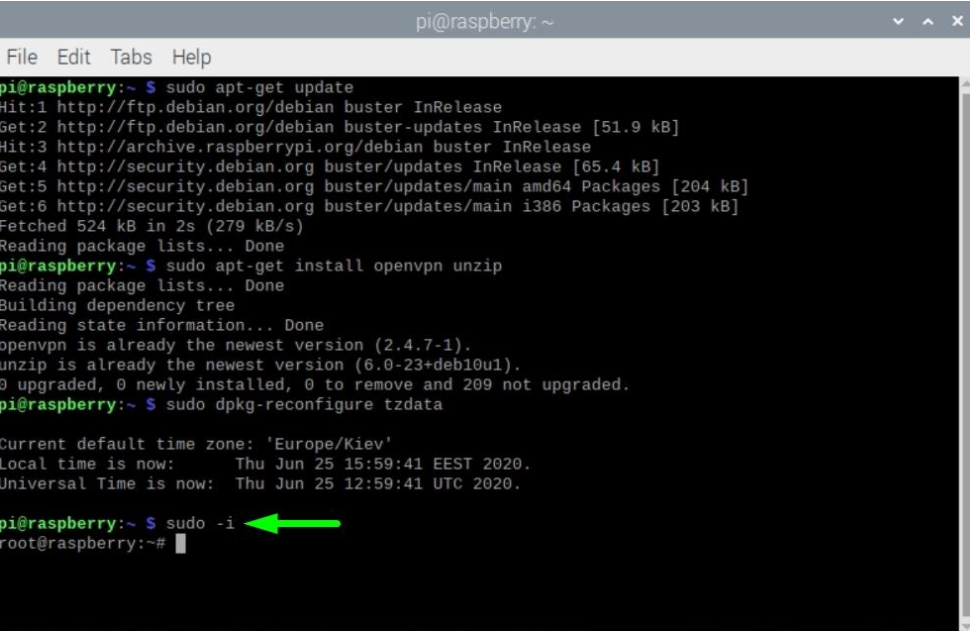
sudo apt-get update
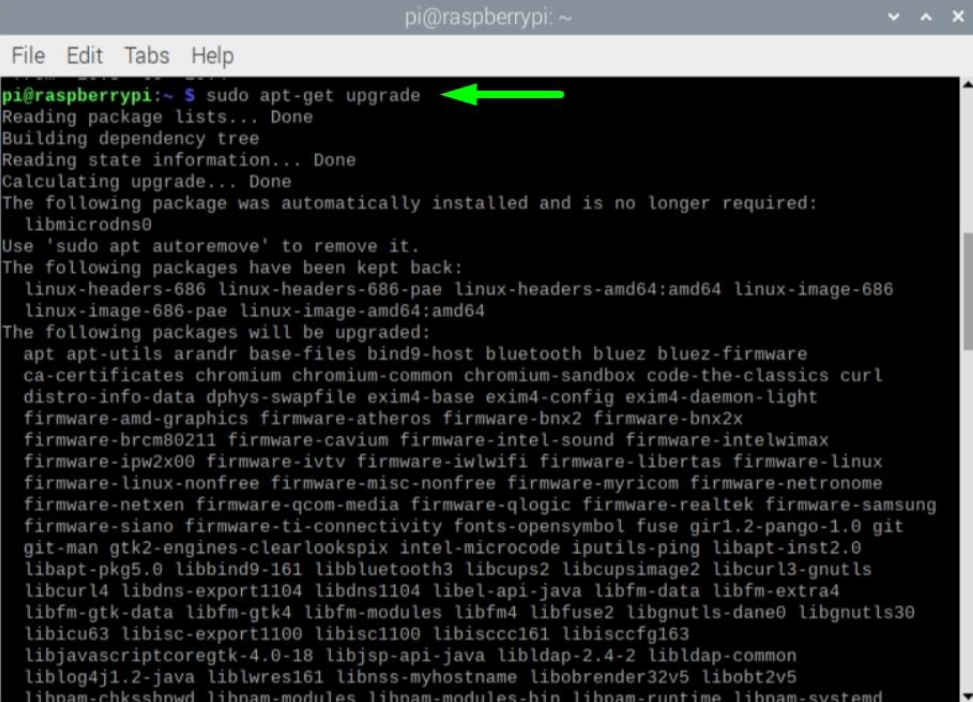
sudo apt-get upgrade
2. Instala o OpenVPN
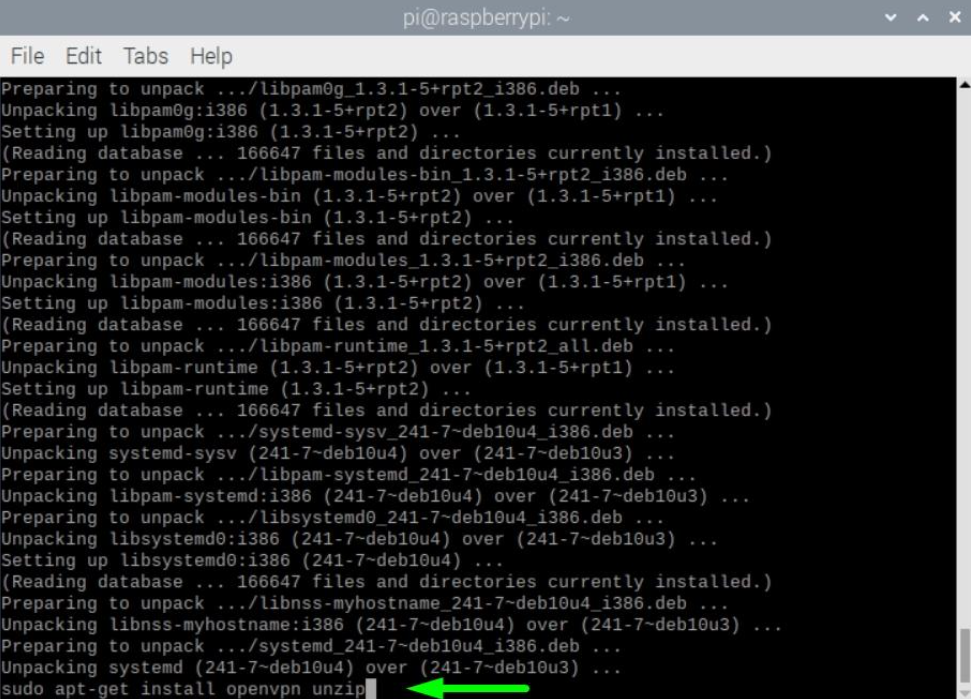
sudo apt-get install openvpn unzip
3. Garante que o fuso horário está correto
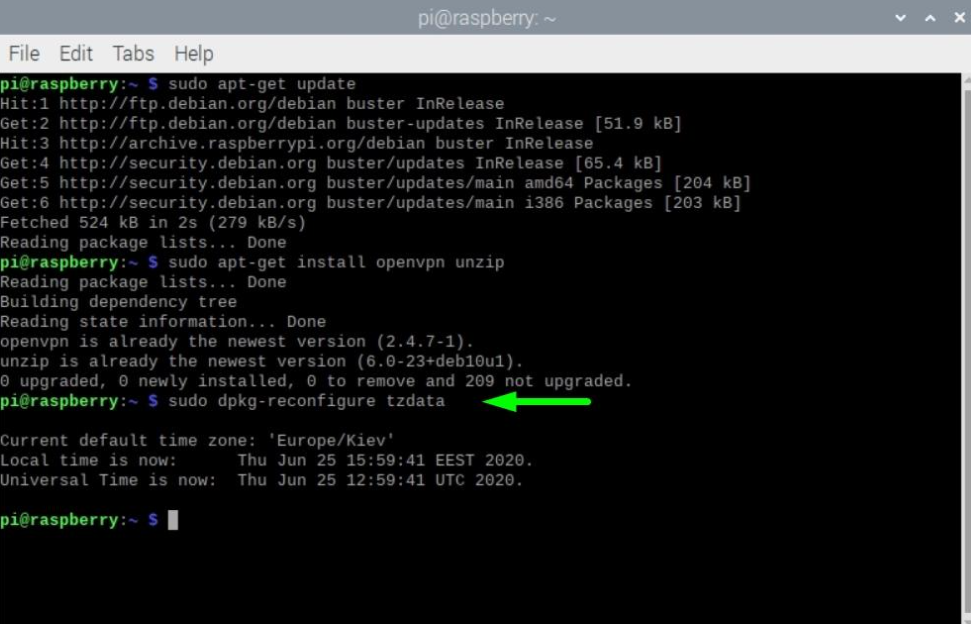
Executa o comando abaixo e segue o assistente de configuração para escolher o fuso horário correto:
sudo dpkg-reconfigure tzdata
4. Eleva os teus privilégios para root
sudo -i
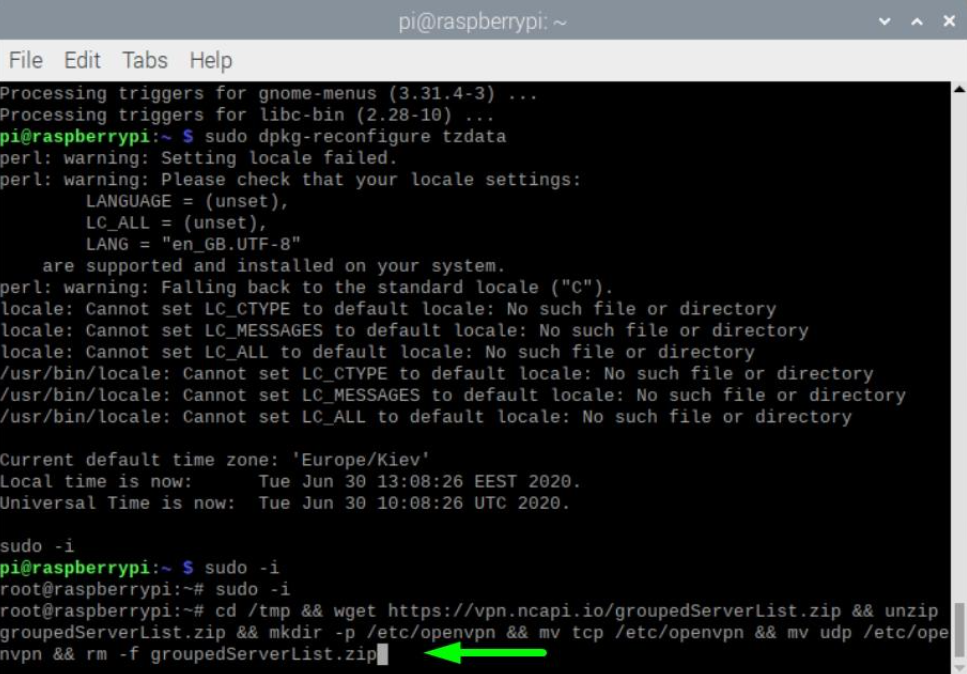
5. Faz download do ficheiro de configuração & configura o FastVPN
cd /tmp && wget https://vpn.ncapi.io/groupedServerList.zip && unzip groupedServerList.zip && mkdir -p /etc/openvpn && mv tcp /etc/openvpn && mv udp /etc/openvpn && rm -f groupedServerList.zip
6. Inicia o FastVPN
Dependendo do protocolo que preferires, podes iniciar o FastVPN de duas formas:
TCP
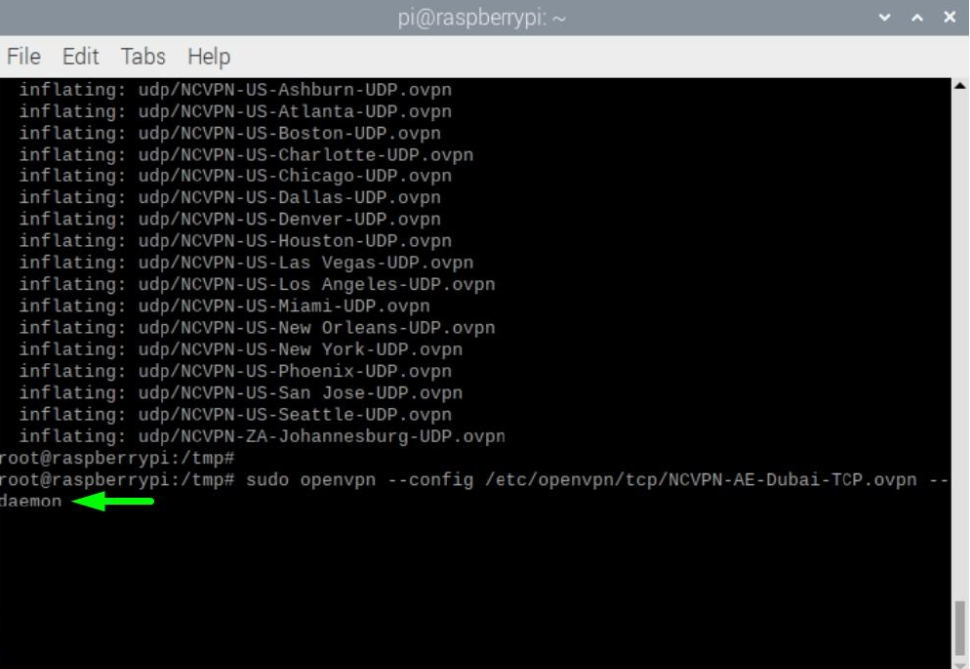
sudo openvpn --config /etc/openvpn/tcp/NCVPN-AE-Dubai-TCP.ovpn --daemon
NOTA: “NCVPN-AE-Dubai-TCP.ovpn” pode ser alterado para qualquer localização preferida do groupedServerList.zip
UDP
sudo openvpn --config /etc/openvpn/udp/NCVPN-AE-Dubai-UDP.ovpn --daemon
NOTA: “NCVPN-AE-Dubai-UDP.ovpn” pode ser alterado para qualquer localização preferida do groupedServerList.zip
7. Introduz as tuas credenciais de login
Introduz o nome de utilizador de autenticação disponível no painel de conta FastVPN Account Panel:
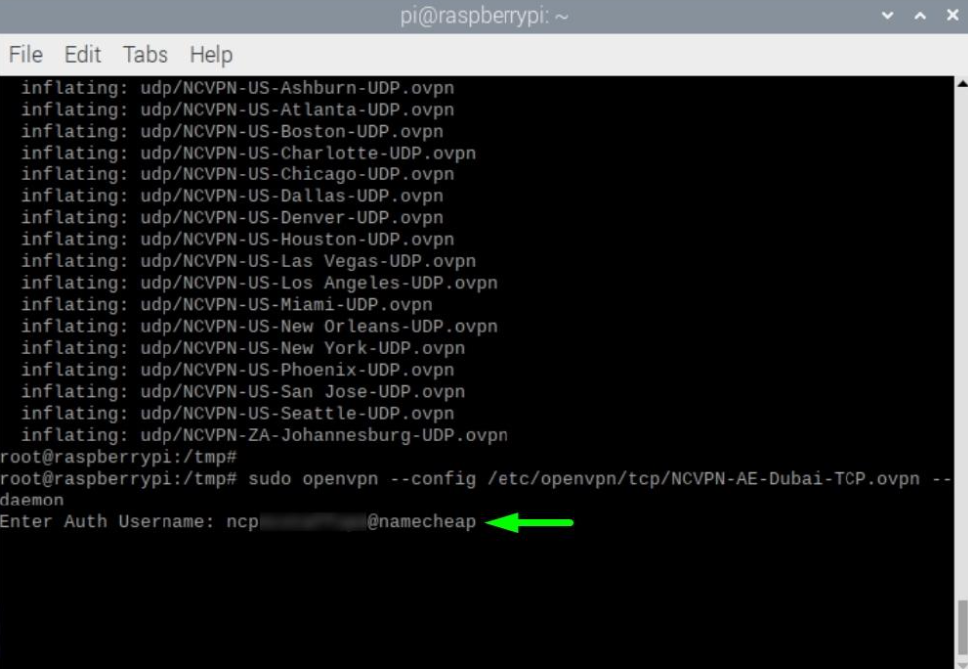
Introduz a palavra-passe de autenticação disponível no painel de conta FastVPN Account Panel:
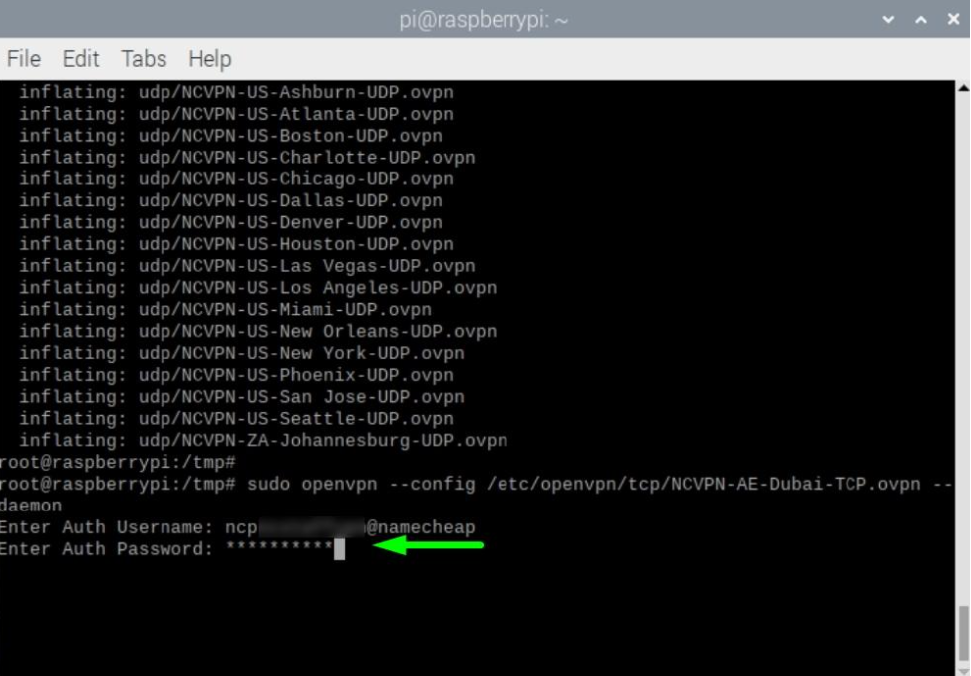
8. Verifica se a ligação foi bem-sucedida
Espera cerca de um minuto após iniciares a ligação VPN, depois executa:
curl https://ipinfo.io/ip
O teu novo IP público será apresentado:
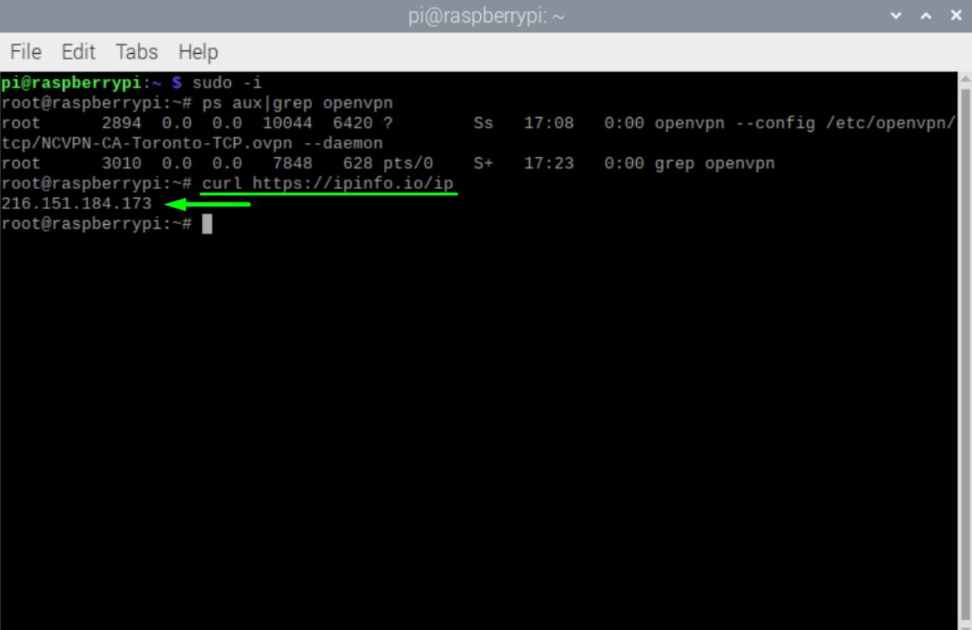
9. Muda a ligação VPN
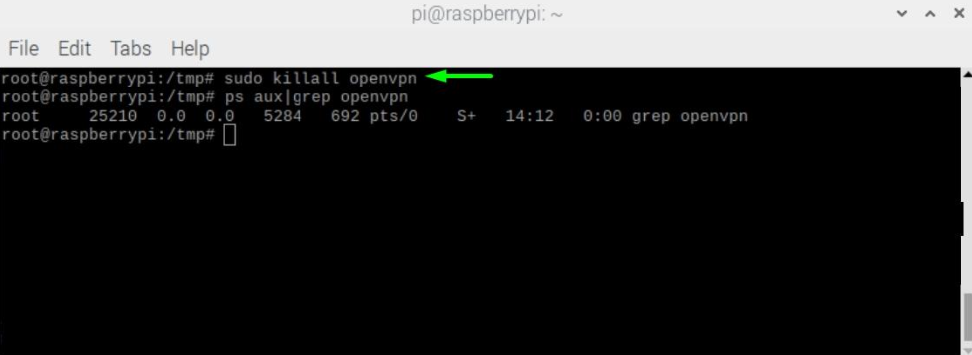
Primeiro, precisas de parar todas as ligações VPN ativas:
sudo killall openvpn
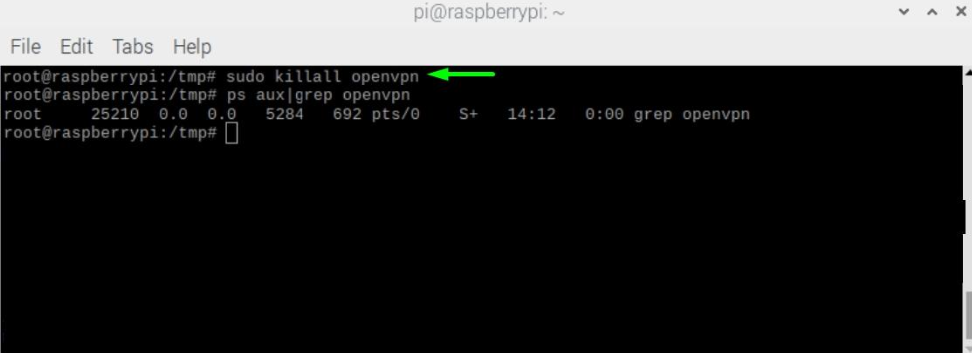
NOTA: Também podes verificar que ligação VPN está atualmente ativa escrevendo:
ps aux|grep openvpn
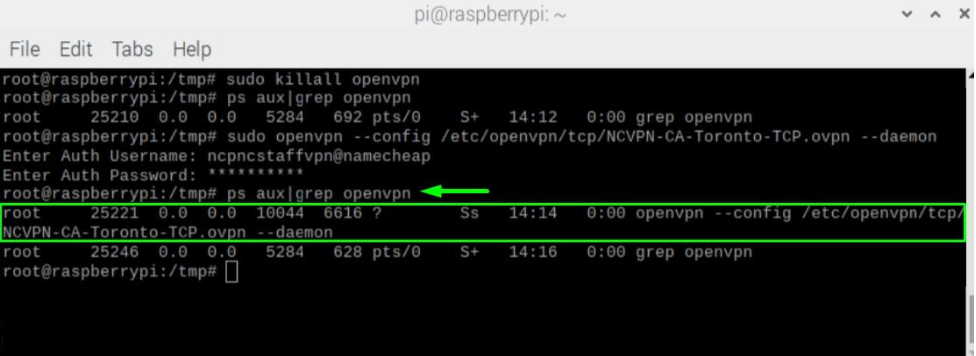
Quando todas as ligações VPN ativas estiverem paradas, volta a fazer o Passo 7 para te ligares a outra localização preferida.
10. Desliga do FastVPN
A ligação VPN pode ser parada com o seguinte comando:
sudo killall openvpn
11. Pronto
Parabéns! Agora o teu Raspberry Pi vai funcionar atrás do FastVPN. O Raspberry Pi liga-se automaticamente quando é iniciado.
Se precisares de mais ajuda, contacta a nossa equipa de suporte.