কীভাবে আপনার Virtual Machine-এ প্রবেশ করবেন
আপনার Virtual Machine (VM) চালু হয়ে গেলে, আপনি VPS Manager থেকে সরাসরি এতে সংযোগ করতে পারবেন – SSH client-এর মতো অতিরিক্ত টুলের প্রয়োজন হবে না। অ্যাপ্লিকেশনটি দুটি প্রবেশের বিকল্প দেয়: Console এবং Command Line Interface (CLI)।
উভয়ই আপনাকে আপনার VM-এর উপর পূর্ণ নিয়ন্ত্রণ দেয়, যাতে আপনি সফটওয়্যার ইনস্টল বা আপডেট করতে, ফাইল ও ব্যবহারকারী পরিচালনা করতে, সার্ভিস কনফিগার করতে ইত্যাদি পারেন। Console আপনার VM-এ পূর্ণ, সরাসরি প্রবেশাধিকার দেয়: আপনি এটি troubleshooting, installation বা system recovery-এর জন্য ব্যবহার করতে পারেন; আর CLI হলো দৈনন্দিন ব্যবস্থাপনার জন্য একটি দ্রুত, browser-based terminal।
এই নিবন্ধে আমরা আলোচনা করব:
কীভাবে নেভিগেট করবেন এবং server management option-এ প্রবেশ করবেন;
Console এবং CLI-এর প্রধান পার্থক্যগুলো;
Software ইনস্টল ও আপডেট করা, সার্ভিস কনফিগার করা, ফাইল আপলোড করা এবং ব্যবহারকারী পরিচালনার জন্য মৌলিক কমান্ড।
1. কীভাবে Console এবং Command Line-এ প্রবেশ করবেন
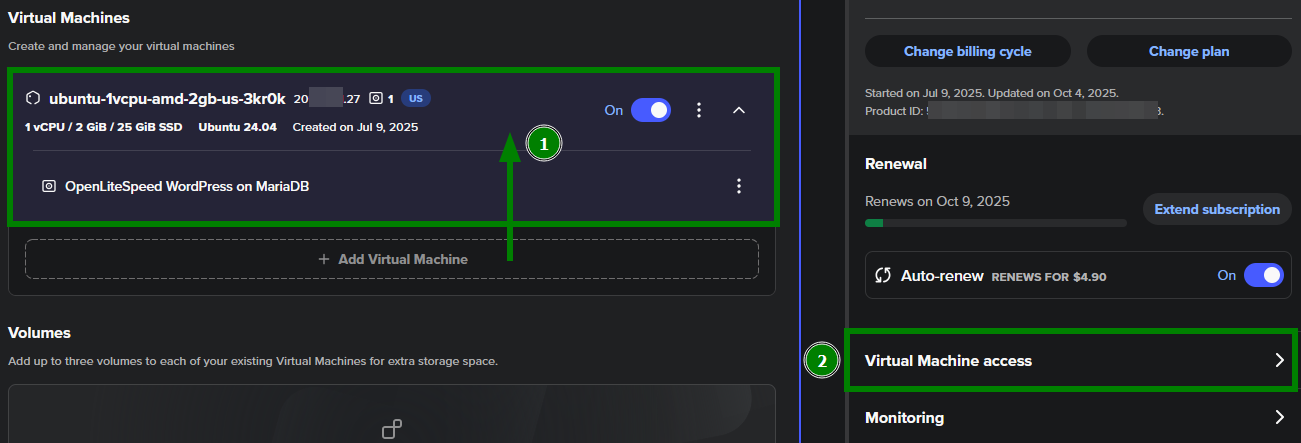
1. VPS Manager অ্যাপে, আপনার VM-এ ক্লিক করুন যাতে VM Management menu (1) খোলে এবং Virtual Machine access (2)-এ যান:
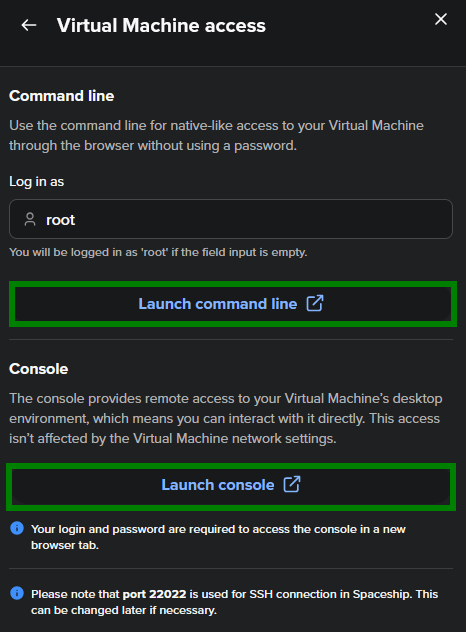
2. পাশের tab-এ, আপনার প্রয়োজন অনুযায়ী Launch command line অথবা Launch console-এ ক্লিক করুন। টুলগুলো নতুন browser window-তে খুলবে:
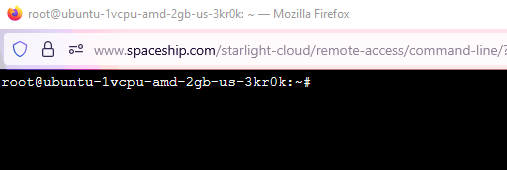
Command line:
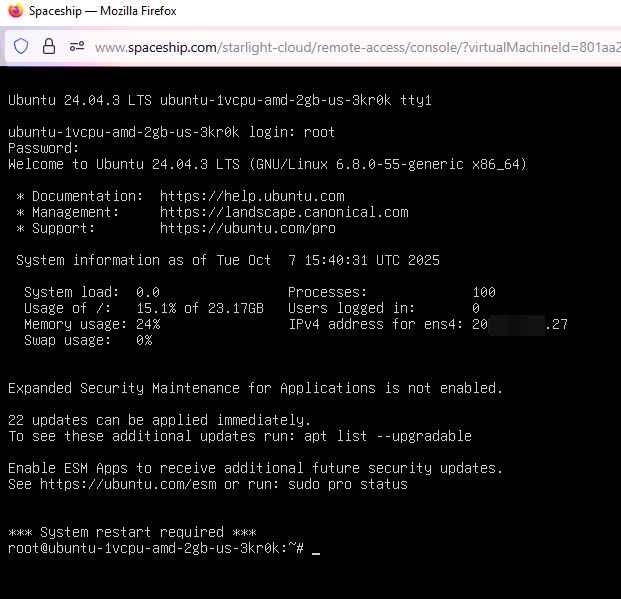
Console (root-এর বিবরণ দেওয়ার পর):
2. Console এবং CLI-এর মধ্যে পার্থক্য
Console access | CLI access | |
|---|---|---|
উদ্দেশ্য | পূর্ণ system-level access দেয়। উন্নত ব্যবস্থাপনা ও recovery-এর জন্য ব্যবহৃত হয়। | ব্রাউজার থেকে দ্রুত কমান্ড চালানোর জন্য একটি সরল terminal দেয়। দৈনন্দিন প্রশাসনিক কাজের জন্য ব্যবহৃত হয়। |
লগইন | আপনার লগইন তথ্য - username এবং password - প্রবেশ করাতে হয়। | লগইন ছাড়াই স্বয়ংক্রিয়ভাবে খুলে যায়। username field উপলভ্য থাকে, তাই আপনি কোন ব্যবহারকারী হিসেবে সংযোগ করবেন (root বা অন্য) তা নির্ধারণ করতে পারেন। |
নেটওয়ার্ক স্থিতিস্থাপকতা | এটি সবসময় উপলভ্য থাকে, এমনকি VM-এর সাথে আপনার নেটওয়ার্ক সংযোগ (যেমন SSH) বন্ধ বা ব্লক থাকলেও। এর মানে, নেটওয়ার্ক সমস্যা হলেও আপনি আপনার VM পরিচালনা ও পুনরুদ্ধার করতে পারবেন। | এটিও নির্ভরযোগ্য সংযোগ দেয়, তবে VM-এর নেটওয়ার্ক কনফিগারেশনে সমস্যা থাকলে troubleshooting এবং পুনরায় প্রবেশাধিকার ফিরিয়ে আনতে Console হলো fallback বিকল্প। |
ইন্টারফেস | পূর্ণ-স্ক্রিন পরিবেশ, যেখানে boot message, restart এবং recovery mode-এর উপর পূর্ণ নিয়ন্ত্রণ থাকে। | mouse support, keyboard shortcut, copy-paste এবং command history-এর মতো বৈশিষ্ট্যসহ একটি আধুনিক, সরল command-line interface দেয়। |
কখন ব্যবহার করবেন | - SSH বা নেটওয়ার্কের মাধ্যমে VM-এ পৌঁছানো যাচ্ছে না। - Recovery, installation বা system debugging। - Boot log এবং console message দেখা। | - নিয়মিত server management। - Software update এবং configuration। - হালকা admin task। |
3. বিভিন্ন OS-এর জন্য মৌলিক কমান্ড
আপনার Virtual Machine পরিচালনায় সহায়তার জন্য এখানে কিছু প্রয়োজনীয় Linux command দেওয়া হলো। সফটওয়্যার ইনস্টল ও আপডেট করা, সার্ভিস কনফিগার করা, ব্যবহারকারী পরিচালনা করা এবং ফাইল হ্যান্ডেল করার জন্য আপনি Console এবং CLI উভয় ক্ষেত্রেই এগুলো ব্যবহার করতে পারেন।
কাজ | Ubuntu / Debian | AlmaLinux / CentOS / Rocky / Fedora |
|---|---|---|
System package আপডেট করুন |
|
|
Software ইনস্টল করুন |
|
|
Software সরান |
|
|
একটি service চালু / বন্ধ করুন |
|
|
Boot-এর সময় service সক্রিয় করুন |
|
|
Firewall পরীক্ষা করুন (UFW বা firewalld) |
|
|
নতুন ব্যবহারকারী তৈরি করুন |
|
|
ব্যবহারকারীকে sudo অধিকার দিন |
|
|
ব্যবহারকারীর password পরিবর্তন করুন |
|
|
একটি file সম্পাদনা করুন |
|
|
উদাহরণ: web server এবং firewall ইনস্টলেশন
Debian-based (Ubuntu, Debian 12):
apt install nginx -y - আপনার সিস্টেমে Nginx web server ইনস্টল করে
ufw allow 'Nginx Full' - HTTP (port 80) এবং HTTPS (port 443) উভয় ট্রাফিক অনুমোদনের জন্য UFW (Uncomplicated Firewall) rule আপডেট করে
systemctl enable nginx - সার্ভার reboot হলে প্রতিবার Nginx স্বয়ংক্রিয়ভাবে চালু হবে তা নিশ্চিত করে
systemctl status nginx - web server সাড়া দিচ্ছে কিনা তা যাচাই করে
RHEL-based (AlmaLinux, CentOS, Rocky, Fedora):
dnf install httpd -y - Apache HTTP Server ইনস্টল করে
systemctl enable httpd - Apache-কে স্বয়ংক্রিয়ভাবে চালু হওয়ার জন্য কনফিগার করে
systemctl start httpd - সঙ্গে সঙ্গে Apache service চালু করে
firewall-cmd --permanent --add-service=http - firewall-এ port 80 (HTTP) খুলে দেয়, যাতে ভিজিটররা standard web protocol-এর মাধ্যমে আপনার web server-এ প্রবেশ করতে পারে
firewall-cmd --reload - firewall configuration-এর পরিবর্তনগুলো পুনরায় লোড করে
systemctl status httpd - web server-এর অবস্থা পরীক্ষা করে।