Understanding DNS propagation

What is DNS propagation?

DNS propagation refers to the time it takes for changes made to your domain's DNS records to be updated and reflected across the Internet. 

When you update DNS settings, such as changing nameservers or modifying DNS records, these changes need to be communicated to all DNS servers worldwide. This process can take anywhere from a few minutes to 48 hours. 

How long depends on various factors, like TTL (Time to Live) settings, and the speed of DNS server updates.

DNS records vs. nameserver updates: What’s the difference?

It’s important to distinguish between updating DNS records and updating nameservers.

  • Updating DNS records (A, MX, CNAME, etc.) — these changes typically propagate faster, often within minutes to a few hours. The TTL value associated with each record determines how long servers cache the old information before fetching the updated details.

  • Updating nameservers — this process takes longer — usually up to 48 hours — because it involves notifying global root DNS servers and registries about the new nameservers. Until propagation is complete, queries may still be directed to the old nameservers, leading to temporary inconsistencies.

During this period, websites may not resolve properly, causing them to load intermittently or redirect to old servers. Additionally, domain-based email services may experience disruptions, with emails failing to send or being delivered inconsistently. Certain users may see the updated records while others continue to access outdated information, depending on their ISP’s (Internet Service Provider’s) cache refresh rate.

Understanding these differences helps manage expectations when making changes to your domain settings. For example, if you’re transferring a website from one domain name to another, you can minimise downtime by preparing in advance.

Create host records for the new domain name before making the switch, ensuring they match those of the old website. This way, when you update the domain settings, traffic will be directed correctly without interruptions.

Spaceship Propagation Checker

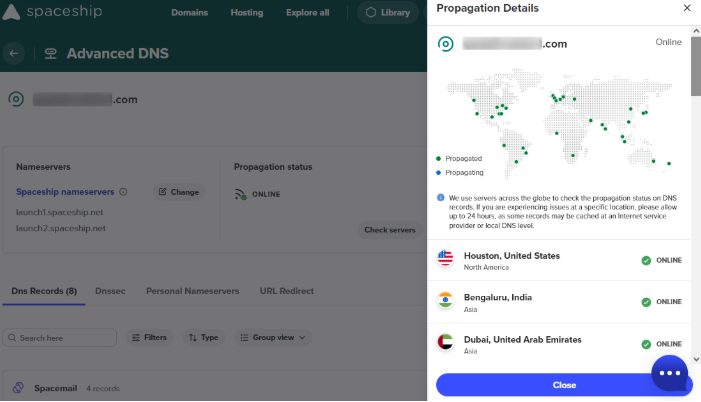
The Spaceship Propagation Checker is a powerful tool that allows you to monitor the status of your DNS changes across different DNS servers globally.

It helps you verify whether your DNS modifications have been successfully propagated, ensuring seamless website and email functionality.

One particularly useful feature of the Propagation Checker is its real-time status update

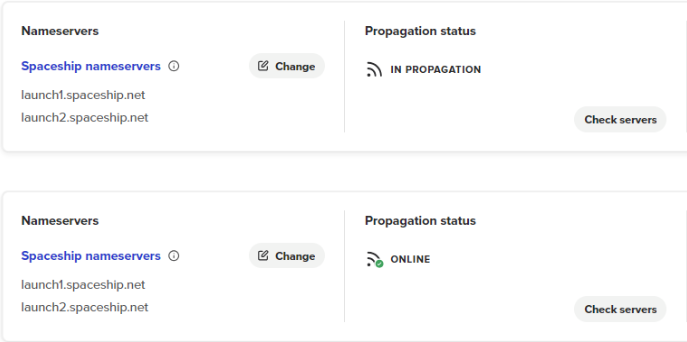
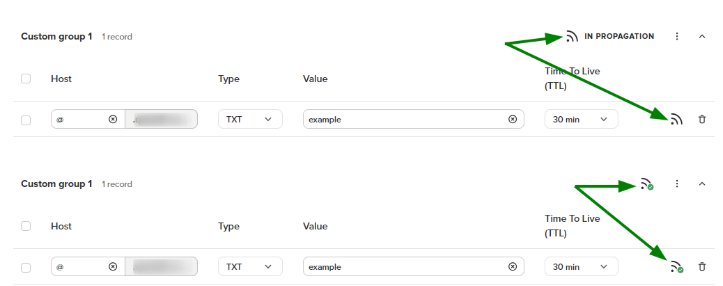
Whenever you modify DNS records or nameservers, the corresponding Propagation icon changes its status instantly, letting you know how far along the update process is:

You can check propagation status for both nameservers and host records.

  • For nameservers:

  • For specific host records/host record groups:

This means you don’t have to guess whether your changes are live — you can track them in real time.

To use the Propagation Checker, simply access the Advanced DNS application in your Spaceship account. You can even track statuses of specific servers across the map:

Nameservers without a zone

DNS zones are created on specific nameservers and hold host records associated with a domain name. The zone file is a text-based configuration file that contains mappings between domain names and IP addresses, making it essential for proper domain resolution.

If a nameserver lacks a zone file, it cannot provide authoritative answers for DNS queries related to that domain, often resulting in DNS resolution failures.

Why does this happen?

There are several reasons why nameservers might not have a zone:

  1. The hosting provider hasn’t created the zone yet — some hosting companies require additional setup steps before activating a DNS zone.

  2. Incorrect nameservers were entered — the nameservers do not match those assigned to your hosting account, they may not be configured correctly.

  3. Certain TLDs require manual zone creation — some top-level domains (TLDs) enforce extra steps before a zone file is generated (e.g. .DE domains).

  4. Recent nameserver updates — if you recently changed nameservers, it may take some time before the new DNS provider establishes the required zone.

How to know if a domain lacks a zone

If your domain name lacks a zone, it typically results in DNS resolution issues. Here are some ways to check:

  • Use a DNS lookup tool — online tools like Google Admin Toolbox Dig can help determine if your domain has active DNS records.

  • Check with your hosting/DNS provider — most hosting/DNS providers allow you to view and manage DNS zones from their control panel. If your domain isn’t listed, it may not have an active zone.

  • Monitor error messages — if your website isn’t loading or emails aren’t working, errors like "Server not found" or "DNS_PROBE_FINISHED_NXDOMAIN" may indicate a missing zone.

  • Inspect WHOIS records — WHOIS lookups can show assigned nameservers, helping you verify if they match the expected DNS configuration.

How to fix It

If your domain’s nameservers are lacking a zone, here’s what you can do:

  • Confirm that the nameservers are entered correctly — double-check with your hosting provider that you’ve used the exact nameservers they assigned.

  • Contact your hosting/DNS provider — if you’ve entered everything correctly but the zone hasn’t been created, reach out to your provider to request manual activation.

  • Check TLD requirements — if your domain is under a TLD that requires manual zone creation, follow the registry’s instructions or contact support for assistance.

  • Wait for propagation — if you just changed nameservers, allow up to 48 hours for the new zone to be established and fully propagated.

Managing DNS with Spaceship

If you want to take the complexity out of domain management, consider buying with, or migrating your domains to, Spaceship. Spaceship provides a suite of tools to help you manage your DNS settings efficiently:

  • Advanced DNS — manage resource records, nameservers, DNSSEC, and other advanced settings.

  • Domain Portfolio — easily handle large lists of domain names, apply DNS presets, and update nameservers in bulk.

  • DNS Presets Manager — save and apply pre-configured DNS settings for quick and easy setup.

With these tools, you have complete control over your domain's DNS settings, ensuring smooth propagation and optimal performance at all times.

A valid email is required