
Quand il s’agit de choisir un client de messagerie, la plupart des gens optent pour ce qui est installé par défaut. Sur Mac, c’est Apple Mail. Sur Windows, c’est Outlook. Et pour beaucoup, cela suffit. Mais si votre boîte de réception vous semble lente ou plus difficile à gérer, d’autres options méritent votre attention.
Quel est le meilleur client de messagerie au global ?
Choisir le meilleur client de messagerie au global est difficile, notamment parce que chaque usage est différent. Mais si nous devions choisir un client de messagerie qui coche le plus de cases pour les utilisateurs, Spark email fait un excellent travail sur tous les plans.
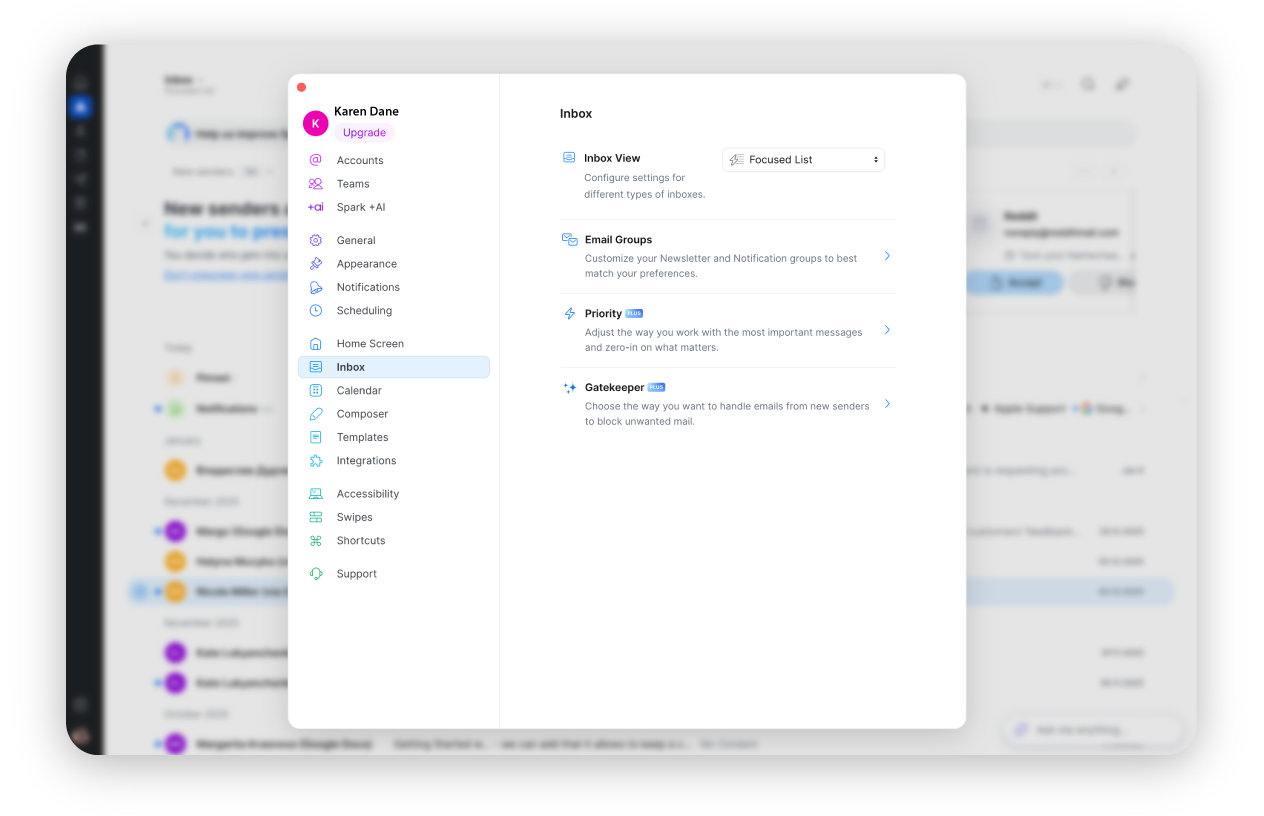
Si, un lundi matin, vous vous asseyez devant votre ordinateur et grimacez devant le nombre gigantesque à côté de l’icône e-mail sur votre bureau, alors vous avez probablement besoin de plus qu’une simple approche standard « ouvrir et répondre ». Spark est en tête de notre liste parce qu’il peut vous aider à venir à bout de cette montagne d’e-mails apparemment insurmontable et à retrouver une vraie productivité.
La rapidité de Spark vient de fonctionnalités comme la boîte de réception intelligente. Vos e-mails sont automatiquement triés dans les catégories Personnel, Notifications et Newsletters, et vous pouvez ajuster les filtres pour qu’ils correspondent à votre façon de travailler. Avec le temps, il apprend votre comportement et s’améliore sans que vous ayez à y penser.
Une fois le déluge passé et le moment venu de répondre, Spark +AI vous aide à mettre rapidement vos idées à l’écran, avec des brouillons en un clic, des invites qui s’ajustent pendant que vous tapez, des réponses prédéfinies et des résumés clairs de longs fils d’e-mails ou de réunions.
En gros, Spark est le meilleur quand vous essayez de bien lancer votre semaine et de prendre de l’élan. Si vous gérez plusieurs boîtes de réception et devez traiter rapidement vos e-mails, il maintient le rythme. Vous bénéficiez de la prise en charge de Gmail et Outlook, ainsi que d’intégrations avec des outils comme Todoist, Asana et Zoom.
Pourquoi Spark est le meilleur client de messagerie :
Boîte de réception intelligente – Trie automatiquement les e-mails dans Personnel, Notifications et Newsletters.
Filtres personnalisés – Entièrement personnalisables et s’améliorent à mesure que Spark apprend votre façon de travailler.
Spark +AI – Vous aide à rédiger rapidement des e-mails grâce à des invites en un clic qui se mettent à jour pendant que vous tapez.
Résumés IA – Vous donnent l’essentiel des longs fils d’e-mails et des réunions en quelques secondes.
Réponses prédéfinies – Réduisent les réponses répétitives et économisent votre énergie mentale.
Intégrations faciles – Fonctionne avec Gmail et Outlook, avec des intégrations pour Todoist, Asana et Zoom.
Un excellent second choix
Comme choix supplémentaire un peu « hors des sentiers battus », Missive mérite votre attention, surtout si vous travaillez dans une grande équipe en communication constante.
Missive
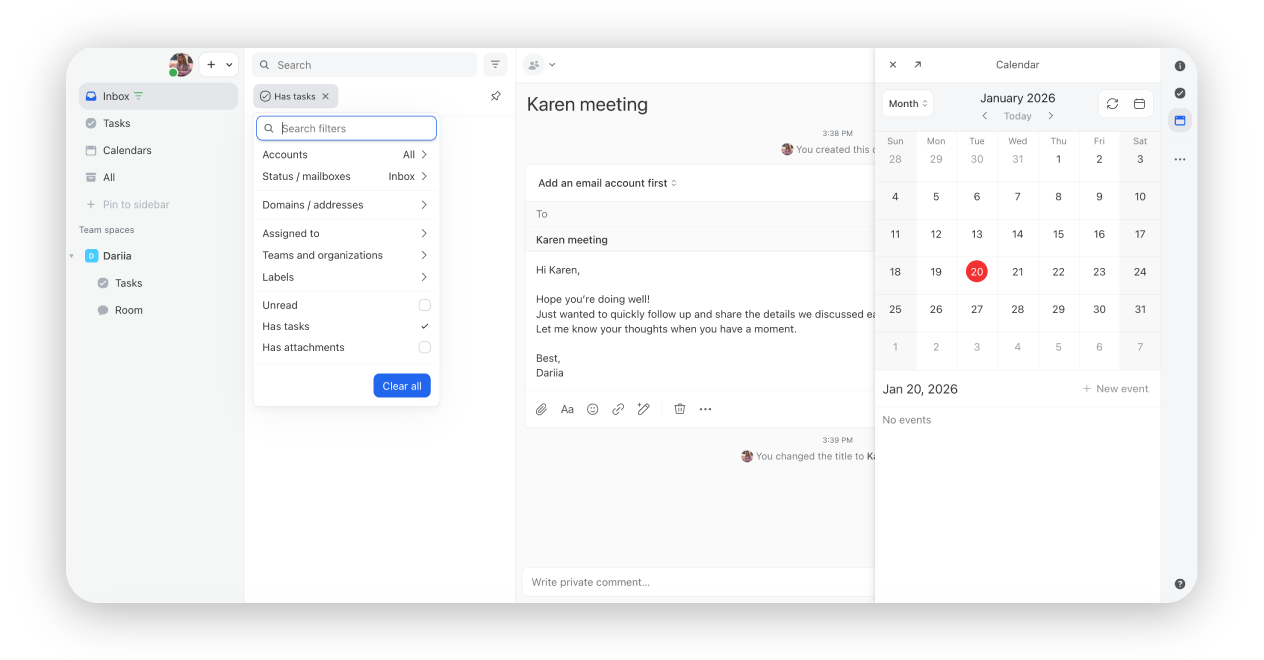
Missive ressemble à un client de messagerie classique, mais crée une expérience similaire à des applications comme Slack, avec notamment des photos de profil. Il offre un niveau de flexibilité que vous n’obtiendriez jamais avec un ancien client de messagerie. Les règles et les automatisations vous permettent de façonner la boîte de réception selon le fonctionnement réel de votre entreprise, par exemple en choisissant des règles de délai de réponse ou en attribuant des réponses prédéfinies à certains types d’interaction.
Ajoutez la prise en charge de Gmail, Outlook et IMAP, ainsi que plus de 25 intégrations comme HubSpot et Asana, et Missive devient une solide alternative à Google Workspace pour les équipes qui envoient des centaines d’e-mails par jour.
Que faut-il rechercher dans un client de messagerie en 2026 ?
À la base, l’e-mail n’est qu’un ensemble de messages stockés sur un serveur. Votre client de messagerie se connecte à ce serveur pour lire, envoyer, rechercher et gérer ces messages. Donc, si vous avez deux clients distincts, et qu’ils synchronisent et organisent ces e-mails différemment, vous allez vivre une expérience très différente. C’est pourquoi il est utile de prêter attention à ces points.
Ce qui compte vraiment dans un client de messagerie
Choisissez une synchronisation IMAP/SMTP fiable – Si la synchronisation n’est pas solide, vous verrez des e-mails mis à jour sur certains appareils et pas sur d’autres.
Préférez OAuth2 aux mots de passe– Permet de se connecter via Google ou Microsoft au lieu d’un mot de passe. C’est plus sûr, et l’accès peut être coupé instantanément si quelque chose tourne mal.
Choisissez le mode hors ligne pour les grandes boîtes de réception – Votre e-mail fonctionne toujours sans Internet parce qu’il est stocké localement. Cela signifie que les grandes boîtes de réception restent rapides et que les pièces jointes s’ouvrent immédiatement.
Préférez la recherche locale à la recherche sur serveur– La recherche sur serveur dépend de la connexion et de la disponibilité du fournisseur. La recherche locale interroge vos propres données, donc les résultats sont rapides et fonctionnent hors ligne.
Choisissez une protection intégrée contre le spam et le phishing– Filtre le spam avant que vous ne le voyiez, signale les e-mails qui essaient de vous piéger pour cliquer, et indique si les messages sont vérifiés ou protégés.
Fonctionnalités de très haut niveau
Importations propres uniquement– Sans une prise en charge correcte de la migration des e-mails, les anciens e-mails peuvent être transférés, mais leur état, leurs dossiers ou leurs horodatages seront erronés.
Les comptes restent séparés – Les meilleurs clients de messagerie peuvent gérer plusieurs comptes sans chevauchement. Sinon, cela peut entraîner des erreurs embarrassantes, comme répondre depuis le mauvais compte.
Des raccourcis qui font gagner du temps– Ils doivent accélérer les choses, pas les ralentir. Parfois, quelques raccourcis logiques valent mieux que des dizaines de raccourcis déroutants.
Aucune surprise de synchronisation– Si vous lisez un e-mail sur votre téléphone et qu’il apparaît encore comme non lu sur votre ordinateur, cela va vite devenir agaçant.
Quel est le meilleur client de messagerie pour Windows ?
Si vous êtes sur Windows, Outlook reste le choix le plus logique, même si les utilisateurs ont formulé quelques critiques sur les dernières mises à jour de Microsoft. Nous avons aussi ajouté un deuxième et un troisième choix au cas où vous aimeriez avoir des options.
1. Outlook
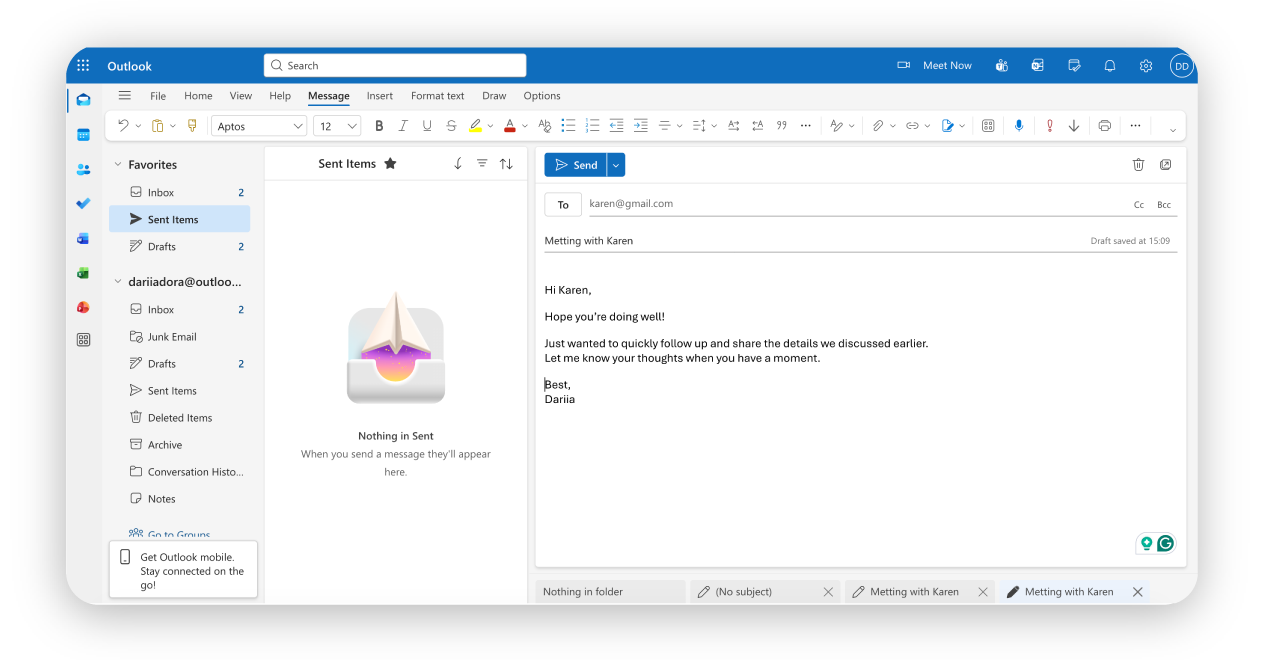
La nouvelle version abandonne une grande partie de l’encombrement de l’ancienne application au profit d’une interface épurée pensée d’abord pour le cloud. Elle est clairement conçue pour correspondre à l’apparence et à l’expérience d’Outlook sur le web, et c’est là que Microsoft veut vous amener.
Les fonctionnalités comme l’épinglage des e-mails illustrent bien cette évolution. Vous pouvez désormais épingler les messages importants en haut de votre boîte de réception pour qu’ils restent visibles à mesure que de nouveaux e-mails arrivent. L’interface est plus propre, avec moins de menus et plus d’espace blanc. Il y a une disposition simple en trois colonnes et une boîte de réception unifiée, ce qui signifie que tous vos comptes e-mail se trouvent au même endroit au lieu d’être dispersés dans des dossiers que vous oubliez de consulter.
Cette simplicité signifie aussi que certaines options avancées n’ont pas été conservées. La mise en forme conditionnelle et les vues personnalisées ont disparu, et même si le calendrier fait quelques choses utiles, comme développer automatiquement aujourd’hui et demain, ce n’est pas une énorme amélioration.
Le plus grand changement, c’est à quel point tout est étroitement connecté au cloud, à Microsoft 365, à Teams et à Copilot. En plus de cela, la sécurité est nettement plus forte, surtout en matière de protection contre le phishing, ce qui constitue une grande amélioration.
2. Thunderbird
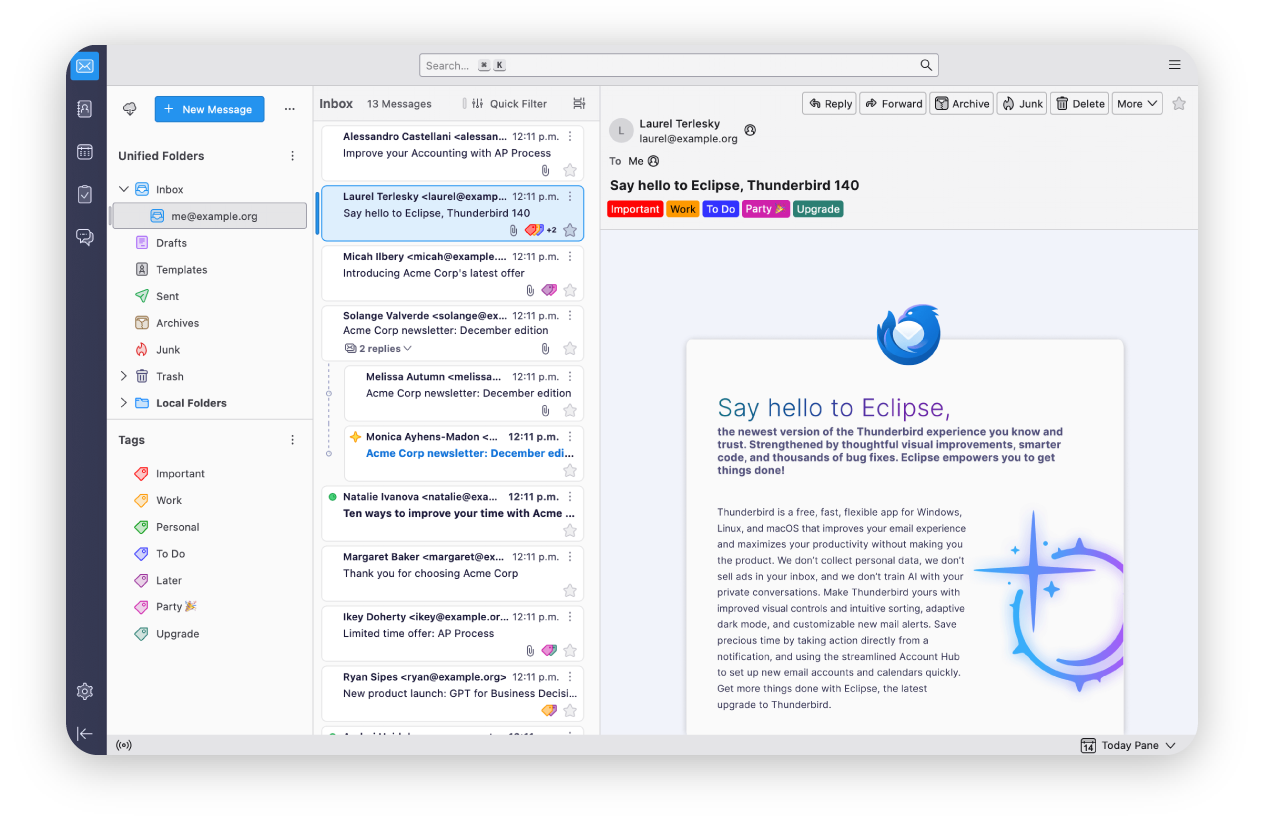
Thunderbird mérite sa deuxième place parmi les meilleurs clients de messagerie pour Windows en faisant très bien l’essentiel. L’interface repose sur une disposition en trois volets, que vous pouvez ajuster si vous le souhaitez. Il reste rapide et stable même avec de grandes boîtes de réception et plusieurs comptes, et stocke tout localement pour que vous puissiez travailler hors ligne. En plus, il fonctionne confortablement sur des PC plus anciens ou des systèmes déjà chargés sans consommer énormément de ressources.
Vous pouvez connecter des comptes POP3, IMAP et Exchange, ajouter des calendriers et des tâches, et ajouter des fonctionnalités supplémentaires via des modules complémentaires lorsque vous en avez réellement besoin. La confidentialité est un autre point fort discret, avec aucune publicité, aucun suivi et une protection solide contre le phishing intégrée. Il montre son âge à quelques endroits, et la configuration peut demander un peu de patience, mais si vous voulez un client de messagerie respectueux de vos données et heureux de ne pas vous gêner, Thunderbird fait très bien ce travail.
Comparaison des performances
Gestion des grandes boîtes mail
Outlook s’appuie sur la synchronisation cloud pour gérer la charge, ce qui fonctionne bien une fois que tout s’est stabilisé.
Thunderbird stocke les e-mails localement, et reste réactif même lorsque l’historique de votre compte commence à devenir un peu ridicule.
Utilisation des ressources :
Outlook sollicite davantage votre système, surtout sur les machines moins puissantes, et vous pouvez le remarquer tant que la synchronisation est en cours.
Thunderbird est plus léger et plus prévisible, ce qui le rend plus facile à vivre si votre PC n’est pas tout neuf ou si vous avez tendance à faire tourner beaucoup de choses en même temps.
Fiabilité de la recherche :
La recherche d’Outlook est rapide et puissante, aidée par une indexation basée sur le cloud qui retrouve vite les éléments.
La recherche de Thunderbird est plus basique, mais elle est fiable et continue de fonctionner hors ligne, ce qu’on n’apprécie vraiment que lorsque la connexion Internet tombe.
Quel est le meilleur client de messagerie pour Mac ?
Il est préinstallé sur chaque Mac. Sans surprise, c’est Apple Mail.
1. Apple Mail
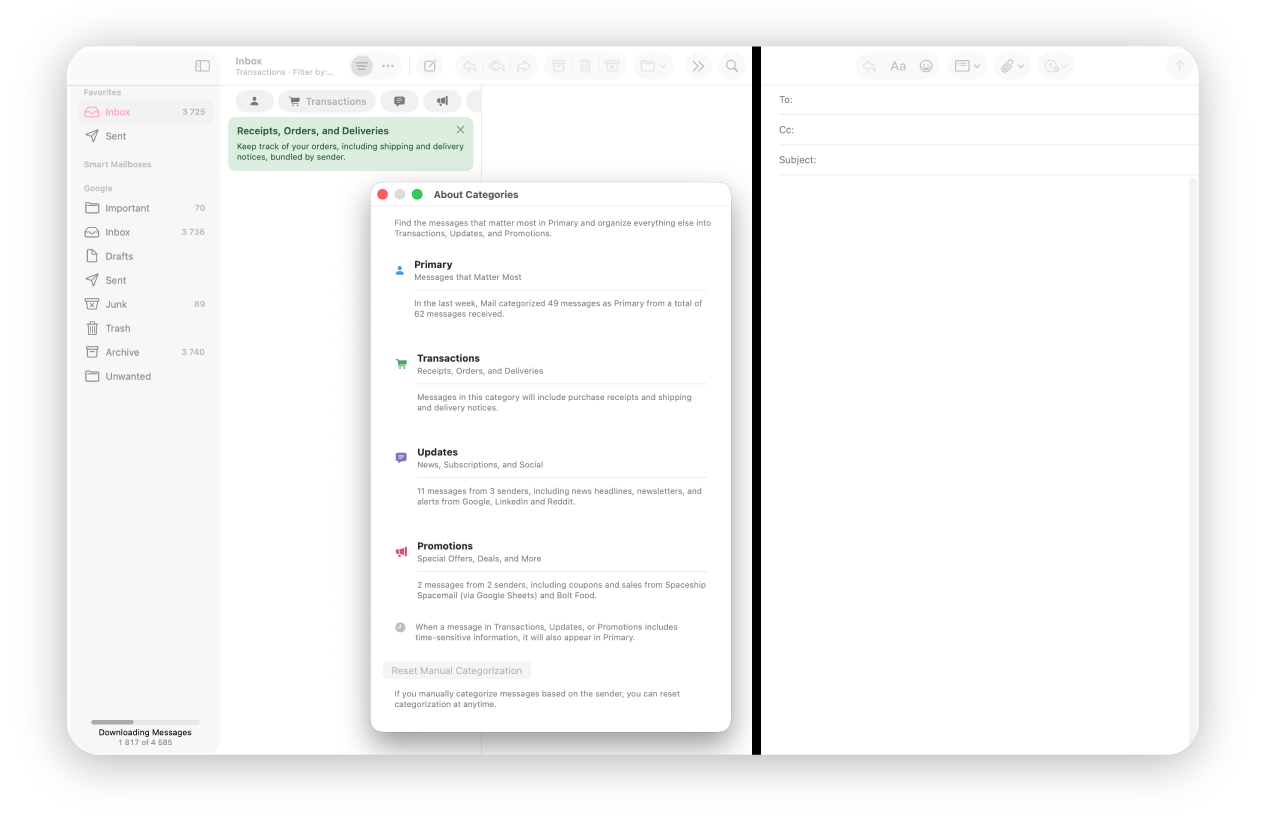
L’interface d’Apple Mail est obstinément simple et étroitement intégrée à l’écosystème Apple. La simplicité est le compromis. Vous n’avez ni mise en veille des e-mails, ni planification, ni boîtes de réception intelligentes, ni outils de collaboration d’équipe, mais c’est clairement intentionnel.
En revanche, vous obtenez un e-mail qui fonctionne de manière fiable. Les messages se synchronisent discrètement via iCloud et sont soutenus par des outils de confidentialité intégrés et des mises à jour système régulières. L’IA aide à la recherche, ce qui la rend bien plus efficace. Tout fonctionne au niveau du système, ce qui signifie que Mail s’intègre parfaitement à Calendar, Notes et au reste de macOS sans intégrations supplémentaires ni solutions de contournement.
2. Canary Mail
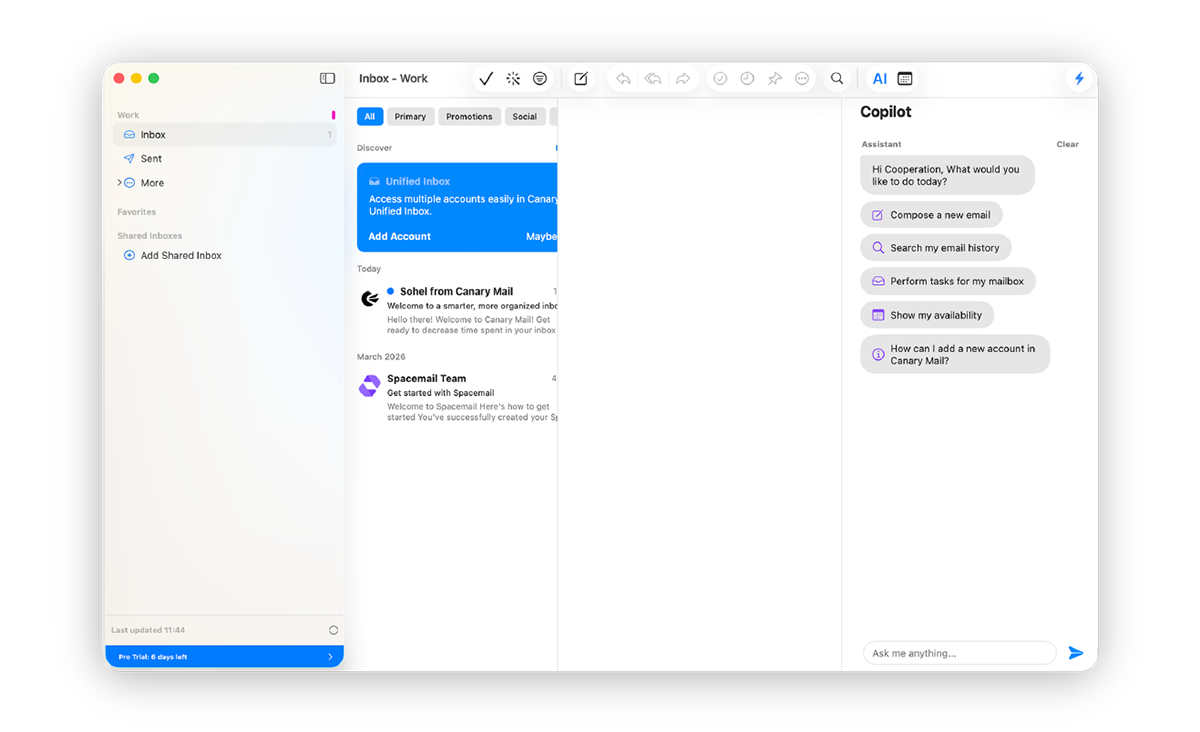
Canary Mail est un excellent choix pour toute personne qui veut de la confidentialité et de l’IA sans compromettre le contrôle de ses données. Il se connecte à Gmail, Outlook, iCloud, IMAP et Exchange dans une boîte de réception unifiée, donc changer de client ne signifie pas laisser des comptes derrière soi.
La couche IA est facultative et n’est jamais entraînée sur vos e-mails - une différence importante par rapport à la plupart des clients axés d’abord sur l’IA. Elle gère la rédaction, la synthèse et le tri intelligent, et fonctionne aux côtés de fonctionnalités comme les accusés de lecture, l’envoi différé, la mise en veille, les modèles d’e-mail et le blocage des traqueurs. Pour les équipes, une boîte de réception partagée rend la collaboration plus proche d’un outil de support que d’un fil transféré.
La sécurité est une fonctionnalité de premier ordre : OpenPGP, le chiffrement de bout en bout SecureSend et la conformité HIPAA en font un choix crédible pour toute personne dans la santé, le juridique ou la finance. Si vous comparez les options, il tient bien face à Spark, Apple Mail et Thunderbird, et il mérite votre attention si inbox zero est réellement ce que vous recherchez.
Disponible sur Mac, Windows, iPhone, iPad et Android.
3. eM client
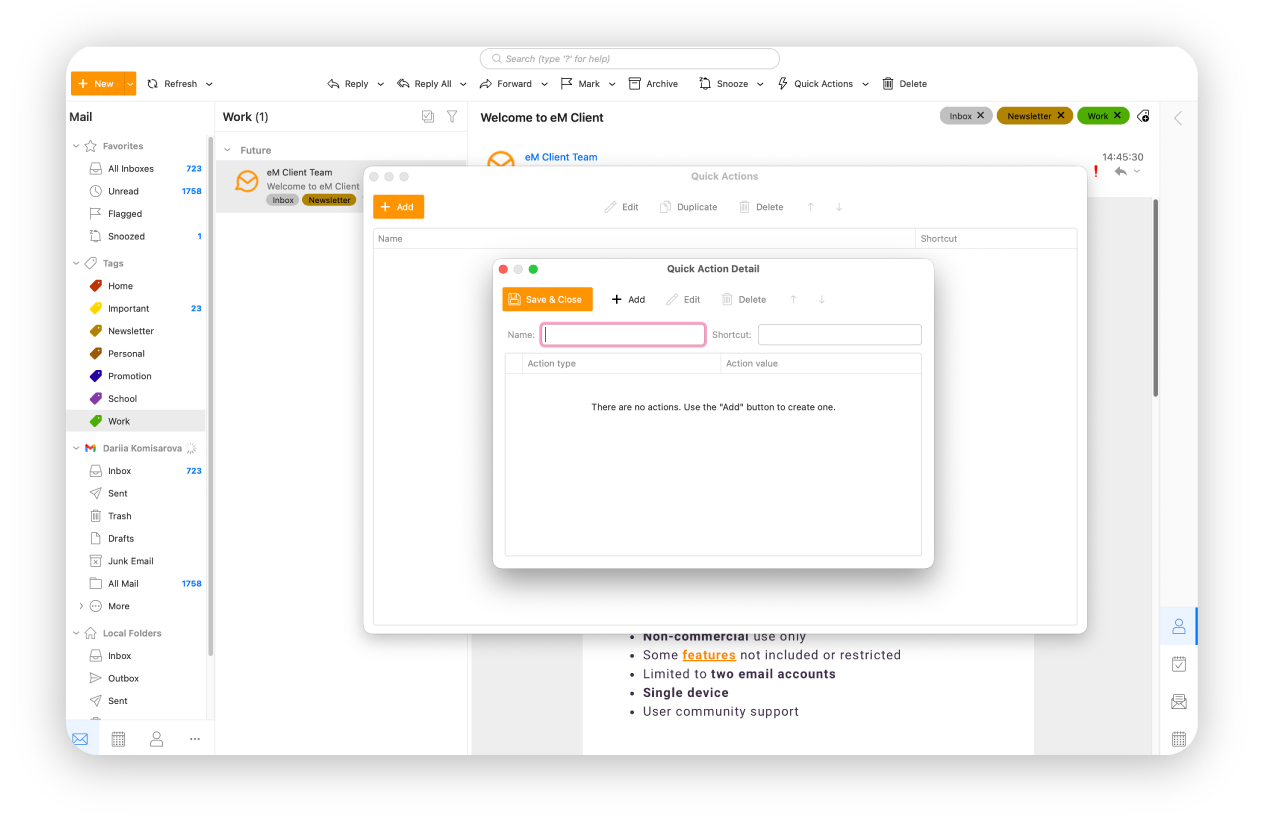
eM Client arrive troisième parmi les meilleurs clients de messagerie pour Mac, et il mérite cette place en étant honnête sur ce qu’il est. C’est un client de messagerie de bureau pour les personnes qui veulent tout au même endroit et que quelques réglages initiaux ne dérangent pas. E-mails, calendriers, tâches, contacts, notes, chat, tout est là, regroupé dans une seule application qui se connecte à presque tous les services de messagerie que vous utilisez.
Vous pouvez façonner l’application selon votre façon de travailler. Catégories de boîte de réception, actions rapides, modèles, mise en veille, rappels, chiffrement, sauvegardes, et même des outils d’IA si vous voulez de l’aide pour rédiger ou ajuster le ton. Elle fonctionne sur Windows, macOS, iOS et Android, et prend la confidentialité au sérieux en conservant vos données sur votre appareil. Ce n’est ni l’option la plus légère ni la plus élégante, mais si vous aimez savoir où vivent vos données et avoir tous les outils à portée de main, eM Client est un troisième choix solide et sans fioritures.
Comparaison des performances
Prise en charge et limites de Spotlight
Apple Mail utilise Spotlight de macOS pour la recherche. C’est rapide la plupart du temps, mais les très grandes boîtes de réception peuvent parfois déclencher des problèmes de réindexation.
Canary Mail utilise son propre index local. La recherche est rapide, fonctionne hors ligne et gère de grandes boîtes de réception multi-comptes sans les petits problèmes de réindexation que Spotlight peut rencontrer.
eM Client indexe les e-mails localement. La recherche est prévisible, fonctionne hors ligne, mais donne une impression plus ancienne.
Intégration iCloud
Apple Mail offre une intégration iCloud poussée dès le départ. E-mails, contacts et calendriers se synchronisent automatiquement sans configuration.
Canary Mail prend en charge iCloud nativement aux côtés de Gmail, Outlook, IMAP et Exchange - le tout dans une boîte de réception unifiée sans configuration supplémentaire.
eM Client prend également en charge iCloud via des mots de passe spécifiques à l’application. La synchronisation est fiable, mais la configuration demande un peu plus d’efforts.
Performances sur les Mac de série M
Apple Mail est entièrement optimisé pour Apple Silicon. Léger pour la batterie, rapide au lancement et étroitement intégré à macOS.
Canary Mail est également optimisé pour Apple Silicon - il reste léger en ressources même avec plusieurs comptes et des fonctionnalités d’IA actives, ce qui en fait un excellent choix pour les MacBook de série M en particulier.
eM Client fonctionne aussi nativement sur Apple Silicon, mais son ensemble de fonctionnalités plus large peut sembler plus lourd lors de longues sessions.
|
Quel client de messagerie devriez-vous choisir ?
Si vous avez lu jusqu’ici, vous n’avez pas besoin d’une autre liste de fonctionnalités. Vous voulez choisir quelque chose et passer à autre chose. Voici une façon simple de le faire.
Le meilleur pour les utilisateurs avancés – eM Client ou Thunderbird
Choisissez cette voie si vous aimez garder le contrôle. eM Client comme Thunderbird offrent de nombreuses fonctionnalités avancées pour que l’e-mail vous ressemble vraiment.
Le meilleur pour les entreprises – Outlook
Un choix sûr si votre journée tourne déjà autour de Microsoft 365. Tout est là pour vous. Calendriers, Teams et e-mail au même endroit.
Le meilleur pour les utilisateurs soucieux de la sécurité – Apple Mail et Canary Mail
Si vous voulez un e-mail avec une confidentialité gérée discrètement en arrière-plan, Apple Mail est la meilleure option. Canary Mail va plus loin - OpenPGP, le chiffrement E2E et la conformité HIPAA en font le choix le plus solide si la sécurité est votre principale raison de changer de client.
La meilleure expérience pensée d’abord pour le mobile – Spark ou Gmail
Pour les applications mobiles, choisissez Spark si vous voulez de l’aide pour trier vos e-mails et les parcourir rapidement grâce à quelques fonctionnalités intéressantes. Choisissez Gmail si vous voulez simplement quelque chose de familier qui fonctionne partout.
La meilleure option gratuite – Thunderbird
Pas de publicités, pas de suivi, fonctionne hors ligne et ne demande pas grand-chose en retour.
Choisissez un client de messagerie qui vous correspond vraiment
Donc, si vous êtes là en 2026 et que vous n’avez jamais exploré au-delà du client de messagerie préinstallé sur votre Mac ou votre appareil Windows, le moment est peut-être venu. Peut-être y trouverez-vous une intégration système plus poussée. Peut-être un meilleur contrôle ou une confidentialité renforcée. Quoi qu’il en soit, vous n’êtes pas obligé de vous contenter de l’option par défaut.
Questions fréquemment posées
Si ce qui vous importe, c’est la vitesse, Spark donne généralement l’impression d’être le plus rapide. Si vous préférez les logiciels de messagerie de bureau qui stockent tout localement, Thunderbird, eM Client et Canary Mail sont aussi très rapides une fois la synchronisation terminée.
La plupart des clients de messagerie modernes gèrent bien IMAP. En pratique, Thunderbird, eM Client, Spark, Outlook et Canary Mail sont tous fiables. Thunderbird et eM Client sont préférables si vous voulez un stockage local et moins de surprises de synchronisation.
Il n’existe pas de remplacement strictement équivalent à Outlook comme meilleur client de messagerie pour Windows. Cela dépend de l’usage que vous en faites. Si vous voulez une alternative gratuite pour ordinateur, Thunderbird est un choix courant. Si vous voulez calendriers, tâches et contacts dans une seule application, eM Client s’en approche. Si la compatibilité multiplateforme et une meilleure confidentialité comptent, Canary Mail fonctionne sur toutes les plateformes avec un chiffrement intégré.
Pour la plupart des gens, Apple Mail est l’une des options les plus sûres. Il conserve les éléments sur votre appareil ou dans iCloud et s’appuie sur des protections de confidentialité au niveau du système. Si vous préférez un contrôle local complet, Canary Mail, Thunderbird et eM Client sont aussi d’excellents choix, surtout avec leur protection intégrée contre le phishing et la prise en charge du chiffrement.
Cela est généralement dû à des problèmes de synchronisation, à de grandes boîtes de réception ou à des configurations axées sur le cloud qui essaient de rester cohérentes sur tous les appareils. C’est plus fréquent avec les applications de messagerie de type web. Les clients de messagerie qui stockent les e-mails localement, comme Thunderbird ou eM Client, ont tendance à se stabiliser une fois que tout est synchronisé.
Si vous ne consultez vos e-mails qu’occasionnellement, la messagerie dans le navigateur convient très bien. Si vous gérez plusieurs comptes ou souhaitez un accès hors ligne, une application de messagerie dédiée est généralement préférable. C’est pourquoi beaucoup des meilleures applications de messagerie en 2026 sont encore des applications natives, et pas seulement des pages web.

Articles suggérés




Commentaires (4)
Alex
2 mai 2026
Galina Muzyka
4 mai 2026
Randy
9 avr. 2026
Galina Muzyka
10 avr. 2026