Cómo personalizar formularios en Contact Form 7 usando CSS en WordPress
¿Quieres que tus formularios de WordPress luzcan tan elegantes como el resto de tu sitio? Con Contact Form 7, tienes control total sobre la apariencia de tu formulario usando CSS. Esta guía te lleva paso a paso por el proceso de personalizar los formularios de Contact Form 7, permitiéndote crear una experiencia fluida y acorde a tu marca para tus visitantes.
¿Por qué personalizar los formularios de Contact Form 7?
Contact Form 7 es uno de los plugins de WordPress más populares para crear formularios, pero su apariencia predeterminada es básica. La personalización en temas clásicos de WordPress te permite:
Haz coincidir la identidad visual de tu sitio
Mejora la usabilidad y la accesibilidad
Haz que los formularios sean más atractivos y profesionales
Paso 1: Identifica los selectores CSS de tu formulario
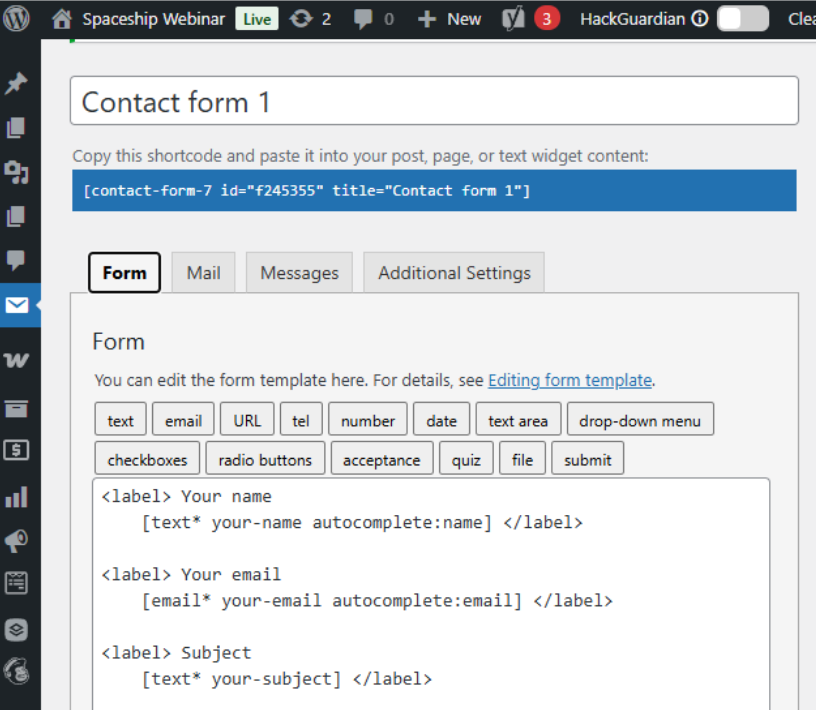
Antes de empezar a personalizar, necesitas saber qué selectores CSS apuntan a los elementos de tu formulario.
Cada formulario de Contact Form 7 está envuelto en una clase única: .wpcf7
Elementos individuales como campos de entrada, áreas de texto y botones de envío usan etiquetas HTML estándar
Paso 2: Añade CSS personalizado a tu sitio WordPress
Puedes añadir CSS de dos formas principales:
A través del Personalizador:
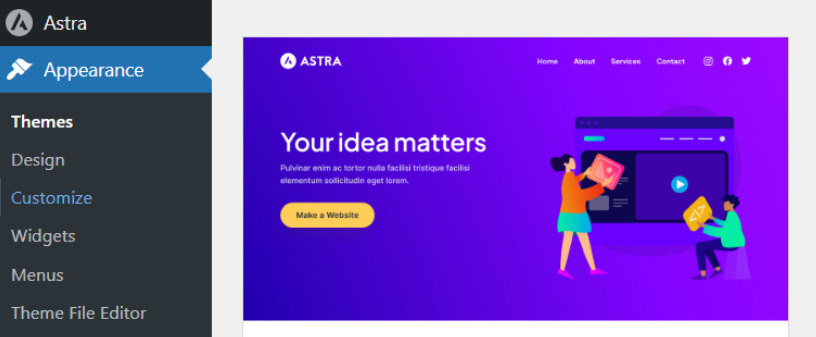
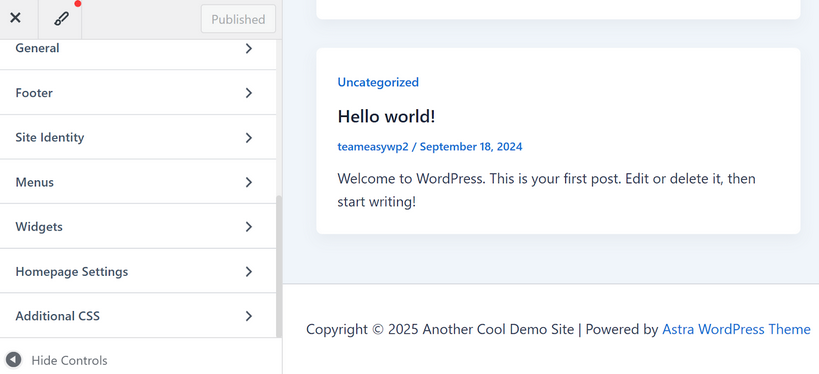
Ve a Apariencia > Personalizar > CSS adicional y pega tus estilos.
NOTA: Agrega tu CSS al archivo style.css de tu tema hijo para personalizaciones más avanzadas.
Paso 3: Escribe tu CSS personalizado
Aquí tienes algunos ejemplos comunes para empezar, usando los componentes “text” y “submit” del formulario como ejemplo:
Personaliza todos los formularios de Contact Form 7
.wpcf7 input[type="text"],
.wpcf7 textarea {
border: 2px solid #0073e6;
padding: 10px;
width: 100%;
font-size: 1em;
}
.wpcf7 input[type="submit"] {
background: #0073e6;
color: #fff;
border: none;
padding: 12px 30px;
font-size: 1em;
cursor: pointer;
transition: background 0.2s;
}
.wpcf7 input[type="submit"]:hover {
background: #005bb5;
}
Las pseudoclases en CSS, como :hover, te permiten personalizar elementos según su estado o la interacción del usuario. Por ejemplo, la pseudoclase :hover aplica estilos cuando el usuario pasa el cursor sobre un botón o campo. Esto se usa comúnmente para resaltar botones o cambiar su color al pasar el ratón, haciendo tus formularios más interactivos y atractivos visualmente. Otras pseudoclases útiles incluyen :focus (cuando un campo está seleccionado) y :active (cuando un elemento está siendo pulsado). Usar pseudoclases ayuda a mejorar la experiencia del usuario al proporcionar retroalimentación inmediata mientras interactúan con tu formulario.
Apunta a un formulario específico
Cada formulario tiene un ID único, como #wpcf7-f123-o1. Úsalo para personalizar solo ese formulario:
#wpcf7-f123-o1 input[type="text"] {
background: #f9f9f9;
}
Reemplaza f123-o1 con el ID real de tu formulario. Puedes encontrar el ID único de tu formulario viendo la página donde está incrustado el formulario de Contact Form 7, haciendo clic derecho sobre el formulario y seleccionando “Inspeccionar” (o “Inspeccionar elemento”) en tu navegador. Busca el <div> con la clase .wpcf7; el ID aparecerá como algo similar a id="wpcf7-f123-o1" en el código HTML. Usa este ID en tu selector CSS para personalizar solo ese formulario específico.
Paso 4: Usa las clases integradas de Contact Form 7
Contact Form 7 añade automáticamente clases a los elementos, facilitando aún más la personalización. Por ejemplo:
.wpcf7-form-control – Todos los controles del formulario
.wpcf7-submit – El botón de envío
También puedes añadir tus propias clases en el editor de formularios para tener aún más control.
Ejemplo
.wpcf7-form-control.wpcf7-text {
border-radius: 5px;
}
.wpcf7-submit {
font-weight: bold;
letter-spacing: 1px;
}
Paso 5: Previsualiza y ajusta
Después de guardar tu CSS, actualiza tu sitio para ver los cambios. Usa la herramienta de inspección de tu navegador para ajustar los estilos en tiempo real antes de copiarlos en tu sitio. Asegúrate de limpiar la caché de tu sitio web después de hacer cambios para que las actualizaciones sean visibles para los visitantes.
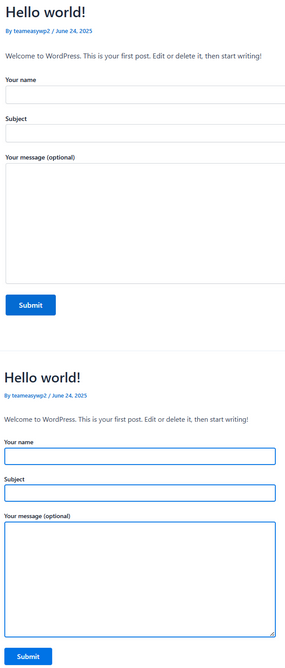
Aquí tienes ejemplos de antes y después de un formulario en un sitio web de demostración, donde usamos el código CSS del Paso 3 para que los cuadros alrededor de cada campo del formulario sean azules.
Consejos rápidos para un mejor diseño de formularios
Hazlo accesible: Asegúrate de que haya buen contraste de color y tamaños de fuente legibles
Usa espaciado: Añade relleno y márgenes para un aspecto limpio y ordenado
Resalta los errores: Personaliza los mensajes de error con un color claro (como rojo) para ayudar a los usuarios a corregir errores
Prueba en móvil: Asegúrate de que tus formularios se vean bien en todos los dispositivos
Solución de problemas
Si tus estilos no aparecen, prueba estos pasos:
Limpia la caché de tu navegador y de tu sitio – A veces los archivos en caché impiden que se muestre el nuevo CSS. Si usas un plugin de caché o alojamiento gestionado, limpia también esas cachés.
Revisa problemas de especificidad en CSS – Si tus estilos no se aplican, intenta hacer tus selectores más específicos para sobrescribir los estilos existentes.
Asegúrate de editar el archivo o sección CSS correcto – Verifica que estés agregando tu código en el lugar correcto, como el panel de CSS adicional, el style.css de tu tema hijo o un plugin de CSS personalizado.
Revisa las clases CSS por errores o faltas de ortografía – Busca nombres de clase mal escritos, espacios innecesarios o el uso accidental de la clase incorrecta. Además, verifica que la clase que estás personalizando realmente exista en el HTML de tu formulario.
Revisa clases duplicadas o en conflicto – Asegúrate de que la clase que usas no esté ya aplicada en otro lugar con estilos diferentes que puedan sobrescribir tus cambios.
Sigue las mejores prácticas generales – Usa nombres claros y consistentes para tus clases, termina cada regla CSS con un punto y coma y cierra siempre los bloques de código con una llave (}).
Revisar cuidadosamente tu código en busca de estos problemas comunes te ayudará a asegurarte de que tus estilos personalizados se muestren correctamente en tu sitio.
Ejemplo: CSS personalizado completo para un formulario de Contact Form 7
.wpcf7 input[type="text"],
.wpcf7 input[type="email"],
.wpcf7 textarea {
border: 1px solid #ccc;
border-radius: 4px;
padding: 8px 12px;
margin-bottom: 16px;
width: 100%;
box-sizing: border-box;
}
.wpcf7 input[type="submit"] {
background-color: #28a745;
color: white;
border: none;
border-radius: 4px;
padding: 10px 24px;
font-size: 1.1em;
cursor: pointer;
}
.wpcf7 input[type="submit"]:hover {
background-color: #218838;
}
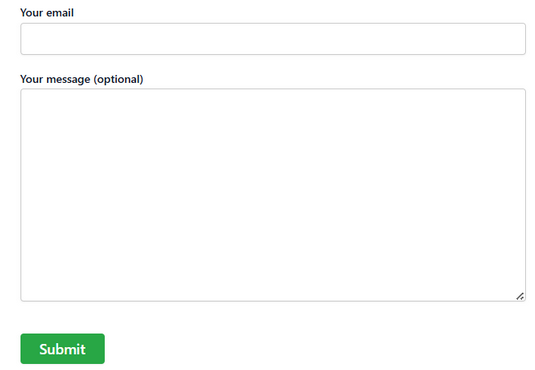
Aquí tienes un ejemplo de un formulario personalizado con el código CSS anterior. Este código CSS personaliza la apariencia de varios elementos clave en tu formulario de Contact Form 7. Aplica a todos los campos de texto, campos de correo electrónico y áreas de texto, dándoles un borde gris claro, esquinas redondeadas, un relleno cómodo y un ancho consistente para un aspecto limpio y moderno.
El código también personaliza el botón de envío con un fondo verde, texto blanco, bordes redondeados y una fuente en negrita y fácil de leer. Cuando los usuarios pasan el cursor sobre el botón de envío, el fondo se vuelve de un verde más oscuro, proporcionando retroalimentación interactiva.
Añadir CSS: temas clásicos vs temas de bloques
Los pasos de esta guía para personalizar los formularios de Contact Form 7 con CSS están diseñados para Temas Clásicos en WordPress. Los Temas Clásicos, como el popular Astra, usan el Personalizador, donde puedes añadir fácilmente CSS personalizado en la sección “CSS adicional”. Esto facilita personalizar tus formularios y ver los cambios en vivo.
Sin embargo, si tu sitio usa un Tema de Bloques (a veces llamado tema de Edición Completa del Sitio o FSE), el proceso es diferente. Los Temas de Bloques no siempre incluyen el Personalizador ni el campo “CSS adicional” por defecto. En su lugar, usas el Editor del Sitio para hacer cambios de diseño. Aunque puedes ajustar estilos globales para colores, tipografía y diseño, añadir CSS personalizado arbitrario no siempre está disponible en la interfaz.
Qué hacer si usas un Tema de Bloques
Abre tu panel de WordPress y ve a Apariencia > Editor (el Editor del Sitio).
En el Editor del Sitio, busca el panel de Estilos (el icono de círculo medio sombreado).
Algunos Temas de Bloques ahora ofrecen una opción de “CSS adicional” en el panel de Estilos, pero esto depende de tu tema y versión de WordPress.
Si no ves una opción para añadir CSS personalizado, puedes usar un plugin como WPCode para añadir CSS personalizado en todo el sitio. WPCode es fácil de usar para principiantes y funciona con cualquier tema, asegurando que puedas personalizar tus formularios incluso si tu tema no permite editar CSS directamente en la interfaz. Ten en cuenta que instalar este plugin puede afectar el estilo de otros formularios ya existentes en tu sitio web.
Recursos adicionales
Personalizar tus formularios de Contact Form 7 es una forma sencilla pero poderosa de mejorar la experiencia de usuario en tu sitio. Con solo unas líneas de CSS, puedes hacer que tus formularios luzcan y se sientan como una parte natural de tu marca.